Configure Monday.com as a data pipeline source
Set up Monday.com as a data pipeline source to extract and sync boards, items, and subitems, along with users, teams, tags, workspaces, updates, and activity logs, from Monday.com to your destination.
Use this guide to review the features and prerequisites, connect Monday.com as a data pipeline source, configure the pipeline, and understand the supported objects, sync modes, schema handling, sensitive data handling, and known limitations.
Features supported
The following features are supported when you use Monday.com as a pipeline source:
- Cloud connectivity: Connects to the Monday.com GraphQL API over HTTPS. An on-prem agent isn't required.
- Object-level selection: Choose from
Boards,Items,Subitems, and account objects. Refer to Supported objects for the full list. - Incremental sync:
Activity Logssyncs incrementally based on each event'screated_attimestamp. Refer to Incremental sync for more information. - Delete tracking: Mark boards, items, and other full-sync records you delete in Monday.com as deleted in your destination on the next sync. Refer to Delete tracking for more information.
- Schema drift detection and handling: Detect and apply schema changes automatically with Auto-sync new fields, or keep the schema fixed with Block new fields.
- Field-level data protection: Hash or replicate sensitive fields as is before the data reaches your destination.
- Configurable sync frequency: Schedule syncs on a time-based interval or with a cron expression. The minimum supported interval is 15 minutes.
Prerequisites
Connecting Monday.com as a data pipeline source requires:
- A Monday.com account with access to the boards you plan to sync.
- Credentials for your chosen authentication method:
- OAuth 2.0: A Monday.com app and a custom OAuth profile built from that app's client ID and client secret. Refer to Create a Monday.com OAuth app and custom OAuth profile for setup steps.
- API v2 Token: A Monday.com personal API token. Refer to Generate a Monday.com API token for setup steps.
RECOMMENDED PLAN
Workato recommends a Monday.com Pro or Enterprise plan. Monday.com limits the number of API calls an account can make each day, and full syncs of Items on large boards can exceed the daily limit on lower plans. Refer to Daily API call limit for more information.
Supported connection types
Monday.com data pipelines support the following authentication methods:
- OAuth 2.0: Authorize Workato using a custom OAuth profile built from a Monday.com app that you create. Refer to Create a Monday.com OAuth app and custom OAuth profile for setup steps.
- API v2 Token: Authenticate with a personal API token from your Monday.com account. The pipeline syncs only the boards and data the token owner can access in Monday.com.
Generate a Monday.com API token
Complete the following steps to retrieve a personal API token for API v2 Token authentication. Skip this section if you plan to use OAuth 2.0:
Log in to your Monday.com account.
Click your profile picture in the upper right corner of the screen.
Select Developers. The Developer Center opens in a new tab.
Click API token, then click Show.
Copy your personal API token and store it securely. You must provide this token when you create the connection in Workato.
Monday.com admins can also copy the token from Administration > Connections > Personal API token. Refer to the Monday.com Authentication documentation for more information.
Connect to Monday.com
Complete the following steps to connect Monday.com as a data pipeline source:
Connect to Monday.com
Configure the pipeline
Complete the following steps to configure Monday.com as your data pipeline source:
Select Create > Data pipeline or press C+I.
Enter a name for the data pipeline in the Data pipeline name field.
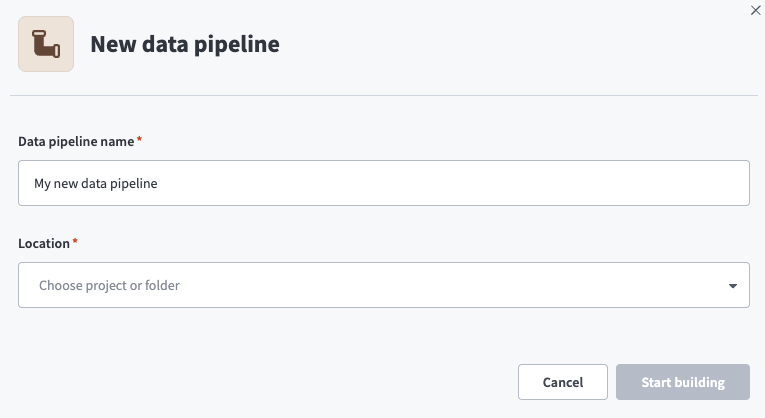 Data pipeline setup
Use the Location drop-down menu to select the project where you plan to store the data pipeline.
Click Start building.
Click the Extract new/updated records from source app trigger. This trigger defines how the pipeline retrieves data from Monday.com.
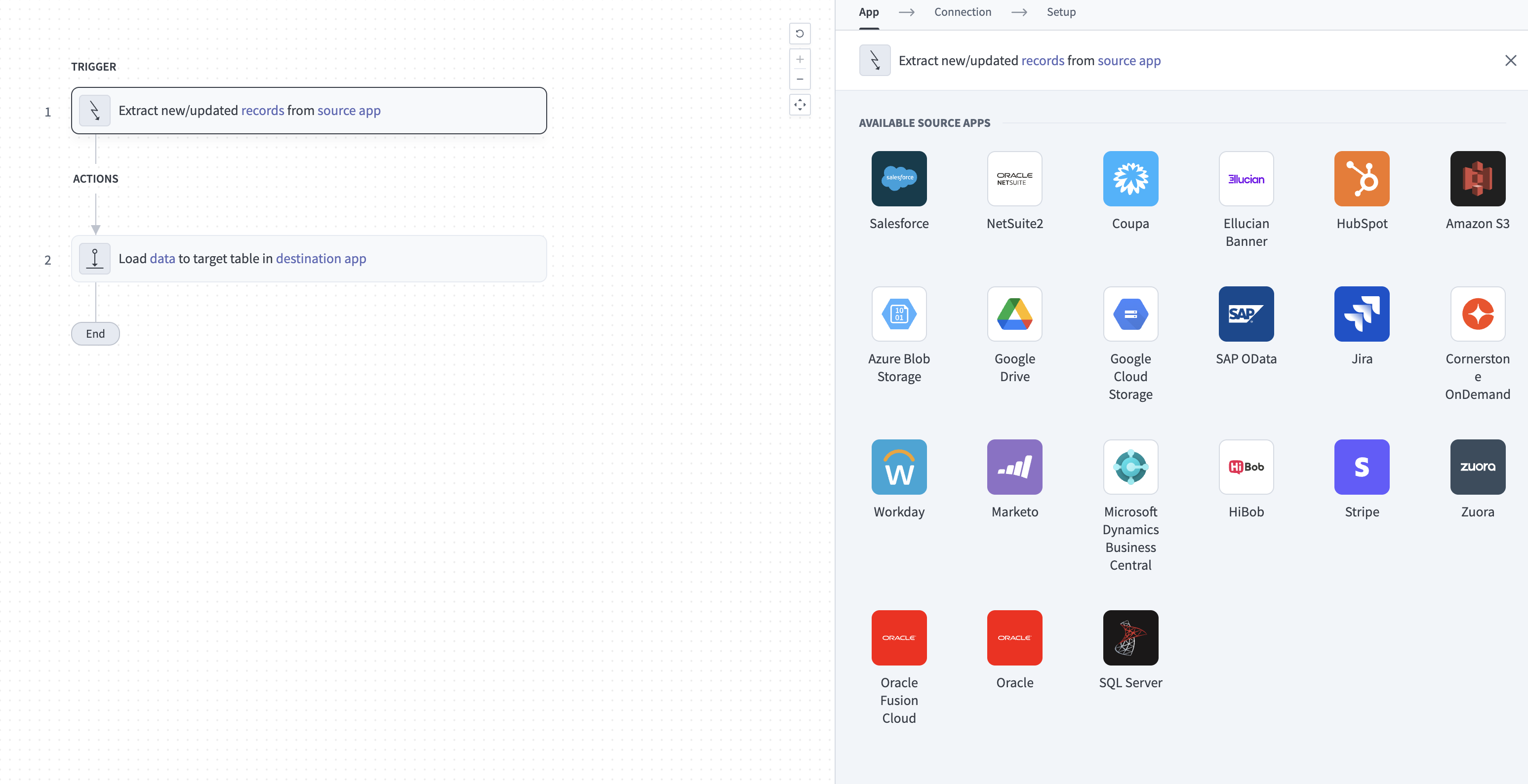 Configure the Extract new/updated records from source app trigger
Use the Your Connected Source Apps drop-down menu to select Monday.com.
Choose the Monday.com connection you plan to use for this pipeline. Alternatively, click + New connection to create a new connection.
Click Add object to open the Add new objects panel.
Search or browse the list of available Monday.com objects, select the objects you plan to sync, and click Add.
Review and customize the schema for each selected object. The pipeline automatically fetches an object's schema when you select it. This ensures the destination matches the source.
Expand an object to view associated fields. Keep all fields selected to extract all available data, or deselect specific fields to exclude them from data extraction and schema replication.
Optional. Configure field-level data protection by expanding an object and choosing how to handle each field:
- Replicate as is: Data values at the source replicate identically to the destination.
- Hash: Hash sensitive data values in the field before syncing to your destination.
Workato recommends hashing personally identifiable information (PII) and other sensitive fields. Refer to Sensitive data handling for a list of fields that commonly contain PII.
Click Add object again to add more objects. Repeat this step to include additional Monday.com objects in your pipeline.
Use the Choose how to handle schema changes drop-down menu to select a schema drift handling option:
- Auto-sync new fields: Automatically detects and syncs new fields added in the source.
- Block new fields: Keeps the schema fixed after the pipeline starts. You must add new fields manually. This option may cause the destination to fall out of sync if the source schema updates.
Refer to Schema replication and schema drift management for more information.
Optional. Enter a value in the Concurrency limit field to cap the number of concurrent operations. Leave the field blank to use the default limit set by Workato. The maximum value for Monday.com is 10, although the field hint may show a higher limit.
Choose either a standard time-based schedule or define a custom cron expression in the Frequency field. This determines how often the pipeline syncs data from Monday.com to the destination.
Supported objects
Monday.com data pipelines sync data from the Monday.com GraphQL API. The following tables list the supported objects, grouped by category. Each object syncs as a separate table in your destination:
Board objects
Boards includes active, archived, and deleted boards. Items and Subitems contain the rows from every board the connection can access, including archived boards. Monday.com stores subitems on a hidden board for each board that has subitems, so Boards also contains one row for each of these subitem boards. Refer to Subitem boards for more information.
| Object | Sync mode(s) | Delete tracking |
|---|---|---|
Boards | Full sync | Yes |
Items | Full sync | Yes |
Subitems | Full sync | Yes |
Account objects
Users includes active, inactive, and pending users.
| Object | Sync mode(s) | Delete tracking |
|---|---|---|
Users | Full sync | Yes |
Teams | Full sync | Yes |
Tags | Full sync | Yes |
Workspaces | Full sync | Yes |
Activity objects
Updates contains the updates posted on items, with the ID and body of each reply in the replies column. Activity Logs contains the activity log events for every board the connection can access, including archived boards.
| Object | Sync mode(s) | Delete tracking |
|---|---|---|
Updates | Full sync | Yes |
Activity Logs | Full sync, incremental | No |
Sync modes
Monday.com data pipelines support full sync and incremental sync. Refer to the Supported objects tables to see the sync modes for each object.
Full sync
A full sync reads all records for the selected object from Monday.com on every run and updates your destination table to match. Board objects and account objects support full sync only, because the Monday.com API doesn't offer a way to request only changed records for these objects. Updates also supports full sync only. Items and Subitems read every board the connection can access on each run.
Incremental sync
Activity Logs filters events by the created_at timestamp. Each incremental sync reads events created after the previous successful sync started. The pipeline can re-read events at the boundary of the previous sync, and your destination deduplicates re-read rows by primary key.
Delete tracking
Delete tracking depends on the object:
- Full-sync objects:
Yes. Workato marks records you delete in Monday.com as deleted in your destination on the next full sync. A deleted board remains inBoardswith astatevalue ofdeleteduntil Monday.com permanently removes it. Activity Logs:No. Monday.com doesn't remove activity log events.
Schema and data type handling
The following considerations apply to schema and data types when you sync data from Monday.com:
Column values
Monday.com boards can have any combination of customer-defined columns, so each board has a different set of columns. Items and Subitems store all of a row's column values in the column_values column instead of creating one destination column for each board column. Each entry contains the column's id, its display text, and its raw value.
Use the columns column in Boards to interpret column_values. It contains each board's column definitions, including the column ID, title, type, and settings. Join Items or Subitems to Boards on board_id to match each row to its board's column definitions. For subitems, board_id contains the ID of the hidden subitem board, which holds the subitem column definitions.
Subitem boards
Monday.com creates a hidden board named Subitems of <parent board> to store subitems. These boards appear in Boards as ordinary boards, and their name prefix is the only way to identify them. Rows from these boards sync to Subitems, not Items. The parent_item_id column in Subitems contains the ID of the parent item.
Activity log data
The entity column in Activity Logs identifies what the event applies to: board for a board or pulse for an item. The event column contains the event type, and the data column contains the event payload. For item events, the payload includes the item ID, which isn't available in a separate column. Workato adds a board_id column that contains the ID of the board the event belongs to.
Timestamps
Most timestamp fields, such as created_at and updated_at, sync as timestamps with time zone. The created_at column in Activity Logs is an exception. It syncs as a 17-digit string in the format Monday.com returns it. Divide the value by 10,000,000 to convert it to Unix epoch seconds.
Nested fields
Nested objects and arrays, such as columns, groups, owners, and workspace on Boards, column_values on Items and Subitems, replies and assets on Updates, data on Activity Logs, photo_url on Users, users on Teams, and the subscriber columns on Workspaces, sync as JSON objects. Workato stores them in your destination's native JSON type, such as VARIANT in Snowflake, and serializes them to strings only when the destination doesn't have a native JSON type.
Attachments
The assets column in Updates contains file metadata, such as the asset ID and file name. Workato doesn't download attachment files.
Sensitive data handling
Monday.com objects can contain personally identifiable information (PII) about your users and any customer data your teams store on boards. The following objects commonly contain sensitive fields:
| Object | Sensitive fields |
|---|---|
Users | name, email, phone, mobile_phone, photo_url |
Items | name, column_values |
Subitems | name, column_values |
Updates | body, text_body, replies |
Activity Logs | data |
column_values can contain email addresses, phone numbers, and free text, depending on how each board is configured. Item names often contain customer or contact names on CRM-style boards. The data column in Activity Logs contains item column values, so it can hold the same information as column_values. Update text and replies can contain any information users share in discussion threads.
Use the Hash option in field-level data protection during pipeline configuration to protect PII before it reaches your destination. Refer to the Configure the pipeline steps for more information.
Limitations
The following limitations apply when you use Monday.com as a data pipeline source:
Daily API call limit
Monday.com limits the number of API calls each account can make per day. The limit resets at midnight UTC and depends on your plan. Refer to the Monday.com Rate limits documentation for the limit on each plan.
Items and Subitems use the most calls, because the pipeline makes about one call for every 500 items on each board during every full sync. Each of these objects reads every board separately, so selecting both doubles the calls. Activity Logs also reads every board on each run and makes at least one call per board. The pipeline run fails with an error if your account reaches its daily limit. The next scheduled run after the reset syncs the data.
Activity log retention
Monday.com retains activity log events for a period that depends on your plan, and returns no events older than that period. Refer to the Monday.com Activity log documentation for the retention period on each plan.
The first sync of Activity Logs picks up only the events your plan still retains. If a pipeline doesn't run for longer than your plan's retention period, events created during that gap are lost and the sync completes without an error. Schedule syncs more frequently than your plan's retention period to avoid gaps.
Minimum sync frequency
The minimum supported sync interval is 15 minutes.
Last updated: