Configure Outreach as a data pipeline source
Set up Outreach as a data pipeline source to extract Outreach records, such as prospects, accounts, opportunities, and sequence activity, and sync them to your destination.
Use this guide to connect Outreach as a data pipeline source, configure the pipeline, and understand the supported objects, sync modes, schema handling, and limitations.
Features supported
The following features are supported when you use Outreach as a pipeline source:
- Cloud connectivity: Connects to the Outreach REST API over https. No on-prem agent is required.
- Incremental sync: Extracts only new and updated records after the first sync for most objects.
- Custom objects: Discovers and syncs custom objects defined in your Outreach organization.
- Object-level selection: Choose which Outreach objects and fields to include in your pipeline.
- Field-level data protection: Hash or replicate sensitive fields as is before the data reaches your destination.
- Schema drift detection and handling: Detect and apply schema changes automatically with Auto-sync new fields, or keep the schema fixed with Block new fields.
- Configurable sync frequency: Schedule syncs on a time-based interval or with a cron expression. The minimum supported interval is 15 minutes.
Prerequisites
Complete the following requirements before you configure Outreach as a data pipeline source.
- An Outreach account
- An Outreach user with access to the objects you plan to sync
Supported connection types
Outreach data pipelines support one authentication method:
- OAuth 2.0 (authorization code grant): Sign in with an Outreach user account to authorize Workato. The connection requests read-only access to your Outreach data.
Connect to Outreach
Complete the following steps to connect to Outreach:
Connect to Outreach
The Outreach connector uses OAuth 2.0 authentication.
Complete the following steps to connect to Outreach in Workato:
Click Create > Connection.
Search for Outreach and select it as your app.
Enter a name for your connection in the Connection name field.
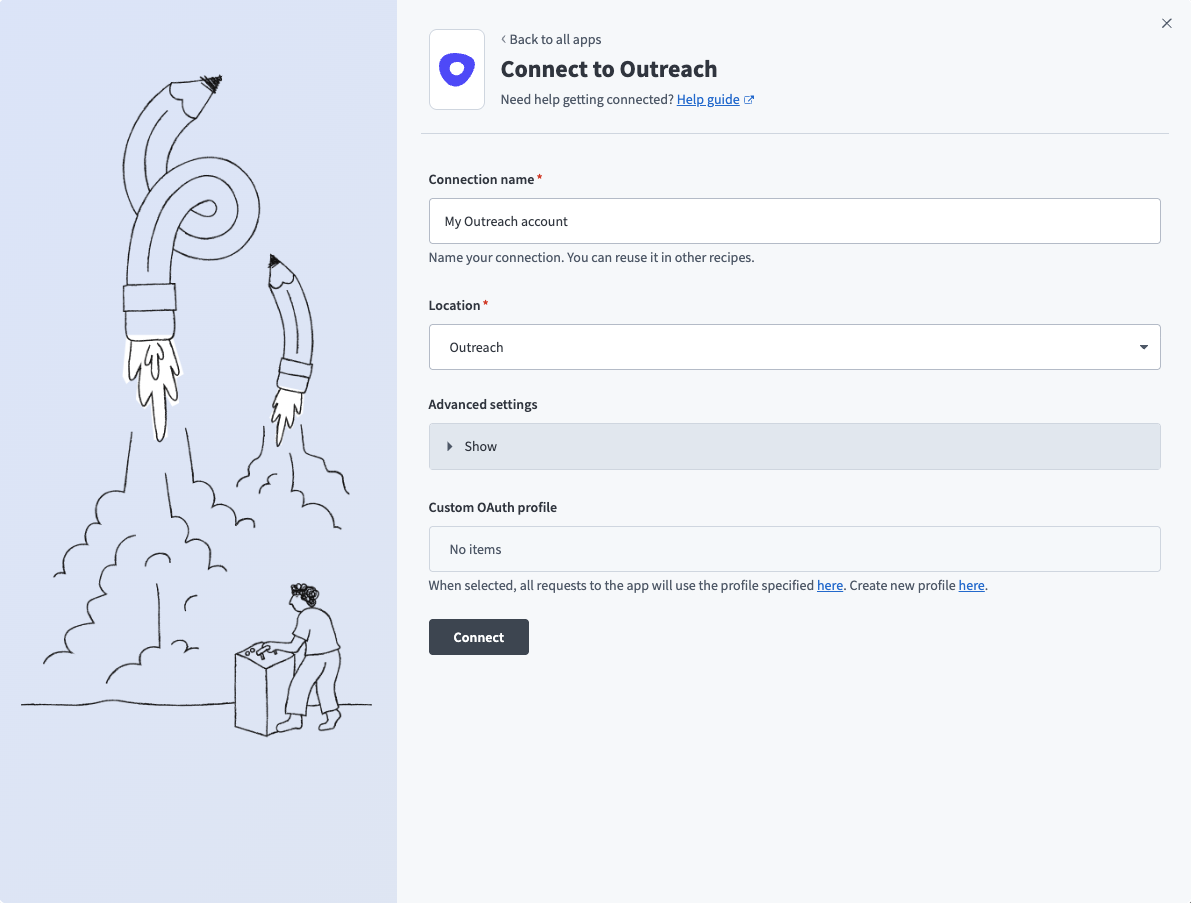 Set up your Outreach connection
Use the Location drop-down menu to select the project where you plan to store the connection.
Optional. Expand the Advanced settings section to configure Requested permissions (OAuth scopes) for your connection.
Optional. Use the Custom OAuth profile drop-down menu to select a custom OAuth profile for your connection.
OAUTH PRIVILEGES
The Outreach connection inherits permissions from the user who authenticates it. Workato recommends that you create an integration user for Workato on the Outreach platform. This prevents the connection from being tied to a physical user.
Click Connect.
Sign in to your Outreach account.
Configure the pipeline
Complete the following steps to configure Outreach as your data pipeline source:
Select Create > Data pipeline or press C+I.
Enter a name for the data pipeline in the Data pipeline name field.
 Data pipeline setup
Use the Location drop-down menu to select the project where you plan to store the data pipeline.
Click Start building.
Click the Extract new/updated records from source app trigger. This trigger defines how the pipeline retrieves data from Outreach.
 Configure the Extract new/updated records from source app trigger
Use the Your Connected Source Apps drop-down menu to select Outreach.
Choose the Outreach connection you plan to use for this pipeline. Alternatively, click + New connection to create a new connection.
Click Add object to open the Add new objects panel.
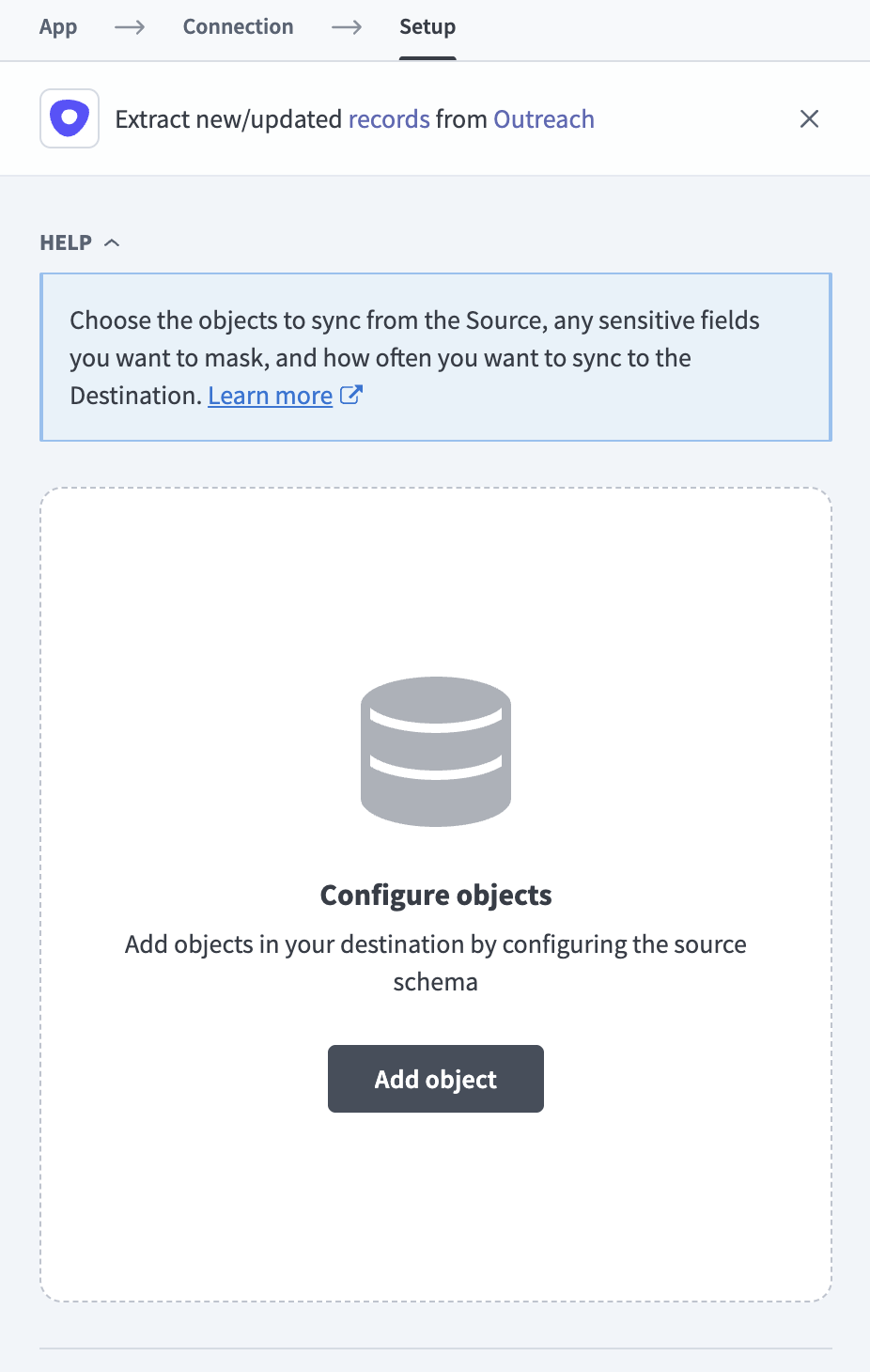 Add objects
Search or browse the list of available Outreach objects, select the objects you plan to sync, and click Add.
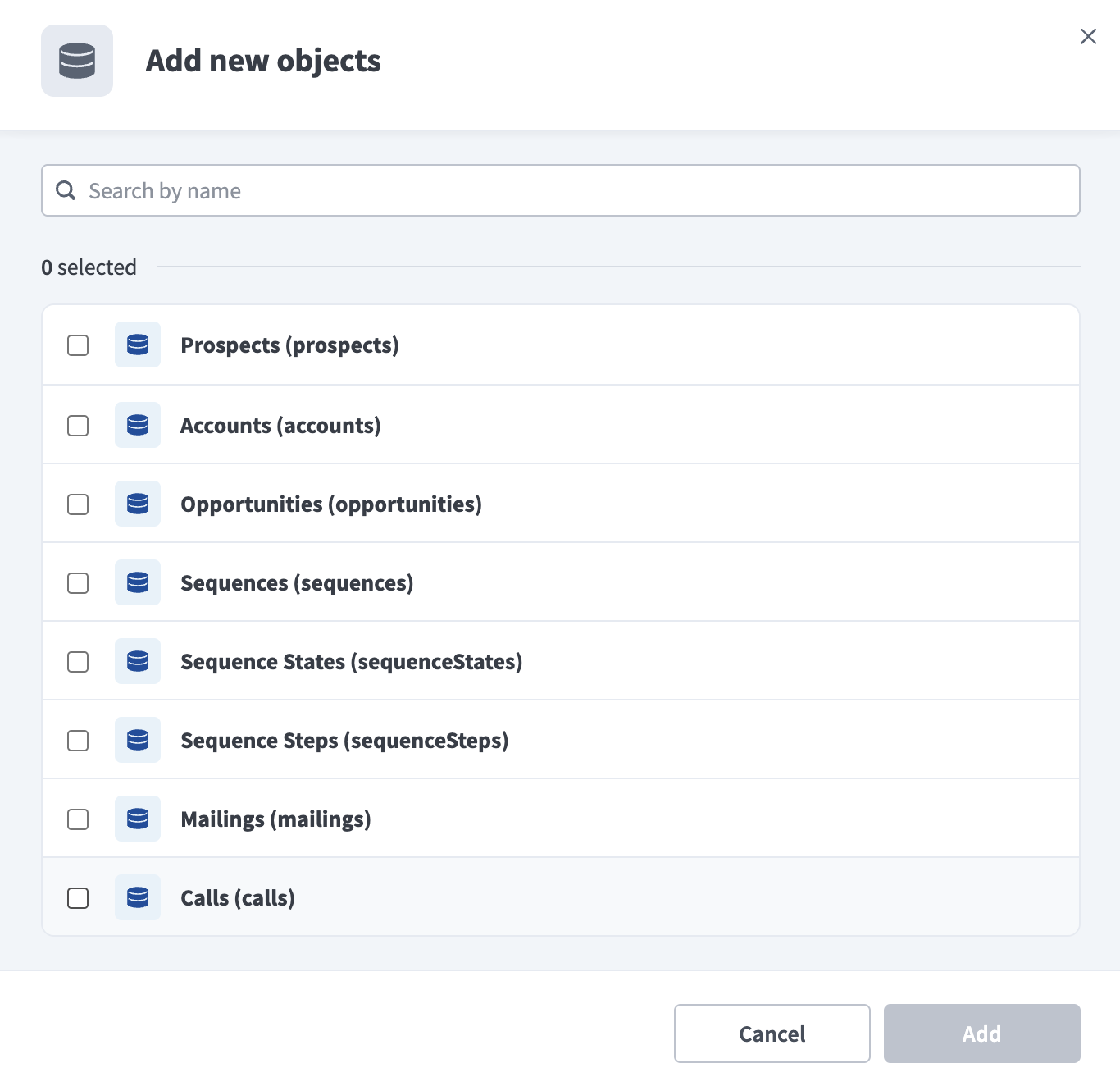 Select objects
SYNC MODES
Objects that don't support incremental sync re-extract all records on every run. Refer to Sync modes for more information.
Review and customize the schema for each selected object. The pipeline automatically fetches an object's schema when you select it. This ensures the destination matches the source.
Expand an object to view associated fields. Keep all fields selected to extract all available data, or deselect specific fields to exclude them from data extraction and schema replication.
Optional. Configure field-level data protection by expanding an object and choosing how to handle each field:
- Replicate as is: Data values at the source replicate identically to the destination.
- Hash: Hash sensitive data values in the field before syncing to your destination.
Workato recommends hashing personally identifiable information (PII) and other sensitive fields. Refer to Sensitive data handling for a list of fields that commonly contain PII.
Click Add object again to add more objects. Repeat this step to include additional Outreach objects in your pipeline.
Use the Choose how to handle schema changes drop-down menu to select a schema drift handling option:
- Auto-sync new fields: Automatically detects and syncs new fields added in the source.
- Block new fields: Keeps the schema fixed after the pipeline starts. You must add new fields manually. This option may cause the destination to fall out of sync if the source schema updates.
Refer to Schema replication and schema drift management for more information.
Optional. Enter a value in the Concurrency limit field to cap the number of concurrent operations. Leave the field blank to use the default quota set by Workato. The maximum value is 100.
Choose either a standard time-based schedule or define a custom cron expression in the Frequency field. This determines how often the pipeline syncs data from Outreach to the destination.
This start date applies only to objects that support incremental sync. Full-sync objects extract their complete available record set.
Supported objects
Outreach data pipelines sync data from Outreach REST API resources. The following tables list the supported objects, grouped by category. Each object syncs as a separate table in your destination.
Prospects and accounts
| Object | Sync modes | Notes |
|---|---|---|
prospects | Full sync, incremental | Custom field data syncs in the _workato_custom_fields_data column. Refer to Custom fields. |
accounts | Full sync, incremental | Custom field data syncs in the _workato_custom_fields_data column. |
emailAddresses | Full sync, incremental | |
phoneNumbers | Full sync, incremental | |
personas | Full sync, incremental | |
stages | Full sync, incremental |
Opportunities
| Object | Sync modes | Notes |
|---|---|---|
opportunities | Full sync, incremental | Custom field data syncs in the _workato_custom_fields_data column. |
opportunityStages | Full sync, incremental | |
opportunityProspectRoles | Full sync, incremental |
Sequences and content
| Object | Sync modes | Notes |
|---|---|---|
sequences | Full sync, incremental | |
sequenceStates | Full sync, incremental | |
sequenceSteps | Full sync, incremental | |
sequenceTemplates | Full sync | |
templates | Full sync, incremental | |
snippets | Full sync, incremental | |
recipients | Full sync | |
mailings | Full sync, incremental |
Calls and tasks
| Object | Sync modes | Notes |
|---|---|---|
calls | Full sync, incremental | Call recordings sync as URLs only. The pipeline doesn't extract audio content. |
callDispositions | Full sync, incremental | |
callPurposes | Full sync, incremental | |
tasks | Full sync, incremental | |
taskPriorities | Full sync, incremental |
Users and workspace
| Object | Sync modes | Notes |
|---|---|---|
users | Full sync, incremental | Custom field data syncs in the _workato_custom_fields_data column. |
teams | Full sync, incremental | |
mailboxes | Full sync, incremental | SMTP and IMAP credentials are excluded from sync. |
Custom objects
Outreach data pipelines automatically discover the custom objects defined in your Outreach organization and make them available in the Add new objects panel. Custom objects sync incrementally when Outreach reports the object's updatedAt field as filterable and sortable. Otherwise, the object re-extracts all records on every run.
Sync modes
Outreach data pipelines support full sync and incremental sync. The pipeline determines the sync mode for each object automatically.
Full sync
Full sync extracts all records for an object. The first run of every object performs a full sync, starting from the date you set in the When first started, this pipeline should pick up records from field. The pipeline extracts all available records if you leave the field blank.
Incremental sync
After the first sync completes, the pipeline extracts only records that were created or updated since the last successful sync. The pipeline tracks changes using each record's updatedAt timestamp.
Refer to the Supported objects tables to view the incremental mechanism for each object.
Schema and data type handling
The pipeline replicates each Outreach object's schema to your destination and maps Outreach data types to destination column types.
Primary keys and relationships
Each destination table uses the Outreach record id as its primary key. Relationships to other records sync as ID reference columns, such as accountId on the prospects object. The related records themselves sync as their own objects. Select each object you plan to sync when you configure the pipeline.
Timestamps
Outreach timestamps sync as timestamp with time zone values and preserve the source's ISO 8601 UTC format.
Array fields
Fields that contain multiple values, such as a prospect's list of email addresses, sync as JSON in a single column.
Workato syncs JSON fields to the destination's native JSON type, such as VARIANT in Snowflake. Workato serializes JSON fields as strings if the destination doesn't support a native JSON type.
Custom fields
Outreach provides numbered custom fields (custom1 through custom150) on the prospects, accounts, and opportunities objects, and custom1 through custom5 on the users object. The pipeline syncs all populated custom field values into a single _workato_custom_fields_data column as a JSON object.
Each key in the JSON object combines the field number with the field's label in Outreach. Keys fall back to the bare field number, such as custom1, when the field has no label. All custom field values sync as strings.
Sensitive data handling
Outreach objects can contain personally identifiable information (PII) and communication content. The following objects commonly contain sensitive data:
| Object | Sensitive data |
|---|---|
prospects | Names, email addresses, phone numbers, and other contact details |
users | Names, email addresses, and profile details |
mailings | Email subject and body content |
calls | Call notes and recording URLs |
mailboxes | Mailbox owner details and configuration |
The pipeline doesn't sync mailbox SMTP or IMAP credentials. Call recordings sync as URLs only. The pipeline doesn't extract audio content.
Use the Hash option in field-level data protection during pipeline configuration to protect PII before it reaches your destination. Refer to the Configure the pipeline steps for more information.
Limitations
The following limitations apply when you use Outreach as a data pipeline source:
Deleted records
The pipeline can't detect deletions for objects that sync incrementally. The Outreach REST API doesn't expose deleted records to a read client, so an incremental sync extracts only records changed since the last run and doesn't see a deleted record. This applies to both soft deletes (Outreach's Recycle Bin) and hard deletes.
As a result, a record deleted in Outreach remains in your destination with its last-synced values, and an incremental sync doesn't remove it or flag it as deleted.
Objects that sync in full each run, such as sequenceTemplates and recipients, do support delete tracking. Refer to Sync modes to see which objects sync incrementally.
Minimum sync frequency
The minimum supported sync interval is 15 minutes.
Last updated: