Configure PagerDuty as a data pipeline source
Set up PagerDuty as a data pipeline source to extract incident, on-call, and incident analytics data from the PagerDuty REST API and sync it to your destination.
Use this guide to review the prerequisites, generate a PagerDuty API key, connect PagerDuty as a data pipeline source, configure the pipeline, and understand the supported objects, sync modes, schema and data type handling, sensitive data handling, and limitations.
Features supported
The following features are supported when you use PagerDuty as a pipeline source:
- Cloud connectivity: Connect to PagerDuty over HTTPS through
https://api.pagerduty.com. On-prem agents aren't required. - Object-level selection: Choose which PagerDuty objects to sync to your destination.
- Full sync, incremental sync, and append-only sync: Supports full sync, incremental sync, and append-only sync, configured for each object. Refer to Sync modes for more information.
- Schema drift detection and handling: Detect and apply schema changes automatically with Auto-sync new fields, or keep the schema fixed with Block new fields.
- Field-level data protection: Hash or replicate sensitive fields as is before the data reaches your destination.
- Configurable sync frequency: Schedule syncs on a time-based interval or with a cron expression. The minimum supported interval is 15 minutes.
Prerequisites
Connecting PagerDuty as a data pipeline source requires:
- A PagerDuty account
- Credentials for your chosen authentication method:
- API key: A read-only PagerDuty General access API key. Refer to Generate a PagerDuty API key for setup steps.
- Optional. A Business or higher PagerDuty plan to sync
Audit Records,Analytics Raw Incidents, andAnalytics Metrics Incidents. PagerDuty offersIncident Workflowson Business and Enterprise plans, with limited availability on Professional plans. Refer to Limitations for more information.
REQUIRED PERMISSIONS
Workato recommends a General access API key scoped to read-only access for data extraction only. This is the same key type PagerDuty's existing Workato connector for recipes and automations uses, but that connector requires read and write permissions. Don't reuse a read/write key for your data pipeline connection.
Generate a PagerDuty API key
Complete the following steps to generate a read-only PagerDuty General access API key in your PagerDuty account:
Go to Integrations > Developer Tools > API Access Keys in your PagerDuty account and click Create New API Key.
Enter a description that identifies the key, such as Workato data pipeline.
Select the Read-only API key checkbox.
Copy the generated API key and store it in a secure location. You need this value to create the Workato connection.
USE A READ-ONLY KEY
A read/write API key grants your data pipeline connection more access than it needs. Select the Read-only API key checkbox when you generate the key to limit the connection to read access only.
Permissions
You must have an Admin, Global Admin, or Account Owner role in PagerDuty to create an API key. Contact an Admin or Account Owner in your organization to create this key if you don't have one of these roles.
Supported connection types
PagerDuty data pipelines support one authentication method:
- API key: Provide a read-only General access API key generated from your PagerDuty account. Refer to Generate a PagerDuty API key for setup steps.
Personal API keys aren't supported, because they're scoped to individual user permissions and can't guarantee account-wide read access. OAuth 2.0 isn't currently supported for PagerDuty data pipelines.
Connect to PagerDuty
Connect to PagerDuty
Complete the following steps to connect to PagerDuty in Workato:
Select Create > Connection or press C twice.
Search for PagerDuty and select it as your app.
Enter a name in the Connection name field.
Use the Location drop-down menu to select the project where you plan to store the connection.
Use the Region drop-down menu to select US or EU, matching your PagerDuty account's hosting region. Defaults to US. You can't change this value after you create the connection.
Enter the API key you generated in the API key field.
Select Connect to verify and save the connection. Workato displays a success message when the connection is established.
Configure the pipeline
Complete the following steps to configure PagerDuty as your data pipeline source:
Select Create > Data pipeline.
Enter a name for the data pipeline in the Data pipeline name field.
 Data pipeline setup
Use the Location drop-down menu to select the project where you plan to store the data pipeline.
Click Start building.
Click the Extract new/updated records from source app trigger. This trigger defines how the pipeline retrieves data from PagerDuty.
 Configure the Extract new/updated records from source app trigger
Use the Your Connected Source Apps drop-down menu to select PagerDuty.
Choose the PagerDuty connection you plan to use for this pipeline. Alternatively, click + New connection to create a new connection.
Click Add object to open the Add new objects panel.
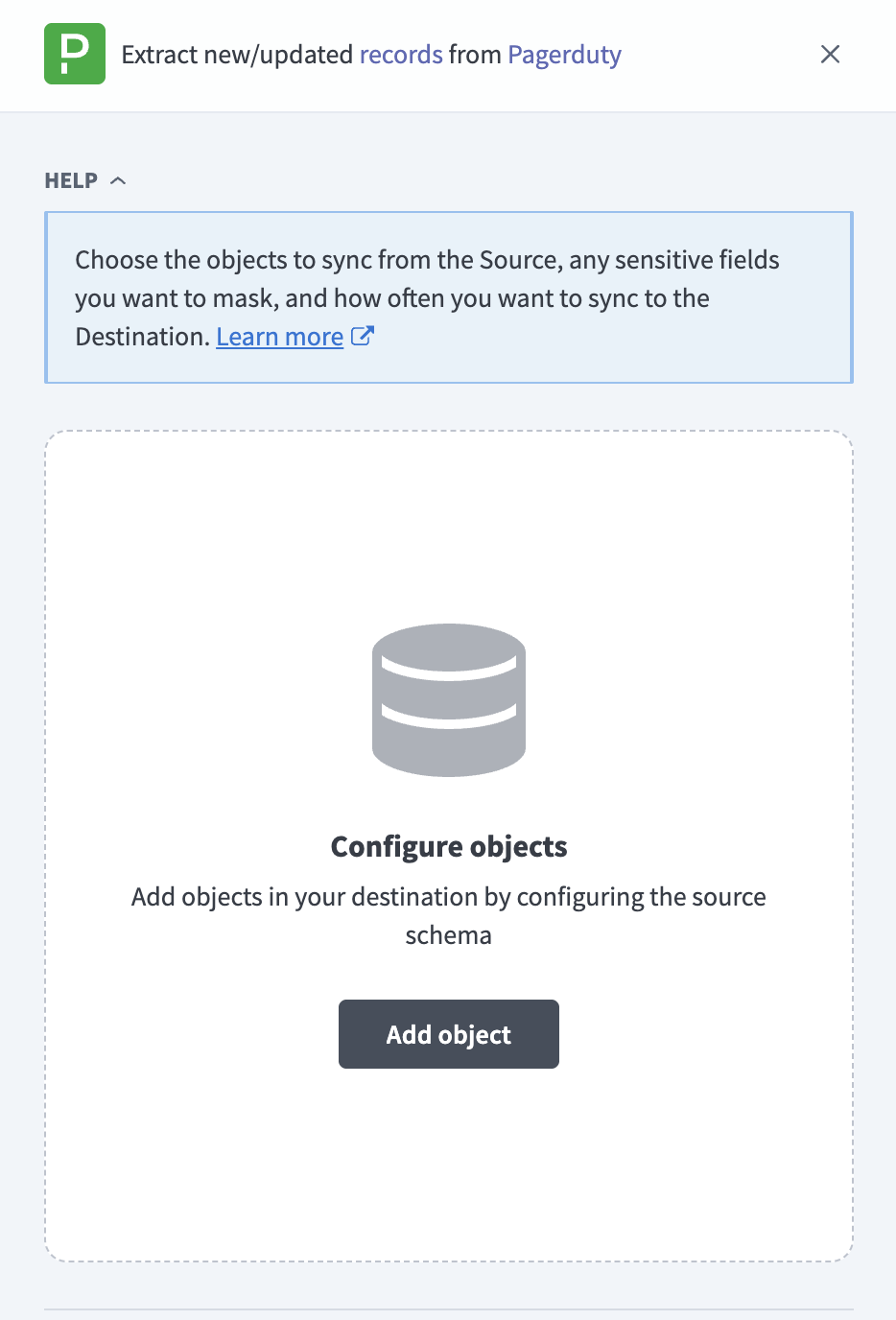 Add objects
Search or browse the list of available PagerDuty objects, select the objects you plan to sync, and click Add.
Review and customize the schema for each selected object. The pipeline automatically fetches an object's schema when you select it, so the destination matches the source.
Expand an object to view associated fields. Keep all fields selected to extract all available data, or deselect specific fields to exclude them from data extraction and schema replication.
Optional. Configure the sync mode for an object:
Click the Settings (gear) icon next to the object.
Select a Sync mode:
- Incremental: Sync only new records.
- Full sync: Reload all records on each run.
Workato defaults to Full sync and disables this field if PagerDuty doesn't expose a usable timestamp on the object.
Click Save.
Optional. Configure field-level data protection by expanding an object and choosing how to handle each field:
- Replicate as is: Data values at the source replicate identically to the destination.
- Hash: Hash sensitive data values in the field before syncing to your destination.
Workato recommends hashing personally identifiable information (PII) and other sensitive fields. Refer to Sensitive data handling for a list of fields that commonly contain PII.
Click Add object again to add more objects. Repeat this step to include additional PagerDuty objects in your pipeline.
Use the Choose how to handle schema changes drop-down menu to select a schema drift handling option:
- Auto-sync new fields: Automatically detects and syncs new fields added in the source.
- Block new fields: Keeps the schema fixed after the pipeline starts. You must add new fields manually.
Optional. Enter a value in the Concurrency limit field to cap the number of concurrent operations. Leave the field blank to use the default limit set by Workato. The maximum value is 10.
Choose either a standard time-based schedule or define a custom cron expression in the Frequency field. This determines how often the pipeline syncs data from PagerDuty to the destination.
Supported objects
PagerDuty data pipelines sync data from PagerDuty REST API v2 resources. The following tables list the supported objects, grouped by category. Each object syncs as a separate table in your destination:
Incident data
| Object | Sync modes | Delete tracking |
|---|---|---|
Incidents | Full sync, incremental | No |
Incident Log Entries | Full sync, incremental | No |
Incident Alerts | Syncs with the parent Incidents object | No |
Incident Notes | Syncs with the parent Incidents object | No |
Incident Status Updates | Syncs with the parent Incidents object | No |
Incident Status Updates requires the subscribers_status_updates account ability, available on PagerDuty plans that include stakeholder management. Accounts without this ability don't see Incident Status Updates in the Add new objects panel.
Services and teams
| Object | Sync modes | Delete tracking |
|---|---|---|
Services | Full sync | No |
Service Integrations | Syncs with the parent Services object | No |
Teams | Full sync | No |
Team Members | Syncs with the parent Teams object | No |
Accounts without the teams PagerDuty account ability don't see Teams or Team Members in the Add new objects panel.
Users
| Object | Sync modes | Delete tracking |
|---|---|---|
Users | Full sync | No |
User Contact Methods | Syncs with the parent Users object | No |
User Notification Rules | Syncs with the parent Users object | No |
On-call management
| Object | Sync modes | Delete tracking |
|---|---|---|
Escalation Policies | Full sync | No |
Schedules | Full sync | No |
Schedule Overrides | Syncs with the parent Schedules object | No |
On Calls | Append-only | N/A |
On Calls stores a daily snapshot of on-call assignments rather than a change history. Refer to Append-only sync and Synthetic columns for more information.
Reference and configuration data
| Object | Sync modes | Delete tracking |
|---|---|---|
Priorities | Full sync | No |
Vendors | Full sync | No |
Tags | Full sync | No |
Business Services | Full sync | No |
Incident Workflows | Full sync | No |
Incident Workflows requires the incident_workflows account ability. PagerDuty offers Incident Workflows on Business and Enterprise plans, with limited availability on Professional plans. Accounts without this ability don't see Incident Workflows in the Add new objects panel. Incident Workflows replaces PagerDuty's deprecated Response Plays object.
Business Services isn't gated by an account ability. The sync fails if you add Business Services to your pipeline on a plan that doesn't include the feature. Remove the object from your pipeline or upgrade your PagerDuty plan.
Audit and analytics
| Object | Sync modes | Delete tracking |
|---|---|---|
Audit Records | Full sync, incremental | No |
Analytics Raw Incidents | Full sync, incremental | No |
Analytics Metrics Incidents | Full sync | No |
Analytics Raw Incidents and Analytics Metrics Incidents each require one of the analytics_recommendations or mobile_analytics account abilities, available on Business plans and higher. Accounts without either ability don't see these objects in the Add new objects panel.
Audit Records isn't gated by an account ability. The sync fails if you add Audit Records to your pipeline on a plan that doesn't include audit access. Remove the object from your pipeline or upgrade your PagerDuty plan. Refer to Limitations for retention and aggregation details.
Sync modes
PagerDuty data pipelines support full sync, incremental sync, and append-only sync. The sync mode is configured for each object when you add it to your pipeline.
Full sync
Full sync reads all available records from PagerDuty on every sync and replaces the destination table. PagerDuty reference and configuration objects, such as Services, Users, and Escalation Policies, sync with full sync because PagerDuty doesn't expose a change cursor for them.
Incremental sync
Incremental sync extracts only records created after the previous sync, using each object's created_at timestamp as the cursor. The pipeline also periodically widens its sync window for Incidents and its child objects to recheck older records, because incidents can change status after they're created. By default, the pipeline rechecks the past 180 days every 7 days to capture status changes that a created_at cursor alone would miss. Audit Records uses the execution_time timestamp as its cursor. Analytics Raw Incidents filters its request body using created_at.
Refer to the Supported objects tables to see which objects support incremental sync.
Append-only sync
On Calls is a point-in-time snapshot of on-call assignments rather than a change feed. Each run appends a new snapshot to the destination without modifying or removing rows written by previous runs.
Schema and data type handling
The following considerations apply to schema and data types when you sync data from PagerDuty:
Nested objects and arrays
PagerDuty returns several fields as nested JSON objects or arrays, such as Incidents.custom_fields, Escalation Policies.escalation_rules, and Schedules.schedule_layers. Workato stores these fields as JSON columns in the destination rather than flattening them into individual columns.
Workato syncs JSON fields to the destination's native JSON type, such as VARIANT in Snowflake. Workato serializes JSON fields as strings if the destination doesn't support a native JSON type.
Incident custom fields
PagerDuty accounts on a Business or Enterprise plan can define custom fields on Incidents. Workato retrieves each incident's custom field values and populates them in the custom_fields column. Incidents without any populated custom field values sync with an empty custom_fields value.
Timestamps
PagerDuty returns timestamps as ISO 8601 strings with either a Z suffix or a numeric offset, such as 2024-01-15T10:30:00Z or 2024-01-15T02:30:00-08:00. Workato syncs these fields as timezone-aware timestamp columns, retaining the original offset and value from PagerDuty.
Synthetic columns
Workato adds the following synthetic column to the destination table for On Calls:
| Column | Type | Purpose |
|---|---|---|
snapshot_date | Date | Records the day the pipeline captured the On Calls snapshot. On Calls doesn't otherwise carry a per-record timestamp. |
Sensitive data handling
PagerDuty objects can contain significant personally identifiable information (PII). The following objects commonly contain sensitive fields:
| Object | Sensitive fields |
|---|---|
Users | name, email, job_title, description |
User Contact Methods | address (phone number or email address) |
Incidents | title, description (may contain system error messages or embedded user data) |
Incident Alerts | body_details, body_contexts (unstructured monitoring payload that can contain server names, IP addresses, or credentials if the source integration is misconfigured) |
Incident Log Entries | channel, notification_data (notification recipient and message content) |
Incident Notes | content (free-text notes added by responders) |
Incident Status Updates | message (free-text stakeholder update) |
Audit Records | actor_id, actor_type, details (link account activity to a specific user and describe the change made) |
Use the Hash option in field-level data protection during pipeline configuration to protect PII before it reaches your destination. Refer to the Configure the pipeline steps for more information.
Limitations
The following limitations apply when you use PagerDuty as a data pipeline source:
Plan-gated objects
PagerDuty gates Teams, Team Members, Incident Status Updates, Incident Workflows, Analytics Raw Incidents, and Analytics Metrics Incidents behind account abilities that vary by plan. These objects don't appear in the Add new objects panel if your account doesn't have the required ability.
Audit Records and Business Services aren't gated by an account ability. The sync fails if you add either object to your pipeline without a PagerDuty plan that includes it. Remove the object from your pipeline or upgrade your PagerDuty plan.
Audit Records retention
PagerDuty retains audit records for 12 months. The pipeline restarts the Audit Records sync from 12 months in the past if a paused pipeline's last successful sync is older than 12 months, because older records are no longer available from the API.
Analytics Raw Incidents retention
PagerDuty retains raw incident analytics for 3 years. Records older than 3 years aren't available to sync.
Analytics Metrics Incidents dimensions
Analytics Metrics Incidents aggregates data by the services and teams dimensions only. PagerDuty's API doesn't expose an equivalent escalation_policies aggregation.
Minimum sync frequency
The minimum supported sync interval is 15 minutes.
Last updated: