Configure QuickBooks Online as a data pipeline source
Set up QuickBooks Online as a data pipeline source to extract accounting records, such as customers, vendors, invoices, bills, and payments, into your destination.
Use this guide to set up a connection, configure your pipeline, add objects, review sync behavior and schema handling, and understand known limitations.
Features supported
The following features are supported when you use QuickBooks Online as a pipeline source:
- Cloud connectivity: QuickBooks Online is a fully cloud-hosted service. The connector requires no on-prem agent, proxy, or VPN.
- Sandbox support: Connect to a QuickBooks Online sandbox company to validate your pipeline before you sync production data. Select the environment with the Sandbox drop-down menu when you create the connection.
- Full sync and incremental sync: Most supported objects sync incrementally through the QuickBooks change data capture (CDC) mechanism after the initial full sync. Company Info, Preferences, Tax Agencies, and Custom Field Definitions always reload in full. Refer to Sync modes for more information.
- Object-level selection: Choose which QuickBooks Online objects to sync, including line item child tables for transactional objects. Refer to Supported objects for the full list.
- Delete tracking: The connector tracks records that are deactivated or deleted in QuickBooks Online and marks them with a synthetic
_workato_is_deletedcolumn. Refer to Delete tracking for more information. - Schema drift detection and handling: Detect and apply schema changes automatically with Auto-sync new fields, or keep the schema fixed with Block new fields.
- Field-level data protection: Hash sensitive field values, such as personally identifiable information (PII), before they reach your destination. Refer to Sensitive data handling for more information.
- Concurrency limit: Limit the number of concurrent operations the pipeline runs against QuickBooks Online.
Prerequisites
Complete the following requirements before you connect QuickBooks Online as a data pipeline source.
- A QuickBooks Online account. All QuickBooks Online plans are supported.
- Sign-in credentials for the QuickBooks Online company you plan to sync. The connector uses OAuth 2.0 and requests read access to accounting data through the
com.intuit.quickbooks.accountingscope. - A QuickBooks Online sandbox company, if you plan to test your pipeline against sample data before you connect to production.
Supported connection types
QuickBooks Online data pipelines support one authentication method:
- OAuth 2.0 (Authorization Code Grant): Sign in with your QuickBooks Online credentials and authorize Workato to access your company data. Workato captures your company ID (Realm ID) automatically during authorization.
The QuickBooks Online connector doesn't support API key or basic authentication.
Connect to QuickBooks Online
Complete the following steps to connect QuickBooks Online as a data pipeline source.
Connect to QuickBooks Online
Select Create > Connection.
Search for QuickBooks on the New connection page and select it.
Provide a Connection name that identifies which QuickBooks instance Workato is connected to.
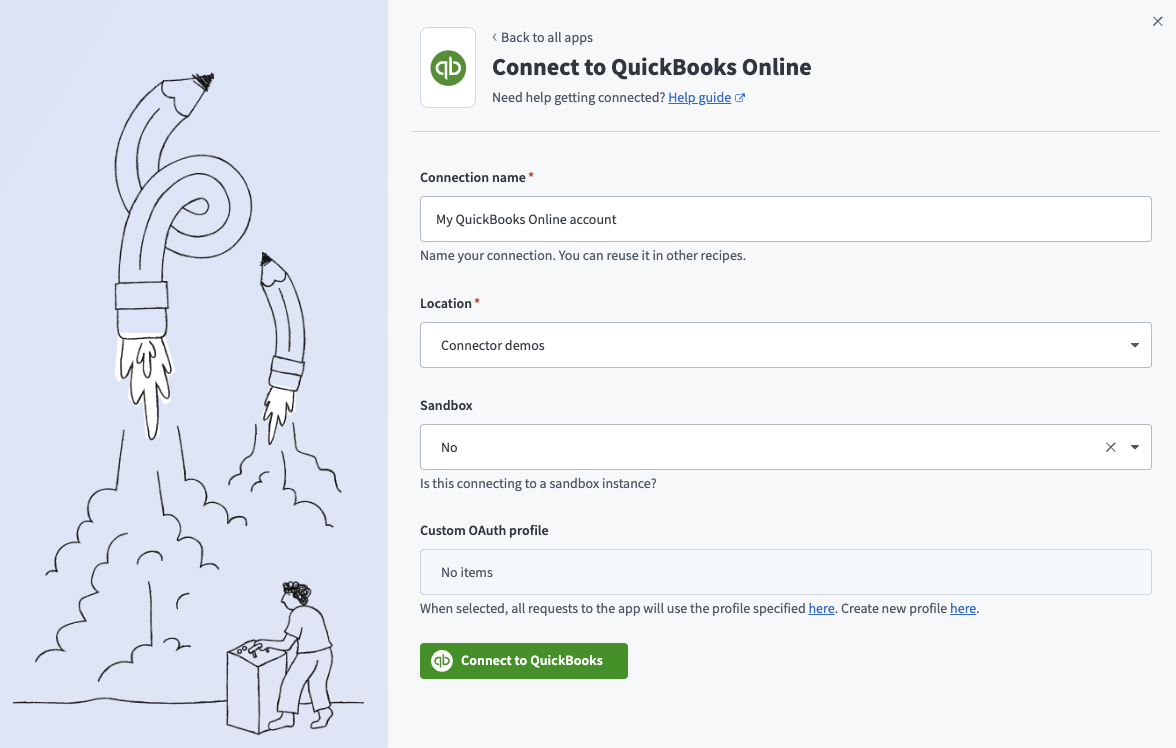 QuickBooks online connection
Use the Location drop-down menu to select the project where you plan to store the connection.
Use the Sandbox drop-down menu to specify whether the QuickBooks Online account is a sandbox account.
Optional. Use the Custom OAuth profile drop-down menu to select a custom OAuth profile for your connection.
Click Connect to QuickBooks to open the QuickBooks sign in window.
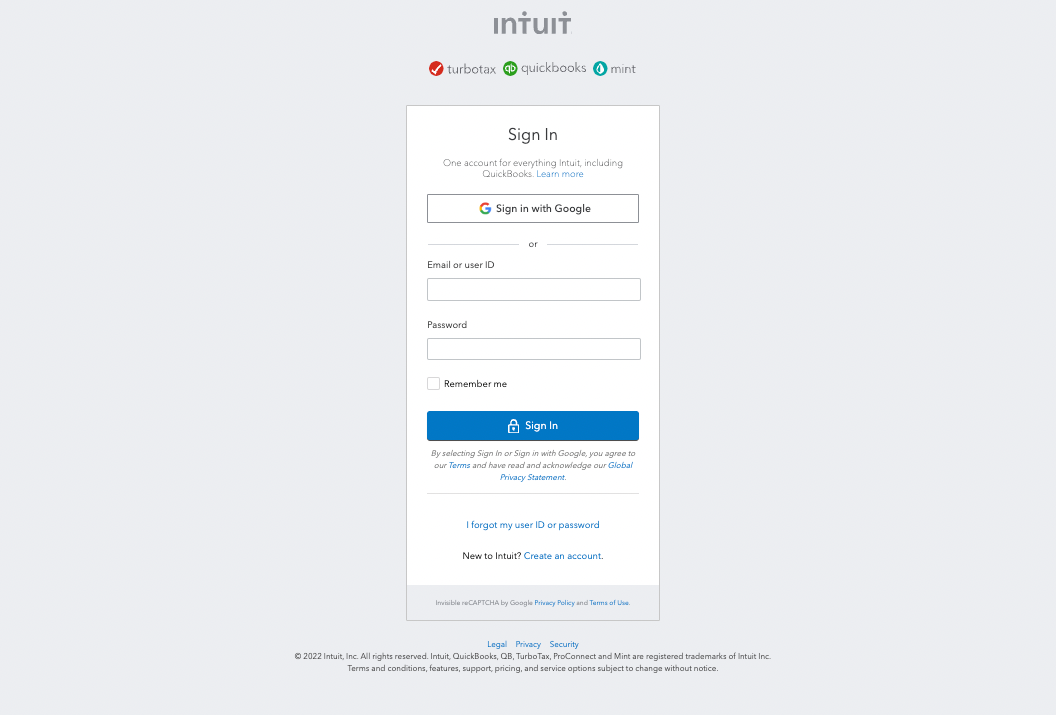 Connect to QuickBooks Online
Enter your QuickBooks Online account email address and password.
Click Sign in to complete the connection.
VERIFY YOUR ENVIRONMENT
Sandbox and production companies are separate environments with separate data. Confirm the Sandbox setting matches the company you signed in to before you run the pipeline.
Configure the pipeline
Complete the following steps to configure QuickBooks Online as your data pipeline source:
Select Create > Data pipeline or press C+I.
Enter a name for the data pipeline in the Data pipeline name field.
 Data pipeline setup
Use the Location drop-down menu to select the project where you plan to store the data pipeline.
Click Start building.
Click the Extract new/updated records from source app trigger. This trigger defines how the pipeline retrieves data from QuickBooks Online.
 Configure the Extract new/updated records from source app trigger
Use the Your Connected Source Apps drop-down menu to select QuickBooks Online.
Choose the QuickBooks Online connection you plan to use for this pipeline. Alternatively, click + New connection to create a new connection.
Click Add object to open the Add new objects panel.
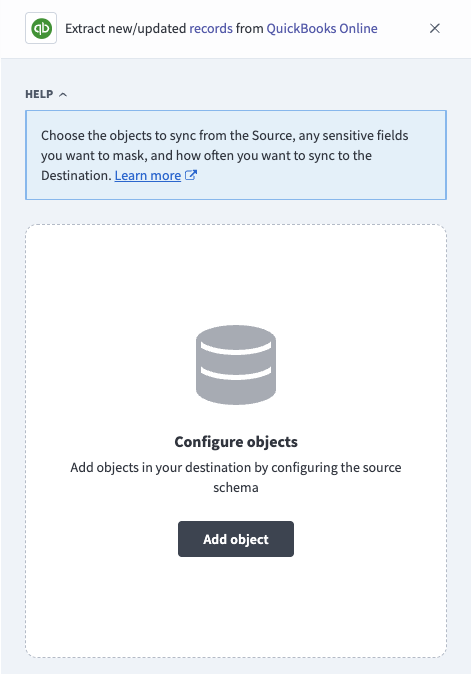 Add objects
Search or browse the list of available QuickBooks Online objects, select the objects you plan to sync, and click Add.
Review and customize the schema for each selected object. The pipeline automatically fetches an object's schema when you select it. This ensures the destination matches the source.
Expand an object to view associated fields. Keep all fields selected to extract all available data, or deselect specific fields to exclude them from data extraction and schema replication.
Configure sync settings for each table:
Click the Settings (gear) icon next to the table.
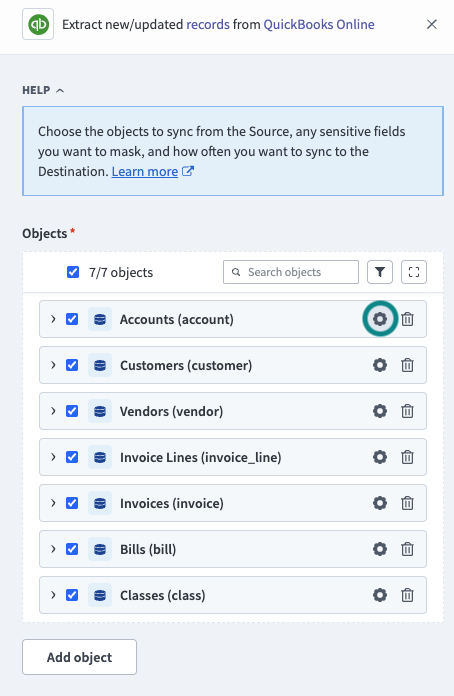 Configure sync settings
Optional. Select a Sync mode:
Select Incremental to sync only new and updated records.
Select Full Sync to reload all records on each run.
Click Save.
Optional. Configure field-level data protection by expanding an object and choosing how to handle each field:
- Replicate as is: Data values at the source replicate identically to the destination.
- Hash: Hash sensitive data values in the field before syncing to your destination.
Workato recommends hashing personally identifiable information (PII) and other sensitive fields. Refer to Sensitive data handling for a list of fields that commonly contain PII.
Click Add object again to add more objects. Repeat this step to include additional QuickBooks Online objects in your pipeline.
Use the Choose how to handle schema changes drop-down menu to select a schema drift handling option:
- Auto-sync new fields: Automatically detects and syncs new fields added in the source.
- Block new fields: Keeps the schema fixed after the pipeline starts. You must add new fields manually. This option may cause the destination to fall out of sync if the source schema updates.
Refer to Schema replication and schema drift management for more information.
Optional. Enter a value in the Concurrency limit field to cap the number of concurrent operations. Leave the field blank to use the default quota set by Workato. The maximum value you can enter is 100. Workato also applies source and workspace quotas; QuickBooks Online pipelines currently run at no more than 5 concurrent operations.
Choose either a standard time-based schedule or define a custom cron expression in the Frequency field. This determines how often the pipeline syncs data from QuickBooks Online to the destination.
Supported objects
QuickBooks Online data pipelines sync data from QuickBooks Online Accounting API v3 entities. The following tables list the supported objects, grouped by category. Each object syncs as a separate table in your destination.
List entities
List entities are master records, such as your chart of accounts, customers, and products. QuickBooks Online deactivates these records instead of deleting them, and the connector tracks deactivation as a soft delete.
| Object | Sync modes | Delete tracking |
|---|---|---|
Accounts | Full sync, incremental | Yes (soft) |
Customers | Full sync, incremental | Yes (soft) |
Vendors | Full sync, incremental | Yes (soft) |
Items | Full sync, incremental | Yes (soft) |
Employees | Full sync, incremental | Yes (soft) |
Departments | Full sync, incremental | Yes (soft) |
Classes | Full sync, incremental | Yes (soft) |
Terms | Full sync, incremental | Yes (soft) |
Payment Methods | Full sync, incremental | Yes (soft) |
Tax Codes | Full sync, incremental | Yes (soft) |
Tax Rates | Full sync, incremental | Yes (soft) |
Budgets | Full sync, incremental | Yes (soft) |
Exchange Rates | Full sync, incremental | Full: Yes (destination-inferred); incremental: No |
Transactional entities
Transactional entities record financial activity. QuickBooks Online reports deleted transactions through CDC, and the connector tracks them as soft deletes.
| Object | Sync modes | Delete tracking |
|---|---|---|
Invoices | Full sync, incremental | Yes (soft) |
Bills | Full sync, incremental | Yes (soft) |
Payments | Full sync, incremental | Yes (soft) |
Estimates | Full sync, incremental | Yes (soft) |
Credit Memos | Full sync, incremental | Yes (soft) |
Sales Receipts | Full sync, incremental | Yes (soft) |
Bill Payments | Full sync, incremental | Yes (soft) |
Deposits | Full sync, incremental | Yes (soft) |
Purchases | Full sync, incremental | Yes (soft) |
Journal Entries | Full sync, incremental | Yes (soft) |
Vendor Credits | Full sync, incremental | Yes (soft) |
Transfers | Full sync, incremental | Yes (soft) |
Time Activities | Full sync, incremental | Full: Yes (destination-inferred); incremental: No |
Line item tables
Line item tables expand the nested line arrays on transactional entities into one row per line item, with columns that reference the parent record. You select and schedule each line item table independently; you don't need to add its parent object to the pipeline. The connector reads the parent transaction to build the rows, and each row's sync position comes from the parent record's last-updated time.
| Object | Sync modes | Delete tracking |
|---|---|---|
Invoice Lines | Full sync, incremental | Full: Yes (destination-inferred); incremental: No |
Bill Lines | Full sync, incremental | Full: Yes (destination-inferred); incremental: No |
Payment Lines | Full sync, incremental | Full: Yes (destination-inferred); incremental: No |
Estimate Lines | Full sync, incremental | Full: Yes (destination-inferred); incremental: No |
Credit Memo Lines | Full sync, incremental | Full: Yes (destination-inferred); incremental: No |
Sales Receipt Lines | Full sync, incremental | Full: Yes (destination-inferred); incremental: No |
Bill Payment Lines | Full sync, incremental | Full: Yes (destination-inferred); incremental: No |
Deposit Lines | Full sync, incremental | Full: Yes (destination-inferred); incremental: No |
Purchase Lines | Full sync, incremental | Full: Yes (destination-inferred); incremental: No |
Journal Entry Lines | Full sync, incremental | Full: Yes (destination-inferred); incremental: No |
Vendor Credit Lines | Full sync, incremental | Full: Yes (destination-inferred); incremental: No |
Line item tables support delete tracking only when you sync them in Full Sync mode. Refer to Delete tracking for more information.
Reference and configuration
Reference and configuration objects describe your company profile, accounting preferences, and custom field definitions. These objects always reload in full on each run.
| Object | Sync modes | Delete tracking |
|---|---|---|
Company Info | Full sync | Yes (destination-inferred) |
Preferences | Full sync | Yes (destination-inferred) |
Tax Agencies | Full sync | Yes (destination-inferred) |
Custom Field Definitions | Full sync | Yes (soft) |
Custom Field Definitions availability
The Custom Field Definitions object requires a QuickBooks Online plan that includes enhanced custom fields, and the OAuth authorization must grant the custom field definitions read scope. Workato checks for this access when it loads the object list, and omits the object when your account doesn't have it.
Use this object to map the custom_field JSON values on your sales transaction tables to the custom field labels defined in your company.
Sync modes
QuickBooks Online data pipelines support full sync and incremental sync. The sync mode is configured per object when you add it to your pipeline.
Full sync
Full sync retrieves all records for an object and reloads the full record set on each run. The initial run of every pipeline performs a full sync of each selected object, starting from your historical start date if you set one.
Incremental sync
Incremental sync retrieves only the records that changed since the previous successful sync, using QuickBooks Online change data capture (CDC). The connector tracks each object's sync position in a synthetic _workato_cursor column. Refer to Synthetic columns for more information.
Company Info, Preferences, Tax Agencies, and Custom Field Definitions don't support incremental sync and reload in full on each run.
Line item tables track their sync position from the parent record's last-updated time.
CDC retains 30 days of change history. If a pipeline pauses for longer than that, the connector fills the gap automatically. Refer to Incremental sync after long pauses for more information.
Delete tracking
QuickBooks Online doesn't permanently delete records through its API. Instead, records are deactivated or marked as deleted, and the connector tracks both patterns as soft deletes:
- List entities, such as
CustomersandItems, are deactivated in QuickBooks Online. The connector syncs both active and inactive records and marks inactive records as deleted. - Transactional entities, such as
InvoicesandBills, report deletions through CDC with a deleted status. The connector marks these records as deleted.
Deleted records aren't removed from your destination. The connector sets the synthetic _workato_is_deleted column to true for the affected rows.
QuickBooks Online doesn't provide a delete signal for individual line items. When you sync a line item table in Incremental mode, it has no _workato_is_deleted column, and line item rows from deleted transactions remain in your destination. To identify them, join the line item table to its parent table and filter on the parent's _workato_is_deleted column.
When you sync a line item table in Full Sync mode, the _workato_is_deleted column is present and the destination sets it to true for rows that no longer appear in QuickBooks Online.
Schema and data type handling
The connector maps QuickBooks Online API fields to destination columns using the following rules.
Column naming
The connector converts QuickBooks Online field names to lowercase with underscores. For example, DisplayName becomes the display_name column and ARAccountRef becomes ar_account_ref.
Nested fields drop their parent object name. For example, MetaData.LastUpdatedTime becomes the last_updated_time column and MetaData.CreateTime becomes create_time.
Column name casing in your destination
Your destination adjusts column name casing when it creates tables. Snowflake stores column names in uppercase, most destinations store them in lowercase, and BigQuery and SQL Server keep them as the connector emits them.
Nested objects and arrays
Nested objects and arrays, such as bill_addr, currency_ref, txn_tax_detail, and linked_txn, sync as single columns containing the JSON-serialized value. You can extract individual values from these columns at your destination, for example with your warehouse's JSON functions or in your modeling layer.
Line arrays on transactional entities are an exception: the connector expands them into dedicated line item tables. Refer to Line item tables and detail types for more information.
Line item tables and detail types
Each line item table row includes a parent_<object>_id column that references the parent record, such as parent_invoice_id or parent_bill_id, and an id column that identifies the line within that parent. Together these two columns form the table's primary key and uniquely identify each row, including computed lines such as subtotals and discounts that QuickBooks Online doesn't number itself.
QuickBooks Online line items are polymorphic. Each line carries a detail type, such as SalesItemLineDetail, that determines which detail fields are present. Line item tables include a detail_type column and a detail_json column containing the full detail object for the matched type.
Payment Lines is an exception. Payment lines aren't polymorphic, so this table has no detail_type or detail_json column, and its primary key is parent_payment_id plus line_num. Its columns are parent_payment_id, line_num, amount, linked_txn, line_ex, and last_updated_time.
Custom fields
QuickBooks Online supports a limited number of user-defined custom fields on sales transaction objects. The connector syncs these on Invoices, Estimates, Credit Memos, and Sales Receipts. The connector syncs the full custom field array as a single custom_field JSON column rather than expanding each field into its own destination column. To use a specific custom field, parse the JSON at your destination with the DefinitionId and StringValue keys.
Data types
QuickBooks Online entity IDs are string representations of integers, and the connector stores id columns as strings.
Reference columns such as customer_ref hold a JSON object with value and name keys. Use the value key as the foreign key when you join to the referenced table.
Timestamps are ISO 8601 values with a timezone offset, such as 2026-01-15T10:30:00-08:00. The connector syncs them as timezone-aware timestamp columns.
Decimal fields sync with a default precision and scale of (28, 12). QuickBooks Online doesn't report the precision or scale of its numeric fields; without this default, some destinations store decimal values as NUMERIC(38, 0) and silently round them, which affects fractional values such as exchange rates.
Synthetic columns
Workato adds the following synthetic columns to destination tables for specific objects:
| Column | Type | Purpose |
|---|---|---|
_workato_cursor | Timestamp | Tracks the incremental sync position for each record. Added to objects that support incremental sync. This column is never null. |
_workato_is_deleted | Boolean | Indicates the record was deactivated or deleted in QuickBooks Online, or no longer exists at the source. Added to every object you sync in Full Sync mode. In Incremental mode, added only to objects that support delete tracking. |
_workato_run_id | String | Identifies the pipeline run that last wrote the row. The destination uses this to detect rows that no longer exist in QuickBooks Online. |
_workato_synced_at | Timestamp | When the pipeline last wrote the row to your destination. |
Sensitive data handling
QuickBooks Online objects contain significant PII and sensitive financial data. The following objects commonly contain sensitive fields:
| Object | Sensitive fields |
|---|---|
Customers | display_name, given_name, family_name, middle_name, suffix, primary_email_addr, primary_phone, mobile, fax, bill_addr, ship_addr, web_addr, notes |
Vendors | display_name, given_name, family_name, primary_email_addr, primary_phone, mobile, bill_addr, acct_num, tax_identifier |
Invoices | bill_email, bill_addr, ship_addr, ship_from_addr, customer_ref |
Bills | vendor_addr, vendor_ref |
Payments | customer_ref |
Use the Hash option in field-level data protection during pipeline configuration to protect PII before it reaches your destination. Refer to the Configure the pipeline steps for more information.
Workato recommends field-level hashing for the fields in the preceding table.
Limitations
The following limitations apply when you use QuickBooks Online as a data pipeline source.
Incremental sync after long pauses
QuickBooks Online CDC retains 30 days of change history. If your pipeline is paused or fails for more than 30 days, the connector automatically falls back to a filtered query that retrieves all records updated after the last sync position, so no changes are lost. This fallback can take significantly longer than CDC-based incremental syncs for high-volume objects, such as Invoices. Keep your pipeline running on a regular schedule to maintain fast incremental syncs.
Historical start date can't be changed
The When first started, this pipeline should pick up records from value defines the earliest date from which the pipeline extracts records. You can't change this value after the initial run. To sync records from an earlier date, create a new pipeline.
Minimum sync frequency
The minimum supported sync interval is 15 minutes.
Last updated: