Configure Sage Intacct as a data pipeline source
Set up Sage Intacct as a data pipeline source to extract accounting and financial data, such as journal entries, invoices, bills, payments, items, and dimensions, from the Sage Intacct XML API and sync it to your destination.
Use this guide to review the features and prerequisites, connect Sage Intacct as a data pipeline source, configure the pipeline, and understand the supported objects, sync modes, schema handling, and limitations.
Features supported
The following features are supported when you use Sage Intacct as a pipeline source:
- Cloud connectivity: Connects to the Sage Intacct XML API over https. An on-prem agent isn't required.
- Dynamic object discovery: Detects the objects available in your Sage Intacct company at connection time, including standard objects and custom Platform Services objects.
- Object-level selection: Choose the objects you plan to sync when you configure the pipeline.
- Sync modes: Objects with a supported primary key and modification timestamp sync incrementally. All other objects use full sync. The connector detects the sync mode for each object automatically.
- Custom field support: Custom fields defined on standard objects sync as additional columns. Custom objects sync as their own tables.
- Schema drift detection and handling: Detect and apply schema changes automatically with Auto-sync new fields, or keep the schema fixed with Block new fields.
- Field-level data protection: Hash or replicate sensitive fields as is before the data reaches your destination.
- Configurable sync frequency: Schedule syncs on a time-based interval or with a cron expression. The minimum supported interval is 15 minutes.
Prerequisites
Complete the following requirements before you configure Sage Intacct as a data pipeline source:
- A Sage Intacct company subscribed to Web Services.
- A Web Services user with read access to the objects you plan to sync. Refer to Set up Web Services User on Intacct for setup steps.
- A sender ID authorized for Web Services on your company. Obtain a sender ID from your Sage Intacct account representative, then authorize it. Refer to Authorize Workato on Intacct Web Services for setup steps.
REQUIRED PERMISSIONS
Workato recommends a dedicated Web Services user restricted to read access for the objects you plan to sync. A least-privilege service account limits the data the pipeline can reach and keeps the sync scoped to reporting needs.
SET NEEDS LOGIN FOR API TO NO
The sender ID's Needs login for API setting must be set to No. When this setting is Yes, every API call fails and the pipeline returns no data.
Supported connection types
Sage Intacct data pipelines support one authentication method:
- Web Services credentials: Authenticates to the Sage Intacct XML API with your company and Web Services user credentials, scoped by an authorized sender ID. The connector obtains a session for each sync and renews it automatically.
OAuth 2.0 through the Sage Developer Workspace, used by the Sage Intacct (Custom) workflow connector, isn't available for data pipelines. The pipeline source uses the XML API.
Connect to Sage Intacct
Complete the following steps to connect to Sage Intacct:
Connect to Sage Intacct
Select Create > Connection or press C twice.
Search for Sage Intacct and select it as your app.
Enter a name in the Connection name field.
Use the Location drop-down menu to select the project where you plan to store the connection.
Enter the Web Services Sender ID issued to your organization.
Enter the Sender password for the Web Services Sender ID. Depending on your connection form, Workato may show the sender credentials under Advanced settings.
Enter the user ID of your Web Services user in the Login user ID field.
Enter your Sage Intacct company identifier in the Login company ID field.
Enter the password for your Web Services user in the Login password field.
Optional. Enter a Location ID to scope the connection to a single entity in a multi-entity company. Leave the field blank to connect at the top-level company.
Click Connect. Workato displays a success message when the connection is established.
Configure the pipeline
Complete the following steps to configure Sage Intacct as your data pipeline source:
Select Create > Data pipeline or press C+I.
Enter a name for the data pipeline in the Data pipeline name field.
 Data pipeline setup
Use the Location drop-down menu to select the project where you plan to store the data pipeline.
Click Start building.
Click the Extract new/updated records from source app trigger. This trigger defines how the pipeline retrieves data from Sage Intacct.
 Configure the Extract new/updated records from source app trigger
Use the Your Connected Source Apps drop-down menu to select Sage Intacct.
Choose the Sage Intacct connection you plan to use for this pipeline. Alternatively, click + New connection to create a new connection.
Click Add object to open the Add new objects panel.
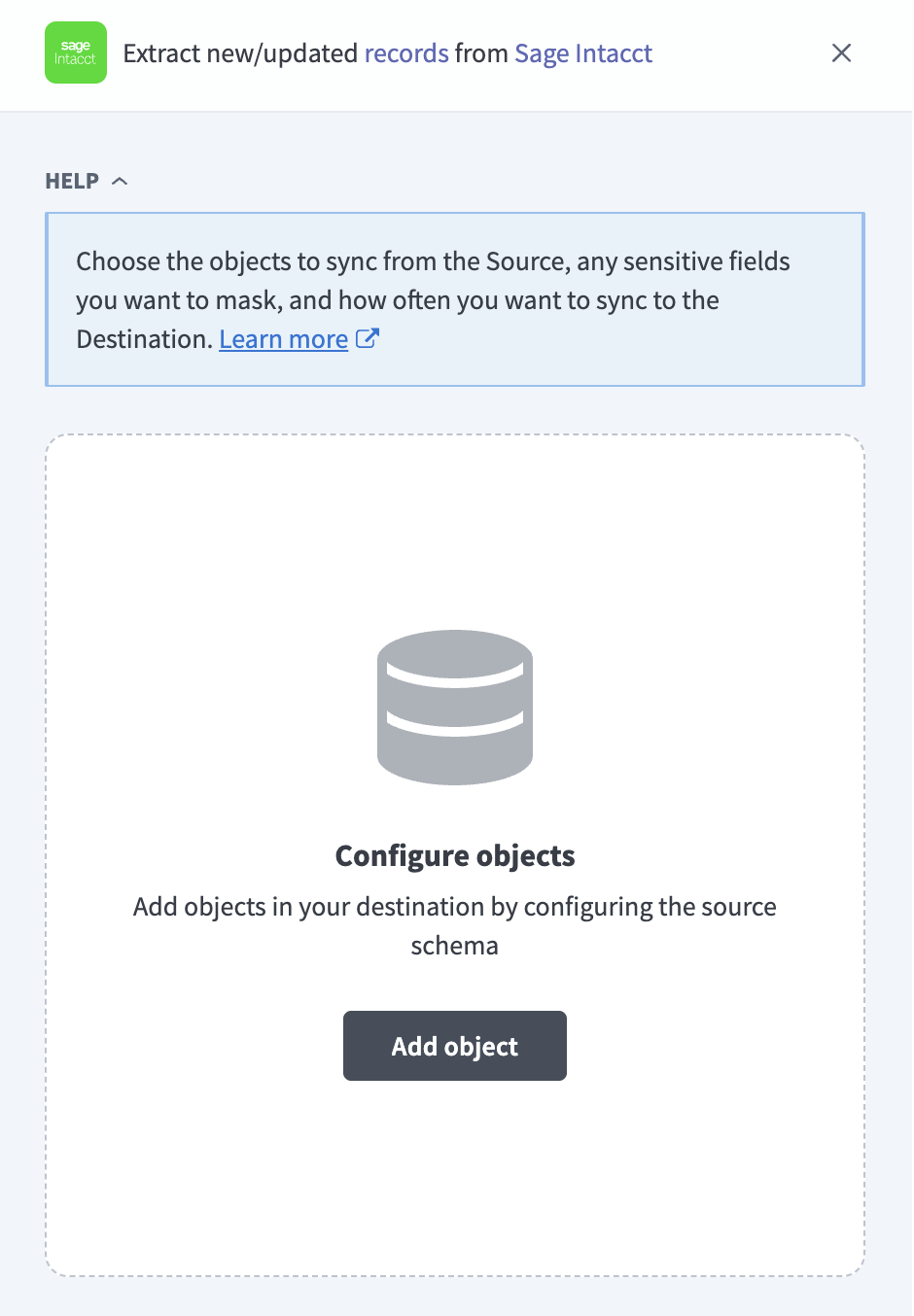 Add objects
Search or browse the list of available Sage Intacct objects, select the objects you plan to sync, and click Add.
SYNC MODE IS DETECTED PER OBJECT
Sage Intacct detects the sync mode for each object automatically. Refer to Sync modes for more information.
Review and customize the schema for each selected object. The pipeline automatically fetches an object's schema when you select it. This ensures the destination matches the source.
Expand an object to view associated fields. Keep all fields selected to extract all available data, or deselect specific fields to exclude them from data extraction and schema replication.
Optional. Configure field-level data protection by expanding an object and choosing how to handle each field:
- Replicate as is: Data values at the source replicate identically to the destination.
- Hash: Hash sensitive data values in the field before syncing to your destination.
Workato recommends hashing personally identifiable information (PII) and other sensitive fields. Refer to Sensitive data handling for a list of fields that commonly contain PII.
Click Add object again to add more objects. Repeat this step to include additional Sage Intacct objects in your pipeline.
Use the Choose how to handle schema changes drop-down menu to select a schema drift handling option:
- Auto-sync new fields: Automatically detects and syncs new fields added in the source.
- Block new fields: Keeps the schema fixed after the pipeline starts. You must add new fields manually. This option may cause the destination to fall out of sync if the source schema updates.
Refer to Schema replication and schema drift management for more information.
Workato recommends Auto-sync new fields for Sage Intacct, because companies frequently add custom fields to standard objects.
Optional. Enter a value in the Concurrency limit field to cap the number of concurrent operations. Leave the field blank to use the default quota set by Workato. The maximum value is 100.
Choose either a standard time-based schedule or define a custom cron expression in the Frequency field. This determines how often the pipeline syncs data from Sage Intacct to the destination.
This start date applies only to objects that support incremental sync. Full-sync objects extract their complete available record set.
Supported objects
Sage Intacct data pipelines sync data from the Sage Intacct XML API. The connector discovers the objects available in your company when you connect, so the exact set depends on your subscribed modules, your edition, and any custom objects your company defines. Standard objects come from a curated catalog and custom Platform Services objects appear alongside them. Each object syncs as a separate table in your destination.
The following tables list commonly available objects in the core financial modules as a representative sample, not the complete set. Objects from additional modules, such as Inventory Control, Project & Resource Management, Employee Expenses, and Contracts & Revenue Management, appear when your company subscribes to those modules.
General Ledger
The following objects describe journal entries, account definitions, and account balances:
| Object | Sync mode | Notes |
|---|---|---|
GL_BATCH | Incremental | Journal entry batches. The parent of GL_ENTRY and GL_DETAIL. |
GL_ENTRY | Syncs with the parent GL_BATCH object | Journal entry lines. |
GL_DETAIL | Full sync | GL detail view. A database view with no primary key, so it re-reads in full each run. |
GLACCOUNT | Incremental | Chart of accounts. |
GLACCOUNTBALANCE | Incremental | Account balances by reporting period. |
Accounts Receivable
The following objects describe customer invoices, payments, and the customer master:
| Object | Sync mode | Notes |
|---|---|---|
ARINVOICE | Incremental | AR invoices. Contains PII. |
ARINVOICEITEM | Incremental | AR invoice lines. Queried as its own selected object. |
ARPAYMENT | Incremental | Customer payments received. Contains PII. |
CUSTOMER | Incremental | Customer master. Contains PII. |
Accounts Payable
The following objects describe vendor bills, payments, and the vendor master:
| Object | Sync mode | Notes |
|---|---|---|
APBILL | Incremental | AP bills. Contains PII. |
APBILLITEM | Incremental | AP bill lines. Queried as its own selected object. |
APPAYMENT | Incremental | Vendor payments made. Contains PII. |
VENDOR | Incremental | Vendor master. Contains PII. |
Order Entry and Purchasing
The following objects describe sales and purchasing transactions, their line items, and the item master:
| Object | Sync mode | Notes |
|---|---|---|
SODOCUMENT | Incremental | Sales transactions. The transaction type is set by the DOCPARID field. |
SODOCUMENTENTRY | Incremental | Sales transaction lines. Queried as its own selected object. |
PODOCUMENT | Incremental | Purchasing transactions. The transaction type is set by the DOCPARID field. |
PODOCUMENTENTRY | Incremental | Purchasing transaction lines. Queried as its own selected object. |
ITEM | Incremental | Item master used across Inventory, Order Entry, and Purchasing. |
Dimensions and reference data
The following objects describe the dimensions that categorize transactions and the reference data that supports them:
| Object | Sync mode | Notes |
|---|---|---|
DEPARTMENT | Incremental | Department dimension. |
LOCATION | Incremental | Location dimension. Maps to entities in multi-entity companies. |
CLASS | Incremental | Class dimension for transaction categorization. |
APTERM | Incremental | AP payment term definitions. |
ARTERM | Incremental | AR payment term definitions. |
Sync modes
Sage Intacct data pipelines support full sync and incremental sync. The connector detects the sync mode for each object automatically from the object's metadata.
Full sync
Full sync reads all available records for an object on each run and replaces the object's record set in your destination. The connector uses full sync for objects it can't sync incrementally, such as database views like GL_DETAIL.
Incremental sync
Incremental sync reads only the records created or updated since the previous run. Most standard objects sync incrementally, using their last-modified timestamp to pick up both new and updated records. Standard objects use the WHENMODIFIED field for this, and custom objects use updatedAt.
Child line items such as ARINVOICEITEM, APBILLITEM, SODOCUMENTENTRY, and PODOCUMENTENTRY can be selected and queried as separate objects. Their parent-child relationships are exposed as metadata for the pipeline UI and do not change extraction routing.
Refer to the Supported objects tables to see the sync mode for each object.
Delete tracking
The connector doesn't track deletions. Sage Intacct doesn't expose deleted records in a way the pipeline can match to your synced data, so it doesn't flag deletes or add a soft-delete column to your destination.
Objects that sync incrementally don't see a deletion, because an incremental run reads only the records changed since the previous run. Objects that sync in full re-read their complete record set each run, so a record deleted in Sage Intacct no longer appears after the next full sync.
Schema and data type handling
The connector fetches each object's schema from Sage Intacct when you select the object, including any custom fields and custom objects your company defines. The following behavior applies to specific cases.
Custom fields on Order Entry objects
Custom fields on the SODOCUMENT and SODOCUMENTENTRY objects sync only when the transaction definition object is enabled in your Sage Intacct company. Enable it in your instance to include Order Entry custom fields in your destination schema.
Unsubscribed modules
Metadata extraction returns an unavailable-object error if an object requires a Sage Intacct module your company doesn't subscribe to. Enable the module or select an object from a subscribed module.
Timestamps
Sage Intacct doesn't return a timezone with a timestamp by default. When the timezone is absent, the connector interprets the value as UTC. Account for this when you interpret timestamp columns across companies.
Sensitive data handling
Sage Intacct objects can contain personally identifiable information (PII), financial account details, and tax identifiers. The following objects commonly contain sensitive fields:
| Object | Sensitive fields |
|---|---|
CUSTOMER | NAME, EMAIL1, PHONE1, MAILADDRESS, TAXID |
VENDOR | NAME, EMAIL1, PHONE1, MAILADDRESS, TAXID, ACHCONFIG |
CONTACT | CONTACTNAME, EMAIL1, EMAIL2, PHONE1, MAILADDRESS |
EMPLOYEE | Personal information fields, SSN, BIRTHDATE, bank account details |
CHECKINGACCOUNT | BANKACCOUNTNO, ROUTINGNO |
SAVINGSACCOUNT | BANKACCOUNTNO, ROUTINGNO |
USER | EMAIL, FIRSTNAME, LASTNAME |
ARPAYMENT, APPAYMENT | Bank account references and payment details |
Bank account numbers, routing numbers, and employee Social Security numbers carry the highest risk.
Use the Hash option in field-level data protection during pipeline configuration to protect PII before it reaches your destination. Refer to the Configure the pipeline steps for more information.
Workato recommends hashing these fields for pipelines operating under SOC 2, GDPR, CCPA, or PCI-DSS.
Limitations
The following limitations apply when you use Sage Intacct as a data pipeline source:
Multi-entity companies require a connection per entity
A connection scopes to a single entity through the Location ID field. To sync more than one entity in a multi-entity company, create a separate pipeline connection for each entity. A top-level connection with no Location ID provides consolidated access, but it may not expose all entity-specific transactions.
Minimum sync frequency
The minimum supported sync interval is 15 minutes.
Unqueryable fields can produce null values
Sage Intacct can report a field in object metadata but reject it in a data query. The connector retries the query with a minimal queryable field selection if this occurs. The connector preserves the selected destination schema, but values for other requested fields can be null for that extraction.
Last updated: