Configure Salesforce Marketing Cloud as a data pipeline source
Set up Salesforce Marketing Cloud as a data pipeline source to extract subscriber, list, email send, campaign, journey, and engagement tracking data into your destination.
Use this guide to create an Installed Package, set up a connection, configure your pipeline, add objects, review sync behavior, and understand known limitations.
Features supported
The following features are supported when you use Salesforce Marketing Cloud as a pipeline source:
- Cloud connectivity: Connect to your Salesforce Marketing Cloud account over HTTPS through your account subdomain and OAuth credentials. On-prem agents aren't required.
- Full sync and incremental sync: Supports full sync and incremental sync, depending on the object. Incremental sync uses time-based cursors, such as
CreatedDate,ModifiedDate, orEventDate. Refer to Sync modes for more information. - Object-level selection: Select Salesforce Marketing Cloud objects to sync as separate tables in your destination, including your account's Data Extensions, which the pipeline discovers automatically. Refer to Supported objects for the full list.
- Schema drift detection and handling: Detect and apply schema changes automatically with Auto-sync new fields, or keep the schema fixed with Block new fields.
- Field-level data protection: Hash or replicate sensitive fields as is before the data reaches your destination.
- Configurable sync frequency: Schedule syncs on a time-based interval or with a cron expression. The minimum supported interval is 15 minutes.
Prerequisites
Connecting Salesforce Marketing Cloud as a data pipeline source requires:
- A Salesforce Marketing Cloud account with an Enhanced Installed Package that contains a Server-to-Server API Integration component. Refer to Create a Salesforce Marketing Cloud Installed Package for setup steps.
- The Client ID, Client secret, and account subdomain from that API Integration component.
BUSINESS UNIT SCOPE
Each connection is scoped to a single Business Unit, determined by the Installed Package the credentials belong to. Create a separate Installed Package and pipeline connection for each Business Unit if your organization uses more than one. Refer to Business Unit scope for more information.
Create a Salesforce Marketing Cloud Installed Package
Salesforce Marketing Cloud data pipelines authenticate through an Enhanced Installed Package's Server-to-Server API Integration component, using the OAuth 2.0 client credentials grant. Create this package from Salesforce Marketing Cloud Setup before you connect to Workato. Refer to Salesforce's Installed Packages documentation for setup steps.
Recommended permissions
Grant Read access for the following permission categories on your API Integration component, matching the objects you plan to sync:
- Lists and Subscribers
- Automations
- Journeys
- Tracking Events
- Data Extensions
- Campaigns
Supported connection types
Salesforce Marketing Cloud data pipelines support the following authentication method:
- OAuth 2.0 Server-to-Server (Client Credentials): Provide the Client ID and Client secret from your Enhanced Installed Package's API Integration component, along with your account subdomain.
Connect to Salesforce Marketing Cloud
Complete the following steps to connect Salesforce Marketing Cloud as a data pipeline source:
Connect to Salesforce Marketing Cloud
Select Create > Connection.
Search for Salesforce Marketing Cloud on the New connection page and select it.
Enter a name in the Connection name field.
Use the Location drop-down menu to select the project where you plan to store the connection.
Use the Are you using a new installed package? drop-down menu to select Yes.
LEGACY INSTALLED PACKAGES
Select No only if you have a package created before August 1, 2019.
Enter your account's subdomain in the Subdomain field. This is the unique identifier in your account's API base URI, for example the mc4x9z... portion of https://mc4x9z....rest.marketingcloudapis.com.
Enter your API Integration component's client ID in the Client ID field.
Enter your API Integration component's client secret in the Client secret field.
Select Connect to verify and save the connection. Workato displays a success message when the connection is established.
Configure the pipeline
Complete the following steps to configure Salesforce Marketing Cloud as your data pipeline source:
Select Create > Data pipeline or press C+I.
Enter a name for the data pipeline in the Data pipeline name field.
 Data pipeline setup
Use the Location drop-down menu to select the project where you plan to store the data pipeline.
Click Start building.
Click the Extract new/updated records from source app trigger. This trigger defines how the pipeline retrieves data from Salesforce Marketing Cloud.
 Configure the Extract new/updated records from source app trigger
Use the Your Connected Source Apps drop-down menu to select Salesforce Marketing Cloud.
Choose the Salesforce Marketing Cloud connection you plan to use for this pipeline. Alternatively, click + New connection to create a new connection.
Click Add object to open the Add new objects panel.
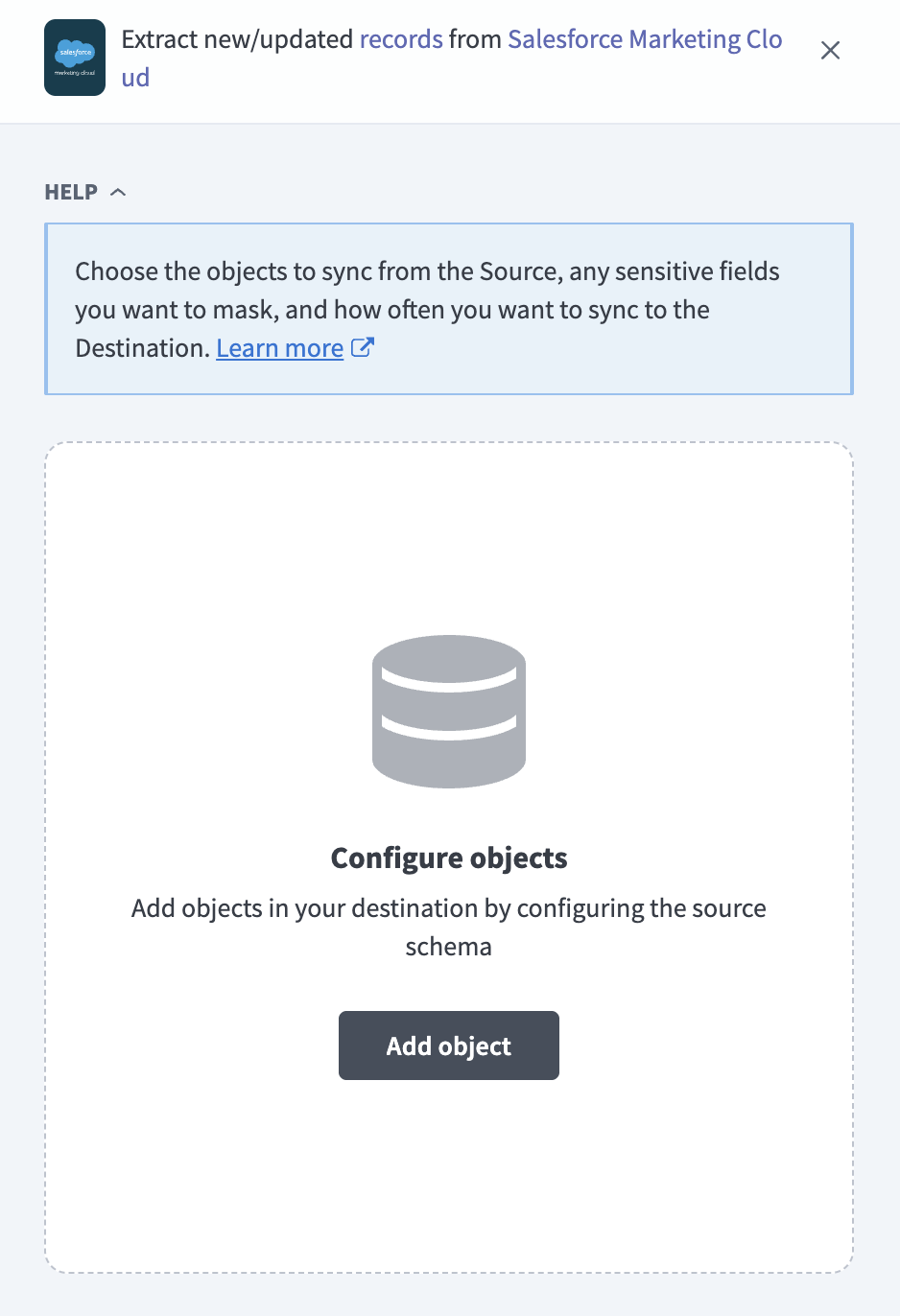 Add objects
Search or browse the list of available Salesforce Marketing Cloud objects, select the objects you plan to sync, and click Add.
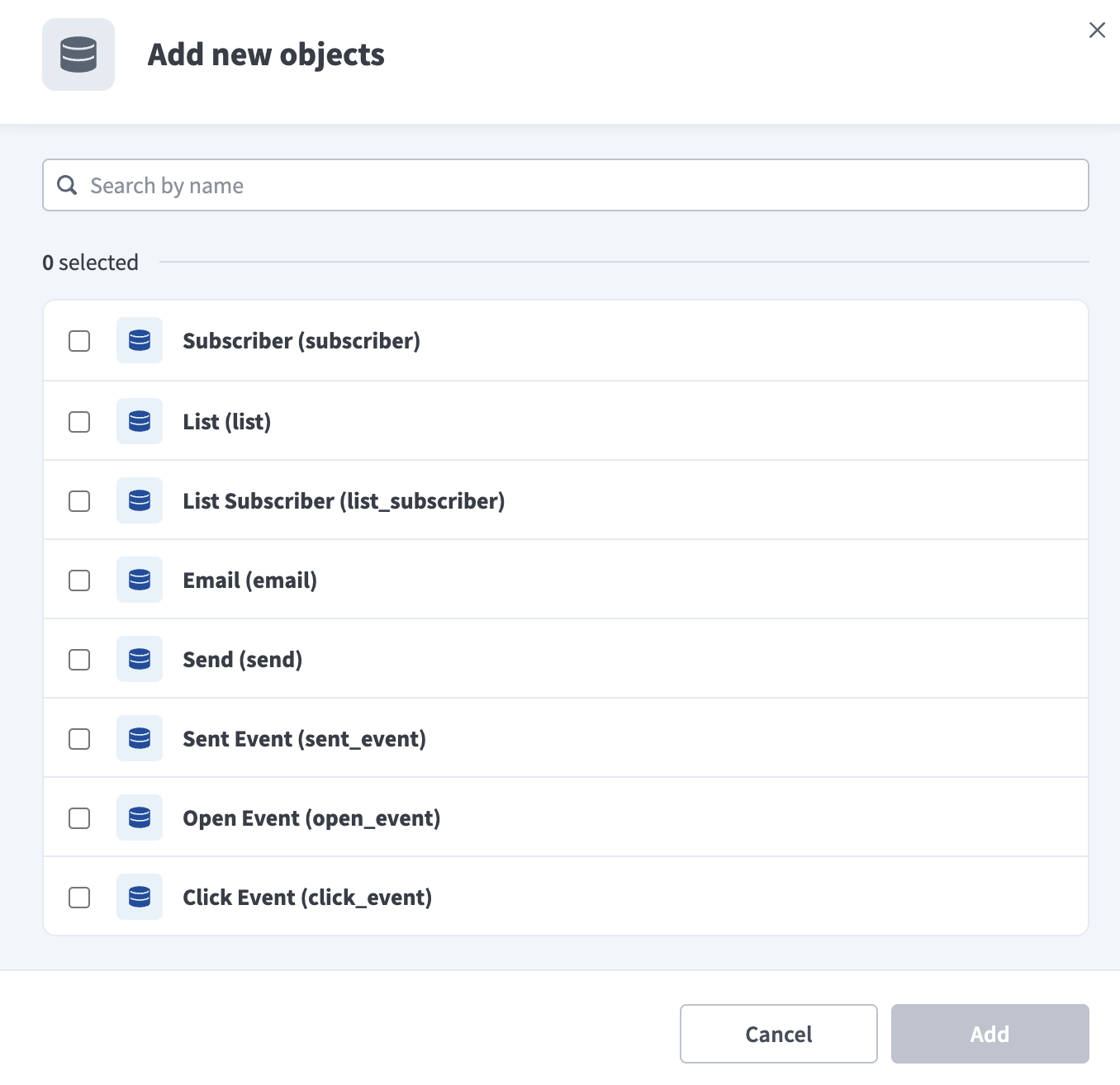 Select objects
DATA EXTENSIONS
Your account's Data Extensions appear as individual objects, discovered automatically across the Business Units your credentials can access. Refer to Data Extensions for more information.
Optional. Click the settings icon next to an object to configure how the object syncs and use the Sync mode drop-down menu to select a sync mode. The object defaults to full sync if Salesforce Marketing Cloud doesn't provide a timestamp for it. Refer to Sync modes for more information.
Review and customize the schema for each selected object. The pipeline automatically fetches an object's schema when you select it. This ensures the destination matches the source.
Expand an object to view associated fields. Keep all fields selected to extract all available data, or deselect specific fields to exclude them from data extraction and schema replication.
Optional. Configure field-level data protection by expanding an object and choosing how to handle each field:
- Replicate as is: Data values at the source replicate identically to the destination.
- Hash: Hash sensitive data values in the field before syncing to your destination.
Workato recommends hashing personally identifiable information (PII) and other sensitive fields. Refer to Sensitive data handling for a list of fields that commonly contain PII.
Click Add object again to add more objects. Repeat this step to include additional Salesforce Marketing Cloud objects in your pipeline.
Use the Choose how to handle schema changes drop-down menu to select a schema drift handling option:
- Auto-sync new fields: Automatically detects and syncs new fields added in the source.
- Block new fields: Keeps the schema fixed after the pipeline starts. You must add new fields manually. This option may cause the destination to fall out of sync if the source schema updates.
Refer to Schema replication and schema drift management for more information.
Optional. Enter a value in the Concurrency limit field to cap the number of concurrent operations. Leave the field blank to use the default quota set by Workato. The maximum value is 100.
Choose either a standard time-based schedule or define a custom cron expression in the Frequency field. This determines how often the pipeline syncs data from Salesforce Marketing Cloud to the destination.
Supported objects
Salesforce Marketing Cloud data pipelines sync data through a mix of the SOAP API and the REST API, depending on the object. Each object syncs as a separate table in your destination.
Salesforce Marketing Cloud's system Data Views, such as _Sent, _Open, and _Click, aren't directly accessible through the API. The following objects are the API-accessible equivalents that Workato syncs instead:
Subscribers and lists
| Object | Sync mode | Delete tracking |
|---|---|---|
| Subscriber | Full sync, incremental | No |
| List | Full sync, incremental | No |
| List Subscriber | Full sync, incremental | No |
Subscriber contains the largest volume of data in most accounts and can take hours to complete on the initial sync. List Subscriber is the junction object between List and Subscriber.
Email and sends
| Object | Sync mode | Delete tracking |
|---|---|---|
| Full sync, incremental | No | |
| Send | Full sync, incremental | No |
| Triggered Send Definition | Full sync, incremental | No |
| Content Area | Full sync, incremental | No |
| Link | Full sync | Yes (destination-inferred) |
Link syncs through Salesforce Marketing Cloud's LinkSend object rather than a direct link lookup. The Link object doesn't support a date-based filter, so it always syncs in full.
Engagement tracking events
| Object | Sync mode | Delete tracking |
|---|---|---|
| Sent Event | Full sync, incremental | No |
| Open Event | Full sync, incremental | No |
| Click Event | Full sync, incremental | No |
| Bounce Event | Full sync, incremental | No |
| Unsub Event | Full sync, incremental | No |
| Forwarded Email Event | Full sync, incremental | No |
| Forwarded Email Opt In Event | Full sync, incremental | No |
| Survey Event | Full sync, incremental | No |
| Not Sent Event | Full sync, incremental | No |
These objects are append-only tracking logs.
Journeys
| Object | Sync mode | Delete tracking |
|---|---|---|
| Journey | Full sync, incremental | No |
| Activity | Syncs with the parent Journey object | No |
| Outcome | Syncs with the parent Journey object | No |
Journey keys each row by journey ID and version, so a changed journey syncs as an additional row rather than overwriting the previous version. Refer to Incremental sync for more information.
Campaigns
| Object | Sync mode | Delete tracking |
|---|---|---|
| Campaign | Full sync | Yes (destination-inferred) |
| Campaign Asset | Syncs with the parent Campaign object | Yes (destination-inferred) |
Data Extensions
| Object | Sync mode | Delete tracking |
|---|---|---|
| Data Extension | Full sync | Yes (destination-inferred) |
| Data Extension Field | Full sync | Yes (destination-inferred) |
| Individual Data Extension objects | Full sync | Yes (destination-inferred) |
Data Extension and Data Extension Field list the metadata of your account's Data Extensions and their fields. Each Data Extension your credentials can access also appears as its own object, discovered automatically across every Business Unit your credentials can access. Refer to Data Extension incremental sync and Data Extension object and field quotas for related limitations.
Sync modes
Salesforce Marketing Cloud data pipelines support full sync and incremental sync. The sync mode is configured per object when you add it to your pipeline.
Full sync
A full sync reads all available records from Salesforce Marketing Cloud for the selected object and overwrites the destination table. Objects that don't support incremental sync, such as link and campaign, always use full sync because Salesforce Marketing Cloud doesn't expose a reliable date filter for them. Objects that support incremental sync can still be configured for full sync if you need a complete overview on each run.
Incremental sync
An incremental sync extracts only records that changed since the last successful run:
subscriberusesCreatedDateas its cursor.list,email,send,triggered_send_definition, andcontent_areauseModifiedDateas their cursor.list_subscriberusesModifiedDateas its cursor, withCreatedDateas a fallback.- The tracking event objects use
EventDateas their cursor. journeyand its child objects,activityandoutcome, key each row by journey ID and version, so a changed journey syncs as an additional row instead of overwriting the previous version. Refer to Journey history depends on a bounded scan for a related limitation.
Refer to the Supported objects tables to see the sync mode for each object.
Delete tracking
Delete tracking is per-object and follows sync mode:
- Full-sync objects: Salesforce Marketing Cloud doesn't expose a native delete signal for any supported object. Workato compares each full sync against the previous run and marks records that no longer appear in Salesforce Marketing Cloud as deleted in the destination, because these objects sync in full.
- Incremental objects: Deletions aren't detected, because these objects sync only new or changed records rather than a complete overview.
Refer to the Supported objects tables to see which objects support delete tracking.
Schema and data type handling
The following considerations apply to schema and data types when you sync data from Salesforce Marketing Cloud:
Timestamps
Salesforce Marketing Cloud stores dates and times in a fixed Central Standard Time offset (UTC-6) and doesn't observe daylight saving time. Workato interprets timestamps without an explicit offset as UTC-6 and converts them to UTC before they reach your destination.
Data type mapping
Salesforce Marketing Cloud field types map to the following destination types:
| Salesforce Marketing Cloud type | Destination type |
|---|---|
| String, email address, text, enumeration values | String |
| Integer, long, whole number | Integer |
| Decimal, number (Data Extension fields) | Decimal |
| Boolean | Boolean |
| Date and date-time fields on core objects | Timestamp with timezone |
| Data Extension Date fields | String |
| Nested or complex fields (objects, arrays) | JSON, unless a field is explicitly flattened into its own column |
Workato syncs JSON fields to the destination's native JSON type, such as VARIANT in Snowflake. Workato serializes JSON fields as strings if the destination doesn't support a native JSON type.
Ambiguous or unrecognized Data Extension field types replicate as strings rather than fail the sync.
Custom fields and Data Extensions
Salesforce Marketing Cloud doesn't have traditional custom fields on its core objects. Two mechanisms carry custom, per-tenant data instead:
- Profile and preference attributes: Customer-defined subscriber attributes appear as additional fields on the
subscriberobject. - Data Extensions: Fully customer-defined tables with arbitrary schemas. Each Data Extension your credentials can access syncs as its own object. Refer to Data Extensions for more information.
Synthetic columns
Workato adds the following synthetic columns to destination tables for specific objects:
| Column | Type | Purpose |
|---|---|---|
_workato_is_deleted | Boolean | Set to true for records Workato detects as deleted. Present on full-sync objects. Refer to Delete tracking for more information. |
_workato_row_hash | String | Serves as a Data Extension object's primary key when the Data Extension doesn't define its own, derived from the values of the selected fields. |
Sensitive data handling
Salesforce Marketing Cloud objects can contain significant PII. The following objects commonly contain sensitive fields:
| Object | Sensitive fields |
|---|---|
subscriber | EmailAddress, SubscriberKey, and profile attributes such as name, phone number, and address |
list_subscriber | SubscriberKey |
sent_event, open_event, click_event, bounce_event, unsub_event, forwarded_email_event, forwarded_email_opt_in_event, survey_event, not_sent_event | SubscriberKey |
| Data Extension objects | Any field, because Data Extensions are fully customer-defined |
SubscriberKey is frequently set to the subscriber's email address, so treat it as PII even where it isn't an obvious email field. Review field-level masking for these objects if your organization operates under GDPR, CCPA, CAN-SPAM, HIPAA, or a similar regulation, and pay particular attention to Data Extensions, which can contain any type of sensitive or regulated data.
Use the Hash option in field-level data protection during pipeline configuration to protect PII before it reaches your destination. Refer to the Configure the pipeline steps for more information.
Limitations
The following limitations apply when you use Salesforce Marketing Cloud as a data pipeline source:
Business Unit scope
A Salesforce Marketing Cloud connection is scoped to a single Business Unit, determined by the Installed Package the credentials belong to. Create a separate Installed Package and pipeline connection for each Business Unit you plan to sync if your organization uses more than one. Data Extension objects are the exception. The pipeline discovers Data Extensions across every Business Unit your credentials can access from a single connection.
Data Extension incremental sync
data_extension, data_extension_field, and every individual Data Extension object always sync in full. Consider syncing very large Data Extensions on a separate, less frequent pipeline.
Data Extension object and field quotas
The pipeline discovers up to 1,000 Data Extensions.
Send engagement aggregates can go stale
The UniqueClicks and UniqueOpens fields on send don't update that record's ModifiedDate when their values change, so incremental sync can miss later updates to these aggregate fields. Use open_event and click_event to derive up-to-date engagement metrics instead.
Journey history depends on a bounded scan
journey, activity, and outcome scan your account's entire Journey Builder collection each run, up to a fixed number of records. Accounts with a large number of journeys might need more than one pipeline run to surface all recent journey changes.
Minimum sync frequency
The minimum supported sync interval is 15 minutes.
Last updated: