Configure Salesloft as a data pipeline source
Set up Salesloft as a data pipeline source to extract and sync sales engagement records, such as people, accounts, cadences, and call and email activity, into your destination.
Use this guide to generate Salesloft credentials, set up a connection, configure your pipeline, add objects, review sync behavior, and understand known limitations.
Features supported
The following features are supported when you use Salesloft as a pipeline source:
- Cloud connectivity: Connect to Salesloft over HTTPS through a single global endpoint,
https://api.salesloft.com. On-prem agents aren't required. - Two authentication methods: Connect with an API key or an OAuth 2.0 (authorization code grant) connection. Refer to Supported connection types for more information.
- Full sync and incremental sync: Most objects sync incrementally using each record's
updated_attimestamp. Objects that don't expose a filterable timestamp sync in full by default. Refer to Sync modes for more information. - Object-level selection: Select Salesloft objects to sync as separate tables in your destination. Refer to Supported objects for the full list.
- Derived join key columns: For fields that reference another record, such as an
Opportunitiesrecord'sowner, the pipeline adds a scalar<field>_idcolumn alongside the original JSON reference so you can join tables without parsing JSON. Refer to Primary keys and relationships for more information. - GDPR-aware compliance fields: The
Peopleobject'seu_residentanddo_not_contactfields always sync unmasked so you can apply compliance-driven handling downstream. Refer to Sensitive data handling for more information. - Schema drift detection and handling: Detect and apply schema changes automatically with Auto-sync new fields, or keep the schema fixed with Block new fields.
- Field-level data protection: Hash or replicate sensitive fields as is before the data reaches your destination.
- Configurable sync frequency: Schedule syncs on a time-based interval or with a cron expression. The minimum supported interval is 15 minutes.
Prerequisites
Connecting Salesloft as a data pipeline source requires:
- A Salesloft account
- Credentials for your chosen authentication method:
- API key: A personal API key generated from your Salesloft account settings. Refer to Generate a Salesloft API key for setup steps.
- OAuth 2.0 (authorization code grant): A Salesloft OAuth application registered with the Authorization Code grant type, and a Salesloft user account with permission to authorize the application. Refer to Register a Salesloft OAuth application for setup steps.
REQUIRED PERMISSIONS
API key authentication scopes must be selected when you create it the API key. Refer to Recommended scopes for the scopes that map to each Workato object.
Register a Salesloft OAuth application
You must register an OAuth application in Salesloft and create a Workato custom OAuth profile before you create a connection to Salesloft using OAuth 2.0 (authorization code grant). Skip this section if you connect with an API key.
Go to Tools > Custom OAuth profiles in Workato and click + New custom profile.
Select Salesloft as the connector.
Enter a name for the profile in the Name field, then click Create new app.
Sign in to your Salesloft account in a separate browser tab and go to Your Applications > OAuth Applications > Create New. Keep the Workato tab open.
Enter a name for the application in the Name field and a description in the Description field.
Provide the Workato callback URL for your data center in the Redirect URL field. For example, https://www.workato.com/oauth/callback. Refer to Callback URL for more information.
Select No in the application type field to indicate the application is for internal use only.
Select Authorization Code in the Grant type field.
Select the scopes your pipeline needs by clicking the checkmark next to each scope. Refer to Recommended scopes for the scopes that map to each Workato object.
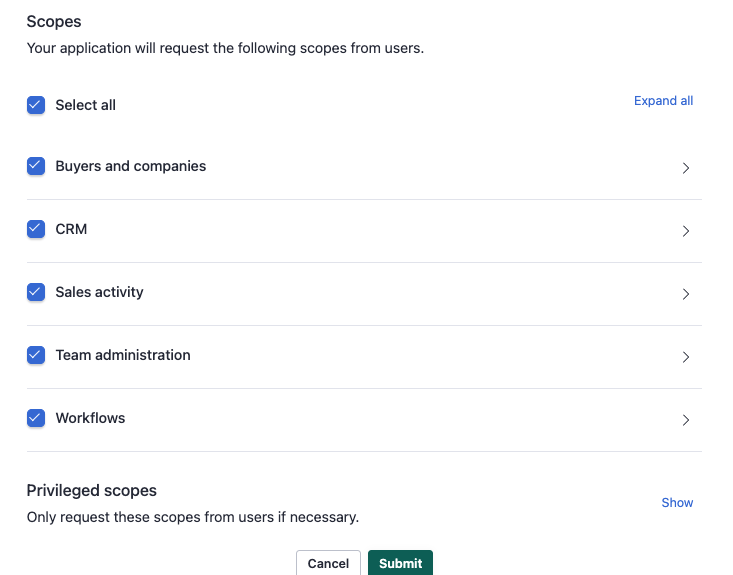 Salesloft scopes
Click Submit, then copy the Application ID (Client ID) and Secret (Client secret) from the App Credentials section of the application.
Return to the Workato tab and enter the values you copied in the Client ID and Client secret fields.
Click Save to save the custom OAuth profile. Refer to Custom OAuth profiles for more information.
Generate a Salesloft API key
You must generate an API key in Salesloft before you create the connection in Workato. Skip this section if you connect with an OAuth 2.0 (authorization code grant) connection.
Sign in to your Salesloft account and go to Your Applications > API Keys > Create New.
Enter a descriptive name for the key in the Name field.
Select the scopes the key needs. Refer to Recommended scopes for the scopes that map to each Workato object. Salesloft disables Save until you select at least one scope.
Click Save.
Copy the generated key. You need this value to create the Workato connection. Salesloft keys are prefixed ak_ and aren't displayed again after you leave the confirmation screen.
API KEY SCOPES
Like an OAuth application, an API key carries the scopes you select when you create it. Grant the same scopes listed in Recommended scopes, including both email_contents and email_bodies if you plan to sync the subject and body fields on Emails.
Recommended scopes
Grant the following scopes when you register your OAuth application or generate your API key. The scopes are identical for both methods.
| Salesloft scope | Workato objects |
|---|---|
people:read | People, PersonStages |
accounts:read | Accounts, AccountStages, AccountTiers |
opportunities:read | Opportunities, OpportunityTag |
team:read | Users, Teams, Tags, Groups |
cadences:read | Cadences, CadenceMemberships, Steps, Actions |
calls:read | Calls, CallDispositions, CallSentiments |
emails:read, email_contents, email_bodies | Emails, EmailTemplates |
notes:read | Notes |
tasks:read | Tasks |
crm:read | CRMActivities, CRMUsers |
meetings:read | Meetings |
activities:read | Successes |
workflow:read | Imports, CustomFields |
EMAIL CONTENT SCOPES
Grant both email_contents and email_bodies together. A connection missing either scope fails to sync the entire Emails object with a Requested scoped field(s) could not be returned, required scope access not included error, rather than silently omitting the subject, body, and error_message fields.
Supported connection types
Salesloft data pipelines support two authentication methods:
- API key: Provide a personal API key generated from your Salesloft account. Refer to Generate a Salesloft API key for setup steps.
- OAuth 2.0 (authorization code grant): Authorize Workato using a custom OAuth profile built from a Salesloft OAuth application that you create. Salesloft data pipelines don't support a default Workato-managed app, so you must register your own OAuth application and create a custom OAuth profile before you connect. Refer to Register a Salesloft OAuth application for setup steps.
Salesloft doesn't support Basic authentication or SCIM tokens for data pipelines.
Connect to Salesloft
Complete the following steps to connect to Salesloft:
Connect to Salesloft
Configure the pipeline
Complete the following steps to configure Salesloft as your data pipeline source:
Select Create > Data pipeline or press C+I.
Enter a name for the data pipeline in the Data pipeline name field.
 Data pipeline setup
Use the Location drop-down menu to select the project where you plan to store the data pipeline.
Click Start building.
Click the Extract new/updated records from source app trigger. This trigger defines how the pipeline retrieves data from Salesloft.
 Configure the Extract new/updated records from source app trigger
Use the Your Connected Source Apps drop-down menu to select Salesloft.
Choose the Salesloft connection you plan to use for this pipeline. Alternatively, click + New connection to create a new connection.
Click Add object to open the Add new objects panel.
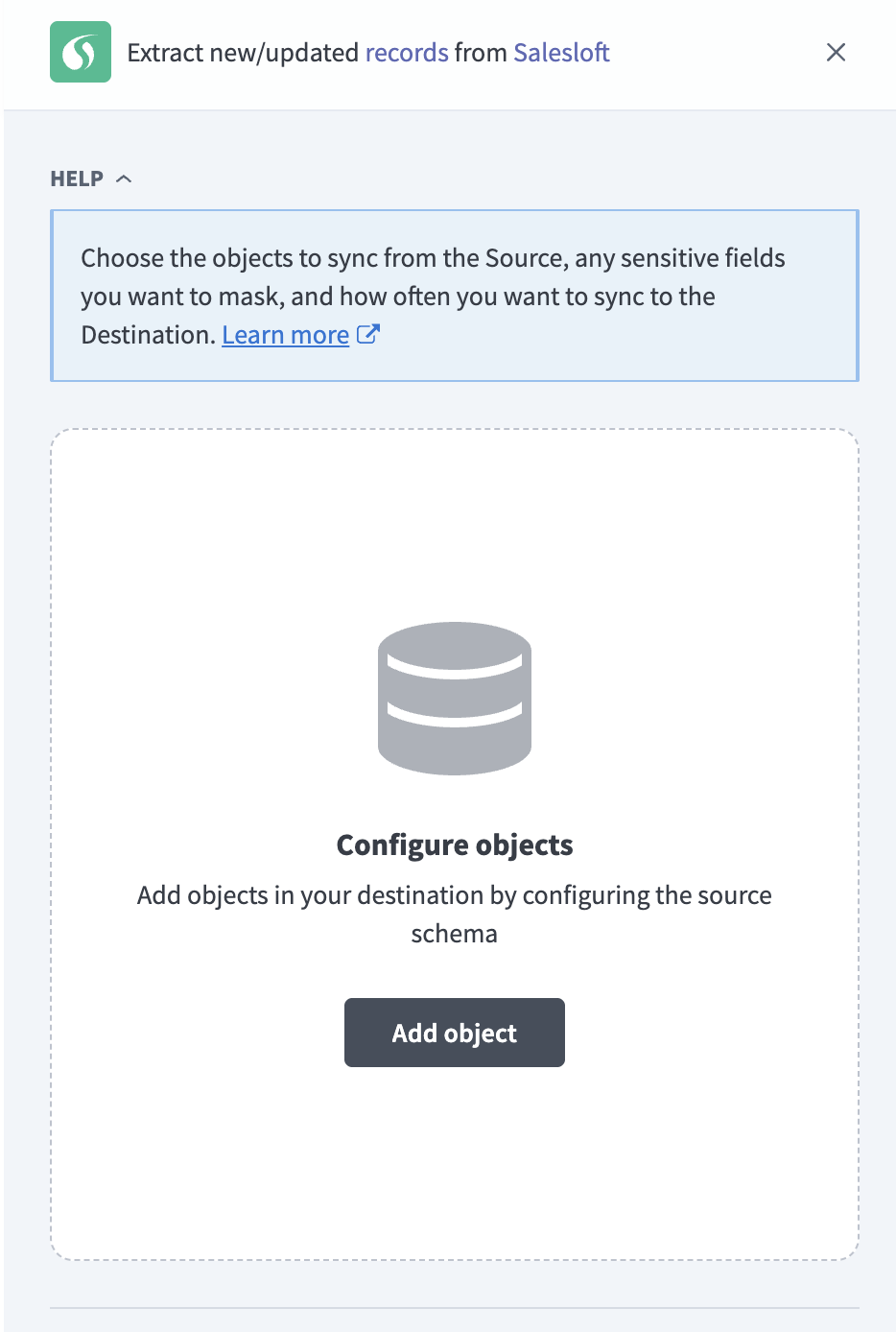 Add objects
Search or browse the list of available Salesloft objects, select the objects you plan to sync, and click Add.
SYNC MODES
Objects that don't support incremental sync re-extract all records on every run. Refer to Sync modes for more information.
Review and customize the schema for each selected object. The pipeline automatically fetches an object's schema when you select it. This ensures the destination matches the source.
Expand an object to view associated fields. Keep all fields selected to extract all available data, or deselect specific fields to exclude them from data extraction and schema replication.
Optional. Configure the sync mode for an object:
Click the Settings (gear) icon next to the object.
Select a Sync mode:
- Incremental: Sync only new and updated records.
- Full sync: Reload all records on each run.
Workato defaults to Full sync and disables this field if Salesloft doesn't expose a usable timestamp on the object.
Click Save.
Optional. Configure field-level data protection by expanding an object and choosing how to handle each field:
- Replicate as is: Data values at the source replicate identically to the destination.
- Hash: Hash sensitive data values in the field before syncing to your destination.
Workato recommends hashing personally identifiable information (PII) and other sensitive fields. Refer to Sensitive data handling for a list of fields that commonly contain PII.
Click Add object again to add more objects. Repeat this step to include additional Salesloft objects in your pipeline.
Use the Choose how to handle schema changes drop-down menu to select a schema drift handling option:
- Auto-sync new fields: Automatically detects and syncs new fields added in the source.
- Block new fields: Keeps the schema fixed after the pipeline starts. You must add new fields manually. This option may cause the destination to fall out of sync if the source schema updates.
Refer to Schema replication and schema drift management for more information.
Choose either a standard time-based schedule or define a custom cron expression in the Frequency field. This determines how often the pipeline syncs data from Salesloft to the destination.
Supported objects
Salesloft data pipelines sync data from Salesloft REST API v2 resources. The following tables list the supported objects, grouped by category. Each object syncs as a separate table in your destination.
People and accounts
| Object | Sync modes | Delete tracking | Notes |
|---|---|---|---|
People | Full sync, incremental | No | Core prospect and contact records. Contains significant PII, including the eu_resident and do_not_contact compliance fields. Refer to Sensitive data handling. |
Accounts | Full sync, incremental | No | Company records. Parent of People through the account_id field. |
PersonStages | Full sync | Yes (soft) | Lookup table for People lifecycle stages. |
AccountStages | Full sync, incremental | No | Lookup table for Accounts lifecycle stages. |
AccountTiers | Full sync | Yes (soft) | Lookup table for account tiering, such as Tier 1 or Tier 2. |
Opportunities
| Object | Sync modes | Delete tracking | Notes |
|---|---|---|---|
Opportunities | Full sync, incremental | No | Pipeline deals. Customers who connect Salesforce, HubSpot, or Dynamics as their CRM can read opportunity data only through the Salesloft API. |
OpportunityTag | Full sync | Yes (soft) | Junction table linking Opportunities to tags. Refer to Primary keys and relationships for how this object derives its rows. |
Cadences and sequencing
| Object | Sync modes | Delete tracking | Notes |
|---|---|---|---|
Cadences | Full sync, incremental | No | Sales sequences and playbooks. |
CadenceMemberships | Full sync, incremental | No | Junction table tracking which People record is enrolled in which Cadences record. Typically the highest-volume object in a Salesloft workspace. |
Steps | Full sync, incremental | No | Individual steps within a Cadences record. |
Successes | Full sync, incremental | No | Records a People record's successful completion of a Cadences record. |
Sales activities
| Object | Sync modes | Delete tracking | Notes |
|---|---|---|---|
Calls | Full sync, incremental | No | Call activity log. Refer to Call recordings for how the recording URL syncs. |
Emails | Full sync, incremental | No | Email activity log. Refer to Email content requires additional permissions for the scopes subject and body require. |
Notes | Full sync, incremental | No | Free-text notes on People or Accounts records. Refer to Sensitive data handling. |
Tasks | Full sync, incremental | No | Manual follow-up tasks. Tasks associated with a cadence step aren't included. |
Actions | Full sync | Yes (soft) | Rhythm workflow action items assigned to reps. Only in-progress actions are returned, so a completed action drops out of the source response. |
Meetings | Full sync | Yes (soft) | Meetings booked through Salesloft. Refer to Meetings availability. |
Call and email reference data
| Object | Sync modes | Delete tracking | Notes |
|---|---|---|---|
CallDispositions | Full sync | Yes (soft) | Lookup table of call outcome categories, such as Connected or Left Voicemail. |
CallSentiments | Full sync | Yes (soft) | Lookup table of call sentiment categories, such as Positive or Negative. |
EmailTemplates | Full sync, incremental | No | Reusable email templates, including cadence and archived templates. |
Users and teams
| Object | Sync modes | Delete tracking | Notes |
|---|---|---|---|
Users | Full sync | Yes (soft) | Salesloft user accounts. Always includes deactivated users. |
Teams | Full sync | Yes (soft) | The connected account's single team. Salesloft's API doesn't expose a workspace-wide team collection. |
Groups | Full sync | Yes (soft) | User group definitions for team segmentation and permissions. |
CRMUsers | Full sync | Yes (soft) | Maps Salesloft users to their CRM user records in Salesforce, HubSpot, or Dynamics. |
CRM sync
| Object | Sync modes | Delete tracking | Notes |
|---|---|---|---|
CRMActivities | Full sync, incremental | No | Activities synced from Salesloft to the connected CRM. |
Workspace configuration
| Object | Sync modes | Delete tracking | Notes |
|---|---|---|---|
Tags | Full sync | Yes (soft) | Workspace-level tag taxonomy. |
CustomFields | Full sync | Yes (soft) | Workspace-level custom field definitions for People, Accounts, and Opportunities. Refer to Custom fields. |
Imports | Full sync | Yes (soft) | Import job records. |
Sync modes
Salesloft data pipelines support full sync and incremental sync. The pipeline defaults each object to a sync mode, which you can change unless the object has no usable timestamp. Refer to Configure the pipeline for the per-object Sync mode setting.
Full sync
Full sync extracts all available records for an object on every run and updates your destination table to match. If a previously synced record no longer appears in a run, Workato flags it as deleted rather than removing it. Refer to Delete tracking for more information.
The first run of every object performs a full sync, starting from the date you set in the When first started, this pipeline should pick up records from field for objects that support it. The pipeline extracts all available records if you leave the field blank.
Objects whose Salesloft endpoint doesn't support filtering by an update timestamp always sync in full. Refer to the Supported objects tables to see the sync mode for each object.
Incremental sync
After the first sync completes, the pipeline extracts only records created or updated since the last successful run, using each record's updated_at timestamp as the cursor.
Refer to the Supported objects tables to see the sync mode for each object.
Delete tracking
For objects that sync in full, Workato compares each run against the destination table and flags a record with _workato_is_deleted = true if it no longer appears in Salesloft, rather than removing the row. For objects that sync incrementally, Workato can't detect deletions, because Salesloft doesn't expose deleted records to a read client. A deleted record remains in your destination with its last-synced values.
Meetings is the only object with a source-driven delete signal. Salesloft's API directly reports cancelled and deleted meetings, so the pipeline sets _workato_is_deleted from that signal instead of inferring it from a missing row. Refer to Synthetic columns for more information.
Accounts, Cadences, and EmailTemplates treat archival as a status change rather than a delete, so an archived record stays in your destination. Refer to the Supported objects tables to see delete tracking by object.
Schema and data type handling
The following considerations apply to schema and data types when you sync data from Salesloft:
Primary keys and relationships
Each destination table uses the Salesloft record id as its primary key, except OpportunityTag. Salesloft doesn't have a dedicated endpoint for OpportunityTag, so the pipeline derives one row per tag from the tags array embedded in each Opportunities record, using a composite key of opportunity_id and tag_name.
Relationships to other records sync as embedded JSON reference columns, such as account on People. The pipeline also adds a scalar <field>_id column derived from the same response alongside most of these reference columns, such as account_id on People. Both columns sync independently, so you can select only the scalar ID column to use as a join key and deselect the full JSON reference to reduce storage, or keep both.
Custom fields
Salesloft lets customers define custom fields on People, Accounts, and Opportunities. These sync as a single custom_fields JSON column rather than as individual columns, because the set of custom fields varies by Salesloft workspace. Refer to the CustomFields object for the custom field definitions in your workspace.
Workato syncs JSON fields to the destination's native JSON type, such as VARIANT in Snowflake. Workato serializes JSON fields as strings if the destination doesn't support a native JSON type.
Tags
The tags field on People and Accounts returns a plain JSON array of tag name strings. These values can't be joined to the Tags object by a foreign key, because Salesloft doesn't return a tag ID reference on People or Accounts.
Timestamps
Salesloft timestamps sync as timestamp with time zone values and preserve the source's ISO 8601 UTC format.
Nested fields
Fields that contain nested objects, such as an Emails record's engagement counts, sync as JSON in a single column.
Call recordings
Each entry in the recordings array on Calls includes a url field that points to a time-limited, presigned URL for the call recording audio. The pipeline syncs this URL as metadata only and doesn't fetch or store the audio content.
Synthetic columns
Workato adds the following synthetic column to the destination table of every object that syncs in full:
| Column | Type | Purpose |
|---|---|---|
_workato_is_deleted | Boolean | Set to true for a record that no longer appears in a full sync. For Meetings, this value comes directly from Salesloft's cancelled and deleted meetings signal instead of a missing row. Refer to Delete tracking for more information. |
Sensitive data handling
Salesloft objects can contain significant personally identifiable information (PII). The following objects commonly contain sensitive fields:
| Object | Sensitive fields |
|---|---|
People | first_name, last_name, email_address, personal_email_address, phone, home_phone, mobile_phone, linkedin_url |
Accounts | name, domain, website, phone |
Users | name, email |
Calls | to, embedded called_person and note data, recordings[].url |
Emails | recipient_email_address, embedded user and recipient data, subject, body, error_message |
Notes | Free-text content, which may contain any PII shared in a sales conversation |
GDPR COMPLIANCE FIELDS
People includes an eu_resident boolean field that flags GDPR-scoped records, and a do_not_contact boolean field that flags opt-out requests. The pipeline doesn't mask or exclude either field, because downstream systems rely on both as compliance signals. Workato recommends applying the Hash option to other PII fields on People records where eu_resident is true.
Use the Hash option in field-level data protection during pipeline configuration to protect PII before it reaches your destination. Refer to the Configure the pipeline steps for more information.
Limitations
The following limitations apply when you use Salesloft as a data pipeline source:
Deleted records on incremental objects
The pipeline can't detect deletions for objects that sync incrementally, because Salesloft doesn't expose deleted records to a read client. A record deleted in Salesloft remains in your destination with its last-synced values until you run a full sync of that object. Refer to Delete tracking for the objects this affects.
Meetings availability depends on your Salesloft plan
The Meetings object isn't available on every Salesloft plan. If your plan doesn't include Meetings API access, the pipeline reports a permission error for Meetings but continues syncing your other selected objects.
Email content requires additional permissions
Syncing the subject, body, and error_message fields on Emails requires both the email_contents and email_bodies scopes, whether you connect with an OAuth application or an API key. A connection missing either scope fails to sync the entire Emails object rather than omitting those fields silently.
Minimum sync frequency
The minimum supported sync interval is 15 minutes.
Last updated: