Configure SFTP as your data pipeline source
Set up SFTP as a data pipeline source to extract and sync records into your destination. Use this guide to connect SFTP, configure your pipeline, and review sync behavior, schema handling, and limitations for .csv and .parquet files.
Features supported
The following features are supported when you use SFTP as a data pipeline source:
- Extract and sync data from
.csvand.parquetfiles, including files in subdirectories of the configured folder - Support for full and incremental sync through file modification time detection
- Field-level selection for object extraction
- Field-level data masking
Prerequisites
Connecting SFTP as a data pipeline source requires:
- An SFTP server reachable from Workato's cloud infrastructure
- Credentials for your chosen authentication method:
- Username/password: A username and password for the SFTP server
- Public/private key pair: A username and a private key registered with the server. Workato recommends the OpenSSH format for interoperability
- Public/private key pair and password: A username, a private key, and a password, for servers that require both factors
- The host key fingerprint (SHA256 or MD5) of your SFTP server, used to verify the identity of the server and protect the connection against a man-in-the-middle attack
- Folder paths and file patterns for the files you plan to sync
HOST KEY FINGERPRINT REQUIRED
Workato requires a host key fingerprint for every SFTP data pipeline connection. Workato can't confirm that it's connecting to the correct server without one, which exposes your credentials to a man-in-the-middle attack. Contact your SFTP server administrator for the key fingerprint.
Connect to SFTP
The SFTP connector supports the following authentication methods:
Username/password
Complete the following steps to connect to SFTP as a data pipeline source with username/password authentication:
Connect with username/password
Select Create > Connection or press C twice.
Search for SFTP and select it as your app.
Enter a name in the Connection name field.
Use the Location drop-down menu to select the project where you plan to store the connection.
Select Cloud in the Connection type field.
Select Username/password in the Authentication type field.
Enter the username for your SFTP server in the Username field.
Enter the password for your SFTP server in the Password field.
Enter the address of your SFTP server in the Hostname field.
Enter the port for your SFTP server in the Port field. The default port is 22.
Enter the fingerprint of your SFTP server's host key in the Host key fingerprint field. Include the algorithm prefix.
Optional. Enter a value in the Transfer buffer size field to change the size of the buffer Workato uses to transfer files. The default and minimum value is 32768, and the maximum is 327680. Larger values generally speed up transfers if your SFTP server supports them.
Optional. Select a value in the Force close field to shut down the underlying SSH connection at the end of each transaction. Only use this setting if your connection attempts seem to hang. Leave it blank to allow a clean connection close.
Optional. Enter a value in the Explicit version field to set the SFTP protocol version to use. Leave it blank to let Workato negotiate the version automatically.
Optional. Use the Append operations supported? field to indicate whether your SFTP server supports append and modify operations. Select No if your SFTP provider doesn't support these operations. Defaults to Yes.
Select Connect to verify and save the connection. Workato displays a success message when the connection is established.
Public/private key pair
Complete the following steps to connect to SFTP as a data pipeline source with public/private key pair authentication:
Connect with public/private key pair
Select Create > Connection or press C twice.
Search for SFTP and select it as your app.
Enter a name in the Connection name field.
Use the Location drop-down menu to select the project where you plan to store the connection.
Select Cloud in the Connection type field.
Select Public/private key pair in the Authentication type field.
Enter the username for your SFTP server in the Username field.
Enter your SSH private key in the Private key field. Workato recommends the OpenSSH format for interoperability, but passes the key text unchanged to Workato's SSH client, which determines whether the format is supported.
Optional. Enter the passphrase for your private key in the Passphrase field, if your key is encrypted.
Enter the address of your SFTP server in the Hostname field.
Enter the port for your SFTP server in the Port field. The default port is 22.
Enter the fingerprint of your SFTP server's host key in the Host key fingerprint field. Include the algorithm prefix.
Optional. Enter a value in the Transfer buffer size field to change the size of the buffer Workato uses to transfer files. The default and minimum value is 32768, and the maximum is 327680. Larger values generally speed up transfers if your SFTP server supports them.
Optional. Select a value in the Force close field to shut down the underlying SSH connection at the end of each transaction. Only use this setting if your connection attempts seem to hang. Leave it blank to allow a clean connection close.
Optional. Enter a value in the Explicit version field to set the SFTP protocol version to use. Leave it blank to let Workato negotiate the version automatically.
Optional. Use the Append operations supported? field to indicate whether your SFTP server supports append and modify operations. Select No if your SFTP provider doesn't support these operations. Defaults to Yes.
Select Connect to verify and save the connection. Workato displays a success message when the connection is established.
Public/private key pair and password
Complete the following steps to connect to SFTP as a data pipeline source with public/private key pair and password authentication:
Connect with public/private key pair and password
Select Create > Connection or press C twice.
Search for SFTP and select it as your app.
Enter a name in the Connection name field.
Use the Location drop-down menu to select the project where you plan to store the connection.
Select Cloud in the Connection type field.
Select Public/private key pair and password in the Authentication type field.
Enter the username for your SFTP server in the Username field.
Enter your SSH private key in the Private key field. Workato recommends the OpenSSH format for interoperability, but passes the key text unchanged to Workato's SSH client, which determines whether the format is supported.
Optional. Enter the passphrase for your private key in the Passphrase field, if your key is encrypted.
Enter the password for your SFTP server in the Password field. Servers that require this authentication type validate the key pair and the password together.
Enter the address of your SFTP server in the Hostname field.
Enter the port for your SFTP server in the Port field. The default port is 22.
Enter the fingerprint of your SFTP server's host key in the Host key fingerprint field. Include the algorithm prefix.
Optional. Enter a value in the Transfer buffer size field to change the size of the buffer Workato uses to transfer files. The default and minimum value is 32768, and the maximum is 327680. Larger values generally speed up transfers if your SFTP server supports them.
Optional. Select a value in the Force close field to shut down the underlying SSH connection at the end of each transaction. Only use this setting if your connection attempts seem to hang. Leave it blank to allow a clean connection close.
Optional. Enter a value in the Explicit version field to set the SFTP protocol version to use. Leave it blank to let Workato negotiate the version automatically.
Optional. Use the Append operations supported? field to indicate whether your SFTP server supports append and modify operations. Select No if your SFTP provider doesn't support these operations. Defaults to Yes.
Select Connect to verify and save the connection. Workato displays a success message when the connection is established.
Configure the pipeline
Complete the following steps to configure SFTP as your data pipeline source:
Select Create > Data pipeline or press C+I.
Enter a name for the data pipeline in the Data pipeline name field.
 Data pipeline setup
Use the Location drop-down menu to select the project where you plan to store the data pipeline.
Click Start building.
Click the Extract new/updated records from source app trigger. This trigger defines how the pipeline retrieves data from SFTP.
 Configure the Extract new/updated records from source app trigger
Use the Your Connected Source Apps drop-down menu to select SFTP.
Choose the SFTP connection you plan to use for this pipeline. Alternatively, click + New connection to create a new connection.
Use the Directory field to select or enter the base directory to monitor. The folder path for each object you add is relative to this directory.
Click Add object to open the New object panel.
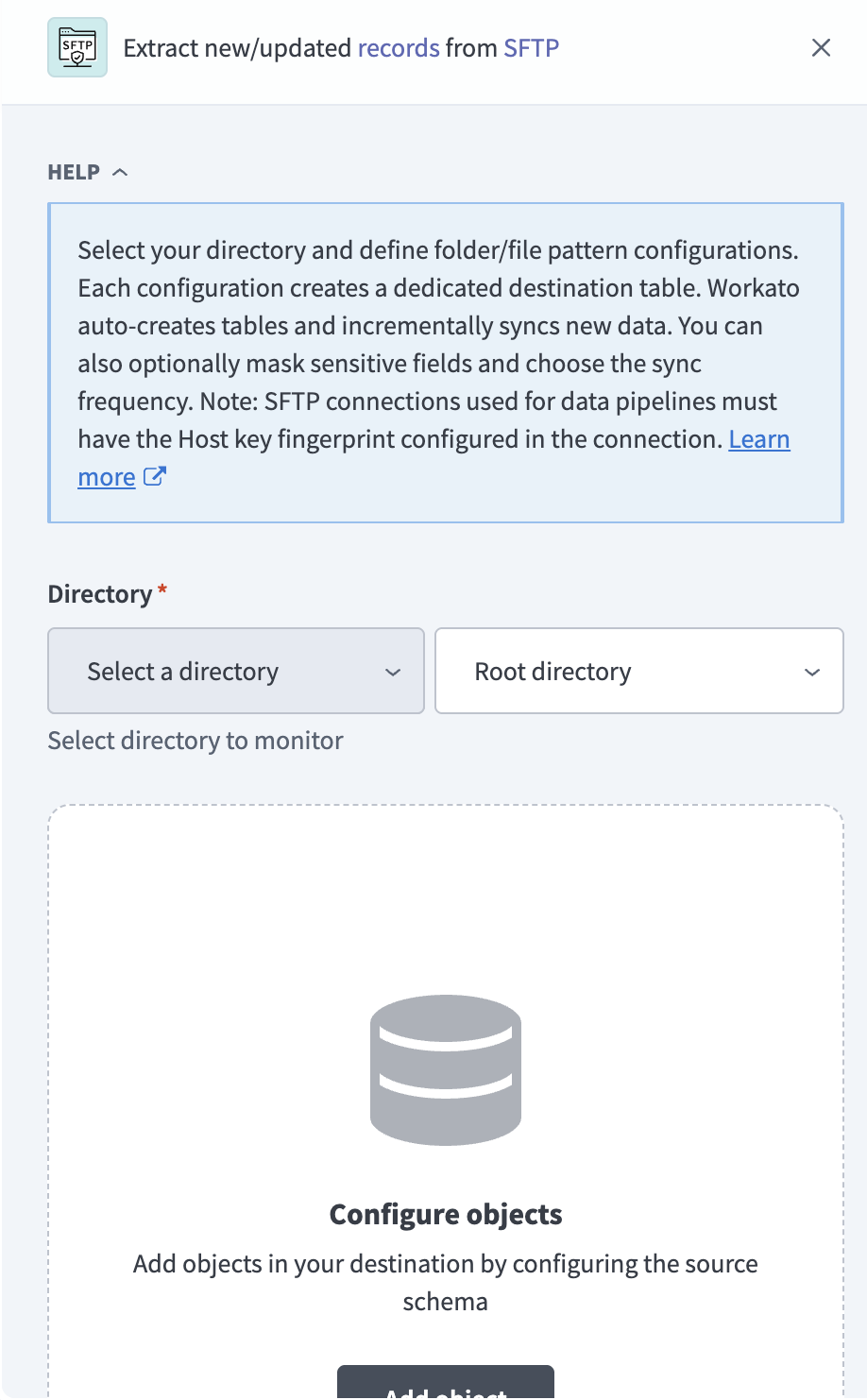 Add object
Enter the folder to monitor and fetch files from in the Source Folder path field, relative to the directory you selected in the previous step.
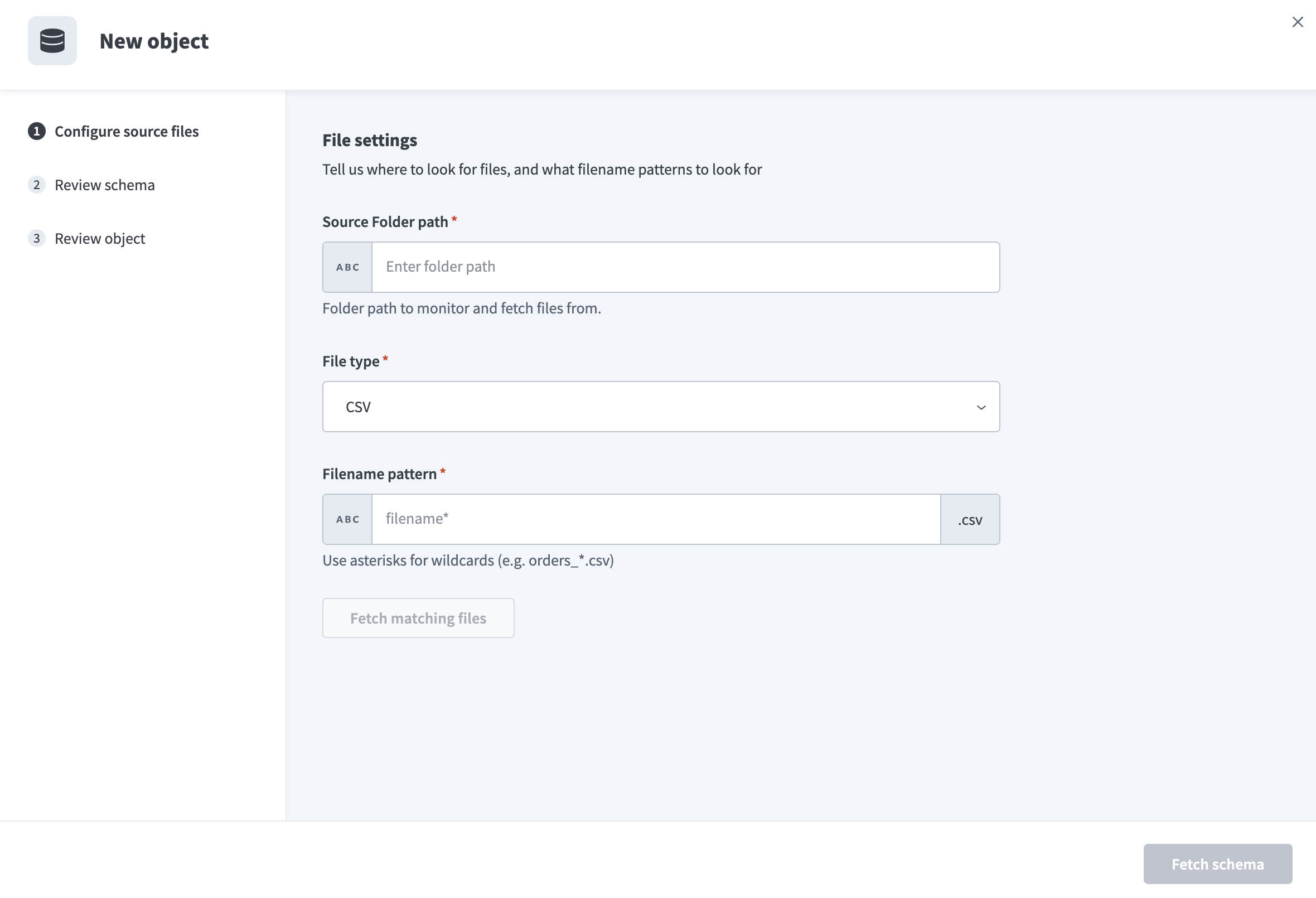 Configure source files
The pipeline also discovers matching files in subdirectories of this folder automatically.
Use the File type drop-down menu to select the file format to extract. Workato supports the following file types:
- CSV: Extract data from
.csvfiles. Requires additional file type settings configuration. - Parquet: Extract data from
.parquetfiles. Schema and data types are inferred directly from the file.
Define which files to fetch using a pattern in the Filename pattern field. Use wildcards, such as orders_*, to include multiple files. The file extension is appended automatically based on the File type you select.
A pattern that starts with a literal character, such as orders_*, only matches files directly in the source folder, because the literal prefix anchors the match to the top level. Start the pattern with an asterisk instead, such as *orders_*, to also match files in subdirectories, because a leading asterisk crosses folder boundaries.
Click Fetch matching files to preview up to 10 files matching the defined pattern.
Use the Reference file drop-down menu to select the file whose schema you want the destination table to adhere to.
Configure file type-specific settings:
Click Fetch schema to load and preview columns from the reference file. CSV schemas are inferred from the header row and the first 1,000 rows of the reference file. Parquet schemas are read directly from the file's embedded metadata.
Review the schema to ensure it matches your expected table structure.
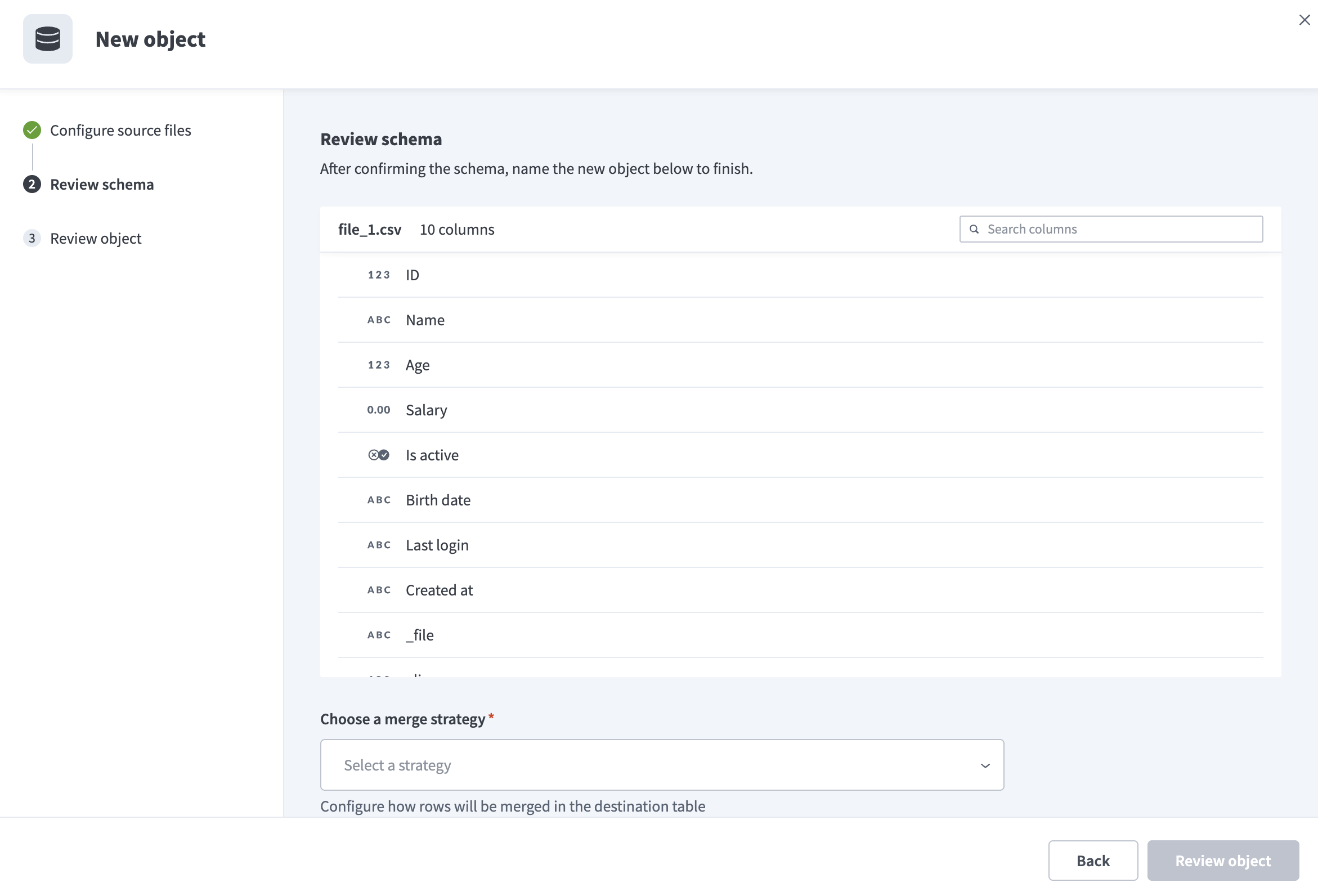 Review schema
The schema preview includes the columns from your source file along with the following system-generated columns:
_file: The path of the source file each row originated from._line: The line or row number of each record within the source file._modified: The last modified timestamp of the source file at the time of sync.
Configure how rows are merged in the destination table in the Choose a merge strategy field. Workato supports the following merge strategies:
- Upsert: Inserts new rows and updates existing rows. The Merge method field appears when you choose Upsert. You can select up to
5columns to use as the primary key for the destination table. The pipeline uses the system-generated_fileand_linecolumns as a composite primary key if you leave Merge method blank. - Append only: Inserts all rows without attempting to match or update existing records, using the system-generated
_file,_line, and_modifiedcolumns as surrogate keys. Use this option to retain a full history of every version of a file as it changes over time.
Click Review object to confirm your setup. This screen displays your file settings, file type-specific options, and merge details.
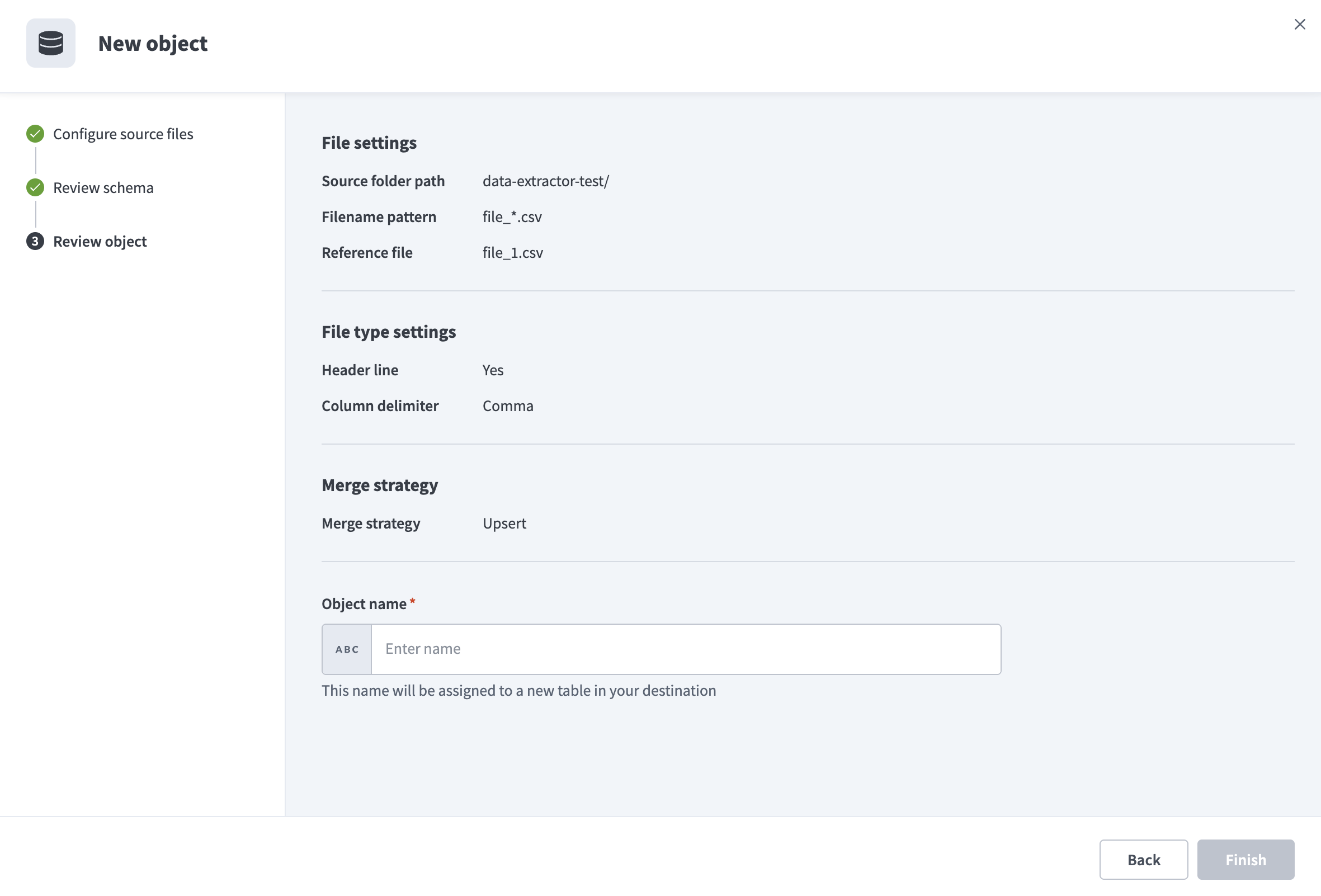 Review object
Enter a name for the destination table in the Object name field.
Click Finish to save the object configuration.
Review and customize the schema for each selected object. The pipeline automatically fetches an object's schema when you select it. This ensures the destination matches the source.
Expand an object to view associated fields. Keep all fields selected to extract all available data, or deselect specific fields to exclude them from data extraction and schema replication.
Optional. Configure field-level data protection by expanding an object and choosing how to handle each field:
- Replicate as is: Data values at the source replicate identically to the destination.
- Hash: Hash sensitive data values in the field before syncing to your destination.
Workato recommends hashing personally identifiable information (PII) and other sensitive fields. Refer to Sensitive data handling for a list of fields that commonly contain PII.
Click Add object again to add more objects. Repeat this step to include additional folder and file pattern configurations in your pipeline.
Use the Choose how to handle schema changes drop-down menu to select a schema drift handling option:
- Auto-sync new fields: Automatically detects and syncs new fields added to the source file. Historical rows receive
NULLfor the new column. - Block new fields: Keeps the schema fixed after the pipeline starts. Extra columns in incoming files are ignored. You must add new fields manually.
Missing fields in an incoming file are inserted as NULL regardless of this setting.
Optional. Enter a value in the Concurrency limit field to cap the number of concurrent operations. Leave the field blank to use the default quota set by Workato. The maximum value is 5.
Some SFTP servers accept only one active session at a time. Lower this value if concurrent connections to your server fail.
Configure how often the pipeline syncs data from SFTP to the destination in the Frequency field. Choose either a standard time-based schedule or define a custom cron expression.
Sync modes
SFTP data pipelines run a full sync followed by incremental syncs on every later run. This sequence isn't configurable, unlike the per-object sync mode selector other connectors offer.
Full sync
A full sync lists every file in the configured folder and its subdirectories that matches your filename pattern, processes the files oldest to newest, and loads all rows into the destination table using the selected merge strategy. This full sync runs only once, when the pipeline starts, unlike full sync on other connectors, which repeats on every run when selected. Every later run is an incremental sync.
The destination table must be empty when the full sync starts. The pipeline returns a configuration error and doesn't sync if the table already contains data.
Incremental sync
SFTP servers don't expose change events or row-level timestamps, so Workato uses each file's last modified timestamp (mtime) as the incremental cursor. The pipeline lists the folder tree again on every run after the full sync and compares each file's current mtime against the timestamp of the last successful run. Files with a newer mtime are downloaded and re-processed in full. Unmodified files are skipped.
The pipeline re-examines files modified within 5 minutes of the last sync boundary on every run, to account for clock differences between your SFTP server and Workato. A file re-read this way produces the same result under the Upsert merge strategy.
Delete tracking
SFTP doesn't support delete tracking. Workato doesn't drop the destination table or mark any of its rows as deleted when a file is removed from the source folder. Include a column such as is_deleted in your source files if you need to track deletions.
Schema and data type handling
The following considerations apply to schema and data types when you sync data from SFTP:
Nested data
Parquet files can contain nested objects and repeated fields (arrays). Workato stores these as JSON strings in the destination column rather than flattening them into individual columns.
Synthetic columns
Workato adds the following synthetic columns to every destination table created from an SFTP object:
| Column | Type | Purpose |
|---|---|---|
_file | String | Path of the source file the row was read from |
_line | Integer | Row number of the record within the source file |
_modified | Timestamp | Last modified timestamp of the source file at the time of sync, in UTC |
Sensitive data handling
SFTP is a common transport for high-sensitivity batch exports, such as payroll files, employee records, patient data, financial statements, and customer lists. Workato can't predict which columns contain sensitive data ahead of time, because the schema of every file is customer-defined.
Review the fields in each object before you sync it, and use the Hash option in field-level data protection to mask any column that contains PII or other sensitive data. Refer to the Configure the pipeline steps for more information.
Limitations
The following limitations apply when you use SFTP as a data pipeline source:
Host key fingerprint is required
Workato requires a host key fingerprint to create an SFTP connection. This differs from the SFTP connector for recipes, where the host key fingerprint is optional.
SSH-RSA is not supported for cloud connections
Workato doesn't support the SSH-RSA algorithm for direct cloud connections, because it relies on SHA-1, which no longer meets modern security standards. Contact Workato support if your SFTP server requires SSH-RSA.
Some SFTP servers allow only one active session
Some SFTP servers accept only one active session at a time. Set Concurrency limit to 1 to avoid connection failures if your server has this limitation.
Maximum file and object sizes
The following quotas apply to SFTP data pipelines:
| Limit | Value |
|---|---|
| Maximum file size | 10 GB |
| Maximum columns per file | 300 |
| Maximum objects per pipeline | 50 |
| Maximum primary key columns | 5 |
| Encoding (CSV) | UTF-8 only |
Files larger than the maximum size are skipped, and the skip is logged on the object's details page.
Renamed files sync as new files
SFTP has no way to signal that a file was renamed rather than replaced. Workato treats a file you rename on your server as a new file and re-downloads it in full.
Overlapping filename patterns can duplicate data
A file that matches overlapping filename patterns across two objects in the same pipeline, such as orders_* and orders_archive_*, syncs to both destination tables. Design your patterns so that each file is intended to match only one object.
Minimum sync frequency
The minimum supported sync interval is 15 minutes.
Last updated: