Configure Shopify as a data pipeline source
Set up Shopify as a data pipeline source to extract commerce data, such as orders, products, customers, and transactions, from your Shopify store into your destination using the Shopify GraphQL Admin API.
Use this guide to review supported features, complete the prerequisites, connect to Shopify, configure the pipeline, and understand supported objects, sync modes, schema handling, and limitations.
Features supported
The following features are supported when you use Shopify as a pipeline source:
- Full sync and incremental sync: Sync complete datasets or only new and updated records. Incremental sync uses each object's cursor field, such as
updated_at. - Object-level selection: Choose which Shopify objects to sync. All objects are available through a single connection per store.
- Field-level selection: Expand any object to include or exclude specific fields from extraction and schema replication.
- Soft delete tracking: Track state-based deletions, such as cancelled orders and archived products, through the
_workato_is_deletedcolumn for supported objects. Refer to Delete tracking for more information. - Schema drift detection and handling: Detect and apply schema changes automatically with Auto-sync new fields, or keep the schema fixed with Block new fields.
- Field-level data protection: Hash or replicate sensitive fields as is before the data reaches your destination.
- Configurable sync frequency: Schedule syncs on a time-based interval or with a cron expression. The minimum supported interval is 15 minutes.
Prerequisites
Complete the following requirements before you configure Shopify as a data pipeline source:
- A Shopify store with permission to install and authorize apps.
- Credentials for your chosen authentication method. Data pipelines connect to one Shopify store per connection:
- OAuth 2.0: Permission to authorize the connection in your Shopify store.
- Access token: An Admin API access token from a custom app in your Shopify store. Refer to Shopify's Create and install a custom app documentation for more information.
- Protected Customer Data approval from Shopify, granted through the Shopify Partner Dashboard. Shopify requires this approval before an app can access customer personally identifiable information (PII), such as email addresses, phone numbers, and addresses, in
customersandordersdata. Refer to Shopify's Protected customer data documentation for more information. - The
read_all_ordersscope approval if you plan to sync order history older than 60 days. Refer to Recommended permissions for more information.
REQUEST APPROVALS EARLY
Shopify approval for the read_all_orders scope typically takes two to four weeks through the Partner Dashboard. Custom apps created directly in the Shopify admin receive this scope automatically.
Recommended permissions
Grant the following read-only scopes when you authorize the connection. Each scope determines which objects the pipeline can sync. Data pipelines require only read_* scopes and perform no write operations. The Shopify authorization screen may request write_* scopes as part of the shared Shopify connection app defaults. Data pipelines don't use them.
| Shopify scope | Grants access to |
|---|---|
read_orders | orders, order_line_items, transactions, refunds |
read_all_orders | Full order history. Requires Shopify approval. Refer to Order history requires the read_all_orders scope for more information. |
read_products | products, product_variants, collections, collection_products |
read_customers | customers |
read_inventory | inventory_items |
read_locations | locations |
read_fulfillments | fulfillments |
read_draft_orders | draft_orders |
read_checkouts | abandoned_checkouts |
read_content | Metafields and metaobjects |
Workato doesn't validate scopes when you establish the connection. A missing scope surfaces as an error only when the pipeline syncs an object that requires it. Verify your granted scopes against the preceding table before you run the pipeline.
Supported connection types
Shopify data pipelines support the following authentication methods:
- OAuth 2.0: Authorize the connection through your Shopify store. Workato redirects you to Shopify to grant the requested scopes.
- Access token: Authenticate with an Admin API access token from a custom app created in your Shopify store. Custom apps receive the
read_all_ordersscope automatically.
Connection setup
Complete the following steps to connect to Shopify:
Connect to Shopify
The Shopify connector supports the following authentication types:
You must have a Shopify Partner account to connect to Shopify in Workato. Refer to the Shopify Create an account documentation for more information.
OAuth 2.0 authentication
You must create an OAuth profile to use OAuth 2.0 authentication. Refer to Create an OAuth profile for more information.
Minimum and default scopes
Workato requests the following scopes by default when setting up a connection to Shopify:
read_customerswrite_customersread_inventorywrite_inventoryread_productswrite_productsread_orderswrite_ordersread_draft_orderswrite_draft_orders
You can grant Workato access to the following scopes in addition to the default scopes:
write_reportsread_reportswrite_payment_termsread_payment_termsread_product_listingsread_assigned_fulfillment_orderswrite_assigned_fulfillment_ordersread_merchant_managed_fulfillment_orderswrite_merchant_managed_fulfillment_ordersread_third_party_fulfillment_orderswrite_third_party_fulfillment_ordersread_all_orders
The minimum scope required to establish a connection is read_products.
Shopify setup for OAuth 2.0 authentication
Refer to the following sections to create an OAuth profile and connect to Shopify using OAuth 2.0 authentication:
Create an OAuth profile
Workato requires a custom OAuth profile to connect to Shopify using OAuth 2.0. Complete the following steps to create a custom OAuth 2.0 profile:
Sign in to the Shopify Dev Dashboard with a Partner account.
Click Create app.
Enter a name for your app in the Start from Dev Dashboard section, then click Create.
Enter the following URL in the App URL field:
https://www.workato.comEnter the following URL in the Redirect URLs field:
https://www.workato.com/oauth/callbackGo to Settings.
Copy and save the Client ID and Secret for use in Workato.
Go to Your app name.
Click Install app.
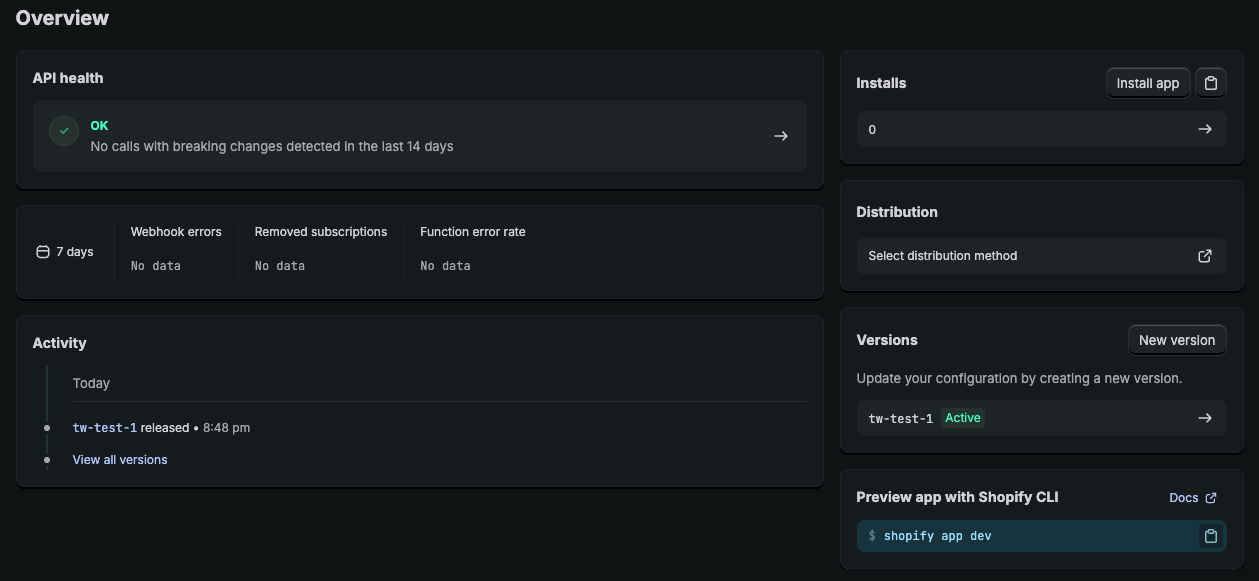 Click Install app.
Select the store where you plan to install the app, then click Install.
Open Workato and go to Tools > Custom OAuth profiles.
Click + New custom profile.
Search for Shopify and select it as your app.
Enter a Name for the account.
Click Create new app.
Enter the Client ID and Client secret from Shopify.
Click Done.
The custom OAuth profile is successfully configured. Refer to Connect to Shopify with OAuth 2.0 authentication to perform the remaining connection steps or to the Shopify OAuth apps documentation for more information.
Version 2022-10 and later releases require published public custom apps to satisfy Shopify's data protection policy to process customer data. Refer to the Shopify Requirements documentation for more information. You must have approval to access customer protected data if you are connecting through a published public custom app. Refer to the Shopify Request access to protected customer data documentation for more information.
This requirement doesn't apply if you connect through custom apps using access token authentication or unpublished custom apps. Refer to Access token authentication for more information.
Connect to Shopify with OAuth 2.0 authentication
Complete the following steps to set up an OAuth 2.0 connection to Shopify in Workato:
Click Create > Connection or press C twice.
Search for Shopify and select it as your app.
Enter a name for your connection in the Connection name field.
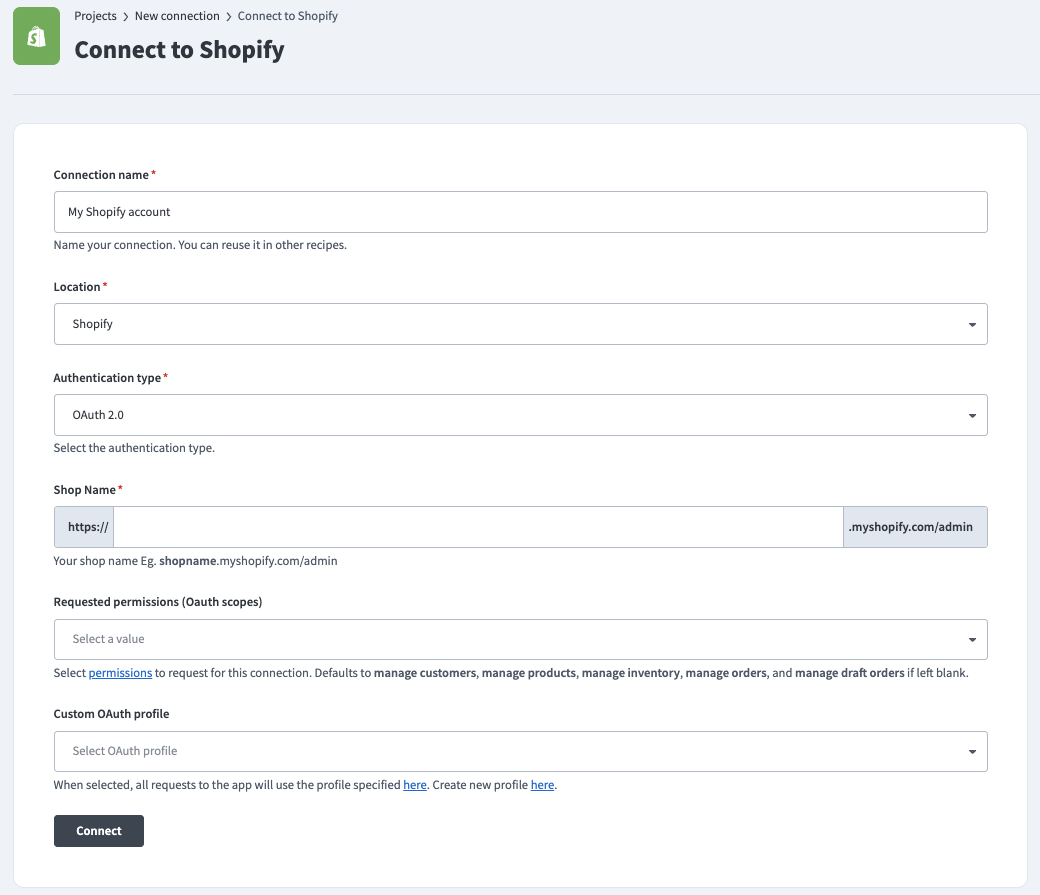 Shopify Connection
Use the Location drop-down menu to select the project where you plan to store the connection.
Use the Authentication type drop-down menu to select OAuth 2.0.
Enter the Shop Name. You can find this value in the URL for your Shopify account. For example, the shop name is shopname if the URL is shopname.myshopify.com/admin.
Optional. Use the Requested permissions (OAuth scopes) drop-down menu to select the permissions to request for this connection. Refer to the Minimum and default scopes section for more information.
Select the Custom OAuth profile to use for the connection. Refer to Create an OAuth profile for more information.
Click Connect and sign in to Shopify if prompted.
Click Install to complete the connection.
Access token authentication
You must complete the following steps to use access token authentication:
Shopify setup for access token authentication
Refer to the following sections to create a Shopify integration app, an OAuth profile, and connect to Shopify using access token authentication:
Create a Shopify integration app
Complete the following steps to create a custom Shopify integration app:
Sign in to the Shopify Admin page with a Partner account.
Go to Settings > Apps.
Click Develop apps.
Click Build apps in Dev Dashboard.
Click Create app.
Enter an App name and click Create app.
Enter the following URL in the App URL field:
https://www.workato.comClick Select scopes and select the scopes to provide Workato.
Access token authentication requires at least the read_products permission to successfully connect Workato to Shopify.
The recommended set of scopes are:
read_customerswrite_customersread_inventorywrite_inventoryread_productswrite_productsread_orderswrite_ordersread_draft_orderswrite_draft_orders
Click Done.
Enter the following URL in the Redirect URLs field:
https://www.workato.com/oauth/callbackClick Release.
Optional. Enter a Version name and Version message.
Click Release.
Go to Settings.
Copy and save the Client ID and Secret for use in Workato.
Go to Your app name.
Click Install app.
Click Install app
Select the store where you plan to install the app, then click Install.
Use the client credentials grant flow to programmatically request an access token. Refer to the Shopify Using the client credentials grant documentation for more information.
The custom app is successfully configured in Shopify. Refer to the Shopify Apps for your Shopify store documentation for more information.
Optional. Refer to Create an OAuth profile to manage permissions and credentials using a custom profile.
Create an OAuth profile
Optionally, complete the following steps to create a custom OAuth profile that manages permissions and credentials for your connection:
Open Workato and go to Tools > Custom OAuth profiles.
Click + New custom profile.
Search for Shopify and select it as your app.
Enter a Name for the account.
Click Create new app.
Enter the Client ID and Client secret from Shopify.
Click Done.
Connect to Shopify with access token authentication
Complete the following steps to set up an access token authentication connection to Shopify in Workato:
Click Create > Connection or press C twice.
Search for Shopify and select it as your app.
Enter a name for your connection in the Connection name field.
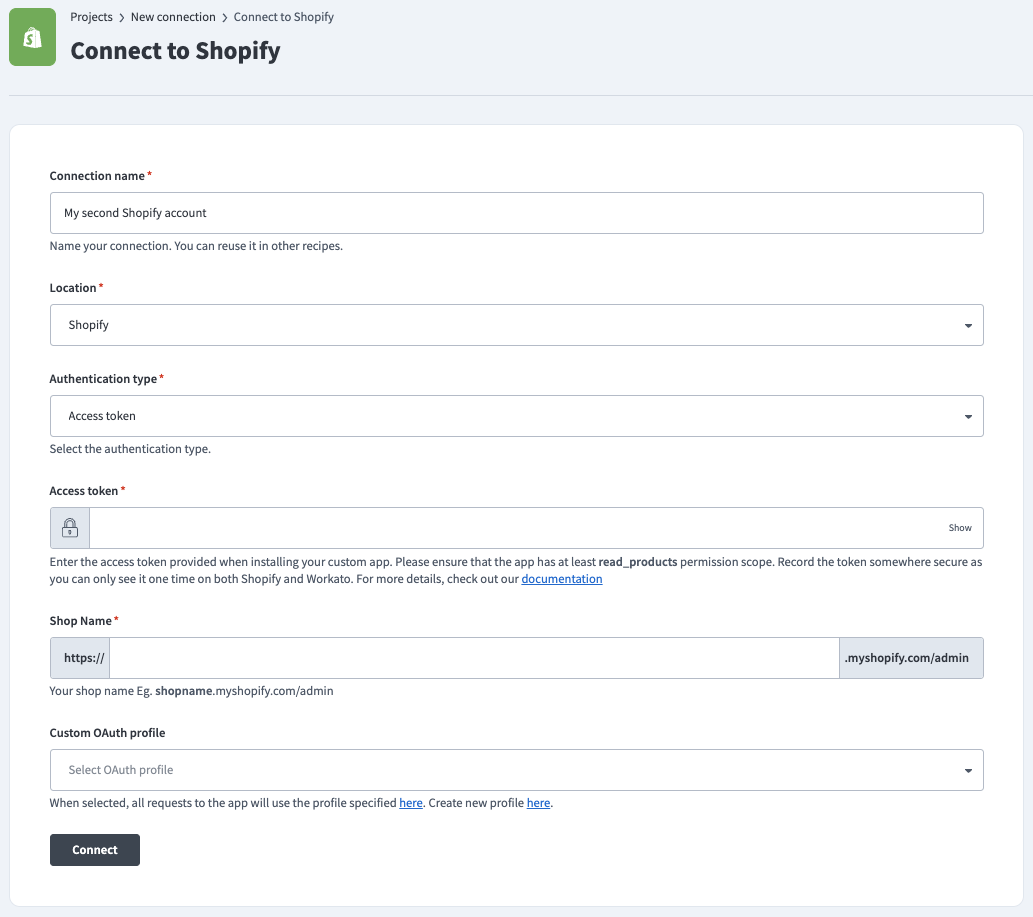 Shopify Connection
Use the Location drop-down menu to select the project where you plan to store the connection.
Use the Authentication type drop-down menu to select Access token.
Enter the Access token from Shopify.
Enter the Shop Name. You can find this value in the URL for your Shopify account. For example, if the URL is shopname.myshopify.com/admin, the shop name is shopname.
Optional. Select the Custom OAuth profile to use for the connection. Refer to Create an OAuth profile for more information.
Click Connect.
Configure the pipeline
Complete the following steps to configure Shopify as your data pipeline source:
Select Create > Data pipeline or press C+I.
Enter a name for the data pipeline in the Data pipeline name field.
 Data pipeline setup
Use the Location drop-down menu to select the project where you plan to store the data pipeline.
Click Start building.
Click the Extract new/updated records from source app trigger. This trigger defines how the pipeline retrieves data from Shopify.
 Configure the Extract new/updated records from source app trigger
Use the Your Connected Source Apps drop-down menu to select Shopify.
Choose the Shopify connection you plan to use for this pipeline. Alternatively, click + New connection to create a new connection.
Click Add object to open the Add new objects panel.
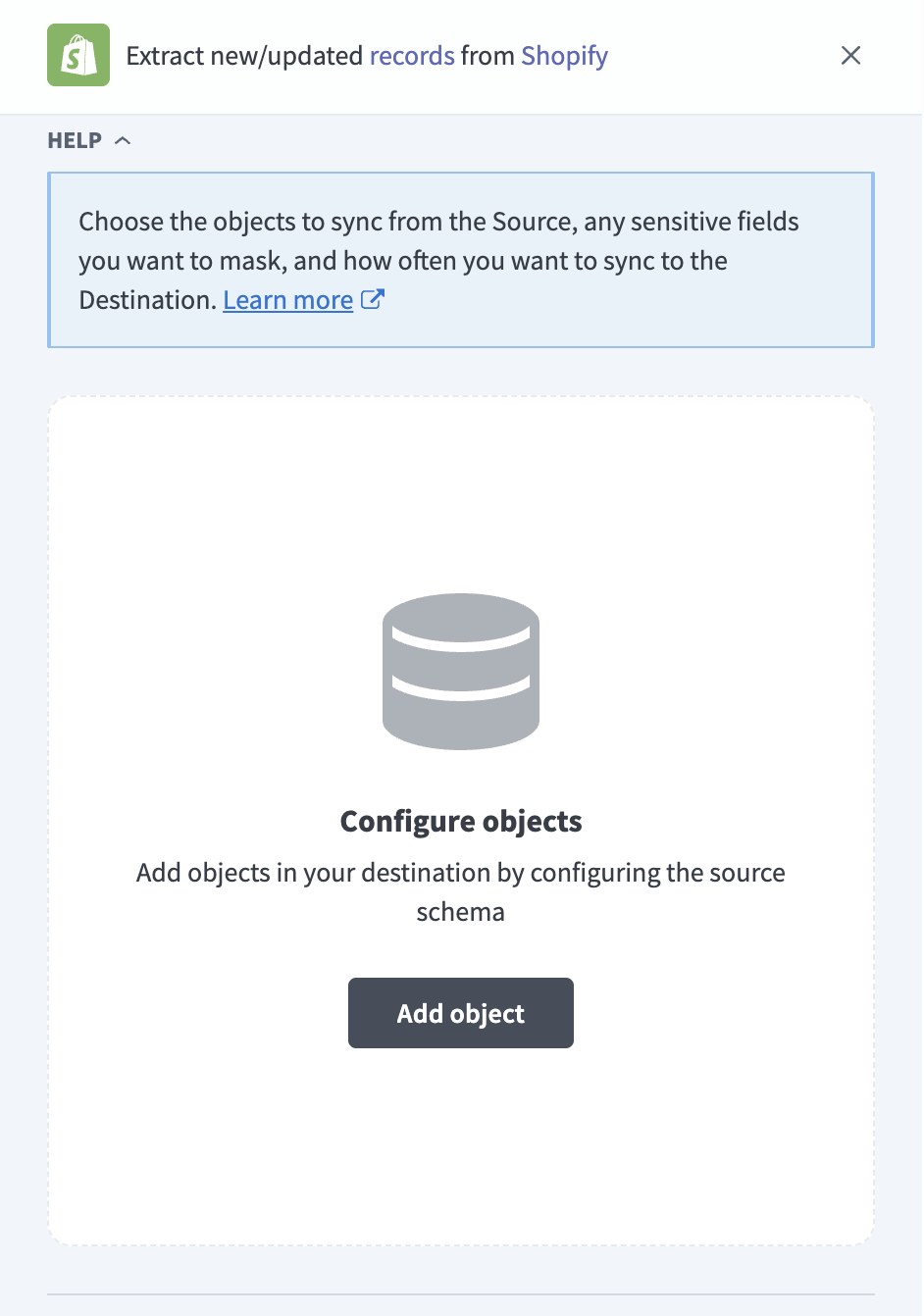 Add Shopify objects
Search or browse the list of available Shopify objects, select the objects you plan to sync, and click Add.
ORDERS OBJECT SCOPE
The orders object syncs only completed customer orders. Draft orders and abandoned checkouts are separate objects. Add draft_orders and abandoned_checkouts to your pipeline if you plan to sync these objects.
Review and customize the schema for each selected object. The pipeline automatically fetches the object schema you select to ensure the destination matches the source.
Expand an object to view its fields. Keep all fields selected to extract all available data, or deselect specific fields to exclude data from extraction and schema replication.
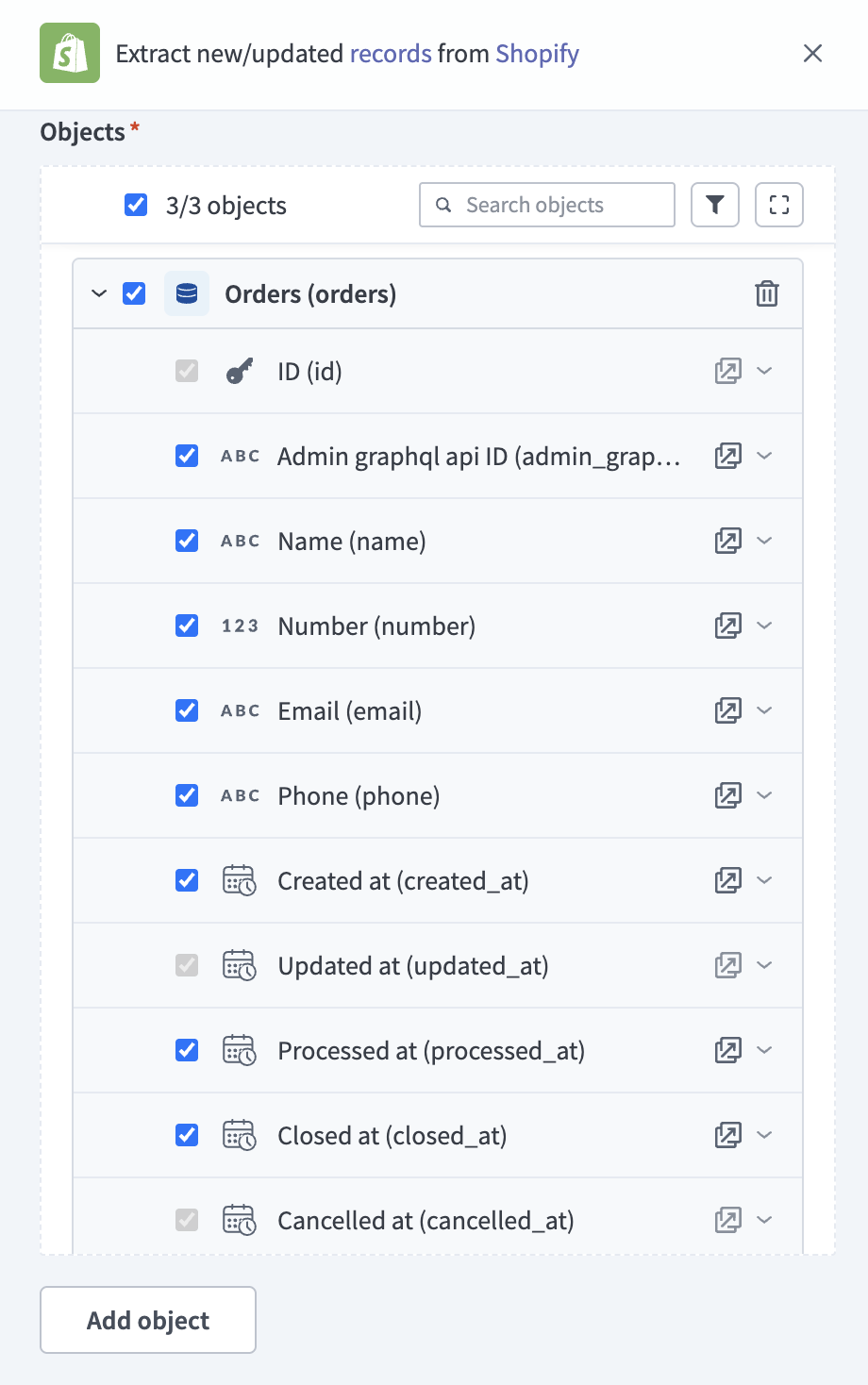 Review object fields
Optional. Configure field-level data protection by expanding an object and choosing how to handle each field:
- Replicate as is: Data values at the source replicate identically to the destination.
- Hash: Hash sensitive data values in the field before syncing to your destination.
Workato recommends hashing personally identifiable information (PII) and other sensitive fields. Refer to Sensitive data handling for a list of fields that commonly contain PII.
Click Add object again to add more objects. Repeat this step to include additional Shopify objects in your pipeline.
Use the Choose how to handle schema changes drop-down menu to select a schema drift handling option:
- Auto-sync new fields: Automatically detects and syncs new fields added in the source.
- Block new fields: Keeps the schema fixed after the pipeline starts. You must add new fields manually. This option may cause the destination to fall out of sync if the source schema updates.
Refer to Schema replication and schema drift management for more information.
Optional. Enter a value in the Concurrency limit field to cap the number of concurrent operations. Leave the field blank to use the default quota set by Workato. The maximum value is 100.
Choose either a standard time-based schedule or define a custom cron expression in the Frequency field. This determines how often the pipeline syncs data from Shopify to the destination.
Supported objects
Shopify data pipelines sync data from the Shopify GraphQL Admin API. The following tables list the supported objects, grouped by category. Each object syncs as a separate table in your destination.
Core commerce
| Object | Sync modes | Incremental mechanism | Delete tracking |
|---|---|---|---|
orders | Full sync, incremental | updated_at | Yes (soft) |
order_line_items | Full sync, incremental | Syncs with the parent orders object | No |
products | Full sync, incremental | updated_at | Yes (soft) |
product_variants | Full sync, incremental | Syncs with the parent products object | No |
transactions | Full sync, incremental | Syncs with the parent orders object | No |
refunds | Full sync, incremental | Syncs with the parent orders object | No |
customers | Full sync, incremental | updated_at | No |
Inventory and fulfillment
| Object | Sync modes | Incremental mechanism | Delete tracking |
|---|---|---|---|
inventory_items | Full sync, incremental | updated_at | No |
locations | Full sync only | None | Yes (soft) |
fulfillments | Full sync, incremental | Syncs with the parent orders object | No |
Marketing and content
| Object | Sync modes | Incremental mechanism | Delete tracking |
|---|---|---|---|
collections | Full sync, incremental | updated_at | No |
collection_products | Full sync, incremental | Syncs with the parent collections object | No |
abandoned_checkouts | Full sync, incremental | updated_at | No |
Extended
| Object | Sync modes | Incremental mechanism | Delete tracking |
|---|---|---|---|
draft_orders | Full sync, incremental | updated_at | No |
shop | Full sync only | None (single record) | No |
tender_transactions | Full sync, incremental | processed_at | No |
gift_cards | Full sync only | None | Yes (soft) |
The gift_cards object requires a Shopify Plus plan. Shopify returns an error if you sync this object from a store that isn't on a Plus plan.
Metafields and metaobjects
Shopify stores support custom data through metafields and metaobjects. Shopify data pipelines sync both:
- Metafields: Workato discovers metafield definitions from your store and includes them as additional columns on the parent object's table. Metafield columns are supported on the
orders,products,product_variants,customers,draft_orders,locations, andcollectionsobjects. - Metaobjects: Each metaobject type defined in your store is available as a separately selectable object and syncs as its own table.
The schema for metafields and metaobjects depends on the definitions in your store. If an expected metafield column doesn't appear, verify that the metafield definition exists in your store.
Sync modes
Shopify data pipelines support full sync and incremental sync.
Full sync
Full sync syncs re-extract the complete dataset for an object from Shopify. The shop, locations, and gift_cards objects always use full sync. The deleted state for locations and gift_cards is re-derived on each full sync. Refer to Delete tracking for more information.
Incremental sync
Incremental syncs extract only records created or updated after the previous sync, using each object's cursor field. Standalone objects use the updated_at field, except the tender_transactions object, which uses processed_at.
Child objects sync with their parent object and use the parent's cursor rather than their own fields. The order_line_items, transactions, refunds, and fulfillments objects sync when their parent order syncs, the product_variants object syncs when its parent product syncs, and the collection_products object syncs when its parent collection syncs.
Delete tracking
Shopify data pipelines track soft deletes for supported objects using each object's state field. When a record enters a deleted state in Shopify, the pipeline sets the _workato_is_deleted column to true in the destination on the next sync.
The following objects support soft delete tracking:
| Object | Shopify state that marks the record as deleted |
|---|---|
orders | The order is cancelled (cancelled_at is set) |
products | The product status is changed to Archived |
locations | The location is deactivated |
gift_cards | The gift card is disabled |
All other objects, including customers and all child objects, don't include the _workato_is_deleted column.
Hard deletes aren't tracked for any object. Refer to Hard deletes aren't tracked for more information.
Schema and data type handling
Shopify data pipelines flatten nested GraphQL structures into relational columns.
Monetary amounts
Money fields expand into four columns per field, covering the shop currency and presentment currency: {field}_set_shop_amount, {field}_set_shop_currency_code, {field}_set_presentment_amount, and {field}_set_presentment_currency_code. For example, an order's total price syncs as total_price_set_shop_amount, total_price_set_shop_currency_code, total_price_set_presentment_amount, and total_price_set_presentment_currency_code.
Addresses
Address objects flatten into individual component columns, such as billing_address_address_1, billing_address_city, and billing_address_country_code. Shipping addresses flatten into the same components with the shipping_address_ prefix.
Tags
Tag lists sync as a single comma-separated string column.
Record IDs
Record IDs sync as numeric IDs rather than Shopify GraphQL global IDs. For example, a product syncs with the ID 123456789 instead of gid://shopify/Product/123456789.
Synthetic columns
Workato adds the following synthetic column to destination tables for specific objects:
| Column | Type | Purpose |
|---|---|---|
_workato_is_deleted | Boolean | Marks records that entered a deleted state in Shopify. Applies only to orders, products, locations, and gift_cards. |
Refer to Delete tracking for the state changes that set this column.
Sensitive data handling
Shopify objects can contain customer personally identifiable information (PII). The following objects commonly contain sensitive fields:
| Object | Sensitive fields |
|---|---|
orders | email, client_ip, billing_address_* fields, shipping_address_* fields |
customers | email, first_name, last_name, phone |
Shopify gates access to customer PII behind Protected Customer Data approval. Refer to Prerequisites for more information.
Use the Hash option in field-level data protection during pipeline configuration to protect PII before it reaches your destination. Refer to the Configure the pipeline steps for more information.
Limitations
The following limitations apply when you use Shopify as a data pipeline source:
Hard deletes aren't tracked
Shopify removes hard-deleted records from the API without a deletion marker. When a record is hard deleted in the Shopify admin, the pipeline receives no signal, and the record remains in your destination indefinitely. This applies to every object type.
Child records of a hard-deleted parent, such as variants of a deleted product, also remain in the destination and are never marked as deleted.
Plan a periodic reconciliation process in your destination if stale records affect your downstream use cases. Soft deletes, such as cancelled orders and archived products, are tracked for supported objects. Refer to Delete tracking for more information.
Orders object excludes draft orders and abandoned checkouts
The orders object syncs only completed customer orders. Draft orders and abandoned checkouts aren't included in the orders object, even though the Shopify admin may display draft orders alongside complete orders. Sync the draft_orders and abandoned_checkouts objects separately if you plan to include this data.
Order history requires the read_all_orders scope
Shopify limits order data to the last 60 days unless your app is approved for the read_all_orders scope. Request approval through the Shopify Partner Dashboard before your initial sync if you plan to sync full order history. Approval typically takes two to four weeks. Custom apps created directly in the Shopify admin receive this scope automatically.
Child record updates depend on parent updates
All child objects sync when their parent record's cursor field changes. This applies to the order_line_items, transactions, refunds, and fulfillments objects (children of orders), the product_variants object (child of products), and the collection_products object (child of collections). A change to a child record that doesn't update the parent's updated_at timestamp isn't picked up by incremental syncs until the parent changes. Run a full sync if you need to capture child-only changes immediately.
Customer data redaction
Shopify may redact customer PII to comply with GDPR requests. Redacted customer records can remain in Shopify as record shells with scrubbed fields, and these shells sync to your destination. Customer records that Shopify removes entirely aren't detected as deleted. Refer to Hard deletes aren't tracked for more information.
Minimum sync frequency
The minimum supported sync interval is 15 minutes.
Last updated: