Configure Microsoft Dynamics Business Central as a data pipeline source
Set up Microsoft Dynamics Business Central as a data pipeline source to extract and sync records into your destination. Use this guide to set up a connection, configure your pipeline, add supported objects, and review sync behavior and known limitations.
CLOUD (SAAS) ONLY
Data pipelines support the cloud (SaaS) version of Microsoft Dynamics Business Central only. On-premises deployments aren't supported.
Features supported
The following features are supported when you use Business Central as a pipeline source:
- Pre-built business entity extraction: Sync read-only business entities across finance, sales, purchasing, and master data. Refer to Supported objects for a list of commonly used objects, and browse the Add object panel directly for the full catalog.
- Cloud (SaaS) connectivity: Connect to your Business Central cloud environment over HTTPS. On-premises deployments aren't supported.
- Sandbox and production environments: Connect to either a Sandbox or Production environment by selecting the matching environment name during connection setup.
- Full sync and incremental sync: Supports full sync and incremental sync modes. Refer to Sync modes for more information.
- Company-scoped extraction: Scope data extraction to a specific Business Central company at the connection or pipeline level. Refer to Configure the pipeline for more information.
- Object-level selection: Select Business Central objects to sync as separate tables in your destination. Refer to Supported objects for the full list.
- Field-level selection: Select or deselect individual fields per object to control which data the pipeline extracts.
- Schema drift detection and handling: Detect and apply schema changes automatically with Auto-sync new fields, or keep the schema fixed with Block new fields.
- Field-level data protection: Hash or replicate sensitive fields as is before the data reaches your destination.
- Configurable sync frequency: Schedule syncs on a time-based interval or with a cron expression. The minimum supported interval is 15 minutes.
Prerequisites
Complete the following requirements before you connect to Business Central as a data pipeline source:
- A Microsoft Dynamics Business Central cloud (SaaS) environment (Sandbox or Production).
- A Business Central account with permission to call APIs.
- Your Microsoft Entra ID (formerly Azure Active Directory) tenant ID. Refer to Locate your tenant ID for instructions.
Locate your tenant ID
Complete the following steps to locate the Microsoft Entra ID tenant ID you need to connect in Workato:
Sign in to the Microsoft Azure portal.
Go to the Microsoft Entra ID overview page.
Copy the Tenant ID value that displays on the overview page.
Supported connection types
Workato supports OAuth 2.0 authentication for Business Central data pipelines.
Connect to Microsoft Dynamics Business Central
Complete the following steps to connect to Business Central as a data pipeline source:
Select Create > Connection or press C twice.
Search for Microsoft Dynamics Business Central and select it as your app.
Provide a name for your connection in the Connection name field. For example, My Microsoft Dynamics Business Central account.
Use the Location drop-down menu to select the project where you plan to store the connection.
Enter your Microsoft Entra ID tenant ID in the Tenant ID field. Refer to Locate your tenant ID if you don't have this value.
Use the Environment name drop-down menu to select the Business Central environment you plan to connect to, such as Production or Sandbox.
Optional. Enter a value in the Company ID field to scope data extraction to a specific Business Central company. Leave this field blank to specify the company per action. Open Business Central and go to Companies to locate the company ID.
Click Connect to initiate the OAuth 2.0 authorization flow and sign in with your Microsoft 365 account when prompted and grant the requested permissions. Workato displays a success message when the connection is established.
Configure the pipeline
Complete the following steps to configure Business Central as your data pipeline source:
Select Create > Data pipeline or press C+I.
Enter a name for the data pipeline in the Data pipeline name field.
 Data pipeline setup
Use the Location drop-down menu to select the project where you plan to store the data pipeline.
Click Start building.
Click the Extract new/updated records from source app trigger. This trigger defines how the pipeline retrieves data from Microsoft Dynamics Business Central.
 Configure the Extract new/updated records from source app trigger
Use the Your Connected Source Apps drop-down menu to select Microsoft Dynamics Business Central.
Choose the Microsoft Dynamics Business Central connection you plan to use for this pipeline. Alternatively, click + New connection to create a new connection.
Use the Company drop-down menu to select the Business Central company you plan to sync data from.
Click Add object to open the Add new objects panel. Workato scopes the object list to the company you selected and displays each object as its display name and entity name, for example, Customer (customer).
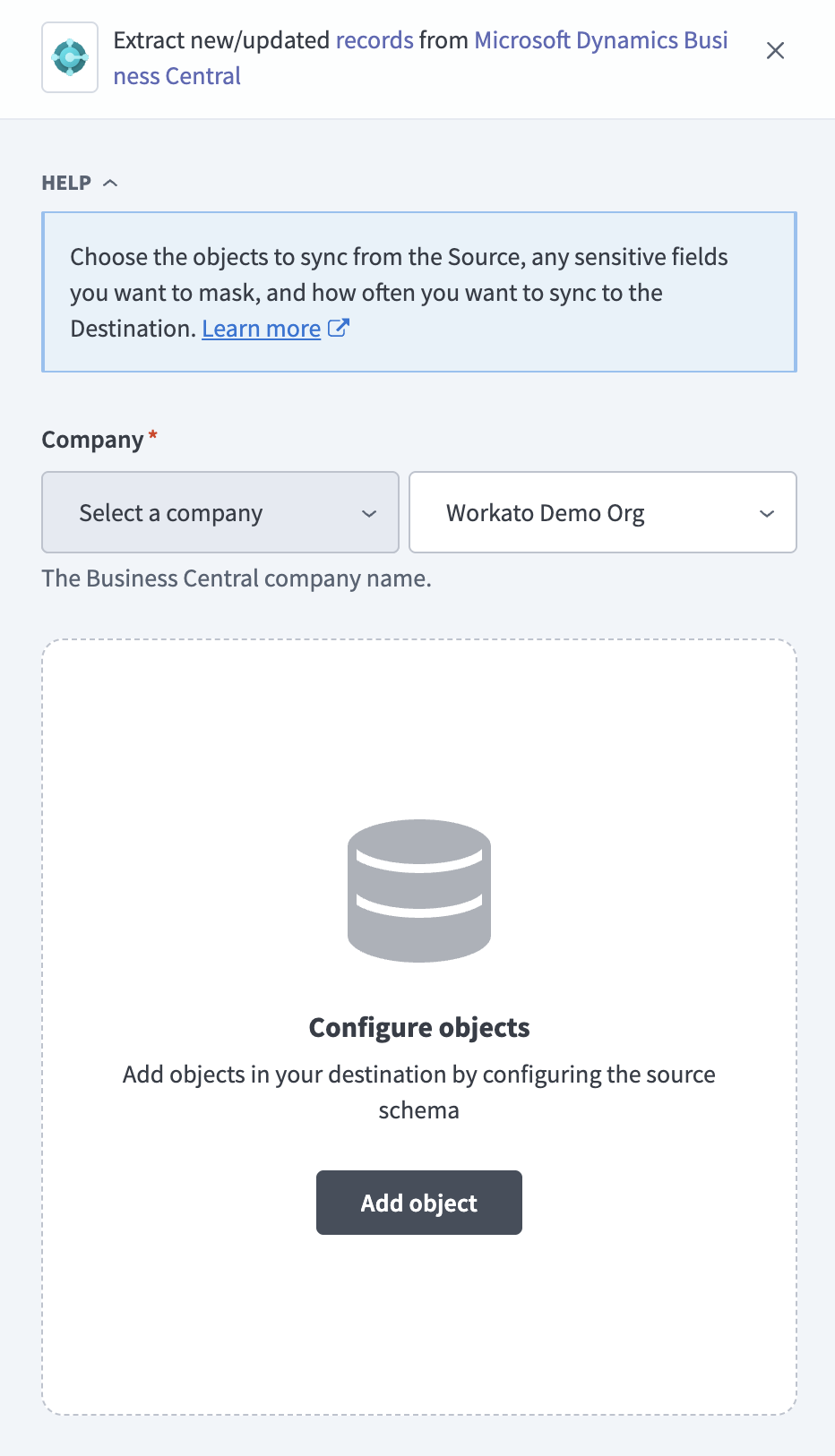 Add objects
Search or browse the list of available Business Central objects, select the objects you plan to sync, and click Add.
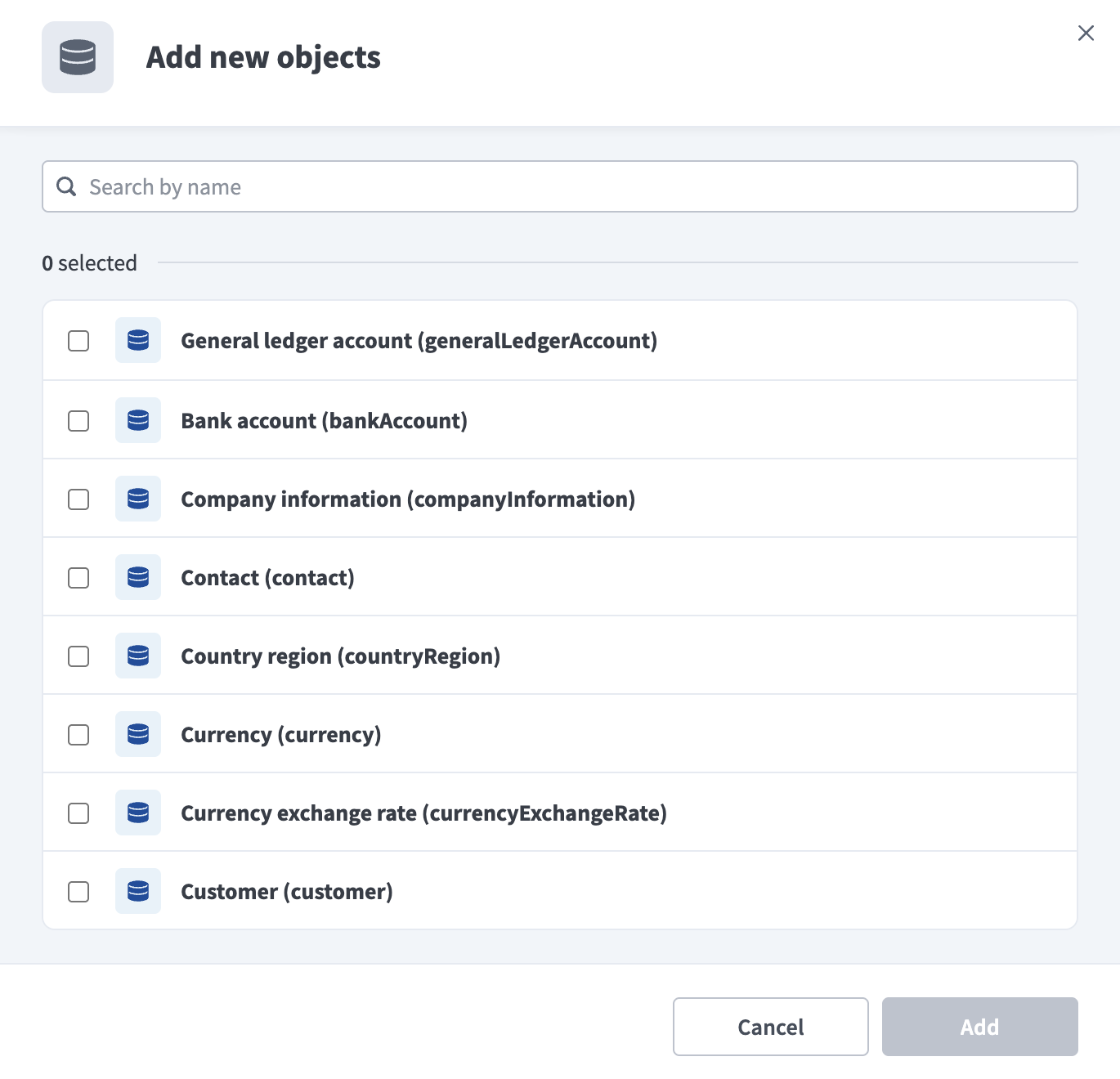 Select objects
Review and customize the schema for each selected object. The pipeline automatically fetches an object's schema when you select it. This ensures the destination matches the source.
Expand an object to view associated fields. Keep all fields selected to extract all available data, or deselect specific fields to exclude them from data extraction and schema replication.
System ID is included automatically for every object and can't be deselected.
Optional. Click the settings icon next to an object to configure how the object syncs. Use the Sync mode drop-down menu to select Full sync or Incremental. Workato defaults to full sync if it doesn't detect a timestamp field for the object. Refer to Sync modes for more information.
Optional. Configure field-level data protection by expanding an object and choosing how to handle each field:
- Replicate as is: Data values at the source replicate identically to the destination.
- Hash: Hash sensitive data values in the field before syncing to your destination.
Workato recommends hashing personally identifiable information (PII) and other sensitive fields.
Click Add object again to add more objects. Repeat this step to include additional Microsoft Dynamics Business Central objects in your pipeline.
Use the Choose how to handle schema changes drop-down menu to select a schema drift handling option:
- Auto-sync new fields: Automatically detects and syncs new fields added in the source.
- Block new fields: Keeps the schema fixed after the pipeline starts. You must add new fields manually. This option may cause the destination to fall out of sync if the source schema updates.
Refer to Schema replication and schema drift management for more information.
Choose either a standard time-based schedule or define a custom cron expression in the Frequency field. This determines how often the pipeline syncs data from Microsoft Dynamics Business Central to the destination.
Supported objects
Business Central data pipelines support read-only extraction of business entities across finance, sales, purchasing, and setup and master data. The following tables list commonly used objects, grouped by category. This isn't a complete list of all objects that Business Central data pipelines support. Browse the full catalog in the Add object panel when you configure the pipeline.
Finance
| Entity name | Description |
|---|---|
generalLedgerAccount | G/L Account records |
generalLedgerSetup | General Ledger Setup records |
bankAccount | Bank Account records |
currency | Currency records |
currencyExchangeRate | Currency Exchange Rate records |
accountingPeriod | Accounting Period records |
dimensionSetEntry | Dimension Set Entry records |
fixedAsset | Fixed Asset records |
fixedAssetLocation | FA Location records |
taxArea | Tax Area records |
taxGroup | Tax Group records |
Sales
| Entity name | Description |
|---|---|
customer | Customer records |
customerContact | Contact Business Relation records |
customerPayment | Customer Ledger Entry records filtered to Document Type = Payment |
contact | Contact records |
salespeoplePurchaser | Salesperson/Purchaser records |
Purchasing
| Entity name | Description |
|---|---|
vendorPayment | Vendor Ledger Entry records filtered to Document Type = Payment |
applyVendorEntry | Detailed Vendor Ledger Entry records |
purchaseCreditMemo | Purchase Credit Memo Header records |
purchaseCreditMemoLine | Purchase Credit Memo Line records |
Setup and master data
| Entity name | Description |
|---|---|
companyInformation | Company Information records |
countryRegion | Country/Region records |
documentAttachment | Document Attachment records |
Sync modes
Data pipelines support the following sync modes for Business Central objects:
Full sync
A full sync reads all available records for the selected object from Business Central and replaces the entire dataset in the destination with the latest data.
Incremental sync
An incremental sync extracts only records created or updated since the last sync run, using a timestamp field on the object to detect changes. If Workato doesn't detect a timestamp field for an object, the pipeline defaults to full sync for that object.
Company-scoped data
Business Central data pipelines scope data extraction to a single company at a time. The Company ID field in the connection configuration sets a default company for the connection. Leave this field blank at the connection level to select the company per pipeline instead, using the Company drop-down menu in Configure the pipeline.
Limitations
The following limitations apply when you use Business Central as a data pipeline source:
Read-only extraction
Business Central data pipelines support read-only extraction. Inserts, modifications, and deletes aren't supported. Business Central is supported as a source only, not as a destination.
Last updated: