Configure Slack as a data pipeline source
Set up Slack as a data pipeline source to extract workspace data, such as channels, messages, threads, reactions, files, and users, into your destination.
Use this guide to review the features and prerequisites, connect Slack as a data pipeline source, configure the pipeline, and understand the supported objects, sync modes, schema handling, and limitations.
Features supported
The following features are supported when you use Slack as a pipeline source:
- Cloud connectivity: Connect to Slack over HTTPS through
https://slack.com/api. On-prem agents aren't required. - OAuth 2.0 authentication: Connect using the same OAuth 2.0 connection type as the Slack workflow connector. Refer to Supported connection types for more information.
- Object-level selection: Select the Slack objects you plan to sync as separate tables in your destination. Refer to Supported objects for the full list.
- Full sync and incremental sync: Supports full sync and incremental sync modes. Incremental sync uses a per-channel cursor plus a configurable lookback window to catch recent edits. Refer to Sync modes for more information.
- Direct message and archived channel inclusion: Optionally include direct messages, group direct messages, and archived channels alongside regular channels.
- Channel filtering: Optionally limit the pipeline to a specific list of channels instead of your entire workspace.
- Delete tracking: Detect deletions for supported objects, either through a native soft-delete flag or by comparing successive full syncs. Refer to Delete tracking for the list of objects.
- Schema drift detection and handling: Detect and apply schema changes automatically with Auto-sync new fields, or keep the schema fixed with Block new fields.
- Field-level data protection: Hash or replicate sensitive fields as is before the data reaches your destination.
- Configurable sync frequency: Schedule syncs on a time-based interval or with a cron expression. The minimum supported interval is 15 minutes.
Prerequisites
Connecting Slack as a data pipeline source requires:
- A Slack workspace, and a Slack user account that's already a member of every channel you plan to sync, or that can join or be invited to those channels. Refer to Limitations for more information.
- Permission to authorize a third-party application through Slack's OAuth flow.
REQUIRED PERMISSIONS
Select only the OAuth scopes for the objects you plan to sync. Refer to Recommended permissions for the scope each object needs.
Recommended permissions
Workato needs two kinds of scopes to sync channel-based objects. Discovery scopes let Workato find which channels exist. Content scopes let Workato read what's inside a channel Workato already found. channels, channel_members, messages, threads, reactions, message_attachments, message_files, pins, and bookmarks are used in your channel list, and require a discovery scope for the channel types you plan to sync. Select the following discovery scopes for each channel type you plan to sync:
| Slack OAuth user scope | Channel type |
|---|---|
channels:read | Public channels |
groups:read | Private channels |
im:read | Direct messages. Only relevant when you enable Include direct messages and group direct messages. |
mpim:read | Group direct messages. Only relevant when you enable Include direct messages and group direct messages. |
Select the following additional scopes for the objects you plan to sync:
| Slack OAuth user scope | Workato objects |
|---|---|
channels:history | messages, threads, reactions, message_attachments, message_files (public channels) |
groups:history | messages, threads, reactions, message_attachments, message_files (private channels) |
im:history | messages, threads, reactions, message_attachments, message_files (direct messages, when enabled) |
mpim:history | messages, threads, reactions, message_attachments, message_files (group direct messages, when enabled) |
pins:read | pins |
bookmarks:read | bookmarks |
users:read | users |
users:read.email | users (email address) |
users.profile:read | users (custom_profile_fields column) |
team:read | team |
usergroups:read | user_groups |
files:read | files |
channels and channel_members need only the discovery scopes above. Slack's channels:join scope, which lets an app automatically join public channels, isn't available through this connection. Refer to Limitations for more information.
CUSTOM OAUTH PROFILE REQUIRED FOR SOME SCOPES
Granting team:read, usergroups:read, files:read, pins:read, bookmarks:read, or users.profile:read requires a Custom OAuth profile with your own Slack app. Refer to Connect to Slack for setup steps.
Supported connection types
Slack data pipelines support one authentication method:
- OAuth 2.0: Authorize Workato to access your Slack workspace using the same connection type as the Slack workflow connector. Refer to Connect to Slack for setup steps.
Connect to Slack
Complete the following steps to connect Slack as a data pipeline source:
Connect to Slack
Complete the following steps to connect to Slack in Workato:
Click Create > Connection or press C twice.
Search for Slack and select it as your app.
Enter a name for your connection in the Connection name field.
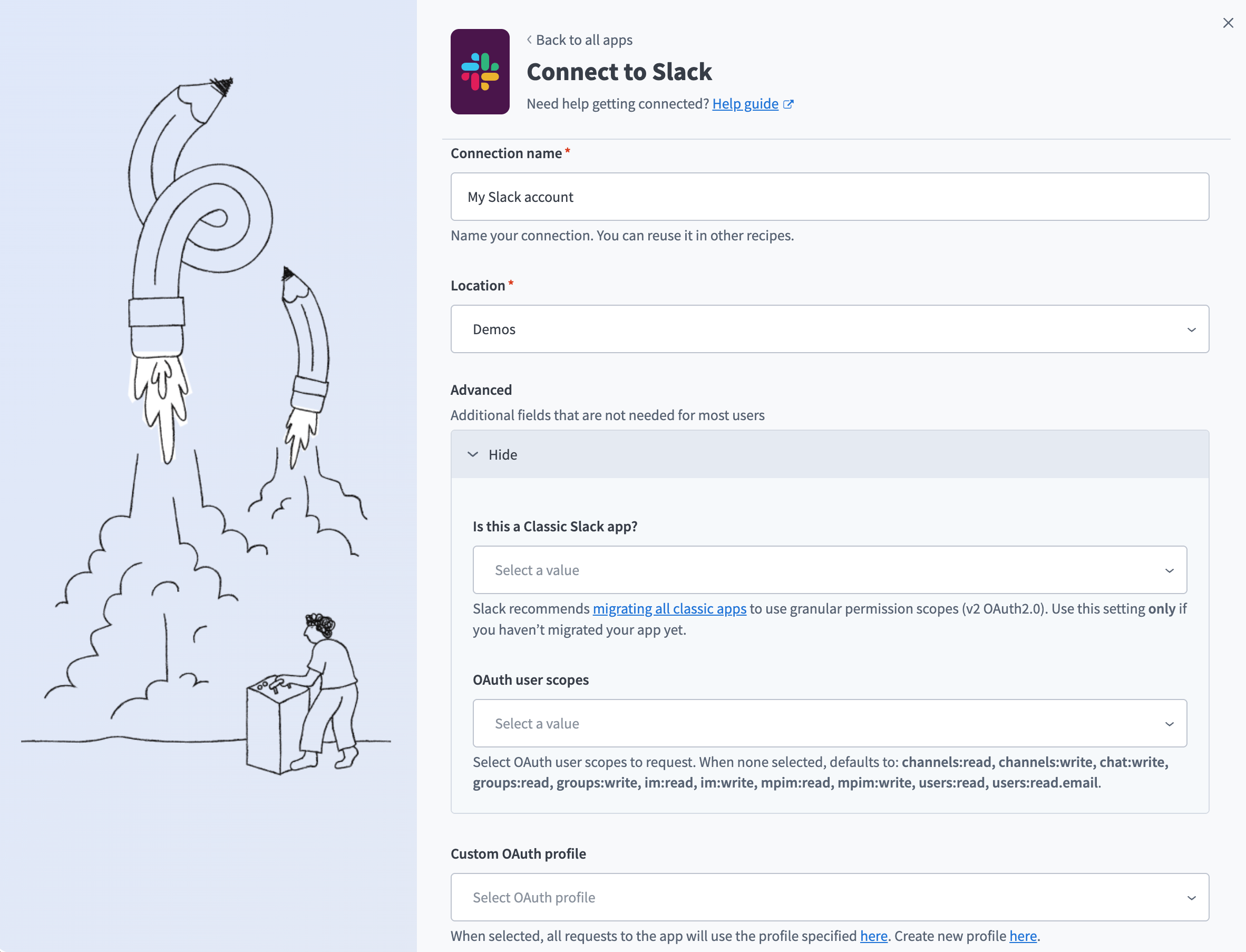 Slack connection
Use the Location drop-down menu to select the project where you plan to store the connection.
Optional. Expand Advanced and use the Is this a Classic Slack app? drop-down menu to select Yes or No. Select Yes only if you haven't migrated your Slack app to granular permission scopes. Refer to Moving to granular permission scopes for more information.
Optional. Use the OAuth user scopes drop-down menu to select the OAuth user scopes to request for your connection. Leave this field empty to request the default scopes.
Optional. Use the Custom OAuth profile drop-down menu to select a custom OAuth profile for your connection. Refer to Custom OAuth profiles for Slack for more information.
Click Connect.
Click Allow to grant Workato permission to access your account.
CUSTOM OAUTH PROFILES
A Custom OAuth profile lets you use your own Slack app for this connection instead of Workato's default shared app. Consider a Custom OAuth profile if you require full control over which scopes you grant.
A Custom OAuth profile can only connect to a single Slack workspace. Create a separate Custom OAuth profile, and a separate Slack app, for each workspace, if you use Slack Enterprise Grid with multiple workspaces. Refer to Custom OAuth profiles for Slack for setup steps.
Configure the pipeline
Complete the following steps to configure Slack as your data pipeline source:
Select Create > Data pipeline or press C+I.
Enter a name for the data pipeline in the Data pipeline name field.
 Data pipeline setup
Use the Location drop-down menu to select the project where you plan to store the data pipeline.
Click Start building.
Click the Extract new/updated records from source app trigger. This trigger defines how the pipeline retrieves data from Slack.
 Configure the Extract new/updated records from source app trigger
Use the Your Connected Source Apps drop-down menu to select Slack.
Choose the Slack connection you plan to use for this pipeline. Alternatively, click + New connection to create a new connection.
Click Add object to open the Add new objects panel.
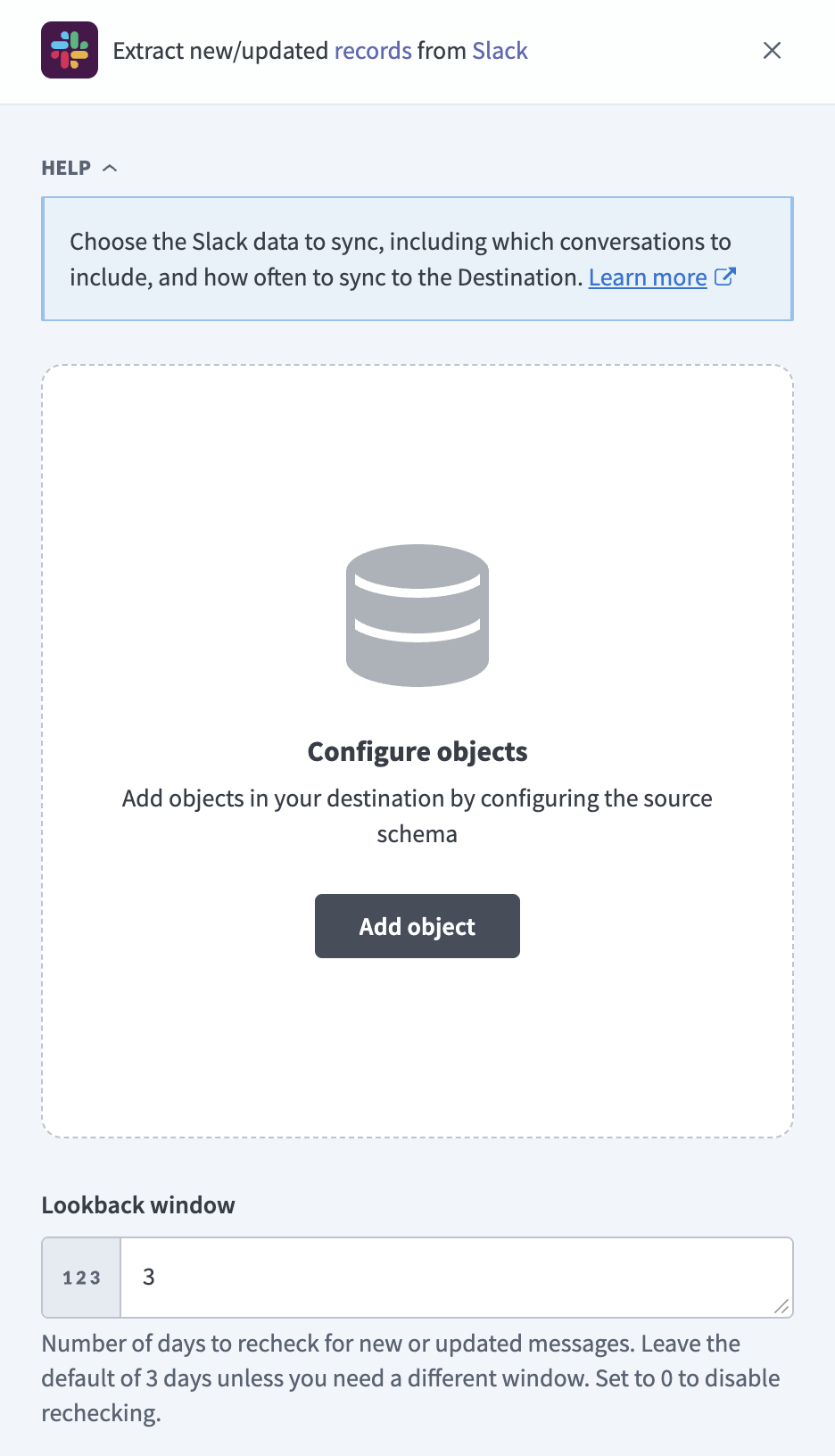 Add objects
Search or browse the list of available Slack objects, select the objects you plan to sync, and click Add.
Optional. Click the settings icon next to an object to configure how the object syncs. messages, threads, reactions, message_attachments, and message_files support both full sync and incremental sync, and default to incremental. Every other object only supports full sync. Refer to Sync modes for more information.
Review and customize the schema for each selected object. The pipeline automatically fetches an object's schema when you select it. This ensures the destination matches the source.
Expand an object to view associated fields. Keep all fields selected to extract all available data, or deselect specific fields to exclude them from data extraction and schema replication.
Optional. Configure field-level data protection by expanding an object and choosing how to handle each field:
- Replicate as is: Data values at the source replicate identically to the destination.
- Hash: Hash sensitive data values in the field before syncing to your destination.
Workato recommends hashing personally identifiable information (PII) and other sensitive fields. Refer to Sensitive data handling for a list of fields that commonly contain PII.
Click Add object again to add more objects. Repeat this step to include additional Slack objects in your pipeline.
Enter a number of days in the Lookback window field. Workato rechecks messages, threads, reactions, message attachments, and message files created within this window on every incremental sync run, to capture edits made after the initial sync. Leave the default of 3 days, or set a value between 0 and 30. Set this field to 0 to disable rechecking.
An edit to a message outside this window isn't captured until you run a full sync of the affected object. Deletions are never captured, regardless of this window. Refer to Limitations for more information.
Use the Include direct messages and group direct messages drop-down menu to select whether to sync direct messages and group direct messages alongside channels. This requires the corresponding im and mpim discovery and history scopes on your connection. Refer to Recommended permissions for more information.
Use the Include archived channels drop-down menu to select whether to include archived channels in the next full sync.
Optional. Use the Channels to sync field to select specific channels to sync. Leave this field blank to sync every channel your connection can access. Archived channels are included only when you also enable Include archived channels.
Use the Choose how to handle schema changes drop-down menu to select a schema drift handling option:
- Auto-sync new fields: Automatically detects and syncs new fields added in the source.
- Block new fields: Keeps the schema fixed after the pipeline starts. You must add new fields manually. This option may cause the destination to fall out of sync if the source schema updates.
Refer to Schema replication and schema drift management for more information.
Optional. Enter a value in the Concurrency limit field to cap the number of concurrent operations. Leave this field blank to use the default limit set by Workato. Slack pipelines run object syncs one at a time regardless of the value you enter here, to avoid exceeding Slack's per-method rate limits.
Choose either a standard time-based schedule or define a custom cron expression in the Frequency field. This determines how often the pipeline syncs data from Slack to the destination.
Supported objects
Slack data pipelines sync data from the Slack Web API. The following tables list the supported objects, grouped by category. Each object syncs as a separate table in your destination. team, user_groups, files, pins, and bookmarks require a Custom OAuth profile. Refer to Recommended permissions for more information.
Channels and membership
| Object | Sync mode | Delete tracking | Notes |
|---|---|---|---|
channels | Full sync | Yes (destination-inferred) | N/A |
channel_members | Full sync | Yes (destination-inferred) | Syncs with the parent channels object |
Messages and message content
| Object | Sync mode | Delete tracking | Notes |
|---|---|---|---|
messages | Incremental | No | N/A |
threads | Incremental | No | Syncs with the parent messages object |
reactions | Incremental | No | Syncs with the parent messages object |
message_attachments | Incremental | No | Syncs with the parent messages object |
message_files | Incremental | No | Syncs with the parent messages object. Contains file metadata only, distinct from the top-level files object |
Files, pins, and bookmarks
| Object | Sync mode | Delete tracking | Notes |
|---|---|---|---|
files | Full sync | Yes (destination-inferred) | N/A |
pins | Full sync | Yes (destination-inferred) | Syncs with the parent channels object |
bookmarks | Full sync | Yes (destination-inferred) | Syncs with the parent channels object |
Workspace and people
| Object | Sync mode | Delete tracking | Notes |
|---|---|---|---|
users | Full sync | Yes (soft) | N/A |
team | Full sync | No | Single record for your workspace |
user_groups | Full sync | Yes (soft) | N/A |
Sync modes
Slack data pipelines support full sync and incremental sync. Each object supports one or both modes, depending on whether Slack exposes an incremental cursor for it.
Full sync
A full sync reads all available records from Slack for the selected object and overwrites the destination table on every run. The following objects sync in full by default:
channelschannel_membersfilespinsbookmarksusersteamuser_groups
Incremental sync
An incremental sync reads only new records since the previous run, using the message timestamp (ts) as the cursor. Each run also rechecks messages within the configured Lookback window to catch recent edits, because Slack doesn't expose a changed since filter. Refer to Configure the pipeline to set this window, and to Limitations for what falls outside it. The following objects sync incrementally by default:
messagesthreadsreactionsmessage_attachmentsmessage_files
Delete tracking
Delete tracking is per-object and follows sync mode. Full-sync objects reflect deletions because Workato diffs each run against the previous run. Incremental objects don't reflect deletions, because there isn't a second full snapshot to diff against:
channels: Uses the nativeis_archivedfield when you enable Include archived channels. Otherwise, archived channels drop out of your destination (destination-inferred).users: Uses the nativedeletedfield to preserve deactivated users with that field set totrue, rather than removing users.user_groups: Uses a_workato_is_deletedcolumn derived from Slack'sdate_deletefield.channel_members,files,pins,bookmarks: No native signal from Slack. A record that no longer appears in Slack drops out of your destination on the next sync (destination-inferred), because these objects sync in full every run.messages,threads,reactions,message_attachments,message_files: None. These sync incrementally, and Slack doesn't signal a delete. A deleted message remains in your destination until you run a full sync of the affected object.
Schema and data type handling
The following considerations apply to schema and data types when you sync data from Slack:
Message timestamps
Slack message timestamps (ts) carry microsecond precision and also serve as each message's unique identifier within a channel, for example 1512085950.000216. Workato stores ts as a string rather than a numeric value to preserve this precision.
Message metadata and blocks
messages and threads include a metadata.event_type column and a metadata.event_payload column for app-defined structured data attached to a message. Workato stores metadata.event_payload as a JSON string, because its shape is defined by the app that attached it.
messages and threads also include a blocks column for Slack's Block Kit layout data. Workato stores blocks as a JSON string rather than a fixed set of columns, because Slack hasn't committed to a fixed schema for block content.
Custom profile fields
Workspace admins can configure custom profile fields on the users object, such as department, employee ID, or manager. Workato adds a custom_profile_fields column to users when your workspace has at least one custom profile field your connection can access. The column includes Slack's field values as a JSON string, keyed by Slack's internal field ID.
Populating this column requires one additional Slack API request per user, which can materially increase sync time for users, especially in workspaces with many users. Deselect custom_profile_fields in the object's field selection if the users sync is taking longer than expected. You can also deselect any other non-primary-key fields you don't need, for the same reason.
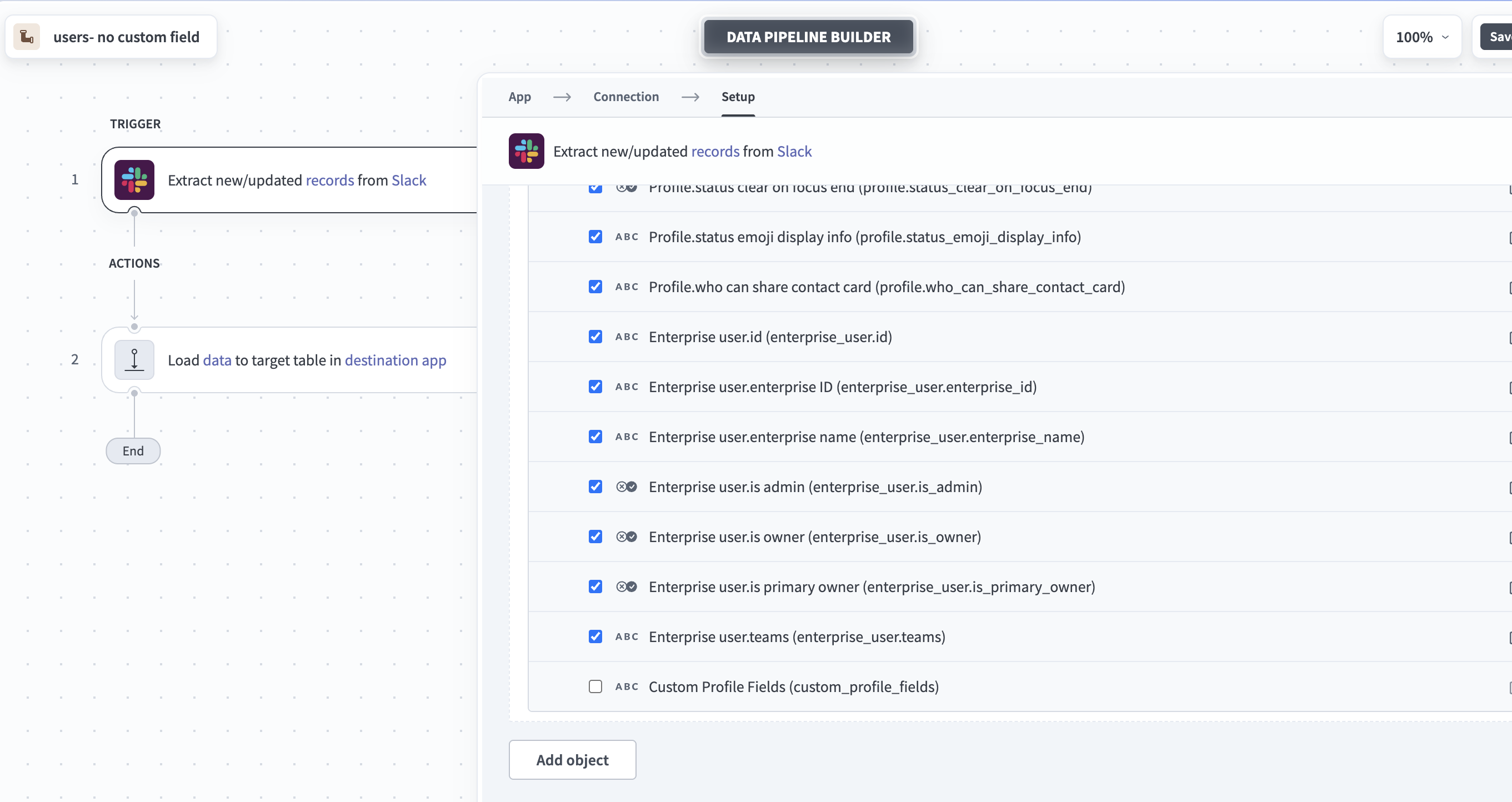 Deselect fields
Sensitive data handling
Slack objects can contain significant PII. The following objects commonly contain sensitive fields:
| Object | Sensitive fields | Notes |
|---|---|---|
users | name, real_name, profile.email, profile.phone, profile.skype, profile.first_name, profile.last_name, profile.display_name, tz, custom_profile_fields | N/A |
messages, threads | text | Highest PII risk. Free text where users can share names, email addresses, phone numbers, account numbers, and other sensitive business information |
files, message_files | name, title, user, url_private | N/A |
Use the Hash option in field-level data protection during pipeline configuration to protect PII before it reaches your destination. Refer to the Configure the pipeline steps for more information.
Limitations
The following limitations apply when you use Slack as a data pipeline source:
Auto-join is not available
Slack's channels:join scope, which lets an app automatically join public channels, requires a bot token. This connection type doesn't support bot tokens, so this scope isn't available. Join a public channel, or have someone invite the connected Slack user to it, before or during setup.
Sync only covers channels the connected user can access
Slack only returns content, such as messages, pins, and bookmarks, for channels the connected user is already a member of. Private channels have no bypass. Slack's admin APIs expose channel metadata only, not content. Full coverage is only provided in channels where the connected user is already a member, joins a channel as a member, or is invited to join individually.
Deleted messages are not detected
Slack doesn't return deleted messages, and doesn't provide a signal when a message is removed. Refer to Delete tracking for more information.
Edits outside the lookback window are not captured
Each incremental run only rechecks messages created within the configured Lookback window (default 3 days, configurable from 0 to 30). An edit to a message older than this window isn't captured until you run a full sync of the affected object.
Binary file content is not synced
files and message_files sync file metadata, such as name, type, size, and URL, but not the file's binary content.
Data retention settings limit historical availability
Messages that Slack has already deleted under your workspace's retention policy are permanently unavailable and can't be synced, regardless of your Lookback window or When first started, this pipeline should pick up records from settings.
Each connection covers a single workspace
A Slack connection, with or without a Custom OAuth profile, is scoped to a single Slack workspace. Create a separate connection, and a separate Custom OAuth profile and Slack app, for each workspace you plan to sync, if you use Slack Enterprise Grid with multiple workspaces.
Minimum sync frequency
The minimum supported sync interval is 15 minutes.
Last updated: