Configure Snowflake as a data pipeline source
Set up Snowflake as a data pipeline source to extract table records and sync them into your destination.
Use this guide to set up a connection, configure your pipeline, add objects, review sync behavior, and understand known limitations.
Features supported
The following features are supported when you use Snowflake as a pipeline source:
- Live schema discovery: Workato discovers tables and columns directly against your connected Snowflake database at query time, rather than from a static catalog. Refer to Supported objects for more information.
- Full sync and incremental sync: Choose full sync, or incremental sync by cursor column or by change tracking, per object based on what the table supports. Refer to Sync modes for more information.
- Soft-delete tracking: Continuation runs of an incremental sync using By change tracking report deleted rows through a synthetic
_workato_is_deletedfield. Refer to Synthetic columns for more information. - Object-level data filtering: Optionally restrict which rows sync for an object with a data condition. The same condition is applied when calculating the incremental cursor boundary, so the cursor stays in sync with the filtered rows.
- Schema drift detection and handling: Detect and apply schema changes automatically with Auto-sync new fields, or keep the schema fixed with Block new fields.
- Configurable sync frequency: Schedule syncs on a time-based interval or a custom cron expression.
Prerequisites
Complete the following requirements before you connect Snowflake as a data pipeline source.
- A Snowflake account with access to the database, warehouse, and schema that contain the tables you plan to sync
- A Snowflake role with
SELECTprivileges on the tables you plan to sync - A supported authentication method: OAuth 2.0, key-pair authentication, or username/password. Refer to Supported connection types for more information.
- Each table you plan to sync must be a base table with a declared primary key. Refer to Limitations for more information.
NETWORK POLICIES
If your Snowflake instance restricts access by IP address, you must allowlist Workato IP addresses before you connect.
Supported connection types
Snowflake data pipelines support three authentication methods:
- OAuth 2.0: Requires a Client ID and Client secret from a custom integration you create in Snowflake. Refer to Connect to Snowflake with OAuth 2.0 authentication for setup steps.
- Key-pair authentication: Requires a Snowflake User name, a Private key in PKCS#8 format, and a Private key passphrase if the key is encrypted. Refer to Connect to Snowflake with key-pair authentication for setup steps.
- Username/Password: Requires a Snowflake User name and Password.
SNOWFLAKE USERNAME/PASSWORD DEPRECATION
Snowflake plans to deprecate single-factor password authentication by October 2026. Workato recommends migrating existing Username/Password connections to OAuth 2.0 or Key-pair authentication before this date. Refer to Snowflake's official deprecation announcement for more information.
Connect to Snowflake
Complete the following steps to connect to Snowflake:
Connect to Snowflake
Select Create > Connection or press C twice.
Search for and select Snowflake on the New connection page.
Enter a name for your connection in the Connection name field.
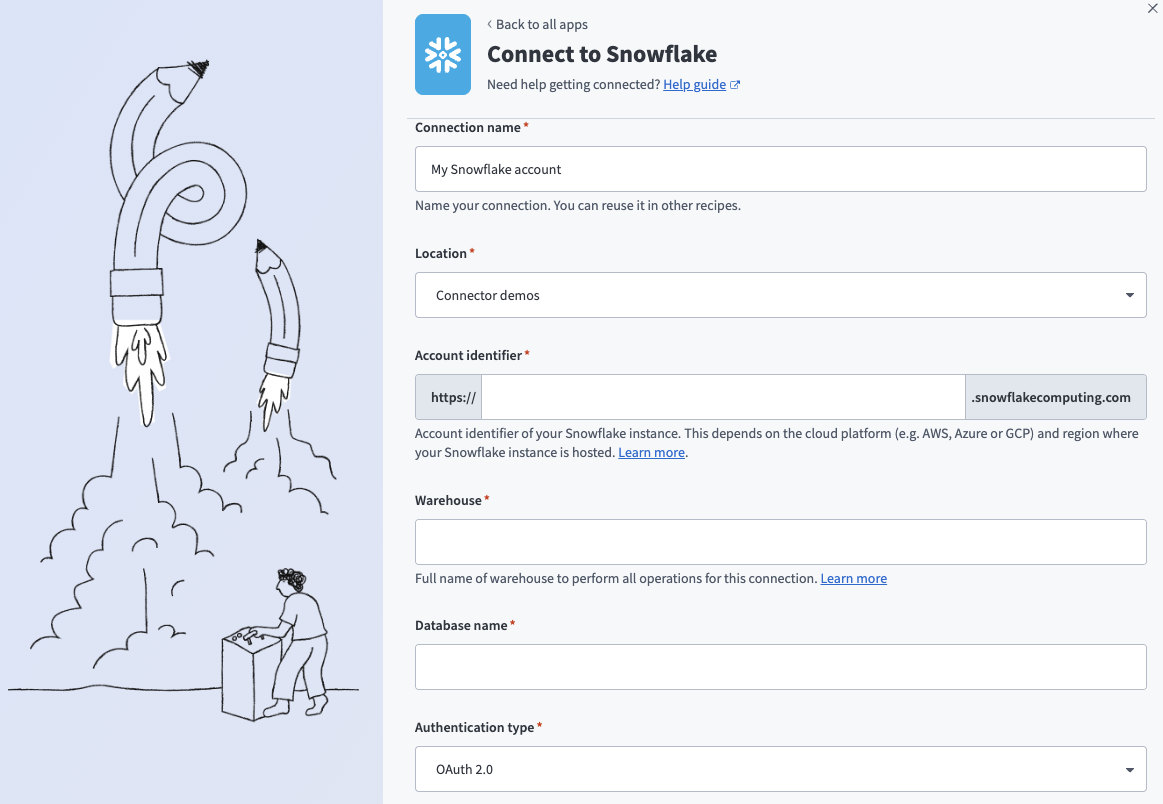 Snowflake connection setup
Use the Location drop-down menu to select the project where you plan to store the connection.
Enter the account identifier of your Snowflake instance in one of the supported formats:
- Account name:
https://{orgname}-{account_name} - Connection name:
https://{orgname}-{connectionname} - Account locator:
https://{accountlocator}.{region}.{cloud}
Refer to Snowflake's Connecting to your accounts guide for more information.
Enter the Warehouse name to define the compute resources for this connection. Refer to the Warehouse considerations section for more information.
Enter the Database name for the Snowflake database that contains the tables you plan to sync.
Select an Authentication type:
- OAuth 2.0: Requires a Client ID and Client secret.
- Key-pair authentication: Requires a Snowflake User name, a Private key in PKCS#8 format, and a Private key passphrase if the key is encrypted.
- Username/Password: Requires a User name and Password.
Refer to Supported connection types for setup links per method.
Optional. Enter a Role to use for authentication. This role must already be assigned to the user. Snowflake uses the user's default role if you leave this field blank.
The role you select determines which tables Workato can discover. A different role can see a different set of tables.
Optional. Enter the Schema that contains the tables you plan to sync. Snowflake uses the public schema if you leave this field blank.
Optional. Set Use improved datetime handling (Recommended) to Yes to ensure correct timezone handling for timestamps.
Optional. Define the Database timezone to apply to timestamps that don't have an assigned timezone.
Select Connect to verify and save the connection.
Configure the pipeline
Complete the following steps to configure Snowflake as your data pipeline source:
Select Create > Data pipeline or press C+I.
Enter a name for the data pipeline in the Data pipeline name field.
 Data pipeline setup
Use the Location drop-down menu to select the project where you plan to store the data pipeline.
Click Start building.
Click the Extract new/updated records from source app trigger. This trigger defines how the pipeline retrieves data from Snowflake.
 Configure the Extract new/updated records from source app trigger
Use the Your Connected Source Apps drop-down menu to select Snowflake.
Choose the Snowflake connection you plan to use for this pipeline. Alternatively, click + New connection to create a new connection.
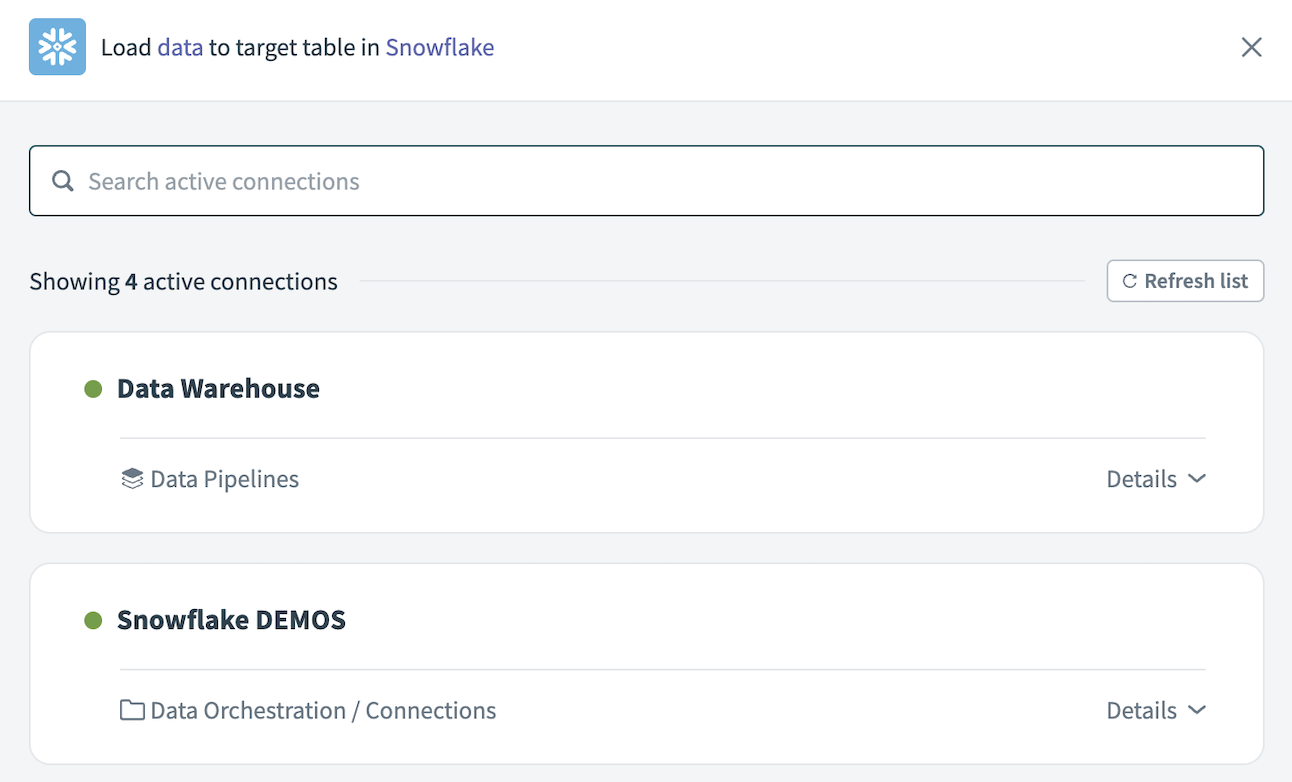 Choose a Snowflake connection
Click Add object to open the Add new objects panel.
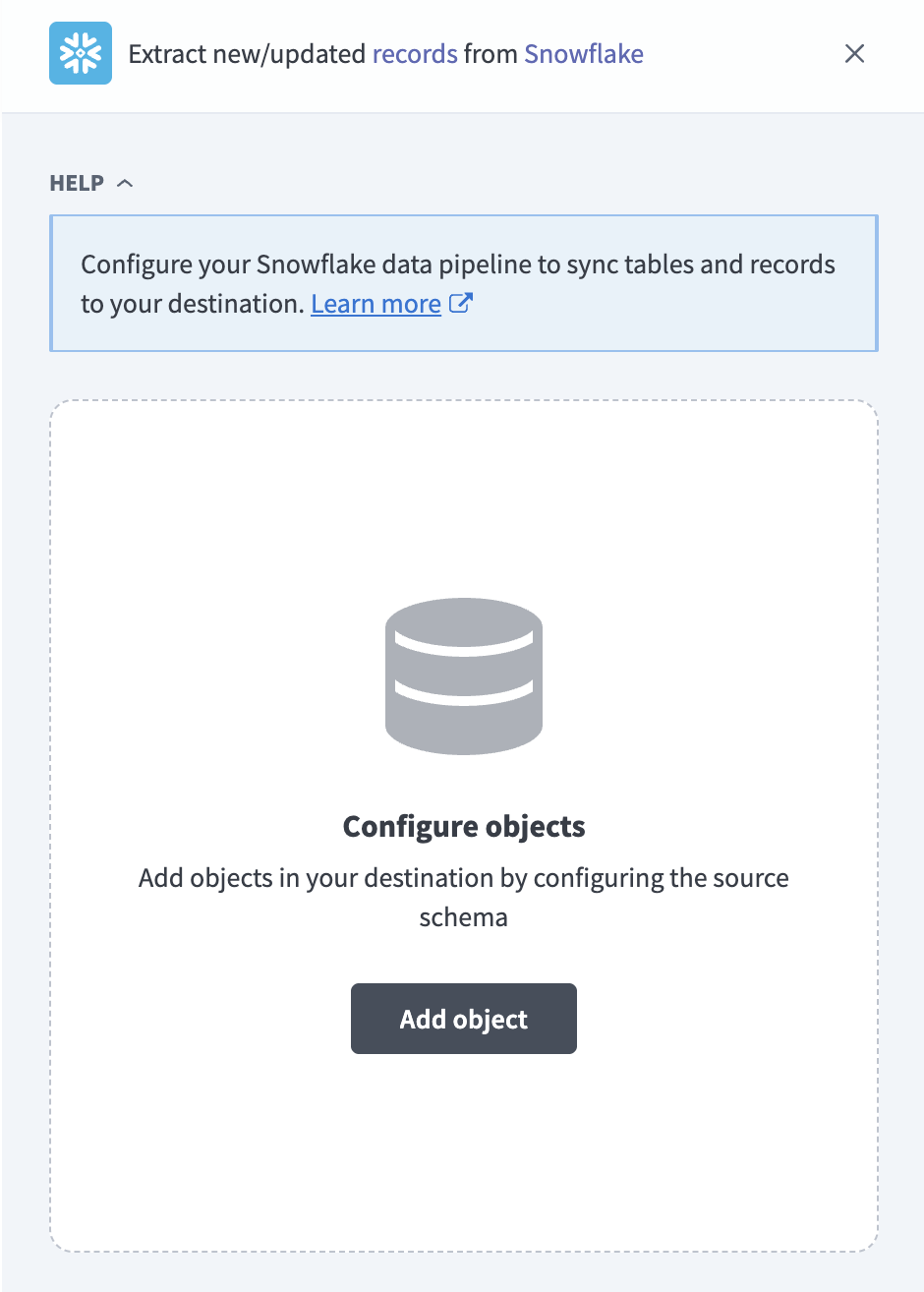 Add new objects panel
Enter at least 3 characters in the Search by name field, select the objects you plan to sync from the results, and click Add.
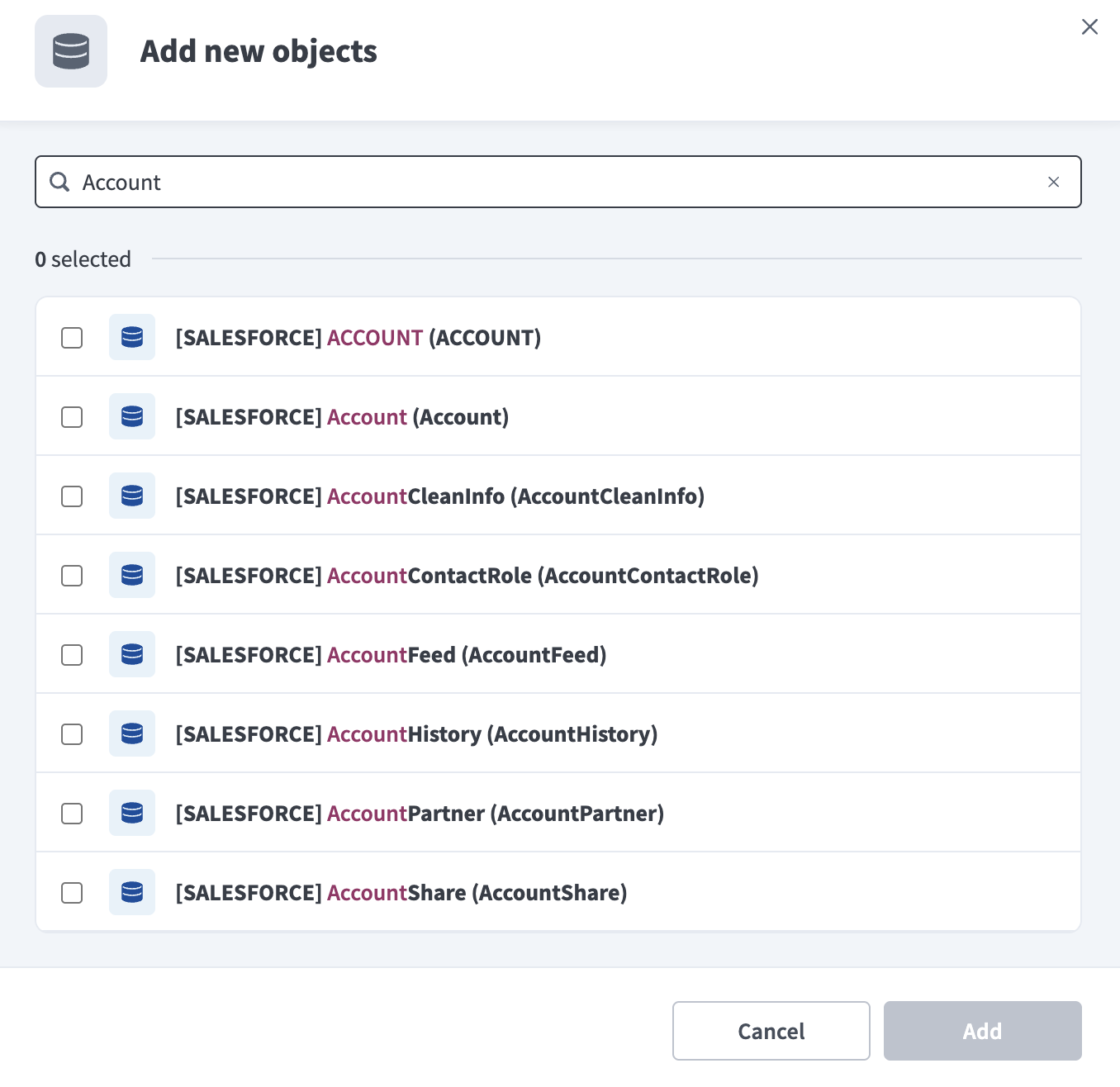 Select Snowflake objects
Each result is displayed as [SCHEMA] label (table_name). The label is the table's comment when one is set, or the table name when it isn't, followed by the raw table name in parentheses.
SEARCH ALSO MATCHES TABLE COMMENTS
The Search by name field also matches against a table's comment, not just its name, and returns at most 100 matching tables. Only base tables with a declared primary key appear in this list. Refer to Object not found in search for more information.
Review and customize the schema for each selected object. The pipeline automatically fetches an object's schema when you select it. This ensures the destination matches the source.
Expand an object to view associated fields. Keep all fields selected to extract all available data, or deselect specific fields to exclude them from data extraction and schema replication.
Click the gear icon next to an object to configure its sync settings.
Use the Sync mode drop-down menu to choose Full sync or Incremental. Workato defaults to Full sync if it doesn't detect a cursor field on the table.
Use the Incremental sync type drop-down menu to choose the incremental mechanism when Sync mode is set to Incremental:
- By cursor column: Available when the table has a
DATE,TIME, or timestamp column. Use the Incremental sync column drop-down menu to select the column. Leave this field blank to fall back to a full sync. - By change tracking: Available when Snowflake
CHANGE_TRACKINGis enabled on the table.
An incremental sync type is unavailable if the table doesn't support it. Refer to Sync modes for more information.
Optional. Enter a SQL condition in the WHERE clause field, without the WHERE keyword, to filter which records sync for this object. Refer to Object-level data filtering for more information.
TRUSTED CONFIGURATION ONLY
Workato inserts this condition directly into the generated query. Only use trusted, pipeline-owned values in this field.
Optional. Configure field-level data protection by expanding an object and choosing how to handle each field:
- Replicate as is: Data values at the source replicate identically to the destination.
- Hash: Hash sensitive data values in the field before syncing to your destination.
Workato recommends hashing personally identifiable information (PII) and other sensitive fields.
Click Add object again to add more objects. Repeat this step to include additional Snowflake objects in your pipeline.
Use the Choose how to handle schema changes drop-down menu to select a schema drift handling option:
- Auto-sync new fields: Automatically detects and syncs new fields added in the source.
- Block new fields: Keeps the schema fixed after the pipeline starts. You must add new fields manually. This option may cause the destination to fall out of sync if the source schema updates.
Refer to Schema replication and schema drift management for more information.
Configure how often the pipeline syncs data from Snowflake to the destination in the Frequency field. Choose either a standard time-based schedule or define a custom cron expression.
Supported objects
Snowflake data pipelines sync data from base tables in your connected database, including transient tables. Workato discovers tables live against the connected database when you select Add object, rather than from a static catalog, so the available objects depend on the role used by your connection.
A table must meet both of the following conditions to appear in object discovery:
- It's a base table. Views and dynamic tables aren't supported.
- It has a declared primary key.
Composite primary keys are supported, as are Snowflake identifiers that require quoting, such as digit-leading, space-containing, mixed-case, or non-ASCII table and column names.
Sync modes
Snowflake data pipelines support two sync modes, configured per object: full sync and incremental sync. If you choose incremental sync, you also select an incremental sync type based on what the table supports. Refer to the Configure the pipeline steps for the exact fields.
Full sync
A full sync reads all rows from the source table on every pipeline run and replaces the destination table. Use full sync for tables that don't expose a usable cursor column or change tracking.
Incremental sync
An incremental sync extracts only records that changed since the last successful run. Workato supports two incremental sync types:
- By cursor column: Available when the table exposes a
DATE,TIME, or timestamp column. Workato reads the maximum value of that column as the upper cursor boundary for each run, and only extracts rows between the previous run's cursor and the new one. Even if the first run returns no rows, Workato still records a cursor boundary, so a later run can pick up rows inserted after that empty sync. - By change tracking: Available when Snowflake
CHANGE_TRACKINGis enabled on the table. Workato uses Snowflake's change tracking to detect inserted, updated, and deleted rows since the last successful run. Deleted rows are reported through the synthetic_workato_is_deletedfield, starting from the first continuation run after the initial sync. Refer to Synthetic columns for more information.
You can set a start date in the When first started, this pipeline should pick up records from field for the first run of an object using either incremental sync type. For an object using By change tracking, if that date falls outside Snowflake's change tracking retention window, Workato uses the later of the table's creation time or the start of the retention window instead.
Object-level data filtering
Optionally, enter a SQL condition in the WHERE clause field for an object, without the WHERE keyword, to restrict which rows sync. Workato applies the same condition when calculating the incremental cursor boundary, so the cursor always matches the filtered data set.
TRUSTED CONFIGURATION ONLY
Workato inserts this condition directly into the generated query. Only use trusted, pipeline-owned values in this field.
Delete tracking
Delete tracking depends on the sync mode and incremental sync type you select for an object:
- Full sync:
Yes (destination-inferred). Workato compares each run's complete snapshot against the previous one and flags rows that no longer appear in the source. A deletion is detected on the next full sync, not in real time. - Incremental sync, by cursor column:
No. An incremental run only reads rows that changed since the last cursor boundary and never observes a deletion. - Incremental sync, by change tracking:
Yes (soft). Deleted rows are reported through the synthetic_workato_is_deletedfield, starting from the first continuation run after the initial sync. Refer to Synthetic columns for more information.
Schema and data type handling
Unsupported data types
Snowflake VARIANT, OBJECT, ARRAY, GEOGRAPHY, and GEOMETRY fields sync as string values. Any other unrecognized Snowflake type also syncs as a string.
BINARY and VARBINARY fields aren't supported. Workato removes them from the object's schema, and they don't sync to your destination.
Timestamp precision
Workato syncs timestamp values with whole-second precision. Sub-second (nanosecond) precision in Snowflake timestamps isn't preserved.
Synthetic columns
Workato adds the following synthetic column to destination tables for objects using incremental sync by change tracking:
| Column | Type | Purpose |
|---|---|---|
_workato_is_deleted | Boolean | Marks a row as deleted, based on Snowflake's change tracking data. Only populated on continuation runs of incremental sync by change tracking. |
Limitations
The following limitations apply when you use Snowflake as a data pipeline source:
Object not found in search
If a table doesn't appear when you search for it in the Add new objects panel, check the following:
- No declared primary key. Workato only discovers base tables that have a primary key. A table without one is excluded entirely, even if you search for its exact name. Add a primary key to the table in Snowflake to make it available.
- Fewer than 3 characters entered. The Search by name field requires at least 3 characters before it returns results.
- Search matches name or comment only. Workato matches your search text against the table name or the table comment, even though the field is labeled Search by name. Try searching with a shorter or different substring.
- More than 100 tables match. Workato returns at most 100 matching tables per search, ordered by schema and table name. Narrow your search text if the table you're looking for isn't in the first 100 results.
Views and dynamic tables are not supported
Workato only discovers base tables, including transient tables. Views and dynamic tables aren't supported and don't appear in object discovery.
Change tracking retention window
Incremental sync by change tracking depends on Snowflake's CHANGE_TRACKING retention window. If the stored cursor falls outside that window, the sync fails and you must run a full sync on the object to resume.
Binary fields are not synced
BINARY and VARBINARY fields are removed from an object's schema and don't sync to your destination. Refer to Unsupported data types for more information.
Last updated: