Configure SQL Server as a data pipeline source
Set up SQL Server as a data pipeline source to extract and sync records into your destination. Use this guide to set up a connection, configure your pipeline, add objects, review sync behavior, and understand known limitations.
Features supported
The following features are supported when you use SQL Server as a pipeline source:
| Feature | Details |
|---|---|
| On-prem connectivity | Connect to SQL Server through an on-prem group. Cloud connections aren't supported for data pipelines. |
| Full refresh and incremental sync | Supports full refresh and incremental sync modes. Incremental sync uses SQL Server Change Tracking. Refer to Sync modes for more information. |
| Table-level object selection | Select individual SQL Server tables to sync as objects in your pipeline. Tables across multiple schemas in the connected database are supported. Refer to Configure the pipeline for more information. |
| Schema drift detection and handling | Detect and apply schema changes automatically with Auto-sync new fields, or keep the schema fixed with Block new fields. |
| Configurable sync frequency | Schedule syncs on a time-based interval. The minimum supported interval is 15 minutes. |
Prerequisites
Complete the following requirements before you connect SQL Server as a data pipeline source.
- A SQL Server instance reachable from your on-prem agent host
- An on-prem agent running version 30 or above. Refer to the on-prem agent documentation for setup steps.
- A SQL Server user with
SELECTandVIEW DEFINITIONpermissions on the tables you plan to sync - The host, port, database name, username, and password for your SQL Server instance
- Change Tracking enabled on your SQL Server database and on each table you plan to sync. Refer to Enable Change Tracking for setup steps.
Enable Change Tracking
Workato requires SQL Server Change Tracking to detect row-level inserts, updates, and deletes for incremental sync. Your database administrator must enable it at both the database and table level before the pipeline can discover objects or run syncs.
Enable Change Tracking at the database level:
ALTER DATABASE CURRENT SET CHANGE_TRACKING = ON (CHANGE_RETENTION = 7 DAYS, AUTO_CLEANUP = ON)Workato recommends a minimum retention of 3 days. Seven days provides a safe buffer if pipelines are paused or delayed.
Enable Change Tracking at the table level for each table you plan to sync:
ALTER TABLE [schema].[table_name] ENABLE CHANGE_TRACKING WITH (TRACK_COLUMNS_UPDATED = ON)Repeat the table-level command for each table you plan to add as an object in your pipeline.
Supported connection types
SQL Server pipelines support username and password authentication through an on-prem group. You must have a SQL Server username and password to connect.
CLOUD CONNECTIONS NOT SUPPORTED
Cloud connections aren't supported as a data pipeline source for SQL Server. You must select an on-prem group in the Connection type field.
Connect to SQL Server
Complete the following steps to connect SQL Server as a data pipeline source.
Select Create > Connection or press C twice.
Search for SQL Server on the New connection page and select it.
Enter a name in the Connection name field.
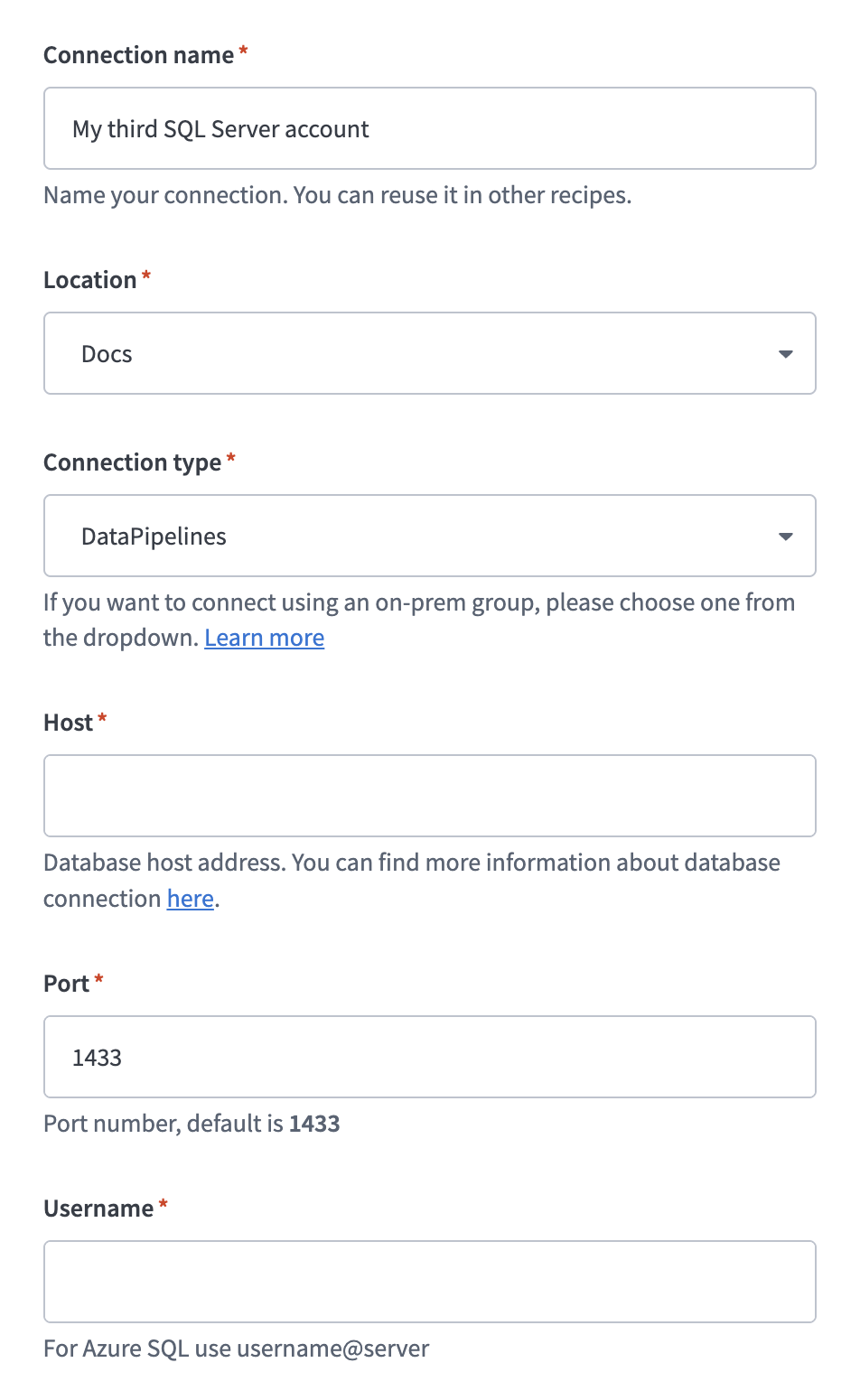 Configure your SQL Server connection
Use the Location drop-down to select the project where you plan to store the connection.
Select an on-prem group in the Connection type field.
Don't select Cloud. Cloud connections aren't supported for SQL Server as a data pipeline source and prevent objects from loading.
Enter the hostname of your SQL Server instance in the Host field.
Enter the port number in the Port field. The default SQL Server port is 1433.
Enter your SQL Server username in the Username field.
Enter your SQL Server password in the Password field.
Enter the name of the database you plan to sync in the Database field.
Optional. Expand Advanced settings to configure the following:
| Field | Description |
|---|---|
| Use improved datetime handling | Enable enhanced handling of datetime, datetime2, and datetimeoffset data types. Defaults to true. Refer to the Improved datetime handling section for more information. |
| Database timezone | Set the local timezone of your database. When timezones are provided for datetime and datetime2 values, Workato converts them to this timezone before processing. Default is UTC. |
Optional. Expand SSL settings to configure certificate-based security for your connection:
| Field | Description |
|---|---|
| Server certificate | Provide the X.509 server certificate in .pem format. |
| SSL certificate | Provide the X.509 client certificate in .pem format. |
| SSL certificate key | Provide the RSA client key in .pem format. |
| Trust all | Forces the client to trust any certificate chain. Enables support for self-signed server certificates. |
Optional. Expand Pooling settings to configure connection pool behavior:
| Field | Description |
|---|---|
| Minimum pool size | Enter the minimum number of connections the on-prem agent maintains in the pool, including idle and in-use connections. Default is 1. |
| Maximum pool size | Enter the maximum number of connections in the pool. When the pool reaches this quota and no idle connections are available, new connection attempts block until the timeout is reached. Default is 10. |
| Idle timeout | Enter the maximum time, in seconds, a connection can sit idle in the pool before removal. A value of 0 means connections are never removed. Default is 600 seconds (10 minutes). |
| Maximum lifetime | Enter the maximum lifetime, in seconds, of a connection in the pool. Connections that reach this quota are removed even if they were recently used. Default is 1800 seconds (30 minutes). |
| Timeout | Enter the maximum time, in seconds, to wait for a connection from the pool. A value of 0 means no timeout. Default is 30 seconds. |
Optional. Expand Additional properties for SQL Server connection and select Add parameter to pass additional JDBC connection parameters.
Select Connect to verify and save the connection.
Configure the pipeline
Complete the following steps to configure SQL Server as your data pipeline source:
Select Create > Data pipeline or press C+I.
Enter a name for the data pipeline in the Data pipeline name field.
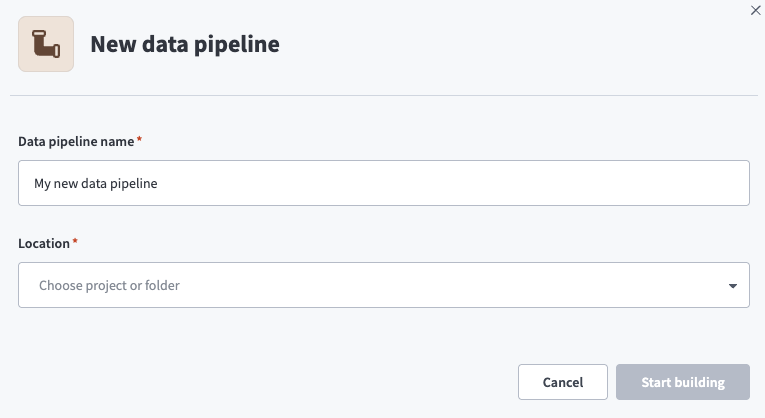 Data pipeline setup
Use the Location drop-down menu to select the project where you plan to store the data pipeline.
Click Start building.
Click the Extract new/updated records from source app trigger. This trigger defines how the pipeline retrieves data from SQL Server.
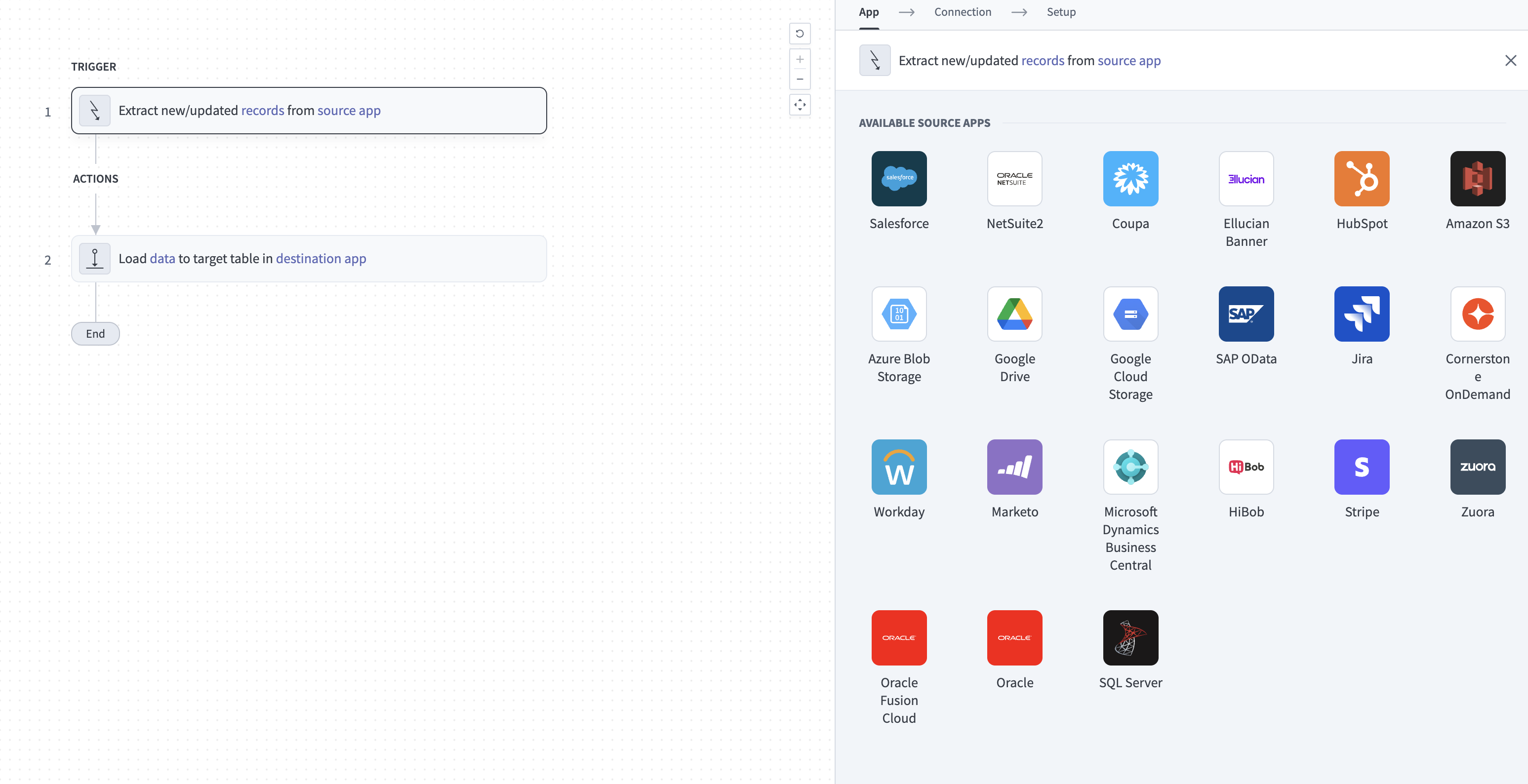 Configure the Extract new/updated records from source app trigger
Use the Your Connected Source Apps drop-down menu to select SQL Server.
Choose the SQL Server connection you plan to use for this pipeline. Alternatively, click + New connection to create a new connection.
Click Add object to open the Add new objects panel.
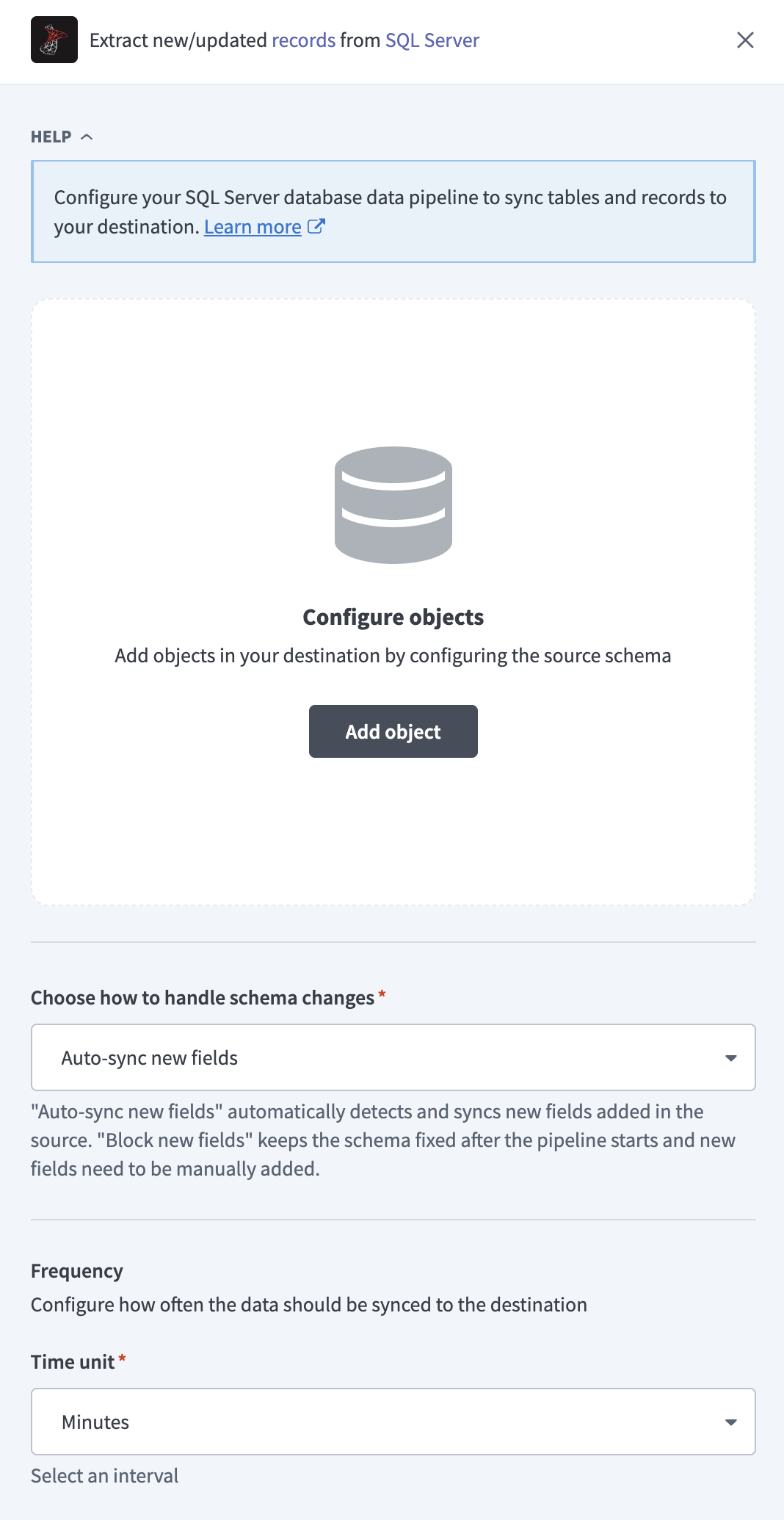 Add objects
Search or browse the list of available SQL Server objects, select the objects you plan to sync, and click Add.
Review and customize the schema for each selected object. The pipeline automatically fetches an object's schema when you select it. This ensures the destination matches the source.
Expand an object to view associated fields. Keep all fields selected to extract all available data, or deselect specific fields to exclude them from data extraction and schema replication.
Optional. Configure field-level data protection by expanding an object and choosing how to handle each field:
- Replicate as is: Data values at the source replicate identically to the destination.
- Hash: Hash sensitive data values in the field before syncing to your destination.
Workato recommends hashing personally identifiable information (PII) and other sensitive fields.
Click Add object again to add more objects. Repeat this step to include additional SQL Server objects in your pipeline.
Use the Choose how to handle schema changes drop-down menu to select a schema drift handling option:
- Auto-sync new fields: Automatically detects and syncs new fields added in the source.
- Block new fields: Keeps the schema fixed after the pipeline starts. You must add new fields manually. This option may cause the destination to fall out of sync if the source schema updates.
Refer to Schema replication and schema drift management for more information.
Choose either a standard time-based schedule or define a custom cron expression in the Frequency field. This determines how often the pipeline syncs data from SQL Server to the destination.
Supported objects
SQL Server data pipelines sync data from tables in your connected database. Workato discovers available tables across all schemas in the connected database when you select Add object during pipeline configuration. You can add one or more tables as objects in your pipeline. Views aren't supported because SQL Server Change Tracking requires base tables.
Sync modes
SQL Server data pipelines support full refresh and incremental sync. The sync mode is configured per object when you add it to your pipeline.
Full refresh
A full refresh sync reads all rows from the source table on every pipeline run and overwrites the destination table. Use full refresh for tables where you need a complete snapshot of the data on each sync.
Incremental sync
An incremental sync uses SQL Server Change Tracking to detect row-level inserts, updates, and deletes since the last successful sync run. Workato queries the Change Tracking log rather than filtering by a timestamp column. You must enable Change Tracking at both the database and table level before the pipeline can run incremental syncs. Refer to Enable Change Tracking for setup steps.
Identifier handling
Workato pipelines translate source column names into valid destination identifiers by applying the following rules:
- Column names are uppercased.
- Special characters such as
$, spaces, or dashes are replaced with underscores (_). - Identifiers are wrapped in square brackets to protect against reserved words.
For example, the source column $Name$ becomes [_NAME_] in the destination table.
Limitations
The following limitations apply when you use SQL Server as a data pipeline source.
No objects displayed
If the pipeline displays no objects when you select Add object, check the following:
- Change Tracking isn't enabled. You must enable Change Tracking at the database and table level before Workato can discover objects. Refer to Enable Change Tracking for the required SQL commands.
- Cloud connection selected. The pipeline can't discover tables over a cloud connection. Switch to an on-prem group in the Connection type field.
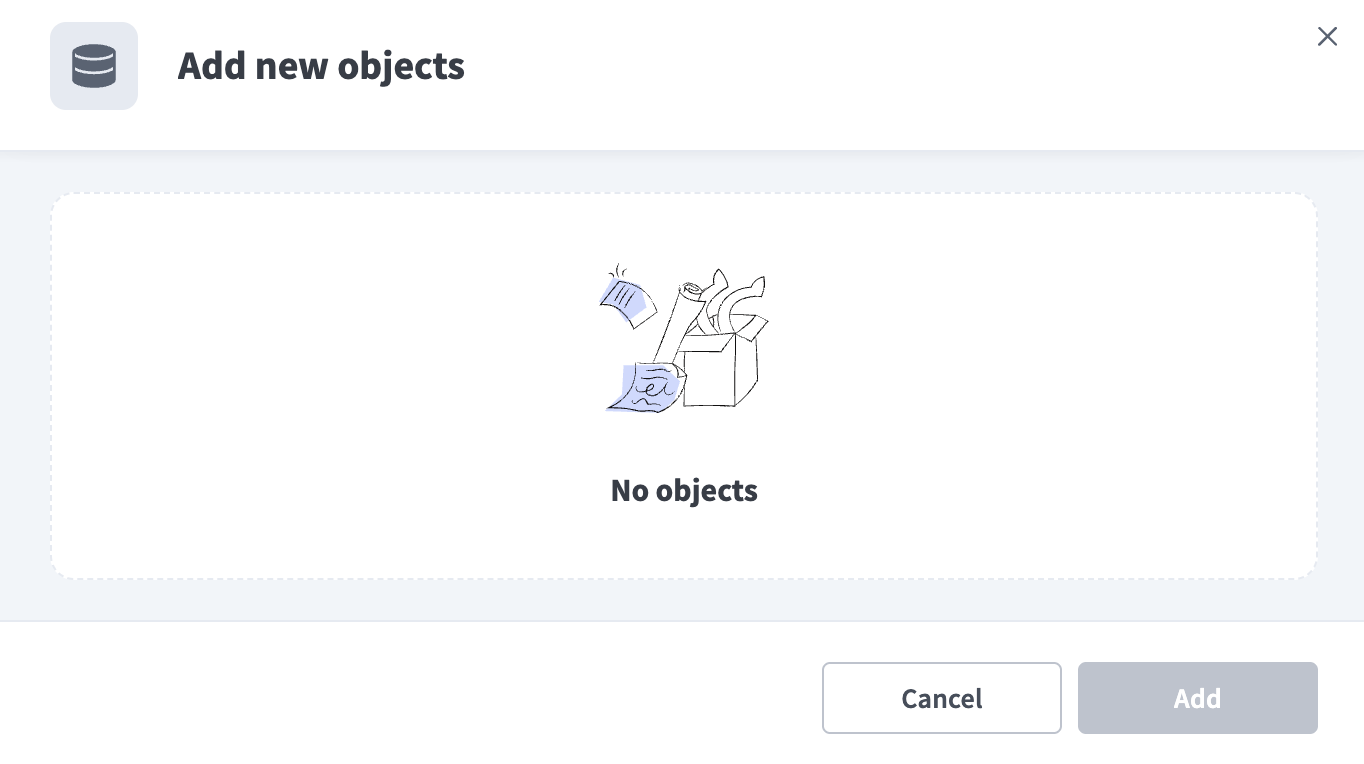 No objects error
On-prem agent version requirement
Workato requires on-prem agent version 30 or above to support SQL Server data pipelines. Earlier versions aren't supported. Workato recommends using the latest available version.
Minimum sync frequency
The minimum supported sync interval is 15 minutes. You can't trigger syncs more frequently than this.
Last updated: