SAP Data Agent troubleshooting guide
Use this guide to troubleshoot issues when configuring or running pipelines with the SAP Data Agent. It covers the SAP Table Reader, SAP BW Open Hub Destination (OHD), and SAP Operational Data Provisioning (ODP) plugins.
SAP Table Reader
Use this section to troubleshoot issues when configuring or running pipelines with SAP Table Reader extraction.
Authorization errors
This section describes issues related to missing or insufficient SAP user authorizations during extraction.
Not authorized to access table/view
You may see the following error during extraction:
Not authorized to access table/view: <table/view name>Why it happens
This error occurs when the SAP technical user running the extraction lacks sufficient authorization to the specified table or view.
The required role or authorization object is missing or incorrectly assigned.
How to troubleshoot
Complete the following steps to resolve the issue:
Execute transaction SU53 immediately after the failure to capture the missing authorization object.
Verify that the user has the SAP Table Reader role assigned.
Check role assignment in transaction PFCG.
Confirm the user assignment in transaction SU01.
Re-run the extraction.
Logging and monitoring errors
This section describes issues related to SAP application logs and monitoring visibility during pipeline execution.
SLG1 log not found
You may not see expected application logs in SLG1 after a pipeline run.
Why it happens
This can occur when:
- The incorrect log object or subobject is used
- The log retention period has expired
How to troubleshoot
Complete the following steps to resolve the issue:
Execute transaction SLG1 and verify that you are using the correct object and subobject.
Validate the log retention period.
Error capturing input payload in logs
You may notice that the input payload or request parameters are not visible in SAP logs.
Why it happens
This can occur when:
- Logging configuration is incomplete
- The user lacks logging authorization
- Application log tables don't contain expected entries
How to troubleshoot
Complete the following steps to resolve the issue:
Validate the log object configuration in transaction SLG0.
Ensure the technical user has logging authorization.
Check tables BALHDR and BALDAT for log entries.
Advanced log tracking
Use advanced logging when standard SAP logs don't provide sufficient detail to diagnose extraction failures.
Extraction fails without clear error details
The pipeline fails, but logs don't provide sufficient diagnostic detail.
Why it happens
Standard logging captures high-level error messages but may not include detailed runtime parameters.
Background job logs in SM37 may also lack the internal context required to identify the root cause.
Advanced logging provides deeper execution insight for troubleshooting complex or unclear failures.
When to use advanced logging
Use advanced logging during the following scenarios:
- The job fails without a clear root cause
- Background job logs in
SM37do not provide sufficient detail - Input payload validation appears correct, but extraction still fails
- You need visibility into filter criteria, field lists, or internal processing state
How to troubleshoot
Complete the following steps to enable advanced logging for deeper analysis:
Execute transaction /WKTO/ADV_LOG.
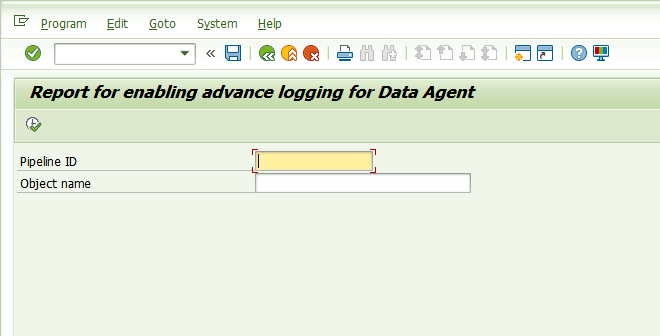 Execute transaction
Enable advanced logging for the affected Pipeline ID.
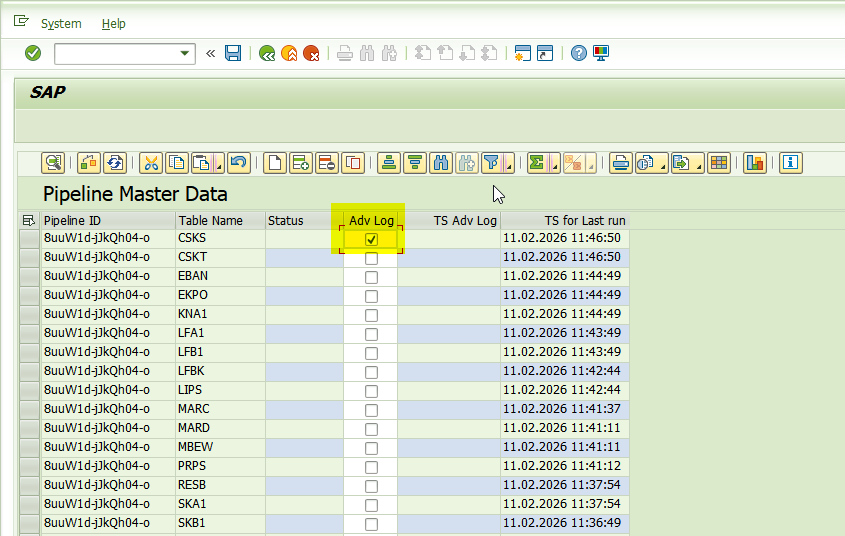 Enable advanced logging
Refresh the pipeline view.
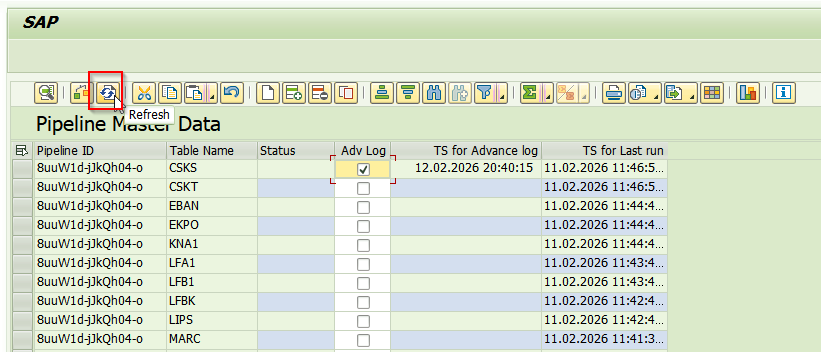 Refresh the pipeline view
Re-run the failed extraction.
After you enable advanced logging, review logs in /WKTO/ERR_LOG and /WKTO/DA_LOG_SRV:
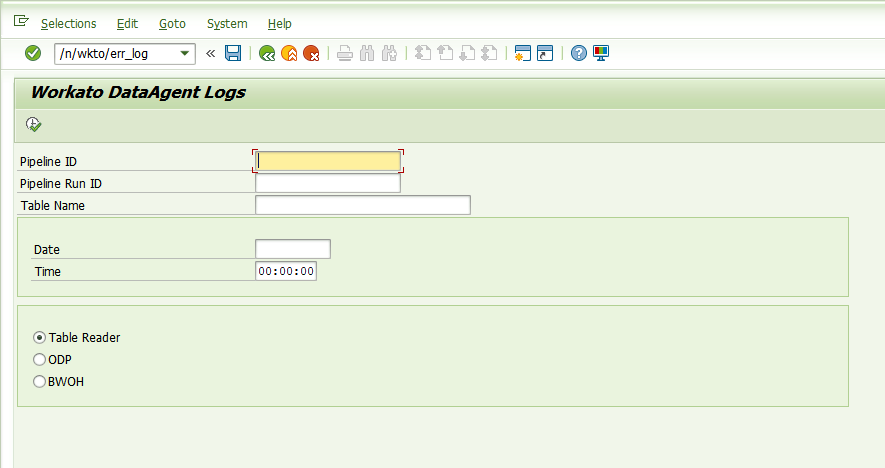 Access logs
These logs include the following:
- Input payload parameters
- Filter criteria
- Field lists
- Job metadata
- Internal processing status
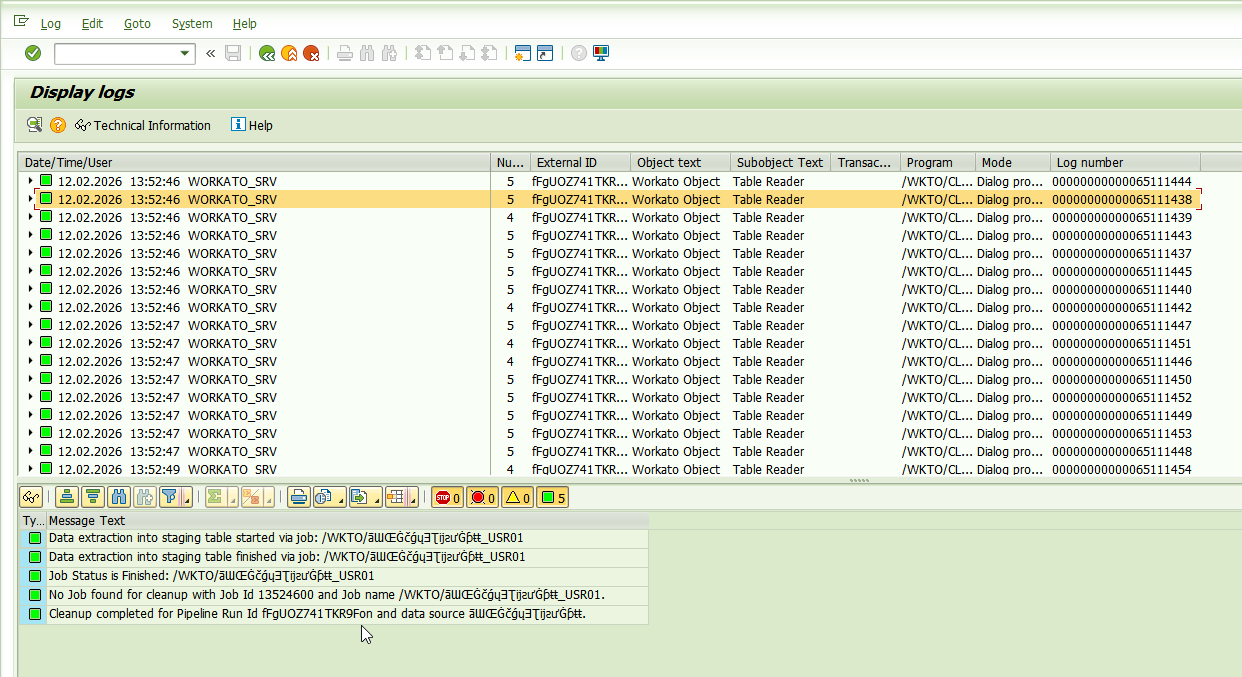 Display logs
DISABLE ADVANCED LOGGING AFTER DEBUGGING
Disable advanced logging after troubleshooting to prevent excessive log growth and performance impact.
Pipeline and cleanup issues
This section describes issues related to pipeline state, runtime cleanup, and background job availability.
Pipeline details not found
You may see the following error during extraction:
Pipeline details not foundWhy it happens
This can occur due to the following scenarios:
- The pipeline ID is invalid
- Pipeline runtime details were cleaned from memory
- The SAP system is under a high background job load
How to troubleshoot
Complete the following steps to resolve the issue:
Verify the pipeline ID used for the extraction.
Ensure cleanup isn't executed prematurely.
Adjust package size for large tables
Large SAP tables that contain variable-length fields may require a smaller extraction package size to ensure stable processing.
Why this is recommended
Some SAP tables contain large data types, such as the following:
STRINGRAWSTRINGLRAWSSTRING
The cumulative payload size may approach SAP's internal string size limits if too many large records are included in a single extraction package. This can lead to runtime instability or job termination.
Reducing the package size helps improve reliability for large or text-heavy tables.
How to adjust the package size
Complete the following steps to adjust the package size:
Execute transaction /WKTO/PACK.
Maintain a reduced package size for the affected table or view.
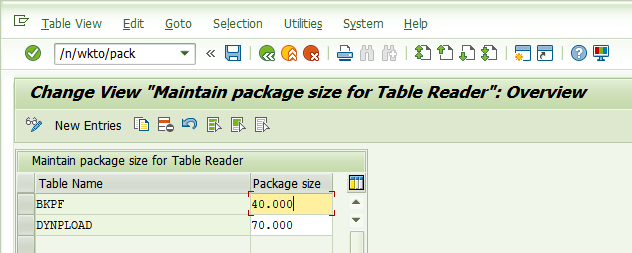 Maintain package size for Table Reader
Start with 10,000 records, or 1,000 records for tables with very large text or blob fields.
Re-run the extraction.
Monitor the background job in transaction SM37.
Updated package sizes apply only to new runs. Existing running jobs aren't affected.
Concurrency and system overload
This section explains how to troubleshoot extraction failures caused by background job resource constraints in the SAP system.
Job failure due to system overload
Extraction jobs remain in a released state or fail intermittently.
Why it happens
The SAP system may not have sufficient background work processes available. When multiple pipelines or scheduled jobs run concurrently, available processes may be exhausted.
How to troubleshoot
Review available background work processes in the SAP system using the following transactions:
SM50RZ12RZ04
Update the Concurrency limit in the pipeline configuration.
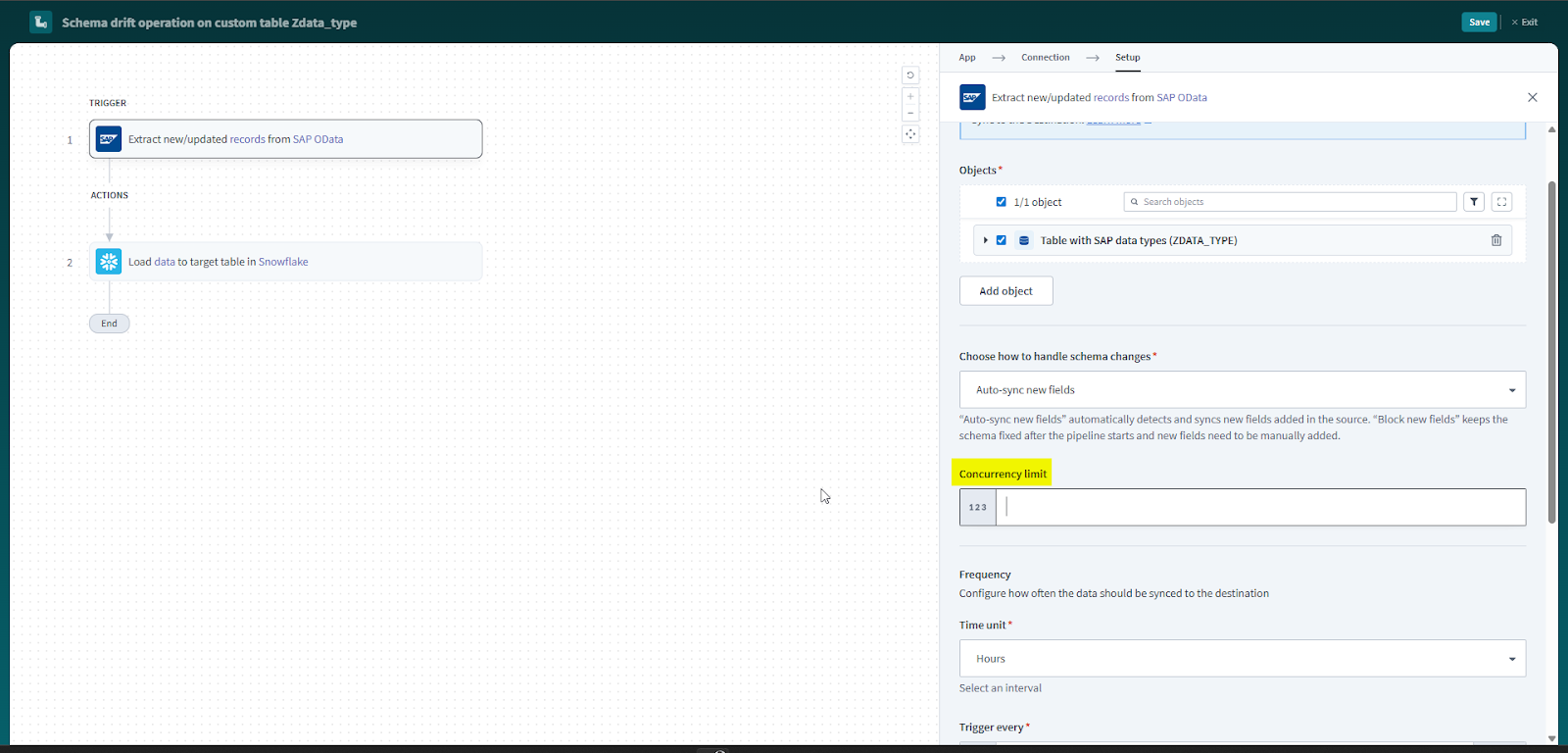 Update concurrency limit
Set concurrency to approximately 50% of the total available background work processes.
Re-run the extraction.
This helps ensure system stability, reduce contention with other scheduled jobs, and improve extraction reliability.
SAP BW Open Hub Destination
Use this section to troubleshoot issues when configuring or running pipelines with SAP BW Open Hub Destination (OHD) extraction.
OHD configuration errors
This section describes issues related to the Open Hub Destination and its Data Transfer Process (DTP) configuration.
OHD having multiple DTP is not supported
You may see the following error during extraction:
OHD having multiple DTP is not supportedWhy it happens
Multiple Data Transfer Processes (DTPs) populate the selected OHD. The SAP Data Agent supports extraction only from OHDs associated with a single DTP.
How to troubleshoot
Complete the following steps to resolve the issue:
Ensure that only one DTP populates the Open Hub Destination.
Create a new OHD associated with a single DTP and use it for extraction if the current OHD is linked to multiple DTPs. Refer to Create the Data Transfer Process for more information.
No DTP found for the entered OHD
You may see the following error during extraction:
No DTP found for the entered OHDWhy it happens
The OHD exists, but no Data Transfer Process (DTP) has been created or assigned to populate it with data. The SAP Data Agent can't extract data from the OHD as a result.
How to troubleshoot
Complete the following steps to resolve the issue:
Verify that a single DTP is associated with the Open Hub Destination.
Create and assign a DTP to load data into the OHD if no DTP exists. Refer to Create the Data Transfer Process for more information.
Execute the DTP to populate the OHD before you start the extraction.
The sync mode you configure for the object must match the extraction mode of the DTP. Refer to Select the sync mode for more information.
Authorization errors
This section describes issues related to SAP authorization and permissions.
Table or view not available when checking authorization
You may see the following error during extraction:
Table/View Not available: <table_name> - while checking authorizationWhy it happens
The SAP technical user running the extraction lacks sufficient authorization to the specified table or view.
How to troubleshoot
Complete the following steps to resolve the issue:
Execute transaction SU53 immediately after the failure to capture the missing authorization object.
Verify that the user has the /WKTO/BWOHD role assigned. Refer to Configure SAP role for BW OHD for the required authorization objects and field values.
Check role assignment in transaction PFCG.
Re-run the extraction.
Package size
You can't manually adjust the extraction package size for BW OHD extraction. The /WKTO/PACK transaction applies only to SAP Table Reader extraction.
SAP ODP
Use this section to troubleshoot issues when configuring or running pipelines with SAP Operational Data Provisioning (ODP) extraction.
Delta subscription errors
This section describes issues related to the delta subscription that incremental sync creates for an ODP data source. Each ODP service supports one incremental sync subscription. Refer to Select the sync mode for more information.
Pipeline can't run because the service is in use by another pipeline
You may see the following error during extraction:
SAP ODP2 subscription for service '<ServiceName>' is already held by another pipeline: This OData service is already used by Pipeline ID: <PipelineID> Please create a new OData service or delete the existing pipeline and it's subscription in SAP using transaction /WKTO/ODP_SUBS. Terminate the existing pipeline or use SAP transaction /WKTO/ODP_SUBS to release the slot, then re-run this pipeline.Why it happens
You started incremental sync for a data source whose service is already used for incremental sync in another pipeline. Each ODP service can be used for incremental sync in only one pipeline.
How to troubleshoot
Create a new ODP service for the data source and use it in this pipeline. Refer to Expose an ODP data source as an OData service for more information.
Alternatively, release the existing subscription so this pipeline can use the service.
DELTA POINTERS ARE CLEARED
Deleting a subscription terminates delta extraction for the data source in SAP and invalidates all existing delta pointers. The next pipeline that uses the data source for incremental sync starts with a new initial load.
Complete the following steps to release the existing subscription:
Execute transaction /WKTO/ODP_SUBS.
Enter the ODP data source in the ODP Name field and the service in the Service field.
 Enter ODP name and service
Execute the report.
Select the row for the subscription and click the delete row icon.
Click Yes to confirm. SAP Data Agent triggers the terminate delta operation for the data source.
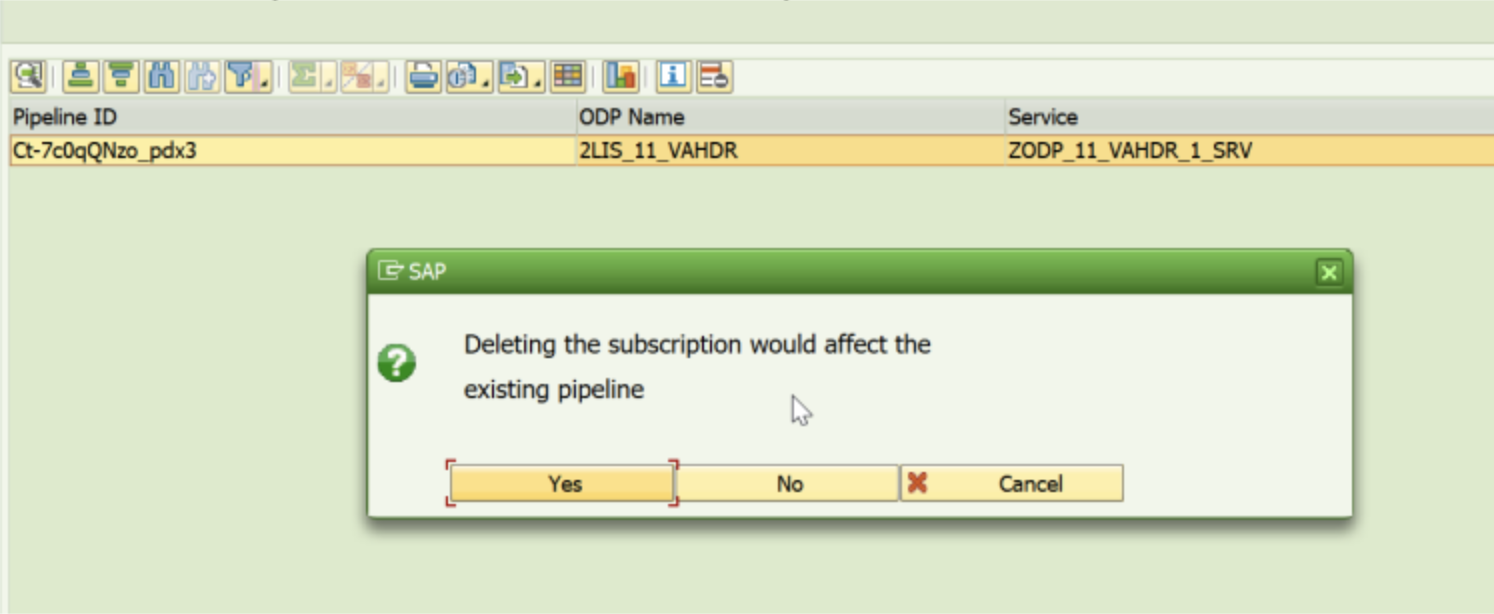 Terminate subscription
Save the changes.
Re-run the pipeline.
Delta entries still exist after the subscription was terminated
You may see the following error during extraction:
SAP ODP2 data source '<DataSourceName>' was just subscribed for a fresh initial load, but its DeltaLinks history is not empty (<n> entries, latest !deltatoken '<DeltaToken>'). Another subscription has been left behind on the SAP side without a proper Terminate — continuation is not possible because we cannot tell which entries belong to this pipeline. Ask an operator to run SAP transaction /WKTO/ODP_SUBS to clean up the orphan subscription, then re-run this pipeline.Why it happens
The pipeline started an initial load for incremental sync, but delta entries for the data source still exist in SAP. This usually occurs after you delete the subscription of an earlier pipeline. The terminate delta operation takes time to clear the delta entries and can take longer when the SAP system is under heavy load.
How to troubleshoot
Wait approximately 5 minutes, then re-run the pipeline.
Use transaction /WKTO/ODP_SUBS to delete the orphaned subscription if the error persists. Refer to Pipeline can't run because the service is in use by another pipeline for steps.
Data source is driven by another subscription
You may see the following error during extraction:
SAP ODP2 data source '<DataSourceName>' is now driven by another subscription: SAP-side current !deltatoken is '<DeltaToken>' but local state has '<DeltaToken>'. Continuing would silently reset the delta pointer and duplicate rows on the destination. Delete this pipeline and start a fresh one to re-establish the initial load, or coordinate with the competing pipeline via SAP transaction /WKTO/ODP_SUBS to release the slot.Why it happens
The delta subscription for this pipeline was terminated manually in SAP using transaction /WKTO/ODP_SUBS, and another pipeline then started incremental sync for the same data source. This disrupts delta extraction for the current pipeline.
How to troubleshoot
Complete the following steps to resolve the issue:
Delete the current pipeline.
Determine whether the other pipeline that now runs incremental sync for the data source is the one you plan to keep.
Delete the other pipeline as well if you don't plan to keep it, then create a new pipeline for the data source.
Subscription has no delta entries while the pipeline has a delta token
You may see the following error during extraction:
SAP ODP2 subscription for service '<ServiceName>' has no delta entries while local state carries !deltatoken '<DeltaToken>'. Another pipeline or SAP operator has terminated the subscription — continuing is not possible. Delete this pipeline and start a fresh one to re-establish the initial load, or use SAP transaction /WKTO/ODP_SUBS to inspect the current subscription owner before recreating the pipeline.Why it happens
The delta subscription for this pipeline was terminated manually in SAP using transaction /WKTO/ODP_SUBS. This disrupts delta extraction for the current pipeline.
How to troubleshoot
Complete the following steps to resolve the issue:
Delete the current pipeline.
Create a new pipeline for the same data source with incremental sync. The new pipeline starts with an initial load.
Schema errors
This section describes issues related to changes in the structure of an ODP data source.
Primary key has been changed on the source side
You may see the following error during extraction:
Primary key has been changed on the source's side from (<OldKeyFields>) to (<NewKeyFields>). Please resync the object.Why it happens
The key fields of the data source changed in SAP.
How to troubleshoot
Complete the following steps to resolve the issue:
Go to the Objects tab of the pipeline.
Click Re-sync for the affected object.
The pipeline alters the destination table during the next sync.
Extraction errors
This section describes issues related to data extraction and service configuration in SAP.
Package is being extracted and can't be read again
You may see the following error during extraction:
General SAP error RSODP_ODATA/012: Could not fetch data via extraction API RODPS_REPL_ODP_FETCH_XML (Package <PackageNumber> is being extracted and therefore cannot be read again), httpCode = 400 BAD_REQUESTWhy it happens
An issue occurred in SAP while it extracted the data package.
How to troubleshoot
Re-run the pipeline.
No service found for namespace
You may see the following error during extraction:
No service found for namespace , name <ServiceName>, version 0001Why it happens
The service name or URL configured for the data source in transaction /WKTO/ODP_CONFIG is incorrect.
How to troubleshoot
Complete the following steps to resolve the issue:
Open the Service Builder project for the data source in transaction SEGW and find the model name under Data Model > Model References. For example, ZODP_11_VAHDR_2_1_MDL.
Use the service that the Redefine > ODP Extraction wizard created, not the service of the Service Builder project under Runtime Artifacts. The redefined service name is similar to the model name.
 SEGW project tree with the model reference
Execute transaction /IWFND/MAINT_SERVICE.
Click Filter and enter part of the model name in the Technical Service Name field to search for the service. For example, ZODP_11_VAHDR_2*.
Copy the value in the External Service Name column. For example, ZODP_11_VAHDR_2_1_SRV.
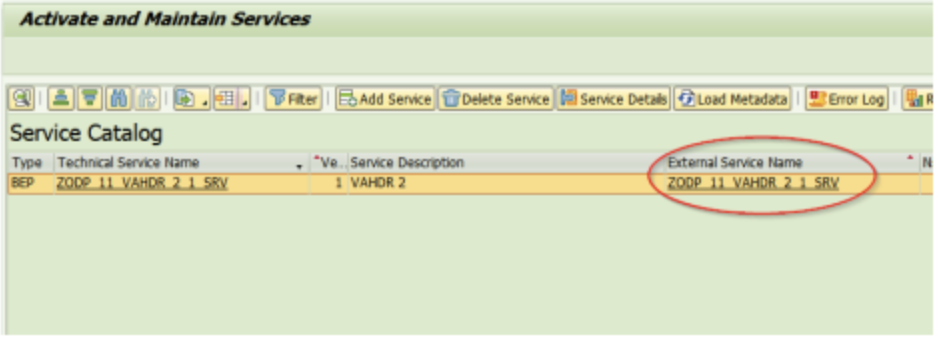 Copy the external service name
Execute transaction /WKTO/ODP_CONFIG and update the service name and URL for the data source with the correct service.
Save the changes and re-run the pipeline.
Connection timeout
You may see either of the following errors during extraction:
General SAP error UNKNOWN: , httpCode = 500, httpCode = 500 INTERNAL_SERVER_ERRORConnection timed outWhy it happens
The SAP server closes the connection before it returns an extraction response. This occurs when the ICM timeout is too short for the configured page size.
How to troubleshoot
Increase the connection timeout first. Reduce the page size if the error persists.
Complete the following steps to increase the connection timeout to 10 minutes if the current timeout is shorter:
Go to transaction code RZ10.
Edit the icm/server_port_<n> parameter. The numeric suffix depends on your system configuration. For example, icm/server_port_2.
Set both TIMEOUT and PROCTIMEOUT to 600. For example, PROT=HTTPS,PORT=1443,TIMEOUT=600,PROCTIMEOUT=600.
Restart the SAP application instance. Parameter changes take effect only after a restart.
Complete the following steps to reduce the page size if the error persists:
Execute transaction /WKTO/ODP_CONFIG.
Reduce the Max page value for the data source by 5,000.
Remove the object from the pipeline and add it again. Page size changes take effect only after you add the object again.
Re-run the pipeline. Repeat these steps until the extraction succeeds.
Smaller page sizes reduce overall extraction throughput.
SAP transaction reference
The following SAP transactions and services are referenced throughout this guide:
| Transaction/Service | Purpose |
|---|---|
SE11 | Validate table structure and fields |
SE16N | Test table data selection |
SU53 | Display last authorization check |
PFCG | Maintain roles |
SM37 | Monitor background jobs |
SM21 | View system log |
ST22 | Analyze ABAP dumps |
SLG1 | View application logs |
SLG0 | Maintain log objects |
AL11 | Browse application server directories |
SM50 | Monitor work processes |
SM13 | Monitor update failures |
/WKTO/ADV_LOG | Enable advanced logging |
/WKTO/PACK | Maintain custom extraction package size |
/WKTO/ERR_LOG | Retrieve detailed extraction logs |
/WKTO/DA_LOG_SRV | OData service for log retrieval |
/WKTO/BWOH_LOG | Retrieve BW OHD extraction logs |
/WKTO/CLEANUP_BWOH | Perform cleanup for the SAP Data Agent (BW OHD) |
/WKTO/ODP_CONFIG | Configure ODP data sources for the SAP Data Agent |
/WKTO/ODP_SUBS | Clear a pipeline's delta subscription to an ODP data source |
ODQMON | Monitor ODP delta queues and extraction requests |
SEGW | Create and maintain SAP Gateway Service Builder projects |
/IWFND/MAINT_SERVICE | Activate, maintain, and test OData services |
RZ10 | Maintain profile parameters |
Last updated: