Configure Workday as a data pipeline source
Set up Workday as a data pipeline source to extract business object records from your Workday tenant and sync to your destination. Use this guide to set up a connection, configure your pipeline, add objects, review sync behavior, and understand known limitations.
Features supported
The following features are supported when you use Workday as a pipeline source:
| Feature | Details |
|---|---|
| Authentication | Supports OAuth 2.0 and basic authentication. OAuth 2.0 is required to work with custom objects and Workday Query Language (WQL). Refer to Supported connection types for more information. |
| Object selection | Select individual Workday business objects to sync as objects in your pipeline. Refer to Supported objects for more information. |
| Field-level data protection | Configure each field to replicate values as-is or hash sensitive values before syncing to the destination. Refer to Configure the pipeline for more information. |
| Schema drift detection and handling | Detect and apply schema changes automatically with Auto-sync new fields, or keep the schema fixed with Block new fields. |
| Configurable sync frequency | Schedule syncs on a time-based interval or with a custom cron expression. The minimum supported interval is 15 minutes. |
| Full refresh and incremental sync | Supports full refresh and incremental sync modes. Refer to Sync modes for more information. |
| Delete tracking | Captures record deletions from Workday through a Workato Is Deleted flag on each record. Refer to Schema and data type handling for more information. |
Prerequisites
Complete the following requirements before you connect Workday as a data pipeline source.
- A Workday tenant you can administer, or admin access.
- An Integration System User (ISU) configured in Workday with the permissions required to read the business objects you plan to sync. Refer to Register an Integration System User (ISU) in Workday in the Workday connector documentation for setup steps.
- A registered API client for integrations in Workday with a non-expiring refresh token, and the client ID, client secret, authorization endpoint, and token endpoint values from the API client settings, if you plan to use OAuth 2.0.
- The ISU login name and password, if you plan to use basic authentication.
- Your Workday tenant ID, WSDL URL, and the Workday tenant timezone.
WORKDAY SETUP
You must complete the Workday-side setup for your authentication method before you create the connection in Workato. Refer to the Workday connector documentation for the full ISU registration, security group, domain access, and API client setup procedures.
Supported connection types
Workday pipelines support cloud and on-prem connections, with OAuth 2.0 or basic authentication.
Connection type
Workato reaches your Workday tenant through one of the following routes:
- Cloud: Connect directly from Workato's cloud to your Workday tenant.
- On-prem group: Connect through an on-prem group when network or security policy requires it.
Authentication type
The authentication type determines whether the pipeline can access custom objects and Workday Query Language (WQL) data, and how the connection authenticates against your tenant.
- OAuth 2.0: Authenticate through a registered API client for integrations in Workday using a non-expiring refresh token. OAuth 2.0 is required to work with custom objects and WQL.
- Basic authentication: Authenticate with the ISU login name and password. Custom objects and WQL aren't available with this type.
Connect to Workday
Complete the following steps to connect Workday as a data pipeline source. Select the tab that matches the authentication type you plan to use.
Connect to Workday
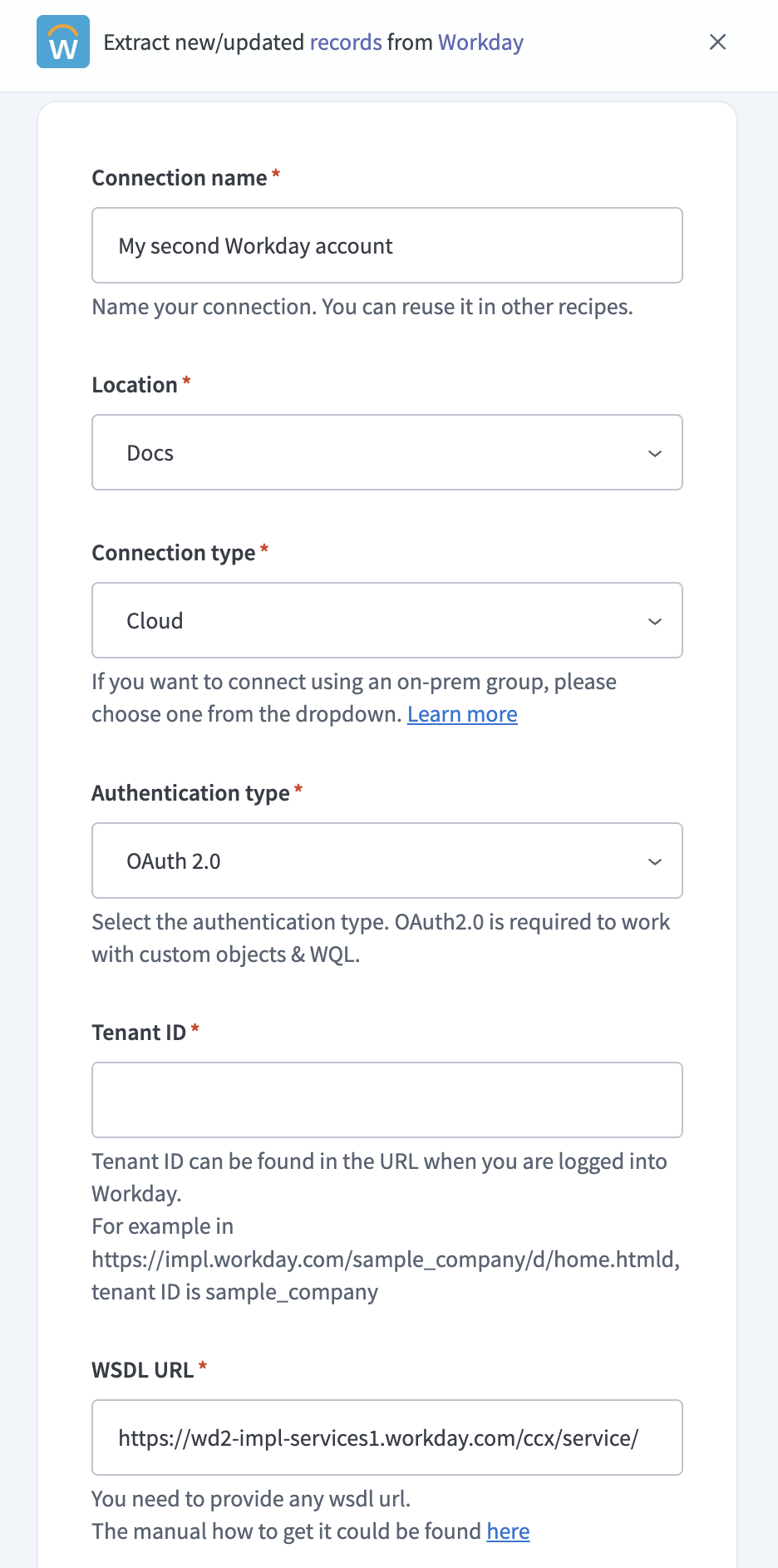 Configure your Workday connection
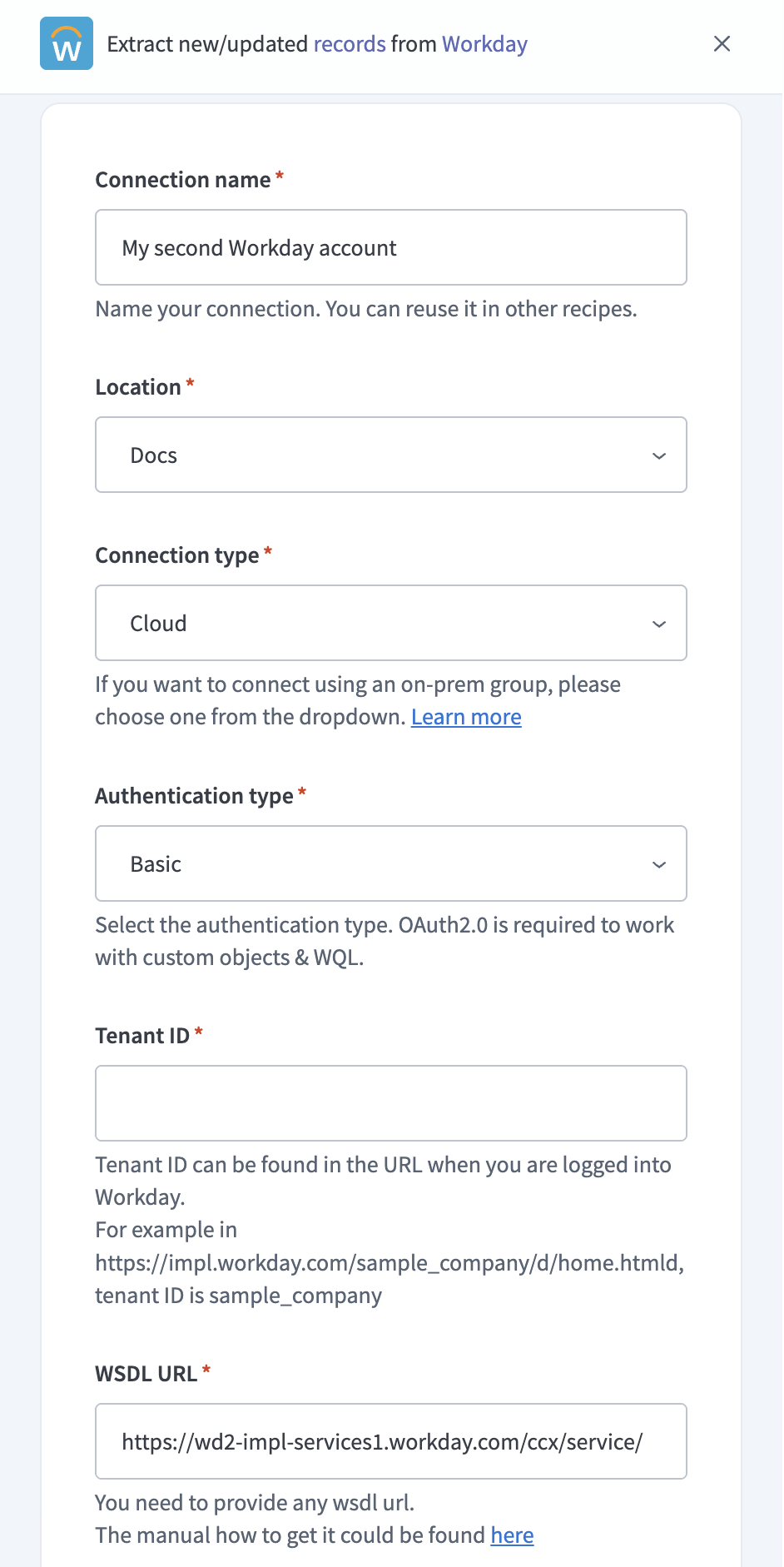 Configure your Workday connection
Configure the pipeline
Complete the following steps to configure Workday as your data pipeline source:
Select Create > Data pipeline or press C+I.
Enter a name for the data pipeline in the Data pipeline name field.
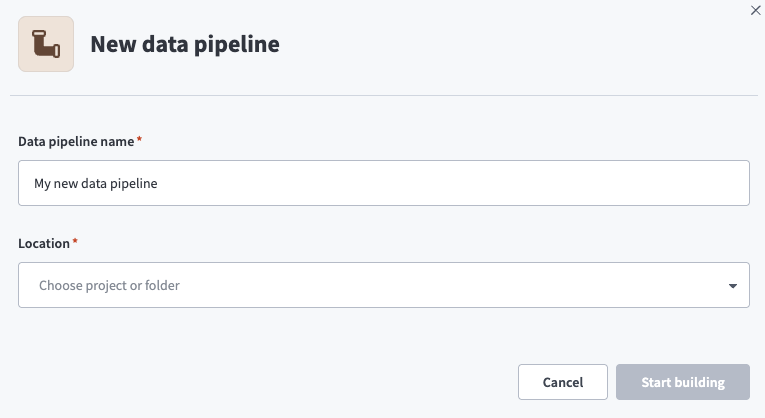 Data pipeline setup
Use the Location drop-down menu to select the project where you plan to store the data pipeline.
Click Start building.
Click the Extract new/updated records from source app trigger. This trigger defines how the pipeline retrieves data from Workday.
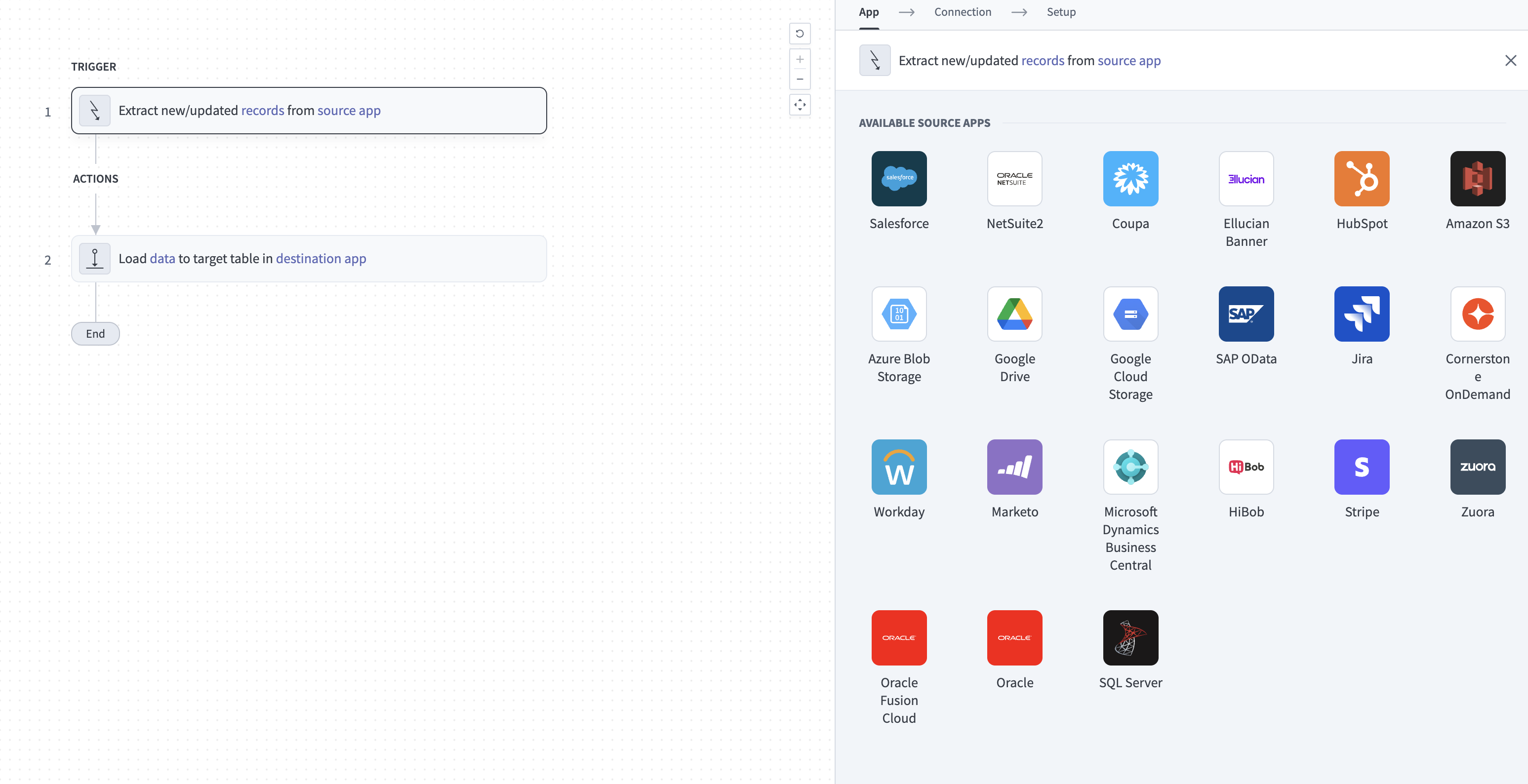 Configure the Extract new/updated records from source app trigger
Use the Your Connected Source Apps drop-down menu to select Workday.
Choose the Workday connection you plan to use for this pipeline. Alternatively, click + New connection to create a new connection.
Click Add object to open the Add new objects panel.
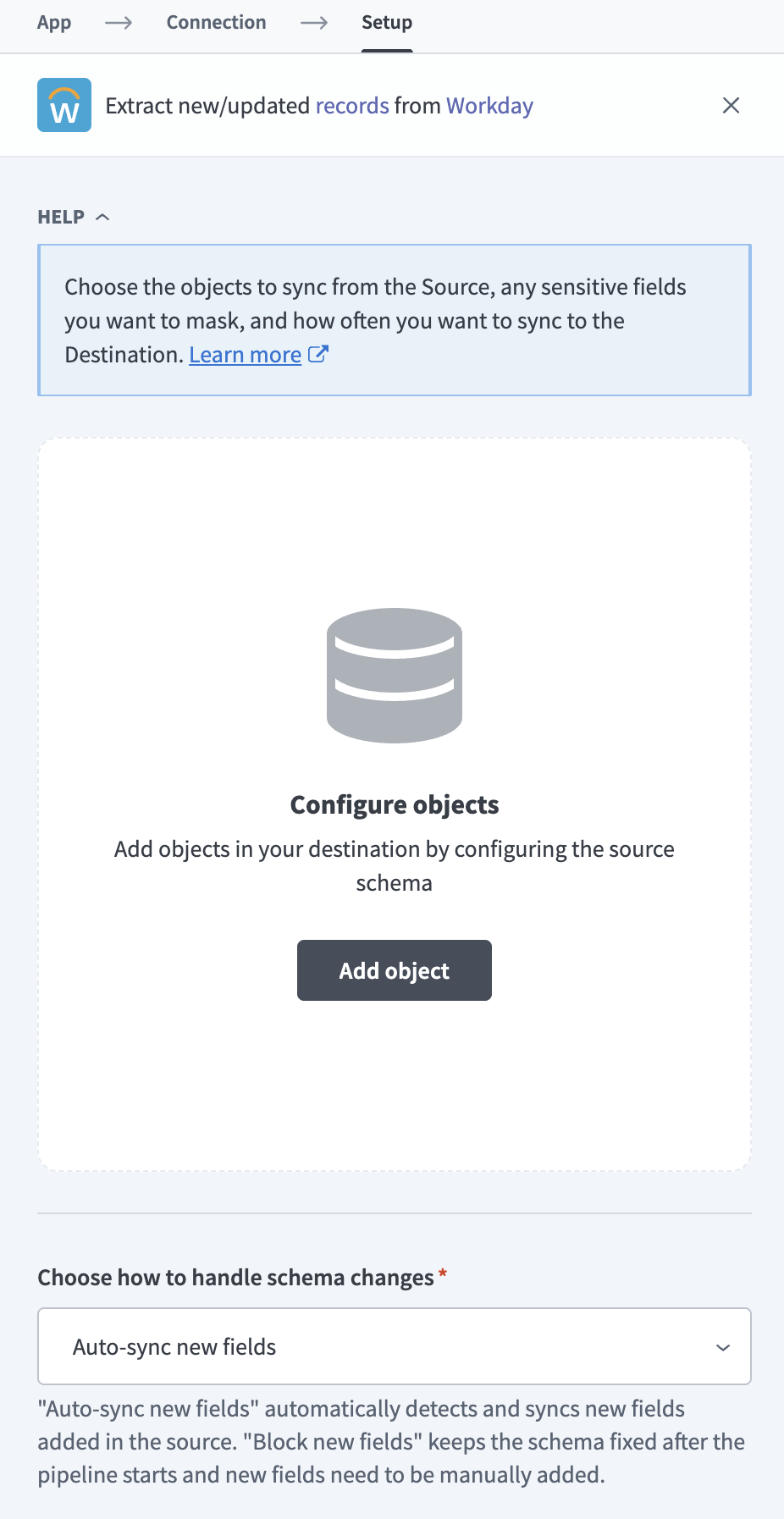 Add objects
Search or browse the list of available Workday objects, select the objects you plan to sync, and click Add.
Review and customize the schema for each selected object. When you select an object, the pipeline automatically fetches its schema to ensure the destination matches the source.
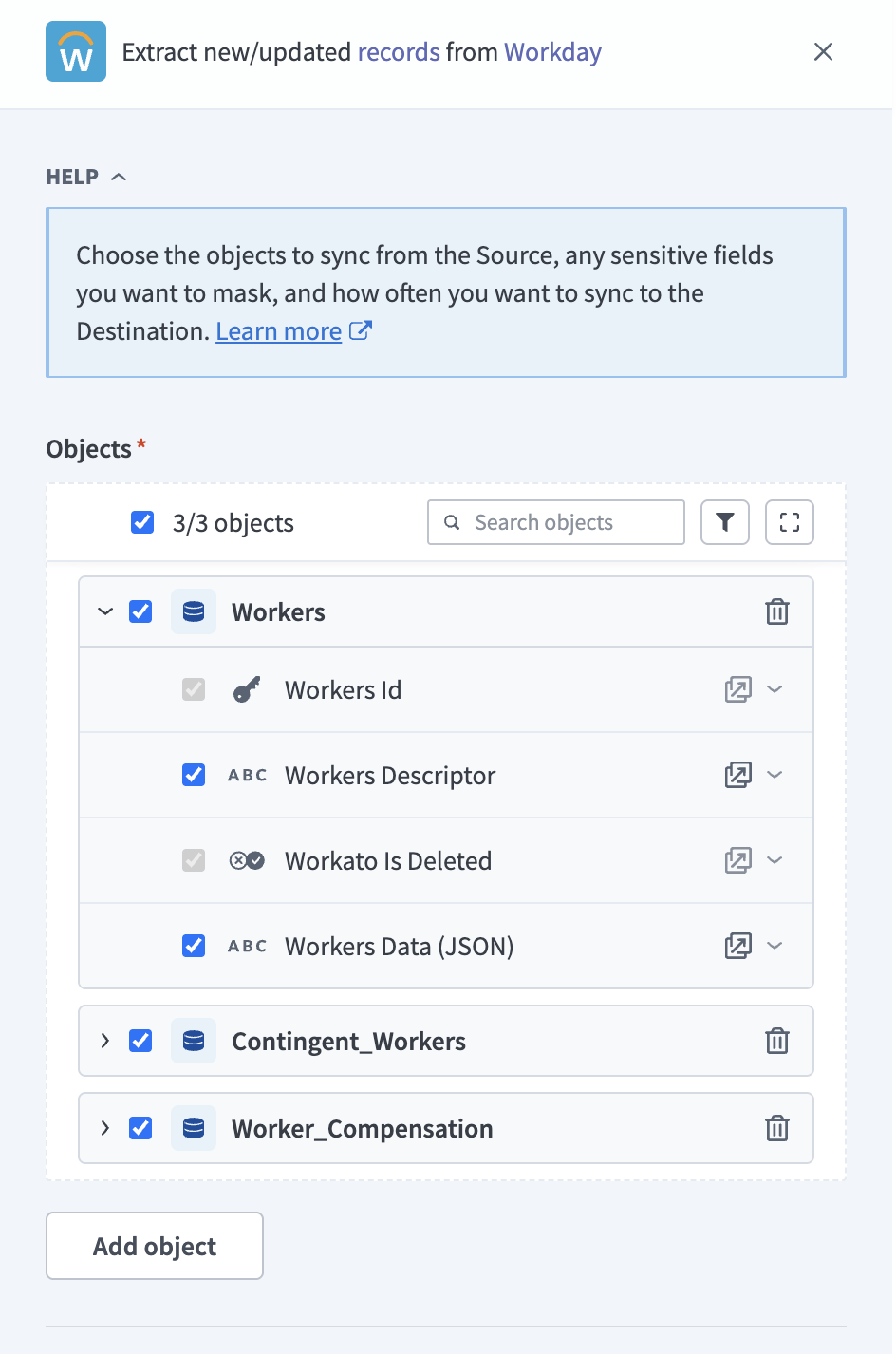 Review schema
Expand any object to view its fields. Keep all fields selected to extract all available data, or deselect specific fields to exclude them from data extraction and schema replication.
Optional. Configure field-level data protection by expanding an object and choosing how to handle each field:
- Replicate as is: Data values at the source replicate identically to the destination.
- Hash: Hash sensitive data values in the field before syncing to your destination.
Workato recommends hashing personally identifiable information (PII) and other sensitive fields.
Click Add object again to add more objects. Repeat this step to include additional Workday objects in your pipeline.
Use the Choose how to handle schema changes drop-down menu to select a schema drift handling option:
- Auto-sync new fields: Automatically detects and syncs new fields added in the source.
- Block new fields: Keeps the schema fixed after the pipeline starts. You must add new fields manually. This option may cause the destination to fall out of sync if the source schema updates.
Refer to Schema replication and schema drift management for more information.
Choose either a standard time-based schedule or define a custom cron expression in the Frequency field. This determines how often the pipeline syncs data from Workday to the destination.
The historical start date applies to objects that support an API-level filter.
Supported objects
Workday pipelines sync data from business objects exposed through the Workday Web Services API. Workato discovers the available objects when you select Add object during pipeline configuration. The picker reflects what's available for your Workday tenant. Additional objects may appear depending on your tenant configuration and authentication type, including custom objects and WQL-backed objects when you connect with OAuth 2.0.
The following objects are commonly available, grouped by functional area:
Workforce
Worker, position, and job structure records.
| Object | Description |
|---|---|
Workers | Employee worker records. |
Contingent_Workers | Non-employee worker records, such as contractors and temporary staff. |
Worker_Compensation | Compensation assignments and history for workers. |
Positions | Position records, including filled and unfilled positions. |
Job_Profiles | Job profile definitions used to standardize roles. |
Job_Families | Job family groupings used to classify related job profiles. |
Job_Categories | Job category classifications. |
Organization structure
Organizational units, legal entities, and locations.
| Object | Description |
|---|---|
Organizations | Organization records, such as supervisory and functional organizations. |
Locations | Physical and logical location records. |
Workday_Companies | Company entity records. |
Cost_Centers | Cost center organization records. |
Compensation and payroll
Pay structures, payroll inputs, and payroll results.
| Object | Description |
|---|---|
Compensation_Plans | Compensation plan definitions. |
Compensation_Grades | Pay grade definitions and ranges. |
Payroll_Results | Processed payroll output records. |
Payroll_Inputs | Payroll input records submitted to a pay run. |
Offcycle_Payments | One-time payment records processed outside the standard pay cycle. |
Currency_Conversion_Rates | Currency conversion rate records. |
Recruiting
Requisitions, candidates, and interview data.
| Object | Description |
|---|---|
Job_Requisitions | Open and historical job requisition records. |
Candidates | Candidate records for talent sourcing. |
Applicants | Applicant records for specific requisitions. |
Interview_Feedback | Interview feedback submitted by interviewers. |
Time and absence
Time entry, time off balances, and absence overrides.
| Object | Description |
|---|---|
Time_Requests | Time entry and time off request records. |
Calculated_Time_Blocks | Calculated time block records derived from time entries. |
Time_Off_Plan_Balances | Time off plan balance records for workers. |
Override_Balances | Manual balance override records. |
Carryover_Overrides | Manual carryover override records. |
Accrual_Expiration_Overrides | Manual accrual expiration override records. |
Absence_Inputs | Absence input records submitted to absence plans. |
Talent and performance
Goals, competencies, reviews, and feedback.
| Object | Description |
|---|---|
Organization_Goals | Organization-level goal records. |
Goal_Units | Goal unit definitions used to measure goals. |
Certifications | Worker certification records. |
Competencies | Competency definitions and worker competency records. |
Rating_Scales | Rating scale definitions used in reviews and assessments. |
Review_Types | Performance review type definitions. |
Feedback_Badges | Feedback badge records awarded to workers. |
Financials
General ledger, suppliers, projects, and payment data.
| Object | Description |
|---|---|
Accounting_Journals | Accounting journal entry records. |
Suppliers | Supplier records. |
Ledger_Accounts | General ledger account records. |
Revenue_Categories | Revenue category records. |
Payment_Messages | Payment message records. |
Projects | Project records. |
Sync modes
Workday data pipelines support full refresh and incremental sync.
Full refresh
A full refresh sync reads all available records for the object on every pipeline run and overwrites the destination. Use full refresh for objects when you need a complete snapshot of the data on each sync.
Incremental sync
An incremental sync fetches only records that are new or changed since the last successful sync run.
Schema and data type handling
Workday pipelines deliver standard business object data as a JSON document rather than flattening the underlying structure into individual columns. Parse the JSON column in your destination to work with specific Workday fields downstream. The JSON field is included by default. You can deselect the JSON field to remove the record content from sync, leaving only the identifier and metadata fields.
Each standard object also includes a primary key for the Workday record identifier, an optional descriptor field, and a Workato Is Deleted flag that you can use to identify deleted records.
Limitations
The following limitations apply when you use Workday as a data pipeline source:
Minimum sync frequency
The minimum supported sync interval is 15 minutes.
Authentication type affects object availability
Custom objects and WQL-backed objects require OAuth 2.0 authentication. These objects aren't available when you connect with basic authentication.
API version support
Workato supports a limited set of Workday Web Services API versions. Connections using removed versions are automatically upgraded to the earliest available version. Refer to Version support policy for more information.
Last updated: