Configure Stripe as a data pipeline source
Set up Stripe as a data pipeline source to extract payment, billing, and financial records into your destination. Use this guide to generate a Stripe API key, set up a connection, configure your pipeline, add objects, review sync behavior, and understand known limitations.
Features supported
The following features are supported when you use Stripe as a pipeline source:
- Cloud connectivity: Connect to Stripe over HTTPS through
https://api.stripe.com. On-prem agents aren't required. - Live and test mode: Connect to either your live or test mode data by providing the matching secret key. Workato treats each mode as a separate environment.
- Full refresh and incremental sync: Supports full refresh and incremental sync modes. Incremental sync uses the Stripe Events API combined with cursor-based pagination on list endpoints. Refer to Sync modes for more information.
- Object-level selection: Select Stripe objects to sync as separate tables in your destination. Refer to Supported objects for the full list.
- Soft-delete tracking: Detect deletions for supported objects through Stripe events and mark deleted records with a soft-delete flag in your destination.
- Schema drift detection and handling: Detect and apply schema changes automatically with Auto-sync new fields, or keep the schema fixed with Block new fields.
- Field-level data protection: Hash or replicate sensitive fields as is before the data reaches your destination.
- Configurable sync frequency: Schedule syncs on a time-based interval or with a cron expression. The minimum supported interval is 15 minutes.
Prerequisites
Complete the following requirements before you connect Stripe as a data pipeline source.
- A Stripe account in live or test mode
- Credentials for your chosen authentication method:
- API key: A Stripe API secret key with read permission for the resources you plan to sync, and access to your Stripe Dashboard to generate it. Refer to Generate a Stripe API key for setup steps.
- Authorization code grant: A Stripe account user with permission to authorize third-party applications.
REQUIRED PERMISSIONS
If you use API key authentication, Workato recommends a restricted API key with read-only permissions scoped to the resources you plan to sync. A restricted key is the most secure option for data extraction. Use a standard secret key only if your account requires it for specific resources.
Generate a Stripe API key
If you connect to Stripe with API key authentication, generate the key in your Stripe Dashboard before you create the connection in Workato. Skip this section if you connect with Authorization code grant.
Sign in to your Stripe Dashboard and select the mode (live or test) that matches the data you plan to sync.
Go to Settings > Developers > Manage API keys.
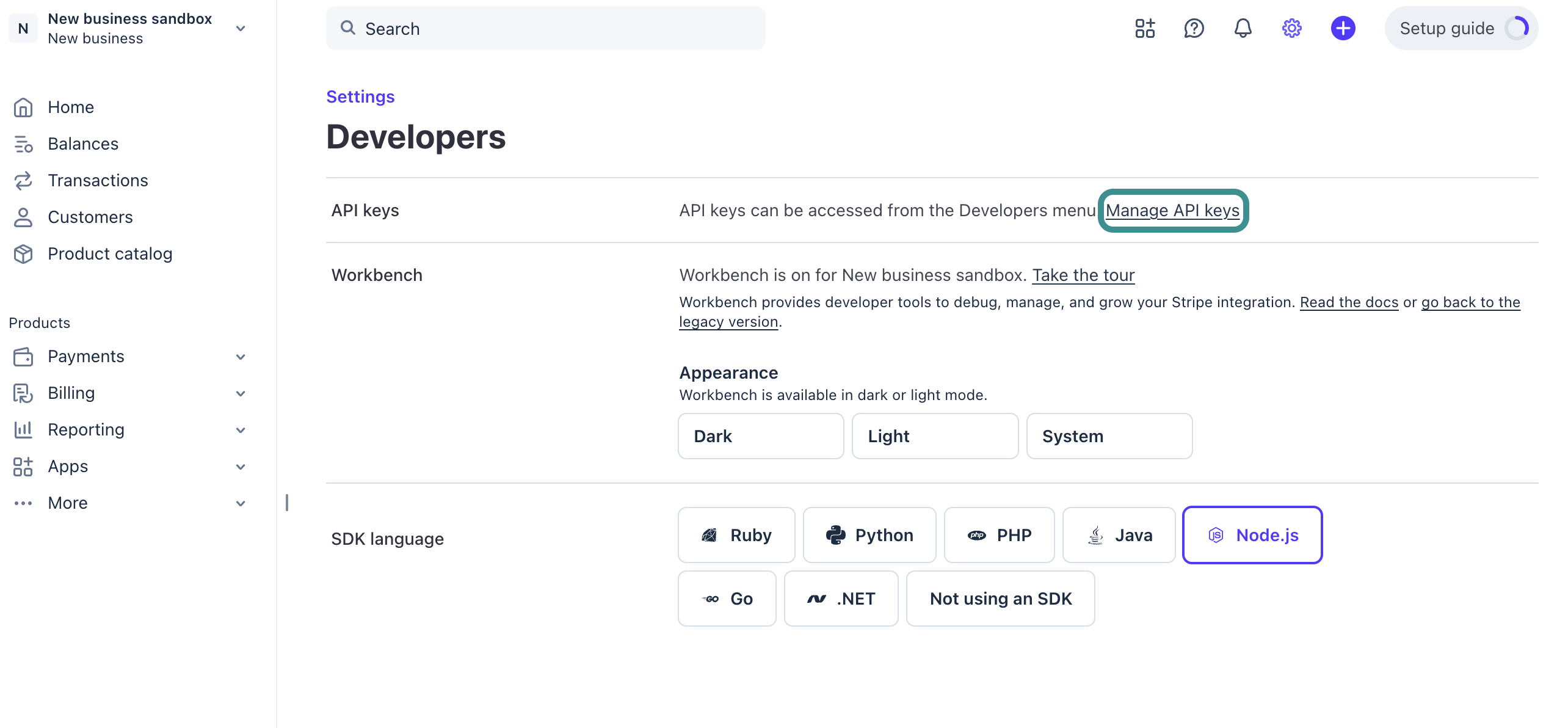 Manage API keys
Locate the Restricted keys section and click Create restricted key.
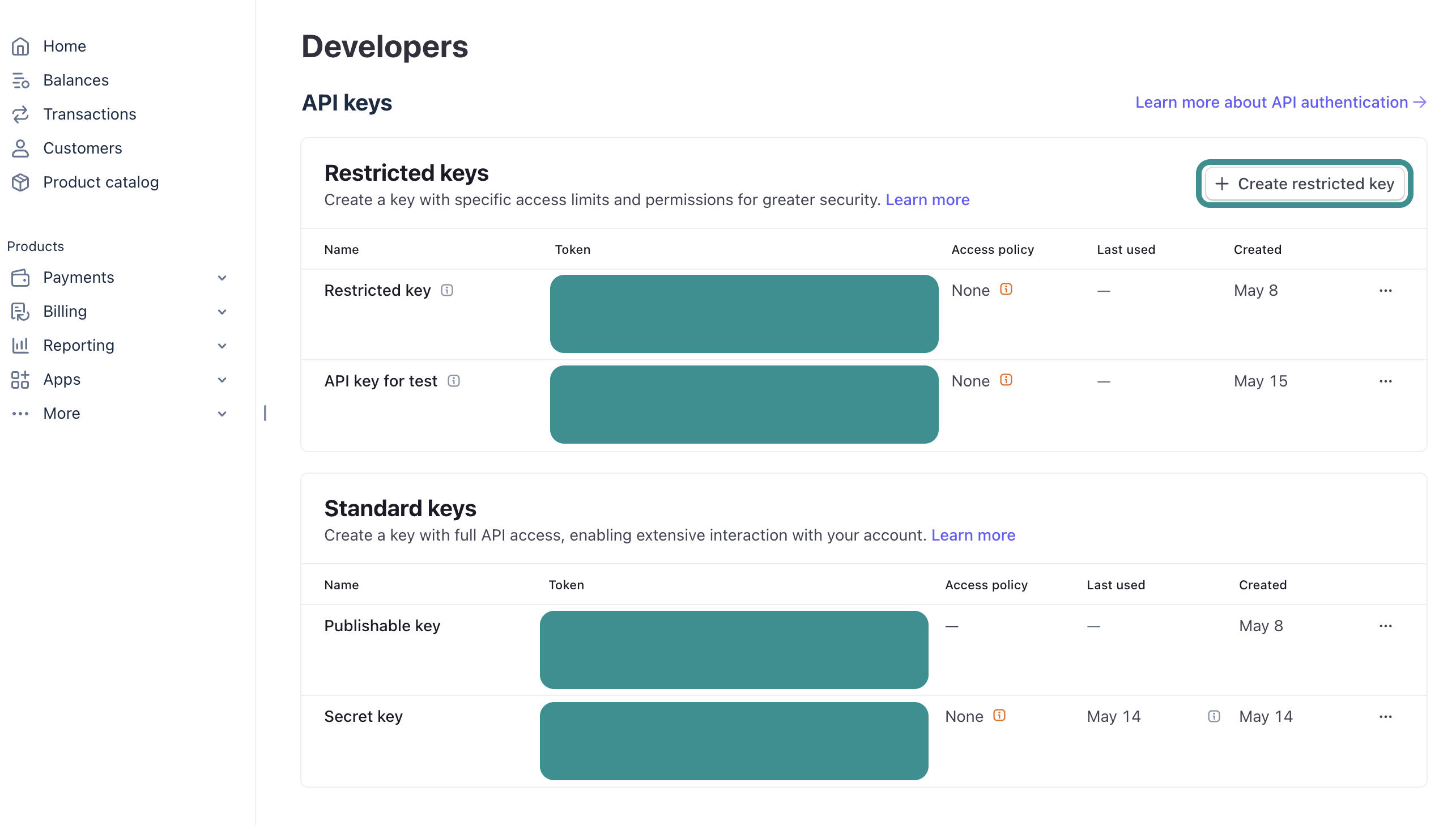 Create restricted key
Select Providing this key to a third-party application when Stripe asks how you plan to use the key, then click Continue.
Enter a name for the key in the Name field. For example, Workato Data Pipeline.
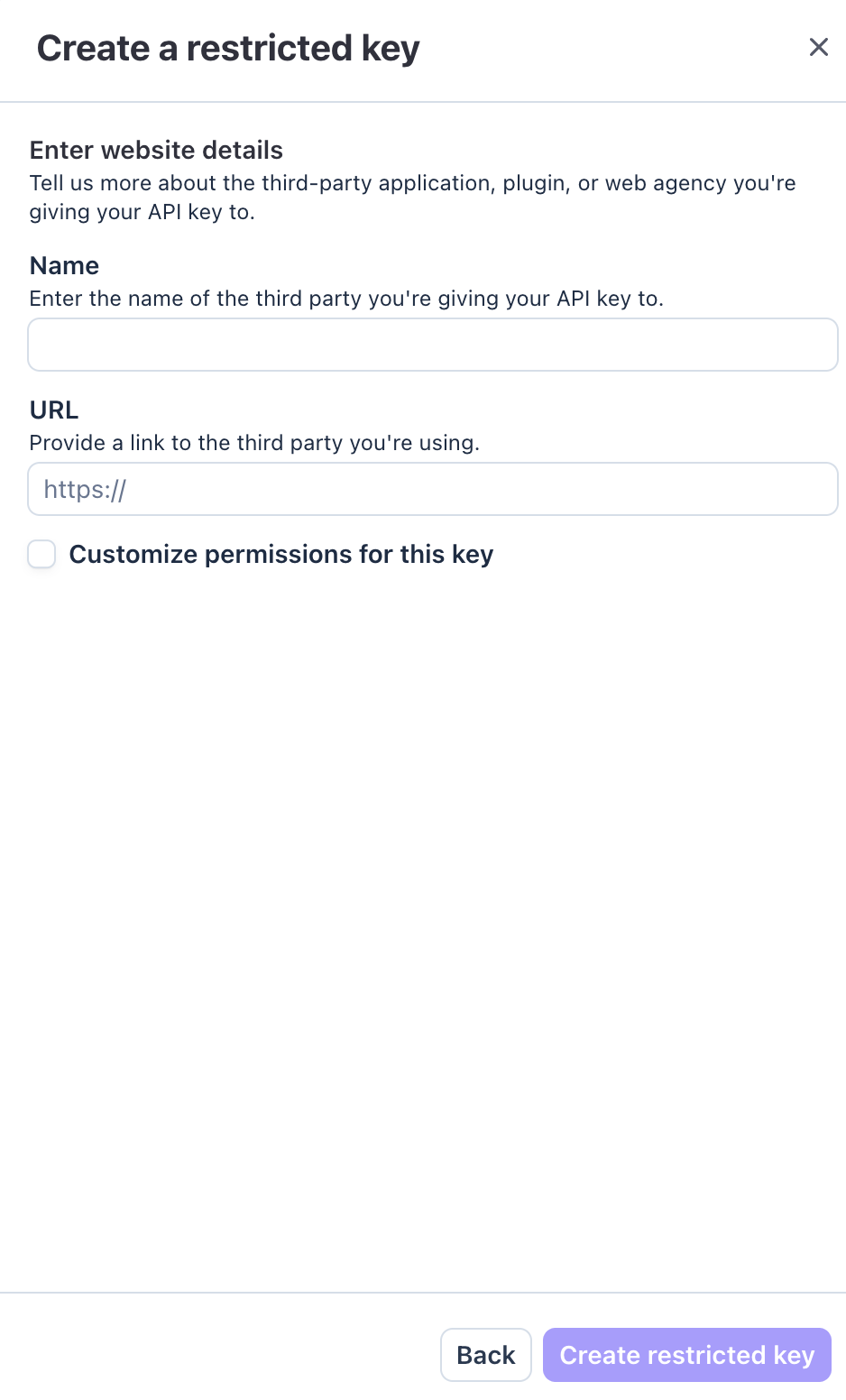 Enter key details
Enter https://www.workato.com in the URL field.
Select Customize permissions for this key and click Continue. Stripe opens a permissions grid with default selections for third-party applications.
Review each resource type and set the permission to Read for every resource that corresponds to an object you plan to sync. Set unused resources to None. Don't grant Write for any resource, because Workato data pipelines extract data only.
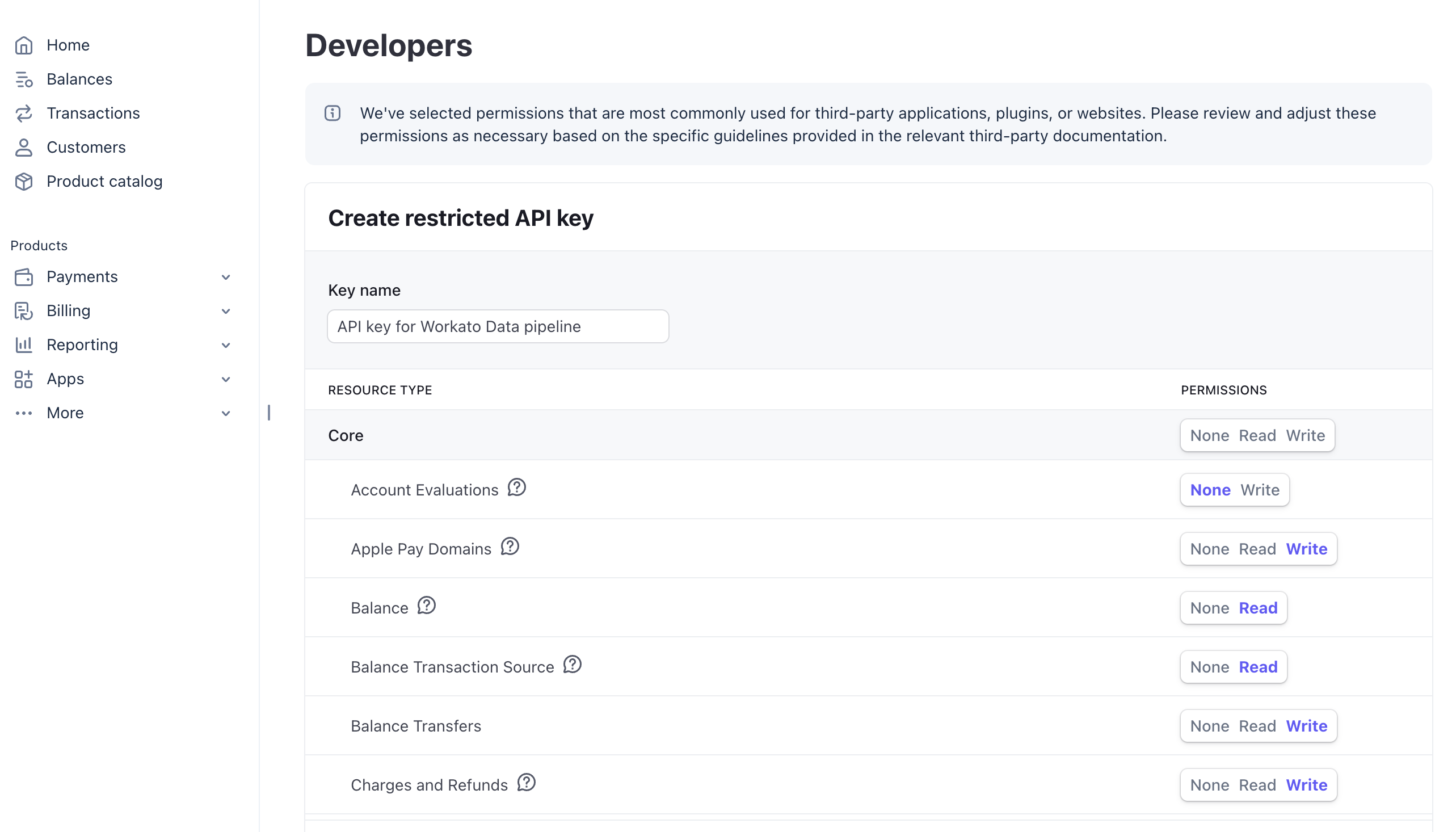 Customize resource permissions
Refer to Recommended permissions for the complete list of permission categories that map to Workato objects.
Click Create key.
Copy the generated key and store it in a secure location. You need this value to create the Workato connection.
Restricted keys begin with rk_live_ for live mode and rk_test_ for test mode. Live mode keys are masked in the dashboard after creation, so copy and store the key immediately.
KEY MODE MUST MATCH YOUR INTENDED ENVIRONMENT
A live mode key returns live data. A test mode key returns test data. The two environments don't share data. Confirm the key prefix matches the environment you plan to sync before you connect.
Recommended permissions
Grant Read permission for the following resource categories in Stripe's permissions grid to sync the supported Stripe objects:
| Stripe permission category | Workato objects |
|---|---|
| Balance Transaction Source | BalanceTransactions |
| Charges and Refunds | Charges, Refunds |
| Coupons | Coupons |
| Credit notes | CreditNotes |
| Customers | Customers, Cards, BankAccounts |
| Disputes | Disputes |
| Events | Events |
| Invoices | Invoices, InvoiceLineItems, InvoiceItems, InvoiceTaxRates, InvoiceDiscounts |
| Payment Intents | PaymentIntents |
| Payment Methods | PaymentMethods |
| Payouts | Payouts |
| Products | Products, Prices, Plans |
| Promotion Codes | PromotionCodes |
| Setup Intents | SetupIntents, SetupAttempts |
| Subscriptions | Subscriptions, SubscriptionItems, SubscriptionHistory, SubscriptionDiscounts, UsageRecordSummaries |
| Tax Rates | TaxRates |
| Transfers | Transfers |
Configure permissions for any other categories based on your use case.
Supported connection types
Stripe data pipelines support two authentication methods:
- API key: Provide a restricted or standard secret key generated from your Stripe Dashboard. Workato recommends this method for data pipelines. Refer to Generate a Stripe API key for setup steps.
- Authorization code grant: Connect through OAuth 2.0 by authorizing Workato access from your Stripe account. No credentials are required in advance.
Connect to Stripe
Complete the following steps to connect Stripe as a data pipeline source.
Connect to Stripe
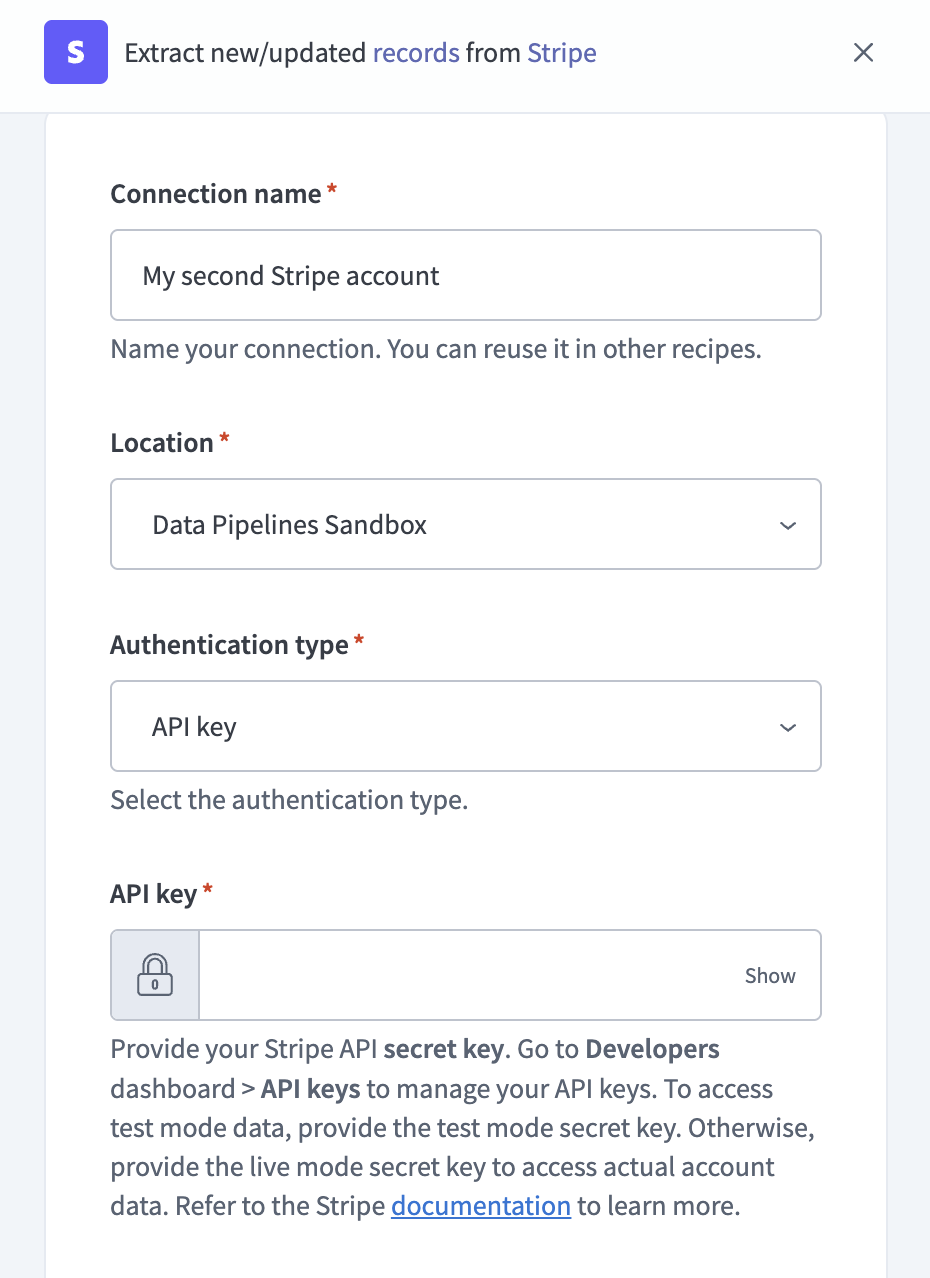 Configure your Stripe connection
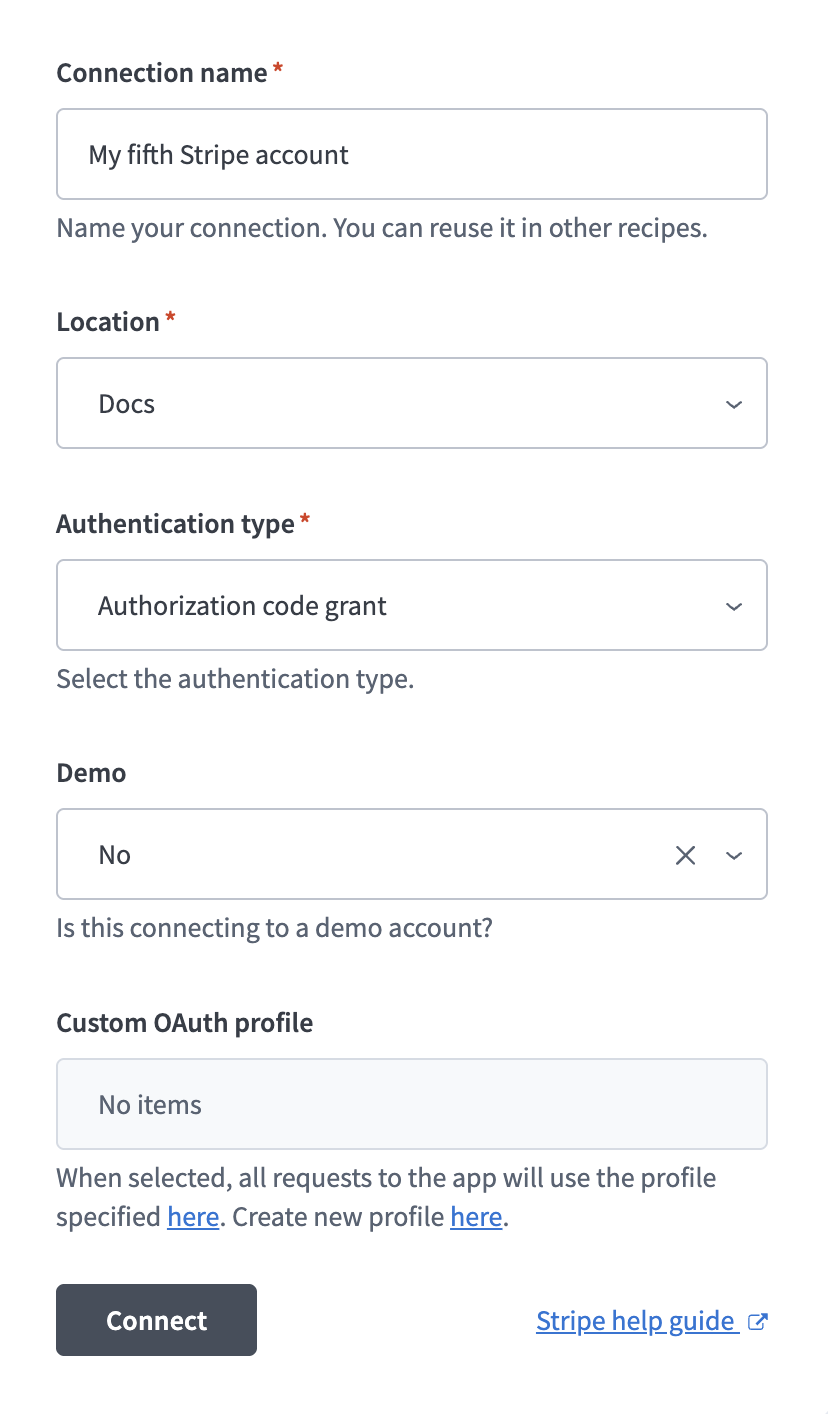 Configure your Stripe connection
Configure the pipeline
Complete the following steps to configure Stripe as your data pipeline source:
Select Create > Data pipeline or press C+I.
Enter a name for the data pipeline in the Data pipeline name field.
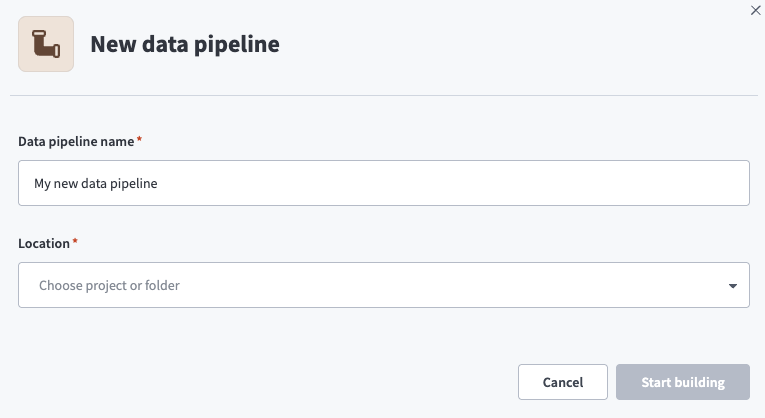 Data pipeline setup
Use the Location drop-down menu to select the project where you plan to store the data pipeline.
Click Start building.
Click the Extract new/updated records from source app trigger. This trigger defines how the pipeline retrieves data from Stripe.
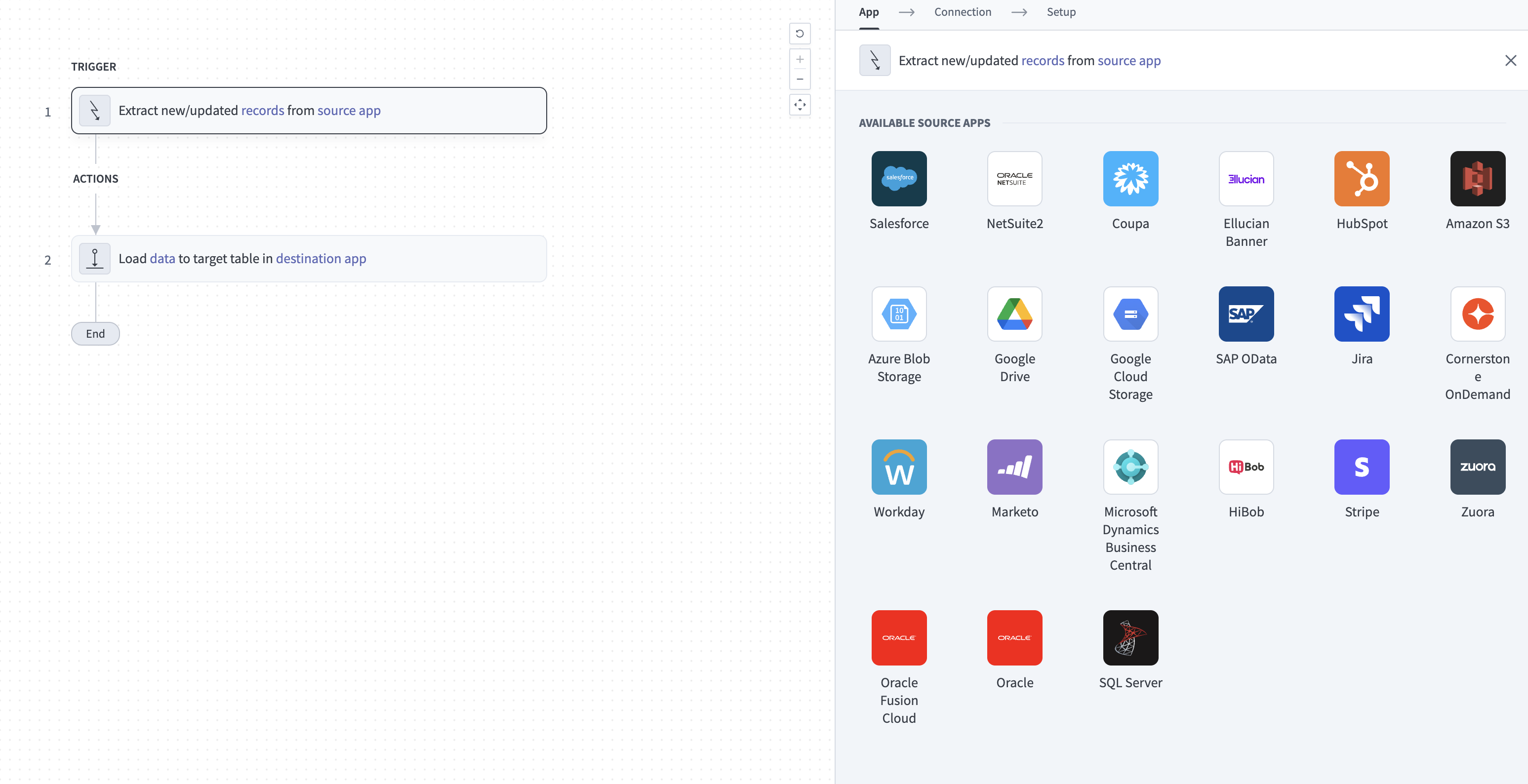 Configure the Extract new/updated records from source app trigger
Use the Your Connected Source Apps drop-down menu to select Stripe.
Choose the Stripe connection you plan to use for this pipeline. Alternatively, click + New connection to create a new connection.
Click Add object to open the Add new objects panel.
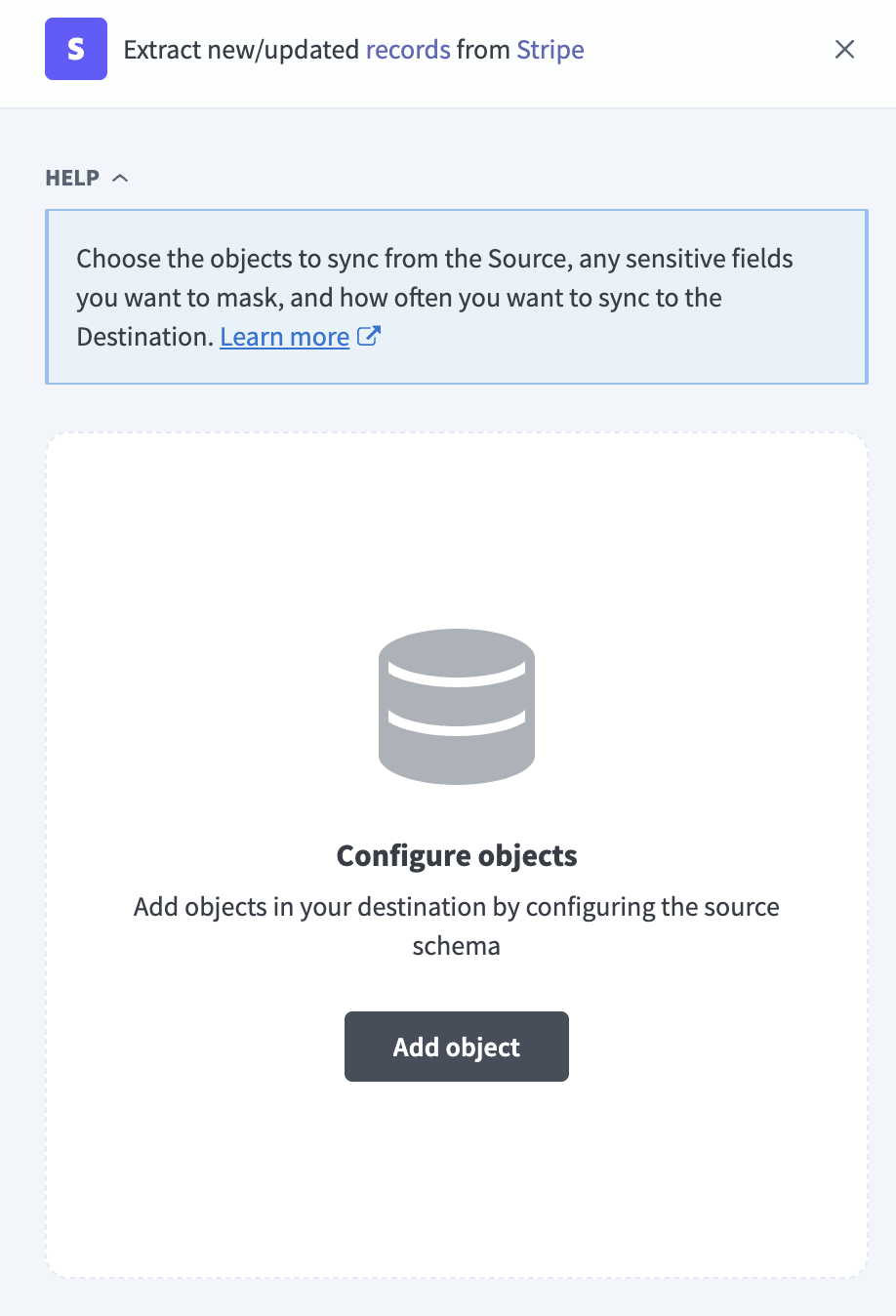 Add objects
Search or browse the list of available Stripe objects, select the objects you plan to sync, and click Add.
Review and customize the schema for each selected object. The pipeline automatically fetches an object's schema when you select it. This ensures the destination matches the source.
Expand an object to view associated fields. Keep all fields selected to extract all available data, or deselect specific fields to exclude them from data extraction and schema replication.
Optional. Configure field-level data protection by expanding an object and choosing how to handle each field:
- Replicate as is: Data values at the source replicate identically to the destination.
- Hash: Hash sensitive data values in the field before syncing to your destination.
Workato recommends hashing personally identifiable information (PII) and other sensitive fields. Refer to Sensitive data handling for a list of fields that commonly contain PII.
Click Add object again to add more objects. Repeat this step to include additional Stripe objects in your pipeline.
Use the Choose how to handle schema changes drop-down menu to select a schema drift handling option:
- Auto-sync new fields: Automatically detects and syncs new fields added in the source.
- Block new fields: Keeps the schema fixed after the pipeline starts. You must add new fields manually. This option may cause the destination to fall out of sync if the source schema updates.
Refer to Schema replication and schema drift management for more information.
Choose either a standard time-based schedule or define a custom cron expression in the Frequency field. This determines how often the pipeline syncs data from Stripe to the destination.
Supported objects
Stripe data pipelines sync data from Stripe REST API resources. The following tables list the supported objects, grouped by category. Each object syncs as a separate table in your destination.
Core payment objects
| Object | Sync modes | Incremental mechanism | Delete tracking |
|---|---|---|---|
Customers | Full refresh, incremental | created cursor plus customer.* events | Yes (soft) |
Charges | Full refresh, incremental | created cursor plus charge.* events | No |
PaymentIntents | Full refresh, incremental | created cursor plus payment_intent.* events | No |
PaymentMethods | Full refresh, incremental | payment_method.* events | No |
SetupIntents | Full refresh, incremental | setup_intent.* events | No |
SetupAttempts | Full refresh, incremental | Through parent SetupIntent events | No |
Billing and subscriptions
| Object | Sync modes | Incremental mechanism | Delete tracking |
|---|---|---|---|
Invoices | Full refresh, incremental | invoice.* events | Yes (soft) |
InvoiceLineItems | Full refresh, incremental | Through parent events | No |
InvoiceItems | Full refresh, incremental | invoiceitem.* events | Yes (soft) |
Subscriptions | Full refresh, incremental | customer.subscription.* events | Yes (soft) |
SubscriptionItems | Full refresh, incremental | Through parent events | No |
SubscriptionHistory | Append-only | customer.subscription.* events | N/A |
Products | Full refresh, incremental | product.* events | Yes (soft) |
Prices | Full refresh, incremental | price.* events | Yes (soft) |
Plans | Full refresh, incremental | plan.* events | Yes (soft) |
Coupons | Full refresh, incremental | coupon.* events | Yes (soft) |
PromotionCodes | Full refresh, incremental | promotion_code.* events | No |
CreditNotes | Full refresh, incremental | credit_note.* events | No |
UsageRecordSummaries | Full refresh only | Re-fetched on every run | No |
Financial reconciliation
| Object | Sync modes | Incremental mechanism | Delete tracking |
|---|---|---|---|
BalanceTransactions | Full refresh, incremental | created cursor | No |
Payouts | Full refresh, incremental | payout.* events | No |
Refunds | Full refresh, incremental | refund.* events | No |
Disputes | Full refresh, incremental | charge.dispute.* events | No |
Transfers | Full refresh, incremental | transfer.* events | No |
Tax and discounts
| Object | Sync modes | Incremental mechanism | Delete tracking |
|---|---|---|---|
TaxRates | Full refresh, incremental | tax_rate.* events | No |
InvoiceTaxRates | Full refresh, incremental | Through parent Invoice events | No |
InvoiceDiscounts | Full refresh, incremental | Through parent Invoice events | No |
SubscriptionDiscounts | Full refresh, incremental | Through parent Subscription events | No |
Account and events
| Object | Sync modes | Incremental mechanism | Delete tracking |
|---|---|---|---|
Accounts | Full refresh | Re-imported in full each run | No |
Events | Append-only | created cursor | N/A |
Payment method details
| Object | Sync modes | Incremental mechanism | Delete tracking |
|---|---|---|---|
Cards | Full refresh, incremental | Through parent Customer events | No |
BankAccounts | Full refresh, incremental | Through parent Customer or Account events | No |
Stripe Issuing
The following objects sync only if your account uses the Stripe Issuing product:
| Object | Sync modes | Incremental mechanism | Delete tracking |
|---|---|---|---|
IssuingCards | Full refresh, incremental | issuing_card.* events | No |
IssuingCardholders | Full refresh, incremental | Stripe Issuing events | No |
IssuingTransactions | Full refresh, incremental | created cursor | No |
Sync modes
Stripe data pipelines support full refresh and incremental sync. The sync mode is configured per object when you add it to your pipeline.
Full refresh
A full refresh sync reads all available records from Stripe for the selected object and overwrites the destination table. Use full refresh for objects where you need a complete snapshot on each run.
Incremental sync
An incremental sync extracts only records that have changed since the last successful run. Workato uses the Stripe Events API to detect creates, updates, and deletes for objects that emit events. For objects that don't emit update events, Workato extracts new records using the created timestamp as the incremental cursor.
Refer to the Supported objects tables to see the incremental mechanism for each object.
Delete tracking
For objects that support soft-delete tracking, Workato listens for *.deleted events from Stripe and sets a soft-delete flag (is_deleted = true) on the destination row rather than physically removing it. Refer to the Supported objects tables to see which objects support delete tracking.
Stripe doesn't emit delete events for every object type. Objects without delete tracking retain their last-known state in the destination.
Schema and data type handling
The following considerations apply to schema and data types when you sync data from Stripe.
Monetary amounts
Stripe stores all monetary amounts as integers in the smallest currency unit of the relevant currency. For example, 1000 represents $10.00 in USD or ¥1,000 in JPY. Workato preserves these values as integers in the destination. Workato doesn't perform currency conversion.
Zero-decimal currencies such as JPY and KRW behave differently from decimal currencies. A value of 100 in JPY represents ¥100, not ¥1. Refer to Stripe's currency documentation for the list of zero-decimal currencies.
Timestamps
Stripe returns timestamps as Unix epoch integers.
Metadata fields
Most Stripe objects include a metadata field, which is a JSON key-value map that you can populate with arbitrary data. Workato stores the metadata field as a JSON column in the destination. Workato doesn't flatten metadata keys into individual columns.
Workato syncs JSON fields to the destination's native JSON type, such as VARIANT in Snowflake. Workato serializes JSON fields as strings if the destination doesn't support a native JSON type.
Objects that include a metadata field include Customer, Charge, Card, Dispute, Invoice, InvoiceLineItem, PaymentIntent, PaymentMethod, Payout, Plan, Price, Refund, Subscription, and Transfer.
Livemode flag
Most Stripe objects include a livemode boolean field that indicates whether the record originated from live mode or test mode. Workato preserves this flag in the destination schema.
Synthetic columns
Workato adds the following synthetic columns to destination tables for specific objects:
| Column | Type | Purpose |
|---|---|---|
_workato_is_deleted | Boolean | Set to true for soft-deleted records on objects with delete tracking. Refer to Delete tracking for more information. |
_workato_event_created | Timestamp | Records when Workato last refreshed the row. During incremental sync, this is the Stripe event timestamp that triggered the update. During full sync, this is the sync start time. Applied to parent-dependent objects: InvoiceLineItems, SubscriptionItems, SetupAttempts, InvoiceTaxRates, InvoiceDiscounts, SubscriptionDiscounts, Cards, and BankAccounts. |
workato_valid_from | Timestamp | Marks when each SubscriptionHistory record became effective. Used to model SubscriptionHistory as a slowly-changing dimension. |
Primary key columns and _workato_is_deleted are non-nullable. Other columns on delete-tracked objects are nullable to accommodate soft-delete rows that contain only the primary key and the delete flag.
Sensitive data handling
Stripe objects can contain significant PII and financial data. The following objects commonly contain sensitive fields:
| Object | Sensitive fields |
|---|---|
Customer | name, email, phone, address (billing and shipping), tax_ids |
Charge | billing_details.name, billing_details.email, billing_details.phone, billing_details.address |
Card | name, address_* fields, last4, exp_month, exp_year |
BankAccount | account_holder_name, routing_number, last4 |
PaymentMethod | Billing details (name, email, phone, address) |
PaymentIntent | receipt_email, description |
Invoice | customer_name, customer_email, customer_address, customer_tax_ids |
Payout | destination (bank account or card details) |
IssuingCard | number, cvc, last4, exp_month, exp_year, cardholder reference |
IssuingCardholder | Full PII, including name, email, phone, billing address, and date of birth |
Transfer | destination account details |
Stripe doesn't return raw card numbers or CVV values for customer payment methods (the Card object), because Stripe doesn't expose them through the API. For platform-issued cards (the IssuingCard object), Stripe returns the full card number and CVV when these fields are requested. Workato passes these values through to your destination. If you sync IssuingCards, use the Hash option in field-level data protection to mask the number and cvc fields, or set them to None to exclude them from the sync.
Use the Hash option in field-level data protection during pipeline configuration to protect PII before it reaches your destination. Refer to the Configure the pipeline steps for more information.
Limitations
The following limitations apply when you use Stripe as a data pipeline source.
Events API 30-day retention
Stripe retains events for 30 days. If your pipeline cursor falls more than 30 days behind, the pipeline can't reconstruct updates or deletes for the gap period from events alone. Resume or re-run paused pipelines before the cursor falls outside Stripe's 30-day retention window. Refer to Sync modes for more information.
Rate limits
Stripe enforces a default rate limit of 25 requests per second per account in live mode. Test mode rate limits are approximately 25 percent of live mode quotas. Contact Stripe Support to request a higher rate limit if your account requires it.
Pagination quotas
Large historical syncs take longer to complete on accounts with millions of records.
Metadata-only updates are not captured
Stripe doesn't emit an event when only the metadata field on an object is updated. Metadata-only changes don't appear in incremental syncs. Run a full refresh of the affected object to capture metadata-only changes.
SubscriptionHistory is append-only
The SubscriptionHistory object is an append-only audit log. Re-syncing this object deletes historical records and replaces them with the current state only. Don't re-sync SubscriptionHistory.
Stripe Connect platform accounts are not supported
Workato syncs data only for the account whose API key you provide. Connect platform multi-account sync isn't currently supported.
Some Card columns require Stripe Support enablement
Certain Card object columns, such as iin and issuer, aren't returned in standard API responses. Contact Stripe Support to enable these columns on your account before you expect them in your destination.
Minimum sync frequency
The minimum supported sync interval is 15 minutes.
Last updated: