Configure X as a data pipeline source
Set up X as a data pipeline source to extract and sync ad account, campaign, and analytics data from the X Ads API to your destination.
Use this guide to review the features and prerequisites, connect X as a data pipeline source, configure the pipeline, and understand the supported objects, sync modes, schema handling, sensitive data handling, and known limitations.
Features supported
The following features are supported when you use X as a pipeline source:
- Cloud connectivity: Connects to the X Ads API over HTTPS through
https://ads-api.x.com. - Multi-account support: Sync all ad accounts your connection can access, or select specific ad accounts by ID.
- Object-level selection: Choose from supported objects across the campaign hierarchy, creative assets, targeting, and analytics reports. Refer to Supported objects for the full list.
- Incremental sync: Most campaign hierarchy, creative, and analytics objects sync incrementally. Refer to Sync modes for more information.
- Delete tracking: Detect and mark deleted records on supported objects with a soft-delete flag in your destination. Refer to Delete tracking for more information.
- Schema drift detection and handling: Detect and apply schema changes automatically with Auto-sync new fields, or keep the schema fixed with Block new fields.
- Field-level data protection: Hash or replicate sensitive fields as is before the data reaches your destination.
- Configurable sync frequency: Schedule syncs on a time-based interval or with a cron expression. The minimum supported interval is 15 minutes.
- Configurable analytics windows: Set how many days of analytics history the pipeline backfills, and how many trailing days it re-pulls on every run. Refer to Configure the pipeline for more information.
Prerequisites
Connecting X as a data pipeline source requires:
- An X account with at least one ad account you plan to sync.
- An X Developer App approved for X Ads API access. Ads API access is gated separately from general X API access and reviewed by the X Ads API team, so approval can take time. Don't expect same-day activation. Refer to Generate an X Ads API app for setup steps.
- Credentials for OAuth 1.0a authentication: a consumer key, consumer secret, access token, and access token secret generated from your approved developer app.
REQUIRED PERMISSIONS
The authenticated X user must hold at least the Campaign analyst permission on the target ad account. Account manager and Ad manager include the required permissions.
Generate an X Ads API app
Complete the following steps to create an X Developer App, apply for Ads API access, and generate the credentials your X connection needs:
Generate a consumer key and secret
Complete the following steps to generate a consumer key and secret in X:
Sign in to the X Developer Console.
Click Apps > Create App.
Enter an Application Name.
Select an Environment.
Click Create New Client Application.
Copy and save the Consumer Key and Secret Key for use in Workato.
SAVE YOUR CREDENTIALS
The credentials only display once. If you lose them, you must generate new ones.
Generate an access token and secret
Complete the following steps to generate an access token and secret in X:
Sign in to the X Developer Console.
Click Apps.
Click on the app you created in the preceding steps.
Under OAuth 1.0 Keys, click Generate for Access Token.
Copy and save the Access Token and Access Token Secret for use in Workato.
SAVE YOUR CREDENTIALS
The credentials only display once. If you lose them, you must generate new ones.
OAUTH 2.0 NOT SUPPORTED
The X Ads API only accepts OAuth 1.0a. OAuth 2.0 bearer tokens, which the base X API accepts, are rejected on every X Ads API endpoint.
Supported connection types
X data pipelines support OAuth 1.0a authentication:
- OAuth 1.0a: Authenticate with a consumer key, consumer secret, access token, and access token secret from an X Developer App approved for Ads API access. You can use either an app your organization registers and gets approved directly, or credentials from a shared app already approved for Ads API access, since the connection form accepts either. These tokens don't expire or refresh automatically, unlike an OAuth 2.0 connection. Tokens remain valid until you revoke them in the X Developer Console.
Connect to X
Complete the following steps to connect to X:
Connect to X
Click Create > Connection.
Search for X and select it as your app.
Enter a name for your connection in the Connection name field.
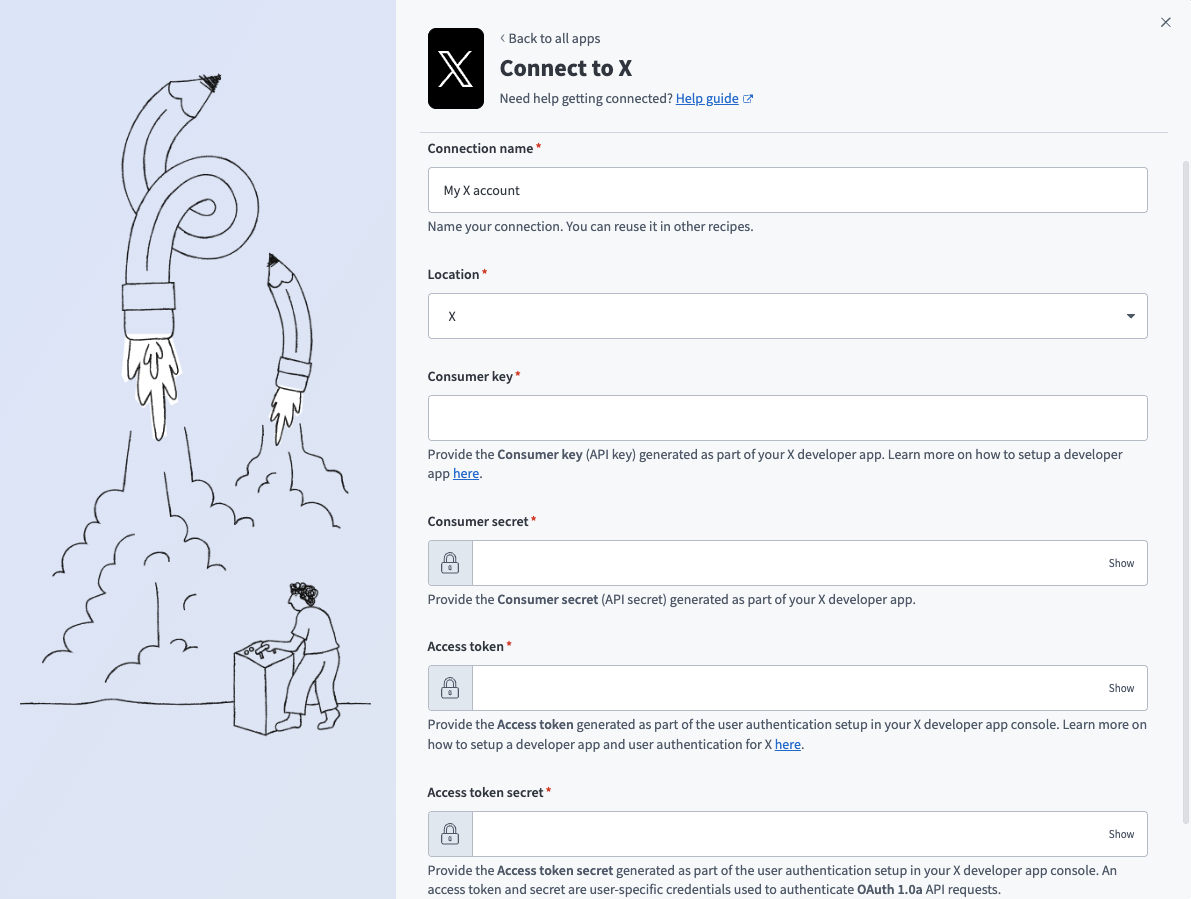 X connection setup
Use the Location drop-down menu to select the project where you plan to store the connection.
Enter the Consumer key and Consumer secret.
Enter the Access token and Access token secret.
Click Connect.
Configure the pipeline
Complete the following steps to configure X as your data pipeline source:
Select Create > Data pipeline or press C+I.
Enter a name for the data pipeline in the Data pipeline name field.
 Data pipeline setup
Use the Location drop-down menu to select the project where you plan to store the data pipeline.
Click Start building.
Click the Extract new/updated records from source app trigger. This trigger defines how the pipeline retrieves data from X.
 Configure the Extract new/updated records from source app trigger
Use the Your Connected Source Apps drop-down menu to select X.
Choose the X connection you plan to use for this pipeline. Alternatively, click + New connection to create a new connection.
Use the Sync all ad accounts drop-down menu to choose whether the pipeline discovers and syncs data from every ad account reachable by the authorized X user.
- Yes: Sync every accessible ad account automatically.
- No: Sync only the ad account IDs you provide in a comma-separated list.
Click Add object to open the Add new objects panel.
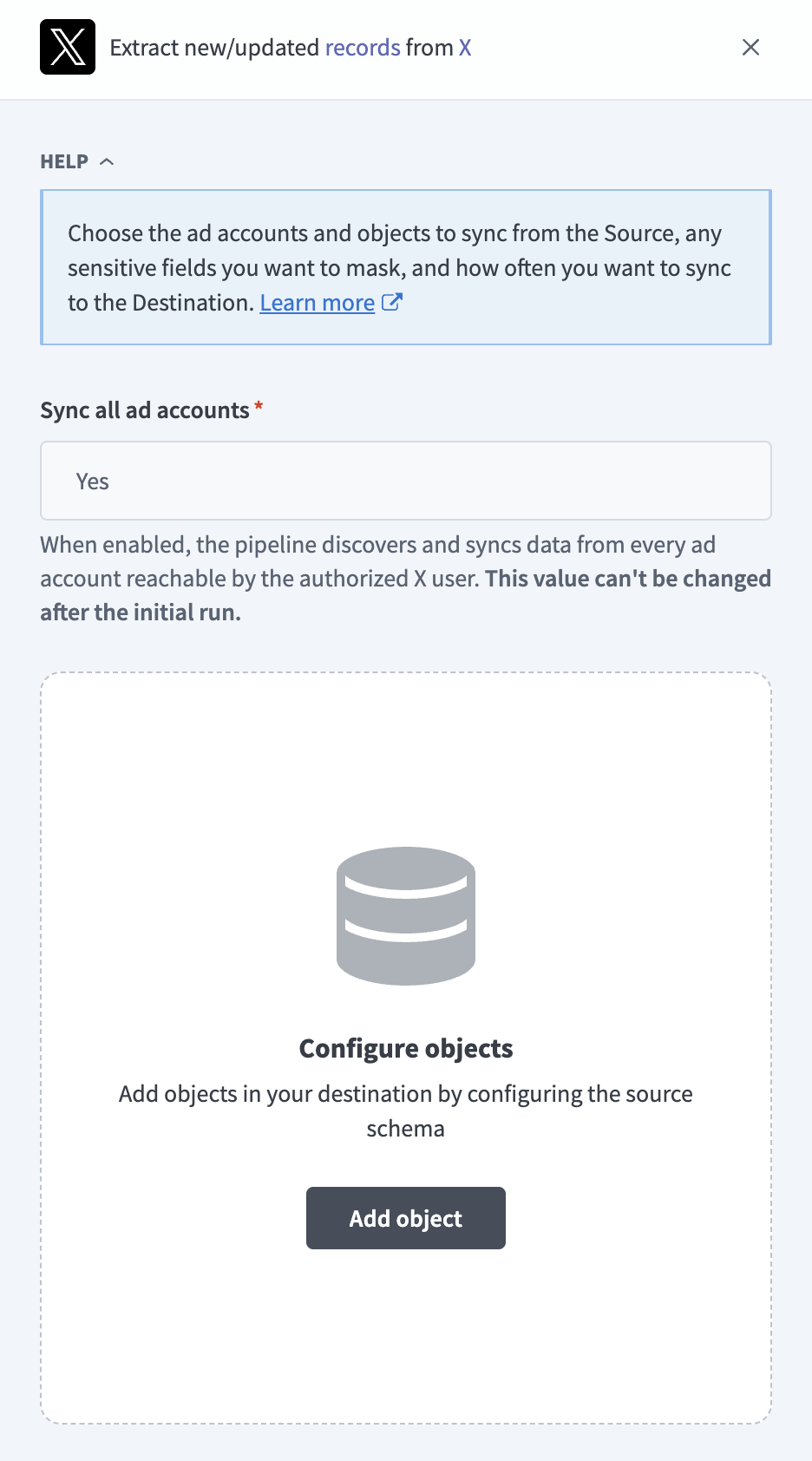 Add X objects
Search or browse the list of available X objects, select the objects you plan to sync, and click Add.
Review and customize the schema for each selected object. The pipeline automatically fetches an object's schema when you select it. This ensures the destination matches the source.
Expand an object to view associated fields. Keep all fields selected to extract all available data, or deselect specific fields to exclude them from data extraction and schema replication.
Optional. Configure the sync mode for an object:
Click the Settings (gear) icon next to the object.
Select a Sync mode:
- Incremental: Sync only new and updated records.
- Full sync: Reload all records on each run.
Workato defaults to Full sync and disables this field if X doesn't expose a usable timestamp on the object.
Click Save.
Optional. Configure field-level data protection by expanding an object and choosing how to handle each field:
- Replicate as is: Data values at the source replicate identically to the destination.
- Hash: Hash sensitive data values in the field before syncing to your destination.
Workato recommends hashing personally identifiable information (PII) and other sensitive fields. Refer to Sensitive data handling for a list of fields that commonly contain PII.
Click Add object again to add more objects. Repeat this step to include additional X objects in your pipeline.
Enter a value in the Analytics reconciliation window field to set the number of trailing days analytics data the pipeline re-pulls on every run, regardless of new activity. This field only applies if you selected an analytics object.
Enter a value in the Analytics backfill window field to set the number of days the pipeline fetches history per analytics job during the initial backfill. The backfill starts from the present and works back to when the entity was created. This field only applies if you selected an analytics object. X recommends 30 days per job to avoid job timeouts. The API allows up to 90 days (45 for segmented objects).
Use the Choose how to handle schema changes drop-down menu to select a schema drift handling option:
- Auto-sync new fields: Automatically detects and syncs new fields added in the source.
- Block new fields: Keeps the schema fixed after the pipeline starts. You must add new fields manually. This option may cause the destination to fall out of sync if the source schema updates.
Refer to Schema replication and schema drift management for more information.
Choose either a standard time-based schedule or define a custom cron expression in the Frequency field. This determines how often the pipeline syncs data from X to the destination.
Supported objects
X data pipelines sync data from the X Ads API (version 12). The following tables list the supported objects, grouped by category. Each object syncs as a separate table in your destination:
Account and campaign hierarchy
The following objects mirror the X ad hierarchy: an Accounts record is the parent of Funding Instruments and Campaigns, which are the parent of Line Items, which are the parent of Promoted Tweets and Promoted Accounts. Line Item Placements, Line Item Categories, Campaign Reason, and Funding Instrument Reason are array fields on their parent record, normalized into their own tables for relational modeling.
| Object | Sync mode | Delete tracking |
|---|---|---|
Accounts | Incremental | Yes (soft) |
Funding Instruments | Incremental | Yes (soft) |
Campaigns | Incremental | Yes (soft) |
Line Items | Incremental | Yes (soft) |
Promoted Tweets | Incremental | Yes (soft) |
Promoted Accounts | Incremental | Yes (soft) |
Line Item Placements | Syncs with the parent Line Items object | N/A |
Line Item Categories | Syncs with the parent Line Items object | N/A |
Campaign Reason | Syncs with the parent Campaigns object | N/A |
Funding Instrument Reason | Syncs with the parent Funding Instruments object | N/A |
Creative assets
The following objects hold creative content and rich-media assets referenced by promoted tweets and line items:
| Object | Sync mode | Delete tracking |
|---|---|---|
Cards | Incremental | Yes (soft) |
Media Library | Full sync | Yes (soft) |
Account Media | Incremental | Yes (soft) |
Media Creatives | Incremental | Yes (soft) |
Promoted Tweet Content | Full sync | No |
Promoted Tweet Content re-fetches tweet text and media referenced by your Promoted Tweets and Scheduled Promoted Tweets records on every run, so its row count depends on those objects.
Targeting and audiences
The following objects define how line items target X users:
| Object | Sync mode | Delete tracking |
|---|---|---|
Targeting Criteria | Incremental | Yes (soft) |
Custom Audiences | Incremental | Yes (soft) |
Web Event Tags | Full sync | Yes (soft) |
Custom Audiences syncs audience metadata only, such as name, size, and type. X requires audience member lists, such as emails, phone numbers, and device IDs, to be hashed before they reach X. Workato doesn't extract this member data.
Scheduled content
The following objects support scheduling tweets and video call-to-actions ahead of publication:
| Object | Sync mode | Delete tracking |
|---|---|---|
Scheduled Tweets | Full sync | No |
Scheduled Promoted Tweets | Incremental | Yes (soft) |
Preroll Call-to-Actions | Incremental | Yes (soft) |
Scheduled Tweets doesn't return a delete flag. X exposes cancellation instead through a status column on each record.
Account administration and reference data
| Object | Sync mode | Delete tracking |
|---|---|---|
Account Apps | Incremental | Yes (soft) |
Promotable Users | Incremental | Yes (soft) |
Referenced User Profiles | Full sync | No |
Referenced User Profiles is an enrichment table of public X profile data for any user ID referenced by your Promoted Accounts records.
Performance analytics
The following objects each return daily performance metrics for one entity level, such as account, funding instrument, campaign, line item, promoted tweet, or promoted account:
| Object | Sync mode | Delete tracking |
|---|---|---|
Analytics - Account | Incremental | N/A |
Analytics - Funding Instrument | Incremental | N/A |
Analytics - Campaign | Incremental | N/A |
Analytics - Line Item | Incremental | N/A |
Analytics - Promoted Tweet | Incremental | N/A |
Analytics - Promoted Account | Incremental | N/A |
Segmented performance analytics
X data pipelines also break out the same daily performance metrics by an additional dimension, such as age, gender, platform, or conversion tag. Age, gender, and platform segmentation are available at every entity level listed in the previous sections. Conversion tag segmentation is available only for campaign, line item, promoted tweet, and promoted account, because those are the only levels that support the underlying web-conversion metric group.
Segmented values aren't expected to sum exactly to the equivalent non-segmented totals. This is expected behavior on the X platform, not a data quality issue.
| Object | Sync mode | Delete tracking |
|---|---|---|
Analytics - Account by Age | Incremental | N/A |
Analytics - Account by Gender | Incremental | N/A |
Analytics - Account by Platform | Incremental | N/A |
Analytics - Funding Instrument by Age | Incremental | N/A |
Analytics - Funding Instrument by Gender | Incremental | N/A |
Analytics - Funding Instrument by Platform | Incremental | N/A |
Analytics - Campaign by Age | Incremental | N/A |
Analytics - Campaign by Gender | Incremental | N/A |
Analytics - Campaign by Platform | Incremental | N/A |
Analytics - Campaign by Conversion Tag | Incremental | N/A |
Analytics - Line Item by Age | Incremental | N/A |
Analytics - Line Item by Gender | Incremental | N/A |
Analytics - Line Item by Platform | Incremental | N/A |
Analytics - Line Item by Conversion Tag | Incremental | N/A |
Analytics - Promoted Tweet by Age | Incremental | N/A |
Analytics - Promoted Tweet by Gender | Incremental | N/A |
Analytics - Promoted Tweet by Platform | Incremental | N/A |
Analytics - Promoted Tweet by Conversion Tag | Incremental | N/A |
Analytics - Promoted Account by Age | Incremental | N/A |
Analytics - Promoted Account by Gender | Incremental | N/A |
Analytics - Promoted Account by Platform | Incremental | N/A |
Analytics - Promoted Account by Conversion Tag | Incremental | N/A |
Reach and average frequency
| Object | Sync mode | Delete tracking |
|---|---|---|
Reach & Average Frequency - Campaign | Incremental | N/A |
Reach & Average Frequency - Funding Instrument | Incremental | N/A |
These objects return unique-reach and average-frequency metrics rather than the standard performance metrics in Performance analytics. Refer to Limitations for the maximum date range per sync.
Sync modes
X data pipelines support full sync and incremental sync. The sync mode is configured per object when you add it to your pipeline.
Full sync
A full sync re-reads the complete record set for an object on every run and overwrites the destination table. Media Library, Promoted Tweet Content, Scheduled Tweets, and Referenced User Profiles use full sync, because X API doesn't expose a reliable modified-time signal for these objects.
Incremental sync
An incremental sync extracts only the records that changed since the last run. Most campaign hierarchy, creative, targeting, and administration objects use the X updated_at field as a cursor.
Analytics and reach objects use a different mechanism, because X metrics recalculate over time and aren't a row-level resource. On each run, the pipeline extracts from the last successful sync date forward to the current time, and uses the Analytics backfill window to size the initial historical pull. Reach & Average Frequency objects re-pull their full configured date window instead. Refer to Configure the pipeline for the analytics window settings.
Refer to the Supported objects tables to see the sync mode for each object.
Delete tracking
For objects marked "Yes (soft)," X returns a deleted flag directly on each record, and Workato reflects it in your destination.
Promoted Tweet Content and Referenced User Profiles don't support delete tracking, because they're re-fetched by reference from their parent objects instead of listed independently. Scheduled Tweets also doesn't return a delete flag. X expresses cancellation through a status column instead. Analytics and reach objects don't support delete tracking either, because a performance metric row recalculates on every query and isn't persisted with its own lifecycle. Metrics for deleted or paused parent entities remain fully queryable.
Schema and data type handling
The following considerations apply to schema and data types when you sync data from X:
Monetary amounts
Budget and billed-charge fields are expressed in micros of the account's local currency, for example, 1,000,000 micros = 1 unit of currency. Workato stores these values as integers and doesn't convert them at ingestion time.
Timestamps and account timezone
Analytics objects align daily metrics to midnight in the ad account's own timezone, not UTC, then store the resulting instant as UTC. For example, a US Pacific-time account's 2026-01-05 row stores as 2026-01-05T08:00:00Z.
Nested and array fields
X doesn't have user-defined custom fields. Workato handles the following array and nested fields:
Line Items.placementsandLine Items.categoriesstore as JSON columns onLine Items, and Workato also expands them into theLine Item PlacementsandLine Item Categoriestables for relational modeling.Campaigns.reasons_not_servablestores as a JSON column onCampaigns, and Workato also expands it into theCampaign Reasontable.Funding Instruments.reasons_not_able_to_fundstores as a JSON column onFunding Instruments, and Workato also expands it into theFunding Instrument Reasontable.Cards.componentsstores as a JSON column with no equivalent child table.- Conversion metrics on analytics objects, such as web conversion, mobile conversion, and lifetime value, store as JSON columns instead of flattening.
Workato syncs JSON fields to the destination's native JSON type, such as VARIANT in Snowflake. Workato serializes JSON fields as strings if the destination doesn't support a native JSON type.
Video metric definitions
X redefined video_total_views to mean 100% in view for 3 or more seconds, or a manual play-button click. The prior definition remains available as a separate video_3s100pct_views column on the same analytics objects. Use the column that matches the definition you need. Don't assume video_total_views carries its original meaning.
Synthetic columns
Workato adds the following synthetic column to destination tables for objects with delete tracking:
| Column | Type | Purpose |
|---|---|---|
_workato_is_deleted | Boolean | Set to true for deleted records on objects marked "Yes (soft)" in Supported objects. |
Sensitive data handling
X objects can contain personally identifiable information (PII). The following objects commonly contain sensitive fields:
| Object | Sensitive fields |
|---|---|
Promoted Accounts | user_id (a public X account identifier) |
Promotable Users | user_id (a public X account identifier) |
Referenced User Profiles | name, username, location, description |
Custom Audiences | partner_source, audience_size |
Custom Audiences doesn't expose individual audience members. X requires member lists to already be hashed by the uploader, and Workato doesn't extract that member-level data at all.
Use the Hash option in field-level data protection during pipeline configuration to protect PII before it reaches your destination. Refer to the Configure the pipeline steps for more information.
Limitations
The following limitations apply when you use X as a data pipeline source:
Analytics require completed advertiser verification
Analytics and reach objects return zero rows until your ad account completes the X advertiser verification in Ads Manager. Campaigns can be active and budget-valid and still not produce delivery metrics until verification finishes.
Reach and average frequency window is capped at 7 days
Reach & Average Frequency objects reject any request window longer than 7 days. The pipeline re-pulls a rolling 7-day window on every run for these objects.
Historical analytics backfill is limited per job
The X Ads API rejects an analytics job that spans more than 90 days of history and 45 days for segmented objects. Don't set the Analytics backfill window field higher than these limits, or the sync fails. Refer to Configure the pipeline for more information.
Metro-level segmentation is not supported
X data pipelines support age, gender, platform, and conversion-tag segmentation. Metro-level (Nielsen designated market area) segmentation isn't available.
Minimum sync frequency
The minimum supported sync interval is 15 minutes.
Last updated: