Configure Xero as a data pipeline source
Set up Xero as a data pipeline source to extract accounting data, such as invoices, contacts, payments, and chart-of-accounts records, from the Xero Accounting API and sync it to your destination.
Use this guide to review the features and prerequisites, connect Xero as a data pipeline source, configure the pipeline, and understand the supported objects, sync modes, schema handling, sensitive data handling, and limitations.
Features supported
The following features are supported when you use Xero as a pipeline source:
- Cloud connectivity: Connects to the Xero Accounting API over https. An on-prem agent isn't required.
- Object-level selection: Choose the supported objects you plan to sync when you configure the pipeline.
- Full sync and incremental sync: Supports full sync and incremental sync.
- Multi-organization support: Each connection syncs one Xero organization. Create a separate pipeline for each organization you manage.
- Schema drift detection and handling: Detect and apply schema changes automatically with Auto-sync new fields, or keep the schema fixed with Block new fields.
- Field-level data protection: Hash or replicate sensitive fields as is before the data reaches your destination.
- Configurable sync frequency: Schedule syncs on a time-based interval or with a cron expression. The minimum supported interval is 15 minutes.
Prerequisites
Complete the following requirements before you configure Xero as a data pipeline source:
- A Xero account with access to the organization you plan to sync.
- Permission to authorize a third-party application through the Xero OAuth flow.
SUBSCRIPTION AND MODULE REQUIREMENTS
Some objects require a specific Xero subscription or enabled module.
- Multi-currency transaction fields and the
currencyobject require the Established plan. - The
projectobject requires the Established plan and the Projects add-on. - The
fixed_assetobject requires a non-Trial organization.
If your organization doesn't have access to an object because of its subscription, region, or module enablement, that object's sync fails with a permissions error. Remove the object from the pipeline to sync the remaining objects. Refer to Subscription and module requirements for more information.
Supported connection types
Xero data pipelines support OAuth 2.0 authentication:
- OAuth 2.0: Authorizes Workato to read data from the Xero organizations your account can access. Workato requests read-only scopes and refreshes access tokens automatically for the life of the connection.
Xero supports OAuth 2.0 as its only authentication method for the Accounting API. Client credentials and custom connections aren't supported, because they don't support the multi-organization model that data pipelines use.
Connect to Xero
Complete the following steps to connect to Xero:
Connect to Xero
Select Create > Connection or press C twice.
Search for Xero and select it as your app.
Enter a name in the Connection name field.
Use the Location drop-down menu to select the project or folder where you plan to store the connection.
Enter the exact Tenant name for the organization you plan to connect. This field is case-sensitive.
Optional. Use the Custom OAuth profile drop-down menu to select a custom OAuth profile for this connection.
Click Connect and sign in to Xero to authorize the connection.
 Xero login
How to find different IDs in Xero
Each record in Xero has a unique identifier called a Xero ID. You can obtain these IDs using two primary methods:
Retrieving IDs directly from Xero
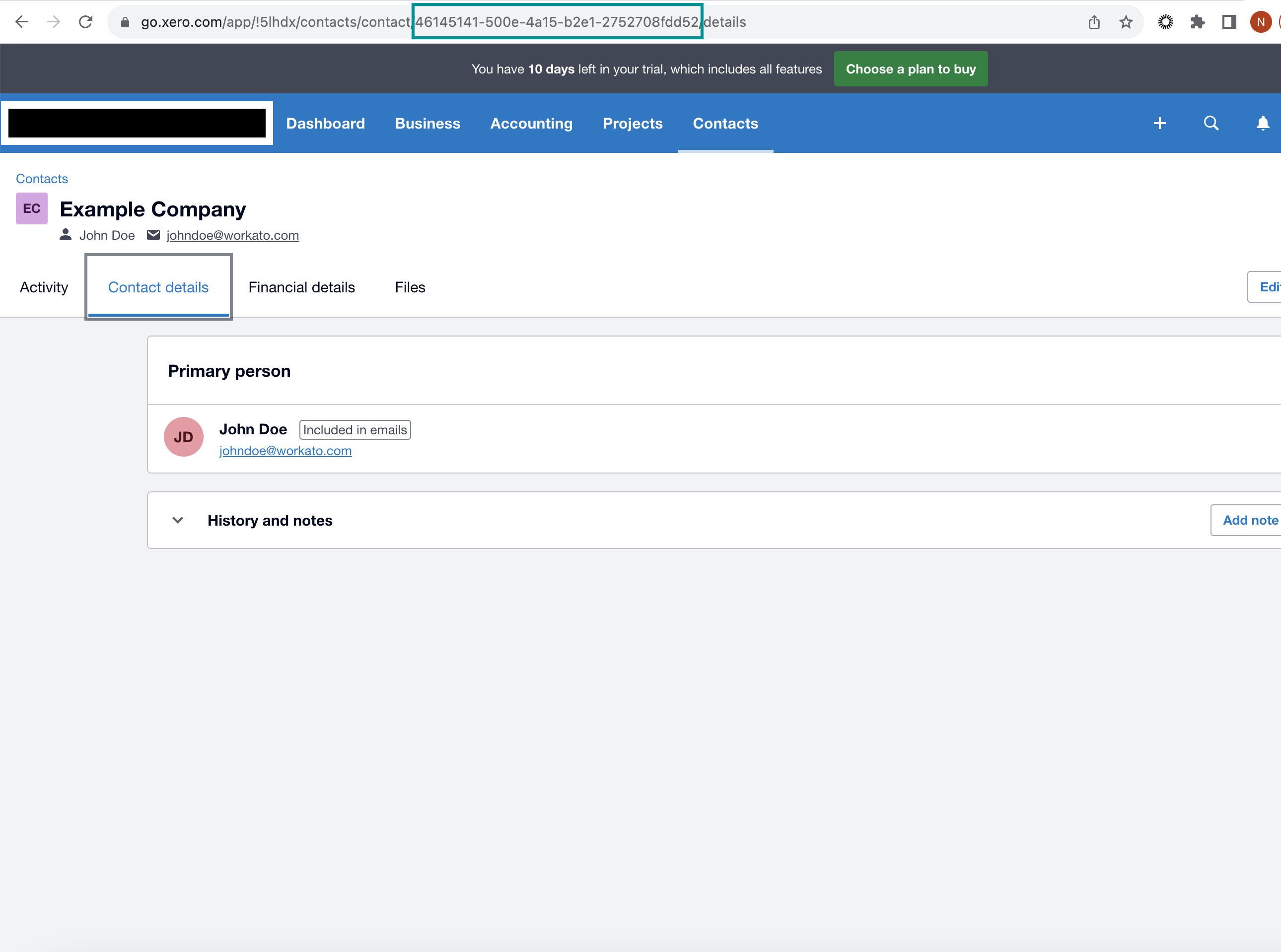
Go to the specific item's page in Xero and locate the ID at the end of the URL. This method suits scenarios requiring a consistent ID, typically during testing. For example:
 Contact ID in the contact page URL
In this instance, the Contact ID is 46145141-500e-4a15-b2e1-2752708fdd52 and appears at the end of a contact's page URL in Xero. You can also find other IDs, such as the Manual journal ID, at the end of its page URL.
Using Workato actions to obtain IDs
You can also use Workato actions such as Search, Create, or Update to obtain Xero IDs. Workato retrieves the record's ID in the API response when it interacts with a Xero record. The following examples demonstrate this method:
- Contact ID
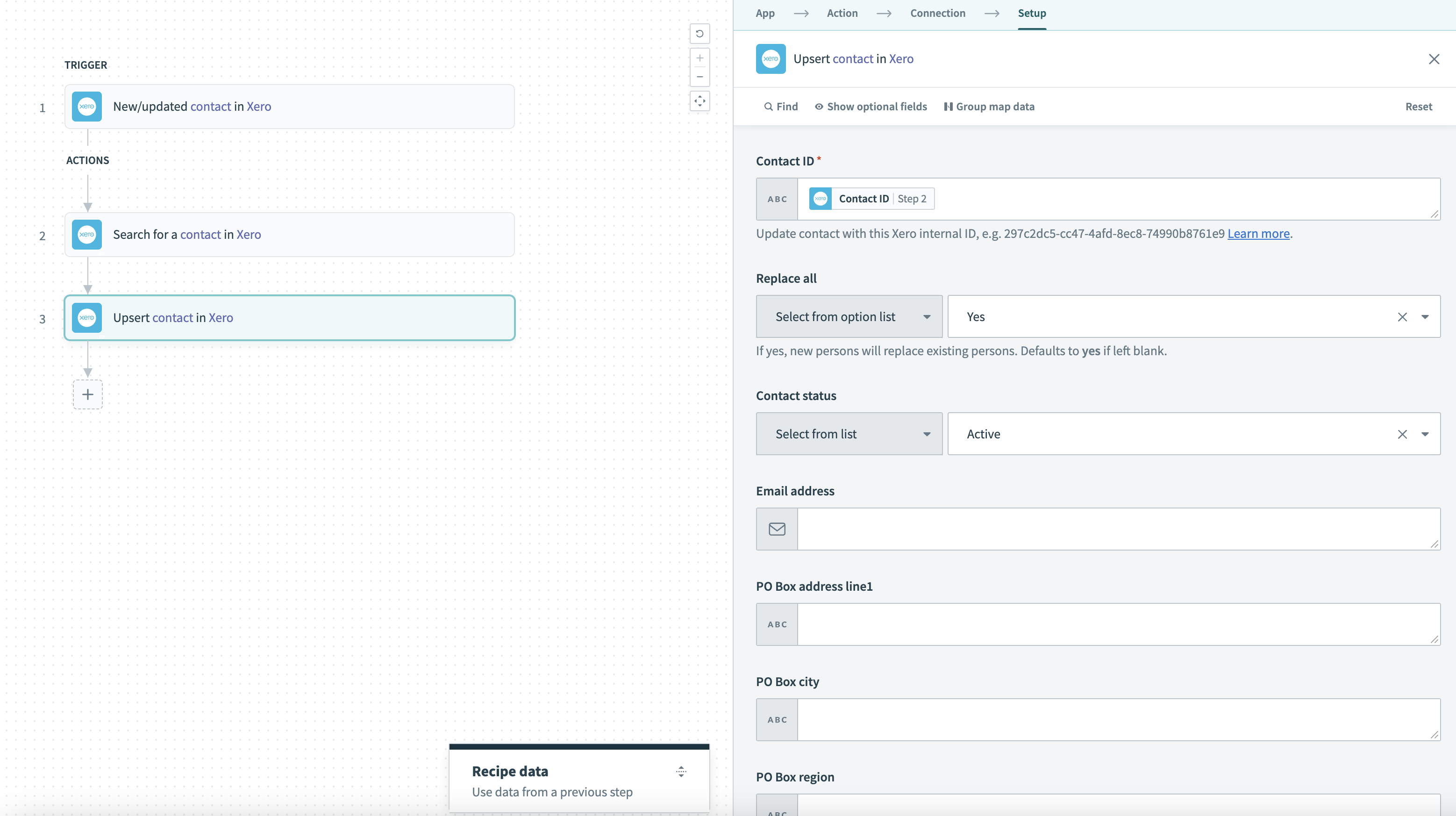
- Obtain the unique identifier for each contact in Xero using triggers and actions such as New/updated contact, Search contacts, and Upsert contact. For example, you can search for contacts by name or email and use the output datapill for the Contact ID.
 Search for contacts by name or email
- Manual journal ID
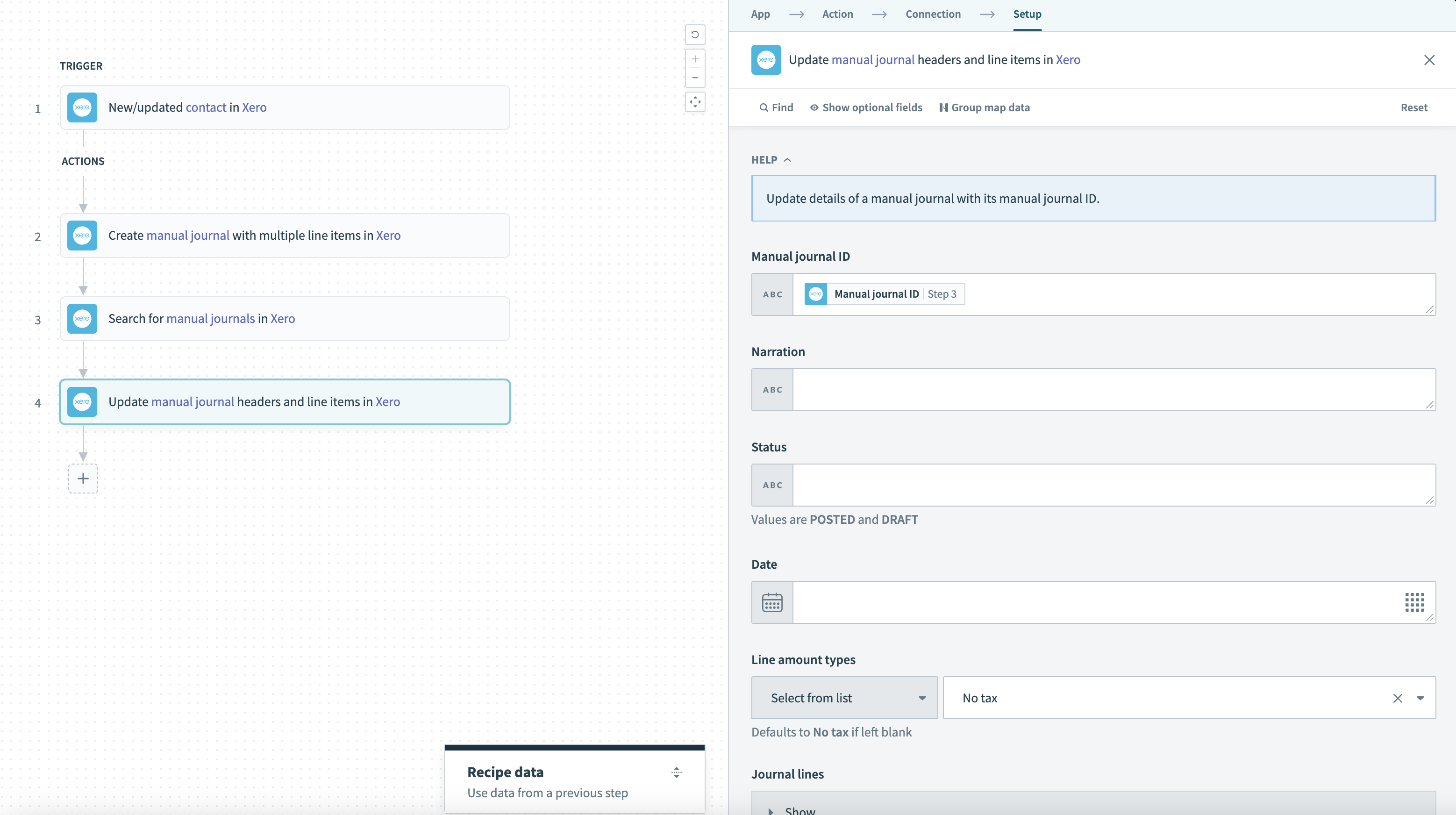
- Obtain the unique identifier for each manual journal in Xero using actions such as Create manual journal, Search manual journals, and Update manual journal.
 Search for manual journal ID
- Payment ID
- Retrieve the unique identifier for each payment using actions such as Create prepayment and Search payments.
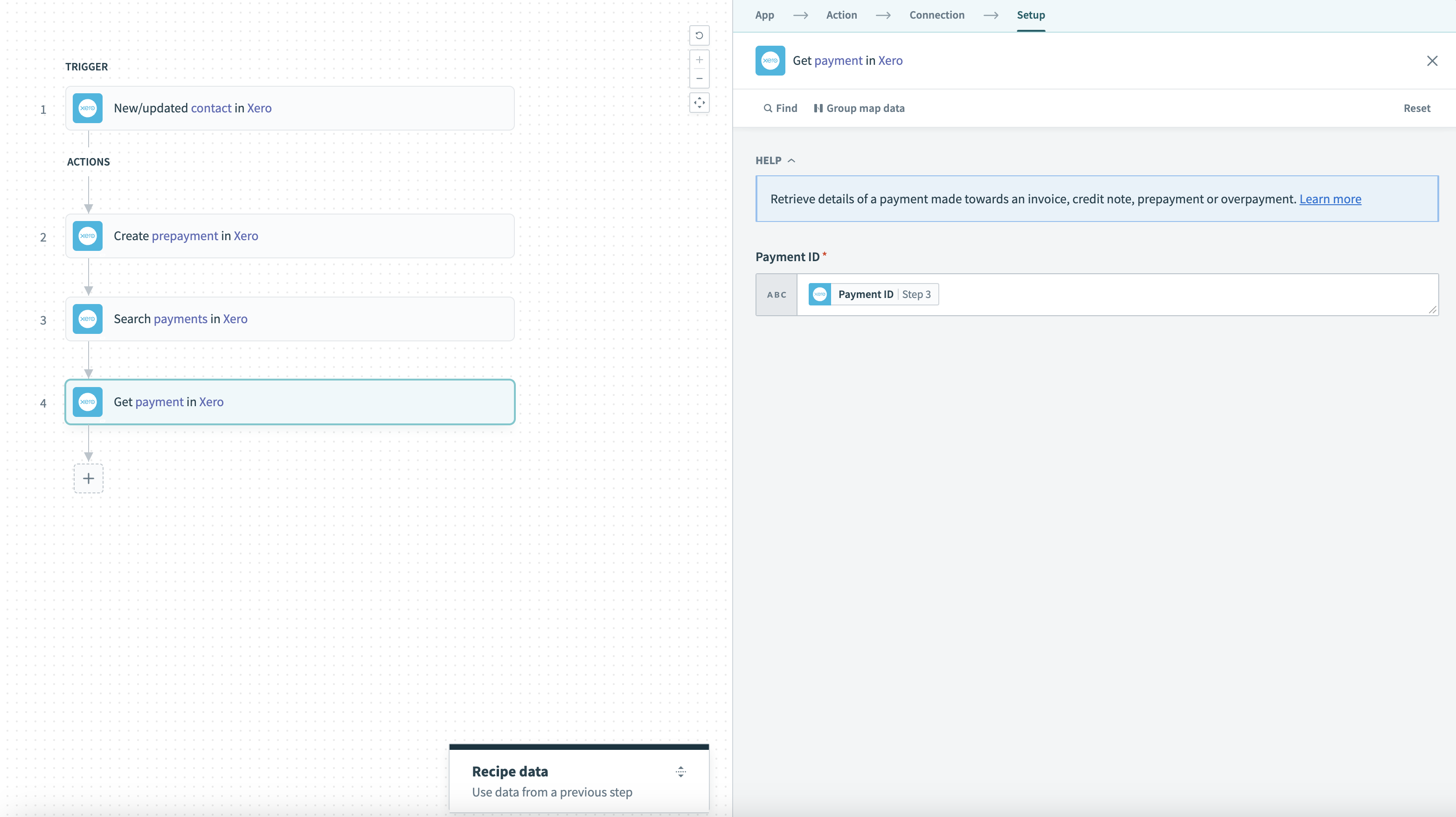 Search for payment ID
- Employee ID
- Obtain the unique identifier for each employee using triggers and actions such as New/updated employee and Create employee.
- Account ID
- Retrieve the unique identifier for each account using triggers and actions, such as New/updated payment, Create invoice payment, and Get payment. Alternatively, switch to Account code found in Xero settings > Chart of accounts.
Configure the pipeline
Complete the following steps to configure Xero as your data pipeline source:
Select Create > Data pipeline or press C+I.
Enter a name for the data pipeline in the Data pipeline name field.
 Data pipeline setup
Use the Location drop-down menu to select the project where you plan to store the data pipeline.
Click Start building.
Click the Extract new/updated records from source app trigger. This trigger defines how the pipeline retrieves data from Xero.
 Configure the Extract new/updated records from source app trigger
Use the Your Connected Source Apps drop-down menu to select Xero.
Choose the Xero connection you plan to use for this pipeline. Alternatively, click + New connection to create a new connection.
Click Add object to open the Add new objects panel.
Search or browse the list of available Xero objects, select the objects you plan to sync, and click Add.
SYNC MODE IS FIXED PER OBJECT
The sync mode is fixed for each object, based on whether the Xero API exposes a modification timestamp for it. Objects with a modification timestamp sync incrementally. Reference objects that provide no modification signal sync in full on every run. Refer to Sync modes for more information.
Review and customize the schema for each selected object. The pipeline automatically fetches an object's schema when you select it. This ensures the destination matches the source.
Expand an object to view associated fields. Keep all fields selected to extract all available data, or deselect specific fields to exclude them from data extraction and schema replication.
Optional. Configure field-level data protection by expanding an object and choosing how to handle each field:
- Replicate as is: Data values at the source replicate identically to the destination.
- Hash: Hash sensitive data values in the field before syncing to your destination.
Workato recommends hashing personally identifiable information (PII) and other sensitive fields. Refer to Sensitive data handling for a list of fields that commonly contain PII.
Click Add object again to add more objects. Repeat this step to include additional Xero objects in your pipeline.
Use the Choose how to handle schema changes drop-down menu to select a schema drift handling option:
- Auto-sync new fields: Automatically detects and syncs new fields added in the source.
- Block new fields: Keeps the schema fixed after the pipeline starts. You must add new fields manually. This option may cause the destination to fall out of sync if the source schema updates.
Refer to Schema replication and schema drift management for more information.
Optional. Enter a value in the Concurrency limit field to limit the number of concurrent operations. The maximum value you can enter is 100. Workato applies workspace quotas and source quotas, including the Xero pipelines quota of 1 concurrent operation.
Choose either a standard time-based schedule or define a custom cron expression in the Frequency field. This determines how often the pipeline syncs data from Xero to the destination.
Supported objects
Xero data pipelines sync data from the Xero Accounting API. The following tables list the supported objects, grouped by category. Each object syncs as a separate table in your destination.
Child and junction objects appear in your destination as separate normalized tables. You select and schedule each one independently, and the connector reads the parent object to build the rows.
The invoice, credit_note, bank_transaction, purchase_order, quote, and manual_journal objects sync their line items as separate child tables. The invoice, credit_note, and manual_journal line tables also sync their tracking-category assignments as a further child table.
Each child table uses a composite primary key that combines the parent identifier with the child key.
Transactions
The following objects describe the financial transactions in your organization and the line items and tracking categories attached to them:
| Object | Sync mode | Delete tracking |
|---|---|---|
invoice | Incremental | Yes (soft) |
invoice_line | Full sync | Yes (destination-inferred) |
invoice_line_tracking_category | Full sync | Yes (destination-inferred) |
credit_note | Incremental | Yes (soft) |
credit_note_line | Full sync | Yes (destination-inferred) |
credit_note_line_tracking_category | Full sync | Yes (destination-inferred) |
bank_transaction | Incremental | Yes (soft) |
bank_transaction_line | Full sync | Yes (destination-inferred) |
payment | Incremental | Yes (soft) |
overpayment | Incremental | Yes (soft) |
prepayment | Incremental | Yes (soft) |
purchase_order | Incremental | Yes (soft) |
purchase_order_line | Full sync | Yes (destination-inferred) |
quote | Incremental | Yes (soft) |
quote_line | Full sync | Yes (destination-inferred) |
manual_journal | Incremental | Yes (soft) |
manual_journal_line | Full sync | Yes (destination-inferred) |
manual_journal_line_tracking_category | Full sync | Yes (destination-inferred) |
repeating_invoice | Full sync | Yes (soft) |
linked_transaction | Full sync | Yes (soft) |
bank_transfer | Incremental | No |
Contacts
The following objects describe the contacts in your organization and the groups they belong to:
| Object | Sync mode | Delete tracking |
|---|---|---|
contact | Incremental | Yes (soft) |
contact_group | Full sync | Yes (destination-inferred) |
contact_group_membership | Full sync | Yes (destination-inferred) |
Accounting settings and reference data
The following objects describe the chart of accounts and the reference data that transactions refer to:
| Object | Sync mode | Delete tracking |
|---|---|---|
account | Incremental | Yes (soft) |
item | Incremental | Yes (soft) |
tax_rate | Full sync | Yes (soft) |
currency | Full sync | Yes (destination-inferred) |
tracking_category | Full sync | Yes (soft) |
tracking_category_option | Full sync | Yes (soft) |
branding_theme | Full sync | Yes (destination-inferred) |
budget | Full sync | Yes (destination-inferred) |
organisation | Full sync | Yes (destination-inferred) |
user | Incremental | No |
Assets and projects
The following objects require a specific Xero module or add-on:
| Object | Sync mode | Delete tracking |
|---|---|---|
fixed_asset | Full sync | Yes (soft) |
project | Full sync | Yes (soft) |
Primary keys
Root objects use a single-column id primary key. Child and junction tables use a composite primary key that combines the parent identifier with the child key:
| Object | Primary key |
|---|---|
invoice_line, credit_note_line, bank_transaction_line, purchase_order_line, quote_line | Parent ID, id |
manual_journal_line | manual_journal_id, line_number |
invoice_line_tracking_category, credit_note_line_tracking_category, manual_journal_line_tracking_category | Parent ID, parent line ID, tracking_category_id |
contact_group_membership | contact_group_id, contact_id |
tracking_category_option | tracking_category_id, id |
Sync modes
Xero data pipelines support full sync and incremental sync. The sync mode is fixed for each object, based on whether the object exposes a modification timestamp.
Full sync
Full sync reads all available records for an object on each run and replaces the record set in your destination. The pipeline uses full sync for reference objects that provide no modification signal, such as tax_rate, currency, tracking_category, and branding_theme.
Incremental sync
Incremental sync reads only the records created or updated since the previous run. Each incremental object tracks its progress using a modification timestamp, which is updated_date_utc for most objects and created_date_utc for bank_transfer. The pipeline stores the highest timestamp it observes and uses it as the starting point for the next run.
Refer to the Supported objects tables to see the sync mode for each object.
Delete tracking
Xero doesn't have a native delete log, so the pipeline detects deletions in two ways:
- Source-driven soft delete: Transaction, contact, account, item, tracking category, tax rate, fixed asset, and project objects carry a status, archive, or disposal field. The pipeline reads these fields and sets
_workato_is_deletedon the destination row. These objects are marked Yes (soft). Invoices, credit notes, and manual journals are marked deleted when their status isDELETEDorVOIDED; purchase orders, quotes, payments, and repeating invoices when their status isDELETED; overpayments, prepayments, and linked transactions when voided; accounts, tracking categories, and tax rates when archived or deleted; contacts when deleted or archived; items when archived; fixed assets when disposed; and projects when closed. - Destination-inferred delete: Full-sync objects re-read the complete record set on each run. The destination compares each run against the previous one and sets
_workato_is_deletedtotruefor records that are no longer present, so deletions are tracked without a source-side marker. These objects are marked Yes (destination-inferred) in the Supported objects tables.
The user and bank_transfer objects sync incrementally and expose no status or archive field, so the pipeline can't detect deletions for them. These objects are marked No.
Soft-delete detection for manual_journal and linked_transaction is an optimized effort and not exact. Xero's APIs don't provide an unbounded way to request all deleted manual journals or all voided linked transactions, so some source-side deletions may not be returned for the connector to mark.
Schema and data type handling
The connector applies specific handling to certain Xero field types when it replicates data to your destination.
Timestamps and dates
Xero returns most timestamps in a .NET date format. The connector converts these values to ISO 8601 UTC before writing them to your destination. Date-only fields that have no time component, such as date, due_date, and fully_paid_on_date, are stored as DATE rather than TIMESTAMP.
Multi-currency fields
Your organization can enable multi-currency to include currency_code and currency_rate fields on transactions and list enabled currencies in the currency object.
Synthetic columns
Workato adds the following synthetic columns to destination tables:
| Column | Type | Purpose |
|---|---|---|
_workato_is_deleted | Boolean | Marks a record that the pipeline detected as deleted, voided, archived, or no longer present at the source. Added to every object you sync in full sync mode. In incremental mode, added only to objects with a source-driven soft-delete signal. |
_workato_run_id | String | Identifies the pipeline run that last wrote the row. The destination uses this to detect rows that no longer exist in Xero. |
_workato_synced_at | Timestamp | When the pipeline last wrote the row to your destination. |
Column name casing in your destination
Your destination adjusts column name casing when it creates tables. Snowflake stores column names in uppercase, most destinations store them in lowercase, and BigQuery and SQL Server keep them as the connector emits them.
Sensitive data handling
Xero objects can contain personally identifiable information (PII) and sensitive financial data. The following objects commonly contain sensitive fields:
| Object | Sensitive fields |
|---|---|
contact | name, first_name, last_name, email_address, tax_number, bank_account_details, account_number, website |
user | first_name, last_name, email_address, organisation_role |
manual_journal | narration |
The contact object carries the highest risk, because it includes bank account details, tax numbers, and full contact records. The narration field on manual_journal is free-text and can contain employee names or payment references. Invoices, credit notes, and other transaction objects reference contacts by contact_id rather than storing contact names or email addresses. Hash the sensitive fields on the contact object and join on contact_id to protect this data.
Use the Hash option in field-level data protection during pipeline configuration to protect PII before it reaches your destination. Refer to the Configure the pipeline steps for more information.
Workato recommends hashing contact and user PII for pipelines operating under the GDPR, the CCPA, or the Australian Privacy Act.
Limitations
The following limitations apply when you use Xero as a data pipeline source:
Multi-currency gains and losses
The Xero API doesn't expose unrealized currency gains and losses or bank revaluations as discrete records. Reports that depend on these values can't be reconstructed from the synced data alone.
Subscription and module requirements
Certain objects require a specific Xero subscription or enabled module:
| Object | Requirement |
|---|---|
currency and multi-currency transaction fields | Established plan |
project | Established plan and the Projects add-on |
fixed_asset | A non-Trial organization |
If your organization doesn't have access to an object because of its subscription, region, or module enablement, that object's sync fails with a permissions error. Remove the object from the pipeline to sync the remaining objects.
Minimum sync frequency
The minimum sync interval is 15 minutes by default.
Last updated: