Configure Zendesk as a data pipeline source
Set up Zendesk as a data pipeline source to extract tickets, users, organizations, and related support data into your destination. Use this guide to set up authentication, create a connection, configure your pipeline, add objects, review sync behavior, and understand known limitations.
Features supported
The following features are supported when you use Zendesk as a pipeline source:
- OAuth 2.0 authentication: Connect with an OAuth 2.0 bearer token. Refer to Supported connection types for more information.
- Full refresh and incremental sync: Incremental sync uses Zendesk's Incremental Exports API where available, with cursor-based or time-based pagination depending on the object. Refer to Sync modes for more information.
- Soft-delete tracking: Detect deletions for supported objects and mark deleted records in your destination. Refer to Delete tracking for the list of objects.
- Dynamic custom fields: Discover and sync custom fields defined on tickets, users, and organizations as typed destination columns.
- Schema drift detection and handling: Detect and apply schema changes automatically with Auto-sync new fields, or keep the schema fixed with Block new fields.
- Field-level data protection: Hash or replicate sensitive fields as is before the data reaches your destination.
- Configurable sync frequency: Schedule syncs on a time-based interval or with a cron expression.
Prerequisites
Complete the following requirements before you connect Zendesk as a data pipeline source:
- A Zendesk Support account.
- The subdomain for your Zendesk tenant. For example, if you sign in at
https://acme.zendesk.com, your subdomain isacme. - A Zendesk user account with permission to read the data you plan to sync.
Supported connection types
Zendesk data pipelines support OAuth 2.0 authentication with the read scope. Refer to Connect to Zendesk for setup steps.
Connect to Zendesk
The Zendesk connector uses OAuth 2.0 authentication.
DEPRECATED AUTHENTICATION METHODS
Effective March 31, 2026, you can no longer create new Zendesk connections using Basic authentication or Custom OAuth profiles. This change is required by Zendesk Developer Terms.
Existing connections using these authentication methods will continue to work until April 30, 2027. On this date, Zendesk connections still using Basic authentication or a Custom OAuth profile will be terminated, and recipes relying on these connections will stop functioning.
Complete the following steps to connect to Zendesk in Workato:
Click Create > Connection or press C twice.
Search for Zendesk and select it as your app.
Enter a name for your connection in the Connection name field.
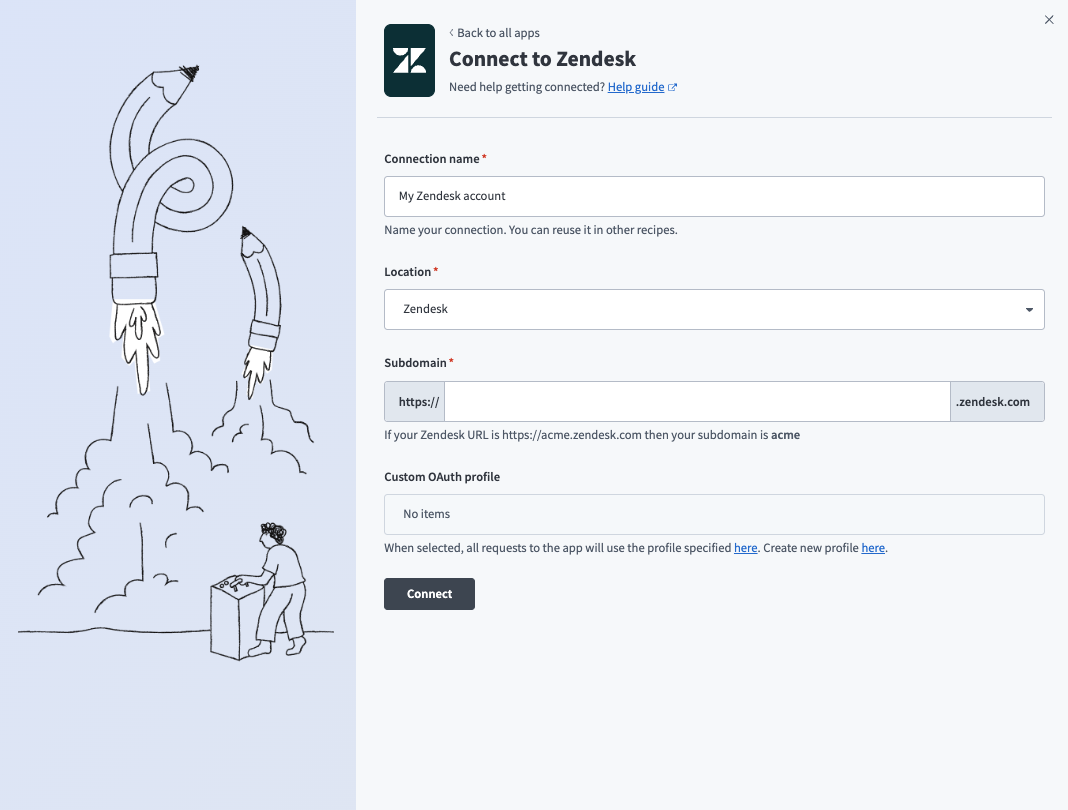 Connect to Zendesk with OAuth 2.0
Use the Location drop-down menu to select the project where you plan to store the connection.
Enter your Zendesk subdomain in the Subdomain field. For example, your subdomain is acme if your Zendesk URL is https://acme.zendesk.com.
Click Connect.
Sign in to Zendesk using your credentials to authorize Workato.
Configure the pipeline
Complete the following steps to configure Zendesk as your data pipeline source:
Select Create > Data pipeline or press C+I.
Enter a name for the data pipeline in the Data pipeline name field.
 Data pipeline setup
Use the Location drop-down menu to select the project where you plan to store the data pipeline.
Click Start building.
Click the Extract new/updated records from source app trigger. This trigger defines how the pipeline retrieves data from Zendesk.
 Configure the Extract new/updated records from source app trigger
Use the Your Connected Source Apps drop-down menu to select Zendesk.
Choose the Zendesk connection you plan to use for this pipeline. Alternatively, click + New connection to create a new connection.
Use the Sub product drop-down menu to select Support.
Click Add object to open the Add new objects panel.
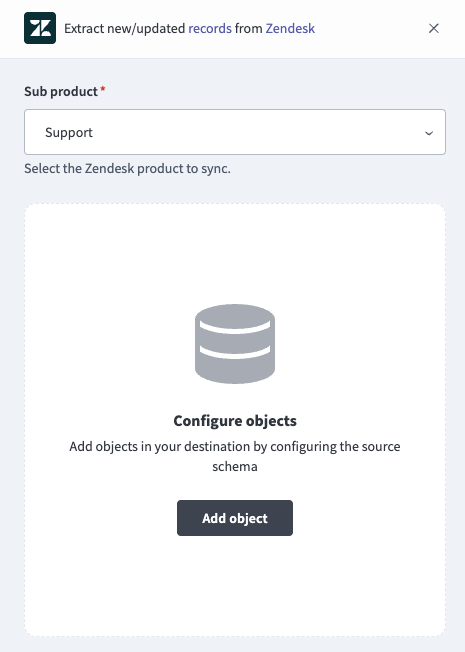 Add objects
Search or browse the list of available Zendesk objects, select the objects you plan to sync, and click Add.
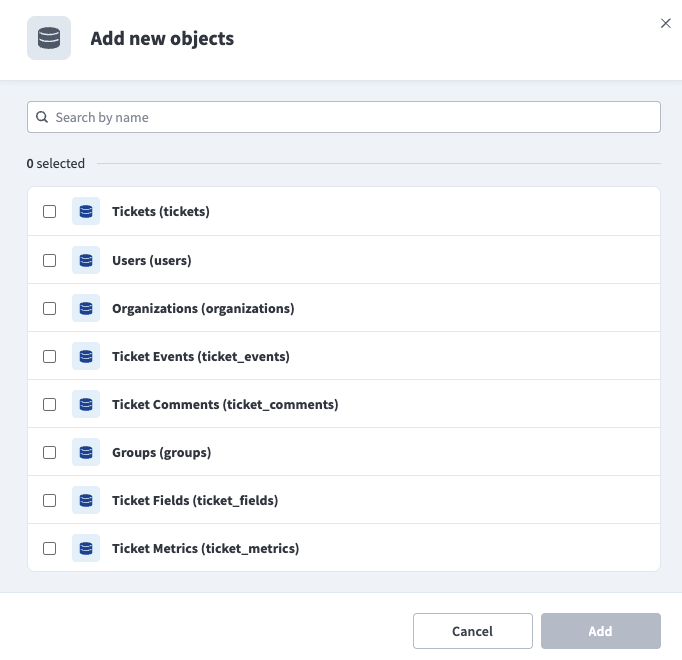 Add new objects
Review and customize the schema for each selected object. The pipeline automatically fetches an object's schema when you select it. This ensures the destination matches the source.
Expand an object to view associated fields. Keep all fields selected to extract all available data, or deselect specific fields to exclude them from data extraction and schema replication.
Optional. Configure field-level data protection by expanding an object and choosing how to handle each field:
- Replicate as is: Data values at the source replicate identically to the destination.
- Hash: Hash sensitive data values in the field before syncing to your destination.
Workato recommends hashing personally identifiable information (PII) and other sensitive fields. Refer to Sensitive data handling for a list of fields that commonly contain PII.
Click Add object again to add more objects. Repeat this step to include additional Zendesk objects in your pipeline.
Use the Choose how to handle schema changes drop-down menu to select a schema drift handling option:
- Auto-sync new fields: Automatically detects and syncs new fields added in the source.
- Block new fields: Keeps the schema fixed after the pipeline starts. You must add new fields manually. This option may cause the destination to fall out of sync if the source schema updates.
Refer to Schema replication and schema drift management for more information.
Auto-sync new fields also captures new custom fields on tickets, users, and organizations.
Optional. Enter a value in the Concurrency limit field to cap the number of concurrent operations. Leave the field blank to use the default quota set by Workato. The maximum value is 100.
Configure how often the pipeline syncs data from Zendesk to the destination in the Frequency field. Choose either a standard time-based schedule or define a custom cron expression.
Supported objects
Zendesk data pipelines sync data from the Zendesk Support and Help Center REST APIs. The following tables list the supported objects, grouped by category. Each object syncs as a separate table in your destination.
Tickets and ticket history
| Object | Sync modes | Delete tracking |
|---|---|---|
tickets | Full refresh, incremental | Yes (soft) |
ticket_events | Full refresh, incremental | No |
ticket_comments | Full refresh, incremental | No |
ticket_audits | Full refresh | No |
ticket_metrics | Full refresh | No |
ticket_metric_events | Full refresh, incremental | Yes (soft) |
ticket_tags | Full refresh, incremental | No |
ticket_field_history | Append-only | N/A |
ticket_tag_history | Append-only | N/A |
ticket_form_history | Full refresh | No |
satisfaction_ratings | Full refresh, incremental | No |
Users and organizations
| Object | Sync modes | Delete tracking |
|---|---|---|
users | Full refresh, incremental | No |
user_identities | Full refresh | No |
user_tags | Full refresh, incremental | No |
user_fields | Full refresh | No |
organizations | Full refresh, incremental | Yes (soft) |
organization_memberships | Full refresh | No |
organization_fields | Full refresh | No |
domain_names | Full refresh, incremental | No |
groups | Full refresh | Yes (soft) |
group_memberships | Full refresh | No |
Configuration and business rules
| Object | Sync modes | Delete tracking |
|---|---|---|
ticket_fields | Full refresh | No |
ticket_forms | Full refresh | No |
ticket_custom_statuses | Full refresh | No |
brands | Full refresh | Yes (soft) |
macros | Full refresh | No |
triggers | Full refresh | No |
automations | Full refresh | No |
sla_policies | Full refresh | No |
schedules | Full refresh | No |
schedule_holidays | Full refresh | No |
ticket_skips | Full refresh | No |
Enterprise-only objects
The following objects sync only on Zendesk Enterprise plans. Workato omits these objects if the connected account doesn't have access:
| Object | Sync modes | Delete tracking |
|---|---|---|
custom_roles | Full refresh | No |
audit_logs | Full refresh, incremental | No |
Help Center
The following objects sync only if Help Center is enabled on your Zendesk account:
| Object | Sync modes | Delete tracking |
|---|---|---|
articles | Full refresh, incremental | No |
sections | Full refresh | No |
categories | Full refresh | No |
posts | Full refresh | No |
post_comments | Full refresh | No |
article_votes | Full refresh | No |
Sync modes
Zendesk data pipelines support full refresh and incremental sync. The sync mode is configured per object when you add it to your pipeline.
Full refresh
A full refresh sync reads all available records from Zendesk for the selected object and overwrites the destination table. Use full refresh for configuration and reference objects where you need a complete snapshot on each run.
Incremental sync
An incremental sync extracts only records that have been added or changed since the last successful run. Workato uses Zendesk's Incremental Exports API where available, and falls back to time-windowed list queries or parent-derived cursors for objects that don't expose a dedicated incremental endpoint.
Refer to the Supported objects tables to see the incremental mechanism for each object.
Delete tracking
For objects that support delete tracking, Workato marks deleted records in the destination rather than removing them. Workato detects deletions through the following native fields, depending on the object:
| Object | Delete field |
|---|---|
tickets | _workato_is_deleted (synthetic, set when source status=deleted) |
organizations | deleted_at |
groups | deleted |
brands | is_deleted |
Refer to the Supported objects tables to see which objects support delete tracking.
Deleted ticket retention
Zendesk retains deleted tickets in the incremental export for approximately 120 days. During the first 30 days, Zendesk scrubs user-provided fields and retains the ticket ID. For the next 90 days, only minimal data remains. After 120 days, Workato can't recover the deletion record from the Zendesk API.
Data consistency exclusion window
Zendesk's Incremental Exports API excludes records updated within the last 60 seconds for data consistency. Records updated in the last minute don't appear in incremental sync results until the next run. Workato sets the sync cursor before this exclusion window, so the next run captures previously excluded records without data loss.
Schema and data type handling
The following considerations apply to schema and data types when you sync data from Zendesk.
Custom fields
Zendesk supports custom fields on tickets, users, and organizations. Workato discovers custom field definitions at connection setup and on each schema refresh, then exposes each custom field as a typed column in the destination.
| Parent object | Definition endpoint | Output column pattern |
|---|---|---|
tickets | /api/v2/ticket_fields | ticket_custom_field_<id> |
users | /api/v2/user_fields | user_field_<key> |
organizations | /api/v2/organization_fields | organization_field_<key> |
Zendesk custom field types map to destination types as follows:
| Zendesk field type | Destination type |
|---|---|
text, textarea, regexp, dropdown, lookup | String |
multiselect | String (JSON array) |
checkbox | Boolean |
date, datetime, integer, numeric, decimal | String |
Date, datetime, and numeric custom field types map to String to handle tenant-controlled historical values that can violate the advertised type. The source type is preserved as metadata on the destination column.
Timestamps
Most Zendesk timestamps are ISO 8601 strings in UTC (for example, 2024-01-15T10:30:00Z). Workato preserves these values as timestamps with timezone in the destination.
The generated_timestamp field on tickets uses Unix epoch seconds instead. Zendesk uses this internal system timestamp to order tickets in the incremental export.
Nested fields
Zendesk returns nested objects on many resources, such as via.channel on tickets. Workato flattens nested primitive fields using path-style column names (for example, via_channel). Arrays, polymorphic fields, and deeper nested objects are stored as JSON columns.
Workato syncs JSON fields to the destination's native JSON type, such as VARIANT in Snowflake. Workato serializes JSON fields as strings if the destination doesn't support a native JSON type.
Synthetic columns
Workato adds the following synthetic columns to destination tables:
| Column | Type | Purpose |
|---|---|---|
_workato_is_deleted | Boolean | Set to true for soft-deleted tickets records. Other objects with delete tracking use native delete fields. Refer to Delete tracking for more information. |
_workato_source_cursor | Timestamp or Long | Records the source cursor value used to extract each row of a parent-derived or history object. |
Sensitive data handling
Zendesk Support data can contain significant PII, especially in ticket descriptions and comments. These fields frequently contain unstructured PII embedded in free-text customer messages, including names, email addresses, phone numbers, mailing addresses, and account numbers. User and organization records contain contact information and may include sensitive values in custom fields.
Use the Hash option in field-level data protection during pipeline configuration to protect PII before it reaches your destination. Refer to the Configure the pipeline steps for more information.
Limitations
The following limitations apply when you use Zendesk as a data pipeline source.
System-driven ticket updates
Zendesk's incremental ticket export includes tickets updated by system processes such as automated closures, SLA target updates, and archiving. These system updates cause the ticket to appear in the export even when no user-visible change occurred. Accounts with aggressive automation rules can see higher-than-expected update volumes.
Append-only history objects can't be re-synced
The ticket_field_history and ticket_tag_history objects are append-only audit logs derived from Zendesk's ticket event stream. Don't re-sync these objects. The Zendesk event stream has a limited retention window, so re-syncing can result in loss of history that has aged out.
Organization memberships
The organization_memberships object doesn't support incremental sync and is re-imported in full on each run. Schedule this object on a less frequent cadence than other objects, or exclude it from your pipeline if you don't need it.
High-volume detail traversal
The ticket_audits, ticket_form_history, and user_identities objects require one or more API calls per parent ticket or user. Initial syncs of these objects on large accounts can take many hours to complete. Workato resumes detail traversal from the last completed parent, so interrupted syncs continue from where they stopped.
Standard ticket metric list excludes archived tickets
The ticket_metrics object syncs through Zendesk's standard list endpoint, which excludes archived tickets. Metrics for archived tickets aren't available.
Sandbox rate limits
Rate limits in Zendesk sandbox accounts are significantly lower than in production accounts. Account for this when you test your pipeline against a sandbox.
Last updated: