Configure Zuora as a data pipeline source
Set up Zuora as a data pipeline source to extract billing, subscription, payment, and revenue data from Zuora and sync it to your destination.
Use this guide to connect Zuora as a data pipeline source, configure your pipeline, and understand the supported objects, sync modes, and limitations.
Features supported
The following features are supported when you use Zuora as a pipeline source:
- Cloud connectivity: Workato connects to Zuora through the Zuora REST API over https. No on-prem agent is required.
- Environment support: Connect to Zuora production, API sandbox, and central sandbox environments.
- Sync modes: Full sync and incremental sync. Incremental sync uses each record's
UpdatedDatetimestamp to extract only new and updated records. - Object-level selection: Choose which Zuora objects to sync, including custom objects.
- Delete tracking: Optional detection of hard-deleted records through a companion delete job. Delete tracking is disabled by default. Refer to Delete tracking for more information.
- Schema drift detection and handling: Detect and apply schema changes automatically with Auto-sync new fields, or keep the schema fixed with Block new fields.
- Configurable sync frequency: Schedule syncs on a time-based interval or with a cron expression. The minimum supported interval is 15 minutes.
Prerequisites
Complete the following requirements before you configure Zuora as a data pipeline source.
- A Zuora tenant with API access
- Credentials for your chosen authentication method:
- OAuth 2.0: A client ID and client secret for an OAuth client created in Zuora. Refer to Create an OAuth client in Zuora for setup steps.
- Basic authentication: The username and password of an integration user provisioned for Workato. Use Basic authentication only for Zuora Production Copy environments.
- Zuora features enabled for any feature-gated objects you plan to sync, such as Invoice Settlement, Orders, or Prepaid with Drawdown. Refer to Supported objects for the feature each object requires.
REQUIRED PERMISSIONS
The OAuth client inherits the permissions of the Zuora user it is created for. Use a user with read access to the objects you plan to sync.
Create an OAuth client in Zuora
Create an OAuth client for a user in your Zuora tenant to generate the client ID and client secret that Workato requires. Refer to Create an OAuth client for a user in the Zuora documentation for instructions. Skip this section if you plan to use Basic authentication.
SAVE YOUR CLIENT SECRET
Zuora displays the client secret only when you create the OAuth client. Store it securely before you leave the page.
Supported connection types
Zuora data pipelines support the following authentication methods:
- OAuth 2.0: Authenticates with a client ID and client secret generated in Zuora. Zuora recommends OAuth 2.0 for all server-to-server integrations. Refer to Create an OAuth client in Zuora for setup steps.
- Basic authentication: Authenticates with the username and password of an integration user. Use Basic authentication only for Zuora Production Copy environments.
Connect to Zuora
Complete the following steps to connect Zuora as a data pipeline source.
Connect to Zuora
The Zuora connector supports the following authentication types:
OAuth 2.0
Select Create > Connection or press C twice.
Search for Zuora and select it as your app.
Enter a name in the Connection name field.
Use the Location drop-down menu to select the project where you plan to store the connection.
Use the Authorization type drop-down menu to select OAuth 2.0.
Enter the client ID of the OAuth client you created in Zuora in the Client ID field.
Enter the client secret of the OAuth client in the Client secret field.
Use the Environment drop-down menu to select the Zuora endpoint for your tenant.
Toggle to the text field to enter a Services endpoint or a Production Copy environment URL.
The following table lists common Zuora endpoints:
| Environment | Base URL |
|---|---|
| US Production | https://rest.zuora.com |
| US API Sandbox | https://rest.apisandbox.zuora.com |
| US Developer / Central Sandbox | https://rest.test.zuora.com |
| EU Production | https://rest.eu.zuora.com |
Enter the WSDL service version in the Zuora SOAP API Version field, such as 91.0. Refer to Zuora SOAP API version history to find the latest version.
Select Connect to verify and save the connection. Workato displays a success message when the connection is established.
Basic authentication
Select Create > Connection or press C twice.
Search for Zuora and select it as your app.
Enter a name in the Connection name field.
Use the Location drop-down menu to select the project where you plan to store the connection.
Use the Authorization type drop-down menu to select Basic.
Enter the username of the integration user provisioned for Workato in the Username field.
Enter the password of the integration user in the Password field.
Use the Environment drop-down menu to select the Zuora endpoint for your tenant.
Enter the WSDL service version in the Zuora SOAP API Version field, such as 91.0. Refer to Zuora SOAP API version history to find the latest version.
Select Connect to verify and save the connection. Workato displays a success message when the connection is established.
Configure the pipeline
Complete the following steps to configure Zuora as your data pipeline source:
Select Create > Data pipeline or press C+I.
Enter a name for the data pipeline in the Data pipeline name field.
 Data pipeline setup
Use the Location drop-down menu to select the project where you plan to store the data pipeline.
Click Start building.
Click the Extract new/updated records from source app trigger. This trigger defines how the pipeline retrieves data from Zuora.
 Configure the Extract new/updated records from source app trigger
Use the Your Connected Source Apps drop-down menu to select Zuora.
Choose the Zuora connection you plan to use for this pipeline. Alternatively, click + New connection to create a new connection.
Click Add object to open the Add new objects panel.
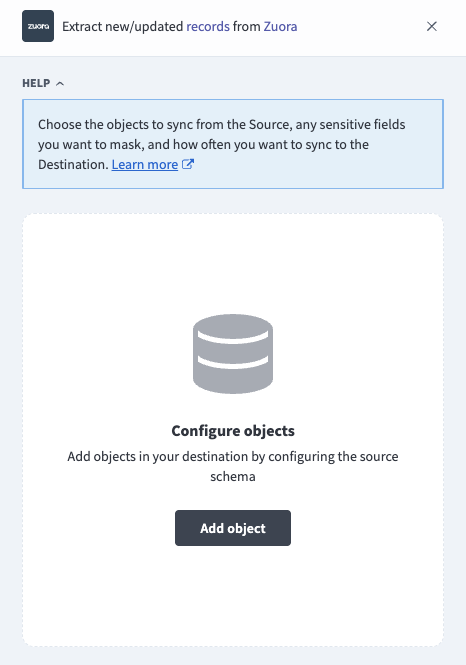 Add objects
Search or browse the list of available Zuora objects, select the objects you plan to sync, and click Add.
FEATURE-GATED OBJECTS
Some objects are available only when the corresponding Zuora feature is enabled in your tenant, such as Invoice Settlement or Orders. Refer to Supported objects for details.
Review and customize the schema for each selected object. The pipeline automatically fetches an object's schema when you select it. This ensures the destination matches the source.
Expand an object to view associated fields. Keep all fields selected to extract all available data, or deselect specific fields to exclude them from data extraction and schema replication.
Optional. Configure field-level data protection by expanding an object and choosing how to handle each field:
- Replicate as is: Data values at the source replicate identically to the destination.
- Hash: Hash sensitive data values in the field before syncing to your destination.
Workato recommends hashing personally identifiable information (PII) and other sensitive fields. Refer to Sensitive data handling for a list of fields that commonly contain PII.
Click Add object again to add more objects. Repeat this step to include additional Zuora objects in your pipeline.
Use the Choose how to handle schema changes drop-down menu to select a schema drift handling option:
- Auto-sync new fields: Automatically detects and syncs new fields added in the source.
- Block new fields: Keeps the schema fixed after the pipeline starts. You must add new fields manually. This option may cause the destination to fall out of sync if the source schema updates.
Refer to Schema replication and schema drift management for more information.
Workato recommends Auto-sync new fields because Zuora tenants frequently add custom fields to standard objects.
Optional. Enter a value in the Concurrency limit field to cap the number of concurrent operations. Leave the field blank to use the default quota set by Workato. The maximum value is 100.
Choose either a standard time-based schedule or define a custom cron expression in the Frequency field. This determines how often the pipeline syncs data from Zuora to the destination.
Supported objects
Zuora data pipelines sync data from Zuora REST API resources. The following tables list the supported objects, grouped by category. Each object syncs as a separate table in your destination.
All objects support full sync and incremental sync. Incremental sync uses the UpdatedDate field on each record. Delete tracking is opt-in per object and disabled by default. Refer to Delete tracking for more information.
Core objects
| Object | Sync modes | Notes |
|---|---|---|
Account | Full sync, incremental | |
Amendment | Full sync, incremental | |
Bill Run | Full sync, incremental | |
Contact | Full sync, incremental | Contains PII |
Invoice | Full sync, incremental | |
Invoice Item | Full sync, incremental | High-volume object |
Invoice Schedule | Full sync, incremental | |
Payment | Full sync, incremental | |
Payment Application | Full sync, incremental | |
Payment Method | Full sync, incremental | Contains sensitive data |
Payment Method Snapshot | Full sync, incremental | Contains sensitive data |
Payment Run | Full sync, incremental | |
Payment Schedule | Full sync, incremental | |
Payment Schedule Item | Full sync, incremental | |
Processed Usage | Full sync, incremental | |
Product | Full sync, incremental | |
Rate Plan | Full sync, incremental | |
Rate Plan Charge | Full sync, incremental | Refer to Rate Plan Charge update detection |
Refund | Full sync, incremental | |
Subscription | Full sync, incremental | |
Usage | Full sync, incremental | High-volume object |
Feature-gated objects
The following objects require the corresponding Zuora feature to be enabled in your tenant:
| Object | Sync modes | Required Zuora feature |
|---|---|---|
Credit Memo | Full sync, incremental | Invoice Settlement |
Credit Memo Application | Full sync, incremental | Invoice Settlement |
Credit Memo Item | Full sync, incremental | Invoice Settlement |
Debit Memo | Full sync, incremental | Invoice Settlement |
Debit Memo Item | Full sync, incremental | Invoice Settlement |
Order | Full sync, incremental | Orders |
Order Action | Full sync, incremental | Orders |
Order Line Item | Full sync, incremental | Orders |
Fulfillment | Full sync, incremental | Orders |
Daily Consumption Summary | Full sync, incremental | Prepaid with Drawdown |
Prepaid Balance | Full sync, incremental | Prepaid with Drawdown |
Prepaid Balance Fund | Full sync, incremental | Prepaid with Drawdown |
Prepaid Balance Transaction | Full sync, incremental | Prepaid with Drawdown |
Delivery Adjustment | Full sync, incremental | Delivery Pricing |
Billing Transaction | Full sync, incremental | Order-to-Revenue |
Related objects
| Object | Sync modes | Notes |
|---|---|---|
Taxation Item | Full sync, incremental | High-volume object |
Product Rate Plan | Full sync, incremental | |
Product Rate Plan Charge | Full sync, incremental | |
Product Rate Plan Charge Tier | Full sync, incremental | |
Rate Plan Charge Tier | Full sync, incremental | |
Invoice Item Adjustment | Full sync, incremental | Deprecated by Zuora in WSDL version 64 and later |
Refund Application | Full sync, incremental |
Custom objects
Zuora data pipelines discover custom objects in your tenant automatically. Custom objects support full sync and incremental sync through the UpdatedDate field.
Sync modes
Zuora data pipelines support full sync and incremental sync.
Full sync
Full sync extracts all records for an object from Zuora. Use full sync for the initial historical sync or to rebuild an object's table in your destination.
Incremental sync
Incremental sync extracts only records created or updated after the previous sync, based on each record's UpdatedDate timestamp. Records that share the same timestamp at a sync boundary may be re-delivered on the next sync. The destination deduplicates them by record Id, so no duplicates persist.
Business status changes, such as voiding an invoice, update the record's UpdatedDate and flow through incremental sync automatically.
Delete tracking
Zuora handles record deletion in three ways, and each interacts differently with data pipelines:
- Status transitions: Most operational deletions in Zuora, such as voiding an invoice, change the record's status field. The record continues to exist and syncs through normal incremental sync. No special handling is required.
- Hard deletes: Records deleted through the Zuora DELETE API disappear from the standard extraction path immediately. When delete tracking is enabled for an object, the pipeline detects hard-deleted records through a companion query and marks them in the
_zuora_deletedcolumn. Zuora retains hard-deleted records for 30 days. Deletions older than 30 days can't be detected. - GDPR scrubs: Records removed with GDPR scrub operations aren't queryable by any API and can't be detected.
Delete tracking is disabled by default. Enable it only if your organization hard-deletes records through the Zuora DELETE API, for example in data migration workflows.
Schema and data type handling
The following sections provide information on schema and data type handling:
Synthetic columns
Workato adds the following synthetic column to destination tables when delete tracking is enabled for an object:
| Column | Type | Purpose |
|---|---|---|
_zuora_deleted | Boolean | true for records detected as hard-deleted in Zuora; false for active records |
The _zuora_deleted column is omitted from the schema when delete tracking is disabled for the object.
Sensitive data handling
Zuora objects can contain PII and payment data. The following objects commonly contain sensitive fields:
| Object | Sensitive data |
|---|---|
Contact | PII, such as names, email addresses, and postal addresses |
Payment Method | Payment instrument data |
Payment Method Snapshot | Payment instrument data |
Use the Hash option in field-level data protection during pipeline configuration to protect PII before it reaches your destination. Refer to the Configure the pipeline steps for more information.
Limitations
The following limitations apply when you use Zuora as a data pipeline source:
Hard-deleted records
Records hard-deleted through the Zuora DELETE API are detectable for 30 days only, and only when delete tracking is enabled for the object. Records created and deleted within the same sync window, and records removed with GDPR scrub operations, can't be detected. Refer to Delete tracking for more information.
Minimum sync frequency
The minimum supported sync interval is 15 minutes.
Last updated: