Configure ZoomInfo as a data pipeline source
Set up ZoomInfo as a data pipeline source to extract your saved audiences with enriched company and contact records, and Scoops and News signals into your destination.
Use this guide to create a ZoomInfo Standard App, set up a connection, configure your pipeline, add objects, review sync behavior, and understand known limitations.
Features supported
The following features are supported when you use ZoomInfo as a pipeline source:
- Cloud connectivity: Connect to the ZoomInfo GTM API over HTTPS through
https://api.zoominfo.com/gtm. On-prem agents aren't required. - Full sync and incremental sync: Supports full sync and incremental sync modes. Incremental sync uses a date cursor on
scoopsandnews. Refer to Sync modes for more information. - Object-level selection: Select ZoomInfo objects to sync as separate tables in your destination. Refer to Supported objects for the full list.
- Audience column discovery: Sync the custom and enrichment columns configured on each ZoomInfo audience as fields on the
audience_rowstable. - Delete tracking: Detect records removed from
audiencesandaudience_rowson the next full sync. Refer to Delete tracking for more information. - Schema drift detection and handling: Detect and apply schema changes automatically with Auto-sync new fields, or keep the schema fixed with Block new fields.
- Field-level data protection: Hash or replicate sensitive fields as is before the data reaches your destination.
- Configurable sync frequency: Schedule syncs on a time-based interval or with a cron expression. The minimum supported interval is
15minutes.
Prerequisites
Connecting ZoomInfo as a data pipeline source requires:
- A ZoomInfo account with ZoomInfo GTM API access.
- A ZoomInfo Standard App registered in the ZoomInfo Developer Portal with a valid client ID and client secret. Refer to Create a ZoomInfo Standard App for setup steps.
- A ZoomInfo Scoops or News subscription for each signal object you plan to sync.
audiencesandaudience_rowsdon't require a signal subscription.
REQUIRED PERMISSIONS
The data pipeline only reads from ZoomInfo. Grant your Standard App only the read scopes for the objects you plan to sync. Refer to Recommended permissions for the scope each object requires.
Create a ZoomInfo Standard App
Create a Standard App in the ZoomInfo Developer Portal before you create the connection in Workato. The app provides the client ID and client secret that Workato uses to request access tokens through the OAuth 2.0 client credentials flow.
Refer to ZoomInfo's Standard App documentation for setup steps. Select the client credentials flow as the authentication method, and copy the app's client ID and client secret after you create it.
Recommended permissions
Configure the following read scopes on your Standard App in the ZoomInfo Developer Portal to sync the supported ZoomInfo objects:
| ZoomInfo scope | Workato objects |
|---|---|
api:audience:read | audiences, audience_rows |
api:data:scoops | scoops |
api:data:news | news |
Refer to ZoomInfo's OAuth scopes documentation for more information.
Supported connection types
ZoomInfo data pipelines support one authentication method:
- Client credentials: Provide the client ID and client secret of a ZoomInfo Standard App. Workato uses the OAuth 2.0 client credentials flow to request and refresh access tokens. Refer to Create a ZoomInfo Standard App for setup steps.
USE CLIENT CREDENTIALS FOR DATA PIPELINES
The ZoomInfo connector also offers Username & password authentication, which is for recipes only. Data pipelines read from the ZoomInfo GTM API, which requires Client credentials. A ZoomInfo connection that uses Username & password doesn't work as a pipeline source. Create a separate Client credentials connection for your pipelines.
Connect to ZoomInfo
Complete the following steps to connect to ZoomInfo:
Connect to ZoomInfo
Select Create > Connection or press C twice.
Search for ZoomInfo and select it as your app.
Enter a name in the Connection name field.
Use the Location drop-down menu to select the project where you plan to store the connection.
Use the Authentication type drop-down menu to select Client credentials.
Enter the client ID of your ZoomInfo Standard App in the Client ID field.
Enter the client secret of your ZoomInfo Standard App in the Client secret field.
Select Connect to verify and save the connection. Workato displays a success message when the connection is established.
Configure the pipeline
Complete the following steps to configure ZoomInfo as your data pipeline source:
Select Create > Data pipeline or press C+I.
Enter a name for the data pipeline in the Data pipeline name field.
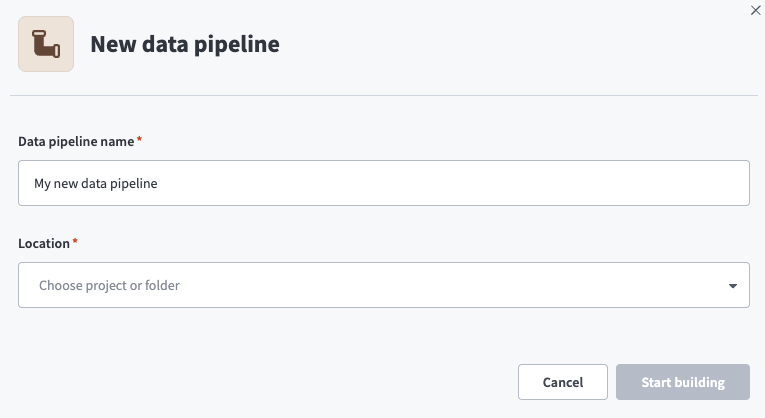 Data pipeline setup
Use the Location drop-down menu to select the project where you plan to store the data pipeline.
Click Start building.
Click the Extract new/updated records from source app trigger. This trigger defines how the pipeline retrieves data from ZoomInfo.
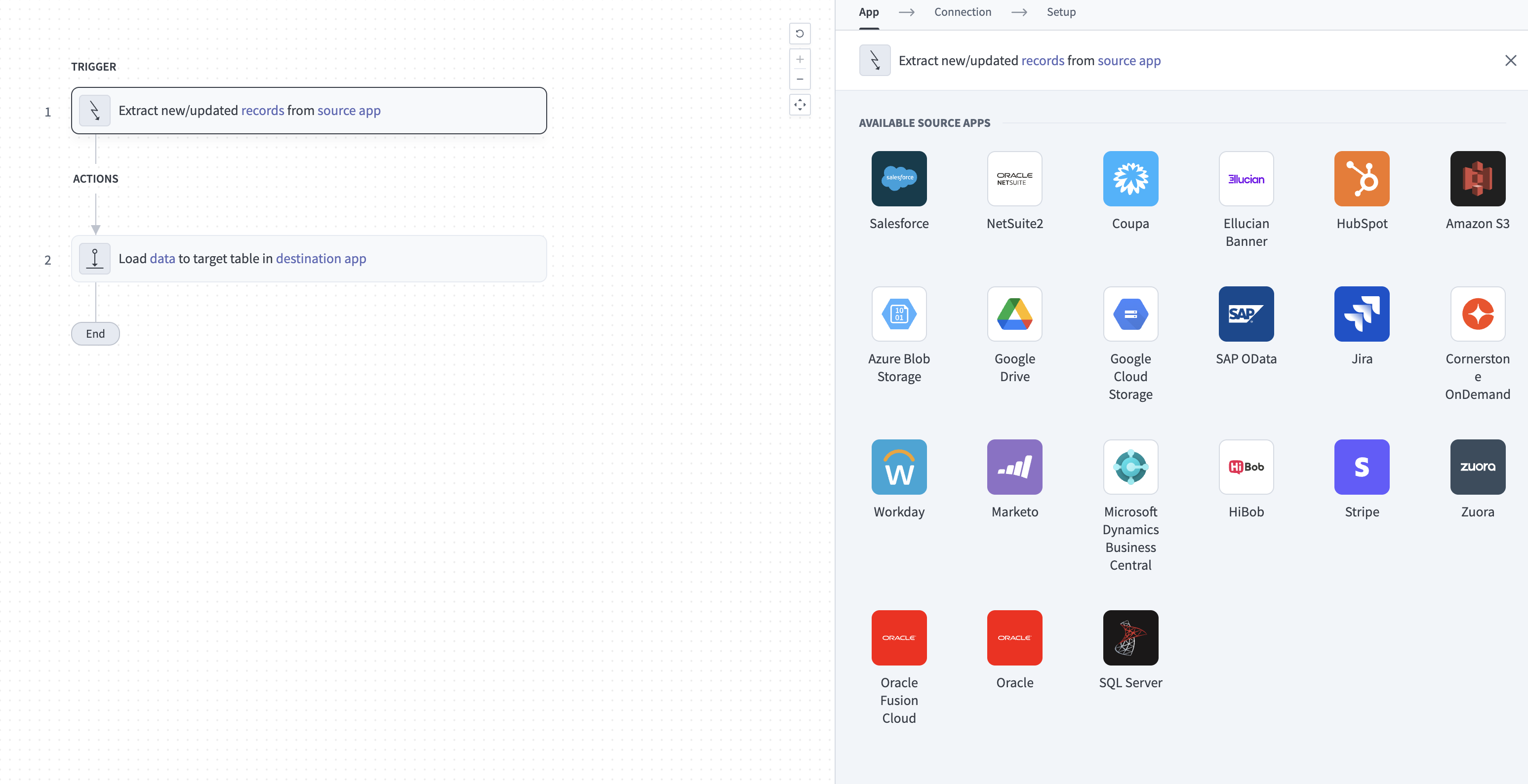 Configure the Extract new/updated records from source app trigger
Use the Your Connected Source Apps drop-down menu to select ZoomInfo.
Choose the ZoomInfo connection you plan to use for this pipeline. Alternatively, click + New connection to create a new connection.
Click Add object to open the Add new objects panel.
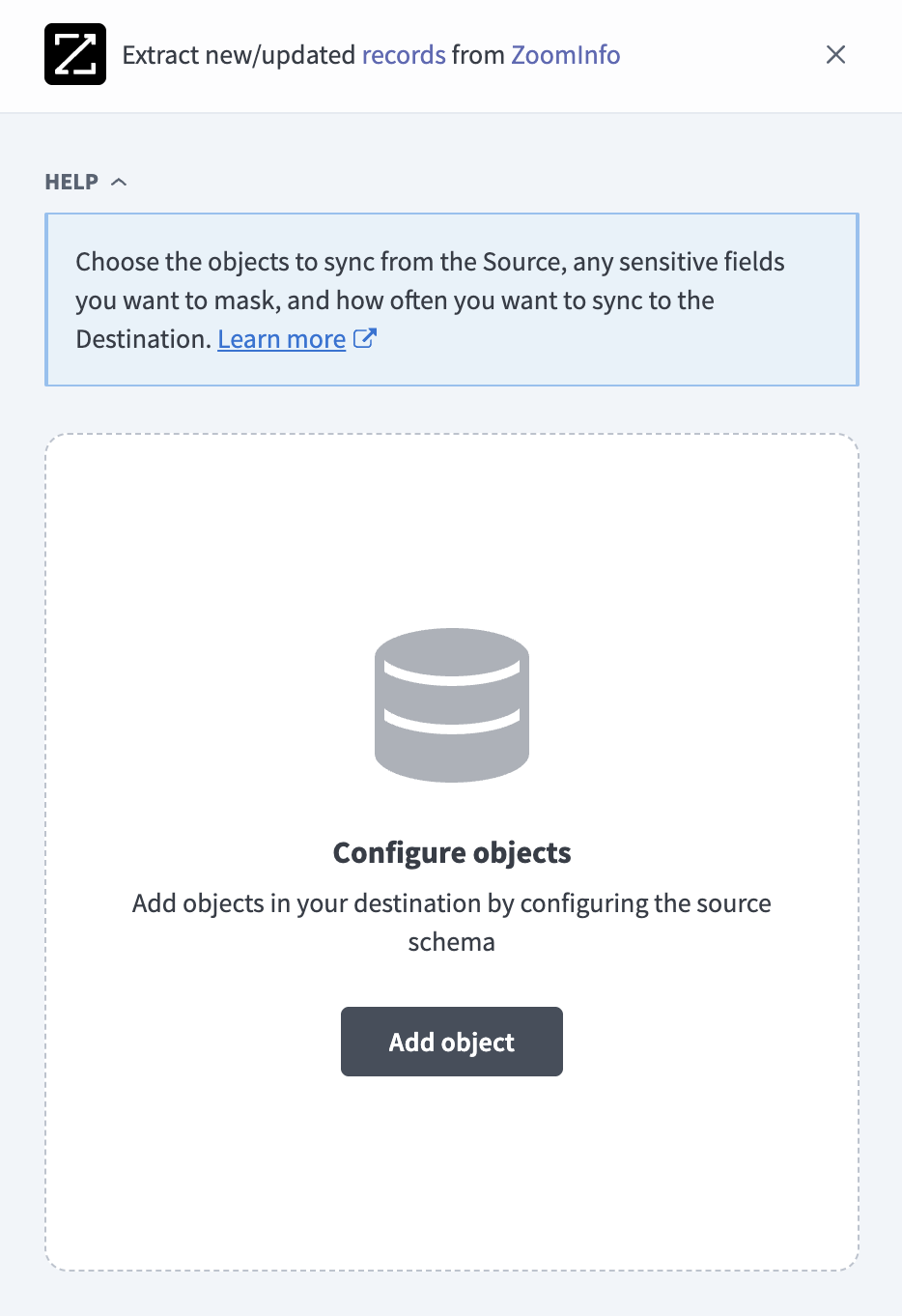 Add objects
Search or browse the list of available ZoomInfo objects, select the objects you plan to sync, and click Add.
SIGNAL OBJECTS REQUIRE A SUBSCRIPTION
scoops and news require the matching ZoomInfo signal subscription. The object list shows all four objects regardless of your subscriptions. An object not included in your ZoomInfo contract fails with a permissions error while other objects continue to sync.
Optional. Click the gear icon next to an object to open its Sync mode settings. Use the Sync mode drop-down menu to select Full sync or Incremental, then click Save.
scoops and news default to Incremental. audiences and audience_rows always use Full sync because these objects don't have a usable cursor. Refer to Sync modes for more information.
Review and customize the schema for each selected object. The pipeline automatically fetches an object's schema when you select it. This ensures the destination matches the source.
Expand an object to view associated fields. Keep all fields selected to extract all available data, or deselect specific fields to exclude them from data extraction and schema replication.
Optional. Configure field-level data protection by expanding an object and choosing how to handle each field:
- Replicate as is: Data values at the source replicate identically to the destination.
- Hash: Hash sensitive data values in the field before syncing to your destination.
Workato recommends hashing personally identifiable information (PII) and other sensitive fields. Refer to Sensitive data handling for a list of fields that commonly contain PII.
Click Add object again to add more objects. Repeat this step to include additional ZoomInfo objects in your pipeline.
Use the Choose how to handle schema changes drop-down menu to select a schema drift handling option:
- Auto-sync new fields: Automatically detects and syncs new fields added in the source.
- Block new fields: Keeps the schema fixed after the pipeline starts. You must add new fields manually. This option may cause the destination to fall out of sync if the source schema updates.
Refer to Schema replication and schema drift management for more information.
Optional. Use Auto-sync new fields if you sync audience_rows. Workato recommends that each new audience or audience column you create in ZoomInfo adds fields to the audience_rows table. Refer to Audience Rows columns for more information.
Optional. Enter a value in the Concurrency limit field to cap the number of concurrent operations. Leave the field blank to use the default limit set by Workato. ZoomInfo pipelines extract one object at a time regardless of the value you enter here.
Choose either a standard time-based schedule or define a custom cron expression in the Frequency field. This determines how often the pipeline syncs data from ZoomInfo to the destination.
The start date sets where scoops and news begin when they run a full sync, such as on the first run. Incremental runs continue from the date of the last completed sync. audiences and audience_rows sync their complete history on every run, regardless of this setting.
Supported objects
ZoomInfo data pipelines sync data from the ZoomInfo GTM API. The following table lists the supported objects. Each object syncs as a separate table in your destination:
| Object | Sync mode | Delete tracking | Notes |
|---|---|---|---|
audiences | Full sync | Yes (destination-inferred) | Syncs audience metadata, such as name, type, folder, record count, and column definitions. |
audience_rows | Full sync | Yes (destination-inferred) | Syncs the records in every audience your connection can access, in one shared table. Refer to Audience Rows columns. |
scoops | Full sync, incremental | No | Defaults to incremental. Requires a ZoomInfo Scoops subscription. |
news | Full sync, incremental | No | Defaults to incremental. Requires a ZoomInfo News subscription. |
Sync modes
ZoomInfo data pipelines support full sync and incremental sync. Configure the sync mode for each object you add to your pipeline.
Full sync
A full sync reads all available records for an object and replaces the record set in the destination table. audiences and audience_rows always use full sync.
scoops and news read all history from the pipeline's start date on every run when set to full sync. This uses more of your ZoomInfo request and record limits than incremental sync.
Incremental sync
An incremental sync extracts only records published since the last completed sync. scoops uses published_date as its cursor, and news uses pageDate. Each run re-reads records from the cursor date, and Workato merges the records by primary key to prevent duplicates.
Incremental scoops runs also request scoops that ZoomInfo updated after their original publication. Refer to Updates to older scoops for more information.
Delete tracking
ZoomInfo doesn't expose a delete signal for any object. Workato compares each completed full sync against the previous run and marks records that no longer appear in ZoomInfo as deleted in your destination. Workato doesn't track deletions for scoops or news.
Schema and data type handling
The following considerations apply to schema and data types when you sync data from ZoomInfo:
Audience Rows columns
audience_rows stores the records from all of your audiences in one table. Each audience's column configuration varies, so the table schema combines the columns of every audience.
The following fixed columns appear on every row:
| Column | Type | Purpose |
|---|---|---|
audience_id | String | ID of the audience the row belongs to. Part of the primary key. |
audience_name | String | Name of the audience. |
audience_type | String | Type of the audience, such as CONTACT or COMPANY. |
row_id | String | ID of the row in the audience. Part of the primary key. |
cell_states | JSON | State of each cell in the row, keyed by ZoomInfo column ID. |
cell_errors | JSON | Error details ZoomInfo returns for cells, keyed by ZoomInfo column ID. Null when no cell in the row has an error. |
Workato also adds a column for each audience column, named audience_<audience ID>__column_<column ID> and labeled <audience name> / <column name>. Names stay the same when you rename an audience or column, and same-named columns in different audiences sync separately. Each row only populates its own audience's columns.
Audience column data types map to the following destination types:
| ZoomInfo data type | Destination type |
|---|---|
BOOLEAN, CHECKBOX | Boolean |
INTEGER, ORDINAL_IDENTIFIER | Integer |
DECIMAL, PERCENT, CURRENCY | Decimal, with a precision of 28 and a scale of 12 |
DATE | String |
STRING_LIST, NUMBER_LIST, EMAIL_LIST, PHONE_LIST, URL_LIST, MULTIPICKLIST, OBJECT | JSON |
| All other data types | String |
Cell states
ZoomInfo reports a state for each cell in an audience row: RESULT, BLANK, LOADING, ERROR, or NO_RESULT. A column only contains a value when the cell state is RESULT. Cells in any other state sync as null, and the cell_states column records the reason.
LOADING means ZoomInfo is still enriching the cell. The value syncs on a later run after the enrichment completes, because audience_rows re-reads every row on each full sync.
Nested fields
Nested objects and arrays sync as JSON objects stored in the destination's native JSON type, such as VARIANT in Snowflake. Workato serializes JSON objects to strings only when the destination doesn't have a native JSON type. Examples include columns on audiences, company, contacts, topics, and types on scoops, and categories and company on news.
Timestamps
ZoomInfo returns timestamps as ISO 8601 strings in UTC. Workato syncs these strings as timestamps without converting time zones.
Sensitive data handling
ZoomInfo objects can contain significant PII, including contact names, email addresses, phone numbers, and work locations. The following objects commonly contain sensitive fields:
| Object | Sensitive fields |
|---|---|
audience_rows | Columns in CONTACT audiences that hold first and last names, email addresses, including supplemental and personal email, phone numbers, including direct and mobile phone, work address, city, state, country, and postal code, and professional background such as school, degree, and web references |
scoops | contacts |
audience_rows column names depend on your audience configuration. Use the column labels to identify the contact columns in each audience. Labels use the format <audience name> / <column name>.
Use the Hash option in field-level data protection during pipeline configuration to protect PII before it reaches your destination. Refer to the Configure the pipeline steps for more information.
CONFIRM YOUR ZOOMINFO DATA USE RIGHTS
ZoomInfo restricts how you can use contact data downstream. Confirm that your ZoomInfo contract permits extracting and storing contact data in your destination before you sync audience_rows from CONTACT audiences.
Limitations
The following limitations apply when you use ZoomInfo as a data pipeline source:
10,000-result limit per signal search
ZoomInfo returns at most 10,000 results per Scoops or News search. Workato splits searches by date to stay under this limit, and splits a single day of scoops further by Scoop type and department.
The news sync stops with an error instead of syncing partial results when a single day exceeds 10,000 results. Workato skips any set of scoops that exceeds 10,000 results for a single day, Scoop type, and department, and the sync continues without those scoops.
Updates to older scoops
ZoomInfo doesn't guarantee that it returns every update to a scoop published before the sync's date range, so some updates to older scoops may not reach your destination.
Audience Rows syncs every audience
audience_rows syncs every audience your connection can access. You can't exclude individual audiences, but you can deselect or hash audience columns during schema review.
Minimum sync frequency
The minimum supported sync interval is 15 minutes.
Last updated: