Create a new table
Tables exist at the level of the individual project. Go to Projects > {Project name} > Data tables to access the Data tables interface.
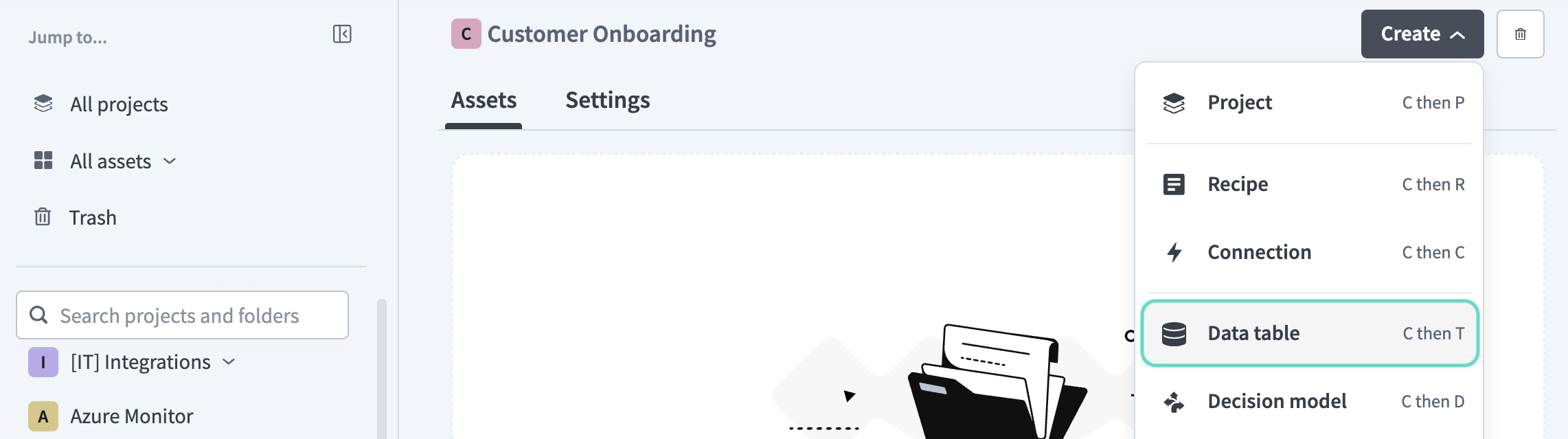 Create a new data table within a project
NEED AN EXAMPLE?
Refer to the Build a data table to store genie conversation IDs use case for a step-by-step recipe example.
Complete the following steps to create a new table:
You can create a data table by building the table structure from scratch or by importing a CSV file.
Create a new project, or select one of your saved projects.
Click Create > Data table or press C+T.
Enter a name for the table in the Data table name field.
Use the Location drop-down menu to select the project where you plan to store the data table.
Select one of the following creation methods:
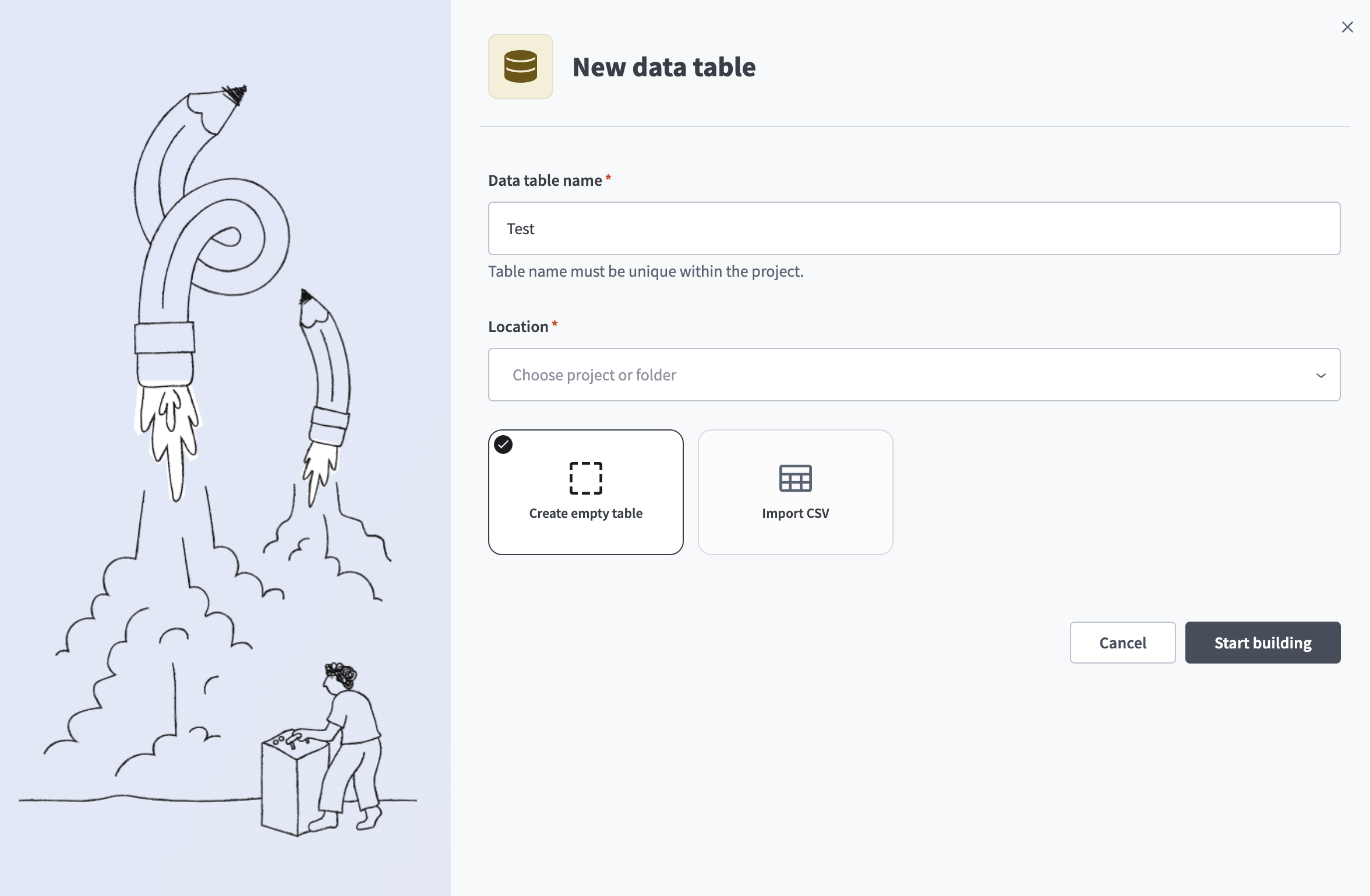 Create empty table
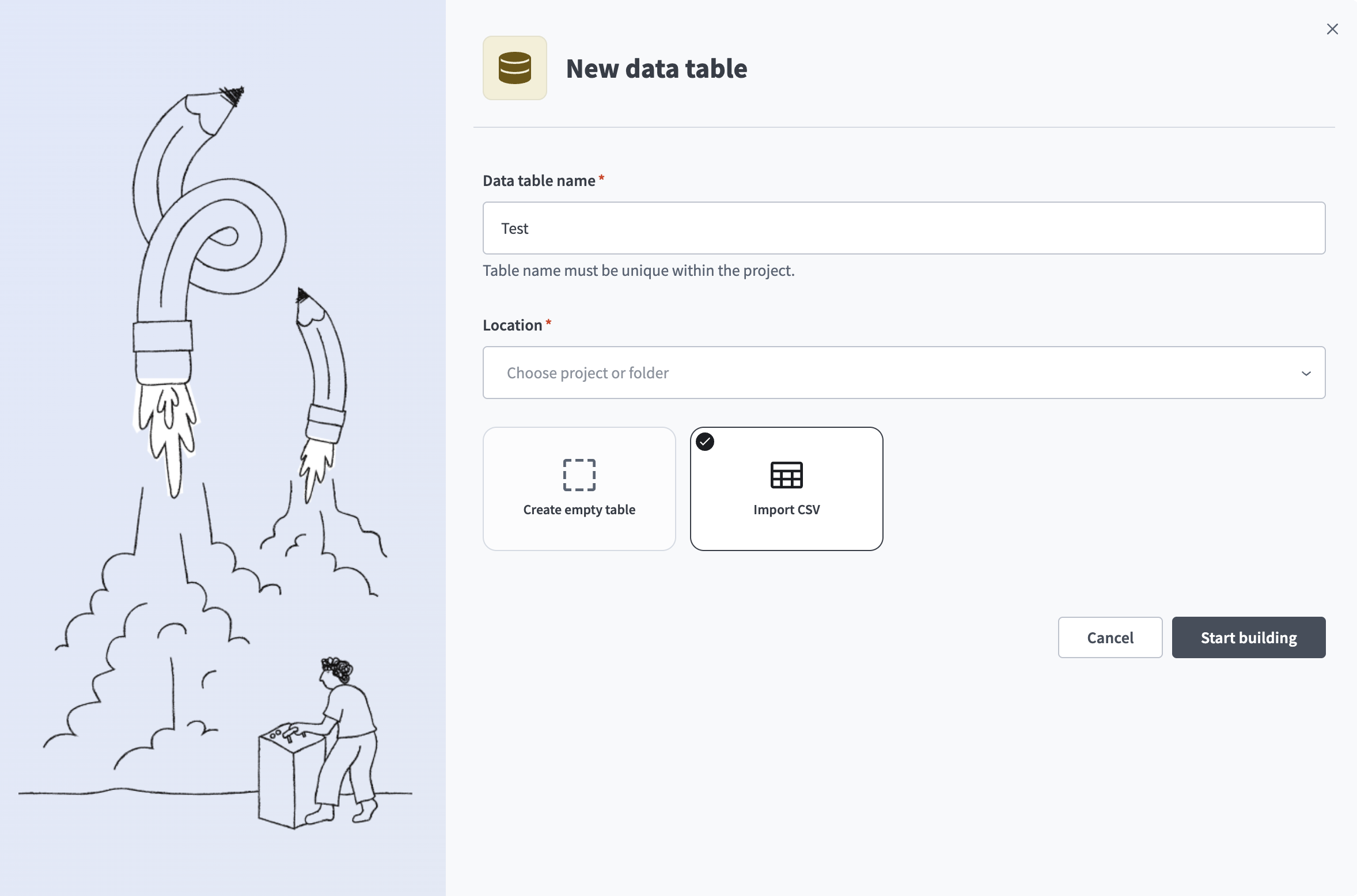 Import CSV
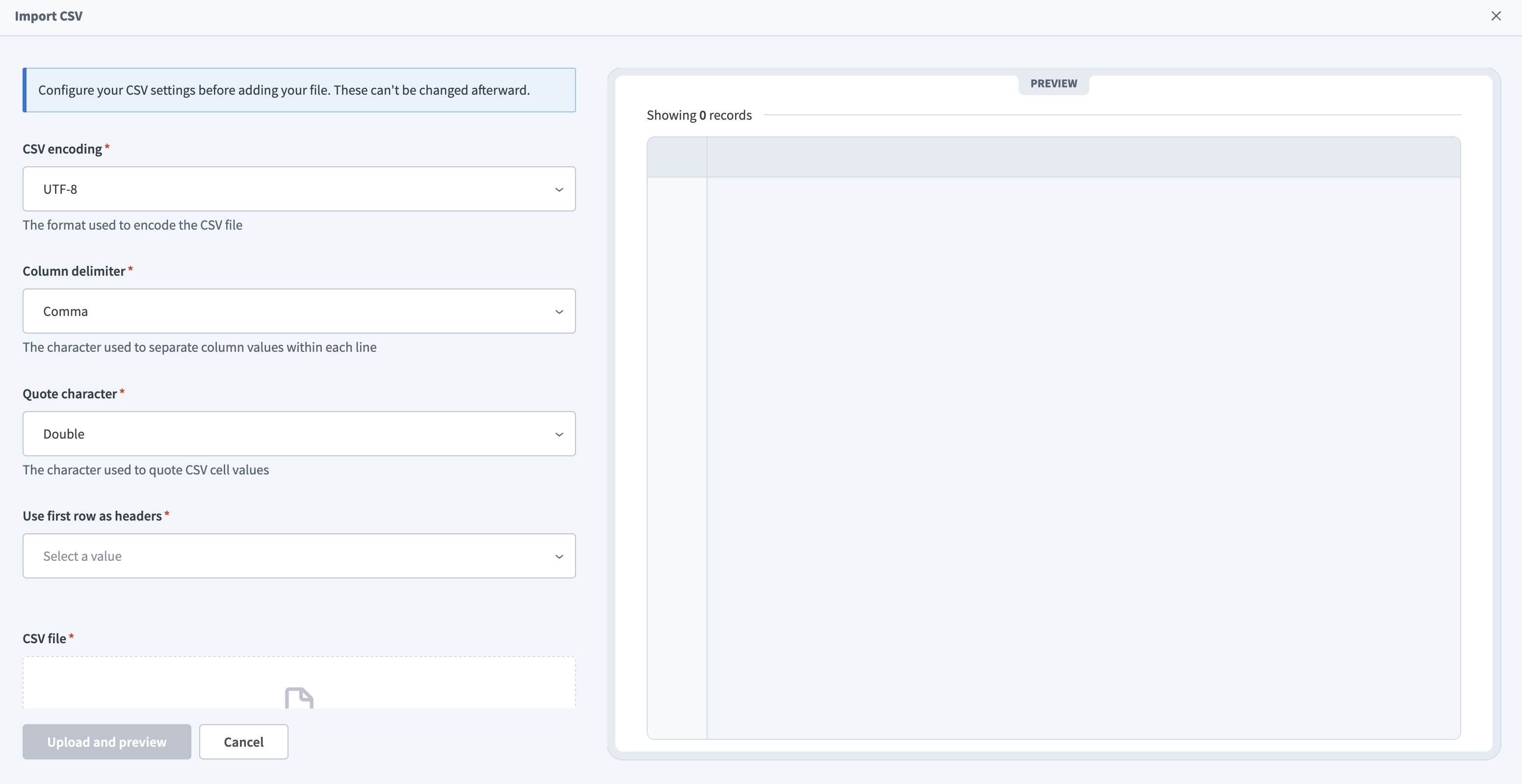 Configure CSV settings
You can also import a CSV file from the data table view by clicking Import CSV. This option is only available when the table has no existing columns.
Quote characters
Quote characters enclose CSV cell values that contain delimiter characters, newline characters, or the quote character itself. Workato uses the quote character you select to determine how to parse your CSV data correctly.
For example, the value "San Francisco, CA" contains a comma. The quote characters tell Workato to treat the comma as part of the value rather than as a column separator.
The following example demonstrates additional scenarios. When you use the double quote (") as the quote character and the comma (,) as the delimiter, Workato parses the following CSV data as one row with five columns:
abc,"abc","def,ghk","klm""nop","qr
st"
Workato interprets each value in the following way:
abc: A value without quote characters. Workato parses this value as-is."abc": A value enclosed in quote characters. Workato removes the surrounding quotes and parses the value asabc."def,ghk": A value that contains a comma. Workato treats the comma as a normal character because the value is enclosed in quote characters, and parses it asdef,ghk."klm""nop": A value that contains an escaped quote character. You can escape a quote character by doubling it. Workato parses this value asklm"nop."qr\nst": A value that contains a newline character. Workato treats the newline as part of the value because it's enclosed in quote characters, and parses it as a single cell that spans two lines. This means Workato treats the data as one row, not two.
Auto-generated columns
Workato automatically generates certain columns for each record when you create a new table. These columns are read-only, and you cannot edit them.
Workato hides these columns by default. To view hidden columns, click Hide columns, and select the columns you plan to view.
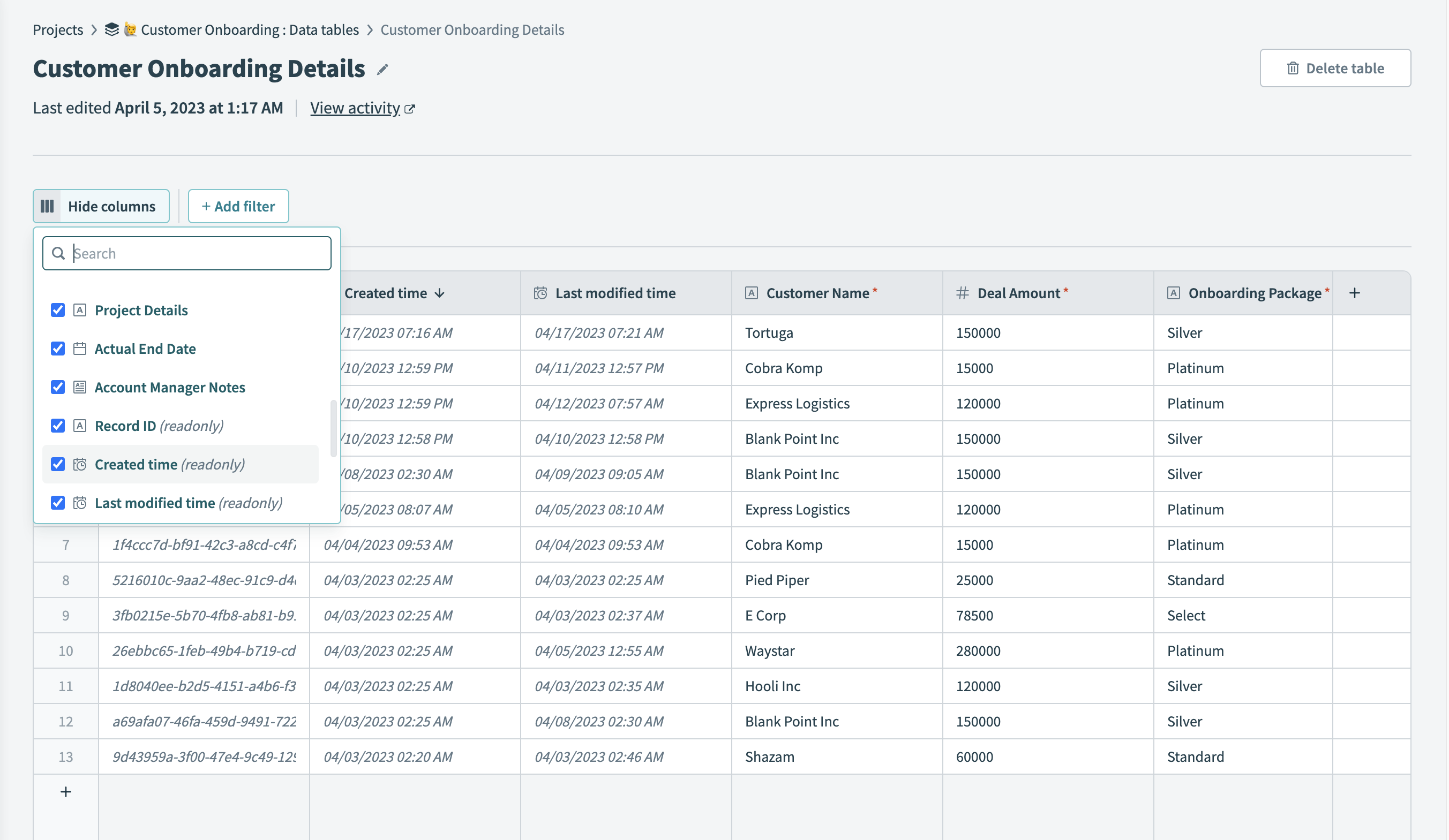 View auto-generated columns
Common auto-generated columns
The following columns are part of any data table, but Workato may add other auto-generated columns to your data tables in certain scenarios.
Record ID
Workato automatically generates a unique ID for each record in a data table. Workato requires the Record ID to perform certain Data table connector actions, including the update record and delete record actions. The field name
Record IDis reserved and can't be assigned to new columns.Created time
The creation time of the record. The field name
Created timeis reserved and can't be assigned to new columns.Last modified time
The last edit time of the record. The field name
Last modified timeis reserved and can't be assigned to new columns.
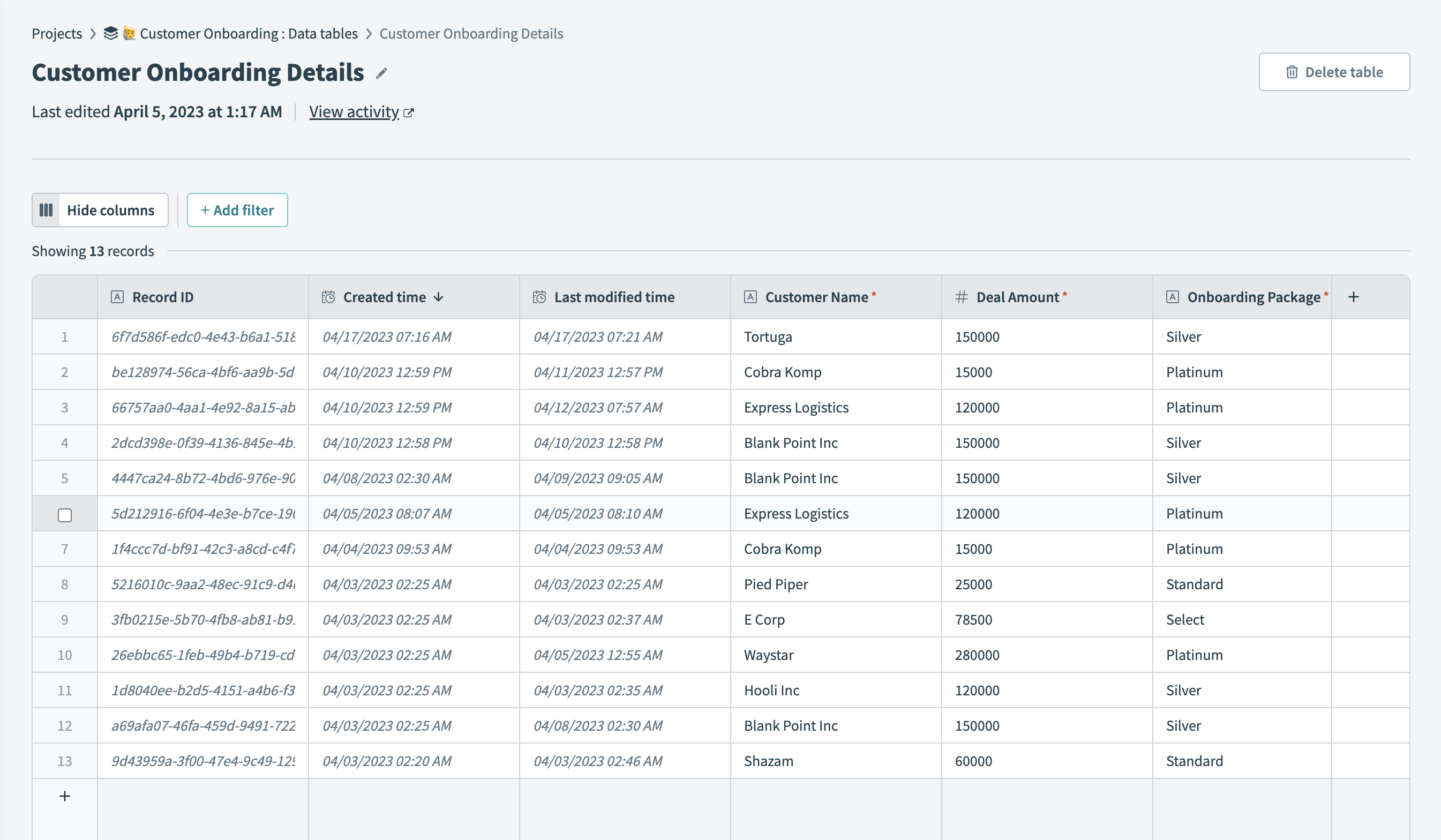 Auto-generated columns common to all data tables
Last updated: