View, filter, and sort table data
You can view table data in the Workato UI. The Data table interface enables you to filter, sort, and hide/display column data.
By default, the interface displays the first 200 (two hundred) records of the data table. Workato loads additional pages automatically as you scroll through the table.
Filter
Create custom filters to organize your data. The types of available filters depend on the data type of the filtered column. You can add multiple filters. All filters are chained using AND.
User-generated filters are case-sensitive.
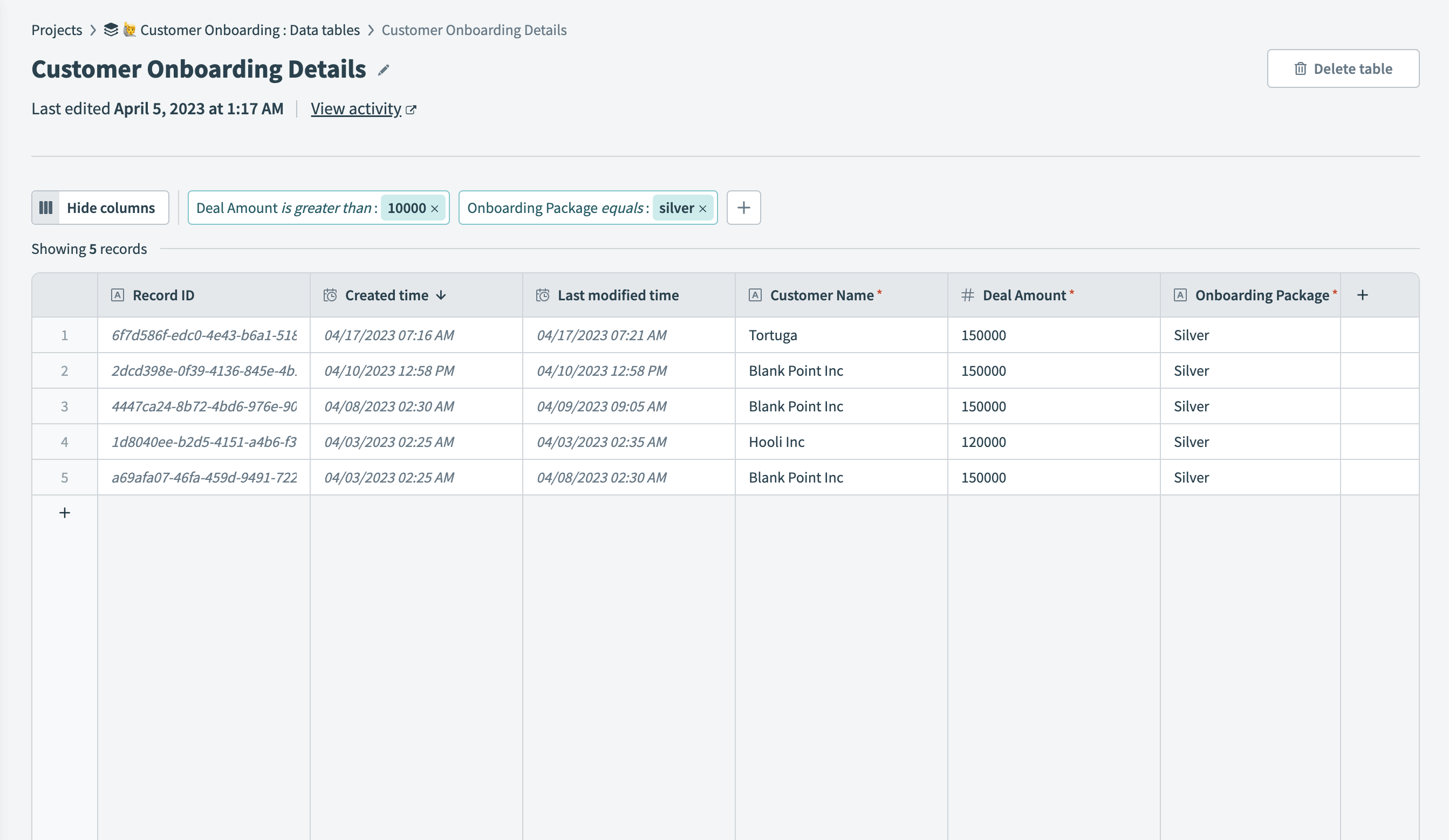 Filter records with multiple filters
To create a filter:
Click + Add filter.
Select a column to filter.
Select the type of filter.
Enter a value.
Click ✓ (check mark).
Available operands
The following table lists the operands available for each data table column type.
| Column type | Available operands |
|---|---|
| ID | equals, not equals |
| String, File | equals, not equals, is null, is not null, starts with |
| Integer, Number | equals, not equals, greater than, less than, greater than or equals, less than or equals, is null, is not null |
| Date, Date-time | equals, not equals, is after, is before, is on or after, is on or before, is null, is not null |
| Boolean | is true, is false, is null, is not null |
| Relation | equals, not equals, in, is null, is not null |
| Set types (string set, number set, integer set, date set, date-time set, relation set) | contains, is null, is not null |
Sort
Sort data in ascending or descending order by sorting an individual column.
If you sort one column and then an additional column, the most recent sort selection is applied, overriding the first sorting selection.
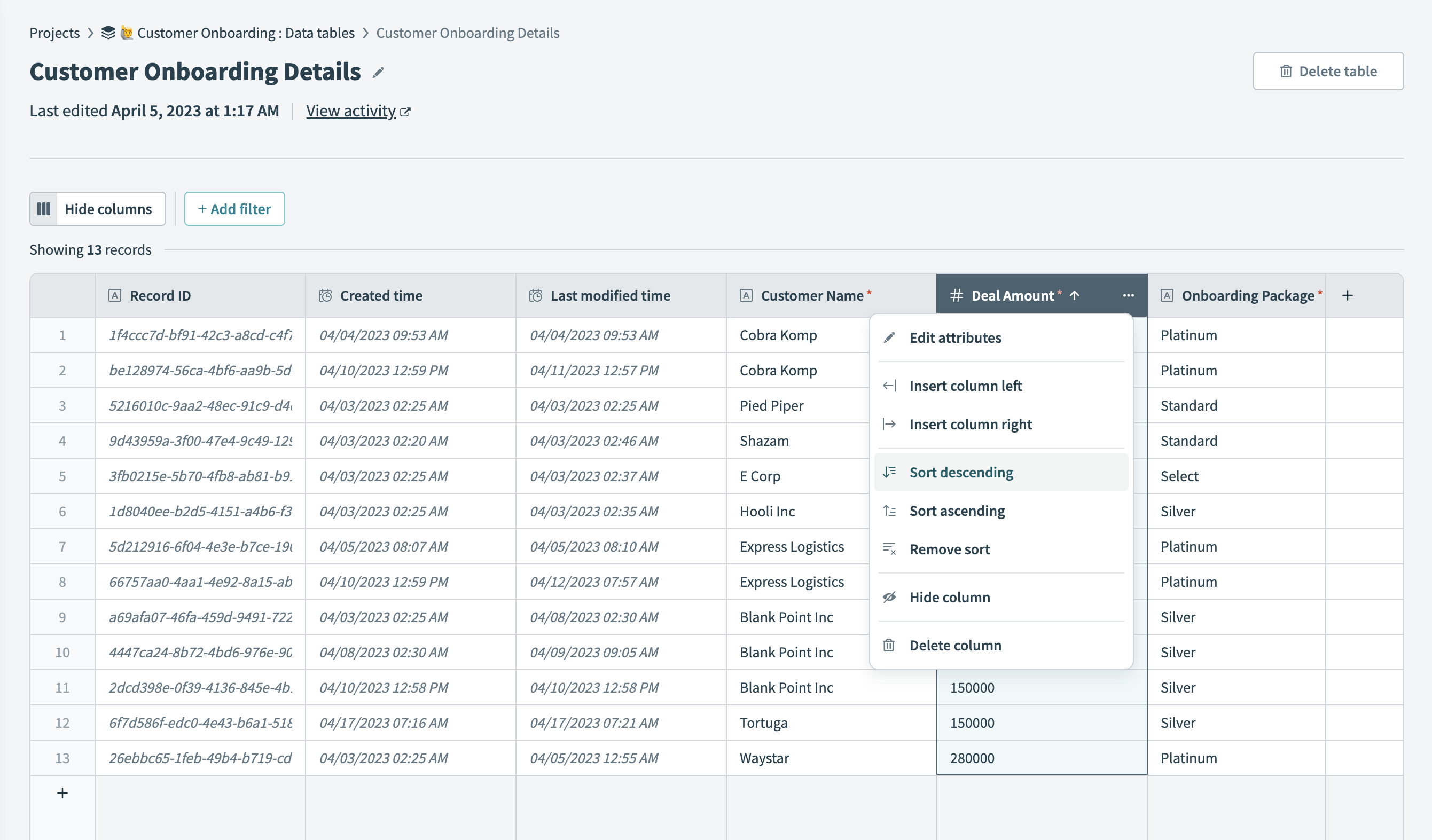 Sort column data
Multi-value columns cannot be sorted. You can only sort single-value column types, such as text, number, date, and boolean.
Complete the following steps to sort column data:
Choose the column you plan to sort.
Next to the column name, click ... (ellipsis).
Select Sort descending or Sort ascending. You can reverse the sort direction by clicking the ↑(arrow) next to the column name (optional).
- Sort descending
- Sorts column data in descending order.
For example, it sorts text fields in reverse alphabetical order, numeric fields from the highest number to the lowest, and date fields from most recent to most remote. Null values appear at the bottom of the sorted column. - Sort ascending
- Sorts column data in ascending order.
For example, it sorts text fields in alphabetical order, numeric fields from the lowest number to the highest, and date fields from the most remote past to current time. Null values appear at the top of the column.
Hide and display columns
You can hide or display columns in your table. By default, Workato hides all auto-generated columns.
Learn more about auto-generated columns.
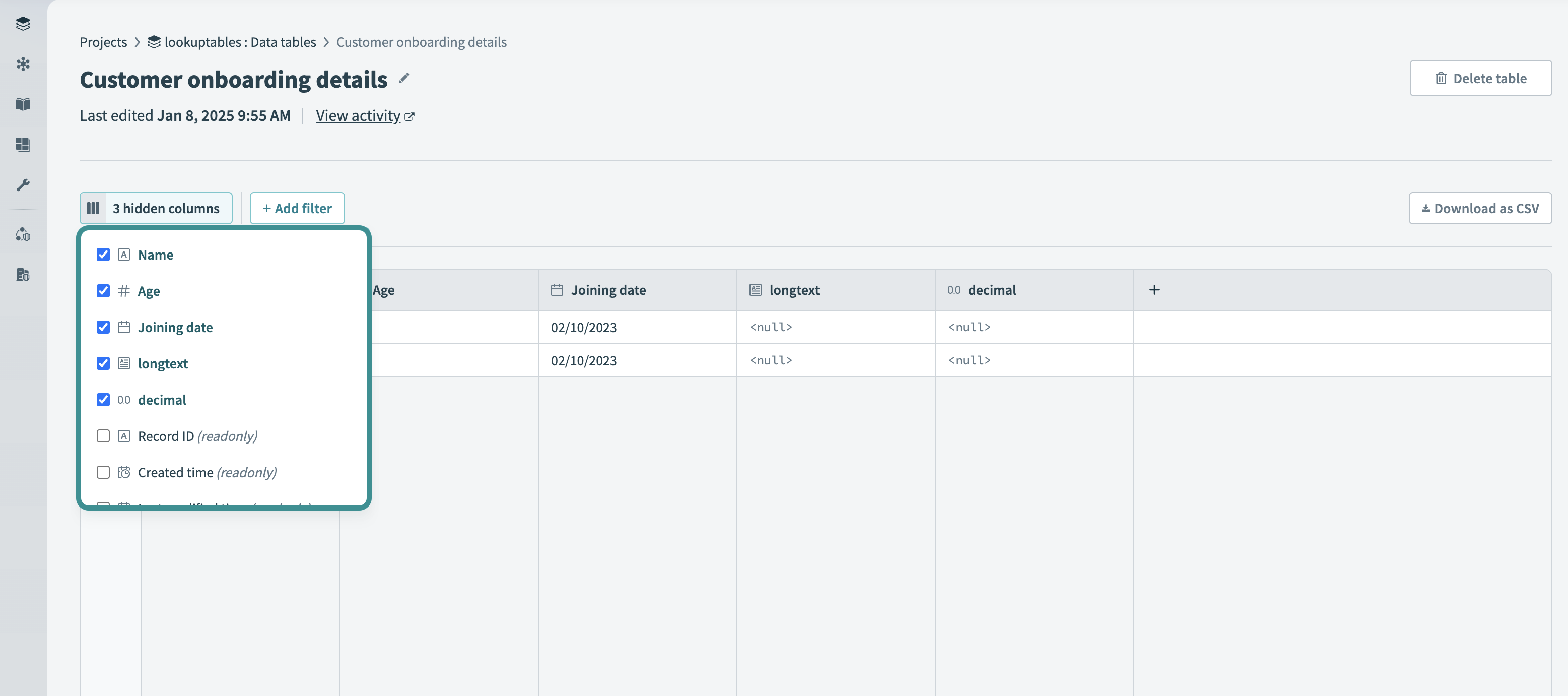 Select/deselect column names to display/hide columns
When you hide columns in the table, Workato informs you of this by updating the numerical value in the Hide columns button. For example, when you create a new table, this button reads 3 hidden columns, referencing the three auto-generated columns that Workato hides by default. When you hide additional columns, Workato updates this button.
If you choose not to hide any columns, Workato displays this button as Hide columns.
To hide or display a column:
Click Hide columns/X columns hidden.
Workato displays a list of columns.
Hide a column by deselecting the column name. Conversely, to display a column, select that column name.
Last updated: