Other formulas
This section covers formulas that work with a number of data types.
Formulas in Workato are allowlisted Ruby methods. Syntax and functionality for these formulas are generally unchanged. Most formulas return an error and stop the job if the formula operates on nulls (expressed as nil in Ruby), except for present?, presence, and blank?.
If a Ruby method is not found in the Workato documentation, it is not included in the allowlist and is therefore unsupported. Contact your Customer Success Manager to request new formulas for the allowlist.
Access nested values using square brackets
Square brackets ([]) allow you to access values in a hash in Workato. For nested hashes, you can chain lookups like data["a"]["b"]["c"]. However, this method raises a NoMethodError if any part of the chain doesn't exist (for example, if "b" is missing).
Use the safe navigation operator (&.) instead to safely access nested values without errors. For example, data["a"]&.[]("b")&.[]("c"). This returns nil if any part of the chain is nil.
null
Gives a null/nil value.
USE FORMULAS TO CLEAR A FIELD
Passing null into an input field does not update the field value to null. Toggle the field to formula mode and use the clear formula to update a field value to null.
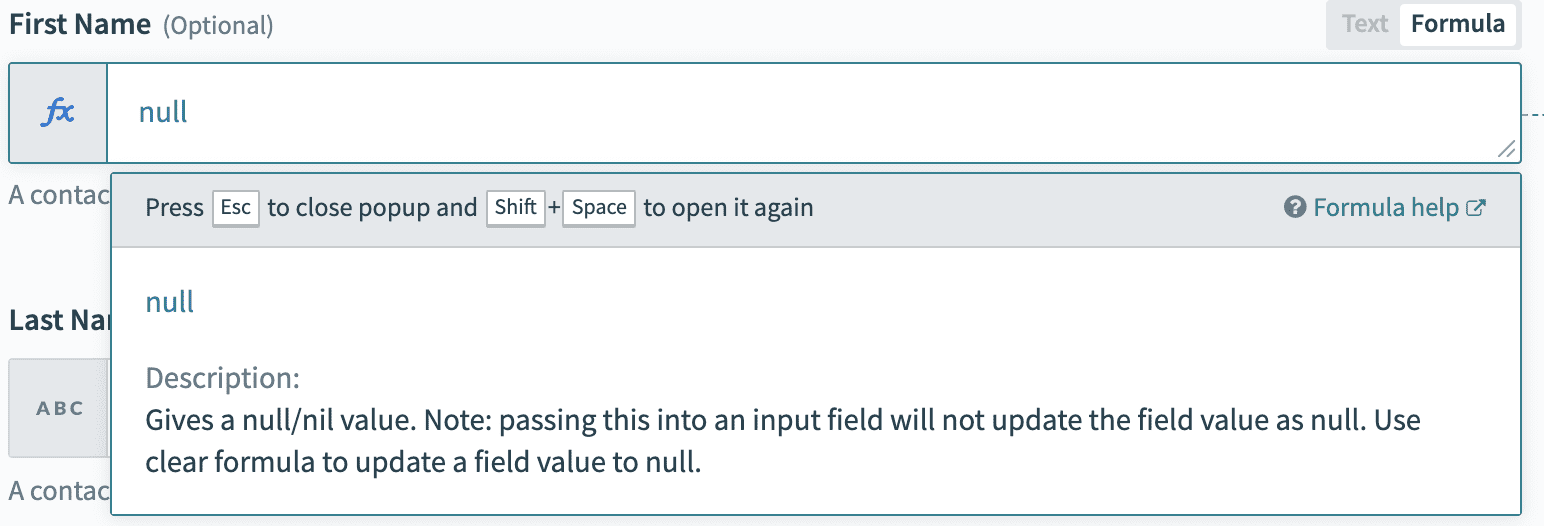
clear
Clears the value of the field in the target app to null/nil. Remember to toggle the field to formula mode.
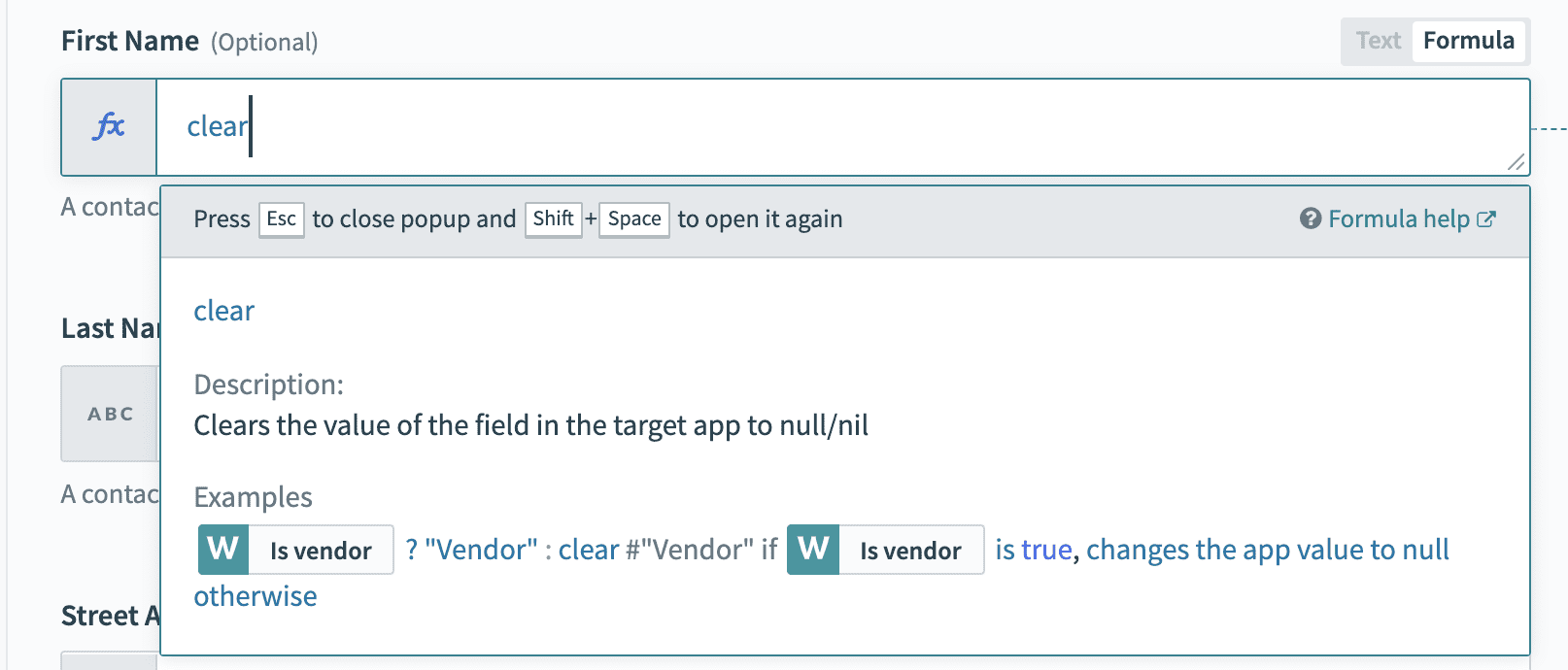 Use clear formula instead of null when looking to clear field in target app
skip
Passes nothing to the destination app for this field. If the field has an existing value, it will be left untouched.
Example
This example attempts use an updated Salesforce record to update a lead in Marketo. It checks if the Salesforce Company is present. If yes, it will output the Salesforce Company into Marketo. Otherwise, the Marketo record is left untouched.
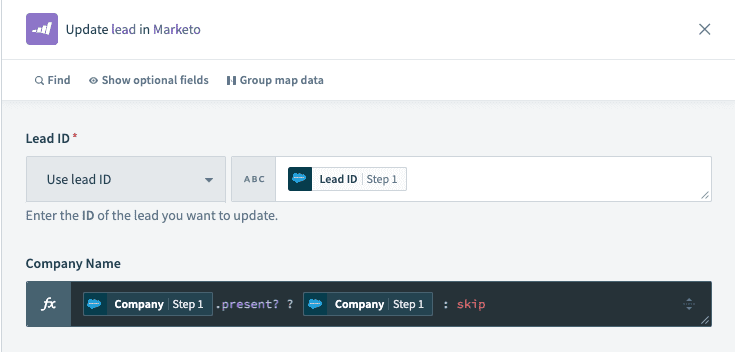 Skip formula example use case
Skip this field if update datapill is empty
Use skip formula to leave existing values untouched in an update action.
uuid
Generates an UUID.
Example
| Example | Result |
|---|---|
| uuid | "c52d735a-aee4-4d44-ba1e-bcfa3734f553" |
encrypt
Encrypts the input string with a secret key using AES-256-CBC algorithm. Encrypted output string is packed in RNCryptor V3 format and base64 encoded.
STORE ENCRYPTION KEYS USING ENVIRONMENT PROPERTIES
Do not hard code your encryption key in the recipe. Instead, use environment properties (with key or password in the name) to store encryption keys.
Example
encrypt([ssn], [encryption_key])
decrypt
Decrypts the encrypted input string with a secret key using the AES-256-CBC algorithm. The encrypted input string should be packed in RNCryptor V3 format and base64 encoded.
The Ruby decrypt method returns a byte array instead of a string by default. You can convert the decrypt method output to a string by appending the .as_string() or .as_utf8 function to your formula.
DON'T HARDCODE ENCRYPTION KEYS IN A RECIPE
The encryption key should not be hardcoded in the recipe. Use environment properties (with key or password in the name) to store the encryption keys.
Example
decrypt([encrypted_ssn], [encryption_key])
encode_sha256
Encodes a string or binary array using SHA256 algorithm
Example
"hello".encode_sha256
encode_hex
Converts binary string to its hex representation
Example
| Example | Result |
|---|---|
"0101010101011010".encode_hex | "30313031303130313031303131303130" |
decode_hex
Decode hexadecimal into binary string
Example
| Example | Result |
|---|---|
"30313031303130313031303131303130".decode_hex | "0101010101011010" |
decode_url
URL decode a string. This formula uses CGI.unescape to URL decoding.
Example
| Example | Result |
|---|---|
'https%3A%2F%2Fworkato.com%2Ffoo%3Fbar%3Dat%23anchor'.decode_url | "https://workato.com/foo?bar=at#anchor" |
'%27Stop%21%27+said+Fred"'.decode_url | "'Stop!' said Fred" |
encode_base64
Encode using Base64 algorithm
Example
| Example | Result |
|---|---|
"Hello World!".encode_base64 | "aGVsbG8gd29ybGQh" |
decode_base64
Decode using Base64 algorithm
Example
| Example | Result |
|---|---|
"aGVsbG8gd29ybGQh".decode_base64.as_utf8 | "Hello World!" |
encode_url
URL encode a string
Example
| Example | Result |
|---|---|
"Hello World".encode_url | "Hello%20World" |
encode_urlsafe_base64
Encode using urlsafe modification of Base64 algorithm
Example
| Example | Result |
|---|---|
"Hello World".encode_urlsafe_base64 | "SGVsbG8gV29ybGQ=" |
decode_urlsafe_base64
Decode using urlsafe modification of Base64 algorithm
Example
| Example | Result |
|---|---|
"SGVsbG8gV29ybGQ".decode_urlsafe_base64 | "Hello World" |
as_string
Decode byte sequence as string in given encoding
Example
| Example | Result |
|---|---|
"SGVsbG8gV29ybGQ=".decode_base64.as_string('utf-8') | "Hello World" |
as_utf8
Decode byte sequence as UTF-8 string
Example
| Example | Result |
|---|---|
"SGVsbG8gV29ybGQ=".decode_base64.as_utf8 | "Hello World" |
to_hex
Converts binary string to its hex representation
Example
| Example | Result |
|---|---|
"SGVsbG8gV29ybGQ=".decode_base64.to_hex | "48656c6c6f20576f726c64" |
SHA1
Encrypts a given string using the SHA1 encryption algorithm. Refer to the Ruby SHA1 documentation for more information.
Example
| Example | Result |
|---|---|
"abcdef".sha1.encode_base64 | "H4rBDyPFtbwRZ72oS4M+XAV6d9I=" |
HMAC formulae
Creates a HMAC signatures with a variety of signing algorithms
Example
| Signing algorithm | Example |
|---|---|
| SHA-256 | "username:password:nonce".hmac_sha256("key") |
| SHA-1 | "username:password:nonce".hmac_sha1("key") |
| SHA-512 | "username:password:nonce".hmac_sha512("key") |
| MD5 | "username:password:nonce".hmac_md5("key") |
md5_hexdigest
Accepts a string and creates message digest using the MD5 Message-Digest Algorithm
Example
| Example | Result |
|---|---|
"hello".md5_hexdigest | "5d41402abc4b2a76b9719d911017c592" |
jwt_decode
Decodes a JSON web token (JWT) using one of the following algorithms - RS256, RS384, RS512, HS256, HS384, HS512, ES256, ES384, or ES512.
Example
| Example | Result |
|---|---|
workato.jwt_decode( "eyJhbGciO...", "PEM key", 'RS256') | "{"payload" => {"sub"=>"123", "name"=>"John", ...}, "header" => {"typ"=>"JWT", "alg"=>"RS256"}}" |
workato.jwt_decode( "eyJhbGciO...", "PEM key", 'RS512') | "{"payload" => {"sub"=>"123", "name"=>"John", ...}, "header" => {"typ"=>"JWT", "alg"=>"RS512"}}" |
workato.jwt_decode( "eyJhbGciO...", "my$ecretK3y", 'HS256') | "{"payload" => {"sub"=>"123", "name"=>"John", ...}, "header" => {"typ"=>"JWT", "alg"=>"HS256"}}" |
jwt_encode
Creates a JSON web token (JWT) using one of the following algorithms - RS256, RS384, RS512, HS256, HS384, HS512, ES256, ES384, or ES512. Adds other named parameters to the header, such as kid in the following example:
Example
| Example | Result |
|---|---|
workato.jwt_encode({ name: "John Doe" }, "PEM key", 'RS256') | "eyJhbGciO..." |
workato.jwt_encode({ name: "John Doe" }, "PEM key", 'RS512', kid: "24668") | "eyJ0eXAiO..." |
workato.jwt_encode({ name: "John Doe" }, "my$ecretK3y", 'HS256', kid: "24668") | "eyJ0eXAiO..." |
workato.jwt_encode({ name: "John Doe" }, "my$ecretK3y", 'HS256') | "eyJ0eXAiO..." |
workato.jwt_encode({ name: "John Doe" }, "ECDSA Key", 'ES256') | "eyJhbGciOiJ..." |
parse_yaml
Parse a YAML string. Supports true, false, nil, numbers, strings, arrays, hashes
Example
| Example | Result |
|---|---|
workato.parse_yaml("---\nfoo: bar") | "{ "foo" => "bar" }" |
workato.parse_yaml("---\n- 1\n- 2\n- 3\n") | "[1, 2, 3]" |
render_yaml
Render an object into a YAML string.
Example
| Example | Result |
|---|---|
workato.render_yaml({ "foo" => "bar" }) | "---\nfoo: bar\n" |
workato.render_yaml([1,2,3]) | "---\n- 1\n- 2\n- 3\n" |
lookup
This formula allows you to lookup values from your Workato lookup tables using a key. The lookup formula is datatype-sensitive and case-sensitive.
If you use a datapill in the lookup formula, we recommend that you convert the data to the correct format. For example, convert integer-type datapills to a string with a .to_s formula if you plan to compare a column that contains both integers and strings.
Syntax
Use the following syntax to structure the formula:
lookup('Lookup table name', 'Match column': 'Match value')['Return column']This formula searches for a row in the specified lookup table where Match column matches the Match value. It then returns the value from the specified Return column in that row.
The formula includes the following parameters:
Lookup table name: The lookup table to query.Match column: The column used as the lookup key.Match value: The value that identifies the row in the key column.Return column: The column that provides the result.
Example
For example, let's use the following lookup table with name Department Code with an ID of 6:
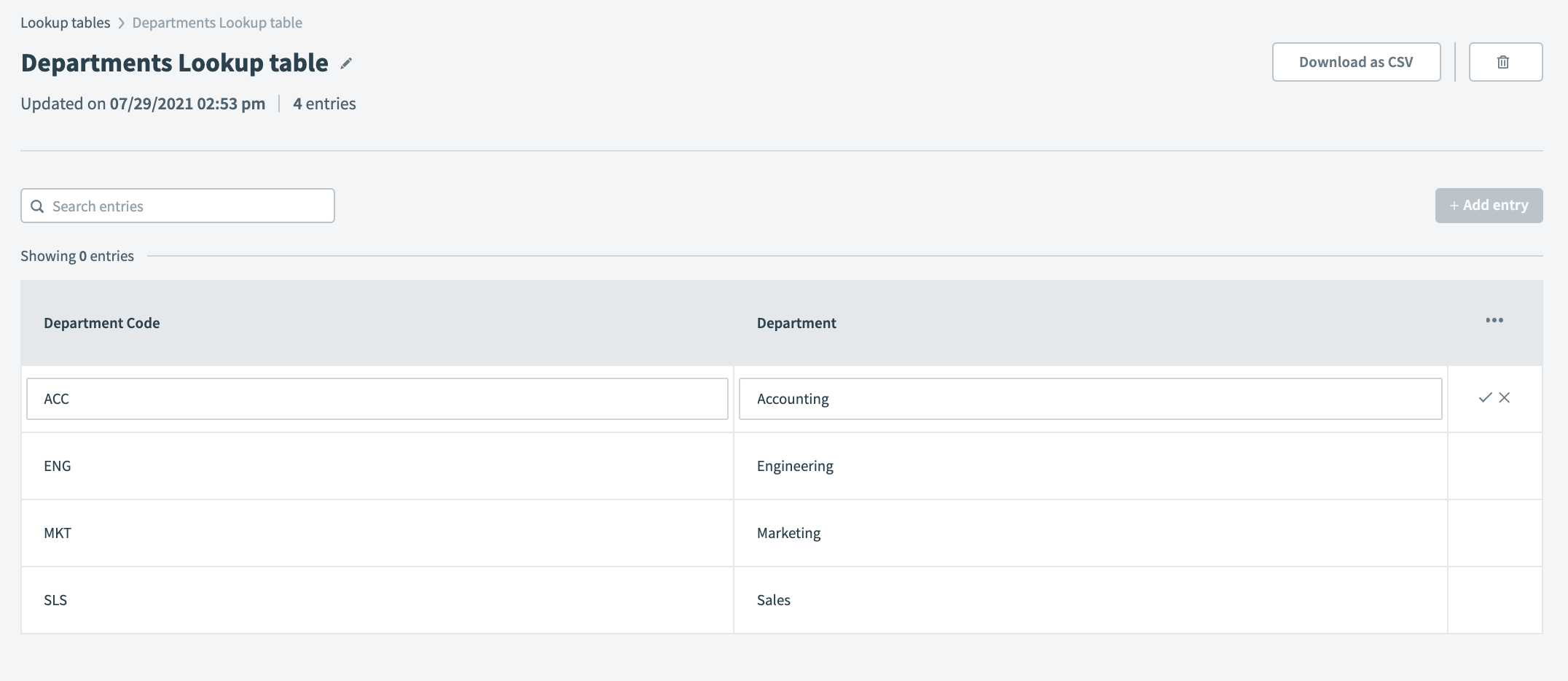 Sample department codes lookup table
| Example | Result |
|---|---|
lookup('Department Lookup table', 'Department Code': 'ACC')['Department'] | "Accounting" |
lookup('Department Lookup table', 'Department Code': 'SLS')['Department'] | "Sales" |
lookup('Department Lookup table', 'Department': 'Marketing')['Department Code'] | "MKT" |
lookup('Department Lookup table', 'Department': 'marketing')['Department Code'] | nil Matching is case sensitive, unable to find value "marketing" |
lookup('Department Lookup table', 'Department': 'Marketing')['Department code'] | nil Matching is case sensitive, unable to find column "Department code" |
lookup('6', 'Department code': 'ACC')['Department'] | "Accounting" Note: Remember to enclose the lookup table ID in quotes "". |
Using Lookup ID
You can use the lookup table name and lookup table ID interchangeability. You can find the lookup table ID in the URL.
For example:
https://app.workato.com/lookup_tables/<lookup_table_id>lookup_table
This formula allows you to create a static lookup table and define the keys and values. It is case-sensitive and datatype-sensitive.
Example
| Example | Result |
|---|---|
{"key1" => "value1", "key2" => "value2", "key3" => "value3"}["key2"] | "value2" |
{"High" => "urgent", "Medium" => "mid", "Low" => "normal"}["Low"] | "normal" |
{"High" => "urgent", "Medium" => "mid", "Low" => "normal"}["low"] | nil |
{"High" => "urgent", "Medium" => "mid", "Low" => "normal"}["normal"] | nil |
{1 => "1", 2 => "2", 3 => "3"}[2] | "2" |
{1 => "1", 2 => "2", 3 => "3"}[2.0] | nil |
{1 => "1", 2 => "2", 3 => "3"}["2"] | nil |
data_table_lookup
This formula allows you to look up values from your data tables using a key. The lookup formula is case-sensitive and datatype-sensitive.
If you use a datapill in the lookup formula, we recommend that you convert the data to the correct format. For example, convert integer-type datapills to a string with a .to_s formula if you plan to compare a string-typed column.
Ensure that project name, table name, lookup key, and lookup criteria are written exactly the way they are stored in the data table, including proper capitalization.
Syntax
Use the following syntax to structure the formula:
data_table_lookup('Project name', 'Table name', 'Column name': 'Value to search on')['Return column']This formula searches for a row in the specified data table where Column name matches the Value to search on. It then returns the value from the specified Return column in that row.
The formula includes the following parameters:
Project name: The project that holds the data table. This value can also include folder names within the project, separated by/(for example,'Project name/Folder name').Table name: The specific data table to query.Column name: The column used to find the match.Value to search on: The value that identifies the row in the key column.Return column: The column that provides the result.
Example
For example, let's use the following data table with name Wedding Guests inside the Wedding project:
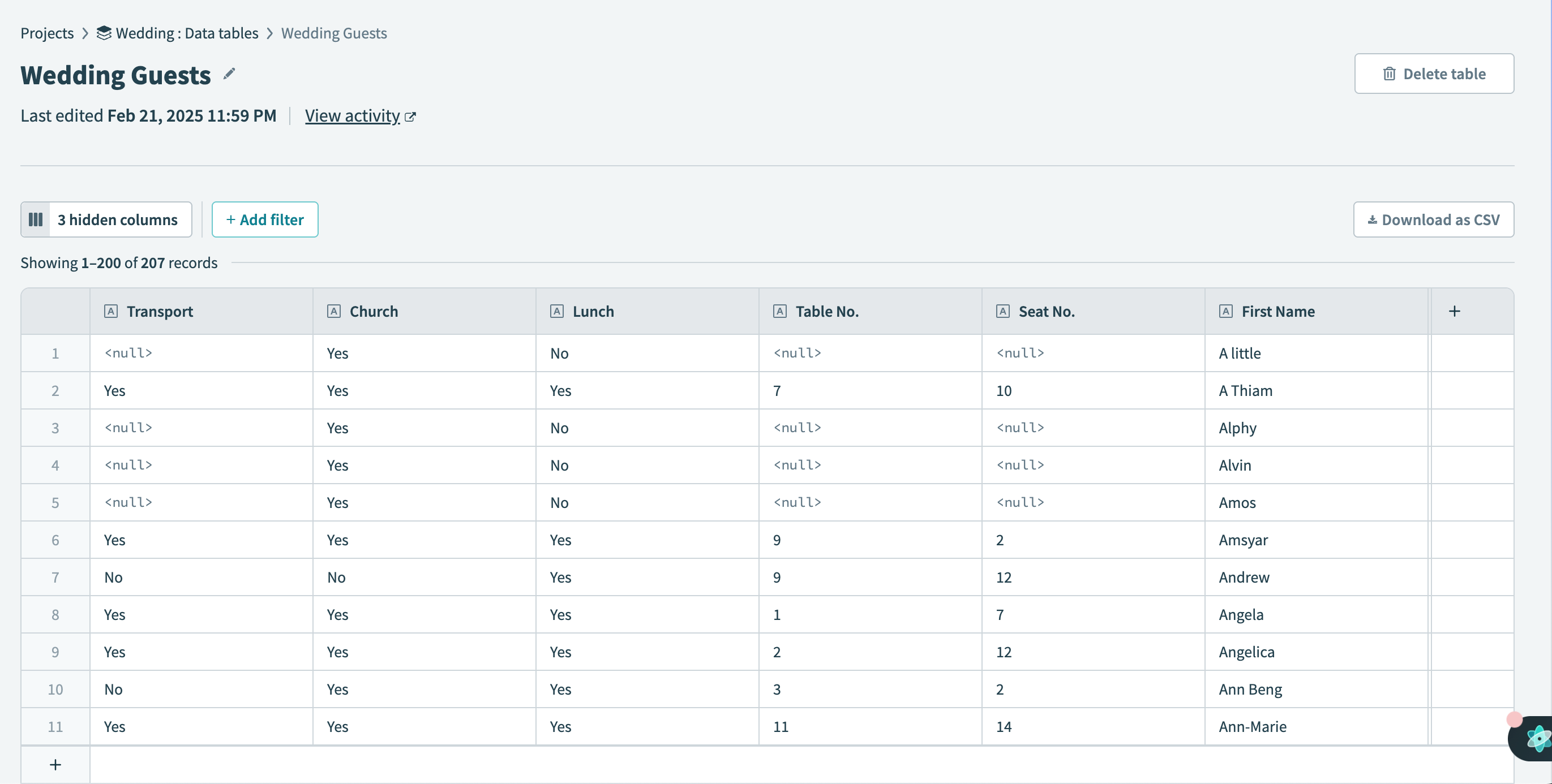 Sample "Wedding Guests" Data table
| Example | Result |
|---|---|
data_table_lookup('Wedding', 'Wedding Guests', 'Transport': 'Yes')['Seat No.'] | "10" |
data_table_lookup('Wedding', 'Wedding Guests', 'Lunch': 'No')['First Name'] | "A little" |
data_table_lookup('Wedding', 'Wedding Guests', 'First Name': 'Angela')['Table No.'] | 1 |
data_table_lookup('Wedding', 'Wedding Guests', 'First Name': 'angela')['Table No.'] | nil Matching is case sensitive, unable to find value "angela" |
data_table_lookup('Wedding', 'Wedding Guests', 'First Name': 'Angela')['Table no.'] | nil Matching is case sensitive, unable to find column "Table no." |
data_table_lookup('Wedding', 'Wedding Guests', 'first name': 'Angela')['Table No.'] | nil Matching is case sensitive, unable to find column "first name" |
data_table_query
This formula allows you to query records from your data tables using flexible filter conditions. Unlike data_table_lookup, which matches on equality and returns only the field values of a single row, data_table_query can also:
- Return multiple matching records in a single call.
- Include each record's ID (so a later action can use it to update, delete, or relate that record), creation time, and last updated time.
- Filter using operators beyond equality, such as greater than, less than, or a list of possible values.
LARGER QUERIES OR PAGINATION
Use the Search records action for queries that need pagination or need to process more records than data_table_query allows.
The query is case-sensitive and datatype-sensitive. Ensure that the project name, table name, column names, and filter values are written exactly the way they're stored in the data table, including proper capitalization.
Syntax
Use the following syntax to structure the formula:
data_table_query('Project name', 'Table name', {query options})The formula includes the following parameters:
Project name: The project that holds the data table. This value can also include folder names within the project, separated by/(for example,'Project name/Folder name').Table name: The specific data table to query.query options: A hash that defines what to return and how to filter, sort, and limit the results. Refer to Query options.
Query options
The query options hash accepts:
| Name | Type | Description |
|---|---|---|
mode | string required | Controls how many records the query expects to match and what the formula returns when zero, one, or multiple records match. Refer to Mode for the full breakdown. |
where | hash optional | Filter conditions. Uses the same operators and structure as the Query records endpoint's where clause:
$and. Filtering a Date or DateTime column requires an actual Date or DateTime value, for example '2026-07-01'.to_date, not a plain string. |
select | array optional | The list of columns to include in each record's fields hash. Returns all columns if omitted. |
order | hash optional | Sets the sort order of the results. Uses the same {by: <field>, direction: 'asc'|'desc'} structure as the Query records endpoint's order field, where direction is 'asc' (ascending) or 'desc' (descending). |
limit | integer conditional | Required when mode is 'all'. Optional when mode is 'some' (default 50). Not used for one_* modes. The maximum allowed value is 50. |
timezone_offset_secs | integer conditional | The time zone offset, in seconds, used when comparing a datetime column to a date value in where. Required for that comparison. Optional otherwise. For example, comparing a DateTime column to '2026-01-01'.to_date throws an error without timezone_offset_secs. Adding timezone_offset_secs: 0 resolves it. |
You can reference a column by its name, or use the built-in fields $record_id, $created_at, and $updated_at in where and order. These built-in fields can't be listed in select, since they're included in the result. If a column name itself starts with $, add an extra $ to reference it (for example, a column named $ spent is referenced as $$ spent).
Query option keys, operators, and field names each accept either a symbol or a string. For example, where: {...} and 'where' => {...} behave the same way.
Link to a table and File columns work a little differently, both for filtering and for reading their values back:
- To filter by a Link to a table column, use the ID of the record it links to.
- To filter by a File column, use the file's name.
- A returned Link to a table column includes both the linked record's
record_idand itsdisplay_name. - A returned File column includes the file's
filename. - A multivalue column (one that can hold more than one value) returns a list of values instead of a single one.
Mode
mode controls how many records the query expects to match and what the formula returns when zero, one, or multiple records match:
| Mode | Returns | If zero or multiple records match |
|---|---|---|
one_unique | A single record. | Throws an error if no record matches, and throws an error if more than one record matches. |
one_unique_optional | A single record, or nil. | Returns nil if no record matches. Throws an error if more than one record matches. |
one_first | The first matching record, in the sort order set by order. | Throws an error if no record matches. |
one_first_optional | The first matching record, in the sort order set by order, or nil. | Returns nil if no record matches. |
all | All matching records, as an array under the records key. Requires limit. | Throws an error if more records match than limit allows. |
some | Up to limit matching records (default 50), as an array under the records key. | Ignores any records beyond limit. Doesn't throw an error based on the number of matches. |
Examples
The following examples use a Customers data table with Company name, Region, Revenue, and Status columns:
| Company name | Region | Revenue | Status |
|---|---|---|---|
| Acme Corp | West | 120000 | Active |
| Acme Consulting | East | 95000 | Active |
| Acme Industries | West | 60000 | Active |
| Acme LLC | Central | 45000 | Inactive |
| Globex Inc | East | 200000 | Active |
| Initech | West | 30000 | Inactive |
| Umbrella Corp | Central | 80000 | Active |
| Stark Industries | East | 150000 | Active |
Find a record's ID to use in a later action
Query:
data_table_query('Sales', 'Customers', {where: {'Company name': 'Globex Inc'}, mode: 'one_unique'})['record_id']How it works:
Uses mode: 'one_unique' to require exactly one match, then reads record_id from the result.
Result:
Returns "9309e4c0-2548-4508-b938-c781e77a7dda", the ID of the only company named "Globex Inc".
Look up a related value, with a fallback
Query:
data_table_query('Sales', 'Customers', {where: {'Company name': 'Nonexistent Co'}, mode: 'one_unique_optional'})&.[]('fields')&.[]('Region') || 'Unknown region'How it works:
Uses mode: 'one_unique_optional' so a missing company returns nil instead of an error, then falls back to a default with ||.
Result:
Returns "Unknown region", because no company named "Nonexistent Co" exists in the table.
Filter with an operator, and aggregate the results
Query:
data_table_query('Sales', 'Customers', {where: {'Company name': {'$starts_with': 'Acme'}}, mode: 'all', limit: 50, select: ['Revenue']})['records'].pluck('fields').pluck('Revenue').sumHow it works:
Uses the $starts_with operator in where with mode: 'all' to get every match as an array, then sums one field across all of them.
Result:
Returns 320000, the combined revenue of the four companies whose name starts with "Acme".
Collect a field across every matching record
Query:
data_table_query('Sales', 'Customers', {where: {'Region': 'West'}, mode: 'all', limit: 50})['records'].pluck('fields').pluck('Company name')How it works:
Uses a plain equality filter in where with mode: 'all' to collect every match, then plucks a single field from each.
Result:
Returns ["Acme Corp", "Acme Industries", "Initech"], the three companies in the West region.
Get the top-ranked matching record
Query:
data_table_query('Sales', 'Customers', {order: {by: 'Revenue', direction: 'desc'}, mode: 'one_first_optional'})&.[]('fields')How it works:
Uses order to sort by Revenue descending, then mode: 'one_first_optional' to return just the top result.
Result:
Returns the fields of Globex Inc, the company with the highest revenue, or nil if the table has no records.
Return value
A record is a hash with record_id, created_at, updated_at, and fields keys. one_unique, one_unique_optional, one_first, and one_first_optional return a single record in this shape, or nil. For example:
data_table_query('Sales', 'Customers', {where: {'Company name': 'Globex Inc'}, mode: 'one_unique'})This query returns the following record:
{
  "record_id": "9309e4c0-2548-4508-b938-c781e77a7dda",
  "created_at": "2026-07-28T15:00:00.000+00:00",
  "updated_at": "2026-07-28T15:00:00.000+00:00",
  "fields": {
    "Company name": "Globex Inc",
    "Region": "East",
    "Revenue": 200000,
    "Status": "Active"
  }
}
all and some return a hash with a records key, whose value is an array of records in this shape. For example:
data_table_query('Sales', 'Customers', {where: {'Company name': {'$starts_with': 'Acme'}}, mode: 'all', limit: 50})This query matches four companies. The following shows the first two:
{
  "records": [
    {
      "record_id": "...",
      "created_at": "...",
      "updated_at": "...",
      "fields": {
        "Company name": "Acme Corp",
        "Region": "West",
        "Revenue": 120000,
        "Status": "Active"
      }
    },
    {
      "record_id": "...",
      "created_at": "...",
      "updated_at": "...",
      "fields": {
        "Company name": "Acme Consulting",
        "Region": "East",
        "Revenue": 95000,
        "Status": "Active"
      }
    }
  ]
}Last updated: