Extract Google Slides data with IDP by Workato
This use case guides you through connecting Google Drive and IDP by Workato to create a powerful automation.
This recipe searches a Google Drive folder for Google Slides presentations, creates a PDF export for intelligent document processing, and records extracted data in Google Sheets.
What does this recipe do?
This recipe enables you to extract matching content from Google Slides files stored in your Google Drive using IDP by Workato.
Create your recipe
Complete the following steps to create a recipe that extracts information you specify from Google Slides and records it in Google Sheets:
Sign in to Workato.
Select the project where you plan to create the recipe.
Create a connection for Google Drive:
WORKATO UTILITY CONNECTORS DON'T REQUIRE SETUP
The Scheduler by Workato and IDP by Workato connectors don’t require connection setup.
Create a Google Drive connection.
Create a Google Drive connection
The Google Drive connector supports the following authentication types:
OAuth 2.0 authentication
OAuth 2.0 authentication requires specific permissions and scopes.
View Google Drive OAuth 2.0 connection setup steps.
Minimum and default scopes
Workato requests the following scopes by default in addition to the scopes you select:
drive: See, edit, create, and delete all your Google Drive filesdrive.readonly: See and download all your Google Drive files
Additionally, your Google account must have the Edit permission for all files and folders that you plan to use in Workato recipes.
Connect to Google Drive using OAuth 2.0
Complete the following steps to set up an OAuth 2.0 connection to in Workato:
Click Create > Connection or press C twice.
Search for and select Google Drive as your connection on the New Connection page.
Enter a name for your connection in the Connection name field.
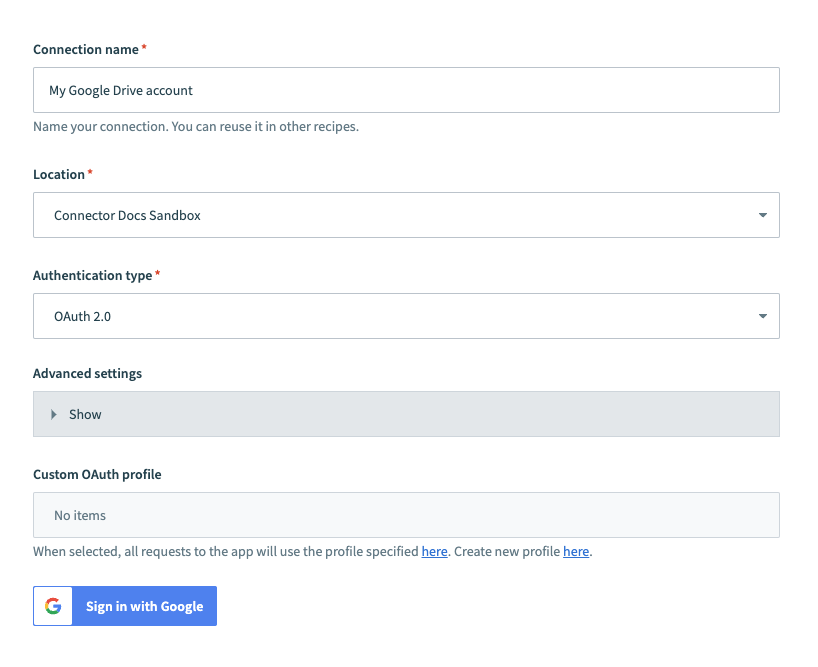 Google Drive connection setup
Use the Location drop-down menu to select the project where you plan to store the connection.
Use the Authentication type drop-down menu to select OAuth 2.0.
Optional. Expand the Advanced settings section and use the Requested permissions drop-down menu to specify OAuth scopes to request for your connection.
Optional. Use the Custom OAuth profile drop-down menu to select a custom OAuth profile to use for the connection.
Click Sign in with Google.
Click Allow to authorize Workato to access your Google Drive.
Service account authentication
Service account authentication requires a Google service account and an enabled Google Workspace API.
View service account connection setup steps.
A Google service account is a specialized Google account associated with a Google Cloud Project (GCP) that can run API requests on your behalf.
Service accounts provide the following benefits:
- Continuous operation: Service accounts ensure that operations continue even if individual user permissions change.
- Dedicated permissions: Service accounts can only access projects that you share with them.
- Dedicated API quotas: You can manage a service account's API quotas through GCP and request quota increases directly from Google.
Refer to the Google service account documentation to learn more about service accounts.
Set up a Google service account
Complete the following steps to set up a Google service account:
Create a service account in your GCP project.
Go to IAM & Admin > Service accounts. Ensure your dashboard is scoped to the project that contains your service account.
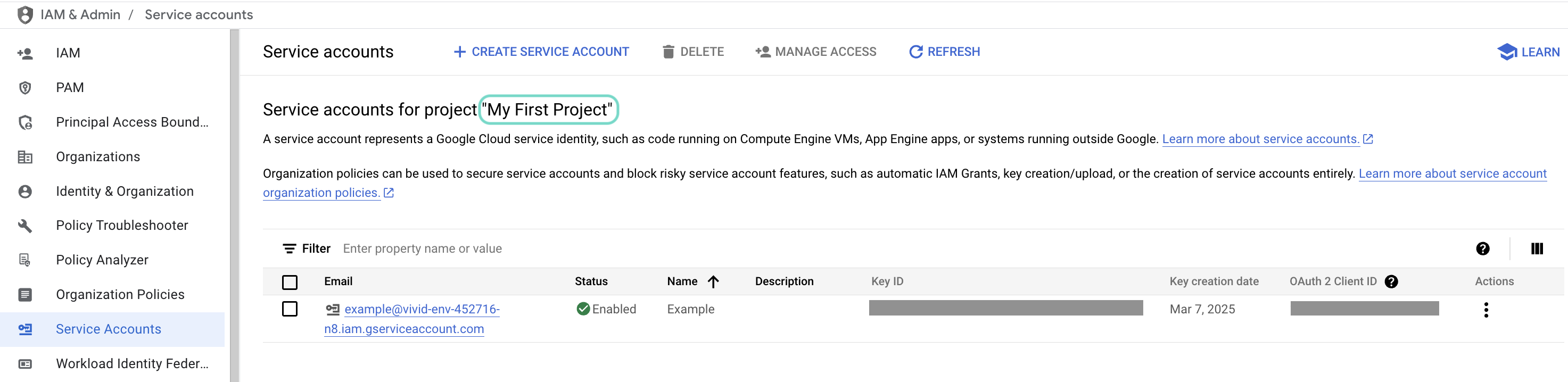 Check the scope of your dashboard.
Click the Email of the service account you intend to use.
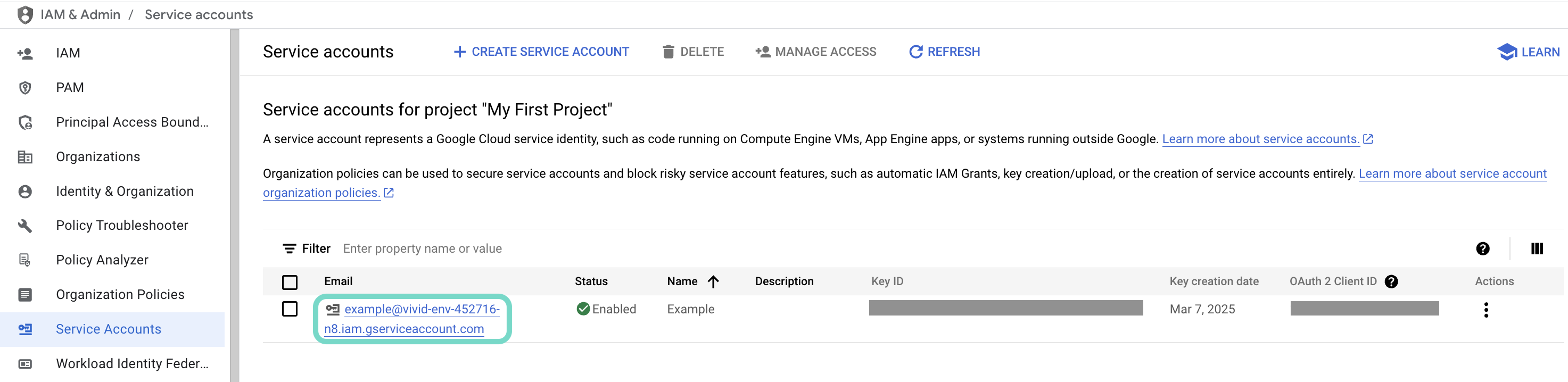 Click the Email of the service account you intend to use.
Copy the service account's Email and save it to configure your connection later.
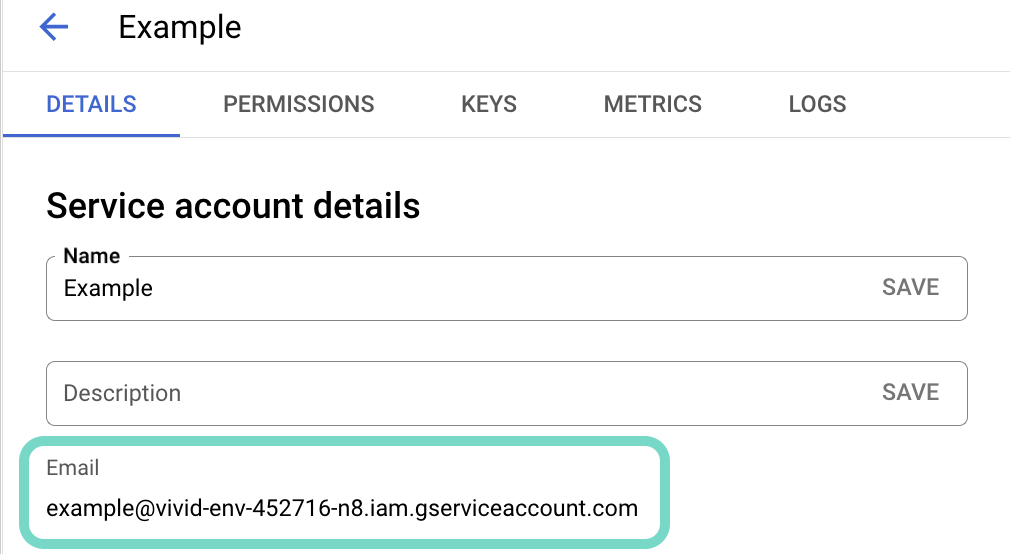 Copy the account's Email.
Go to the KEYS tab.
Generate a private key and download it in JSON format. You can only download the key once.
Open the JSON file, then copy the entire private key from -----BEGIN PRIVATE KEY----- to -----END PRIVATE KEY-----\n (inclusive) and save it to configure your connection later.
Connect to Google Drive using service account authentication
Service account authentication requires the following prerequisites:
Complete the following steps to set up a service account connection to Google Drive in Workato:
Click Create > Connection or press C twice.
Search for Google Drive and select it as your app.
Enter a name for your connection in the Connection name field.
Use the Location drop-down menu to select the project where you plan to store the connection.
Use the Authentication type drop-down menu to select Service account.
Enter the service account's email address in the GCP project service account email field.
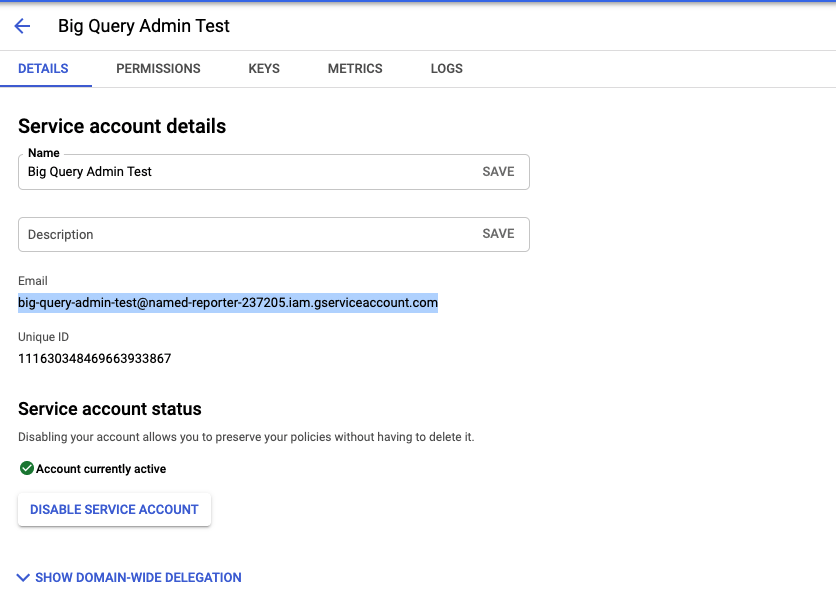 Retrieve your GCP Project service account email
Enter the Private key. Retrieve the private key from the downloadable JSON. Include both -----BEGIN PRIVATE KEY----- and -----END PRIVATE KEY-----\n.
Optional. Enter the User email of the account to impersonate. If left blank, Workato accesses the service account's Drive.
User impersonation lets the service account act on behalf of a designated user, accessing and managing events in their Google Drive. Impersonating a user ensures data accuracy and enforces the permissions and access controls set for that user in Google Drive. Refer to Google's Service account impersonation guide for more information.
Optional. Expand the Advanced settings section and use the Requested permissions drop-down menu to specify OAuth scopes to request for your connection.
Click Sign in with Google.
Go back to your project and click Create > Recipe or press C+R.
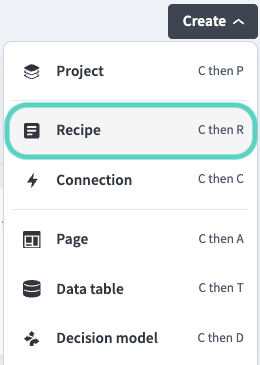 Create a new recipe
Enter a name for your recipe in the Name field.
Use the Location drop-down menu to select the project where you plan to store the recipe.
Click Start building.
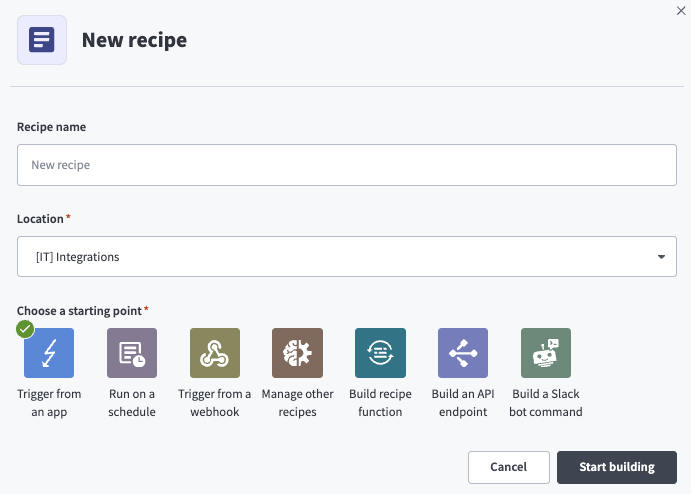 Start building your recipe
Click Pick a starting point, then select Run on a schedule. This creates a new recipe with the Scheduler by Workato New recurring event trigger. This trigger doesn't require a connection.
Set up your Scheduler by Workato New recurring event trigger.
Set up Scheduler by Workato New recurring event trigger
This trigger sets the interval for how frequently the recipe runs. The Scheduler by Workato trigger doesn't require connection setup.
Click the trigger in the recipe editor.
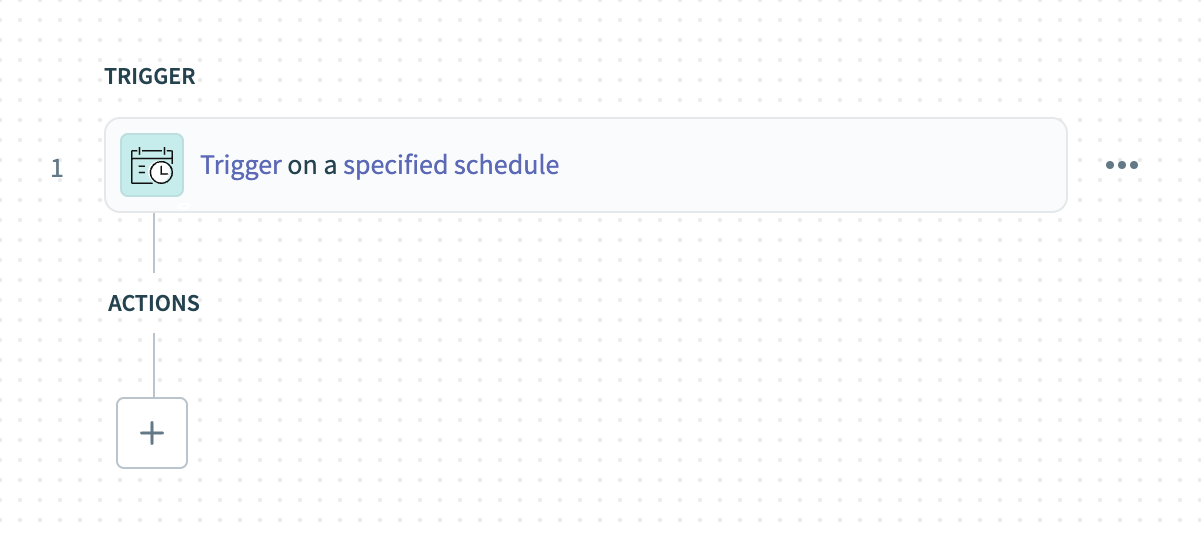 Click the trigger
Use the Time unit drop-down menu to select Weeks.
- Available options include Minutes, Hours, Days, Weeks, Months, or Custom schedule.
Enter 1 in the Trigger every field to run the recipe weekly.
Choose the days the recipe should run in the Days of the week field. For example, select Monday.
Specify the time for the recipe to run in the Trigger at field. For example, enter 12:00 AM.
Optional. Select the timezone in the Timezone field. The default is America/Los_Angeles if left blank.
Optional. Set the start date and time in the Start after field, or leave it blank to activate the trigger immediately after you start the recipe. You can't change this value after you run or test the recipe.
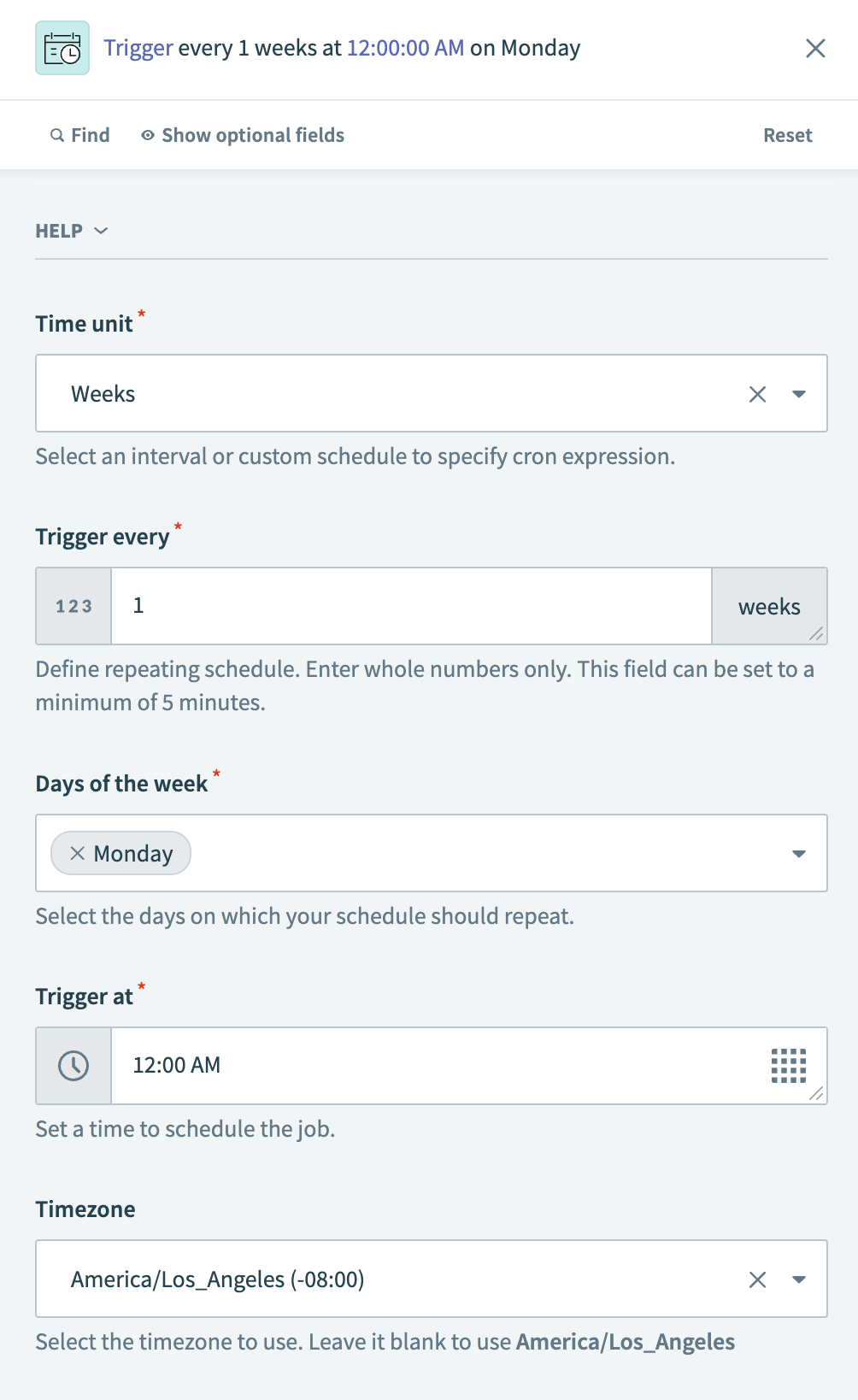 Configure the trigger
Click Save.
Click + Add step and select Action in app.
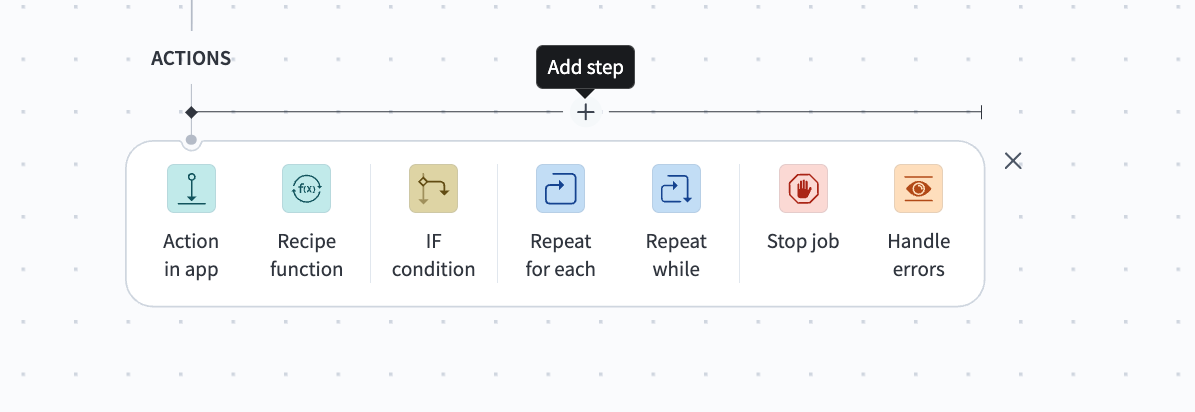 Click Add step > Add action in app
Set up your Google Drive Search files or folders (Batch) action.
Set up the Google Drive Search files or folders action
This step searches a Google Drive folder you specify for Google Slides files.
Search for Google Drive and select it as your app.
Select the Search files or folders (Batch) action.
Use the Files or folders drop-down menu to select Files.
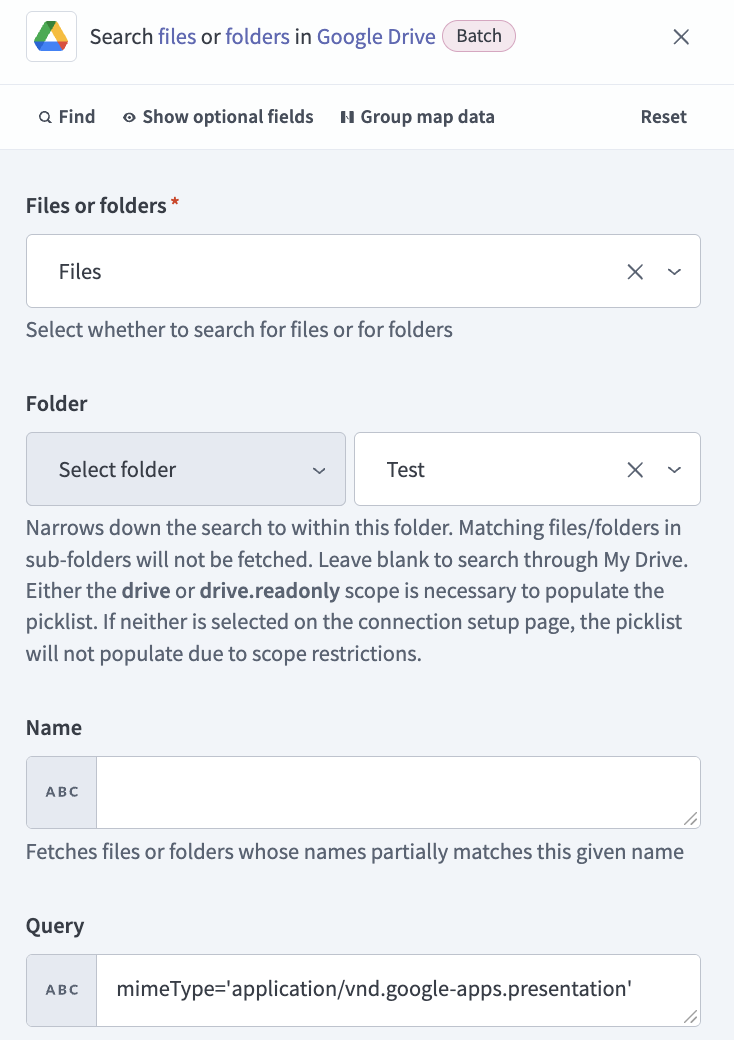 Search files or folders (Batch) action
Set Folder to Select folder and use the drop-down menu to select the folder you plan to search for files.
Optional. Enter a name in the Name field to fetch files or folders that contain partial matches.
Go to the Query field and enter the following value to filter your search to Google Slides files:
mimeType='application/vnd.google-apps.presentation'Click Save.
Click + Add step and select Repeat for each.
Set up your Repeat for each step.
Set up the Repeat for each step
This step iterates through each Google Slides file in the folder you select.
Map the Google DriveStep 2 datapill to the Input list field.
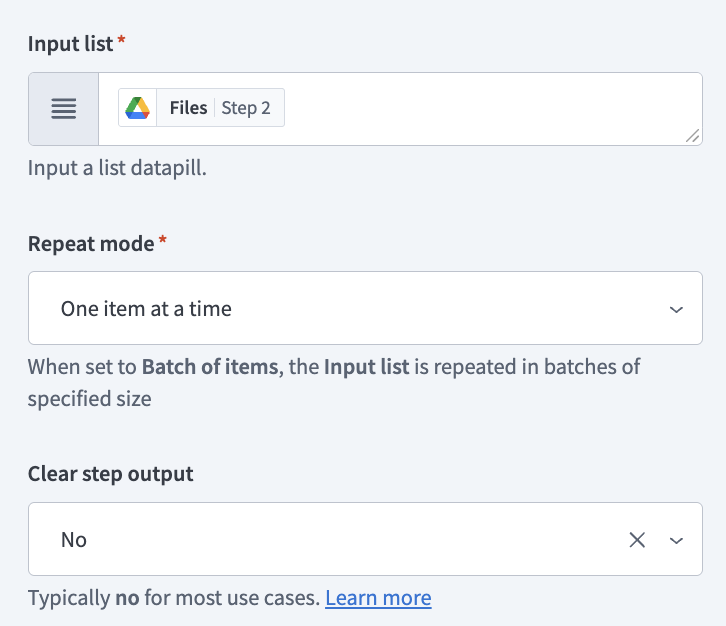 Set up the Repeat for each step
Use the Repeat mode drop-down menu to select One item at a time.
Use the Clear step output drop-down menu to select No.
Click Save.
Click + Add step and select Action in app.
Set up your Google Drive Export file action.
Set up the Google Drive Export file action
This step exports the Google Slides file as a PDF. IDP by Workato doesn't support Google Slides document types.
Search for Google Drive and select it as your app.
Select the Export file action.
Use the File drop-down menu to select Use file ID.
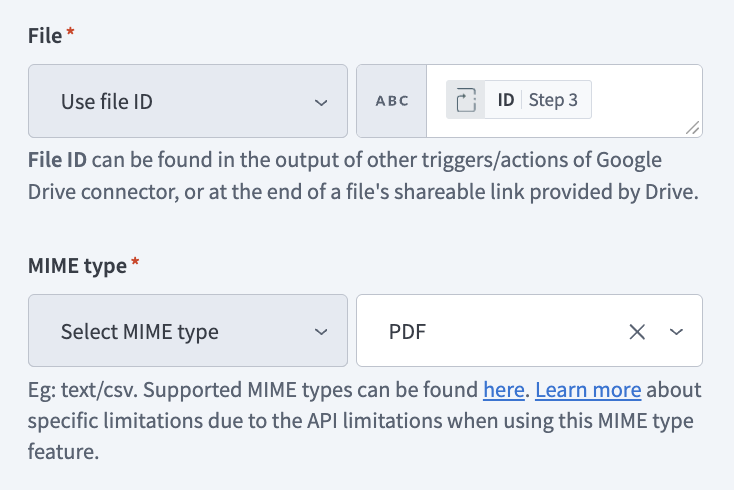 Set up the Google Drive Export file action
Map the ForeachStep 3 datapill to the File value field.
Set MIME type to Select MIME type and use the value drop-down menu to select PDF.
Click Save.
Click + Add step and select Action in app.
Set up your Process a document using IDP by Workato action.
Set up the Process a document using IDP by Workato action
This step processes the exported PDF for fields you identify.
Search for IDP by Workato and select it as your app.
Select the Process a document using IDP by Workato action.
Map the Google DriveStep 4 datapill to the File contents field.
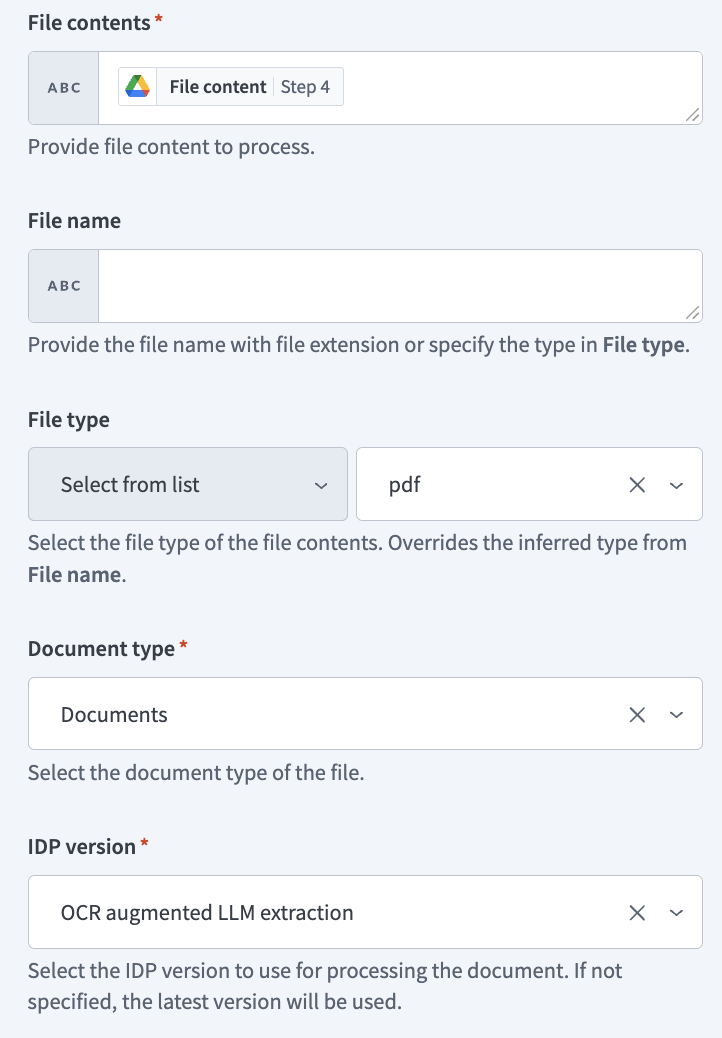 Set up the Process a document using IDP by Workato action
Set File type to Select from list and use the value drop-down menu to select PDF.
Use the Document type drop-down menu to select Documents.
Use the IDP version drop-down menu to select OCR augmented LLM extraction.
Copy the following JSON schema and paste it into the Fields to identify section:
[
  {
    "name": "FileName",
    "type": "string",
    "optional": false,
    "description": "Project Name",
    "control_type": "text",
    "label": "Project name"
  },
  {
    "name": "ProductManager",
    "type": "string",
    "optional": true,
    "description": "Product Manager",
    "control_type": "text",
    "label": "Product manager"
  },
  {
    "name": "PrintFileDeliveryDate",
    "type": "string",
    "optional": true,
    "description": "Print File Delivery Date",
    "control_type": "text",
    "label": "Print file delivery date"
  },
  {
    "name": "ProductFeatureName",
    "type": "string",
    "optional": false,
    "description": "Presentation feature or topic",
    "control_type": "text",
    "label": "Brand range"
  },
  {
    "name": "FeatureOverview",
    "type": "string",
    "optional": true,
    "control_type": "text",
    "label": "Feature overview",
    "description": "Summary or overview section title"
  },
  {
    "name": "Marketswherelaunched",
    "type": "string",
    "optional": true,
    "description": "Markets Where Launched",
    "control_type": "text",
    "label": "Markets where launched"
  }
]Click Save.
Click + Add step and select Action in app.
Set up your Google Sheets Add row in a sheet action.
Set up the Google Sheets Add row in a sheet action
This step adds the content identified in the IDP by Workato processing step to a new row in a Google sheet you select.
Search for Google Sheets and select it as your app.
Select the Add row action.
Use the Google Drive drop-down menu to select the drive you plan to use.
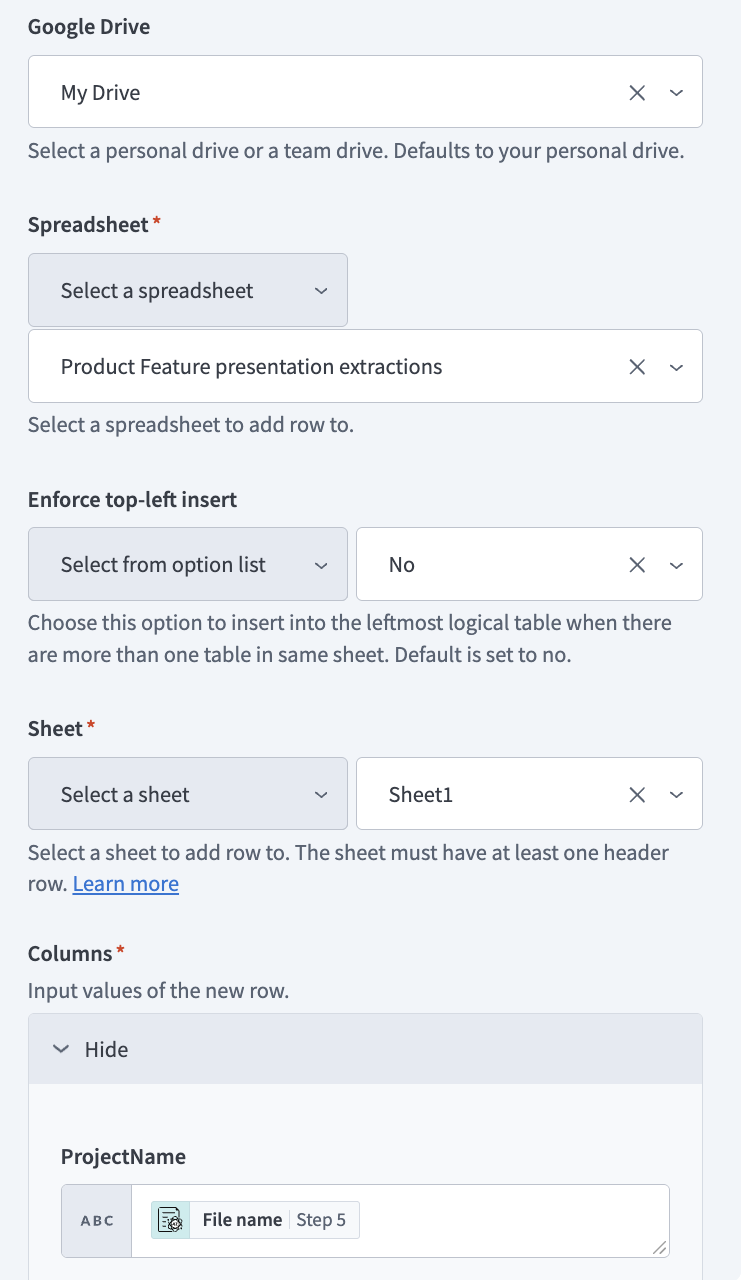 Set up the Add row action
Use the Spreadsheet drop-down menu to select the spreadsheet where you plan to add the new row.
Use the Sheet drop-down menu to select the sheet where you plan to add the new row.
Expand the Columns section.
Map the File nameStep 5 datapill to the ProjectName field.
Map the Product managerStep 5 datapill to the ProductManager field.
Map the Print file delivery dateStep 5 datapill to the PrintFileDeliveryDate field.
Map the Product feature nameStep 5 datapill to the ProductFeatureName field.
Map the Feature overviewStep 5 datapill to the FeatureOverview field.
Map the Markets where launchedStep 5 datapill to the Marketswherelaunched field.
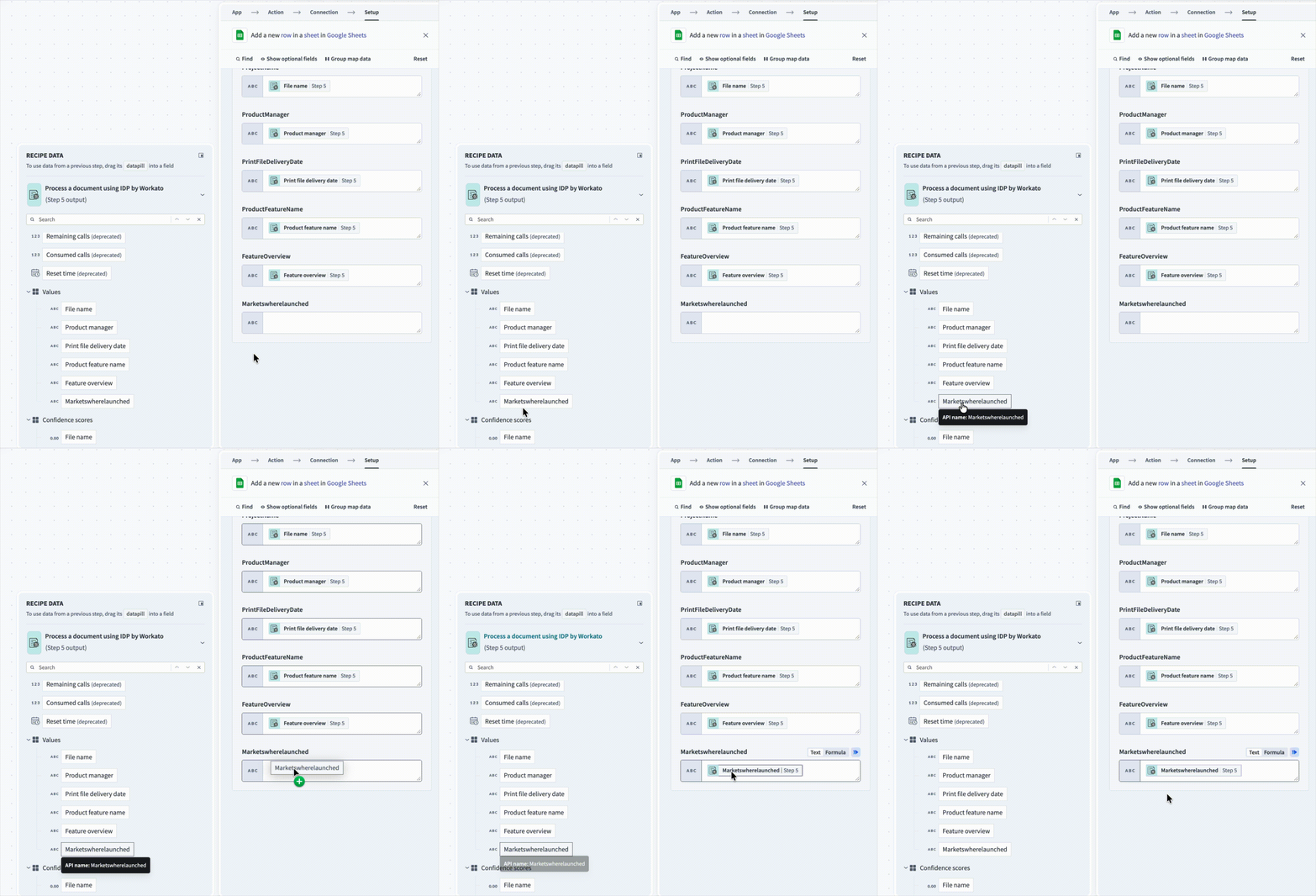 Map the datapills to the corresponding fields
Click Save.
Your Extract Google Slides data with IDP by Workato recipe is ready to test and implement.
Last updated: