MCP servers dashboard
The MCP servers dashboard shows visual metrics and server status for all MCP servers. Refer to MCP server-level dashboards if you plan to view metrics for a single MCP server.
Each MCP server built in Enterprise MCP generates interaction data that you can analyze. These metrics help you understand how effectively your MCP servers are performing, whether tools are being used as expected, and how users are engaging with tools.
The dashboard enables you to monitor MCP servers at a granular level so that degraded server health and errors don't go undetected. You can review key performance information, including Overview metrics, Tool calls metrics, and Estimated token usage metrics.
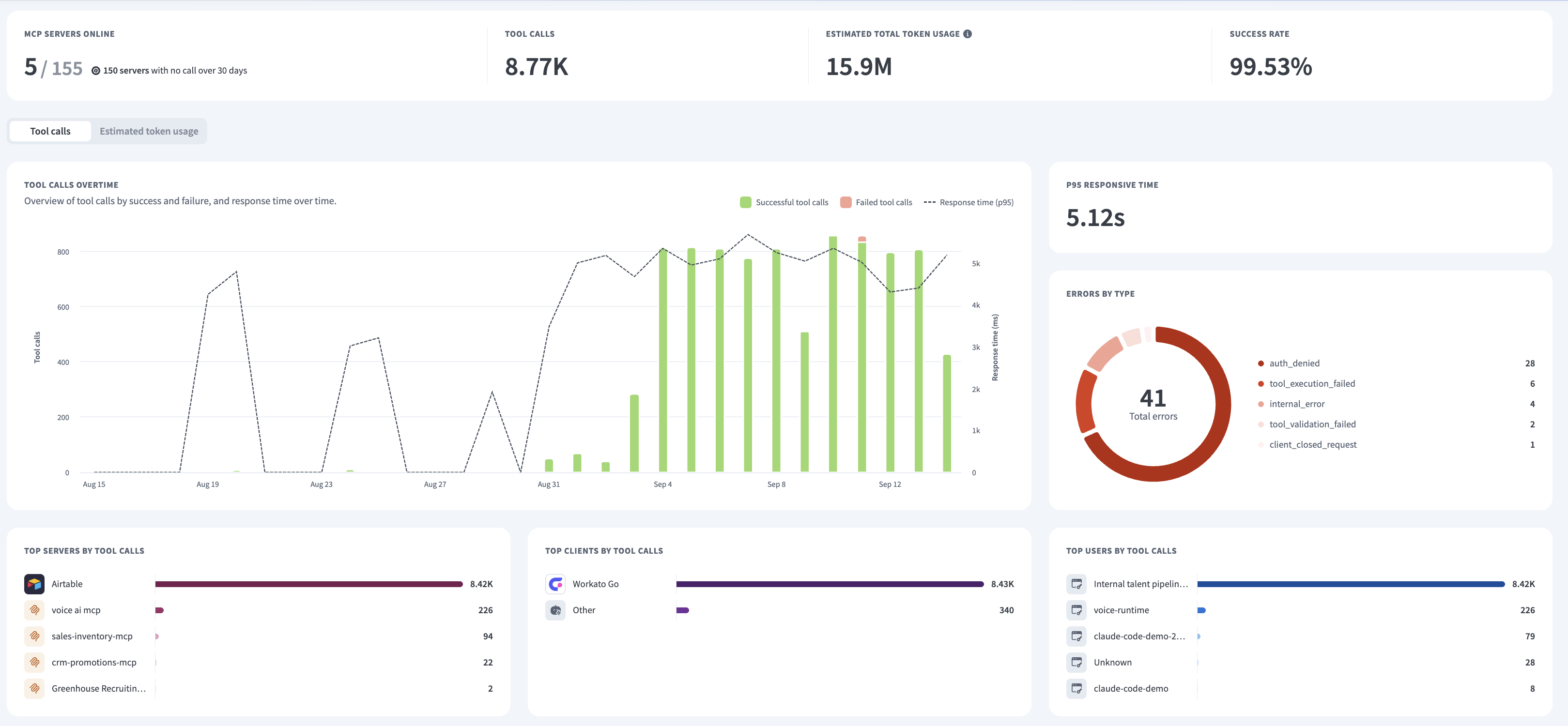 MCP servers dashboard with Tool calls metrics
You can select a time range to filter metrics and update the charts on the dashboard. The following time ranges are supported:
- Last 30 minutes
- Last hour
- Last 1 day
- Last 7 days
- Last 30 days
- Custom range
Access the MCP servers dashboard
Complete the following steps to access the MCP servers dashboard:
Sign in to your Workato account.
Go to AI Hub > Enterprise MCP. The MCP servers dashboard automatically displays with Tool calls view selected with metrics for:
- Tool calls overtime
- Top servers by tool calls
- Top clients by tool calls
- Top users by tool calls
MCP servers dashboard with Tool calls metrics
Optional. Switch the dashboard toggle to Estimated token usage to view metrics for:
- Estimated token usage overtime
- Top servers by estimated token usage
- Top clients by estimated token usage
- Top users by estimated token usage
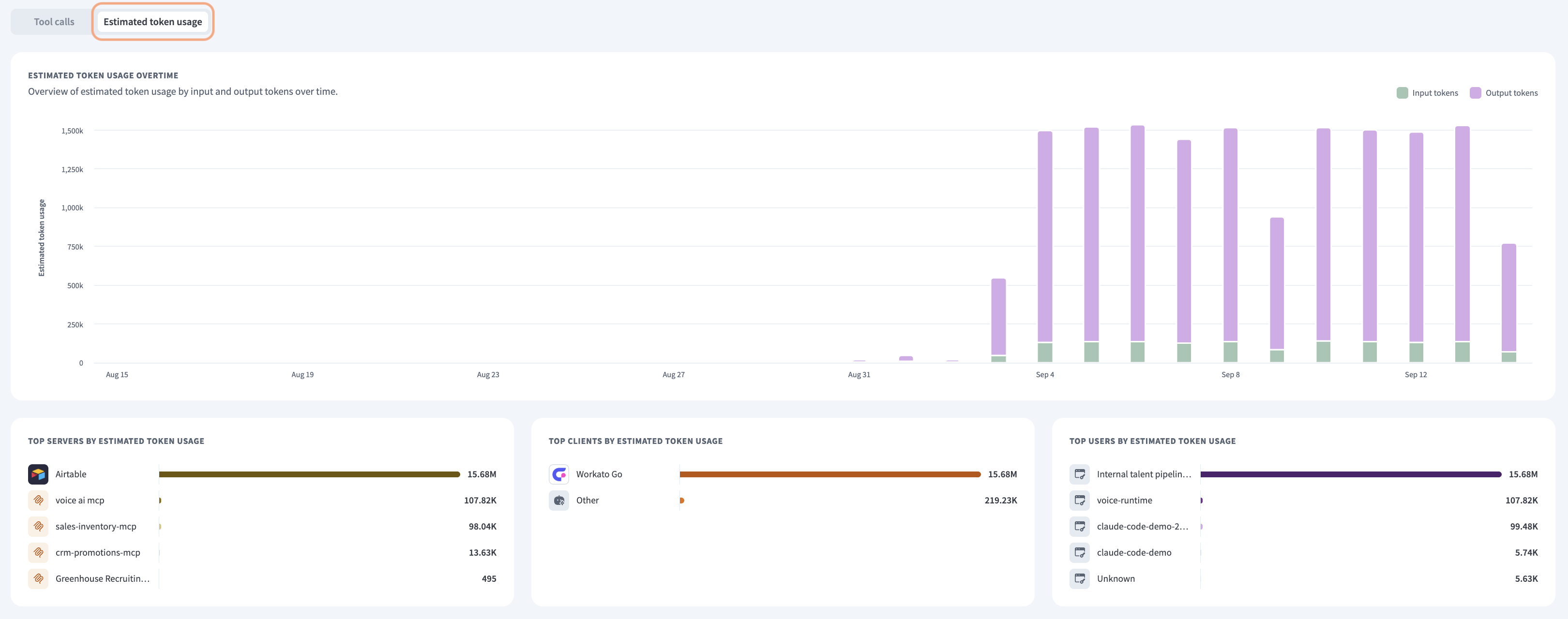 Estimated token usage dashboard metrics
Optional. Use the Period, Servers, Clients, and Users filters to view specific metrics.
Overview metrics
The dashboard provides the following overview metrics:
MCP servers online
The MCP servers online metric tracks how many of your MCP servers are currently available to receive tool calls. This helps you confirm MCP server availability.
Tool calls
The Tool calls metric shows the number of times tools were invoked across all MCP servers within the selected time range. This helps you gauge overall usage volume and identify shifts in how heavily your MCP servers are relied on.
Estimated token usage
The Estimated token usage metric shows the estimated number of tokens consumed by LLM interactions across your MCP servers for the time period you select. This can help you monitor spikes or drops in usage across MCP servers.
Success rate
The Success rate metric shows the percentage of tool calls that completed successfully out of all tool calls made within the selected time range. This helps you assess the overall reliability of your MCP servers.
Tool calls metrics
The dashboard displays the following metrics when the metrics toggle is switched to Tool calls:
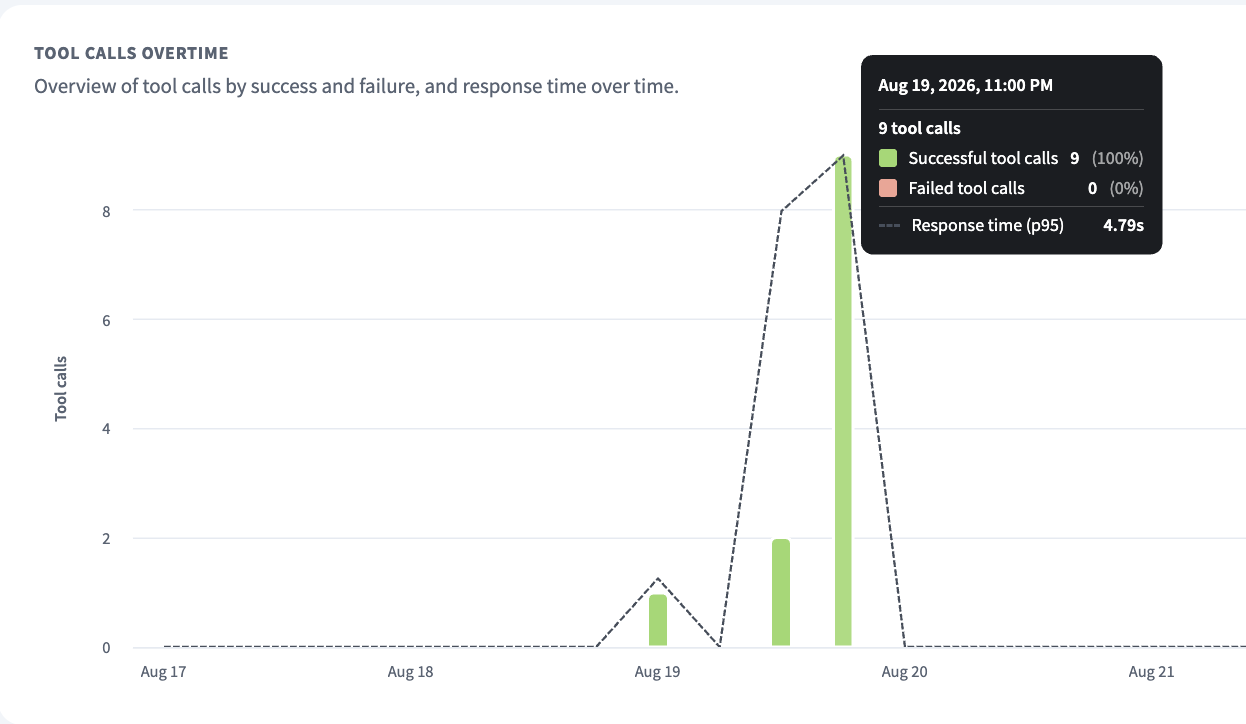 Tool calls overtime
P95 response time
The P95 response time metric shows the time within which 95% of tool calls complete. Response time is aggregated across all servers within the selected time range. Response time is tracked in milliseconds and displayed in seconds if needed.
Successful tool calls
The Successful tool calls metric shows the number of tool calls that completed without error within the selected time range. This helps you track healthy usage over time.
Failed tool calls
The Failed tool calls metric shows the number of tool calls that resulted in an error within the selected time range. A rising trend can indicate integration issues, authentication problems, or misconfigured tools.
Errors by type
The Errors by type metric breaks down total errors by category, including internal error, tool validation, tool not found, authentication denied, and tool execution. This can help you calculate success rates and diagnose recurring failure patterns.
Top servers by tool calls
The Top servers by tool calls metric shows the MCP servers with the most tool calls for the time period you select. This can help you understand which MCP servers are most helpful for teams.
Top tools by calls
The Top tools by calls metric shows the tools with the most tool calls for the time period you select. This can help you understand which tools are most helpful for teams.
Top users by tool calls
The Top users by tool calls metric shows the users with the most tool calls. This can help you understand which teams are using which tools.
Estimated token usage metrics
The dashboard displays the following metrics when the metrics toggle is switched to Estimated token usage:
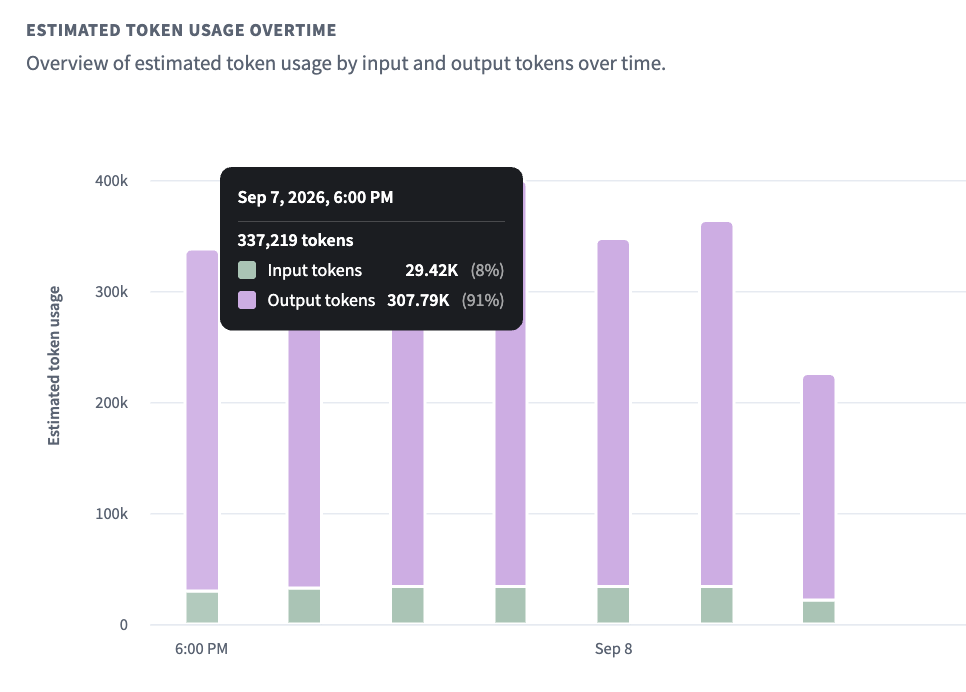 Estimated token usage overtime
Estimated total tokens usage
The Estimated total tokens usage metric shows the approximate number of tokens consumed by LLM interactions across your MCP servers within the selected time range. This can help you monitor usage against cost or capacity expectations.
Input tokens
The Input tokens metric shows the number of input tokens consumed by LLM interactions for the time period you select. This can help you understand how much of your token consumption comes from context sent to the model, such as prompts, tool definitions, and tool results.
Output tokens
The Output tokens metric shows the number of output tokens consumed by LLM interactions for the time period you select. This can help you understand how much of your token consumption comes from model responses. You can compare output tokens and input tokens to understand where cost is concentrated.
Top servers by estimated token usage
The Top servers by estimated token usage metric shows the MCP servers with the most token usage for the time period you select. This can help you identify which servers drive the most cost and where schema or response optimization may be needed.
Top clients by estimated token usage
The Top clients by estimated token usage metric shows the MCP clients with the most token usage for the time period you select. This can help you compare token consumption across clients for similar work.
Top users by estimated token usage
The Top users by estimated token usage metric shows the users with the most token usage for the time period you select. This can help you identify heavy usage patterns and allocate cost or capacity across teams.
MCP servers dashboard use case examples
You can gain insights into your MCP servers' performance through metrics analysis on the MCP servers dashboard.
Databricks Data Explorer MCP server
You can use the metrics on the MCP servers dashboard to monitor how reliably your LLM explores data and runs read-only queries. For example:
P95 response time: Assess whether
execute_querycalls against your configured SQL warehouse return within acceptable thresholds, especially for large or asynchronous queries.Errors by type: Monitor
tool_validationandtool_executionerrors to catch malformed SQL, missing permissions, or schema mismatches before they affect analysts relying on the server.Number of active users: Track adoption of the Databricks Data Explorer MCP server across data and analytics teams as an alternative to working directly in the Databricks interface.
Estimated total tokens usage: Monitor token consumption from calls like
get_table_sampleandget_table_schemato manage cost as more teams explore Unity Catalog tables.Input tokens: Track how much context
get_table_schemaanddescribe_tablepush into each request. Unity Catalog tables can send large schema payloads before a query runs.Output tokens: Track how much
execute_queryandget_table_samplereturn, and use spikes as a signal to adjust or narrow column selection.
Namely Workforce Intelligence MCP server
You can use the metrics on the MCP servers dashboard to monitor how HR and people teams rely on workforce data and safeguard administrative changes. For example:
Total tool call count: Monitor how often
search_employeesandget_employee_detailare called during headcount reviews, organization planning, or leadership briefings.Errors by type: Track
authentication_deniederrors onupdate_employeeorupdate_reporting_relationshipto catch permission issues before workforce record changes fail silently.P95 response time: Confirm that organization chart and reporting-chain queries, such as
get_all_job_titles, return quickly enough to support live leadership discussions.Estimated total tokens usage: Use this metric as a signal for where server configuration needs attention. A high usage count often points to verbose tool definitions or responses that return full employee records where a subset would do.
Last updated: