Asana Work Management MCP server
The Asana Work Management MCP server enables LLMs to interact with Asana for day-to-day task and project management through natural conversation. It provides tools to create, update, find, and read tasks, see what's assigned to you, make comments, create projects, and post project status updates without requiring direct interaction with the Asana interface.
Uses
Use the Asana Work Management MCP server to perform the following actions:
- Resolve task, project, user, and team names to their Asana identifiers.
- Retrieve a task's full details, including its direct and inherited project and section memberships.
- See the tasks assigned to you in your My Tasks list.
- Read a task's comment history.
- Search for tasks across the workspace by criteria such as assignee, project, due date, or custom fields.
- Retrieve a project's details, sections, and custom-field schema.
- List the tasks within a project or one of its sections.
- Create tasks and subtasks with a project, section, assignee, and dates.
- Update a task's fields, move it to a different section, or comment on it.
- Create a project, optionally with an associated team, initial sections, and team access, and post status updates to it.
Example prompts
Use the following example prompts to invoke Asana Work Management MCP server tools:
Find the "Website Redesign" project.Show me the details for the "Draft press release" task.List the tasks in the "In Progress" section of the Website Redesign project.Create a task called "Draft press release" in the Website Redesign project, due next Friday.Move the "Draft press release" task to the Done section.Add a comment to the "Draft press release" task saying it's ready for review.Search for incomplete tasks assigned to Jade Chen in the Website Redesign project.Create a new project called "Q4 Marketing Campaign" with sections for Backlog, In Progress, and Done.Post a status update on the Website Redesign project marking it on track.
Asana Work Management MCP server tools
The Asana Work Management MCP server provides the following tools:
| Tool | Description |
|---|---|
| find_objects | Resolves a name to matching Asana objects and their IDs. |
| get_task | Returns the full details of a single task, including direct and effective memberships. |
| get_my_tasks | Returns the tasks in the authenticated user's My Tasks list. |
| get_project | Returns a project's details, sections, and optionally its custom-field schema and task counts. |
| list_project_sections | Lists the sections (columns or groups) of a project. |
| get_project_custom_fields | Returns the custom-field schema associated with a project. |
| list_project_tasks | Returns the tasks within a project, or within one of its sections. |
| get_task_comments | Returns the comments on a task and related system activity. |
| search_tasks | Searches tasks across the workspace using full-text and typed filters. |
| create_task | Creates a new task or subtask. |
| update_task | Updates a task's fields and section placement. |
| add_comment | Adds a comment to a task. |
| create_project | Creates a project and optionally associates a team, seeds sections, and shares it with a team. |
| publish_status_update | Posts a status update to a project. |
Install the Asana Work Management MCP server
Complete the following steps to install a prebuilt MCP server to your project:
Sign in to your Workato account.
Go to AI Hub > Enterprise MCP > Custom servers.
Click + Create MCP server.
Go to the Start with pre-built MCP Servers using your connected apps section and select the prebuilt MCP server you plan to use.
Click Use this server.
Provide a name for your MCP server in the Server name field.
Use the Location drop-down menu to select the project for the MCP server.
Go to the Connections section and connect to your app account.
Select the connection type you plan to use for the MCP server template.
- User's connection: MCP server tools perform actions based on the identity and permissions of the user who connects to the application. Users authenticate with their own credentials to execute the skill.
- Your connection: This option uses the connection established by the recipe builder and follows the same principles as normal app connections.
 Select your connection type
VERIFIED USER ACCESS AUTHENTICATION REQUIREMENTS
Only app connections that use OAuth 2.0 authorization code grant are available for user's connection. Refer to Verified user access for more information.
Complete the app-specific connection setup steps in the following section.
Asana Work Management connection setup
View Asana Work Management connection setup steps
API version
The Asana connector uses Asana API v1.
How to connect to Asana in Workato
View OAuth 2.0 connection setup steps
Complete the following steps to connect to Asana in Workato:
Click Create > Connection or press C twice.
Search for Asana and select it as your app.
Enter a name for your connection in the Connection name field.
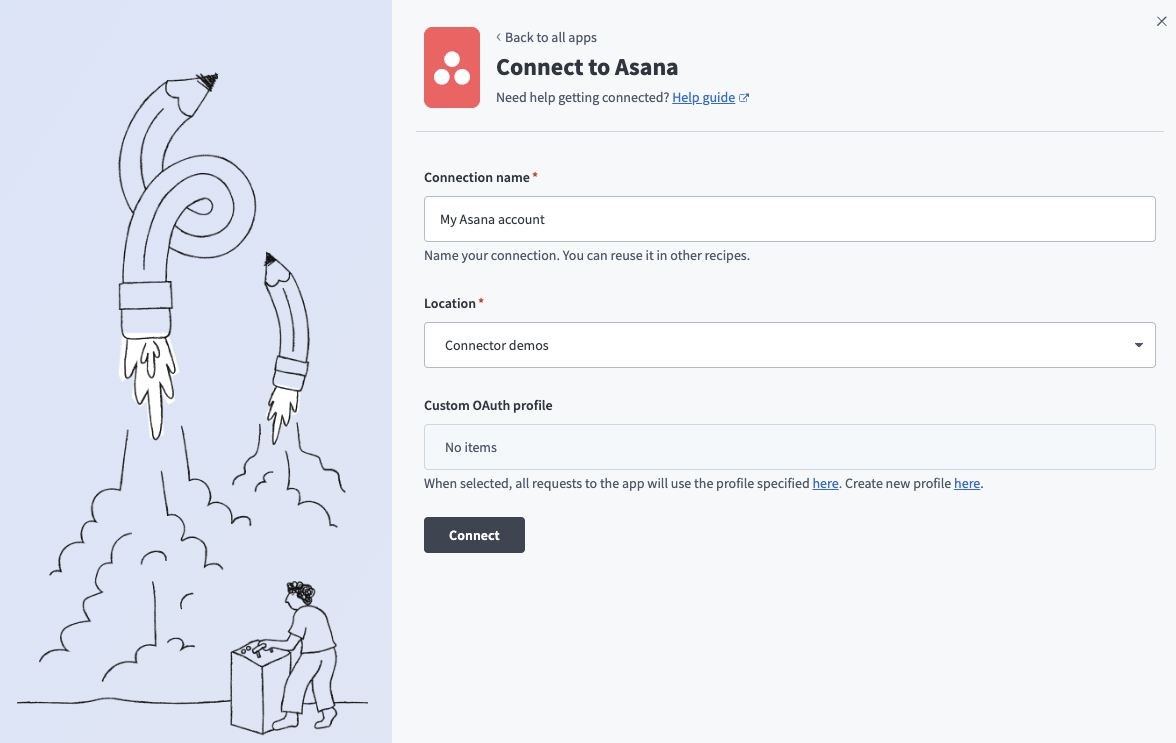 Connect to Asana
Use the Location drop-down menu to select the project or folder to store your connection.
Optional. Use the Custom OAuth profiles drop-down menu to select a custom OAuth profile for this connection.
Click Connect.
Sign in to Asana using your default login method to authorize Workato.
Asana role requirements
Each tool's availability depends on the permissions granted to the connected account. A request made without the required permission returns a permission-denied outcome rather than a partial result. Refer to the Asana OAuth scopes and project permissions documentation for more information. search_tasks additionally requires the authenticated user to have search entitlement from a premium Asana workspace or membership on a premium team.
Project property configuration
The Asana Work Management MCP server supports the following project-level properties to control behavior and defaults:
| Project-level property | Description |
|---|---|
| Workspace GID | Required. Enter the globally unique identifier (GID) of the Asana workspace or organization in which all tools operate. |
| Default page size | Enter a default page size to apply to every tool that returns paged results, including the paginated components for subtasks, sections, and custom fields. The default value is 50 and the maximum is 100. |
| Search cursor TTL | Enter how long the opaque search continuation cursor used by search_tasks remains valid. Defaults to 300 seconds. |
View project-level property configuration steps
Complete the following steps to configure your project-level properties:
Sign in to your Workato account and go to Projects.
Go to the project that contains your MCP server.
Click the Settings tab.
 Click the Settings tab.
Select Project properties.
Go to the project property you plan to update and click the Edit (pencil) icon.
Go to the Value field and make your changes. For example, set default_page_size to 75 or search_cursor_TTL to 250.
How to use Asana Work Management MCP server tools
Refer to the following sections for detailed information on available tools:
find_objects tool
The find_objects tool resolves a name to matching Asana objects and their IDs. Your LLM uses this tool first when you refer to a task, project, person, or team by name and its ID is unknown. Your LLM asks you to disambiguate when several results match or when matching results aren't found.
Try asking:
Find the "Website Redesign" project.Look up the user Jade Chen.Find the "Engineering" team.
get_task tool
The get_task tool returns the full details of a single task, including direct and effective memberships. Your LLM uses this tool when you ask for a specific task's details or subtasks. get_task relies on the connection's effective memberships to understand the project context a subtask inherits.
Try asking:
Show me the details for the "Draft press release" task.What are the subtasks on this task?Which projects and sections is this task part of?
get_my_tasks tool
The get_my_tasks tool returns the tasks in the authenticated user's My Tasks list. Your LLM uses this tool to track "to-do" items. get_my_tasks returns incomplete tasks assigned to you by default.
Try asking:
Show me my to-do list.What tasks are assigned to me, including completed ones?
get_project tool
The get_project tool returns a project's details, sections, and optional details for custom-field schema and task counts. Your LLM uses this tool when you ask about a project's details or sections, or optionally custom-field schema or task counts details.
Try asking:
Show me the details for the "Website Redesign" project.Who owns the Website Redesign project?How many tasks are in the Website Redesign project?
list_project_sections tool
The list_project_sections tool lists the sections (columns or groups) of a project. Your LLM uses this tool to resolve a section you name to its ID before placing or moving a task, or before scoping a task list to that section.
Try asking:
What sections does the Website Redesign project have?Find the "Done" section in the Website Redesign project.List the columns on this project's board.
get_project_custom_fields tool
The get_project_custom_fields tool returns the custom-field schema associated with a project. Your LLM uses this tool to resolve a custom field you name to its ID and subtype before setting or filtering by the ID.
Try asking:
What custom fields does the Website Redesign project have?What's the subtype of the Priority field on this project?Find the field ID for "Stage" on this project.
list_project_tasks tool
The list_project_tasks tool returns the tasks within a project or section. Your LLM uses this tool when you need to see the tasks inside a specific project or section.
Try asking:
List the tasks in the Website Redesign project.Show me what's in the "In Progress" section.What tasks are in the Done column of this project?
get_task_comments tool
The get_task_comments tool returns the comments on a task and related system activity. Your LLM uses this tool when you need to read a task's discussion, decisions, or feedback.
Try asking:
What are the comments on the "Draft press release" task?Show me the discussion on this task.Has anyone left feedback on this task recently?
search_tasks tool
The search_tasks tool searches tasks across the workspace using full-text and typed filters. Your LLM uses this tool to find tasks by criteria, such as text, assignee, project or section, due or created dates, and custom fields, when advanced task search is available to you.
Try asking:
Search for incomplete tasks assigned to Jade Chen in the Website Redesign project.Find tasks due before next Friday in the Website Redesign project.Search the workspace for tasks mentioning "launch plan".
create_task tool
The create_task tool creates a new task or subtask. Your LLM uses this tool to capture a task with a name, description, assignee, project, section, and dates, or to create a subtask by supplying a parent task.
Try asking:
Create a task called "Draft press release" in the Website Redesign project, due next Friday.Add a subtask to this task for reviewing the copy.Create a task assigned to Dana Park in the "Backlog" section of the Website Redesign project.
update_task tool
The update_task tool updates a task's fields and section placement. Your LLM uses this tool to reassign a task, change task dates, mark a task as complete, edit the task name or description, set a custom-field value, or move a task to another section.
Try asking:
Move the "Draft press release" task to the Done section.Mark this task complete.Reassign this task to Jade Chen and push the due date to next week.
add_comment tool
The add_comment tool adds a comment to a task. Your LLM uses this tool when you need to post a comment, note, or decision on a task.
Try asking:
Add a comment to the "Draft press release" task saying it's ready for review.Leave a note on this task about the client's feedback.Comment on this task that the deadline moved.
create_project tool
The create_project tool creates a project and optionally associates a team, seeds sections, and shares the project with a team. Your LLM uses this tool when you need to stand up a new project and confirms with you before creating one visible to the whole workspace.
Try asking:
Create a new project called "Q4 Marketing Campaign" with sections for Backlog, In Progress, and Done.Set up a project for the new initiative and share it with the Engineering team.Create a private project called "Internal Audit".
publish_status_update tool
The publish_status_update tool posts a status update to a project. Your LLM uses this tool when you need to notify a project's followers with a status update that includes a status type, title, and body.
Try asking:
Post a status update on the Website Redesign project marking it on track.Update the status of this project to "at risk" with a summary of the blockers.Mark the Q4 Marketing Campaign project complete with a closing note.
Getting started
View and manage your MCP server tools in the Details tab Tools section. Tool management provides the following capabilities:
TOOLS MUST BE STARTED
Your LLM can only access active tools in your MCP server connector.
Last updated: