BambooHR Self-Service MCP server
The BambooHR Self-Service MCP server enables LLMs to interact with BambooHR for everyday employee and approver HR tasks through natural conversation. It provides tools to look up coworkers in the company directory, retrieve and update your own profile, check time-off balances, submit and track time-off requests, respond to requests awaiting your approval, and see who is out, without requiring direct interaction with the BambooHR interface.
Uses
Use the BambooHR Self-Service MCP server to perform the following actions:
- Look up a coworker's job title, department, manager, or work contact details in the published company directory
- Retrieve your own employee profile, including job context and contact fields
- Update your own self-service fields, such as home address, home email, phone numbers, and preferred name
- Check your accrued time-off balances and year-to-date amounts used
- Discover which time-off categories you are eligible to request
- Submit a time-off request, including per-day amounts for partial or mixed-duration leave
- Review the status of your recent time-off requests and cancel pending requests
- Review time-off requests assigned to you for approval
- Approve or deny a time-off request within your authority on that request
- See who is on approved leave and which company holidays fall within a date range
Example prompts
Use the following example prompts to invoke BambooHR Self-Service MCP server tools:
Who is Sarah in Finance?Who does Priya report to?What address does BambooHR have for me?Update my mobile phone to 415-555-0142.How much vacation do I have left?What leave categories can I request?Request PTO for September 15-19.What's the status of my time-off request?What time-off requests are waiting on me?Who is out this week, and are there any company holidays coming up?
BambooHR Self-Service MCP server tools
The BambooHR Self-Service MCP server provides the following tools:
| Tool | Description |
|---|---|
| search_employees | Finds coworkers in the published company directory by name, department, job title, location, or exact employee ID. |
| get_my_profile | Retrieves the authenticated user's own employee record with self-service fields. |
| update_my_profile | Updates self-service fields on the authenticated user's employee record. |
| get_time_off_balance | Retrieves the authenticated user's accrued time-off balances as of a specified date. |
| list_time_off_types | Lists the time-off types the authenticated user is eligible to request. |
| request_time_off | Submits a time-off request for the authenticated user. |
| list_my_time_off_requests | Lists the authenticated user's own recent time-off requests and their statuses. |
| list_pending_time_off_requests | Lists the time-off requests the authenticated user is assigned to approve. |
| list_whos_out | Lists approved time off and company holidays within a date range. |
Install the BambooHR Self-Service MCP server
Complete the following steps to install a prebuilt MCP server to your project:
Sign in to your Workato account.
Go to AI Hub > Enterprise MCP > Custom servers.
Click + Create MCP server.
Go to the Start with pre-built MCP Servers using your connected apps section and select the prebuilt MCP server you plan to use.
Click Use this server.
Provide a name for your MCP server in the Server name field.
Use the Location drop-down menu to select the project for the MCP server.
Go to the Connections section and connect to your app account.
Select the connection type you plan to use for the MCP server template.
- User's connection: MCP server tools perform actions based on the identity and permissions of the user who connects to the application. Users authenticate with their own credentials to execute the skill.
- Your connection: This option uses the connection established by the recipe builder and follows the same principles as normal app connections.
 Select your connection type
VERIFIED USER ACCESS AUTHENTICATION REQUIREMENTS
Only app connections that use OAuth 2.0 authorization code grant are available for user's connection. Refer to Verified user access for more information.
Complete the app-specific connection setup steps in the following section.
BambooHR Self-Service connection setup
View BambooHR Self-Service connection setup steps
The BambooHR connector supports the following authentication types:
BambooHR permission requirements
The results each tool returns depend on the authenticated user's BambooHR permissions and on your company's configuration:
- Coworker lookup reads from the published employee directory. Your company's Company Directory and Company Org Chart sharing settings determine which employees and which fields are available. The tool reports that the directory is unavailable instead of using another source when both settings are disabled, or when the user's access level isn't shared with the directory.
- Profile updates apply BambooHR's field-level permissions in addition to this server's self-service field set.
- Approval authority comes from your BambooHR time-off workflow configuration, which doesn't necessarily follow reporting relationships.
View API token steps
API token
Use API token authentication to connect to BambooHR with a static key generated in the BambooHR portal.
Generate an API key in BambooHR
Complete the following steps to generate an API key before you connect in Workato:
Sign in to the BambooHR portal.
Go to My Account > API Keys.
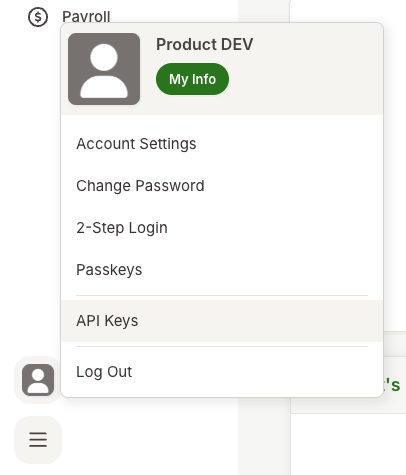 Navigate to BambooHR API Keys
Create a new API key by selecting Add New Key.
Provide a descriptive name for this new API Key, for example, workato_user.
Save the generated API key in a secure location.
API KEY ONLY VISIBLE IN THIS STEP
You can't retrieve this key after this step.
Refer to the BambooHR documentation for more information.
Connect to BambooHR with API token authentication
Complete the following steps to set up an API token connection to BambooHR in Workato:
Click Create > Connection or press C twice.
Search for BambooHR and select it as your app.
Provide a unique name for the connection in the Connection name field.
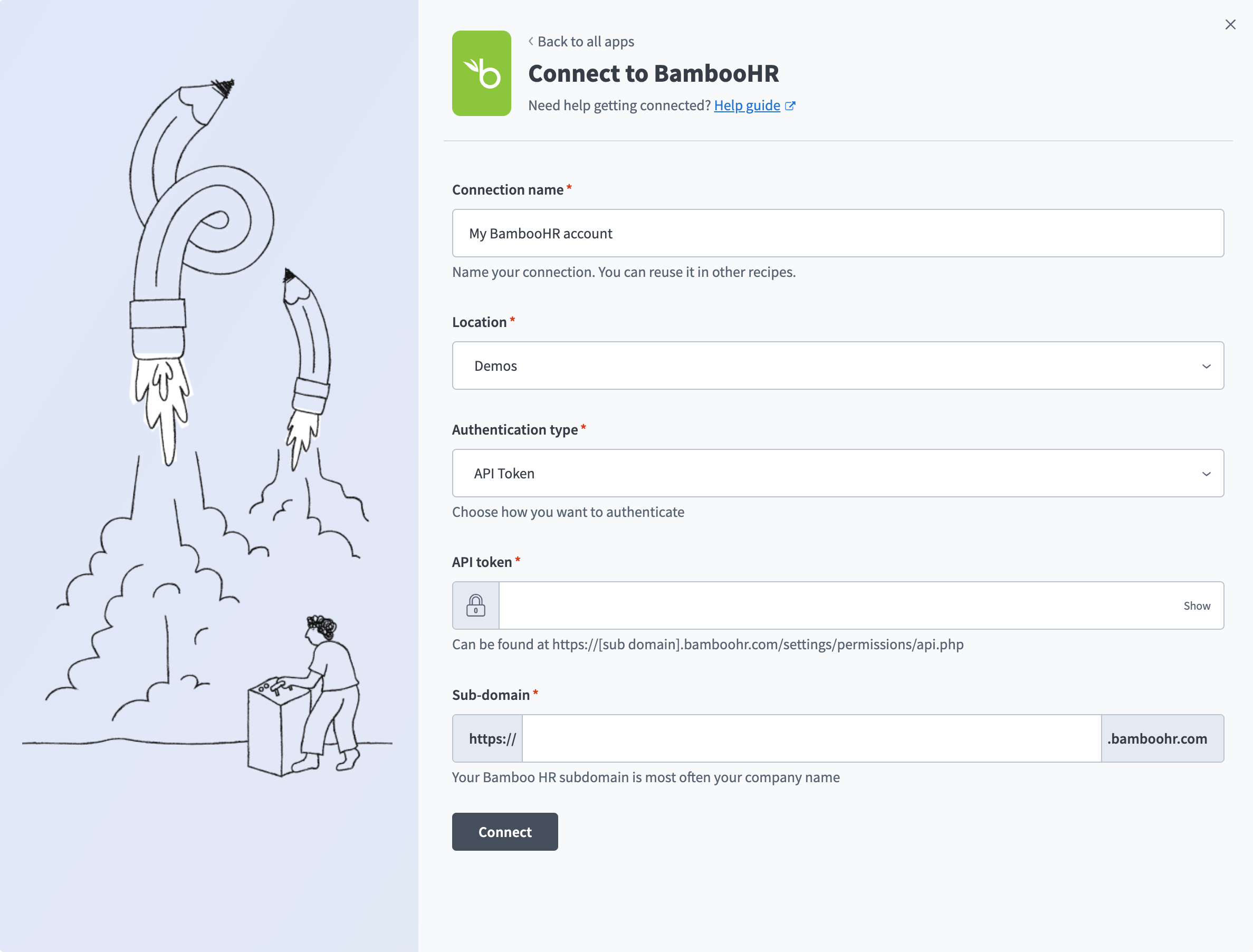 Set up an API token connection
Use the Location drop-down menu to select the project where you plan to store the connection.
Use the Authentication type drop-down menu to select API Token.
Enter the API token you generated in Generate an API key in BambooHR in the API token field.
Enter your BambooHR subdomain in the Sub-domain field. This is most often your company name.
Click Connect.
View OAuth 2.0 steps
OAuth 2.0
Use OAuth 2.0 to connect to BambooHR without managing a static key. You authorize the connection through BambooHR when you connect.
Connect to BambooHR with OAuth 2.0
Complete the following steps to set up an OAuth 2.0 connection to BambooHR in Workato:
Click Create > Connection or press C twice.
Search for BambooHR and select it as your app.
Provide a unique name for the connection in the Connection name field.
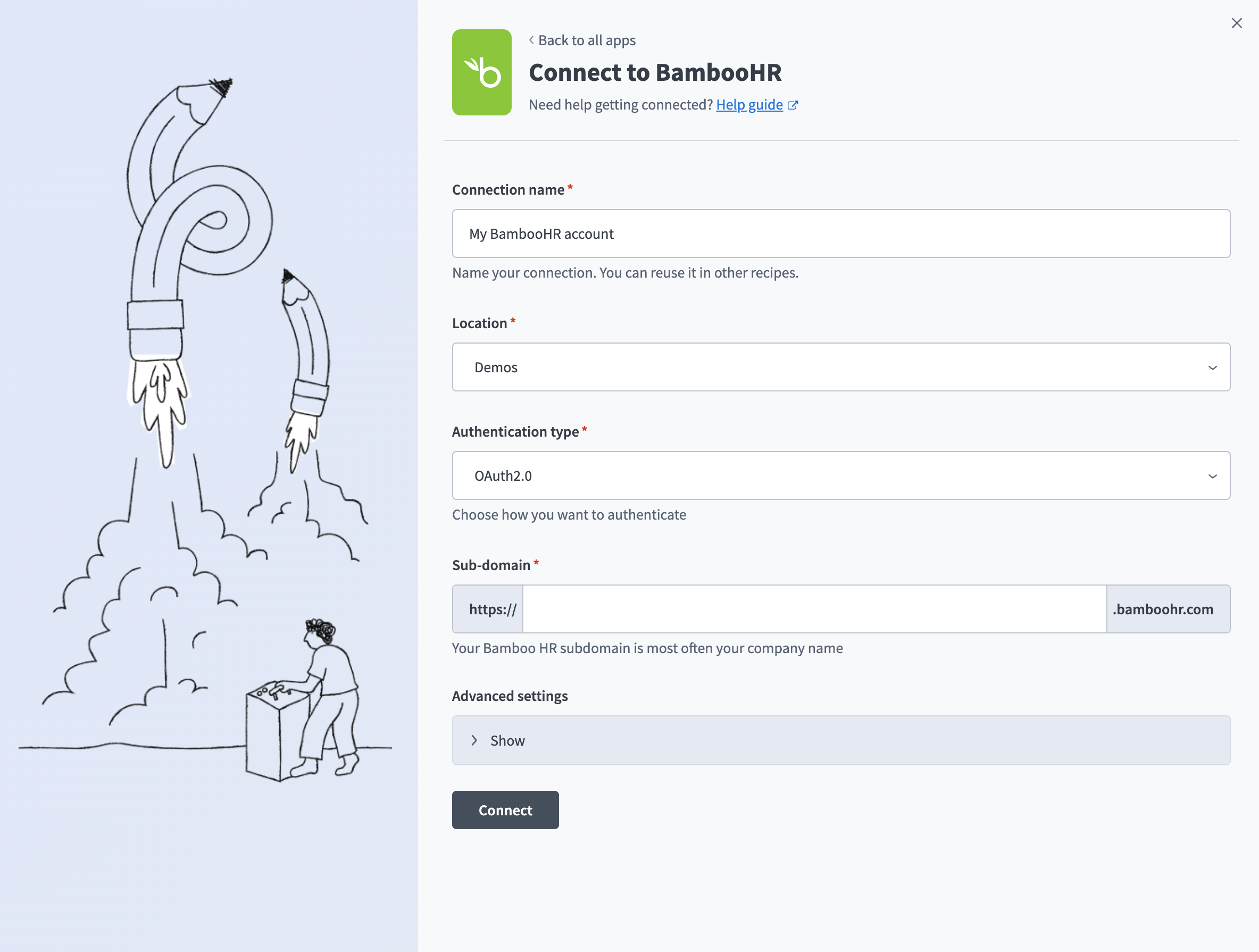 Set up an OAuth 2.0 connection
Use the Location drop-down menu to select the project where you plan to store the connection.
Use the Authentication type drop-down menu to select OAuth2.0.
Enter your BambooHR subdomain in the Sub-domain field. This is most often your company name.
Click Connect.
Sign in to BambooHR when prompted and authorize access to complete the connection.
How to use BambooHR Self-Service MCP server tools
Refer to the following sections for detailed information on available tools:
search_employees tool
The search_employees tool finds coworkers in the published company directory by name, department, job title, location, or exact employee ID. Your LLM uses this tool when you refer to a coworker by name or ask directory-scoped questions, such as who works in a team or which engineers are in a specific office.
Try asking:
Who is Sarah in Finance?Show me the engineers in our London office.Who does Priya report to?What's the work email for the head of Marketing?
get_my_profile tool
The get_my_profile tool retrieves the authenticated user's own employee record with self-service fields. Your LLM uses this tool to answer questions about your own information, such as the address on file, your manager, or your hire date, and to check current values before an update.
Try asking:
What address does BambooHR have for me?Who is my manager?When was my hire date?What phone number is on my record?
update_my_profile tool
The update_my_profile tool updates self-service fields on the authenticated user's employee record. Your LLM uses this tool when you ask to change your home address, home email, home phone, mobile phone, or preferred name, and it confirms the exact change with you before submitting.
Try asking:
Update my mobile phone to 415-555-0142.Change my home address to 500 Market Street, San Francisco.Set my preferred name to Mike.Update the personal email on my record.
get_time_off_balance tool
The get_time_off_balance tool retrieves the authenticated user's accrued time-off balances based on a date you specify. Your LLM uses this tool to answer questions about your own remaining time off, returning one entry per visible category with the balance, units, policy type, and the amount used year to date.
Try asking:
How much vacation do I have left?What's my sick leave balance?How many PTO days will I have as of December 31?How much time off have I used this year?
list_time_off_types tool
The list_time_off_types tool lists the time-off types the authenticated user is eligible to request. Your LLM uses this tool when you ask what leave categories are available to you, or when you need to request a category that didn't appear in your balances, such as bereavement, jury duty, or unpaid leave. Results reflect only what you're eligible to request, not a company-wide catalog of policies.
Try asking:
What leave categories can I request?Can I request bereavement leave?Is unpaid leave an option for me?What types of time off are available to me?
request_time_off tool
The request_time_off tool submits a time-off request for the authenticated user. Your LLM uses this tool after confirming the type, dates, amount, and any note with you, and supports per-day amounts for partial or mixed-duration leave, such as a half day on Friday and full days the following week.
Try asking:
Request PTO for September 15-19.Submit a sick day for tomorrow.Request a half day on Friday and full days Monday and Tuesday.Request bereavement leave for next week with a note for my approver.
list_my_time_off_requests tool
The list_my_time_off_requests tool lists the authenticated user's own recent time-off requests and statuses. Your LLM uses this tool to check the status of a request you submitted, and to resolve the request ID before a cancellation. Each request returns its type, date range, amount, status, notes, and the actions available to you, so your LLM knows which requests you can cancel.
Try asking:
What's the status of my time-off request?Has my PTO for next month been approved?Show me the time-off requests I've submitted this quarter.Cancel my time-off request for next Friday.
list_pending_time_off_requests tool
The list_pending_time_off_requests tool lists the time-off requests the authenticated user is assigned to approve. Your LLM uses this tool for review-queue questions, such as requests that need your approval or who has asked for time off.
Try asking:
What time-off requests are waiting on me?Does anything need my approval this week?Who has requested time off in December?Show me pending requests with the notes my team left.
list_whos_out tool
The list_whos_out tool lists approved time off and company holidays within a date range. Your LLM uses this tool for coverage and scheduling questions, such as who is out on a given day or which holidays fall in a period, and returns a date-sorted list where each entry is identified as time off or a holiday.
Try asking:
Who is out this week?Is anyone on my team out on October 3?Any company holidays coming up in September?Who is on leave between November 20 and December 5?
Getting started
View and manage your MCP server tools in the Details tab Tools section. Tool management provides the following capabilities:
TOOLS MUST BE STARTED
Your LLM can only access active tools in your MCP server connector.
Last updated: