Google Slides MCP server
The Google Slides MCP server enables LLMs to interact with Google Slides presentations through natural conversation. It provides tools to discover presentations, analyze slide content, manage slide structure, manage review feedback, and make targeted content updates without requiring direct interaction with the Google Slides interface.
GOOGLE DRIVE MCP SERVER
Use the Google Drive MCP server to create new presentations, copy templates, or manage files.
Uses
Use the Google Slides MCP server when you plan to perform the following actions:
- Search for and retrieve presentations by title, content, or date
- View recently accessed or modified presentations
- Read and summarize slide content, including speaker notes
- List all elements on slides with position and type information
- Discover available slide layouts from presentation themes
- Add, delete, or duplicate slides within presentations
- Update text content in specific slide elements
- Find and replace text across entire presentations
- Add or update speaker notes for slides
- View and manage review comments and feedback
- Add comments to slides or reply to existing threads
- Resolve comment threads when feedback is addressed
Example prompts
Find my Q4 planning presentation.Show me my recently accessed presentations.Read the content from slides 1-5 of the roadmap deck.List all elements on slide 3.What slide layouts are available in this presentation?Add a new slide after slide 5 with the Title and Content layout.Delete slides 10-12 from the presentation.Update the date on slide 2 to February 2026.Find and replace 'Q3' with 'Q4' throughout the presentation.Add speaker notes to slide 1 with talking points.
Google Slides MCP server tools
The Google Slides MCP server provides the following tools:
| Tool | Description |
|---|---|
| search_presentations | Searches presentations you have access to by title, content, or date and returns matches ranked by relevance. |
| list_recent_presentations | Retrieves the most recently accessed or modified presentations. |
| get_presentation | Retrieves metadata and structural overview of a presentation. |
| get_slide_content | Extracts text content from slides you specify, including all text elements, placeholders, and optionally speaker notes. |
| get_slide_elements | Retrieves elements from a slide with type, position, size, content preview, and element IDs. |
| list_layouts | Retrieves available slide layouts from the presentation's theme. |
| add_slide | Inserts a new slide with the layout and position you specify, or appends it to the end of the presentation. |
| delete_slide | Removes one or more slides from a presentation by slide number. At least one slide must remain. |
| copy_slide | Duplicates a slide within the same presentation. |
| list_comments | Retrieves comments on a presentation with filtering options. |
| get_comment_thread | Retrieves a complete comment thread including replies. |
| update_text_content | Updates text within a specific element on a slide. |
| find_and_replace_text | Performs a find-and-replace operation across all slides in a presentation. |
| update_speaker_notes | Sets or replaces the speaker notes content for a specific slide. |
| add_comment | Creates a new comment thread on a specific slide. |
| reply_to_comment | Adds a reply to an existing comment thread. |
| resolve_comment | Marks a comment thread as resolved. |
Install the Google Slides MCP server
Complete the following steps to install a prebuilt MCP server to your project:
Sign in to your Workato account.
Go to AI Hub > Enterprise MCP > Custom servers.
Click + Create MCP server.
Go to the Start with pre-built MCP Servers using your connected apps section and select the prebuilt MCP server you plan to use.
Click Use this server.
Provide a name for your MCP server in the Server name field.
Use the Location drop-down menu to select the project for the MCP server.
Go to the Connections section and connect to your app account.
Select the connection type you plan to use for the MCP server template.
- User's connection: MCP server tools perform actions based on the identity and permissions of the user who connects to the application. Users authenticate with their own credentials to execute the skill.
- Your connection: This option uses the connection established by the recipe builder and follows the same principles as normal app connections.
 Select your connection type
VERIFIED USER ACCESS AUTHENTICATION REQUIREMENTS
Only app connections that use OAuth 2.0 authorization code grant are available for user's connection. Refer to Verified user access for more information.
Complete the app-specific connection setup steps in the following section.
Google Slides connection setup
View Google Slides connection setup steps
The Google Slides connector supports the following authentication methods:
SERVICE ACCOUNT AUTHENTICATION
You can use a service account to authenticate without a personal user account. For consistent use, Workato recommends service account authentication.
OAuth 2.0
View OAuth 2.0 steps
OAuth 2.0 authentication requires that you add the following redirect URI to your credentials in the Google Developers Console: https://www.workato.com/oauth/callback
Complete the following steps to set up an OAuth 2.0 connection:
Click Create > Connection.
Search for and select Google Slides as your connection.
Provide a name for your connection in the Connection name field.
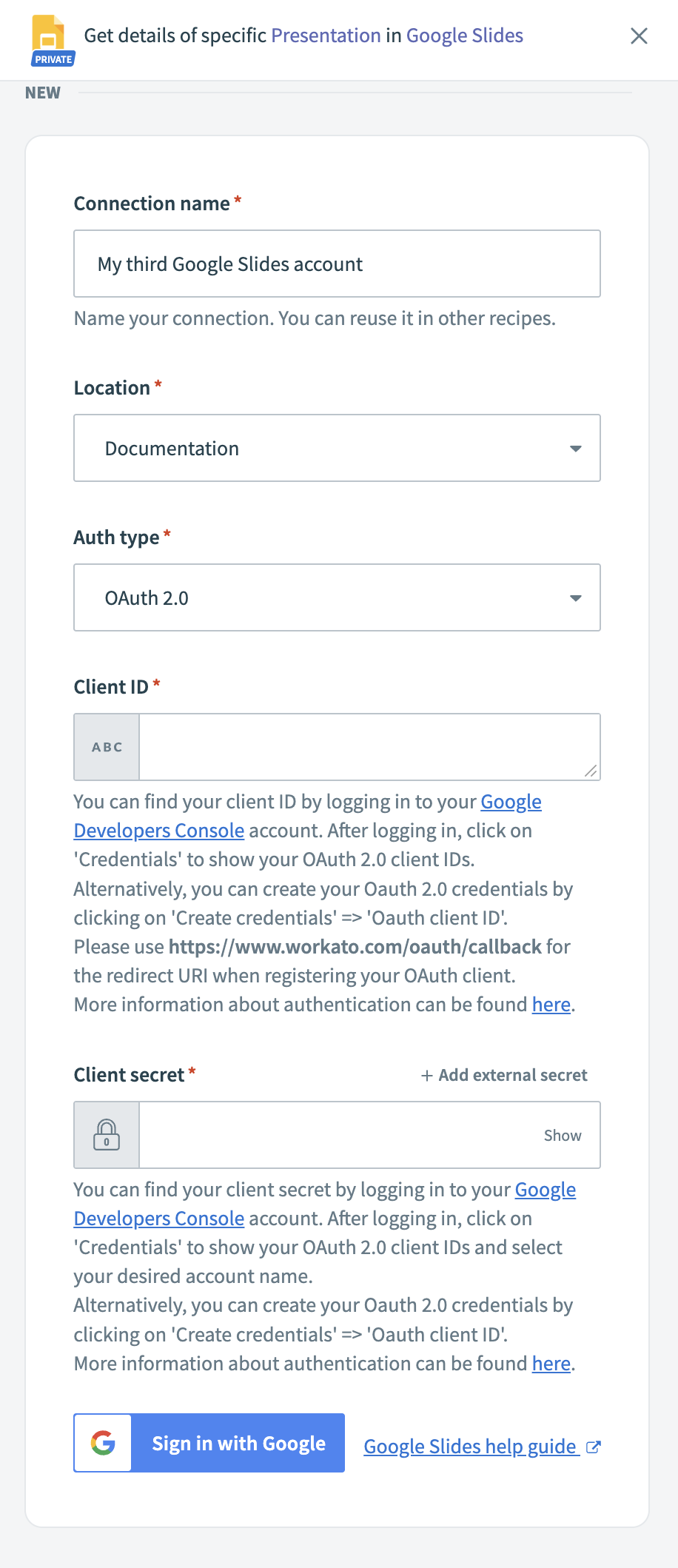 OAuth 2.0 connection fields
Use the Location drop-down menu to select the project where you plan to store the connection.
Use the Auth type drop-down menu to select OAuth 2.0.
Enter your Client ID and Client secret. You can retrieve these from the Google Developers Console under APIs & Services > Credentials.
Click Sign in with Google.
Sign in with your Google account and click Allow to grant Workato access.
Service account
View Service account steps
A Google service account is a specialized Google account associated with a Google Cloud Project (GCP) that can run API requests on your behalf.
Service accounts provide the following benefits:
- Continuous operation: Service accounts ensure that operations continue even if individual user permissions change.
- Dedicated permissions: Service accounts can only access projects that you share with them.
- Dedicated API quotas: You can manage a service account's API quotas through GCP and request quota increases directly from Google.
Refer to the Google service account documentation to learn more about service accounts.
SERVICE ACCOUNT REQUIREMENTS
Service account authentication has the following requirements:
Enable the Google Slides API in your Google Cloud project.
Ensure the email associated with your service account has access to the Google Slides presentations used in recipes. You can share presentations directly from the Google Slides UI.
Set up a Google service account
View Set up a Google service account steps
Complete the following steps to set up a Google service account:
Create a service account in your GCP project.
Go to IAM & Admin > Service accounts. Ensure your dashboard is scoped to the project that contains your service account.
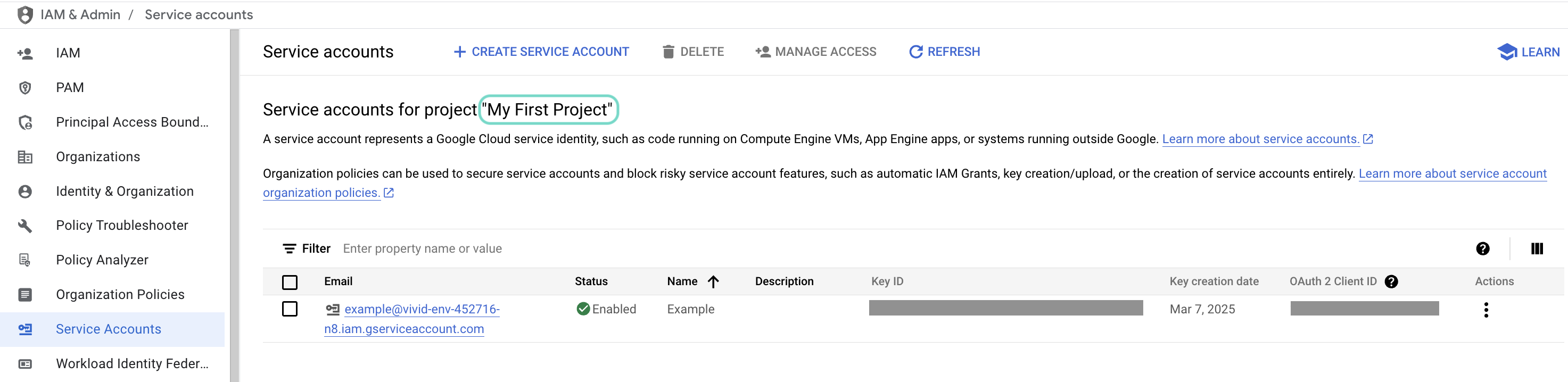 Check the scope of your dashboard.
Click the Email of the service account you intend to use.
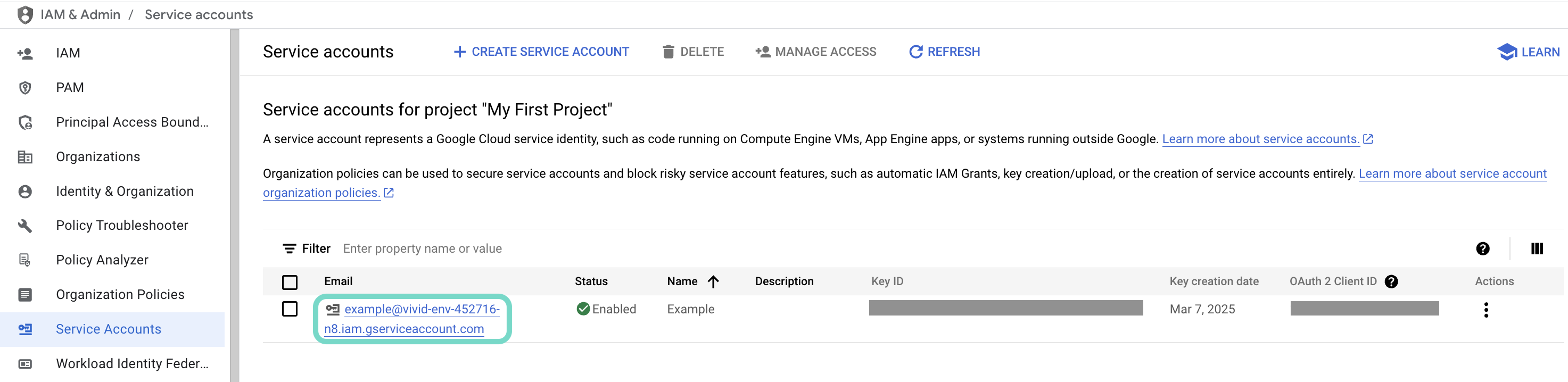 Click the Email of the service account you intend to use.
Copy the service account's Email and save it to configure your connection later.
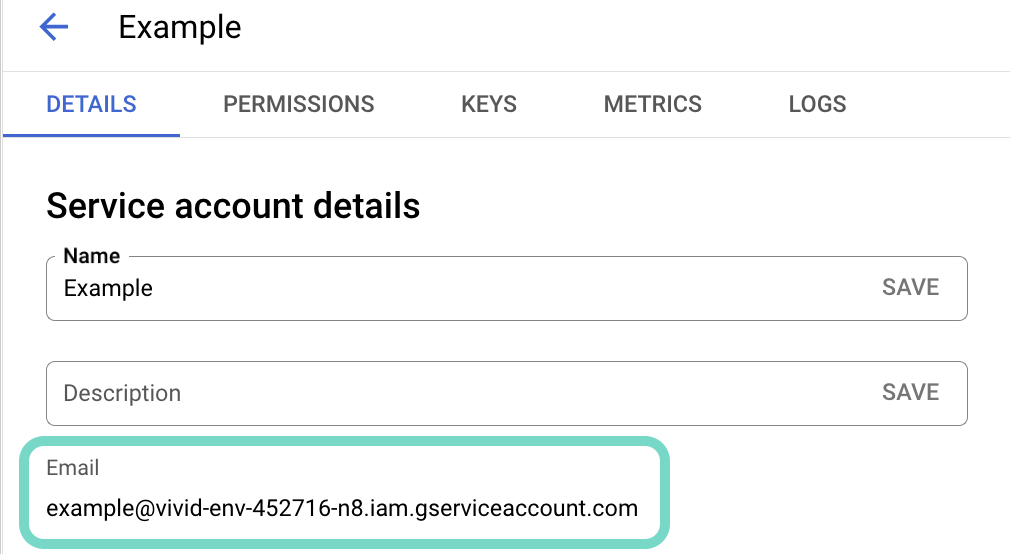 Copy the account's Email.
Go to the KEYS tab.
Generate a private key and download it in JSON format. You can only download the key once.
Open the JSON file, then copy the entire private key from -----BEGIN PRIVATE KEY----- to -----END PRIVATE KEY-----\n (inclusive) and save it to configure your connection later.
Complete setup in Workato
View Complete setup in Workato steps
Complete the following steps to finish the set up in Workato:
Click Create > Connection.
Search for and select Google Slides as your connection.
Provide a name for your connection in the Connection name field.
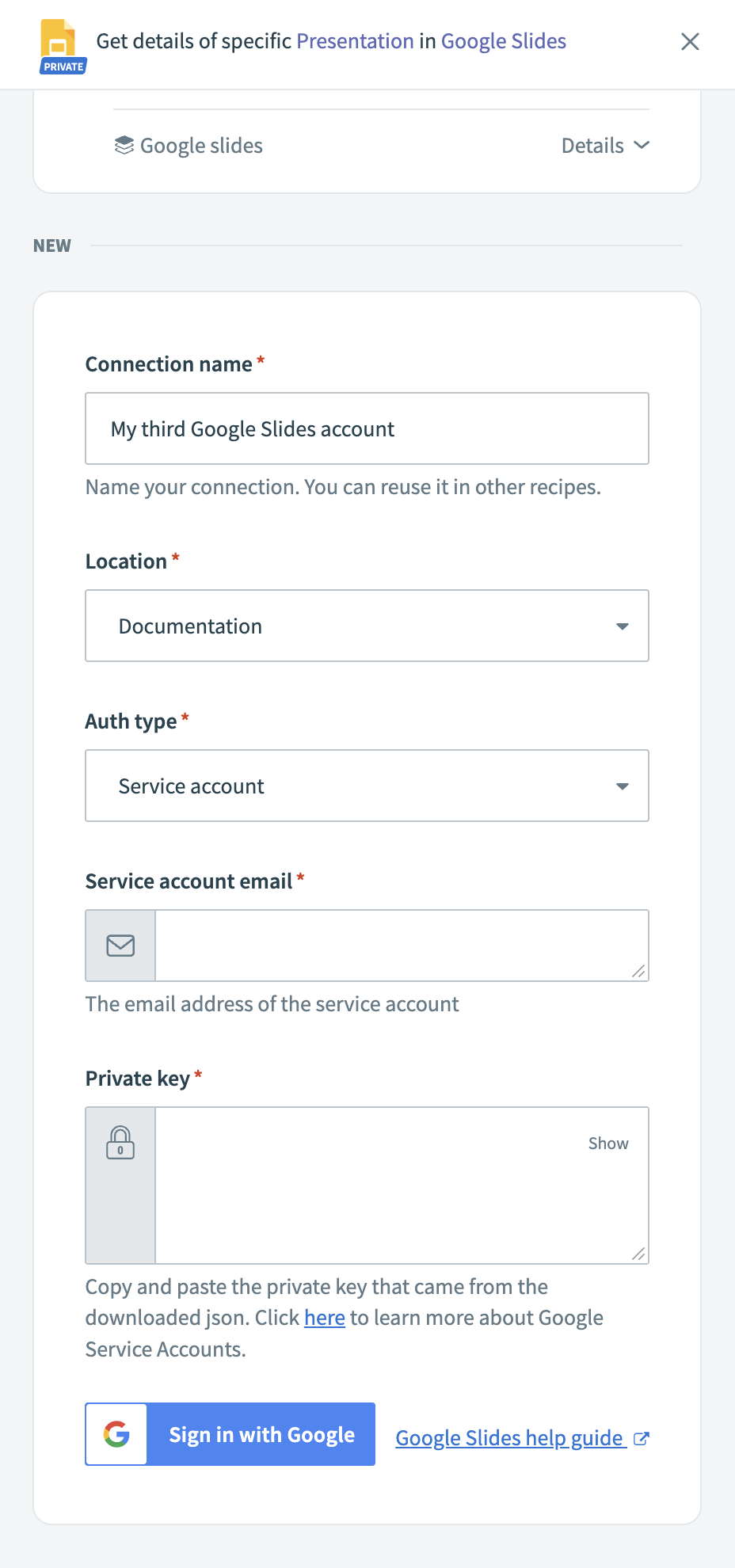 Google Slides service account connection fields
Use the Location drop-down menu to select the project where you plan to store the connection.
Use the Auth type drop-down menu to select Service account.
Enter the Service account email.
Paste the entire Private key, including -----BEGIN PRIVATE KEY----- and -----END PRIVATE KEY-----\n.
Click Sign in with Google.
How to use Google Slides MCP server tools
Refer to the following sections for detailed information on available tools:
search_presentations tool
The search_presentations tool searches presentations you have access to by title, content, or date and returns matches ranked by relevance. Each result includes the presentation ID, title, owner email, last modified timestamp, and sharing status. Your LLM uses this tool to find specific presentations based on content, topic, or metadata.
Try asking:
Find my Q4 planning presentation.Search for presentations about product roadmap.Find slides containing 'quarterly review' from last month.Search for presentations owned by Alex about the new feature.
list_recent_presentations tool
The list_recent_presentations tool retrieves your most recently accessed or modified presentations, ordered by last access time. Your LLM uses this tool to see active presentations or what you've been working on recently.
Try asking:
Show me my recently accessed presentations.What presentations have I been working on lately?List my recent decks.What slides did I open recently?
get_presentation tool
The get_presentation tool retrieves metadata and a structural overview of a presentation, including title, slide count, owner, collaborators, and modification dates. Your LLM uses this tool to understand presentation structure before making changes or viewing content.
Try asking:
Get the details for my roadmap presentation.How many slides are in the Q4 planning deck?Who are the collaborators on this presentation?When was this presentation last modified?
get_slide_content tool
The get_slide_content tool extracts text content from slides you specify, including all text elements, placeholders, and optionally speaker notes. Your LLM uses this tool to understand slide content, prepare summaries, or review presentation material.
Try asking:
Read the content from slides 1-5.Show me the text on slide 3 including speaker notes.Summarize the content of the first 10 slides.What does slide 7 say?
get_slide_elements tool
The get_slide_elements tool retrieves elements on a specific slide, including type, position, size, content previews, and element IDs. Your LLM uses this tool to identify the correct element for modification or to disambiguate when content appears in multiple elements before updating text content.
Try asking:
List all elements on slide 3.Show me what's on slide 5 and where each element is positioned.What text boxes are on this slide?Get the element IDs for slide 2.
list_layouts tool
The list_layouts tool retrieves available slide layouts from the presentation's theme, including layout IDs, names, types, and placeholder information. Your LLM uses this tool to discover available layouts and help you choose an appropriate structure.
Try asking:
What slide layouts are available in this presentation?Show me the available layout options.List the layouts I can use for new slides.What's the difference between the available layouts?
add_slide tool
The add_slide tool inserts a new slide with the layout and position you specify, or appends it to the end of the presentation if no position is given. Your LLM uses this tool to extend presentations, add sections, or build structure.
Try asking:
Add a new slide after slide 5 with the Title and Content layout.Insert a blank slide at the end of the presentation.Add a new section header slide after the roadmap.Append a slide with the Two Content layout.
delete_slide tool
The delete_slide tool removes one or more slides from a presentation by slide number. At least one slide must remain in the presentation. Your LLM uses this tool for template cleanup, removing placeholder slides, or restructuring presentations.
Try asking:
Delete slide 10.Remove slides 5-7 from the presentation.Delete the last three slides.Remove the placeholder slides.
copy_slide tool
The copy_slide tool duplicates a slide within the same presentation, inserting the copy immediately after the source or at the position you specify. Your LLM uses this tool to create variations, repeat structures, or iterate on content.
Try asking:
Duplicate slide 3.Copy slide 5 and insert it after slide 8.Make a copy of the comparison slide.Duplicate the title slide and append to the end.
list_comments tool
The list_comments tool retrieves comments on a presentation with filtering options for status, such as open or resolved, slide number, and author. Your LLM uses this tool to review feedback, check review status, or see outstanding comments.
Try asking:
Show me all open comments on this presentation.List comments on slide 5.What feedback has Jade left on this deck?Show me resolved comments from last week.
get_comment_thread tool
The get_comment_thread tool retrieves a complete comment thread, including the original comment and replies in chronological order. Your LLM uses this tool to provide full context for a conversation.
Try asking:
Get the full thread for that comment about the timeline.Show me all replies to Josh's feedback.What's the complete conversation on this comment?Read the entire comment thread with all responses.
update_text_content tool
The update_text_content tool updates text within a slide element you specify, identified by element ID or by matching existing text content. Your LLM uses this tool for targeted edits, such as changing dates, updating numbers, or fixing text.
Try asking:
Update the date on slide 2 to February 2026.Change 'Q3 2025' to 'Q4 2025' in the title.Fix the typo in the bullet point on slide 5.Update the revenue number on slide 8 to $5M.
find_and_replace_text tool
The find_and_replace_text tool performs a find-and-replace operation across all slides in a presentation with optional case sensitivity. Your LLM uses this tool for bulk updates, such as changing dates throughout a presentation, fixing repeated terms, or updating terminology.
Try asking:
Find and replace 'Q3' with 'Q4' throughout the presentation.Change all instances of '2025' to '2026'.Replace 'Product A' with 'Product Alpha' across all slides.Update the company name everywhere in the deck.
update_speaker_notes tool
The update_speaker_notes tool sets or replaces the speaker notes content for a slide you specify. Your LLM uses this tool to add talking points or update presentation notes.
Try asking:
Add speaker notes to slide 1 with these talking points.Update the notes on slide 5 to include the demo script.Replace the speaker notes on the conclusion slide.Add presentation guidance to the title slide notes.
add_comment tool
The add_comment tool creates a new comment thread on a slide you specify, with optional user mentions for notifications. Your LLM uses this tool to add feedback, flag content for review, or ask questions about slides.
Try asking:
Add a comment to slide 3 asking about the timeline.Leave feedback on slide 7 about the data source.Comment on the roadmap slide mentioning [email protected].Flag slide 10 for review with a question about accuracy.
reply_to_comment tool
The reply_to_comment tool adds a reply to an existing comment thread, notifying thread participants. Your LLM uses this tool to respond to feedback or continue a discussion.
Try asking:
Reply to Alex's comment confirming the change.Respond to that feedback thread with an update.Add a reply to the comment about the timeline.Answer the question in the comment on slide 5.
resolve_comment tool
The resolve_comment tool marks a comment thread as resolved, indicating feedback has been addressed. Your LLM uses this tool to clear outstanding items or confirm feedback is complete.
Try asking:
Resolve the comment about the date format.Mark Alex's feedback as addressed.Resolve all comments on slide 3.Close the comment thread about the typo.
Getting started
View and manage your MCP server tools in the Details tab Tools section. Tool management provides the following capabilities:
TOOLS MUST BE STARTED
Your LLM can only access active tools in your MCP server connector.
Last updated: