Linear Issues MCP server
The Linear Issues MCP server enables LLMs to run the Linear issue lifecycle through natural conversation. It provides tools to search and retrieve issues, create and edit them, move them through workflow states, assign owners, manage labels and relations, and comment without requiring direct interaction with the Linear interface.
SERVER SCOPE
The Linear Issues MCP server manages the issue object and its directly attached entities. It can associate an issue with an existing project or cycle, but it doesn't manage projects, initiatives, cycles, or documents. Use the Linear Project Planning MCP server for the roadmap and planning layer.
Uses
Use the Linear Issues MCP server to perform the following actions:
- Search for issues by keyword, or by team, assignee, state, label, priority, or project.
- Retrieve full details for a specific issue, including its labels, assignee, and relations.
- Create a new issue, or a sub-issue, with a team and title.
- Update issue fields such as title, description, priority, estimate, or due date.
- Move an issue through workflow states, including closing or canceling it.
- Assign or unassign an issue's owner.
- Add labels to an issue without removing its existing labels.
- Comment on an issue and review its comment thread.
- Relate issues to each other, such as
blocks,duplicate, orrelated. - Archive or delete (trash) an issue.
Example prompts
Use the following example prompts to invoke Linear Issues MCP server tools:
Find all urgent bugs assigned to me on the Platform team.Show me the details for WOR-123.Create a bug titled "Checkout button unresponsive on mobile" for the Growth team.Update the priority on WOR-123 to urgent.Move WOR-123 to Done.Assign WOR-123 to Jane Smith.Add the needs-design label to WOR-123.Add a comment to WOR-123 saying the fix is deployed.Mark WOR-200 as a duplicate of WOR-123.Archive WOR-456.
Linear Issues MCP server tools
The Linear Issues MCP server provides the following tools:
| Tool | Description |
|---|---|
| search_issues | Searches or lists issues by keyword and filters such as team, assignee, state, label, priority, or project. |
| get_issue | Retrieves full details for one issue by its human-readable identifier or UUID. |
| create_issue | Creates a new issue, or a sub-issue, with a team and title. |
| update_issue | Updates one or more fields on an issue, replacing all its labels if labels are supplied. |
| transition_issue | Moves an issue to a named workflow state, including closing or canceling it. |
| assign_issue | Assigns an issue to a user by name or email, or unassigns it. |
| add_labels_to_issue | Adds labels to an issue without removing its existing labels. |
| archive_issue | Archives (hides) an issue. This is reversible in Linear. |
| delete_issue | Moves an issue to trash. |
| create_comment | Posts a comment or threaded reply on an issue. |
| list_comments | Lists the newest comments on an issue. |
| create_issue_relation | Creates a relation between two issues, such as blocks, duplicate, or related. |
| list_workflow_states | Lists the valid workflow states for a team. |
Install the Linear Issues MCP server
Complete the following steps to install a prebuilt MCP server to your project:
Sign in to your Workato account.
Go to AI Hub > Enterprise MCP > Custom servers.
Click + Create MCP server.
Go to the Start with pre-built MCP Servers using your connected apps section and select the prebuilt MCP server you plan to use.
Click Use this server.
Provide a name for your MCP server in the Server name field.
Use the Location drop-down menu to select the project for the MCP server.
Go to the Connections section and connect to your app account.
Select the connection type you plan to use for the MCP server template.
- User's connection: MCP server tools perform actions based on the identity and permissions of the user who connects to the application. Users authenticate with their own credentials to execute the skill.
- Your connection: This option uses the connection established by the recipe builder and follows the same principles as normal app connections.
 Select your connection type
VERIFIED USER ACCESS AUTHENTICATION REQUIREMENTS
Only app connections that use OAuth 2.0 authorization code grant are available for user's connection. Refer to Verified user access for more information.
Complete the app-specific connection setup steps in the following section.
Linear Issues connection setup
View Linear Issues connection setup steps
There are two ways to connect to Linear:
Download the Linear connector from the community library
View steps to download the Linear connector from the community library
Complete the following steps to install the Linear connector from the community library:
Open the recipe editor and search for a connector. Alternatively, you can search for a connector in the community library.
 Search for community connectors in the recipe editor
Select the community connector you plan to install.
Click Install to install the connector from the community library.
 Click Install
Select Release connector. Alternatively, select Review code to review and modify the connector code before releasing it to the workspace.
 Release the connector
Summarize any changes you made to the connector, then click Release to allow workspace collaborators to use the connector in recipes.
 The Confirm release dialog
OAuth 2.0
View OAuth 2.0 steps
Register an OAuth app
View register an OAuth app steps
Complete the following steps to register an OAuth app in Linear:
Sign in to your Linear account.
Select your workspace name, then click Settings.
Select API in the sidebar.
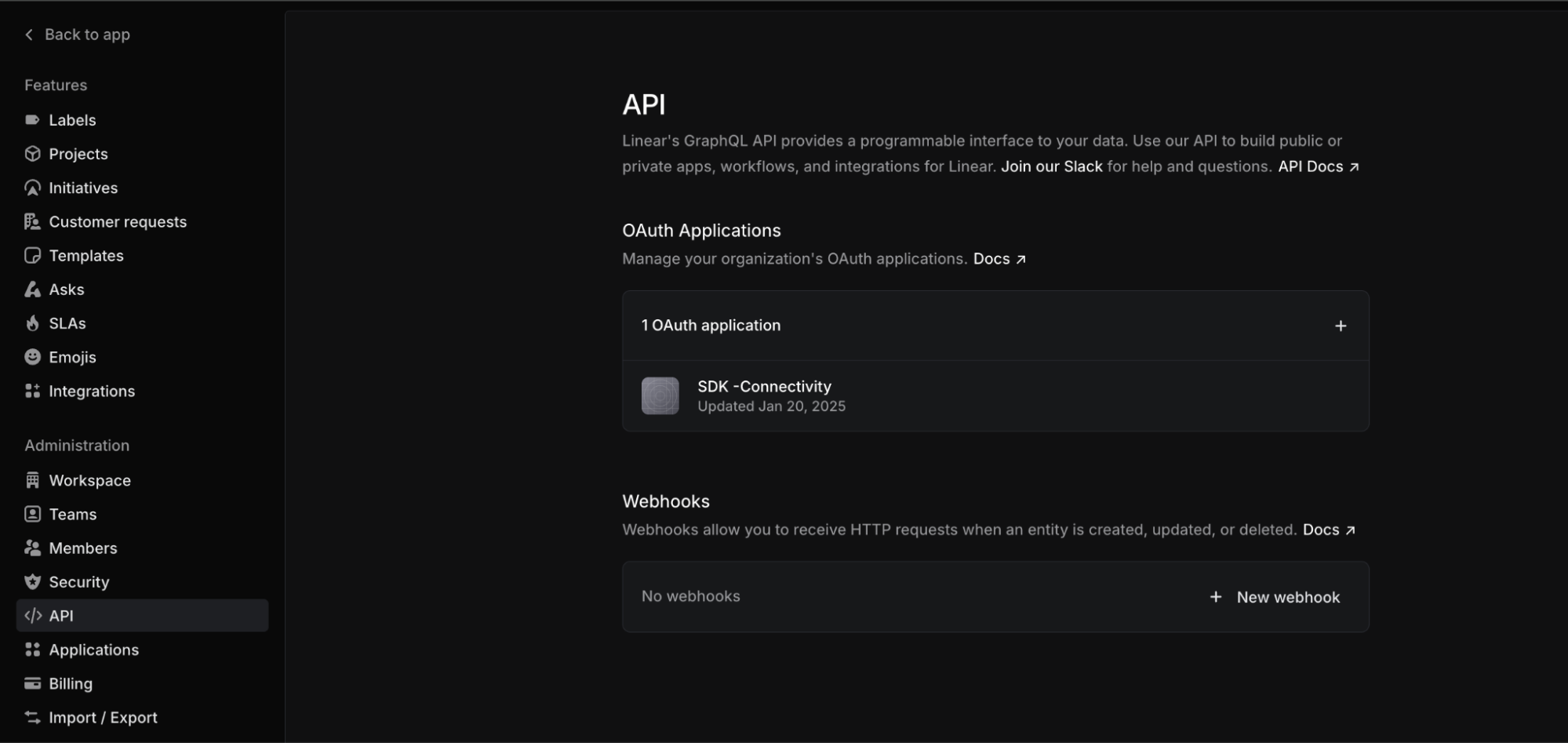 API administration page
Click + New OAuth application to add a new OAuth application.
Enter a name for your application in the Application name field. For example, Workato.
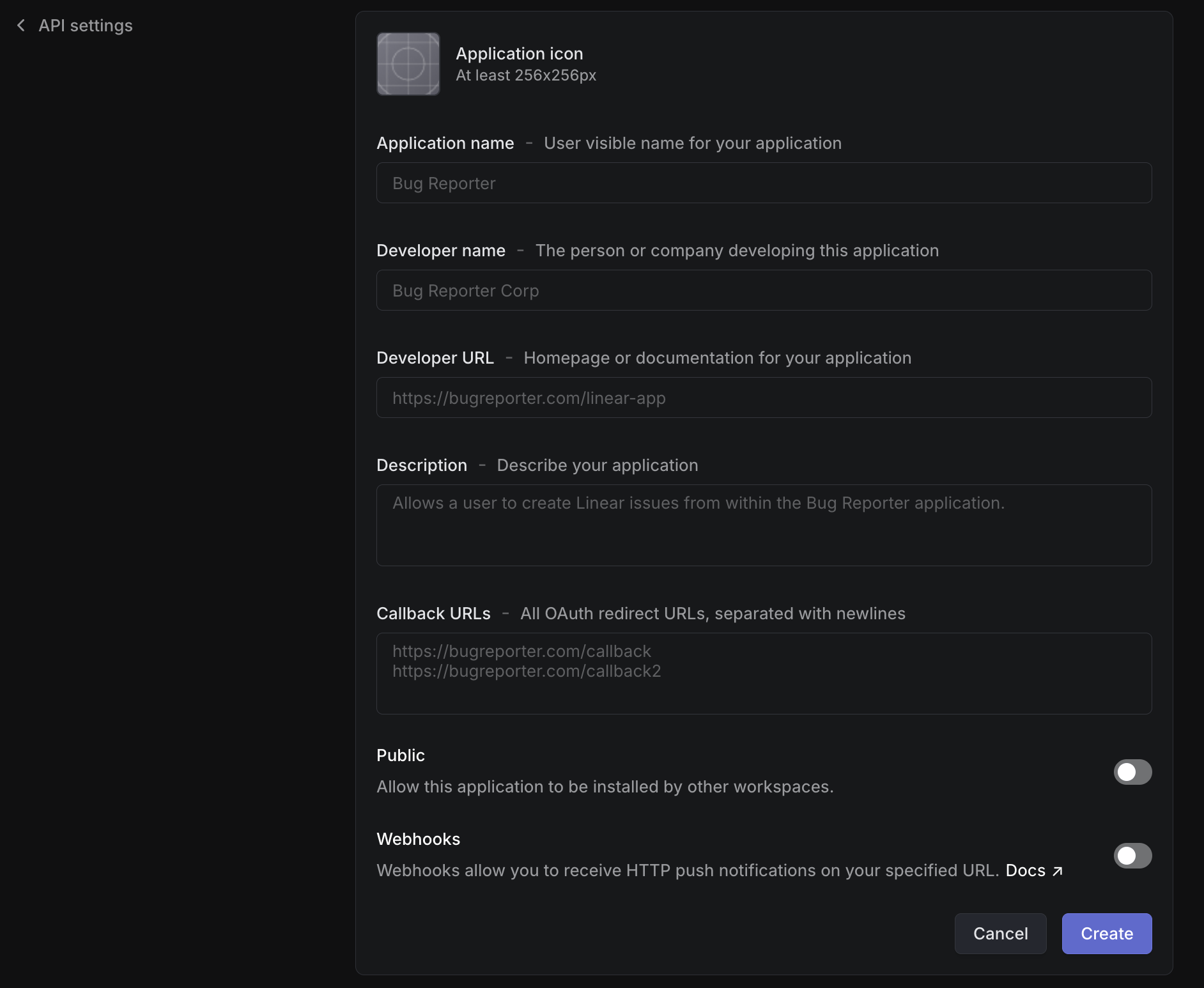 Registering application
Enter the Developer name and a valid Developer URL.
Enter https://www.workato.com/oauth/callback in the Callback URLs field. Refer to the Callback URL documentation for more information.
Click Create to register the OAuth app.
Copy the Client ID and Client secret and store them in a secure location. These values are required to establish the connection in Workato.
Connect to Linear using OAuth 2.0
View connect to Linear using OAuth 2.0 steps
Complete the following steps to connect to Linear in Workato using OAuth 2.0:
Click Create > Connection or press C twice.
Search for and select Linear as your connection on the New connection page.
Enter a name for your connection in the Connection name field.
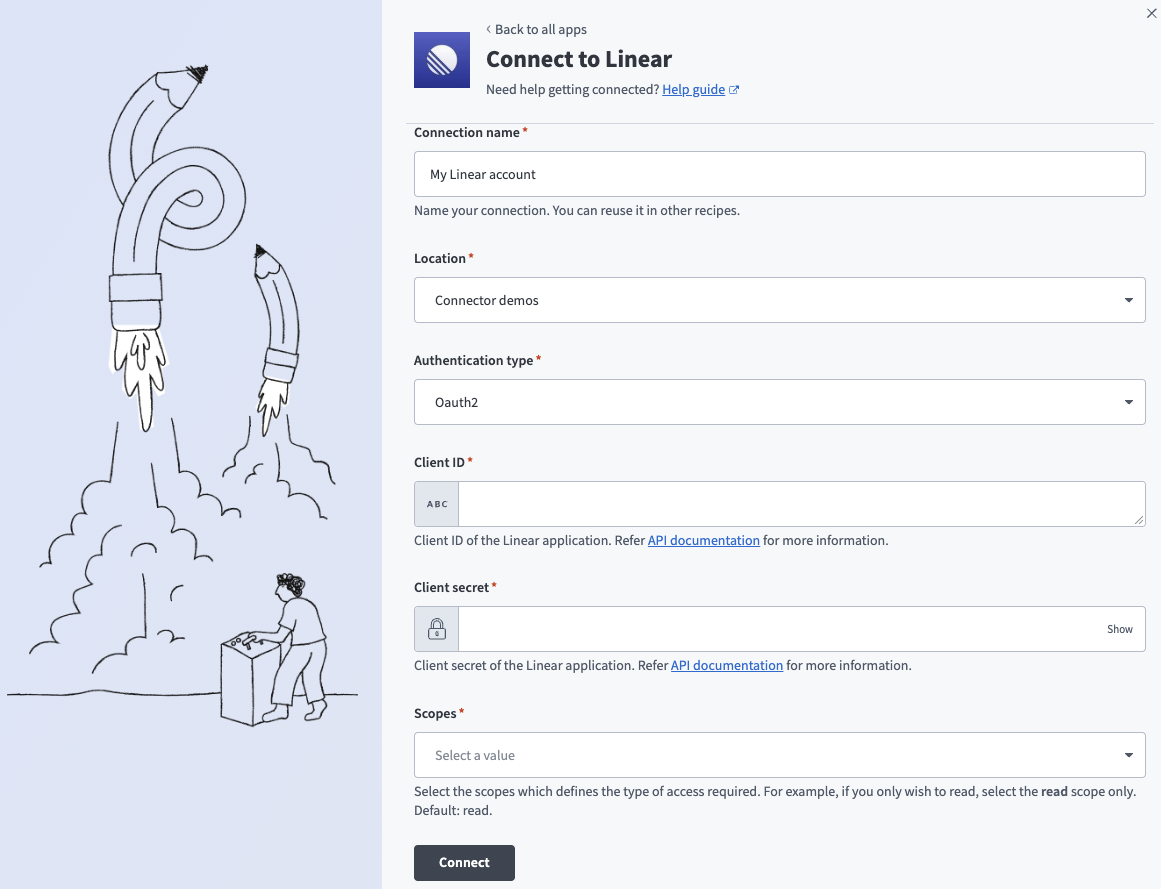 Connect to Linear using OAuth 2.0 authentication
Use the Location drop-down menu to select the project or folder where you plan to store the connection.
Enter the Client ID and Client secret for your Linear account.
Select the necessary OAuth scopes required for your integration.
Click Connect.
API key
View API key steps
Create an API key
View create an API key steps
Complete the following steps to create an API key in Linear:
Sign in to your Linear account.
Select your workspace name, then click Settings.
Select Security & access in the sidebar.
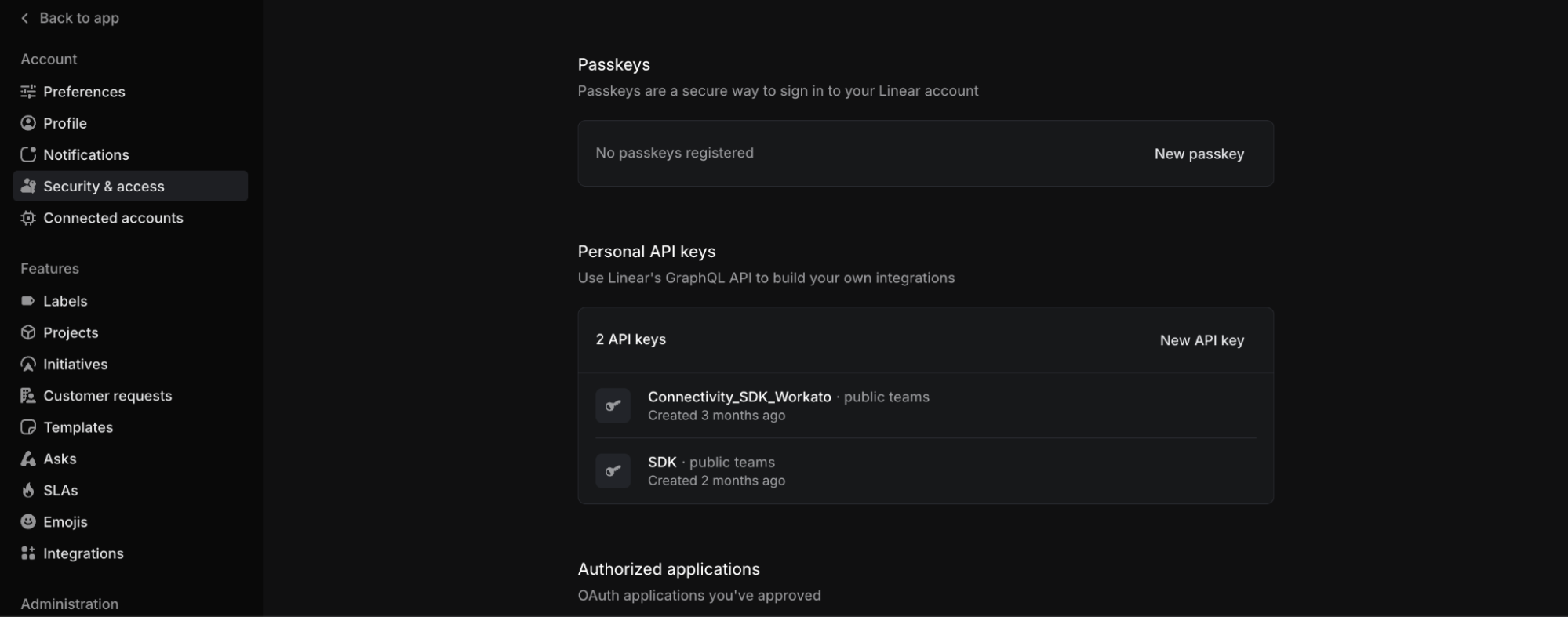 Personal API keys
Click New API key.
Enter a name for the API key in the Key name field.
Specify permissions for the API key in the Permissions field.
Click Create to create the API key.
Copy the API key and store it in a secure location. This value is required to establish the connection in Workato. Refer to the Linear documentation for more information.
Connect to Linear using an API key
View connect to Linear using an API key steps
Complete the following steps to connect to Linear in Workato using an API key:
Click Create > Connection or press C twice.
Search for and select Linear as your connection on the New connection page.
Enter a name for your connection in the Connection name field.
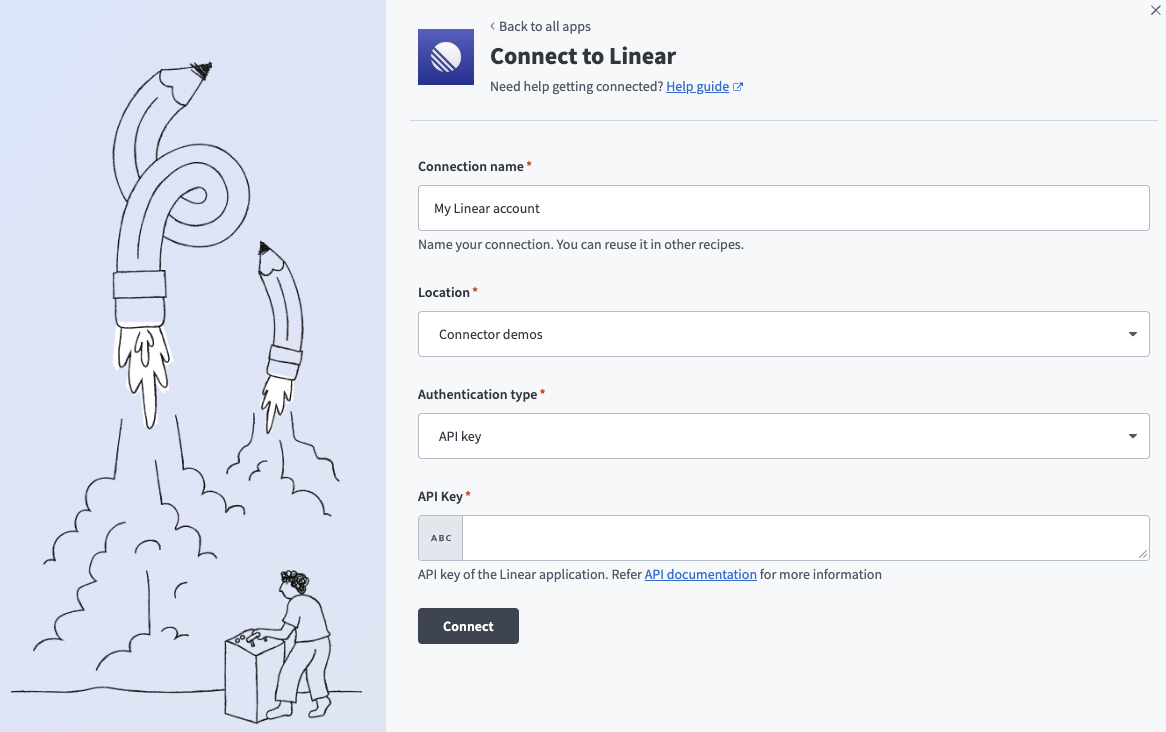 Connect to Linear using API key authentication
Use the Location drop-down menu to select the project or folder where you plan to store the connection.
Enter the API key for your Linear account.
Click Connect.
How to use Linear Issues MCP server tools
Refer to the following sections for detailed information on available tools:
search_issues tool
The search_issues tool finds issues by keyword or by filters such as team, assignee, state, label, priority, and project. Your LLM uses this tool to locate issues matching your criteria before opening one with get_issue.
Try asking:
Find all urgent bugs assigned to me on the Platform team.Search for issues mentioning "checkout timeout".List issues in the Growth team's backlog.
RATE LIMITING
Linear rate-limits keyword search, so repeated searches in a short window may be throttled.
get_issue tool
The get_issue tool looks up one issue by its human-readable identifier, such as WOR-123, or UUID. Your LLM uses this tool to retrieve a specific issue, including its description, labels, and assignee, before reporting on it or editing it. It doesn't return the issue's relations, such as blocks or duplicates.
Try asking:
Show me the details for WOR-123.What's the current status and assignee on WOR-456?Pull up the full description for this issue.
create_issue tool
The create_issue tool logs a new issue, or a sub-issue of an existing one. Your LLM uses this tool to capture new work after you supply at least a team and title, and optionally a description, assignee, priority, labels, state, project, cycle, or parent issue.
Try asking:
Create a bug titled "Checkout button unresponsive on mobile" for the Growth team.Add a task to the Platform team backlog assigned to Sam.Create a sub-issue under WOR-100 for the API changes.
update_issue tool
The update_issue tool changes one or more fields on an existing issue. Your LLM uses this tool for broader multi-field edits, such as edits to a title, description, priority, estimate, due date, or project/cycle association.
Try asking:
Update the priority on WOR-123 to urgent.Set the due date on WOR-456 to next Friday.Move WOR-123 into the Mobile App Relaunch project.
ALTERNATIVE TOOLS
This server contains the following alternatives to update_issue:
- add_labels_to_issue: Add labels without removing existing ones. Supplying a label to update_issue replaces every label already on the issue.
- transition_issue: Change only an issue's status.
- assign_issue: Change only an issue's assignee.
transition_issue tool
The transition_issue tool changes an issue's workflow state, including moving it to closed or canceled. Your LLM uses this tool when you ask to close, resolve, cancel, or mark an issue done.
Try asking:
Move WOR-123 to Done.Cancel WOR-456, it's no longer needed.Mark this issue as in progress.
assign_issue tool
The assign_issue tool sets or clears an issue's assignee, matching a user by name or email. Your LLM uses this tool for a standalone ownership change, including removing the assignee entirely, which is the only way this server clears a field.
Try asking:
Assign WOR-123 to Jane Smith.Reassign this issue to [email protected].Unassign WOR-456.
add_labels_to_issue tool
The add_labels_to_issue tool attaches one or more labels to an issue while leaving its current labels in place. Your LLM uses this tool to tag an issue with additional labels.
Try asking:
Add the needs-design label to WOR-123.Tag this issue as a regression.Add the labels "frontend" and "P1" to WOR-456.
REMOVE LABELS
Use update_issue to remove labels by supplying only the ones you plan to keep.
archive_issue tool
The archive_issue tool hides an issue from active views. This change is reversible in Linear. Your LLM uses this tool to set aside a completed or stale issue without trashing it. Archiving an already-archived issue succeeds without error, so it's safe to retry.
Try asking:
Archive WOR-456.Hide this completed issue from the active list.Archive the issues we closed last sprint.
delete_issue tool
The delete_issue tool trashes an issue, which Linear permanently removes after a 30-day grace period. Your LLM uses this tool when you explicitly ask to delete, remove, or trash an exact issue. Your LLM confirms the issue's identifier and title first if they aren't already known and doesn't treat closing, resolving, or canceling an issue as a delete request. Deleting an already-trashed issue succeeds without error, so it's safe to retry.
Try asking:
Delete WOR-789, it was created by mistake.Trash the duplicate issue WOR-200.Remove this test issue from my backlog.
create_comment tool
The create_comment tool adds a comment, or a threaded reply, to an issue. Your LLM uses this tool to leave a markdown comment on an issue, optionally as a reply to an existing comment. Linear supports only one level of threading, so replying to a reply isn't supported.
Try asking:
Add a comment to WOR-123 saying the fix is deployed.Reply to the last comment on this issue with an update.Comment on WOR-456 asking for more details.
list_comments tool
The list_comments tool returns an issue's most recent comments. Your LLM uses this tool to read a discussion before adding a new comment. You can specify a maximum thread length to omit older comments. The default length limit is 50 comments.
Try asking:
What's the latest discussion on WOR-123?Show me the comments on this issue.List the last 10 comments on WOR-456.
create_issue_relation tool
The create_issue_relation tool links two issues with a relation type, such as blocks, duplicate, or related. Your LLM uses this tool to sequence dependent work or flag duplicates after you specify both issues and the relation type.
Try asking:
Mark WOR-200 as a duplicate of WOR-123.WOR-100 blocks WOR-150, link them.Relate WOR-50 to WOR-60.
list_workflow_states tool
The list_workflow_states tool returns a team's valid workflow state names. Your LLM uses this tool to discover the exact state names available before calling transition_issue or create_issue.
Try asking:
What workflow states does the Platform team use?List the valid states I can move this issue to.Show me the states available for the Growth team.
Getting started
View and manage your MCP server tools in the Details tab Tools section. Tool management provides the following capabilities:
TOOLS MUST BE STARTED
Your LLM can only access active tools in your MCP server connector.
Last updated: