Linear Project Planning MCP server
The Linear Project Planning MCP server enables LLMs to interact with Linear for the planning and roadmap layer through natural conversation. It provides tools to browse and create projects, post health-tagged status updates, review initiatives and their child projects, inspect cycles and the active cycle's progress, and find and create planning documents without requiring direct interaction with the Linear interface.
SERVER SCOPE
The Linear Project Planning MCP server manages the Linear planning layer, including projects, initiatives, cycles, and documents. It surfaces issues only inside get_active_cycle, where they're read-only. Use the Linear Issues MCP server to create, update, and manage issues.
Uses
Use the Linear Project Planning MCP server to perform the following actions:
- Browse projects workspace-wide or scoped to a team, filtered by status or lead.
- Get a project's full details, including its teams, members, and related initiatives.
- Create a new project with one or more teams and optional lead and dates.
- Update a project's name, description, status, lead, or dates.
- Post a health-tagged status update (on track, at risk, or off track) to a project.
- Browse initiatives and the child projects under each one.
- List a team's cycles and review their progress.
- Check a team's active cycle, including issues grouped by workflow state.
- Find and create planning documents attached to a project.
Example prompts
Use the following example prompts to invoke Linear Project Planning MCP server tools:
List all active projects for the Platform team.Show me the full details for the Checkout Redesign project.Create a new project called Q3 Onboarding Revamp for the Growth team.Update the Billing Migration project's status to Started.Post a status update on the Mobile App Relaunch project marking it at risk.What initiatives do we have, and which projects fall under each one?List the last five cycles for the Platform team.How is the current sprint going for the Growth team?Find the planning documents attached to the Checkout Redesign project.Create a planning doc called Launch Checklist attached to the Mobile App Relaunch project.
Linear Project Planning MCP server tools
The Linear Project Planning MCP server provides the following tools:
| Tool | Description |
|---|---|
| list_projects | Lists projects workspace-wide or scoped to a team, with optional status and lead filters. |
| get_project | Retrieves a project's full details, including its teams, members, and initiatives. |
| create_project | Creates a new project with one or more teams and optional lead and dates. |
| update_project | Updates a project's name, description, status, lead, or dates. |
| create_project_update | Posts a health-tagged status update to a project. |
| list_initiatives | Lists initiatives and their child projects. |
| list_cycles | Lists a team's cycles. |
| get_active_cycle | Returns a team's active cycle with progress and its issues grouped by workflow state. |
| list_documents | Lists planning documents, optionally filtered by project or initiative. |
| create_document | Creates a planning document attached to a project. |
| list_teams | Lists teams for scoping projects and cycles. |
Install the Linear Project Planning MCP server
Complete the following steps to install a prebuilt MCP server to your project:
Sign in to your Workato account.
Go to AI Hub > Enterprise MCP > Custom servers.
Click + Create MCP server.
Go to the Start with pre-built MCP Servers using your connected apps section and select the prebuilt MCP server you plan to use.
Click Use this server.
Provide a name for your MCP server in the Server name field.
Use the Location drop-down menu to select the project for the MCP server.
Go to the Connections section and connect to your app account.
Select the connection type you plan to use for the MCP server template.
- User's connection: MCP server tools perform actions based on the identity and permissions of the user who connects to the application. Users authenticate with their own credentials to execute the skill.
- Your connection: This option uses the connection established by the recipe builder and follows the same principles as normal app connections.
 Select your connection type
VERIFIED USER ACCESS AUTHENTICATION REQUIREMENTS
Only app connections that use OAuth 2.0 authorization code grant are available for user's connection. Refer to Verified user access for more information.
Complete the app-specific connection setup steps in the following section.
Linear Project Planning connection setup
View Linear Project Planning connection setup steps
There are two ways to connect to Linear:
Download the Linear connector from the community library
View steps to download the Linear connector from the community library
Complete the following steps to install the Linear connector from the community library:
Open the recipe editor and search for a connector. Alternatively, you can search for a connector in the community library.
 Search for community connectors in the recipe editor
Select the community connector you plan to install.
Click Install to install the connector from the community library.
 Click Install
Select Release connector. Alternatively, select Review code to review and modify the connector code before releasing it to the workspace.
 Release the connector
Summarize any changes you made to the connector, then click Release to allow workspace collaborators to use the connector in recipes.
 The Confirm release dialog
OAuth 2.0
View OAuth 2.0 steps
Register an OAuth app
View register an OAuth app steps
Complete the following steps to register an OAuth app in Linear:
Sign in to your Linear account.
Select your workspace name, then click Settings.
Select API in the sidebar.
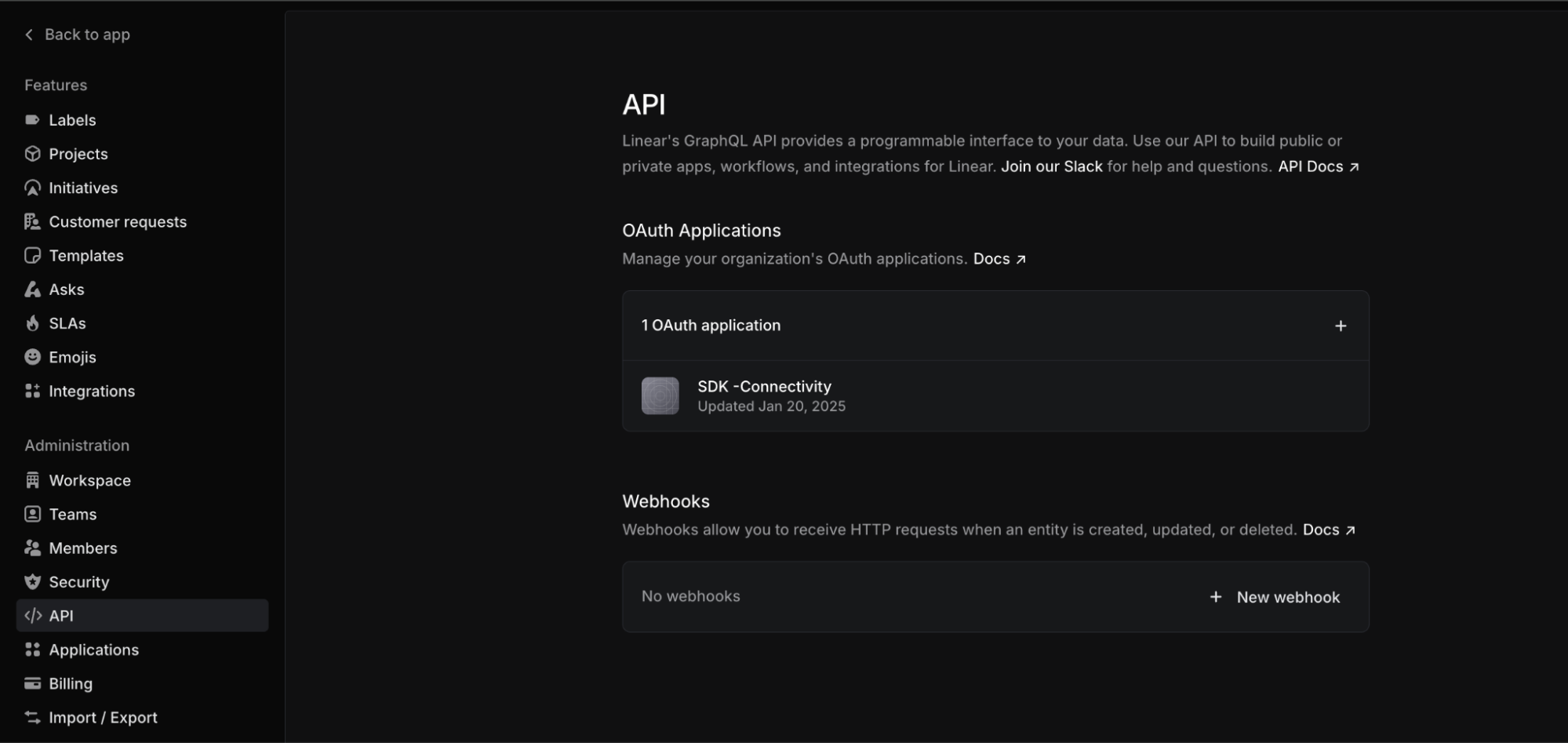 API administration page
Click + New OAuth application to add a new OAuth application.
Enter a name for your application in the Application name field. For example, Workato.
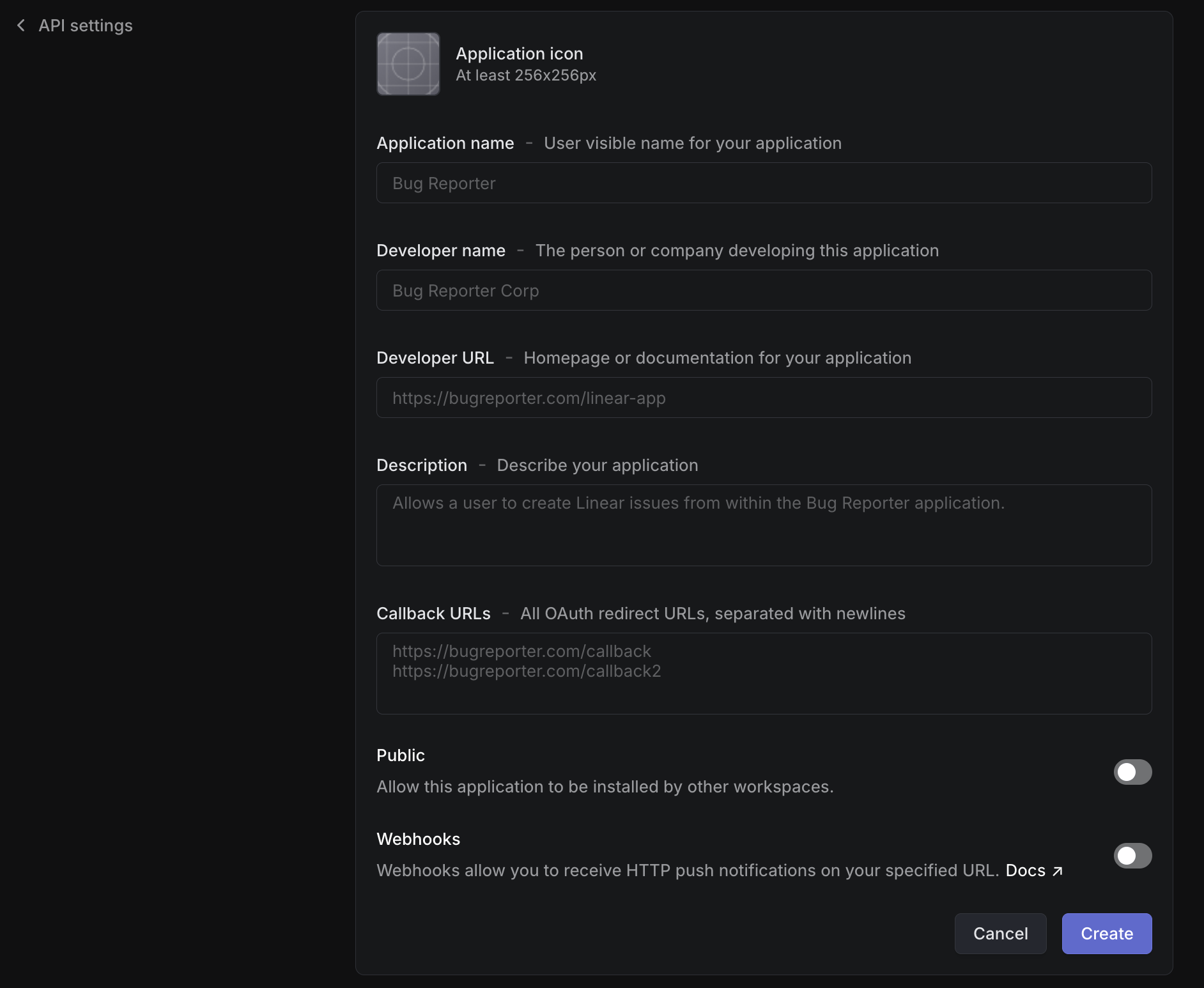 Registering application
Enter the Developer name and a valid Developer URL.
Enter https://www.workato.com/oauth/callback in the Callback URLs field. Refer to the Callback URL documentation for more information.
Click Create to register the OAuth app.
Copy the Client ID and Client secret and store them in a secure location. These values are required to establish the connection in Workato.
Connect to Linear using OAuth 2.0
View connect to Linear using OAuth 2.0 steps
Complete the following steps to connect to Linear in Workato using OAuth 2.0:
Click Create > Connection or press C twice.
Search for and select Linear as your connection on the New connection page.
Enter a name for your connection in the Connection name field.
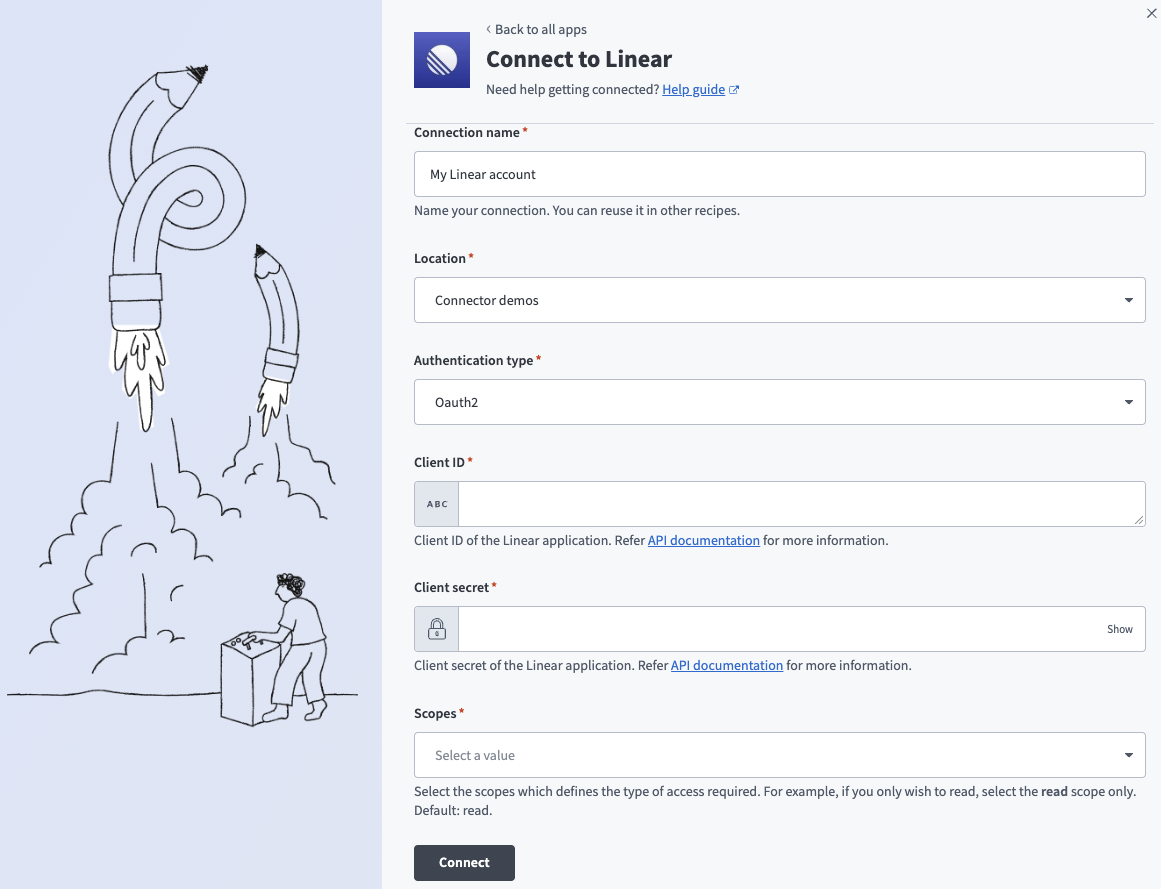 Connect to Linear using OAuth 2.0 authentication
Use the Location drop-down menu to select the project or folder where you plan to store the connection.
Enter the Client ID and Client secret for your Linear account.
Select the necessary OAuth scopes required for your integration.
Click Connect.
API key
View API key steps
Create an API key
View create an API key steps
Complete the following steps to create an API key in Linear:
Sign in to your Linear account.
Select your workspace name, then click Settings.
Select Security & access in the sidebar.
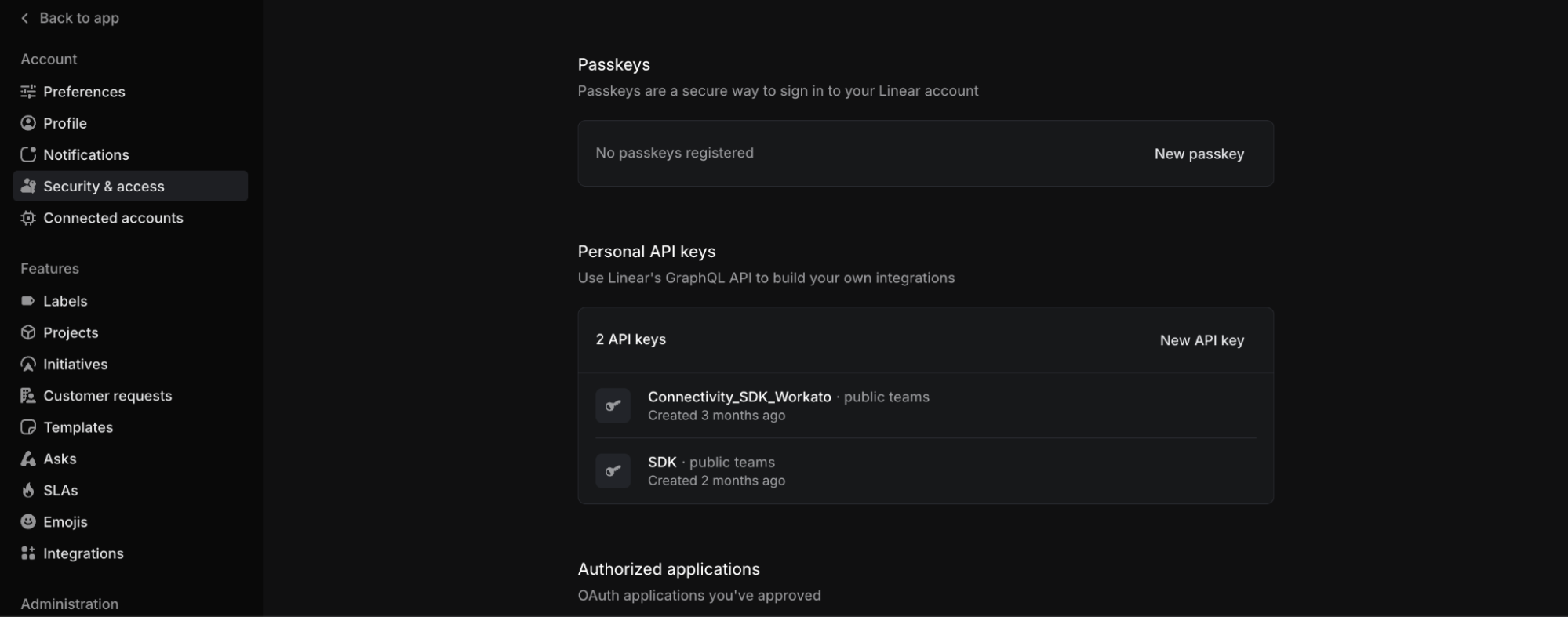 Personal API keys
Click New API key.
Enter a name for the API key in the Key name field.
Specify permissions for the API key in the Permissions field.
Click Create to create the API key.
Copy the API key and store it in a secure location. This value is required to establish the connection in Workato. Refer to the Linear documentation for more information.
Connect to Linear using an API key
View connect to Linear using an API key steps
Complete the following steps to connect to Linear in Workato using an API key:
Click Create > Connection or press C twice.
Search for and select Linear as your connection on the New connection page.
Enter a name for your connection in the Connection name field.
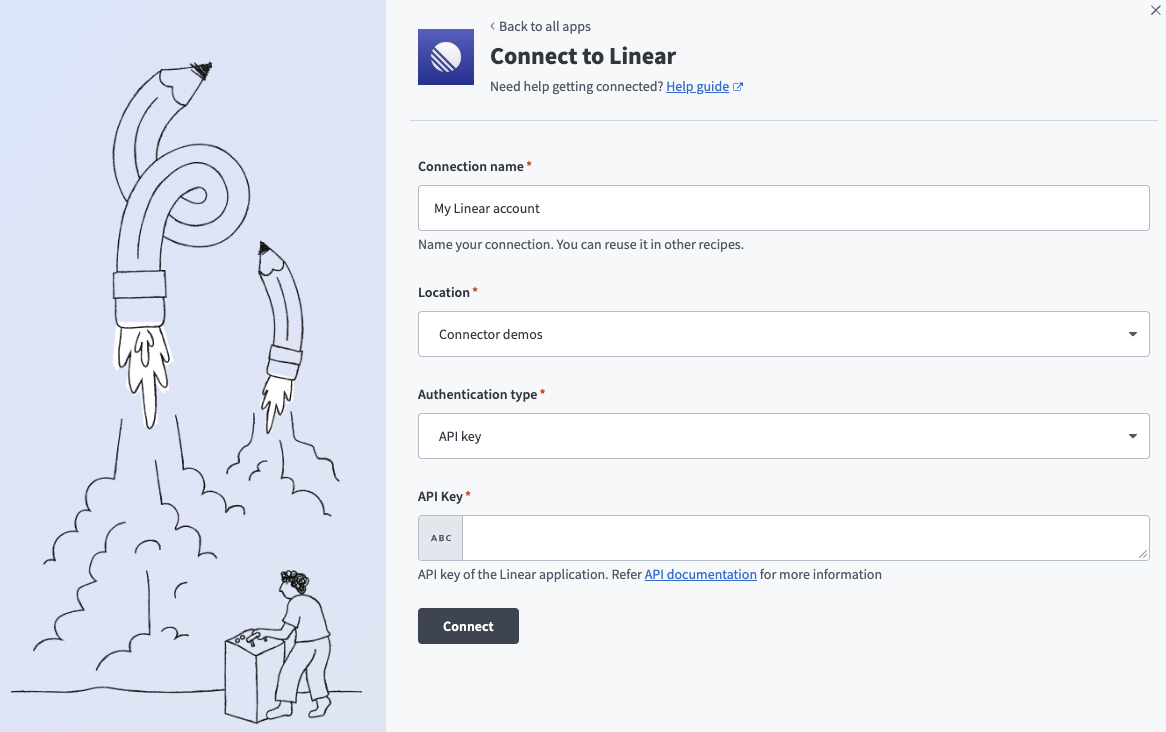 Connect to Linear using API key authentication
Use the Location drop-down menu to select the project or folder where you plan to store the connection.
Enter the API key for your Linear account.
Click Connect.
How to use Linear Project Planning MCP server tools
Refer to the following sections for detailed information on available tools:
list_projects tool
The list_projects tool returns projects across the workspace or scoped to one team, with optional status and lead filters. Your LLM uses this tool to find projects by team, status, or lead before retrieving one with get_project.
Try asking:
List all projects for the Platform team.Show me projects that are currently paused.Find projects led by Priya Patel.
get_project tool
The get_project tool looks up one project by name or ID. Your LLM uses this tool to retrieve a project's teams, members, and initiatives, before reporting on it or updating it. This tool only returns the first 50 project members found.
Try asking:
Show me the full details for the Checkout Redesign project.Who's on the Mobile App Relaunch project?What initiatives is the Billing Migration project part of?
create_project tool
The create_project tool starts a new project under one or more teams, with an optional lead and dates. Your LLM uses this tool when you ask to create a project and provide at least one name and team.
Try asking:
Create a new project called Q3 Onboarding Revamp for the Growth team.Set up a project for the mobile redesign, led by Jordan, starting next Monday.Start a new project on the Platform team with a target date of December 1st.
DEFAULT PROJECT STATUS
The new project uses the default status configured in Linear. Use update_project afterward if you need to change it.
update_project tool
The update_project tool changes a project's name, description, status, lead, or dates. Your LLM uses this tool to adjust one or more project fields when you ask to update them. This tool can't clear existing values.
Try asking:
Update the Billing Migration project's status to Started.Change the lead on the Checkout Redesign project to Sam.Push back the target date on the Mobile App Relaunch project to next quarter.
create_project_update tool
The create_project_update tool publishes a health-tagged status update on a project. Your LLM uses this tool to write a markdown narrative tagged On track, At risk, or Off track after you supply the project and the update text.
Try asking:
Post a status update on the Mobile App Relaunch project marking it at risk.Add an on-track update to the Checkout Redesign project summarizing this week's progress.Mark the Billing Migration project off track and explain why.
list_initiatives tool
The list_initiatives tool retrieves initiatives and up to 25 of their child projects. Your LLM uses this tool to review a roadmap.
Try asking:
What initiatives do we have, and which projects fall under each one?Show me the status and health of all our initiatives.List the projects under the Platform Modernization initiative.
list_cycles tool
The list_cycles tool returns a team's cycles. The newest cycles return first. Your LLM uses this tool to review a team's recent or upcoming sprints before inspecting one in detail.
Try asking:
List the last five cycles for the Platform team.Show me the Growth team's cycles.What cycles has the Mobile team run this quarter?
get_active_cycle tool
The get_active_cycle tool retrieves a team's current cycle, including its progress and its issues grouped by workflow state. Your LLM uses this tool for a sprint check-in, showing cycle progress alongside up to 200 of the most recently updated issues. Issues are read-only in this view.
Try asking:
How is the current sprint going for the Growth team?Show me the active cycle's progress for the Platform team.What issues are still in progress in this sprint?
list_documents tool
The list_documents tool retrieves planning documents, optionally filtered by project or initiative. Initiative names don't resolve automatically, so filtering by initiative requires an ID. Your LLM uses this tool to find existing planning docs before creating a new one or reporting what documentation already exists for a project.
Try asking:
Find the planning documents attached to the Checkout Redesign project.What documents exist for the Mobile App Relaunch project?List all planning documents in the workspace.
create_document tool
The create_document tool adds a new planning document to a project. Your LLM uses this tool to capture a markdown document after you supply a title, content, and the project to attach it to.
Try asking:
Create a planning doc called Launch Checklist attached to the Mobile App Relaunch project.Write up a new document with our Q3 goals for the Growth team's project.Add a kickoff doc to the Checkout Redesign project.
list_teams tool
The list_teams tool returns the teams available for scoping projects and cycles. Your LLM uses this tool to find a team's identifier or key before using it to filter list_projects, list_cycles, or get_active_cycle.
Try asking:
What teams exist in our workspace?Find the team key for the Platform team.List all teams with cycles enabled.
Getting started
View and manage your MCP server tools in the Details tab Tools section. Tool management provides the following capabilities:
TOOLS MUST BE STARTED
Your LLM can only access active tools in your MCP server connector.
Last updated: