ServiceNow ITSM MCP server
The ServiceNow ITSM MCP server connects LLMs to ServiceNow Incident Management through natural conversation. It provides tools to log, search, read, update, and resolve incidents and search knowledge base articles to help deflect or resolve incidents.
This server supports ServiceNow Incident Management. It doesn't support service requests and catalog orders, change and problem management, CSM cases, CMDB and asset operations, or knowledge authoring.
Uses
Use the ServiceNow ITSM MCP server to perform the following actions:
- Log a new incident from a description, chat message, or monitoring alert.
- Search and filter incident queues by state, priority, assignment group, or keywords.
- Retrieve full details for a specific incident by number or system ID.
- Check the status of incidents a specific person reported.
- Add work notes or customer comments, update priority, or reassign incidents.
- Resolve incidents with a resolution code and notes.
- Search the knowledge base and read articles to deflect or speed up resolution.
- Look up users and assignment groups to route incidents.
- Discover the valid values for an incident field before you set it.
Example prompts
Use the following example prompts to invoke ServiceNow ITSM MCP server tools:
Log an incident: the VPN is down for the sales team, high urgency.What's the status of the incidents Jordan Lee reported?Show me all high-priority incidents assigned to the network team.Get the details for incident INC0010045.Add a work note to INC0010045 saying we're waiting on the vendor.Reassign INC0010045 to the database team.Resolve INC0010045: the network switch was replaced.Is there a knowledge article on resetting a VPN connection?Find the ServiceNow user record for [email protected].What resolution codes are available for closing an incident?
ServiceNow ITSM MCP server tools
The ServiceNow ITSM MCP server provides the following tools:
| Tool | Description |
|---|---|
| create_incident | Creates a new incident in ServiceNow from a short description and optional context such as caller, urgency, impact, assignment group, and category. |
| get_incident | Retrieves full details for a single incident by its number or system ID, including state, priority, assignment, and resolution fields. |
| search_incidents | Searches incidents with filters such as state, priority, assignment group, assignee, caller, date range, and keywords. |
| list_caller_incidents | Lists incidents where a specified user is the caller, with status, assignment, and last update. |
| update_incident | Updates an existing incident's work notes, comments, priority, urgency, impact, assignment, or state. |
| resolve_incident | Resolves an incident with a required resolution code and resolution notes, and optionally adds a final customer comment. |
| search_knowledge | Searches the knowledge base for published articles matching a query, and returns titles and identifiers for follow-up retrieval. |
| get_knowledge_article | Retrieves the full content of a single knowledge article by article number or system ID. |
| find_users | Looks up ServiceNow users by name or email to resolve a caller or assignee reference. |
| list_assignment_groups | Lists or searches assignment groups to route incidents, optionally filtered by name. |
| list_incident_field_values | Returns the allowed values for a given incident choice field such as state, priority, urgency, impact, hold reason, resolution code, or category. |
Install the ServiceNow ITSM MCP server
Complete the following steps to install a prebuilt MCP server to your project:
Sign in to your Workato account.
Go to AI Hub > Enterprise MCP > Custom servers.
Click + Create MCP server.
Go to the Start with pre-built MCP Servers using your connected apps section and select the prebuilt MCP server you plan to use.
Click Use this server.
Provide a name for your MCP server in the Server name field.
Use the Location drop-down menu to select the project for the MCP server.
Go to the Connections section and connect to your app account.
Select the connection type you plan to use for the MCP server template.
- User's connection: MCP server tools perform actions based on the identity and permissions of the user who connects to the application. Users authenticate with their own credentials to execute the skill.
- Your connection: This option uses the connection established by the recipe builder and follows the same principles as normal app connections.
 Select your connection type
VERIFIED USER ACCESS AUTHENTICATION REQUIREMENTS
Only app connections that use OAuth 2.0 authorization code grant are available for user's connection. Refer to Verified user access for more information.
Complete the app-specific connection setup steps in the following section.
API version
The ServiceNow connector uses the ServiceNow REST API v2.
ServiceNow ITSM connection setup
View ServiceNow ITSM connection setup steps
The ServiceNow connector supports the following authentication types:
Username and password
View Username and password authentication steps
Select Username/Password authentication type to connect to your ServiceNow instance with your login credentials.
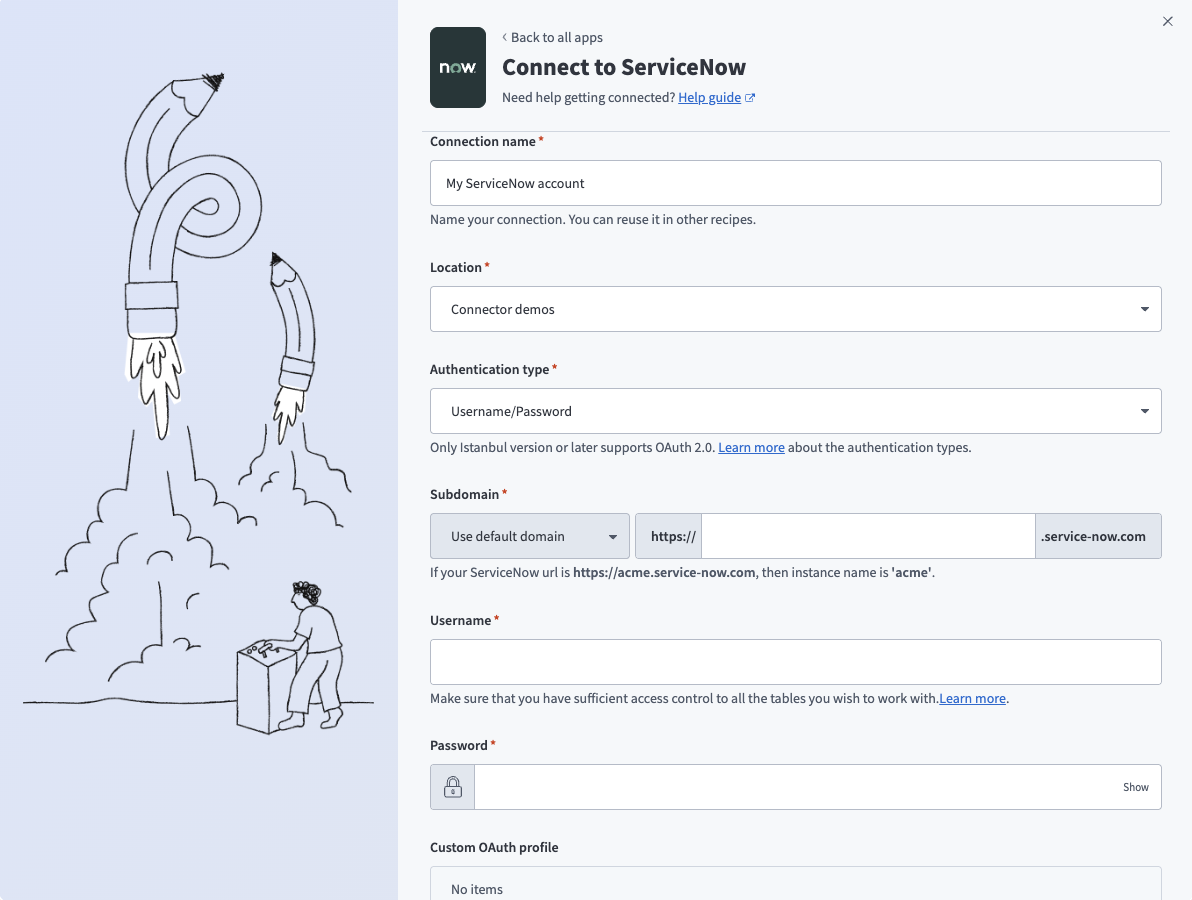 Username/Password connection
| Field | Description |
|---|---|
| Connection name | Enter a unique name that identifies which ServiceNow instance it is connected to. |
| Authentication type | Choose an authentication type for this ServiceNow connection. The ServiceNow connector supports Username/Password (Basic) authentication, OAuth 2.0 using the authorization code grant, and Password grant authentication. |
| Instance name | Provide the name of your instance. For example, if your ServiceNow URL is https://acme.service-now.com, the instance name is acme. |
| Username | Provide the username you plan to use to connect to ServiceNow. |
| Password | Provide the password you plan to use to connect to ServiceNow. |
| Custom OAuth profile | Optional. Select a custom OAuth profile for this connection. |
OAuth 2.0
View OAuth 2.0 authentication steps
Set up an OAuth 2.0 client
Complete the following steps with a ServiceNow admin role to configure an OAuth 2.0 client:
Activate the OAuth 2.0 (com.snc.platform.security.oauth) plugin. Refer to the ServiceNow documentation for more information on how to activate OAuth 2.0.
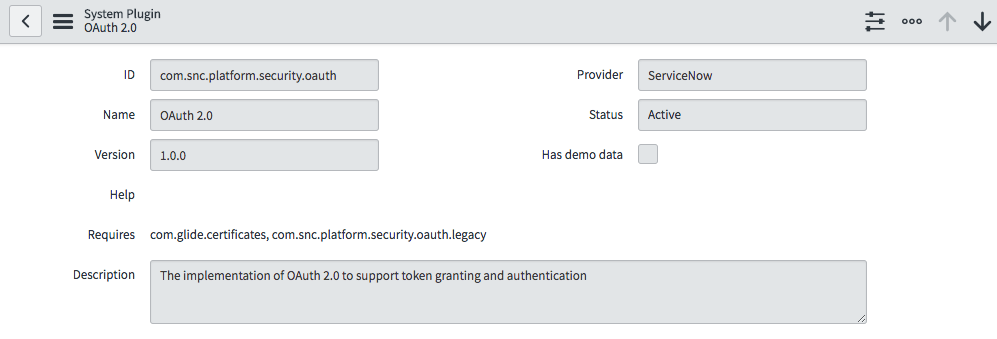 Activate OAuth plugin
Create an endpoint for a client application to gain access to your ServiceNow instance. Use https://www.workato.com/oauth/callback as the Redirect URL. Refer to the ServiceNow documentation for more information on how to create an endpoint for external clients.
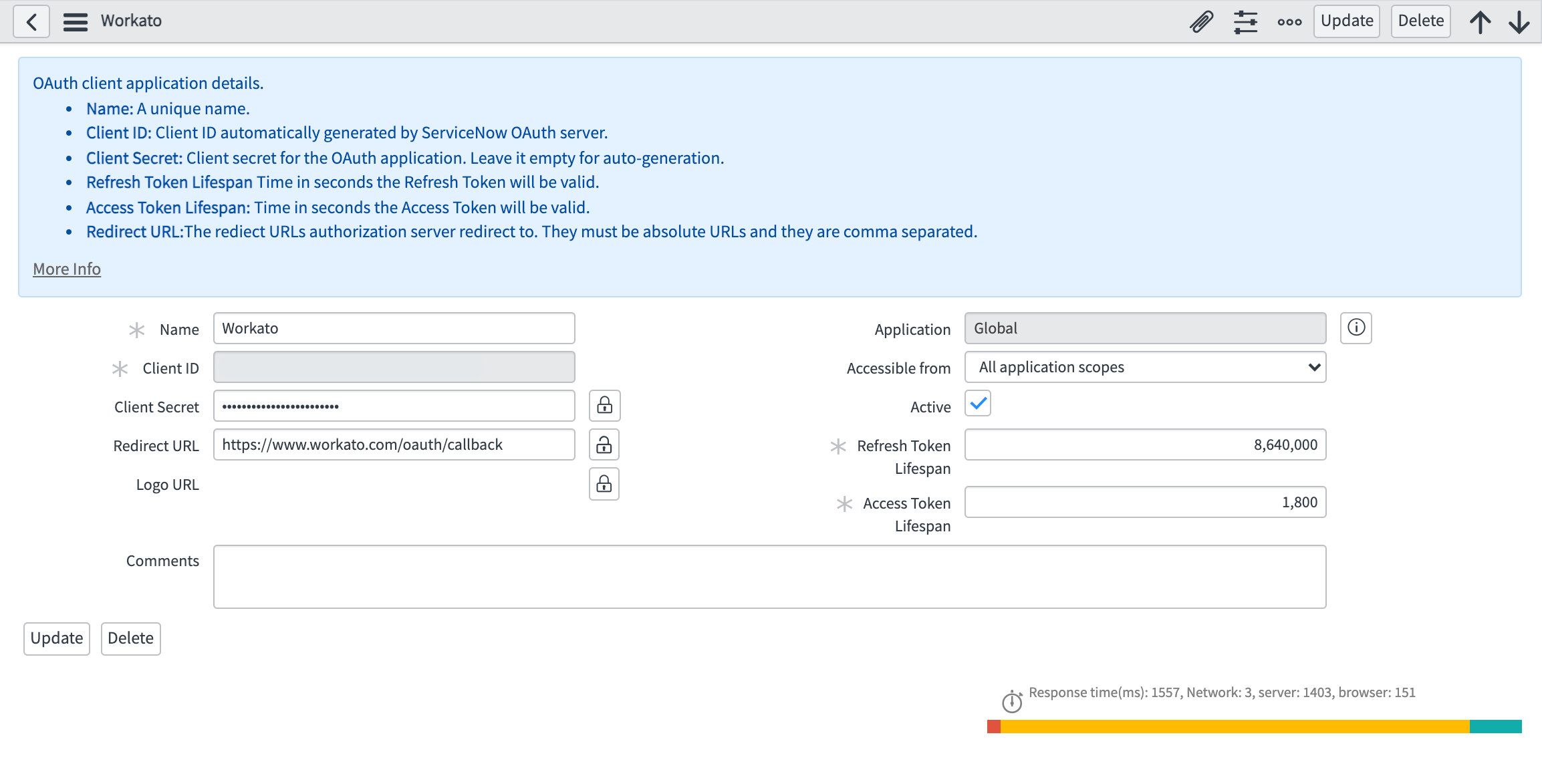 OAuth 2.0 client
Use the Client ID and Client secret to create a ServiceNow connection in Workato. This triggers an OAuth authorization code grant flow that opens a new browser window requesting authorization.
Complete setup in Workato
Select the OAuth 2.0 authentication type to connect to your ServiceNow instance without using your login credentials. This authentication type allows you to grant access to Workato by obtaining a token rather than disclosing your login credentials.
ServiceNow Istanbul and later releases support OAuth 2.0 connections that use the authorization code grant. Ensure that your ServiceNow version supports this when selecting this authentication type.
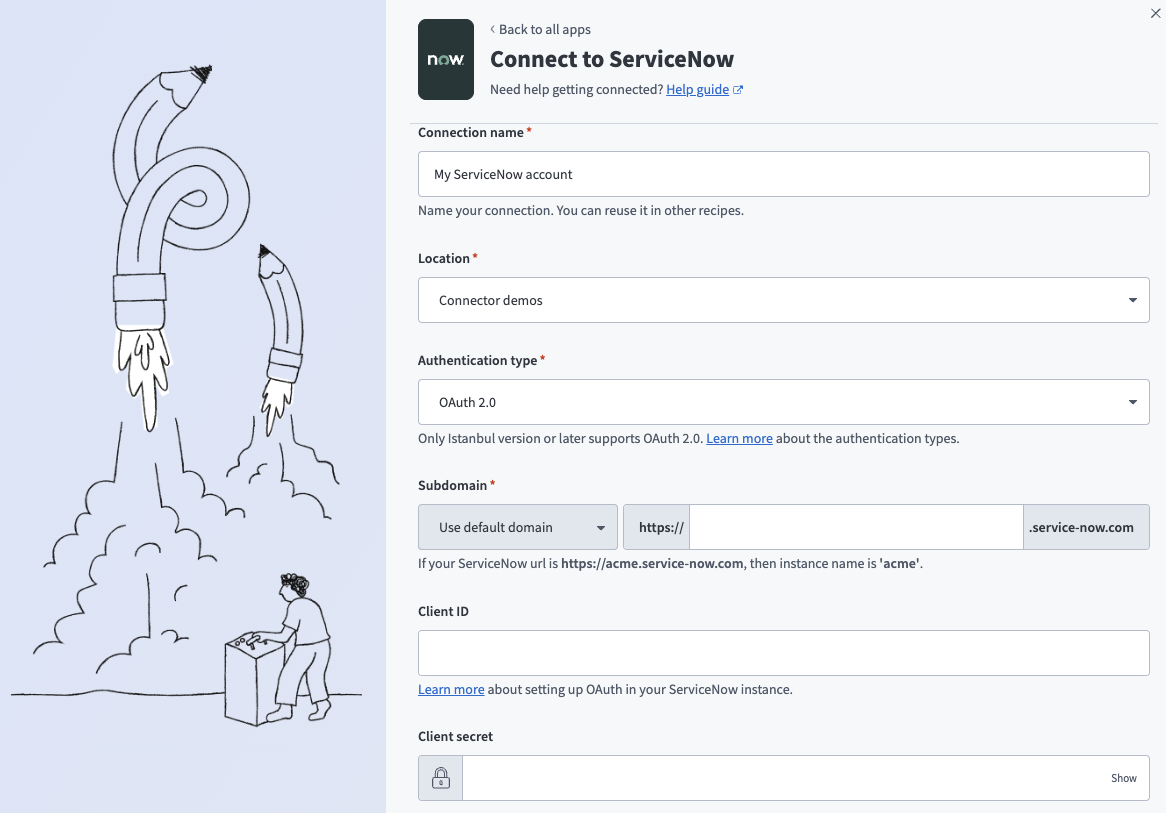 OAuth 2.0 connection
| Field | Description |
|---|---|
| Connection name | Enter a unique name that identifies which ServiceNow instance it is connected to. |
| Authentication type | Choose an authentication type for this ServiceNow connection. The ServiceNow connector supports Username/Password (Basic) authentication, OAuth 2.0 using the authorization code grant, and Password grant authentication. |
| Instance name | Provide the name of your instance. For example, if your ServiceNow URL is https://acme.service-now.com, the instance name is acme. |
| Client ID | Provide the Client ID for your connection to use for authorization. Refer to the Set up an OAuth 2.0 client section for more information on how to set up Application Registry for an OAuth client. |
| Client secret | Provide the Client secret for this OAuth application. Click Toggle Password Visibility (lock icon) to reveal the secret. |
| Custom OAuth profile | Optional. Select a custom OAuth profile for this connection. |
INVALID REFRESH TOKEN ERROR
You may receive an invalid_request or invalid refresh token error after your ServiceNow OAuth 2.0 connection expires. This behavior occurs because ServiceNow limits how long a refresh token remains valid. You must reauthenticate the connection when the token expires.
You can adjust the Refresh Token Lifetime in your ServiceNow OAuth client configuration. Go to your ServiceNow instance, click System OAuth > Application Registry, open your Workato OAuth client, and review the Refresh Token Lifetime value. The default refresh token lifetime is 100 days.
Refer to the ServiceNow external client documentation for more information.
Password grant
View Password grant authentication steps
Select the Password grant authentication type to connect to your ServiceNow instance. This authentication type allows you to grant Workato access by providing your login credentials, which are used to obtain an access token.
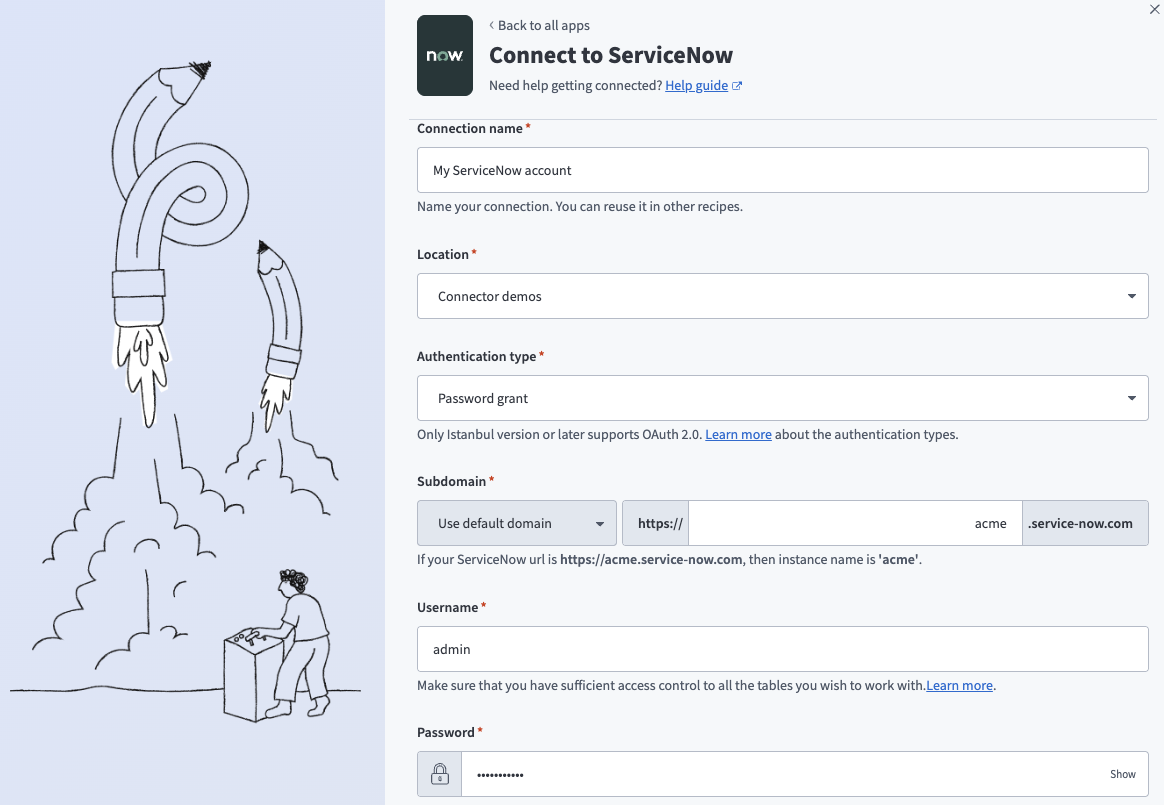 Password grant connection
| Field | Description |
|---|---|
| Connection name | Enter a unique name that identifies which ServiceNow instance it is connected to. |
| Authentication type | Choose an authentication type for this ServiceNow connection. The ServiceNow connector supports Username/Password (Basic) authentication, OAuth 2.0 using the authorization code grant, and Password grant authentication. |
| Instance name | Provide the name of your instance. For example, if your ServiceNow URL is https://acme.service-now.com, the instance name is acme. |
| Username | Provide the username you plan to use to connect to ServiceNow. |
| Password | Provide the password you plan to use to connect to ServiceNow. |
| Client ID | Provide the Client ID for the connection to use for authorization. Refer to the Set up an OAuth 2.0 client section for more information on how to set up Application Registry for an OAuth client. |
| Client secret | Provide the Client secret for this OAuth application. Click Toggle Password Visibility (lock icon) to reveal the secret. |
| Custom OAuth profile | Optional. Select a custom OAuth profile for this connection. |
ServiceNow role requirements
Each tool's availability depends on the permissions granted to the connected account. Standard incident actions require the ITIL role or a custom role with read and write access to the incident table. Knowledge, user, and group reads require read access to their respective tables. A request made without the required permission returns a permission-denied outcome rather than a partial result. Refer to the ServiceNow All ServiceNow roles guide for more information.
Project property configuration
The ServiceNow ITSM MCP server supports the following project-level properties to control behavior and defaults:
| Project-level property | Description |
|---|---|
knowledge_article_max_length | Maximum length of the article body returned by get_knowledge_article. Articles longer than this are truncated, and the response indicates that truncation occurred. |
knowledge_article_format | Content format returned by get_knowledge_article: plain text or raw HTML, based on the connection configuration. |
View project-level property configuration steps
Complete the following steps to configure your project-level properties:
Sign in to your Workato account and go to Projects.
Go to the project that contains your MCP server.
Click the Settings tab.
 Click the Settings tab.
Select Project properties.
Go to the project property you plan to update and click the Edit (pencil) icon.
Go to the Value field and make your changes.
How to use ServiceNow ITSM MCP server tools
Refer to the following sections for detailed information on available tools:
create_incident tool
The create_incident tool creates a new incident in ServiceNow from a short description and optional context such as caller, urgency, impact, assignment group, and category. Your LLM uses this tool to log a new incident from a description, chat message, or monitoring alert, and captures whatever context you provide.
Try asking:
Log an incident: the VPN is down for the sales team, high urgency.Open a ticket for a printer outage on the third floor.Report that the billing service is down and assign it to the applications team.Create an incident for Jordan Lee: their laptop won't connect to Wi-Fi.
get_incident tool
The get_incident tool retrieves full details for a single incident by its number or system ID, including state, priority, assignment, and resolution fields. Your LLM uses this tool to check the status, priority, assignment, or other details of a specific incident.
Try asking:
Get the details for incident INC0010045.What's the status of INC0010045?Who is INC0010045 assigned to?Show me the work notes on INC0010045.
search_incidents tool
The search_incidents tool searches incidents with filters such as state, priority, assignment group, assignee, caller, date range, and keywords. Your LLM uses this tool to find incidents matching criteria like an open queue for a team, high-priority incidents, or incidents mentioning a keyword.
Try asking:
Show me all high-priority incidents assigned to the network team.Find open incidents mentioning "VPN".What incidents were opened today?List incidents assigned to Jordan Lee that are still active.
list_caller_incidents tool
The list_caller_incidents tool lists incidents where a specified user is the caller, with status, assignment, and last update. Your LLM uses this tool to check the status of the incidents a particular person reported.
Try asking:
What's the status of the incidents Jordan Lee reported?Show me the open tickets that [email protected] submitted.Has Jordan Lee reported any incidents this week?List all incidents raised by Jordan Lee.
update_incident tool
The update_incident tool updates an existing incident's work notes, comments, priority, urgency, impact, assignment, or state. Your LLM uses this tool to progress an incident: add a note, change its severity, or reassign it.
Try asking:
Add a work note to INC0010045 saying we're waiting on the vendor.Post a comment to the caller on INC0010045 confirming we're investigating.Reassign INC0010045 to the database team.Set INC0010045 to on hold, waiting on the vendor.
resolve_incident tool
The resolve_incident tool resolves an incident with a required resolution code and resolution notes, and optionally adds a final customer comment. Your LLM uses this tool when the user confirms an incident is fixed and ready to resolve.
Try asking:
Resolve INC0010045: the network switch was replaced.Close out INC0010045: the fix was clearing the browser cache.Mark this incident resolved and let the caller know it's fixed.Resolve INC0010045 and tell the caller the VPN issue is fixed.
search_knowledge tool
The search_knowledge tool searches the knowledge base for published articles matching a query, and returns titles and identifiers for follow-up retrieval. Your LLM uses this tool to find a knowledge article that might deflect or help resolve an incident.
Try asking:
Is there a knowledge article on resetting a VPN connection?Search the knowledge base for password reset instructions.Find articles about printer connectivity issues.Is there a KB article that explains this error?
get_knowledge_article tool
The get_knowledge_article tool retrieves the full content of a single knowledge article by article number or system ID. Your LLM uses this tool to read the full content of an article the user named or that search_knowledge returned.
Try asking:
Read the article about resetting a VPN connection.Show me the full content of KB0012345.What does that knowledge article say to do?Pull up the steps in that VPN troubleshooting article.
find_users tool
The find_users tool looks up ServiceNow users by name or email to resolve a caller or assignee reference. Your LLM uses this tool to find the ServiceNow user record needed to set a caller or assignee.
Try asking:
Find the ServiceNow user record for [email protected].Look up the user Jordan Lee.Who is the ServiceNow user for this email address?Find users matching the name "Jordan".
list_assignment_groups tool
The list_assignment_groups tool lists or searches assignment groups to route incidents, optionally filtered by name. Your LLM uses this tool to find the right team to assign an incident to.
Try asking:
Find the assignment group for the database team.What assignment groups are available for network issues?Look up the group name for the service desk team.Which team should handle this incident?
list_incident_field_values tool
The list_incident_field_values tool returns the allowed values for a given incident choice field such as state, priority, urgency, impact, hold reason, resolution code, or category. Your LLM uses this tool to discover valid values for a field like resolution code or hold reason before you make a change.
Try asking:
What resolution codes are available for closing an incident?What are the valid priority values for incidents?What hold reasons can I choose from?What states can an incident be in?
Getting started
View and manage your MCP server tools in the Details tab Tools section. Tool management provides the following capabilities:
TOOLS MUST BE STARTED
Your LLM can only access active tools in your MCP server connector.
Last updated: