SurveyMonkey Authoring MCP server
The SurveyMonkey Authoring MCP server enables LLMs to interact with SurveyMonkey to build and maintain survey content through natural conversation. It provides tools to create surveys, read their structure, update survey-level settings, add and edit pages and questions, and discover templates without requiring direct interaction with the SurveyMonkey interface.
SERVER SCOPE
The SurveyMonkey Authoring MCP server interacts with survey content. Use the SurveyMonkey Distribution MCP server to distribute surveys, send invitations, manage contacts, and read responses.
Uses
Use the SurveyMonkey Authoring MCP server to perform the following actions:
- Create a blank survey, use a SurveyMonkey template, or a copy of an existing survey.
- Read a survey's full structure, including its pages and questions.
- Update survey-level settings, such as title and navigation button text.
- Add pages to a survey and edit their title, description, or position.
- Add questions to a page, including questions reused from the SurveyMonkey question bank.
- Revise an existing question's text, answer choices, or position.
- Reorder pages and questions by setting their position.
- List and filter existing surveys by title, then sort by title or modified date.
- Discover SurveyMonkey templates to base a new survey on.
Example prompts
Use the following example prompts to invoke SurveyMonkey Authoring MCP server tools:
Create a new NPS survey from scratch.Start a customer-satisfaction survey from a SurveyMonkey template.Copy my last employee-engagement survey into a new one.What questions are already on this survey?Rename this survey to "Q3 Customer Feedback".Add a new page for demographic questions to my survey.Add a rating question to page 2.Change the answer choices on this multiple-choice question.Find a reusable NPS question in the question bank.Show me SurveyMonkey templates for event feedback.
SurveyMonkey Authoring MCP server tools
The SurveyMonkey Authoring MCP server provides the following tools:
| Tool | Description |
|---|---|
| list_surveys | Lists surveys in the account, optionally filtered by title or sorted. |
| create_survey | Creates a blank survey, or one from a SurveyMonkey template or a copy of an existing survey. |
| get_survey_details | Retrieves a survey's full structure, including its pages and questions. |
| update_survey | Updates survey-level settings such as title and navigation button text. |
| add_page | Adds a page to a survey. |
| update_page | Updates a page's title, description, or position. |
| add_question | Adds a question to a page on a survey. |
| update_question | Updates an existing question's text, choices, or position. |
| list_question_bank_questions | Lists SurveyMonkey question-bank questions available to reuse. |
| list_survey_templates | Lists available SurveyMonkey library templates. |
Install the SurveyMonkey Authoring MCP server
Complete the following steps to install a prebuilt MCP server to your project:
Sign in to your Workato account.
Go to AI Hub > Enterprise MCP > Custom servers.
Click + Create MCP server.
Go to the Start with pre-built MCP Servers using your connected apps section and select the prebuilt MCP server you plan to use.
Click Use this server.
Provide a name for your MCP server in the Server name field.
Use the Location drop-down menu to select the project for the MCP server.
Go to the Connections section and connect to your app account.
Select the connection type you plan to use for the MCP server template.
- User's connection: MCP server tools perform actions based on the identity and permissions of the user who connects to the application. Users authenticate with their own credentials to execute the skill.
- Your connection: This option uses the connection established by the recipe builder and follows the same principles as normal app connections.
 Select your connection type
VERIFIED USER ACCESS AUTHENTICATION REQUIREMENTS
Only app connections that use OAuth 2.0 authorization code grant are available for user's connection. Refer to Verified user access for more information.
Complete the app-specific connection setup steps in the following section.
SurveyMonkey Authoring connection setup
View SurveyMonkey Authoring connection setup steps
Complete the following steps to connect to SurveyMonkey in Workato:
Provide a Connection name that identifies which SurveyMonkey account Workato is connected to.
Use the Location drop-down menu to select the project or folder where you plan to store the connection.
Use the Datacenter drop-down menu to select the data center that hosts your SurveyMonkey account. Defaults to United States. You must use a custom OAuth profile to connect to a data center outside of the United States.
Optional. Use the Custom OAuth profile drop-down menu to select a custom OAuth profile for your connection. All requests to the app use the profile you specify here.
Click Connect to open the SurveyMonkey authorization window.
Sign in to SurveyMonkey with your account credentials. We recommend you use an admin account to avoid permission roadblocks.
Read the terms of service and click Authorize to complete the connection setup.
VIEW ANSWERS REQUIREMENT
Select view answers along with responses during authorization if you plan to use the Completed survey response trigger or the Send survey invite via email and wait for response action.
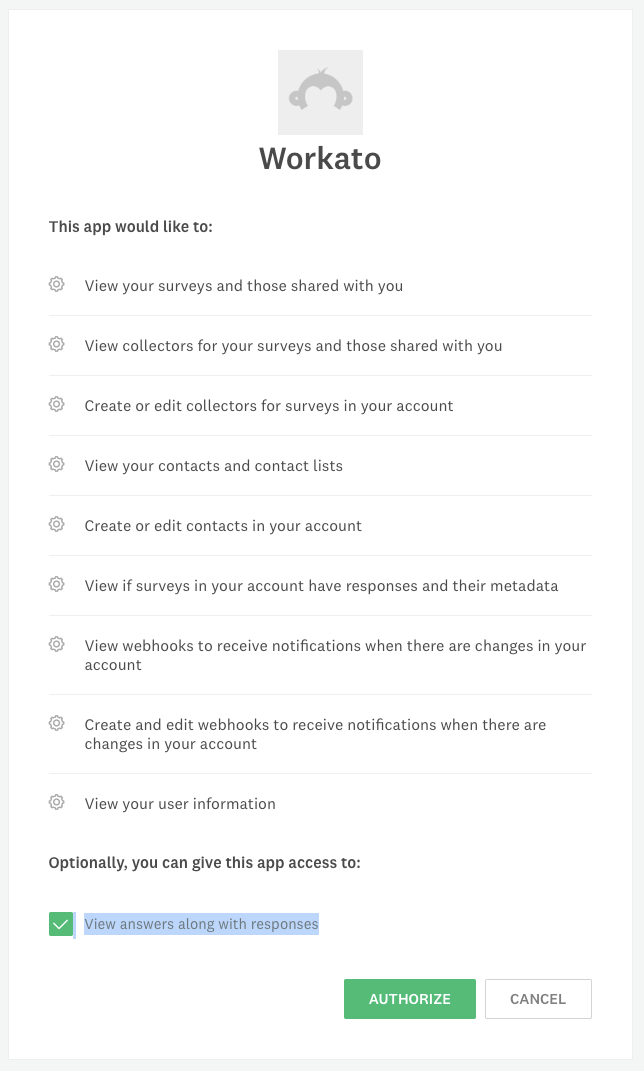 Authorize Workato to access your SurveyMonkey account.
SurveyMonkey Authoring role requirements
Each tool's availability depends on the plan and the OAuth scopes granted to the connected SurveyMonkey account. A request made without the required scope returns a permission-denied outcome rather than a partial result. Refer to SurveyMonkey's OAuth scopes documentation for the complete list of scopes and their capabilities.
How to use SurveyMonkey Authoring MCP server tools
Refer to the following sections for detailed information on available tools:
list_surveys tool
The list_surveys tool lists surveys in the account, optionally filtered by title or sorted. Your LLM uses this tool to find a survey you plan to edit, copy, or inspect, narrowing a large account by a title fragment and ordering results by title or most-recently-modified date. This is a filter-and-sort list rather than a relevance-ranked search, so it presents results as a filtered list and offers to page through additional matches.
Try asking:
List my surveys sorted by most recently modified.Find surveys with "customer" in the title.Show me the surveys I can edit.
create_survey tool
The create_survey tool creates a blank survey, loads a SurveyMonkey template, or copies an existing survey. Your LLM uses this tool to start a new survey after you specify to create a blank survey or provide a source title, template ID, or survey ID. Blank surveys and copies of empty surveys still need at least one page and question before they can collect responses.
Try asking:
Create a blank survey called "Q3 Feedback".Start a new survey from the customer-satisfaction template.Copy my last event survey into a new one.
get_survey_details tool
The get_survey_details tool retrieves a survey's full structure, including its pages and questions. Your LLM uses this tool to read a survey's pages, questions, choices, and positions before editing so that changes target the correct page and question IDs.
Try asking:
What questions are on this survey?Show me the full structure of my onboarding survey.List the pages and questions before I make edits.
update_survey tool
The update_survey tool updates survey-level settings, such as title and navigation button text. Your LLM uses this tool to change a survey's title or navigation button labels after confirming which settings to change. This tool can't remove SurveyMonkey branding or the survey footer, which requires a paid plan.
Try asking:
Rename this survey to "Annual Employee Survey".Update the "Next" button label to "Continue".Change the "Done" button text on my survey.
add_page tool
The add_page tool adds a page to a survey. Your LLM uses this tool to organize questions across pages or create a page to hold new questions, placing it at a position you specify or appending it at the end after confirming the page title and location. Use the add_question tool to add questions to the page.
Try asking:
Add a new page for demographic questions.Create a second page titled "Feedback".Add a page at the start of my survey.
update_page tool
The update_page tool updates a page's title, description, or position. Your LLM uses this tool to rename a page, revise its description, or reorder it within the survey after confirming exactly what changes. It doesn't add or remove questions.
Try asking:
Rename page 2 to "Contact Details".Move the demographics page to the end.Update the description on my intro page.
add_question tool
The add_question tool adds a question to a page on a survey. Your LLM uses this tool to add a fully specified question, its family, choices, and text, or to reuse a question from the SurveyMonkey question bank. Questions are placed at a position you choose or appended at the end. The add is rejected if the survey has reached the platform's survey-size limit.
Try asking:
Add a rating question to page 2.Add a multiple-choice question with these options.Add the standard NPS question from the question bank.
update_question tool
The update_question tool updates an existing question's text, choices, or position. Your LLM uses this tool to revise a question's wording, change its answer choices, or reorder it on its page after confirming exactly what changes. It can't move a question to another page or change its question type.
Try asking:
Change this question's wording to be more specific.Update the answer choices on my rating question.Move this question to the top of the page.
list_question_bank_questions tool
The list_question_bank_questions tool lists SurveyMonkey question-bank questions available to reuse. Your LLM uses this tool to find a reusable bank question and obtain its ID, which it then passes to the add_question tool to place the question on a page. This tool is read-only and can be filtered by search text, locale, or custom questions.
Try asking:
Find a reusable NPS question in the question bank.Search the question bank for satisfaction questions.Show me question-bank questions I can add to this page.
list_survey_templates tool
The list_survey_templates tool lists available SurveyMonkey library templates. Your LLM uses this tool to find a SurveyMonkey template to base a new survey on and obtain its template ID for the create_survey tool, optionally filtering by category or language. Only SurveyMonkey's library templates are available. Team and custom templates aren't listed.
Try asking:
Show me SurveyMonkey templates for event feedback.Find a customer-satisfaction survey template.List the available templates in French.
Getting started
View and manage your MCP server tools in the Details tab Tools section. Tool management provides the following capabilities:
TOOLS MUST BE STARTED
Your LLM can only access active tools in your MCP server connector.
Last updated: