SurveyMonkey Distribution MCP server
The SurveyMonkey Distribution MCP server enables LLMs to interact with SurveyMonkey to publish surveys to an audience and track the responses that come back through natural conversation. It provides tools to locate a survey to publish, create web-link, email, and SMS collectors, send email and SMS invitations, manage contact lists, track basic response records and counts, and manage webhook event subscriptions without requiring direct interaction with the SurveyMonkey interface.
SERVER SCOPE
The SurveyMonkey Distribution MCP server provides survey distribution and basic response tracking capabilities. Use the SurveyMonkey Authoring MCP server to build and edit surveys, pages, and questions.
delete_webhook is the only destructive delete surfaced by this server.
Uses
Use the SurveyMonkey Distribution MCP server to perform the following actions:
- Locate a survey to publish by name or ID, without leaving to build or edit it.
- Create a web-link collector and share its URL, or an email or SMS collector for invitations.
- List the collectors that already exist on a survey.
- Send an email or SMS invitation, reminder, or thank-you to recipients or a contact list.
- Create and populate reusable contact lists, and review their membership.
- Track responses at a basic level by listing records and counts and filtering by status.
- Read a single response's basic metadata.
- Subscribe to survey, collector, and response events through webhooks.
- List and read webhook subscriptions, and delete one to stop its event delivery.
Example prompts
Use the following example prompts to invoke SurveyMonkey Distribution MCP server tools:
Give me a shareable link for my customer-satisfaction survey.Find the survey called "Q3 Feedback" so I can publish it.Create an SMS collector to text my survey to contacts.Email this survey to last quarter's attendees.Send a reminder invitation on my email collector.Create a contact list called "Fall Event Attendees".Add these email addresses to my contacts list.How many people have responded so far?Set up a webhook for when a response is completed.Delete the webhook feeding our old integration.
SurveyMonkey Distribution MCP server tools
The SurveyMonkey Distribution MCP server provides the following tools:
| Tool | Description |
|---|---|
| find_survey | Finds a survey to publish by name or ID and returns its ID, title, and question count. |
| create_collector | Creates a web-link, email, or SMS collector on a survey. |
| list_collectors | Lists the collectors that exist on a survey. |
| send_invitation | Creates and sends an email or SMS invitation for a collector. |
| create_contact_list | Creates a named contact list for outreach. |
| list_contact_lists | Lists the account's contact lists. |
| add_contacts | Adds one or more contacts to a contact list. |
| list_contacts | Lists the contacts in a contact list. |
| list_responses | Lists basic response records and the count for a survey or collector. |
| get_response | Retrieves the basic metadata for a single response. |
| create_webhook | Subscribes to survey, collector, or response events. |
| list_webhooks | Lists the ID and name for existing webhook subscriptions. |
| get_webhook | Retrieves one webhook subscription's full detail. |
| delete_webhook | Deletes a single webhook to stop its event delivery. |
Install the SurveyMonkey Distribution MCP server
Complete the following steps to install a prebuilt MCP server to your project:
Sign in to your Workato account.
Go to AI Hub > Enterprise MCP > Custom servers.
Click + Create MCP server.
Go to the Start with pre-built MCP Servers using your connected apps section and select the prebuilt MCP server you plan to use.
Click Use this server.
Provide a name for your MCP server in the Server name field.
Use the Location drop-down menu to select the project for the MCP server.
Go to the Connections section and connect to your app account.
Select the connection type you plan to use for the MCP server template.
- User's connection: MCP server tools perform actions based on the identity and permissions of the user who connects to the application. Users authenticate with their own credentials to execute the skill.
- Your connection: This option uses the connection established by the recipe builder and follows the same principles as normal app connections.
 Select your connection type
VERIFIED USER ACCESS AUTHENTICATION REQUIREMENTS
Only app connections that use OAuth 2.0 authorization code grant are available for user's connection. Refer to Verified user access for more information.
Complete the app-specific connection setup steps in the following section.
SurveyMonkey Distribution connection setup
View SurveyMonkey Distribution connection setup steps
Complete the following steps to connect to SurveyMonkey in Workato:
Provide a Connection name that identifies which SurveyMonkey account Workato is connected to.
Use the Location drop-down menu to select the project or folder where you plan to store the connection.
Use the Datacenter drop-down menu to select the data center that hosts your SurveyMonkey account. Defaults to United States. You must use a custom OAuth profile to connect to a data center outside of the United States.
Optional. Use the Custom OAuth profile drop-down menu to select a custom OAuth profile for your connection. All requests to the app use the profile you specify here.
Click Connect to open the SurveyMonkey authorization window.
Sign in to SurveyMonkey with your account credentials. We recommend you use an admin account to avoid permission roadblocks.
Read the terms of service and click Authorize to complete the connection setup.
VIEW ANSWERS REQUIREMENT
Select view answers along with responses during authorization if you plan to use the Completed survey response trigger or the Send survey invite via email and wait for response action.
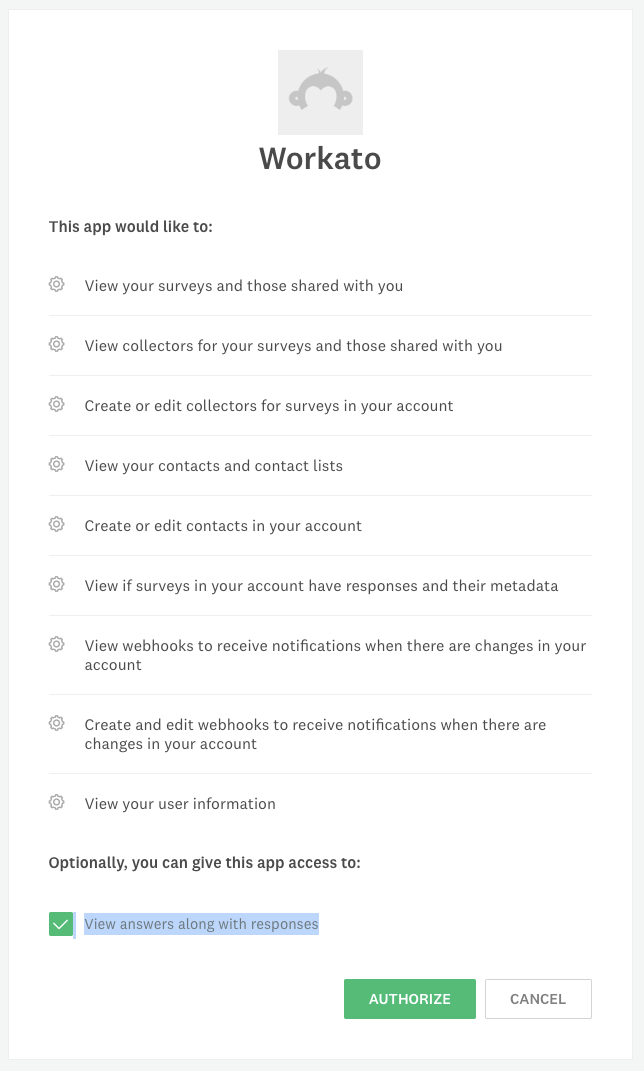 Authorize Workato to access your SurveyMonkey account.
SurveyMonkey Distribution role requirements
Each tool's availability depends on the plan and the OAuth scopes granted to the connected SurveyMonkey account. A request made without the required scope returns a permission-denied outcome rather than a partial result. Refer to SurveyMonkey's OAuth scopes documentation for the complete list of scopes and their capabilities.
How to use SurveyMonkey Distribution MCP server tools
Refer to the following sections for detailed information on available tools:
find_survey tool
The find_survey tool finds a survey to publish by name or ID and returns its ID, title, and question count. Your LLM uses this tool to resolve the survey you plan to publish or track by a title fragment or a specific survey ID. Pages and questions aren't returned.
This tool is read-only. Use the SurveyMonkey Authoring MCP server to build or edit a survey's content.
Try asking:
Find the survey called "Q3 Feedback" so I can publish it.Look up the survey with this ID.Which of my surveys have "customer" in the title?
create_collector tool
The create_collector tool creates a web-link, email, or SMS collector on a survey. Your LLM uses this tool to publish a survey for collecting responses after confirming the survey and collector type with you. A web-link collector returns a shareable URL, while email and SMS collectors act as containers for invitations sent with the send_invitation tool. The tool warns you that the collector won't gather anything if the survey's question count is available and reported as 0.
Try asking:
Create a shareable link for my onboarding survey.Set up an email collector on my customer-satisfaction survey.Create an SMS collector to text my survey to contacts.
list_collectors tool
The list_collectors tool lists the collectors that exist on a survey. Your LLM uses this tool to find an existing collector, such as an email collector to send a reminder on or a web-link collector already created, before adding a duplicate. This tool is read-only.
Try asking:
What collectors already exist on this survey?Is there already a web link for my survey?Find the email collector I can send a reminder on.
send_invitation tool
The send_invitation tool creates and sends an email or SMS invitation for a collector. Your LLM uses this tool to send a survey through an email or SMS collector after confirming the collector, message type, message content, and recipients with you. It creates the message, adds the recipients through individual addresses or a contact list, and sends or schedules it in one call, then reports the send status as the API returns it. The tool reports the status rather than asserting delivery as delivery isn't guaranteed for unverified senders.
Try asking:
Email this survey to last quarter's attendees.Send an SMS invitation to my contact list.Schedule a thank-you message to go out tomorrow morning.
create_contact_list tool
The create_contact_list tool creates a named contact list for outreach. Your LLM uses this tool to stand up a reusable, empty contact list after confirming the name with you, which you then populate with the add_contacts tool and reference when sending invitations.
Try asking:
Create a contact list called "Fall Event Attendees".Set up a new recipient list for my newsletter survey.Make a contacts list I can reuse for reminders.
list_contact_lists tool
The list_contact_lists tool lists the account's contact lists. Your LLM uses this tool to find a list made earlier, such as last quarter's recipients, or to get a contact list ID for the send_invitation tool, rather than creating a duplicate. This tool is read-only.
Try asking:
Show me my contact lists.Find the recipient list I used last quarter.Which contact lists can I send this survey to?
add_contacts tool
The add_contacts tool adds one or more contacts to a contact list. Your LLM uses this tool to populate a list after confirming how many contacts and which list, adding them in bulk when more than one is supplied and reporting which succeeded and which failed. Each contact needs an email or a phone number. This tool doesn't deduplicate, so adding a contact already present may duplicate it.
Try asking:
Add these email addresses to my "Fall Event Attendees" list.Add [email protected] to my contacts list.Bulk-add this list of recipients to my newsletter list.
list_contacts tool
The list_contacts tool lists the contacts in a contact list. Your LLM uses this tool to review who is in a list before sending invitations, or to confirm contacts were added. This tool is read-only.
Try asking:
Who's in my "Fall Event Attendees" list?Show me the contacts on my newsletter list.Did my contacts get added to the list?
list_responses tool
The list_responses tool lists basic response records and the count for a survey or collector. Your LLM uses this tool to see how many people responded and the status of responses, reading the count from the result envelope's total and filtering by status when you ask. When both a survey and a collector are given, the collector takes precedence. It returns basic records, such as ID, status, and timestamps. It doesn't return answer text, which requires a paid plan.
Try asking:
How many people have responded so far?Show me the completed responses for my survey.How many responses came in through this collector?
get_response tool
The get_response tool retrieves the basic metadata for a single response. Your LLM uses this tool to read one response's status, collection mode, collector, and timestamps, identified by survey ID and response ID. It doesn't return answer text, which requires a paid plan.
Try asking:
Show me the details of this response.When was this response submitted, and is it complete?What's the status of this response?
create_webhook tool
The create_webhook tool subscribes to survey, collector, or response events. Your LLM uses this tool to set up an event-driven notification, such as when a response is completed, scoped to a survey or collector, after confirming the event type and target with you. Webhook payloads carry only IDs and timestamps, never answer content, so a downstream step calls the list_responses or get_response tool to fetch the record.
Try asking:
Set up a webhook for when a response is completed.Notify my integration whenever this survey gets a new response.Subscribe to updates on this collector.
list_webhooks tool
The list_webhooks tool lists an ID and name summary for existing webhook subscriptions. Your LLM uses this tool to find the ID of a webhook to read or delete, then calls the get_webhook tool for full detail. This tool is read-only.
Try asking:
List my webhook subscriptions.What webhooks do I have set up?Find the webhook feeding our old integration.
get_webhook tool
The get_webhook tool retrieves one webhook subscription's full detail. Your LLM uses this tool to read a webhook's event type, what it watches, and its delivery URL, identified by the webhook ID from the list_webhooks tool, typically to confirm exactly what a subscription does before deleting it. This tool is read-only.
Try asking:
Show me the full detail of this webhook.What event does this webhook subscribe to, and where does it deliver?Confirm what this subscription watches before I remove it.
delete_webhook tool
The delete_webhook tool deletes a single webhook to stop its event delivery. Your LLM uses this tool to remove a webhook subscription after identifying the exact webhook with the list_webhooks and get_webhook tools, presenting its details, and obtaining your explicit confirmation. It deletes only one identified webhook, never a bulk delete, and removes the subscription only, leaving survey and response data intact.
Try asking:
Delete the webhook feeding our old integration.Remove this webhook subscription.Stop event delivery to that retired endpoint.
Getting started
View and manage your MCP server tools in the Details tab Tools section. Tool management provides the following capabilities:
TOOLS MUST BE STARTED
Your LLM can only access active tools in your MCP server connector.
Last updated: