WordPress Content Operations MCP server
The WordPress Content Operations MCP server enables LLMs to create, retrieve, update, and manage structured content on a WordPress site through natural conversation. It provides direct access to core content objects, including posts, pages, custom post types, taxonomy, media metadata, and comments without direct interaction with the WordPress interface.
Uses
Use the WordPress Content Operations MCP server to perform the following actions:
- List, retrieve, create, update, and trash posts
- List, retrieve, create, update, and trash pages
- Discover available post types and retrieve schema definitions for custom post types
- List, retrieve, create, and update categories
- List, create, and update tags
- List and retrieve media items from the WordPress media library
- Update metadata for media items, including titles, alt text, descriptions, and captions
- List and retrieve comments filtered by post, status, and recency
- Moderate comments by approving, holding, or marking as spam
- Trash comments and reply to existing comments
Example prompts
Use the following example prompts to invoke WordPress Content Operations MCP server tools:
Show me all draft posts.Get the full content of this post before I update it.Create a new blog post with this content.Update the title and status of this post.Move this post to trash.List all published pages on the site.Create a new page for the About section.What content types are available on this site?Show me the schema for this custom post type.List all categories and find the right one for this post.Create a new tag called "Product Update".Show me images in the media library I can attach to this post.Update the alt text on this image for accessibility.Show me pending comments on this post.Approve this comment and reply to it.
WordPress Content Operations MCP server tools
The WordPress Content Operations MCP server provides the following tools:
| Tool | Description |
|---|---|
| list_posts | Lists posts filtered by status, post type, and recency. |
| get_post | Retrieves full content and metadata for a post. |
| create_post | Creates a new post with content and metadata you specify. |
| update_post | Updates fields and state of an existing post. |
| trash_post | Moves a post to trash. |
| list_pages | Lists pages filtered by status, hierarchy, and recency. |
| get_page | Retrieves full content and metadata for a page. |
| create_page | Creates a new page with content and metadata you specify. |
| update_page | Updates fields and structure of an existing page. |
| trash_page | Moves a page to trash. |
| list_post_types | Lists available post types exposed through the WordPress REST API. |
| get_post_type_schema | Retrieves the schema definition for a post type. |
| list_categories | Lists categories used to organize content. |
| get_category | Retrieves details for a category you specify. |
| create_category | Creates a new category. |
| update_category | Updates an existing category. |
| list_tags | Lists tags used to label and group content. |
| create_tag | Creates a new tag. |
| update_tag | Updates an existing tag. |
| list_media | Lists media items stored in the WordPress media library. |
| get_media | Retrieves details and metadata for a media item. |
| update_media_metadata | Updates metadata for an existing media item, including title, alt text, description, and caption. |
| list_comments | Lists comments filtered by post, status, and recency. |
| get_comment | Retrieves full details for a comment. |
| update_comment | Updates the moderation status of an existing comment. |
| trash_comment | Moves a comment to trash. |
| reply_to_comment | Creates a reply to an existing comment. |
Install the WordPress Content Operations MCP server
Complete the following steps to install a prebuilt MCP server to your project:
Sign in to your Workato account.
Go to AI Hub > Enterprise MCP > Custom servers.
Click + Create MCP server.
Go to the Start with pre-built MCP Servers using your connected apps section and select the prebuilt MCP server you plan to use.
Click Use this server.
Provide a name for your MCP server in the Server name field.
Use the Location drop-down menu to select the project for the MCP server.
Go to the Connections section and connect to your app account.
Select the connection type you plan to use for the MCP server template.
- User's connection: MCP server tools perform actions based on the identity and permissions of the user who connects to the application. Users authenticate with their own credentials to execute the skill.
- Your connection: This option uses the connection established by the recipe builder and follows the same principles as normal app connections.
 Select your connection type
VERIFIED USER ACCESS AUTHENTICATION REQUIREMENTS
Only app connections that use OAuth 2.0 authorization code grant are available for user's connection. Refer to Verified user access for more information.
Complete the app-specific connection setup steps in the following section.
WordPress connection setup
View WordPress connection setup steps
Complete the following steps to connect to WordPress in Workato:
Click Create > Connection or press C twice.
Search for WordPress and select it as your app.
Enter a name for your connection in the Connection name field.
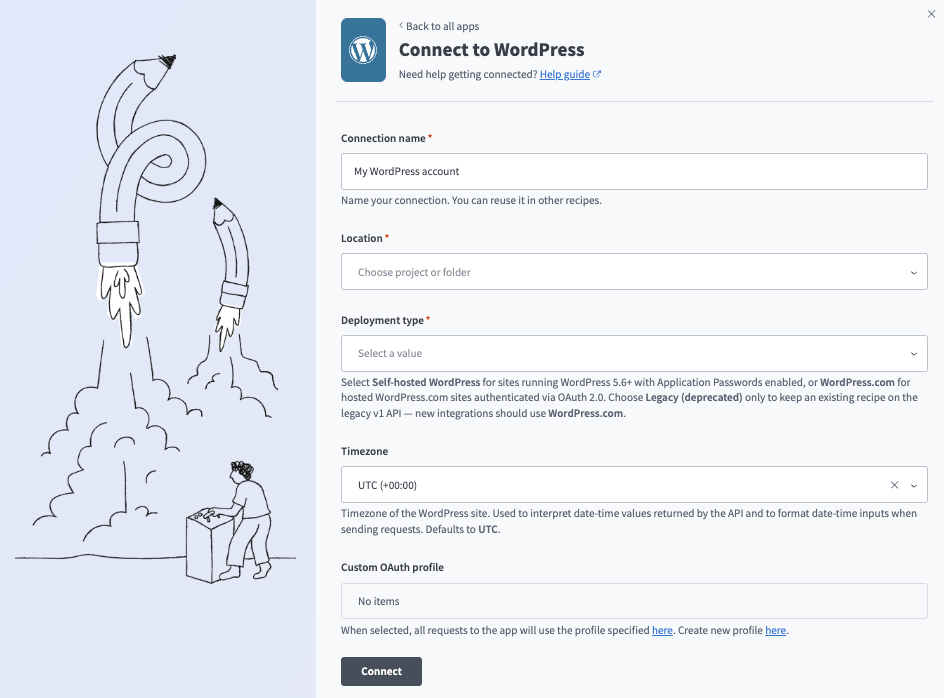 Create your connection
Use the Location drop-down menu to select the project where you plan to store the connection.
Use the Deployment type drop-down menu to select one of the following deployment types:
- WordPress.com: Hosted sites authenticated with OAuth 2.0.
- Self-hosted WordPress: Sites running WordPress 5.6+ with application passwords enabled.
- Legacy (deprecated): Only select this option to keep an existing recipe on the legacy v1 API. New integrations should use WordPress.com instead.
Optional. Use the Timezone drop-down menu to select the timezone of the WordPress site. Workato uses the timezone to interpret date-time values returned by the API and to format date-time inputs when sending requests. Defaults to UTC.
Complete the following steps if your Deployment type is Self-hosted WordPress:
Self-hosted WordPress steps
Enter the full URL of your WordPress site, including the scheme, in the Site URL field. For example, https://example.com. We strongly recommend https because application passwords transmit credentials with basic auth.
Enter the username to authenticate with in the Username field. Ensure the authentication user has at least an Editor or Administrator role.
Enter the password for the WordPress authentication user in the Application password field. Refer to the WordPress Creating an Application Password in wp-admin guide to create this value.
Optional. Use the Custom OAuth profile drop-down menu to select a custom OAuth profile to use for the connection.
Click Connect, then click Approve to grant Workato access if prompted.
How to use WordPress Content Operations MCP server tools
Refer to the following sections for detailed information on available tools:
list_posts tool
The list_posts tool lists posts filtered by status, post type, and recency. Your LLM uses this tool to view recent posts, list drafts, scheduled posts, or unpublished content, or browse post types.
Try asking:
Show me all draft posts.List scheduled posts going out this week.Show me the most recent published posts.Browse posts of this custom post type.
get_post tool
The get_post tool retrieves full content and metadata for a post. Your LLM uses this tool to retrieve a post or provide full context before updating it.
Try asking:
Get the full content of this post before I update it.Show me the metadata for this post.Retrieve this post so I can review it before publishing.Pull up the full details for this draft.
create_post tool
The create_post tool creates a new post with content and metadata you specify. Your LLM uses this tool to create or publish content.
Try asking:
Create a new blog post with this content.Draft a new post with this title and body.Publish a new announcement post.Create a new post and schedule it for next Monday.
update_post tool
The update_post tool updates fields and the state of an existing post. Your LLM uses this tool to modify existing content, such as changing the title, body, status, or metadata of a post.
Try asking:
Update the title and status of this post.Change this draft to published.Update the featured image on this post.Edit the excerpt on this post.
trash_post tool
The trash_post tool moves a post to trash. Your LLM uses this tool to delete a post.
Try asking:
Move this post to trash.Delete this draft post.Trash this outdated announcement.Remove this post from the site.
list_pages tool
The list_pages tool lists pages filtered by status, hierarchy, and recency. Your LLM uses this tool to view pages, list drafts or scheduled pages, or browse the site's page structure.
Try asking:
List all published pages on the site.Show me draft pages that haven't been published yet.Browse the page hierarchy for the main navigation.List all child pages under the Services section.
get_page tool
The get_page tool retrieves full content and metadata for a page. Your LLM uses this to retrieve a page to provide full context before updating it.
Try asking:
Get the full content of the About page.Show me this page before I make changes.Retrieve the metadata for this page.Pull up the full details for this draft page.
create_page tool
The create_page tool creates a new page with content and metadata you specify. Your LLM uses this tool to create or publish a page.
Try asking:
Create a new page for the About section.Add a new Contact Us page to the site.Create a landing page with this content.Draft a new page under the Services section.
update_page tool
The update_page tool updates fields and the structure of an existing page. Your LLM uses this tool to modify an existing page.
Try asking:
Update the content on the About page.Change this page's parent to the Services section.Publish this draft page.Update the title and template for this page.
trash_page tool
The trash_page tool moves a page to trash. Your LLM uses this tool to delete a page.
Try asking:
Move this page to trash.Delete the old landing page.Trash this outdated campaign page.Remove this page from the site.
list_post_types tool
The list_post_types tool lists available post types exposed through the WordPress REST API, including name, label, and description. Your LLM uses this tool to retrieve types of content that exist on the site, including what content types can be created or updated, or to discover available custom post types before creating content.
Try asking:
What content types are available on this site?What custom post types can I create content for?Show me all available post types.What types of content does this WordPress site support?
get_post_type_schema tool
The get_post_type_schema tool retrieves the schema definition for a post type. Your LLM uses this tool to create or update content for a custom post type when the structure or required fields of a content type are unknown.
Try asking:
Show me the schema for this custom post type.What fields are required for this content type?Get the structure of the Events post type before I create one.What does the schema look like for this post type?
list_categories tool
The list_categories tool lists categories used to organize content. Your LLM uses this tool to view available categories, find a category by name, or select categories for content creation or updates.
Try asking:
List all categories and find the right one for this post.Show me all available categories on the site.Find the News category before I assign it to this post.What categories can I use for this content?
get_category tool
The get_category tool retrieves details for a category you specify. Your LLM uses this tool to provide full details about that category.
Try asking:
Get the details for the Product Updates category.Show me the description and slug for this category.Retrieve this category's full details.Pull up the metadata for this category.
create_category tool
The create_category tool creates a new category. Your LLM uses this tool to add a new category to the site.
Try asking:
Create a new category called Case Studies.Add a new category for product announcements.Set up a new category for the blog.Create a subcategory under the News section.
update_category tool
The update_category tool updates an existing category. Your LLM uses this tool to modify a category's name, description, slug, or parent.
Try asking:
Rename this category to Industry News.Update the description for the Product Updates category.Change the parent category for this subcategory.Update the slug for this category.
list_tags tool
The list_tags tool lists tags used to label and group content. Your LLM uses this tool to view available tags, find a tag by name, or select tags for content.
Try asking:
Show me all available tags on the site.Find the tag I need before assigning it to this post.List all tags used on recent posts.What tags are available for this content?
create_tag tool
The create_tag tool creates a new tag. Your LLM uses this tool to add a new tag to the site.
Try asking:
Create a new tag called "Product Update".Add a new tag for this content topic.Set up a new tag before I assign it to this post.Create a tag called "How-To" for tutorial content.
update_tag tool
The update_tag tool updates an existing tag. Your LLM uses this tool to modify a tag.
Try asking:
Rename this tag to "Release Notes".Update the description for this tag.Change the slug for this tag.Update this tag's details.
list_media tool
The list_media tool lists media items stored in the WordPress media library. Your LLM uses this tool to view available media assets or find an image or file to associate with content.
Try asking:
Show me images in the media library I can attach to this post.List recent uploads to the media library.Find a header image I can use for this page.Browse available media files.
get_media tool
The get_media tool retrieves details and metadata for a media item. Your LLM uses this tool to provide full details about a media item.
Try asking:
Get the details for this image in the media library.Show me the metadata for this media file.Retrieve the alt text and caption for this image.Pull up the full details for this media item.
update_media_metadata tool
The update_media_metadata tool updates metadata for an existing media item, including title, alt text, description, and caption. Your LLM uses this tool to update media metadata, particularly alt text for accessibility.
Try asking:
Update the alt text on this image for accessibility.Add a caption to this media item.Update the title and description for this image.Set the alt text for all images on this post.
list_comments tool
The list_comments tool lists comments filtered by post, status, and recency. Your LLM uses this tool to view comments on a post or page, review pending, approved, spam, or trashed comments, or browse recent comments.
Try asking:
Show me pending comments on this post.List all approved comments on the blog.Show me recent comments across the site.Are there any spam comments I need to review?
get_comment tool
The get_comment tool retrieves full details for a comment. Your LLM uses this tool to provide a specific comment for context before moderating or replying.
Try asking:
Get the full details for this comment.Show me the content and metadata for this comment before I moderate it.Retrieve this comment so I can review it before replying.Pull up the full details for this pending comment.
update_comment tool
The update_comment tool updates the moderation status of an existing comment. Your LLM uses this tool to approve, unapprove, hold, or mark a comment as spam.
Try asking:
Approve this comment.Mark this comment as spam.Hold this comment for further review.Unapprove this comment.
trash_comment tool
The trash_comment tool moves a comment to trash. Your LLM uses this tool to delete or remove a comment.
Try asking:
Move this comment to trash.Delete this spam comment.Trash this inappropriate comment.Remove this comment from the post.
reply_to_comment tool
The reply_to_comment tool creates a reply to an existing comment. Your LLM uses this tool to respond to a comment on a post or page.
Try asking:
Reply to this comment with this response.Post my reply to this customer comment.Respond to this comment on the blog post.Add a reply to this pending comment.
Getting started
View and manage your MCP server tools in the Details tab Tools section. Tool management provides the following capabilities:
TOOLS MUST BE STARTED
Your LLM can only access active tools in your MCP server connector.
Last updated: