Databricks Data Explorer MCP server
The Databricks Data Explorer MCP server enables LLMs to discover and retrieve structured data from Databricks environments governed by Unity Catalog through natural conversation. It provides tools to explore catalogs, discover tables, retrieve schema information, and run read-only queries using Unity Catalog without requiring direct interaction with the Databricks interface. Row limits, timeouts, and concurrency limits are applied.
Uses
Use the Databricks Data Explorer MCP server to perform the following actions:
- Discover catalogs, schemas, tables, and views in Unity Catalog
- Search for tables by name or keyword across your data catalog
- Retrieve column definitions and table metadata
- Retrieve sample data to understand table structure and content
- Execute bounded
SELECTqueries against a designated SQL Warehouse - Run read-only queries with automatic row limits and timeouts
- Check execution status of long-running queries
- Retrieve results from completed asynchronous queries
Example prompts
Use the following example prompts to invoke Databricks Data Explorer MCP server tools:
What catalogs are available in Databricks?Show me the schemas in the sales_data catalog.What tables exist in the customer_analytics schema?Find tables related to subscriptions.What columns are in the customer_events table?Show me a sample of data from the activity_logs table.Query the top 100 customers by revenue from last quarter.Get the status of my running query.
Databricks Data Explorer MCP server tools
The Databricks Data Explorer MCP server provides the following tools:
| Tool | Description |
|---|---|
| list_catalogs | Lists available Unity Catalog catalogs. |
| list_schemas | Lists schemas within a specified Unity Catalog catalog. |
| list_tables | Lists tables and views within a specified schema. |
| search_tables | Searches Unity Catalog tables by name or keyword. |
| get_table_schema | Retrieves column definitions and metadata for a specified table. |
| get_table_sample | Returns a bounded sample of rows from a table you specify. |
| execute_query | Executes a read-only SQL SELECT query against the configured SQL warehouse. |
| get_query_status | Retrieves execution status of a previously submitted asynchronous query. |
| get_query_results | Retrieves results of a completed asynchronous query. |
Install the Databricks Data Explorer MCP server
Complete the following steps to install a prebuilt MCP server to your project:
Sign in to your Workato account.
Go to AI Hub > Enterprise MCP.
Click + Create MCP server.
Go to the Start with pre-built MCP Servers using your connected apps section and select the prebuilt MCP server you plan to use.
Click Use this server.
Provide a name for your MCP server in the Server name field.
Use the Location drop-down menu to select the project for the MCP server.
Go to the Connections section and connect to your app account.
Select the connection type you plan to use for the MCP server template.
- User's connection: MCP server tools perform actions based on the identity and permissions of the user who connects to the application. Users authenticate with their own credentials to execute the skill.
- Your connection: This option uses the connection established by the recipe builder and follows the same principles as normal app connections.
 Select your connection type
VERIFIED USER ACCESS AUTHENTICATION REQUIREMENTS
Only app connections that use OAuth 2.0 authorization code grant are available for user's connection. Refer to Verified user access for more information.
Complete the app-specific connection setup steps in the following section.
Databricks connection setup
View Databricks connection setup steps
The Databricks connector supports the following authentication types:
USERNAME/PASSWORD AUTHENTICATION DEPRECATED
As of July 2024, basic username/password authentication for Databricks is deprecated. Refer to the Databricks End of life for Databricks-managed passwords documentation for more information.
OAuth 2.0 (Service Principal) authentication
View OAuth 2.0 (Service Principal) authentication steps
You must generate the following values from Databricks to use this authentication method:
- Client ID
- Secret
Databricks setup for OAuth 2.0 (Service Principal) authentication
You must create a service principal to generate a client ID and secret.
Create a service principal
View create a service principal steps
Complete the following steps to create a service principal in Databricks:
As an account admin, log in to the Account console.
Click Users & groups.
Click the Service principals tab.
Click Add service principal.
Enter a name in the New service principal display name field.
Click Add service principal.
Click the Credentials & secrets tab.
Click Generate secret under the OAuth secrets section.
Enter the number of days in the Lifetime (days) field.
Click Generate.
Copy and save the Secret and Client ID for use in Workato.
SAVE YOUR CREDENTIALS
The secret is only displayed once. If you lose it, you must create a new one.
Connect to Databricks with OAuth 2.0 (Service Principal) authentication
View connect to Databricks with OAuth 2.0 (Service Principal) steps
Complete the following steps to set up an OAuth 2.0 (Service Principal) authentication connection to Databricks in Workato:
Click Create > Connection.
Search for Databricks and select it as your app.
Enter a name for your connection in the Connection name field.
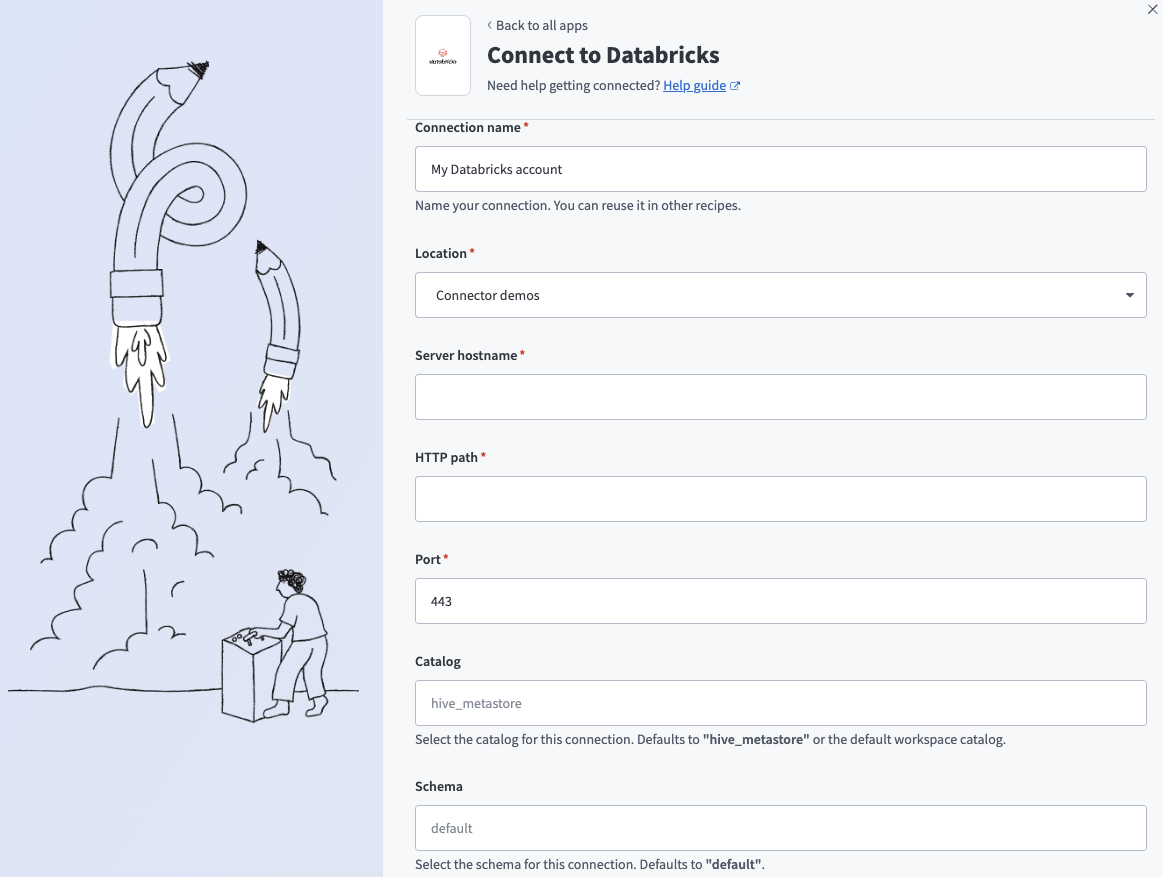 Connect to Databricks
Use the Location drop-down menu to select the project where you plan to store the connection.
Enter the name of your server in the Server hostname field. For example, example.cloud.databricks.com.
Enter the HTTP path. For example, sql/protocolv1/o/3957355953478232/0710-102114-bfnouzcv.
Enter the Port your server uses. The default is 443.
CONNECTION DETAILS
Refer to the Databricks Get connection details for a Databricks compute resource documentation for information on how to retrieve connection details such as Server hostname, HTTP path, and Port.
Optional. Use the Catalog drop-down menu to select the catalog you plan to use for this connection. The default value is hive_metastore.
Optional. Use the Schema drop-down menu to select the schema you plan to use for this connection. The default value is default.
Optional. Use the Database timezone drop-down menu to select the timezone you plan to use. Workato uses this to convert timestamps during reads and writes.
Use the Authentication type drop-down menu to select OAuth 2.0 (Service Principal).
Use the Account type drop-down menu to select the account type you plan to use.
Enter your Client ID and Client secret. Refer to Create a service principal for more information.
Optional. Select one or more Scope values from the drop-down menu. Workato uses the sql scope by default if none are selected.
Click Connect.
Personal access token authentication
View personal access token authentication steps
You must generate the following value from Databricks to use this authentication method:
- Personal access token
Databricks setup for personal access token authentication
Generate a personal access token from a Databricks workspace.
Generate a personal access token
View generate a personal access token steps
Complete the following steps to create a personal access token in Databricks:
In your Databricks workspace, click your username and select Settings.
Click Developer.
Click Manage next to Access tokens.
Click Generate new token.
Enter a comment in the Comment field.
Enter the number of days in the Lifetime (days) field.
Select a Scope.
Select scopes from the API scope(s) drop-down menu.
Click Generate.
Copy and save the token for use in Workato.
SAVE YOUR CREDENTIALS
The token is only displayed once. If you lose it, you must create a new one.
Connect to Databricks with personal access token authentication
View connect to Databricks with personal access token steps
Complete the following steps to set up a personal access token authentication connection to Databricks in Workato:
Click Create > Connection.
Search for Databricks and select it as your app.
Enter a name for your connection in the Connection name field.
Connect to Databricks
Use the Location drop-down menu to select the project where you plan to store the connection.
Enter the name of your server in the Server hostname field. For example, example.cloud.databricks.com.
Enter the HTTP path. For example, sql/protocolv1/o/3957355953478232/0710-102114-bfnouzcv.
Enter the Port your server uses. The default is 443.
CONNECTION DETAILS
Refer to the Databricks Get connection details for a Databricks compute resource documentation for information on how to retrieve connection details such as Server hostname, HTTP path, and Port.
Optional. Use the Catalog drop-down menu to select the catalog you plan to use for this connection. The default value is hive_metastore.
Optional. Use the Schema drop-down menu to select the schema you plan to use for this connection. The default value is default.
Optional. Use the Database timezone drop-down menu to select the timezone you plan to use. Workato uses this to convert timestamps during reads and writes.
Use the Authentication type drop-down menu to select Personal Access Token.
Enter your Personal Access Token. Refer to Generate a personal access token for more information.
Click Connect.
How to use Databricks Data Explorer MCP server tools
Refer to the following sections for detailed information on available tools:
list_catalogs tool
The list_catalogs tool lists available Unity Catalog catalogs. Your LLM uses this tool to identify available top-level data groupings before locating schemas or tables.
Try asking:
What catalogs are available in Databricks?Show me all the data catalogs I can access.List the top-level catalogs in Unity Catalog.What data groupings exist in my Databricks environment?
list_schemas tool
The list_schemas tool lists schemas within a Unity Catalog catalog you specify. Your LLM uses this tool to identify namespaces within a known catalog before locating tables.
Try asking:
Show me the schemas in the sales_data catalog.What schemas exist in the analytics catalog?List all schemas in the customer_data catalog.What namespaces are available in this catalog?
list_tables tool
The list_tables tool lists tables and views within a schema you specify. Your LLM uses this tool to discover candidate tables before constructing a query.
Try asking:
What tables exist in the customer_analytics schema?Show me all tables and views in the sales schema.List the available tables in customer_data.raw_events.What tables can I query in this schema?
search_tables tool
The search_tables tool searches Unity Catalog tables by name or keyword. Your LLM uses this tool to find tables based on business concepts when table names are unknown.
Try asking:
Find tables related to subscriptions.Search for tables containing customer activity data.Look for tables about support tickets.Find any tables with 'revenue' in the name.
get_table_schema tool
The get_table_schema tool retrieves column definitions and metadata for a table you specify. Your LLM uses this tool to understand table structure, column types, and available descriptions before constructing a SQL query.
Try asking:
What columns are in the customer_events table?Show me the schema for the sales.transactions table.What's the structure of the activity_logs table?Get the column definitions for the subscription_data table.
get_table_sample tool
The get_table_sample tool returns a bounded sample of rows from a table you specify. Your LLM uses this tool to understand the shape or typical values of a dataset without retrieving the full dataset.
Try asking:
Show me a sample of data from the activity_logs table.Get some example rows from the customer_events table.What does the data in the transactions table look like?Show me a few sample records from the subscriptions table.
execute_query tool
The execute_query tool executes a read-only SQL SELECT query against the configured SQL warehouse with automatic row limits and timeouts. Your LLM uses this tool to retrieve structured data in response to business questions.
Try asking:
Query the top 100 customers by revenue from last quarter.Get all active subscriptions created in the last 30 days.Show me support tickets opened this week by priority.Find the total sales by region for January 2026.
get_query_status tool
The get_query_status tool retrieves execution status of a previously submitted asynchronous query. Your LLM uses this tool only when execute_query returns a query_id, indicating asynchronous execution.
Try asking:
Get the status of my running query.Check if my query has completed.What's the execution status of query jfsialsk32s?Is my data retrieval query still running?
get_query_results tool
The get_query_results tool retrieves results of a completed asynchronous query. Your LLM uses this tool after get_query_status indicates that execution has completed.
Try asking:
Get the results of my completed query.Show me the data from query 9dsdlkdsl.Retrieve the results of the customer analysis query.What did my query return?
Getting started
View and manage your MCP server tools in the Overview page Tools section. Tool management provides the following capabilities:
TOOLS MUST BE STARTED
Your LLM can only access active tools in your MCP server connector.
Last updated: