Discord MCP server
The Discord MCP server enables AI assistants to read messages from Discord channels and threads, post or reply to messages, create discussion threads, search recent message history, pin or delete individual messages, and apply temporary timeouts to members using a configured Discord bot.
Uses
Use the Discord MCP server when you plan to perform the following actions:
- View which Discord servers your bot has access to
- List channels within a Discord server
- Read recent messages from channels or threads
- Post new messages to channels or threads
- Reply to specific messages with conversational context
- Search for recent mentions of specific topics or terms
- Create threads from existing messages
- List active and archived threads in a channel
- Pin or unpin important messages for visibility
- Delete specific messages when explicitly instructed
- Apply temporary timeouts to members for moderation
- Get community context and server information
Example prompts
What Discord servers is my bot in?Show me the channels in the Gaming Community server.Read the recent messages in the #general channel.Post an announcement in #announcements about the upcoming event.Reply to that message thanking them for the feedback.Search for recent mentions of 'bug report' in #support.Create a thread from that message to discuss the feature request.What threads are active in #development?Pin the message with the meeting link.Delete that spam message.
Discord MCP server tools
The Discord MCP server provides the following tools:
| Tool | Description |
|---|---|
| list_guilds | Retrieves a list of Discord servers or guilds where the bot is installed. |
| list_channels | Retrieves a list of text-based channels within a Discord server you specify. |
| get_channel_metadata | Retrieves descriptive metadata for the Discord text-based channel you specify. |
| read_messages | Retrieves recent messages from the Discord text channel or thread you specify. |
| post_message | Posts a new message to the Discord text channel or thread you specify. |
| reply_message | Posts a reply to an existing Discord message while preserving conversational context. |
| search_messages | Searches recent messages within the Discord text channel or thread you specify. |
| list_threads | Retrieves active and archived threads within the Discord text channel you specify. |
| create_thread | Creates a new thread in a Discord text channel from an existing message. |
| get_pinned_messages | Retrieves a list of currently pinned messages in the Discord text channel you specify. |
| pin_message | Pins or unpins a Discord message in a channel. |
| delete_message | Deletes a Discord message. |
| timeout_member | Applies a temporary timeout (mute) to the Discord server member you specify. |
| get_community_context | Retrieves basic community context information for the Discord server you specify. |
Install the Discord MCP server
Complete the following steps to install a prebuilt MCP server to your project:
Sign in to your Workato account.
Go to AI Hub > MCP servers.
Click + Create MCP server.
Go to the Start with pre-built MCP Servers using your connected apps section and select the prebuilt MCP server you plan to use.
Click Use this server.
Provide a name for your MCP server in the Server name field.
Use the Location drop-down menu to select the project for the MCP server.
Go to the Connections section and connect to your app account.
Select the connection type you plan to use for the MCP server template.
- User's connection: MCP server tools perform actions based on the identity and permissions of the user who connects to the application. Users authenticate with their own credentials to execute the skill.
- Your connection: This option uses the connection established by the recipe builder and follows the same principles as normal app connections.
 Select your connection type
VERIFIED USER ACCESS AUTHENTICATION REQUIREMENTS
Only app connections that use OAuth 2.0 authorization code grant are available for user's connection. Refer to Verified user access for more information.
Complete the app-specific connection setup steps in the following section.
Discord connection setup
View Discord connection setup steps
The Discord connector uses OAuth2 authentication.
Install Discord from the community library
View install Discord from the community library steps
Complete the following steps to install the connector from the community library:
Open the recipe editor and search for a connector. Alternatively, you can search for a connector in the community library.
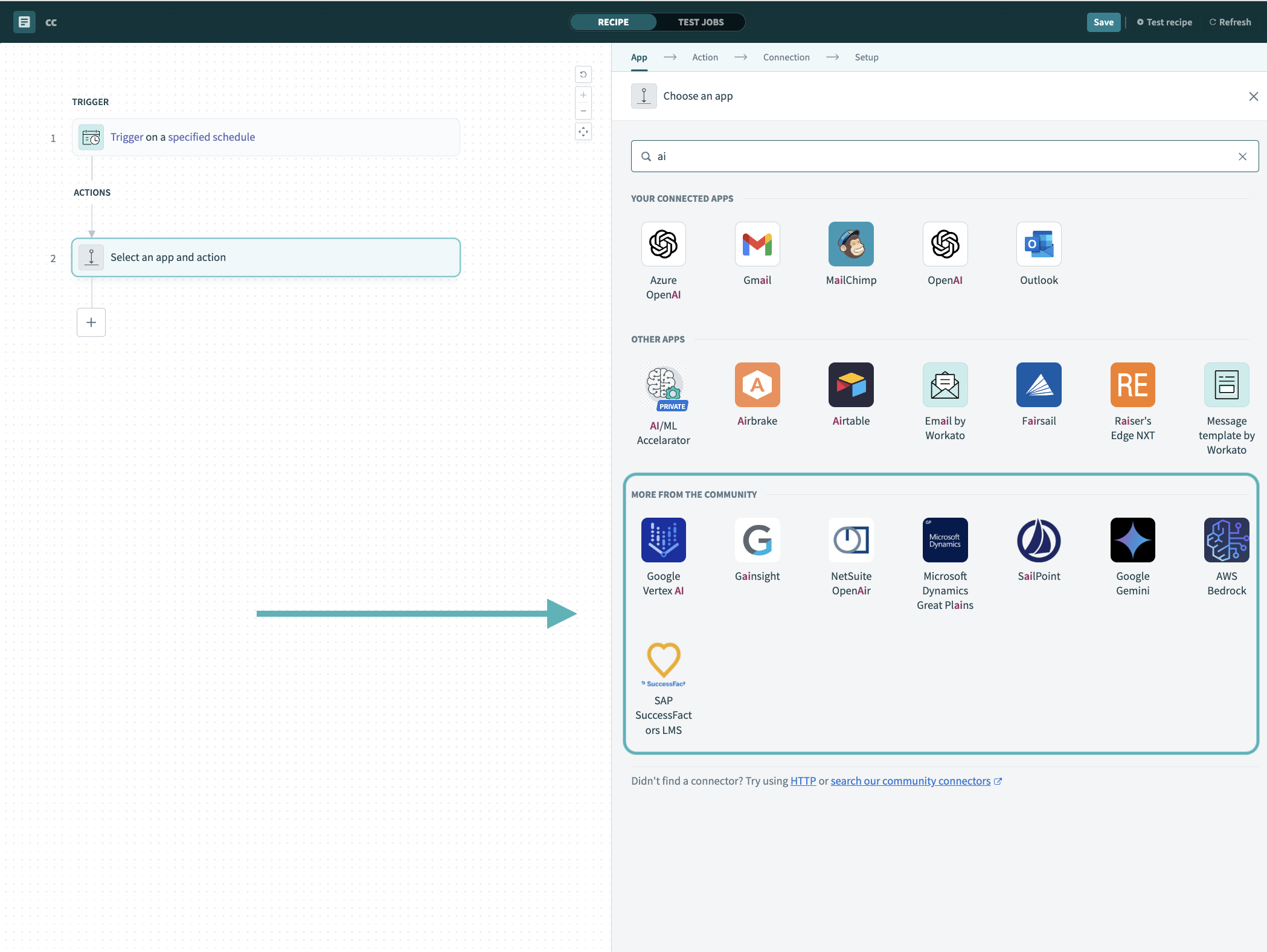 Search for community connectors in the recipe editor
Select the community connector you plan to install.
Click Install to install the connector from the community library.
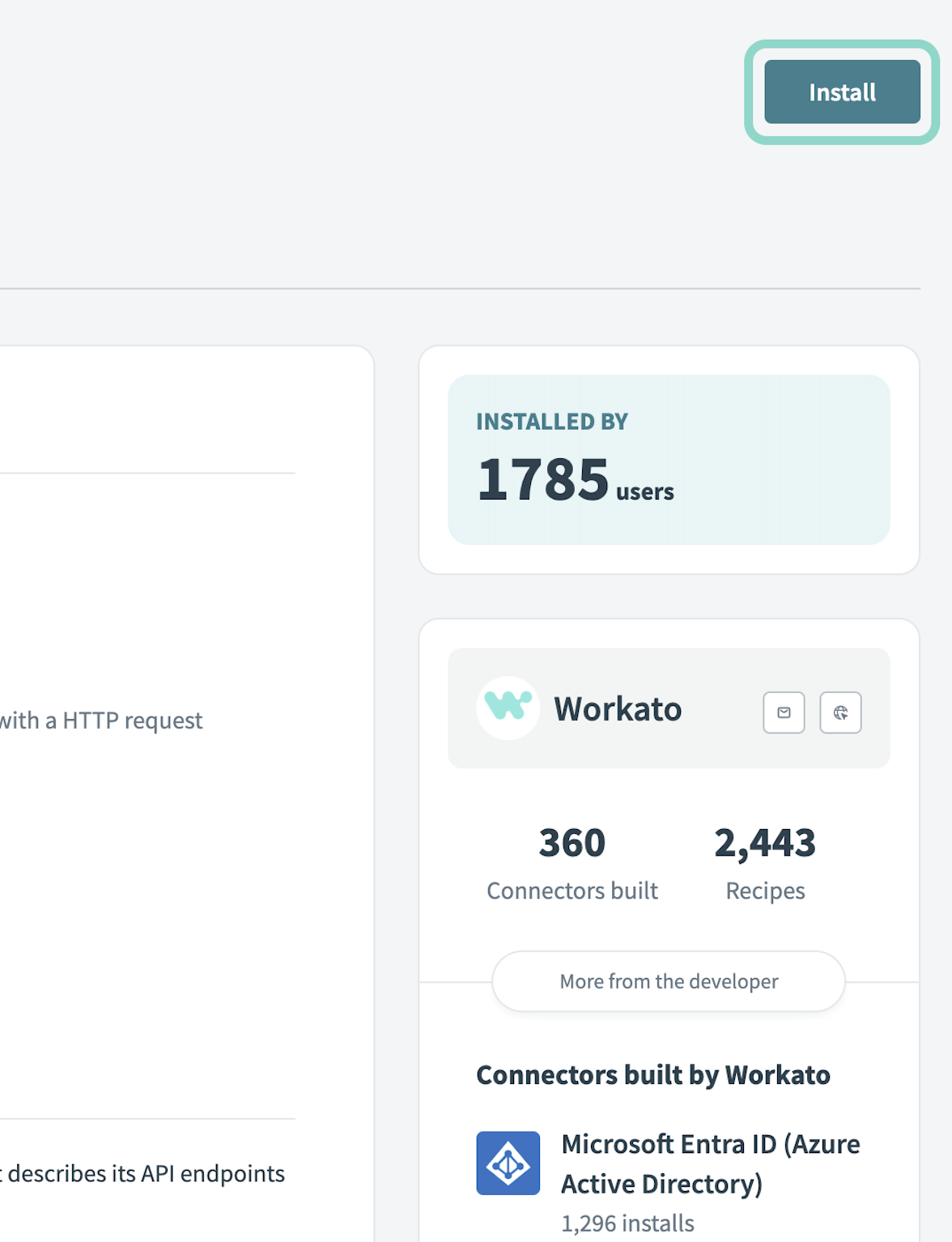 Click Install
Select Release connector. Alternatively, select Review code to review and modify the connector code before releasing it to the workspace.
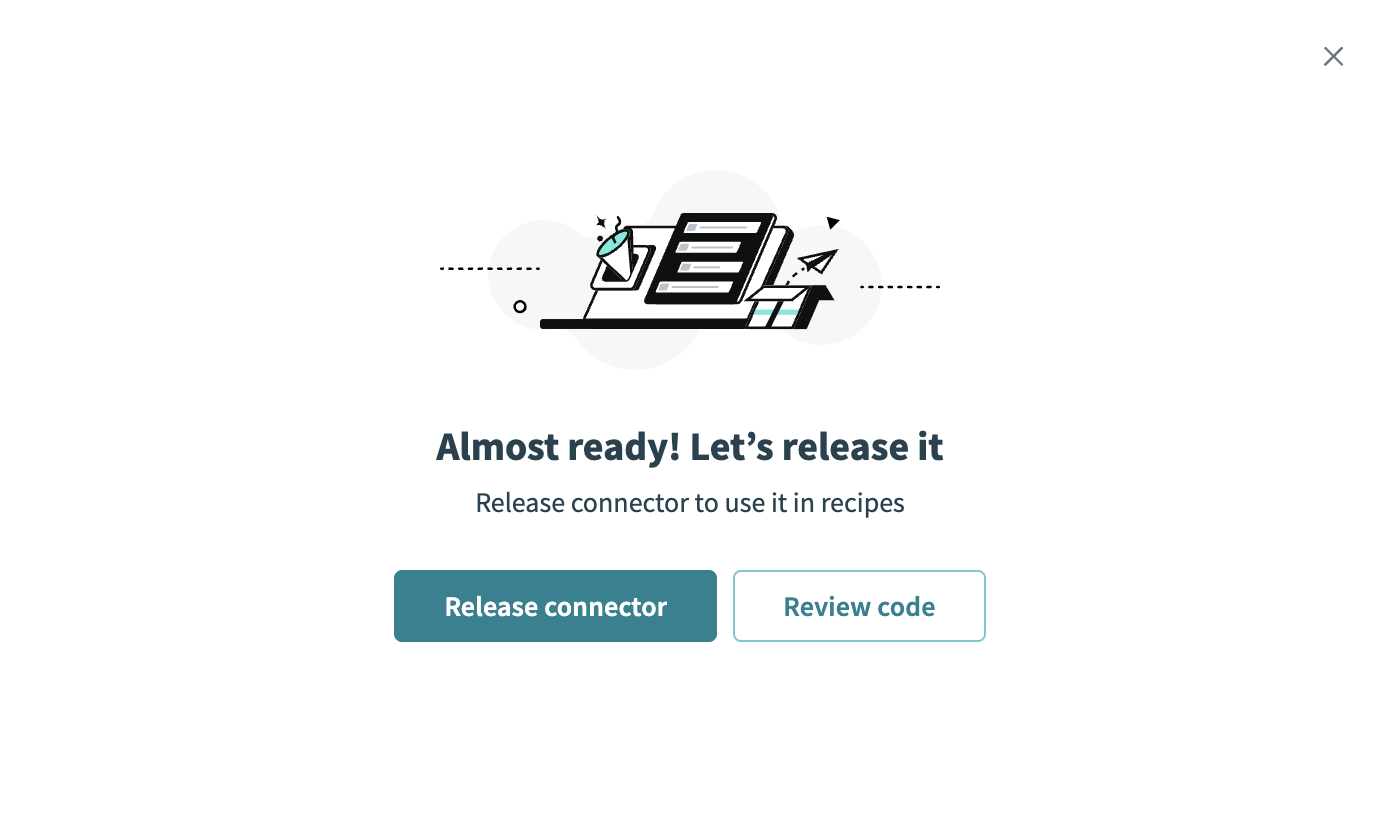 Release the connector
Summarize any changes you made to the connector, then click Release to allow workspace collaborators to use the connector in recipes.
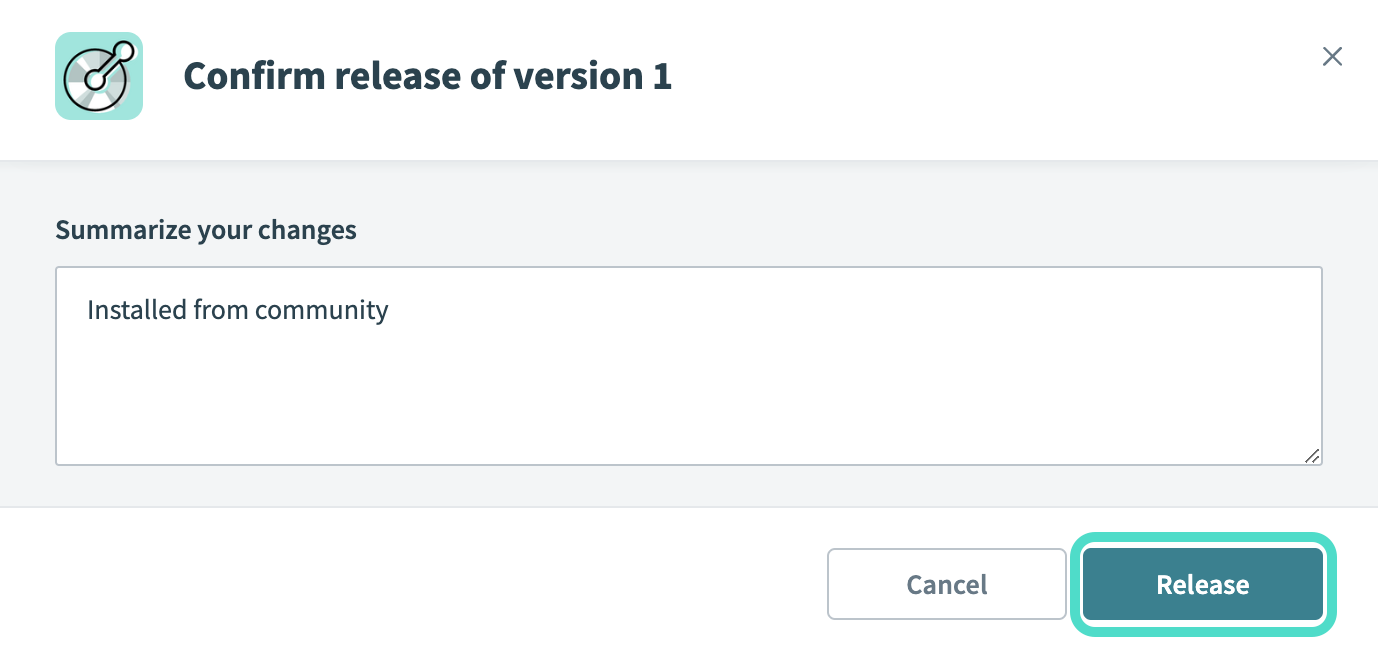 The Confirm release dialog
Minimum and default scopes
View minimum and default scopes
These are the minimum required scopes to establish a connection. If you don't select these scopes, they're automatically added to your requested scopes.
BotIdentify
Discord setup for OAuth2 authentication
View Discord setup for OAuth2 authentication steps
Complete the following steps to retrieve credentials from Discord:
Go to the Discord Applications page.
Click your application. To create a new application, refer to the Discord Step 1: Creating an app guide.
Click the OAuth2 page under the Overview tab.
Copy and save the Client ID and Client Secret for use in Workato.
SAVE YOUR SECRET
The client secret only displays once. If you lose it, you must reset it.
Click Add Redirect under the Redirect section.
Add the following URI:
https://www.workato.com/oauth/callbackClick Save Changes.
Click the Bot page.
Click Reset Token to generate a new token.
Copy and save the Token for use in Workato.
SAVE YOUR TOKEN
The token only displays once. If you lose it, you must reset it.
Connect to Discord with OAuth2 authentication
View connect to Discord with OAuth2 authentication steps
Complete the following steps to connect to in Workato:
Click Create > Connection.
Search for and select it as your app.
Enter a name for your connection in the Connection name field.
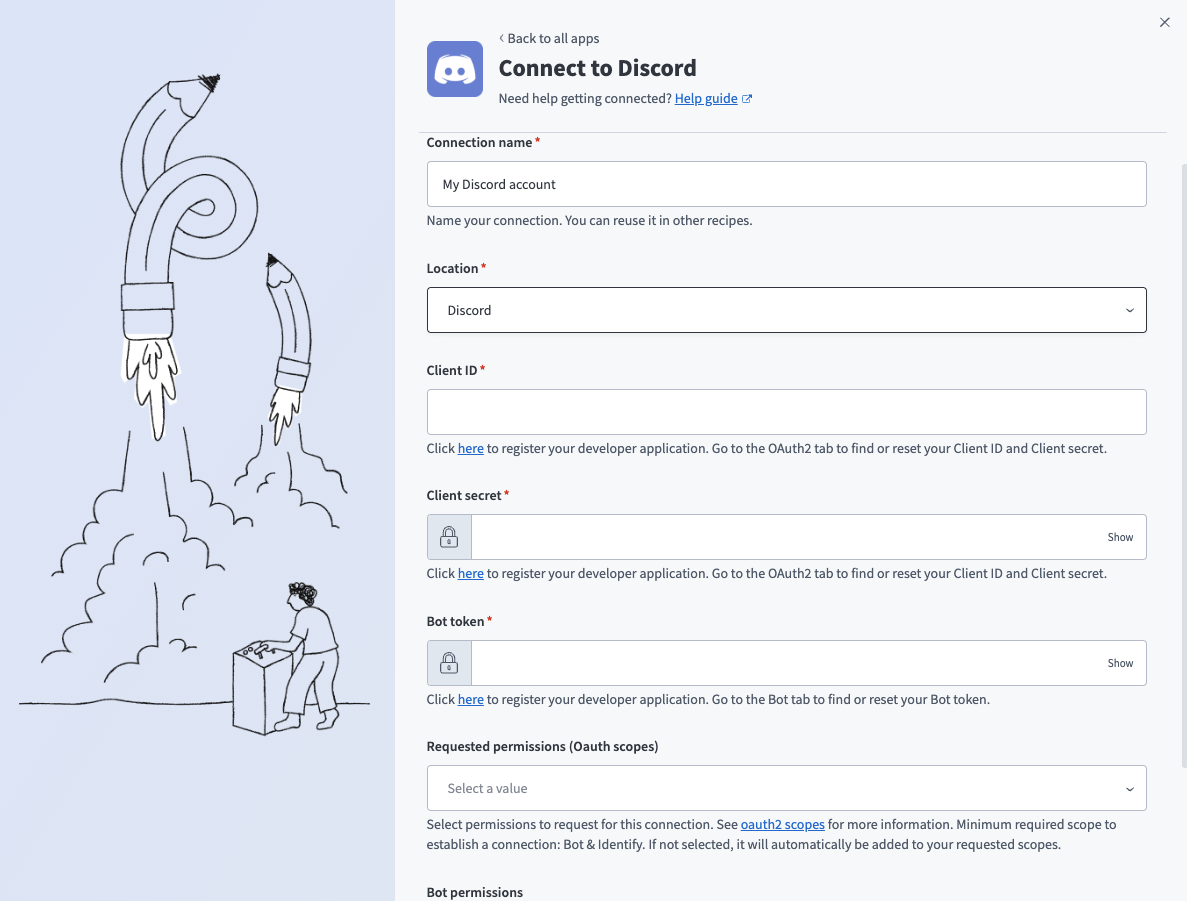 Discord connection setup
Use the Location drop-down menu to select the project where you plan to store the connection.
Enter the Client ID. Refer to Discord setup for OAuth2 authentication for instructions on how to retrieve the Client ID, Client secret, and Bot token.
Enter the Client secret.
Enter the Bot token.
Optional. Use the Requested permissions (Oauth scopes) drop-down menu to select the scopes you plan to add to this connection. Refer to Minimum and default scopes for more information.
Optional. Use the Bot permissions drop-down menu to select the bot permissions you plan to include for this connection. This setting defaults to Administrator if left blank.
Click Connect.
Authorize access to the account.
How to use Discord MCP server tools
Refer to the following sections for detailed information on available tools:
list_guilds tool
The list_guilds tool retrieves a list of Discord servers or guilds where your bot is installed. Your LLM uses this tool when you need to know which Discord servers are available or when server context hasn't been established yet.
Try asking:
What Discord servers is my bot in?Show me all the guilds where my bot is installed.List the Discord communities my bot can access.Which servers can I interact with?
list_channels tool
The list_channels tool retrieves a list of text-based channels within a specified Discord server that your bot can view. Your LLM uses this tool when you need to know about channels in a server or select a channel before message or thread operations.
Try asking:
Show me the channels in the Gaming Community server.What channels are available in this Discord server?List all text channels in the server.What channels can my bot access?
get_channel_metadata tool
The get_channel_metadata tool retrieves descriptive metadata for a Discord text-based channel. Your LLM uses this tool when you need to understand a channel's purpose, topic, type, or recent activity before posting messages or taking actions.
Try asking:
What is the #general channel used for?Show me the metadata for #announcements.What's the topic of the #support channel?Get details about the #development channel.
read_messages tool
The read_messages tool retrieves recent messages from the Discord text channel or thread you specify. Your LLM uses this tool when you need to review or summarize recent conversation, gather context before responding, or check discussion history.
Try asking:
Read the recent messages in #general.Show me what's been discussed in #support today.Summarize the recent conversation in the feature-requests thread.What have people been saying in #announcements?
post_message tool
The post_message tool posts a new message to a Discord text channel or thread. Your LLM uses this tool when you need to post, send, or announce a message that isn't a reply to a specific existing message.
Try asking:
Post an announcement in #announcements about the upcoming maintenance.Send a message to #general welcoming new members.Announce the event details in #events.Post the meeting summary in #team-updates.
reply_message tool
The reply_message tool posts a reply to an existing Discord message while preserving conversational context by linking the new message as a reply. Your LLM uses this tool when you need to respond directly to a specific message and maintain reply context.
Try asking:
Reply to that bug report thanking them for the details.Respond to Sarah's question in #support.Reply to the feature request with an acknowledgment.Answer that question about the API documentation.
search_messages tool
The search_messages tool searches recent messages within the Discord text channel or thread you specify. Your LLM uses this tool when you need to locate recent mentions of specific terms, topics, or phrases without retrieving all recent context.
Try asking:
Search for recent mentions of 'bug report' in #support.Did anyone mention the new feature in #general recently?Find messages about 'API keys' in #development.Search for discussions about the event in #planning.
list_threads tool
The list_threads tool retrieves active and archived threads within the Discord text channel you specify. Your LLM uses this tool when you need to discover threads before reading or posting messages.
Try asking:
What threads are active in #development?Show me the threads in #support.List all discussion threads in #feature-requests.What archived threads exist in #general?
create_thread tool
The create_thread tool creates a new thread in a Discord text channel from an existing message. Your LLM uses this tool when you need to move a discussion into a thread or start a thread from a specific message.
Try asking:
Create a thread from that feature request to discuss implementation.Start a thread from Josh's message about the bug.Make a discussion thread from that question.Create a thread to organize the conversation about the API changes.
get_pinned_messages tool
The get_pinned_messages tool retrieves a list of currently pinned messages in a Discord text channel. Your LLM uses this tool when you need to review or reference important or highlighted messages.
Try asking:
What messages are pinned in #announcements?Show me the pinned messages in #general.List the pinned content in #rules.What important messages are highlighted in #support?
pin_message tool
The pin_message tool pins or unpins a Discord message in a channel. Your LLM uses this tool when you need to pin or unpin important messages for visibility, such as announcements or solutions.
Try asking:
Pin the message with the meeting link.Pin that announcement about the server rules.Unpin the old event announcement.Highlight that helpful solution by pinning it.
delete_message tool
The delete_message tool deletes a Discord message. Your LLM uses this tool only when you explicitly instruct it to delete a specific message, such as spam or inappropriate content.
Try asking:
Delete that spam message.Remove the inappropriate content in #general.Delete the duplicate announcement.Remove that test message.
timeout_member tool
The timeout_member tool applies a temporary timeout (mute) to a Discord server member. Your LLM uses this tool when you explicitly ask to temporarily mute or timeout a member due to disruptive behavior.
Try asking:
Timeout that user for 10 minutes for spamming.Temporarily mute the member causing disruption.Apply a 1-hour timeout to that user.Mute that member for violating server rules.
get_community_context tool
The get_community_context tool retrieves basic community context information for a Discord server. Your LLM uses this tool when you need high-level community context such as server size or basic structure before selecting channels or deciding where to post messages.
Try asking:
What's the size of the Gaming Community server?Give me an overview of this Discord server.How many members are in the server?Show me the community context for this guild.
Getting started
View and manage your MCP server tools in the Overview page Tools section. Tool management provides the following capabilities:
TOOLS MUST BE STARTED
Your LLM can only access active tools in your MCP server connector.
Last updated: