GitLab Explorer MCP server
The GitLab Explorer MCP server enables LLMs to interact with GitLab projects through natural conversation. It provides tools to retrieve and manage issues, merge requests (MRs), access repository context, and check pipeline status without requiring direct interaction with the GitLab interface.
Uses
Use the GitLab Explorer MCP server to perform the following actions:
- Retrieve metadata and overview information for a GitLab project
- List and retrieve issues with filtering and sorting
- Create new issues and update existing issue metadata
- List and retrieve merge requests
- Create new merge requests and update existing merge request metadata
- Add comments to issues or merge requests
- Retrieve commit history for a project
- Search across GitLab projects for issues, merge requests, code, or projects
- Retrieve user context and associated projects
- Retrieve group or subgroup context, including metadata and structure
- Check pipeline status at the job level for a merge request or commit
Example prompts
Use the following example prompts to invoke GitLab Explorer MCP server tools:
Give me an overview of this project.List all open issues assigned to me.Get the details for issue #142.Create a new issue for this bug.Update this issue's assignee and label.Show me open merge requests waiting for review.Get the details for this MR.Open a new merge request from this branch.Add a comment to this issue.What commits have been made in the last week?Search for issues mentioning this error across my projects.Show me my projects and team repos.Why did the pipeline fail on this MR?
GitLab Explorer MCP server tools
The GitLab Explorer MCP server provides the following tools:
| Tool | Description |
|---|---|
| get_project | Retrieves metadata and overview information for a GitLab project. |
| list_issues | Lists issues in a GitLab project with filtering and sorting. |
| get_issue | Retrieves detailed information about an issue. |
| create_issue | Creates a new issue in a GitLab project. |
| update_issue | Updates metadata for an existing issue. |
| list_merge_requests | Lists merge requests in a GitLab project. |
| get_merge_request | Retrieves detailed information about a merge request. |
| create_merge_request | Creates a new merge request from an existing branch. |
| update_merge_request | Updates metadata for an existing merge request. |
| add_note | Adds a comment to an issue or merge request. |
| list_commits | Retrieves commit history for a project. |
| search_gitlab | Searches across GitLab projects for issues, merge requests, code, or projects. |
| get_user_context | Retrieves user context and associated projects. |
| get_group_context | Retrieves group or subgroup context, including metadata and structure. |
| get_pipeline_status | Retrieves detailed pipeline status for a merge request or commit. |
Install the GitLab Explorer MCP server
Complete the following steps to install a prebuilt MCP server to your project:
Sign in to your Workato account.
Go to AI Hub > MCP servers.
Click + Create MCP server.
Go to the Start with pre-built MCP Servers using your connected apps section and select the prebuilt MCP server you plan to use.
Click Use this server.
Provide a name for your MCP server in the Server name field.
Use the Location drop-down menu to select the project for the MCP server.
Go to the Connections section and connect to your app account.
Select the connection type you plan to use for the MCP server template.
- User's connection: MCP server tools perform actions based on the identity and permissions of the user who connects to the application. Users authenticate with their own credentials to execute the skill.
- Your connection: This option uses the connection established by the recipe builder and follows the same principles as normal app connections.
 Select your connection type
VERIFIED USER ACCESS AUTHENTICATION REQUIREMENTS
Only app connections that use OAuth 2.0 authorization code grant are available for user's connection. Refer to Verified user access for more information.
Complete the app-specific connection setup steps in the following section.
GitLab connection setup
View GitLab connection setup steps
The GitLab connector supports personal access token and password grant authentication methods.
Personal access token authentication
View Personal access token authentication steps
Complete the following steps to set up a GitLab connection with personal access token authentication:
Enter a name for your connection in the Connection name field.
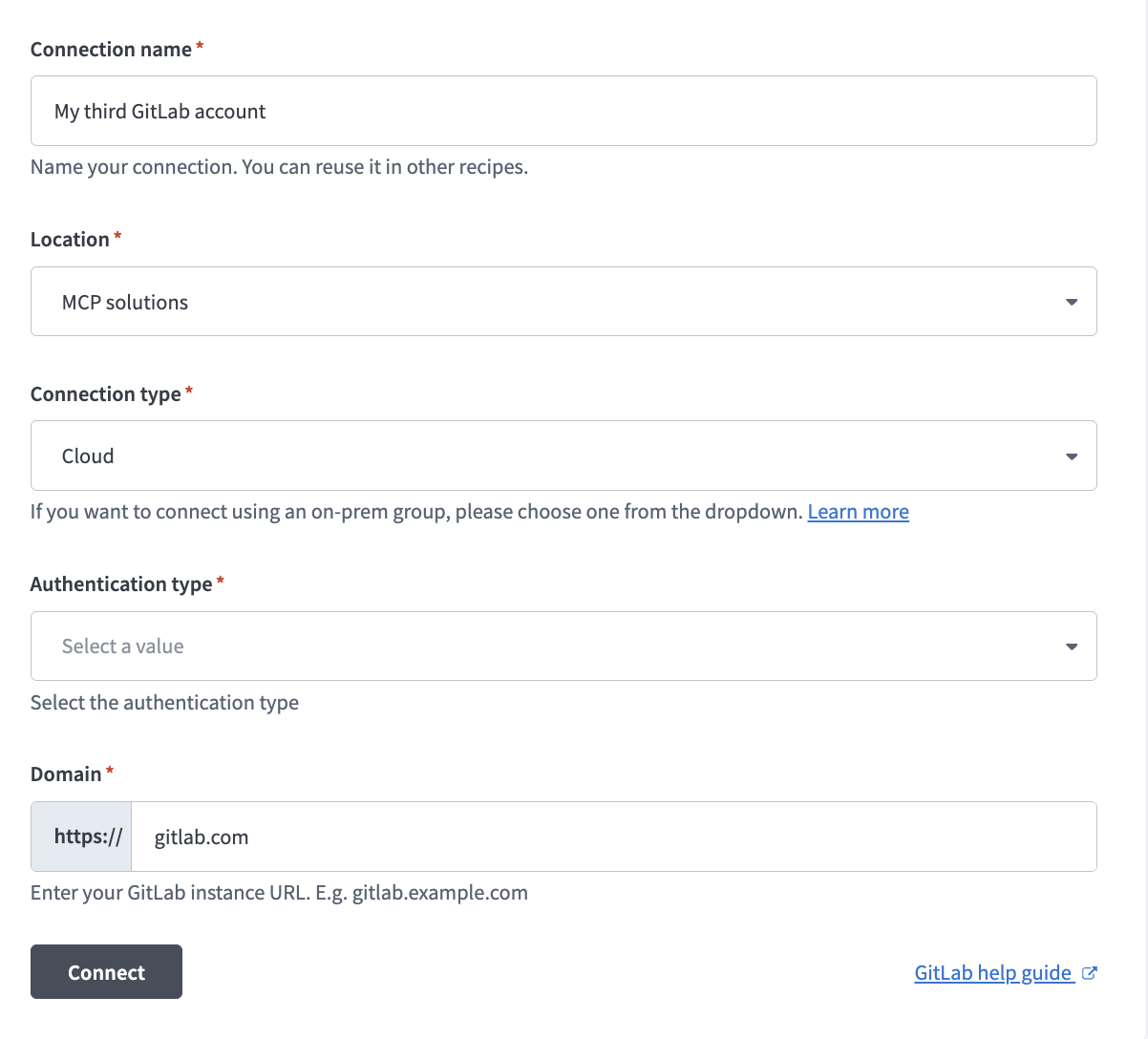 Set up your GitLab connection
Use the Location drop-down menu to select the project where you plan to store the connection.
Use the Authentication type drop-down menu to select Personal access token.
Enter your personal access token in the Personal access token field.
Enter your GitLab instance URL in the Domain field. For example: gitlab.acme.com
Click Connect.
Password grant authentication
View Password grant authentication steps
Complete the following steps to set up a GitLab connection with password grant authentication:
Enter a name for your connection in the Connection name field.
Set up your GitLab connection
Use the Location drop-down menu to select the project where you plan to store the connection.
Use the Authentication type drop-down menu to select Password grant.
Enter your username in the Username field.
Enter your password in the Password field.
Enter your GitLab instance URL in the Domain field. For example: gitlab.acme.com
Click Connect.
How to use GitLab Explorer MCP server tools
Refer to the following sections for detailed information on available tools:
get_project tool
The get_project tool retrieves metadata and overview information for a GitLab project. Your LLM uses this tool to provide a project's details, description, visibility, or general status.
Try asking:
Give me an overview of this project.What's the description and visibility of this repo?Show me the project metadata for this repository.Get the details for this GitLab project.
list_issues tool
The list_issues tool lists issues in a GitLab project with filtering and sorting. Your LLM uses this tool to provide a list of issues, including requests filtered by status, assignee, label, or milestone.
Try asking:
List all open issues assigned to me.Show me issues labeled "bug" that are still open.What issues are in the current milestone?List recently closed issues in this project.
get_issue tool
The get_issue tool retrieves detailed information about an issue. Your LLM uses this tool to find a specific issue with its full context, description, comments, or metadata.
Try asking:
Get the details for issue #142.Show me the full context for this issue before I work on it.What's the current status and assignee for this issue?Pull up the description and comments for this issue.
create_issue tool
The create_issue tool creates a new issue in a GitLab project. Your LLM uses this tool to create an issue.
Try asking:
Create a new issue for this bug.Open an issue to track this feature request.Log a new issue with this title and description.Create an issue and assign it to this team member.
update_issue tool
The update_issue tool updates metadata for an existing issue. Your LLM uses this tool to update, assign, label, reopen, or close an issue.
Try asking:
Update this issue's assignee and label.Close this issue.Reopen this issue and add the "in progress" label.Change the milestone for this issue.
list_merge_requests tool
The list_merge_requests tool lists merge requests in a GitLab project. Your LLM uses this tool to review workload, including filtering by status, author, or assignee.
Try asking:
Show me open merge requests waiting for review.List all MRs I've authored this week.What merge requests are currently open in this project?Show me merged MRs from the last 7 days.
get_merge_request tool
The get_merge_request tool retrieves detailed information about a merge request. Your LLM uses this tool to find a specific merge request with its full context, diff summary, reviewers, or status.
Try asking:
Get the details for this MR.Show me the description and reviewers for merge request #88.What's the current status of this merge request?Pull up the full context for this MR before I review it.
create_merge_request tool
The create_merge_request tool creates a new merge request from an existing branch. Your LLM uses this tool to create or open a merge request.
Try asking:
Open a new merge request from this branch.Create an MR to merge my feature branch into main.Open a merge request with this title and description.Create a draft MR from this branch.
update_merge_request tool
The update_merge_request tool updates metadata for an existing merge request. Your LLM uses this tool to update merge request details such as title, description, assignee, or labels.
Try asking:
Update the title and description on this MR.Assign this merge request to a reviewer.Add labels to this merge request.Mark this MR as ready for review.
add_note tool
The add_note tool adds a comment to an issue or merge request. Your LLM uses this tool to comment, add an update, or leave context on an issue or MR.
Try asking:
Add a comment to this issue.Leave a note on this MR explaining the approach.Post an update comment on this issue.Add context to this merge request as a comment.
list_commits tool
The list_commits tool retrieves commit history for a project. Your LLM uses this tool to provide information on recent changes or commits in a repository.
Try asking:
What commits have been made in the last week?Show me the recent commit history for this project.Who committed to this repo yesterday?List the latest commits on the main branch.
search_gitlab tool
The search_gitlab tool searches across GitLab projects for issues, merge requests, code, or projects. Your LLM uses this tool to find content across multiple projects rather than within a single known project.
Try asking:
Search for issues mentioning this error across my projects.Find merge requests referencing this ticket number.Search for code containing this function name.Look for any projects related to this service.
get_user_context tool
The get_user_context tool retrieves user context and associated projects. Your LLM uses this tool to resolve references such as "my projects" or "team repositories" and to scope searches or workload to a specific user.
Try asking:
Show me my projects and team repos.Look up the profile for this GitLab username.Resolve my GitLab username and associated projects.Scope this search to my team's repositories.
get_group_context tool
The get_group_context tool retrieves group or subgroup context, including metadata and structure. Your LLM uses this tool to resolve details about a GitLab group or subgroup path, such as finding group metadata or understanding subgroup structure.
Try asking:
Show me the details for this GitLab group.What's the subgroup structure under my-group?Get the metadata for this organization.List the subgroups in this group.
get_pipeline_status tool
The get_pipeline_status tool retrieves detailed pipeline status for a merge request or commit, including job-level results and logs. Your LLM uses this tool to investigate pipeline failures and review job-level details.
Try asking:
Why did the pipeline fail on this MR?Show me the job-level results for this pipeline.Which job is failing in this pipeline?Get the pipeline logs for this commit.
Getting started
View and manage your MCP server tools in the Overview page Tools section. Tool management provides the following capabilities:
TOOLS MUST BE STARTED
Your LLM can only access active tools in your MCP server connector.
Last updated: