Google Meet MCP server
The Google Meet MCP server enables LLMs to interact with Google Meet for retrieving post-meeting context and managing persistent meeting Spaces through natural conversation. It provides tools to find conference records, review participants and attendance, access recordings, transcripts, and smart-notes references, read speaker-attributed transcript entries, and create and configure reusable rooms without requiring direct interaction with the Google Meet interface.
Uses
Use the Google Meet MCP server to perform the following actions:
- Locate past conferences by time range or by a specific Meet Space
- Retrieve a single conference record's metadata and expiration window
- List the participants of a conference and distinguish signed-in, anonymous, and phone joiners
- Review per-participant join and leave events and total presence duration
- Access recording references (Drive files) produced during a conference
- Access transcript references (Docs files) and read speaker-attributed, timestamped transcript entries
- Access Gemini-generated smart-notes references for a conference
- Create persistent, reusable Spaces with their own links
- Read a Space's configuration and current state
- Update Space configuration, including access type, moderation, and automatic recording, transcription, and smart-notes generation
Example prompts
Use the following example prompts to invoke Google Meet MCP server tools:
Find the Meet conferences I had last Tuesday afternoon.Show me the details and expiration date for this conference record.Who attended the QBR conference?How long was each person in the security training session?Is there a recording for last week's all-hands?Get the transcript for this conference so I can summarize it.Pull the speaker-attributed transcript entries from this morning's call.Were smart notes generated for the design review?Create a reusable room for our team standup.Make our project room trusted-only and turn on auto-transcription.
Google Meet MCP server tools
The Google Meet MCP server provides the following tools:
| Tool | Description |
|---|---|
| list_conference_records | Lists conference records, optionally filtered by time range or by a specific Space. |
| get_conference_record | Retrieves a single conference record by its resource name. |
| list_conference_participants | Lists the participants of a conference. |
| list_participant_sessions | Lists the join and leave events for a participant in a conference. |
| list_conference_recordings | Lists the recordings produced in a conference. |
| list_conference_transcripts | Lists the transcripts produced in a conference. |
| list_transcript_entries | Lists the speaker-attributed entries of a transcript. |
| list_conference_smart_notes | Lists the Gemini-generated smart notes produced in a conference. |
| create_space | Creates and configures a persistent Space. |
| get_space | Retrieves details and configuration for a Space by its resource name or meeting code. |
| update_space | Updates configuration for a Space using field-mask semantics. |
Install the Google Meet MCP server
Complete the following steps to install a prebuilt MCP server to your project:
Sign in to your Workato account.
Go to AI Hub > Enterprise MCP.
Click + Create MCP server.
Go to the Start with pre-built MCP Servers using your connected apps section and select the prebuilt MCP server you plan to use.
Click Use this server.
Provide a name for your MCP server in the Server name field.
Use the Location drop-down menu to select the project for the MCP server.
Go to the Connections section and connect to your app account.
Select the connection type you plan to use for the MCP server template.
- User's connection: MCP server tools perform actions based on the identity and permissions of the user who connects to the application. Users authenticate with their own credentials to execute the skill.
- Your connection: This option uses the connection established by the recipe builder and follows the same principles as normal app connections.
 Select your connection type
VERIFIED USER ACCESS AUTHENTICATION REQUIREMENTS
Only app connections that use OAuth 2.0 authorization code grant are available for user's connection. Refer to Verified user access for more information.
Complete the app-specific connection setup steps in the following section.
Google Meet connection setup
View Google Meet connection setup steps
Complete the following steps to set up your connection with OAuth 2.0 authentication:
Click Create > Connection or press C twice.
Search for Google Meet and select it as your app.
Provide a name for your connection in the Connection name field.
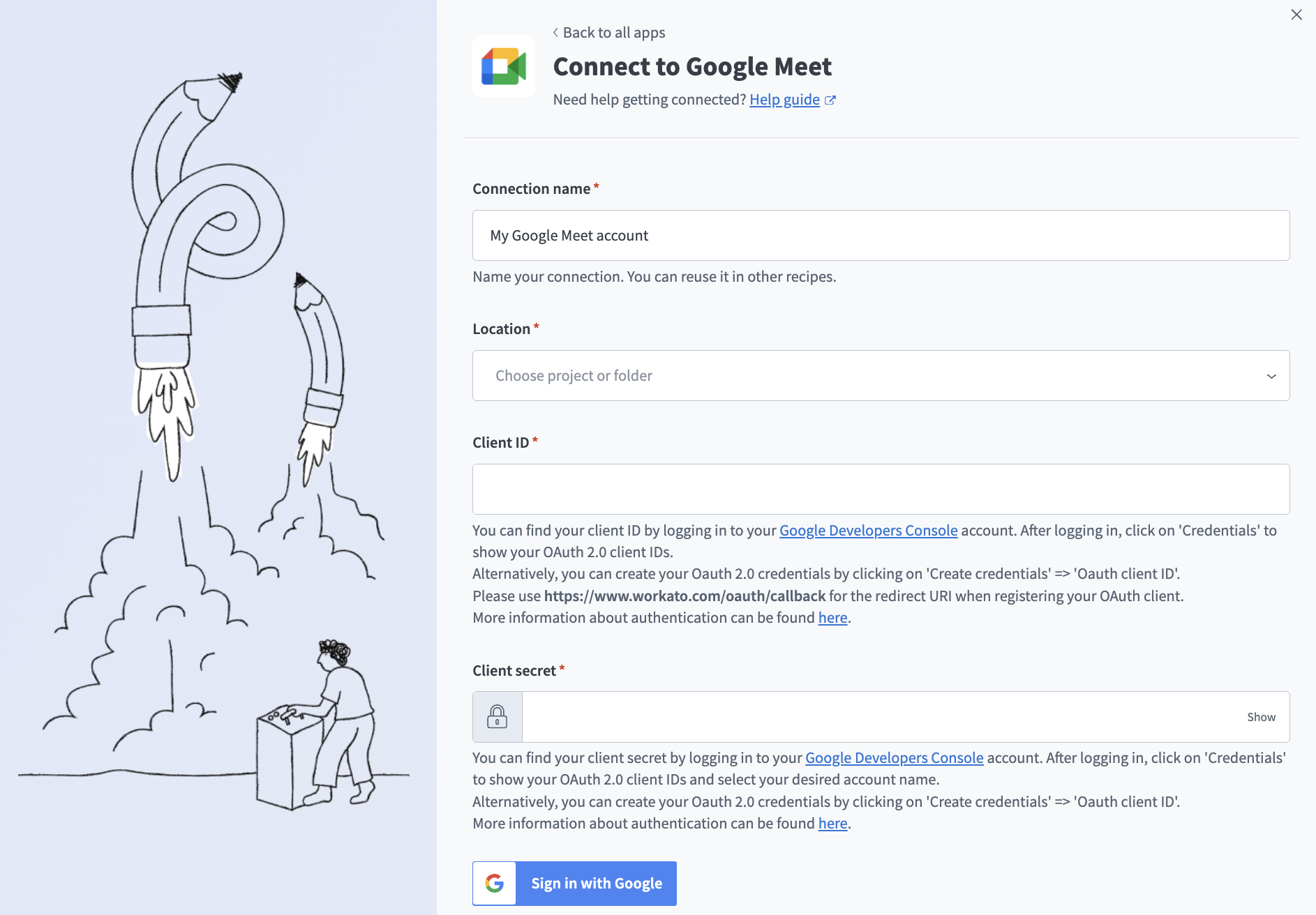 OAuth 2.0 connection
Use the Location drop-down menu to select the project where you plan to store the connection.
Enter the Client ID and Client secret. Refer to the Google Manage OAuth Clients guide to generate these values using https://www.workato.com/oauth/callback as the redirect URI.
Click Sign in with Google.
How to use Google Meet MCP server tools
Refer to the following sections for detailed information on available tools:
list_conference_records tool
The list_conference_records tool lists conference records, optionally filtered by time range or by a specific Space. Your LLM uses this tool to find past conferences by time window, by Space, or by meeting code. This tool can't filter by participant, organizer, or keyword, so participant or topic-based discovery starts in Google Calendar.
Try asking:
Find the Meet conferences I had last Tuesday afternoon.List the conferences held in this Meet Space.Show me the meetings with this meeting code.Are there any conferences that haven't ended yet?
get_conference_record tool
The get_conference_record tool retrieves a single conference record by its resource name. Your LLM uses this tool to read a conference's basic metadata, including its start and end times and the 30-day expiration window, before discovering its artifacts separately.
Try asking:
Show me the details for this conference record.When does this conference record expire?What are the start and end times for this conference?Which Space was this conference held in?
list_conference_participants tool
The list_conference_participants tool lists the participants of a conference. Your LLM uses this tool to build attendance lists and to distinguish signed-in users from anonymous and phone joiners, which can't be reliably resolved to identities.
Try asking:
Who attended the QBR conference?List everyone who joined this meeting.Did any anonymous participants join this conference?Show me the participants for this conference record.
list_participant_sessions tool
The list_participant_sessions tool lists the join and leave events for a participant in a Google Meet conference. Your LLM uses this tool to compute total presence duration, identify late joiners or early leavers, or detect connection issues.
Try asking:
How long was this person in the meeting?When did this participant join and leave?Did this attendee drop off and rejoin?Show me the session history for this participant.
list_conference_recordings tool
The list_conference_recordings tool lists the recordings produced in a conference. Your LLM uses this tool to discover whether recordings exist and to retrieve their Drive file references, which Google Drive can use to fetch or share the video.
Try asking:
Is there a recording for last week's all-hands?Get the recording link for this conference.Was this meeting recorded?Find the recording file for this conference record.
list_conference_transcripts tool
The list_conference_transcripts tool lists the transcripts produced in a conference. Your LLM uses this tool to discover whether transcripts exist and to obtain their resource names and Docs file references.
Try asking:
Does this conference have a transcript?Get the transcript for this meeting.Find the transcript document for this conference record.Was this conference transcribed?
list_transcript_entries tool
The list_transcript_entries tool lists the speaker-attributed entries of a transcript. Your LLM uses this tool as the canonical source for summarization, action-item extraction, and quote retrieval.
Try asking:
Summarize what was discussed in this meeting transcript.Pull the action items from this conference's transcript.What did each speaker say during this meeting?Find the quotes about the launch timeline in this transcript.
list_conference_smart_notes tool
The list_conference_smart_notes tool lists the Gemini-generated smart notes produced in a conference. Your LLM uses this tool to discover whether smart notes were generated and to obtain the Docs file reference for the summary.
Try asking:
Were smart notes generated for the design review?Get the Gemini meeting notes for this conference.Find the smart-notes document for this meeting.Is there an AI summary for this conference?
create_space tool
The create_space tool create and configure a persistent Space (a reusable meeting room). Your LLM uses this tool when you want a room you can use repeatedly, such as a team standup room, office hours, or a project channel.
Try asking:
Create a reusable Meet room for our team standup.Set up a persistent Meet link for weekly office hours.Create a project room that auto-records and auto-transcribes.Make a new trusted-only Meet room for our team.
get_space tool
The get_space tool retrieves details and configuration for a Space by its resource name or meeting code. Your LLM uses this tool to read a Space's current state before updating it or to confirm its details to you.
Try asking:
Show me the configuration for this Meet Space.What's the access type for this room?Is auto-transcription turned on for our project room?Get the details for the Space with this meeting code.
update_space tool
The update_space tool updates configuration for a Space using field-mask semantics. Your LLM uses this tool to change a Space's access type, moderation settings, and automatic recording, transcription, and smart-notes generation, applying only the fields you want to change.
Try asking:
Make our team room trusted-only.Turn on auto-transcription for our office hours room.Enable moderation and restrict screen-sharing to hosts.Stop auto-recording for this project room.
Getting started
View and manage your MCP server tools in the Overview page Tools section. Tool management provides the following capabilities:
TOOLS MUST BE STARTED
Your LLM can only access active tools in your MCP server connector.
Last updated: