Mailchimp Campaign Management MCP server
The Mailchimp Campaign Management MCP server enables LLMs to interact with MailChimp for the email-marketing lifecycle through natural conversation. It provides tools to curate audiences, add and tag contacts, assemble campaigns from supplied content, and send or schedule them without requiring direct interaction with the MailChimp interface.
Uses
Use the Mailchimp Campaign Management MCP server to perform the following actions:
- Create audiences and organize the contacts a campaign will reach.
- Add contacts to an audience with a supplied subscription status.
- Update an existing contact's profile fields or status.
- Apply tags to contacts for grouping and targeting.
- Search for contacts to resolve identifiers before updating or tagging.
- Assemble a campaign draft from content you provide, with subject and sender.
- Edit a campaign's subject, sender, or recipient audience.
- Send a test email to preview a campaign before the real send.
- Send a campaign immediately, with explicit user confirmation.
- Schedule a campaign for a future time, or unschedule it before it sends.
Example prompts
Use the following example prompts to invoke Mailchimp Campaign Management MCP server tools:
Add these contacts to my launch list.Create a new audience for our fall product launch.Tag these contacts as VIP so we can target them.Find the contact for [email protected] in my newsletter audience.Draft a campaign to my newsletter audience using this HTML content.Change the subject line on my draft campaign to "Summer Sale is here".Send a test of this campaign to me and my teammate.Send my newsletter campaign now.Schedule this campaign to send Tuesday at 9am.Unschedule the campaign I set for tomorrow morning.
Mailchimp Campaign Management MCP server tools
The Mailchimp Campaign Management MCP server provides the following tools:
| Tool | Description |
|---|---|
| list_audiences | Lists the audiences (lists) in the Mailchimp account. |
| list_campaigns | Lists campaigns in the account, with optional status filtering. |
| get_campaign | Retrieves a single campaign's settings and content. |
| search_contacts | Searches for contacts by email or name, with optional filtering by an audience. |
| create_audience | Creates a new audience (list) in the account. |
| add_contact | Adds a contact to an audience with a subscription status. |
| update_contact | Updates an existing contact's fields within an audience. |
| tag_contact | Applies or updates tags on a contact within an audience. |
| draft_campaign | Creates a campaign draft from supplied content and settings. |
| update_campaign | Updates a campaign's subject, sender, or recipient audience. |
| send_test | Sends a test email of a campaign to specified addresses. |
| send_campaign | Sends a campaign immediately. |
| schedule_campaign | Schedules a campaign to send at a future time. |
| unschedule_campaign | Cancels the schedule of a campaign that has not started sending. |
Install the Mailchimp Campaign Management MCP server
Complete the following steps to install a prebuilt MCP server to your project:
Sign in to your Workato account.
Go to AI Hub > MCP servers.
Click + Create MCP server.
Go to the Start with pre-built MCP Servers using your connected apps section and select the prebuilt MCP server you plan to use.
Click Use this server.
Provide a name for your MCP server in the Server name field.
Use the Location drop-down menu to select the project for the MCP server.
Go to the Connections section and connect to your app account.
Select the connection type you plan to use for the MCP server template.
- User's connection: MCP server tools perform actions based on the identity and permissions of the user who connects to the application. Users authenticate with their own credentials to execute the skill.
- Your connection: This option uses the connection established by the recipe builder and follows the same principles as normal app connections.
 Select your connection type
VERIFIED USER ACCESS AUTHENTICATION REQUIREMENTS
Only app connections that use OAuth 2.0 authorization code grant are available for user's connection. Refer to Verified user access for more information.
Complete the app-specific connection setup steps in the following section.
API version
Workato's Mailchimp connector uses Mailchimp's API v2. Refer to Mailchimp's API documentation for more information.
Mailchimp Campaign Management connection setup
View Mailchimp Campaign Management connection setup steps
Complete the following steps to connect to Mailchimp in Workato:
FEATURE AVAILABILITY
The MailChimp connector isn't available to workspaces in the CN data center. This reflects local regulatory requirements and applies to our multi-tenant and Virtual Private Workato (VPW) offerings.
Provide a Connection name that identifies which MailChimp instance Workato is connected to.
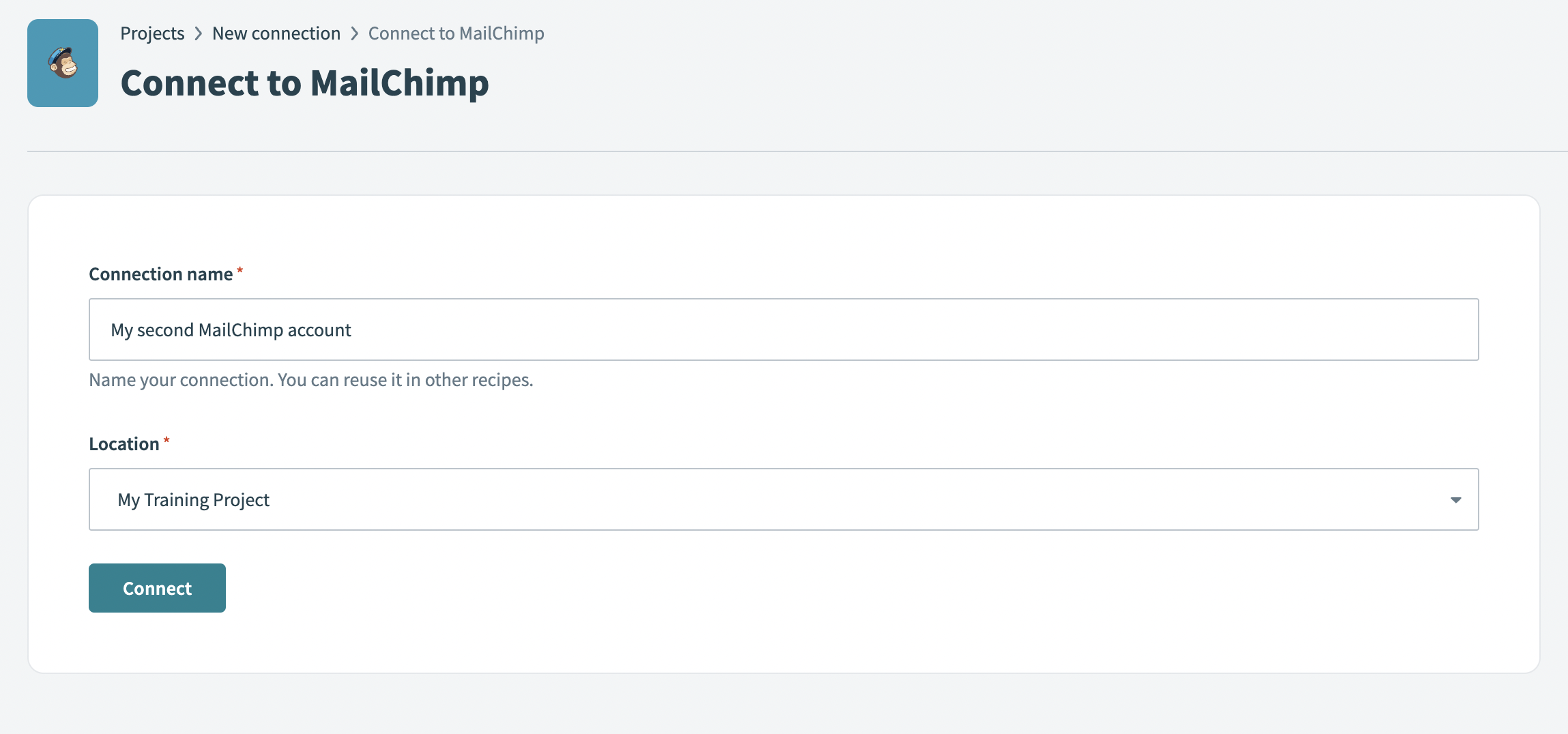 Create your connection
Use the Location drop-down menu to select a location for your connection.
Click Connect. This opens a MailChimp login window.
Enter your MailChimp account username and password. A window opens displaying a summary of the access Workato is provided with for the connection.
Click Accept to complete the connection setup.
Mailchimp role requirements
Each tool's availability depends on the authenticating user's Mailchimp role. A user without the required role receives a permission-denied outcome rather than a partial result. Refer to the Mailchimp Manage User Levels in Your Account guide for the complete list of role capabilities.
How to use Mailchimp Campaign Management MCP server tools
Refer to the following sections for detailed information on available tools:
list_audiences tool
The list_audiences tool lists the audiences (lists) in the Mailchimp account. Your LLM uses this tool to return audiences with their identifiers, names, and member counts so it can choose the right audience to add contacts to or target with a campaign, typically before adding contacts or drafting a campaign when the target audience is not yet resolved.
Try asking:
Show me all the audiences in my Mailchimp account.Which lists do I have and how many contacts are in each?Find the audience I should add these contacts to.
list_campaigns tool
The list_campaigns tool lists campaigns in the account, with optional status filtering. Your LLM uses this tool to return campaigns with their identifiers, titles, subjects, status, and target audience so it can find a draft to send or schedule, filtering by status when you specify drafts, scheduled, or sent campaigns.
Try asking:
List my draft campaigns.Which campaigns are scheduled to send?Show me all my sent campaigns.
get_campaign tool
The get_campaign tool retrieves a single campaign's settings and content. Your LLM uses this tool to confirm a campaign's subject, sender, recipient audience, status, and current content before updating, sending, or scheduling it.
Try asking:
Show me the details of my launch campaign.What's the current subject and sender on this campaign?Confirm the recipient audience for this draft before I send it.
search_contacts tool
The search_contacts tool searches for contacts by email or name, with optional filtering by an audience. Your LLM uses this tool to resolve a contact's identifier before updating or tagging it, scoping the search to a single audience when you name one or spanning the account otherwise.
Try asking:
Find the contact for [email protected].Search for contacts named Smith in my newsletter audience.Look up whether this person is already in my launch list.
create_audience tool
The create_audience tool creates a new audience (list) in the account. Your LLM uses this tool when you want to stand up a fresh audience for a campaign, using the name and the required audience settings you supply, such as default campaign settings, a permission reminder, the email-type option, and the physical contact details Mailchimp requires. If this tool fails, check whether your Mailchimp plan has reached its audience limit.
Try asking:
Create a new audience called "Fall Launch".Set up a fresh list for our newsletter subscribers.Make a new audience with these default sender details.
add_contact tool
The add_contact tool adds a contact to an audience with a subscription status. Your LLM uses this tool when you want to add a person to an audience. You can specify whether to set a member to subscribed, which immediately adds and asserts pre-existing consent, or send them a double opt-in confirmation email.
Try asking:
Add [email protected] to my newsletter audience as subscribed.Add these contacts to my launch list and send them a confirmation.Add this person with their first and last name to my audience.
update_contact tool
The update_contact tool updates an existing contact's fields within an audience. Your LLM uses this tool to change a contact's profile fields or subscription status, resolving the contact first when its identifier is unknown and leaving other fields unchanged.
Try asking:
Update the first name on this contact to "Jordan".Change the profile fields for [email protected] in my newsletter list.Fix the last name on this contact record.
tag_contact tool
The tag_contact tool applies or updates tags on a contact within an audience. Your LLM uses this tool to label or group a contact for targeting, adding or removing one or more tags and resolving the contact first when its identifier is unknown.
Try asking:
Tag [email protected] as VIP.Add the "early access" tag to these contacts.Remove the "prospect" tag from this contact.
draft_campaign tool
The draft_campaign tool creates a campaign draft from supplied content and settings. Your LLM uses this tool to turn ready content into a Mailchimp campaign, assembling a draft against the chosen audience with the subject and sender you provide and attaching the supplied HTML or plain-text content. The server doesn't generate, design, or modify the content. Subject lines longer than approximately 150 characters are truncated by Mailchimp.
Try asking:
Draft a campaign to my newsletter audience using this HTML.Turn this content into a Mailchimp campaign with the subject "Summer Sale".Create a draft campaign from this plain-text email for my launch list.
update_campaign tool
The update_campaign tool updates a campaign's subject, sender, or recipient audience. Your LLM uses this tool to change a campaign's settings before sending or scheduling, leaving other settings unchanged. It doesn't change body content or send and schedule the campaign.
Try asking:
Change the subject line on this campaign to "Summer Sale is here".Update the sender name on my draft campaign.Switch the recipient audience for this campaign to my VIP list.
send_test tool
The send_test tool sends a test email of a campaign to specified addresses. Your LLM uses this tool to let you preview a campaign safely before the real send by emailing a test to yourself or colleagues, without sending to the campaign's audience. The campaign must have HTML content; a plain-text-only draft can't be tested.
Try asking:
Send a test of this campaign to me.Email a preview of my launch campaign to my teammate.Send a test of this campaign to these addresses.
send_campaign tool
The send_campaign tool sends a campaign immediately. Once sent, a campaign cannot be recalled. The server requires explicit user confirmation that you want to send the campaign now before using this tool.
Try asking:
Send my newsletter campaign now.Yes, send the launch campaign to my audience.Confirm and send this campaign immediately.
schedule_campaign tool
The schedule_campaign tool schedules a campaign to send at a future time. Your LLM uses this tool when you want a campaign to go out at a specific time in the future, after confirming the campaign's settings. Scheduling remains reversible until the send begins. The campaign must have HTML content to be scheduled.
Try asking:
Schedule this campaign to send Tuesday at 9am.Set my launch campaign to go out next Monday morning.Schedule this campaign for tomorrow at noon.
unschedule_campaign tool
The unschedule_campaign tool cancels the schedule of a campaign that has not started sending. Your LLM uses this tool to cancel or change a scheduled send before it goes out, returning the campaign to a paused state. It has no effect once a send has started.
Try asking:
Unschedule the campaign I set for tomorrow morning.Cancel the scheduled send on my launch campaign.Stop this campaign from sending on Tuesday.
Getting started
View and manage your MCP server tools in the Overview page Tools section. Tool management provides the following capabilities:
TOOLS MUST BE STARTED
Your LLM can only access active tools in your MCP server connector.
Last updated: