MailChimp Marketing Reports MCP server
The MailChimp Marketing Reports MCP server enables LLMs to interact with MailChimp through natural conversation. It provides tools to discover audiences, campaigns, and contacts, and report on campaign performance, subscriber engagement, and audience health without requiring direct interaction with the MailChimp interface.
CAMPAIGN MANAGEMENT MCP SERVER
This MCP server is read-only. Use the MailChimp Campaign Management MCP server to create, update, send, schedule, or delete content.
Uses
Use the MailChimp Marketing Reports MCP server to perform the following actions:
- Discover audiences (lists) in the account, including member counts.
- List campaigns and filter them by draft, scheduled, or sent status.
- Retrieve a specific campaign's settings and content for review.
- Search for a contact by email address or name across the account or within an audience.
- Analyze a sent campaign's performance, including opens, clicks, click-through rate, bounces, and unsubscribes.
- Review an individual subscriber's engagement activity across campaigns.
- Assess an audience's health through recent aggregated activity and month-by-month growth history.
Example prompts
Use the following example prompts to invoke MailChimp Marketing Reports MCP server tools:
Show me all the audiences in my MailChimp account.List my draft campaigns.Which campaigns are scheduled to send this week?Show me the settings and content for my launch campaign.Find the contact for [email protected] in my newsletter audience.How did last week's campaign perform?What's this subscriber's engagement history across our campaigns?Is my main list growing?Show me the audience health for my newsletter list.Compare the open rates on my last two campaigns.
MailChimp Marketing Reports MCP server tools
The MailChimp Marketing Reports MCP server provides the following tools:
| Tool | Description |
|---|---|
| list_audiences | Lists the audiences (lists) in the MailChimp account. |
| list_campaigns | Lists campaigns in the account, with optional status filtering. |
| get_campaign | Retrieves a single campaign's settings and content. |
| search_contacts | Searches for contacts by email address or name, optionally within an audience. |
| get_campaign_report | Retrieves performance metrics for a sent campaign. |
| get_subscriber_activity | Retrieves one contact's engagement activity on an audience. |
| get_audience_health | Retrieves audience growth and aggregated activity over time. |
Install the MailChimp Marketing Reports MCP server
Complete the following steps to install a prebuilt MCP server to your project:
Sign in to your Workato account.
Go to AI Hub > MCP servers.
Click + Create MCP server.
Go to the Start with pre-built MCP Servers using your connected apps section and select the prebuilt MCP server you plan to use.
Click Use this server.
Provide a name for your MCP server in the Server name field.
Use the Location drop-down menu to select the project for the MCP server.
Go to the Connections section and connect to your app account.
Select the connection type you plan to use for the MCP server template.
- User's connection: MCP server tools perform actions based on the identity and permissions of the user who connects to the application. Users authenticate with their own credentials to execute the skill.
- Your connection: This option uses the connection established by the recipe builder and follows the same principles as normal app connections.
 Select your connection type
VERIFIED USER ACCESS AUTHENTICATION REQUIREMENTS
Only app connections that use OAuth 2.0 authorization code grant are available for user's connection. Refer to Verified user access for more information.
Complete the app-specific connection setup steps in the following section.
API version
Workato's MailChimp connector uses MailChimp's API v2. Refer to MailChimp's API documentation for more information.
MailChimp Marketing Reports connection setup
View MailChimp Marketing Reports connection setup steps
Complete the following steps to connect to MailChimp in Workato:
FEATURE AVAILABILITY
The MailChimp connector isn't available to workspaces in the CN data center. This reflects local regulatory requirements and applies to our multi-tenant and Virtual Private Workato (VPW) offerings.
Provide a Connection name that identifies which MailChimp instance Workato is connected to.
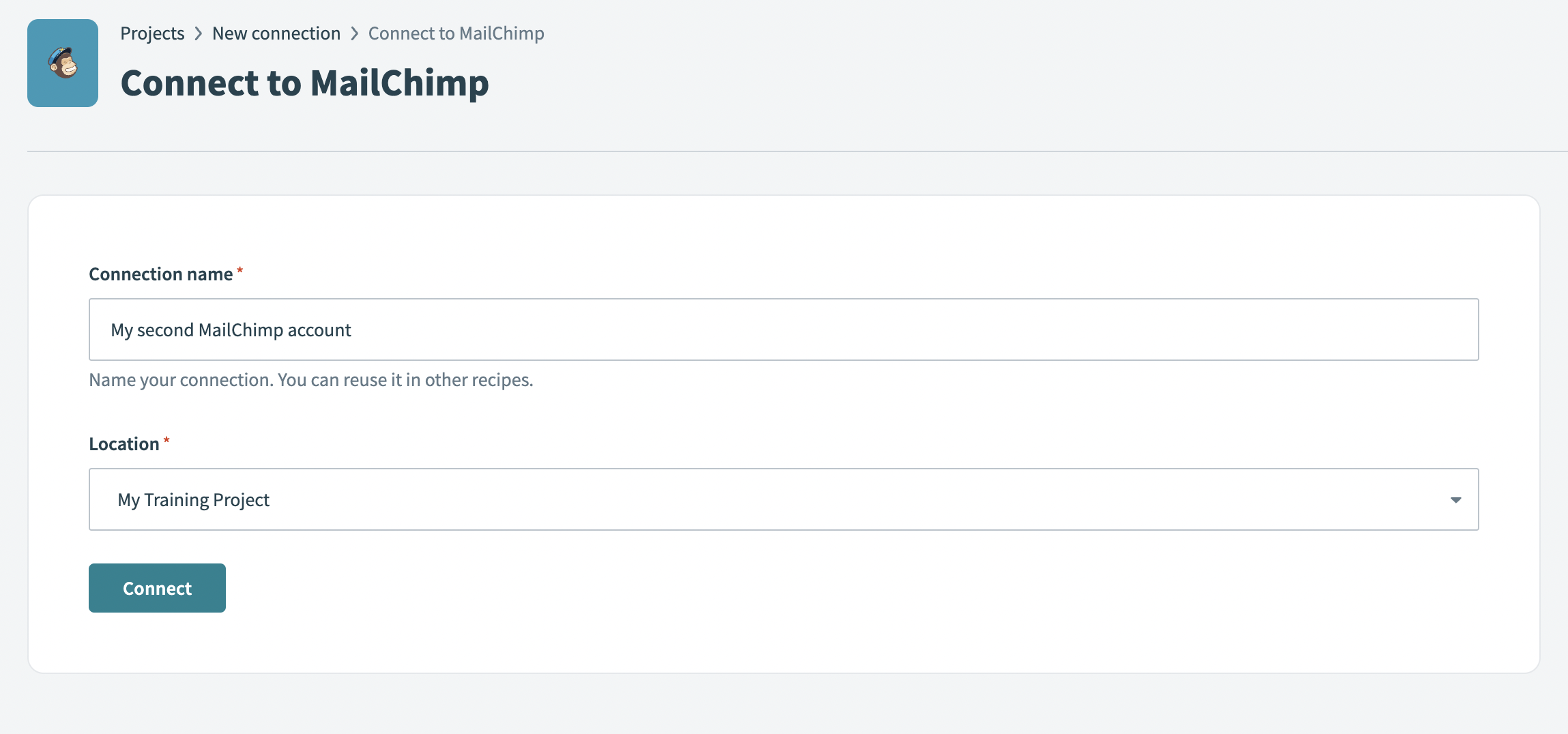 Create your connection
Use the Location drop-down menu to select a location for your connection.
Click Connect. This opens a MailChimp login window.
Enter your MailChimp account username and password. A window opens displaying a summary of the access Workato is provided with for the connection.
Click Accept to complete the connection setup.
MailChimp role requirements
Each tool's availability depends on the authenticating user's MailChimp role. A user without the required role receives a permission-denied outcome rather than a partial result. Refer to the MailChimp Manage User Levels in Your Account guide for the complete list of role capabilities.
How to use MailChimp Marketing Reports MCP server tools
Refer to the following sections for detailed information on available tools:
list_audiences tool
The list_audiences tool lists the audiences (lists) in the MailChimp account. Your LLM uses this tool to return audiences with their identifiers, names, and member counts so it can choose the right audience to inspect or analyze, typically before searching contacts or checking audience health for a list that isn't yet resolved.
Try asking:
Show me all the audiences in my MailChimp account.Which lists do I have and how many contacts are in each?Find the audience I should look up for this report.
list_campaigns tool
The list_campaigns tool lists campaigns in the account, with optional status filtering. Your LLM uses this tool to return campaigns with their identifiers, titles, subjects, status, and target audience so it can find a campaign to inspect or analyze, filtering by status when you specify drafts, scheduled, or sent campaigns.
Try asking:
List my sent campaigns from last month.Which campaigns are still in draft?Show me all my scheduled campaigns.
get_campaign tool
The get_campaign tool retrieves a single campaign's settings and content. Your LLM uses this tool to confirm a campaign's subject, sender, recipient audience, status, and current content when you reference a specific campaign, typically before analyzing its performance.
Try asking:
Show me the details of my launch campaign.What was the subject and sender on last week's campaign?What content did I send in this campaign?
search_contacts tool
The search_contacts tool searches for contacts by email or name, optionally within a specific audience. Your LLM uses this tool to confirm whether a contact exists or to resolve a contact's identifier before checking their engagement activity. You can limit the search to a specific audience or search the entire account.
Try asking:
Find the contact for [email protected].Search for contacts named Smith in my newsletter audience.Is this person already in my launch list?
get_campaign_report tool
The get_campaign_report tool retrieves performance metrics for a sent campaign. Your LLM uses this tool to report opens, clicks, click-through rate, bounces, unsubscribes, and related figures for one sent campaign so you can evaluate how it performed. A report is available only once a campaign has sent.
Try asking:
How did my launch campaign perform?What's the open and click rate on last week's newsletter?Compare the bounce rates on these two sent campaigns.
get_subscriber_activity tool
The get_subscriber_activity tool retrieves one contact's engagement activity. Your LLM uses this tool to report a specific contact's opens, clicks, and unsubscribes across campaigns, resolving the audience and contact first if their identifiers are unknown.
Try asking:
How has [email protected] engaged with our campaigns?Show me this subscriber's click history.Has this contact opened any of our recent emails?
get_audience_health tool
The get_audience_health tool retrieves audience growth and aggregated activity over time. Your LLM uses this tool to report recent aggregated activity (signups, unsubscribes, sends, opens, clicks) and month-by-month growth history for a whole audience so you can see whether it's growing and engaged.
Try asking:
Is my newsletter audience growing?Show me the engagement trend for my main list.How healthy is my launch audience right now?
Getting started
View and manage your MCP server tools in the Overview page Tools section. Tool management provides the following capabilities:
TOOLS MUST BE STARTED
Your LLM can only access active tools in your MCP server connector.
Last updated: