Microsoft Teams Conversations MCP server
The Microsoft Teams Conversations MCP server enables LLMs to search, retrieve, and participate in Microsoft Teams conversations through natural conversation. It provides tools to find topics, projects, or customers, retrieve message history, get thread context, list teams, channels, and chats, and post messages or replies without requiring direct interaction with the Microsoft Teams interface.
Uses
Use the Microsoft Teams Conversations MCP server to perform the following actions:
- List Microsoft Teams teams the authenticated user is a member of
- List channels within a specified Microsoft Teams team
- List one-on-one, group, and meeting chats the user participates in
- Retrieve messages and thread replies from a Microsoft Teams channel or chat
- Search for messages matching a keyword across Microsoft Teams channels and chats
- Post a new message to a Microsoft Teams channel or chat
- Reply to an existing message thread in a Microsoft Teams channel
Example prompts
Use the following example prompts to invoke Microsoft Teams Conversations MCP server tools:
Which Microsoft Teams teams am I a member of?What channels are available in the Sales team?Show me my recent Microsoft Teams chats.Get the last 20 messages from the #general channel.Find discussions about the Acme renewal across my Microsoft Teams conversations.Search for any messages about the Q2 launch plan.Post a message to the #announcements channel.Reply to this thread in the Engineering channel.
Microsoft Teams Conversations MCP server tools
The Microsoft Teams Conversations MCP server provides the following tools:
| Tool | Description |
|---|---|
| list_teams | Lists teams the authenticated user is a member of. |
| list_channels | Lists team channels that you specify. |
| list_chats | Lists one-on-one or group chats the authenticated user participates in. |
| get_messages | Retrieves messages or thread replies from a Microsoft Teams channel or chat. |
| search_messages | Searches for Microsoft Teams messages matching a keyword query across channels and chats the user can access. |
| send_message | Posts a new message to a Microsoft Teams channel or chat on behalf of the authenticated user. |
| reply_to_message | Posts a reply to an existing message thread in a Microsoft Teams channel. |
Install the Microsoft Teams Conversations MCP server
Complete the following steps to install a prebuilt MCP server to your project:
Sign in to your Workato account.
Go to AI Hub > MCP servers.
Click + Create MCP server.
Go to the Start with pre-built MCP Servers using your connected apps section and select the prebuilt MCP server you plan to use.
Click Use this server.
Provide a name for your MCP server in the Server name field.
Use the Location drop-down menu to select the project for the MCP server.
Go to the Connections section and connect to your app account.
Select the connection type you plan to use for the MCP server template.
- User's connection: MCP server tools perform actions based on the identity and permissions of the user who connects to the application. Users authenticate with their own credentials to execute the skill.
- Your connection: This option uses the connection established by the recipe builder and follows the same principles as normal app connections.
 Select your connection type
VERIFIED USER ACCESS AUTHENTICATION REQUIREMENTS
Only app connections that use OAuth 2.0 authorization code grant are available for user's connection. Refer to Verified user access for more information.
Complete the app-specific connection setup steps in the following section.
Microsoft Teams connection setup
View Microsoft Teams connection setup steps
Workato supports the following types of connections to Microsoft Teams Conversations:
- Authorization code grant authentication (OAuth 2.0)
- Client credentials-based authentication (OAuth 2.0): Only available for tenant-specific connections
View Microsoft MFA enforcement steps
MICROSOFT MFA ENFORCEMENT
Microsoft is rolling out mandatory multifactor authentication (MFA) gradually to different applications and accounts in phases. This enforcement continues throughout 2025 and beyond. Refer to the Microsoft Mandatory multifactor authentication for Azure and admin portals documentation for more information.
We strongly recommend enabling MFA now for all Microsoft accounts used with Workato to avoid service disruptions from short-notice enforcement changes.
Complete the following steps to maintain uninterrupted service:
Enable MFA for your Microsoft organization following the Microsoft MFA setup guide. Refer to Set up multifactor authentication for Microsoft 365 for more information.
Reconnect your Microsoft connection in Workato.
Complete the OAuth flow with MFA when prompted.
Test your recipes to ensure they work with the updated connection.
Authorization code grant authentication (OAuth 2.0)
This authentication method requires the following value for tenant-specific account types:
- Tenant ID/Domain
View authorization code grant authentication steps
Register the Workato App in Azure portal
Complete the following steps to register the Workato app and assign permissions for authorization code grant connections:
View register the Workato App in Azure portal steps
Register the Workato app in the Azure portal
Complete the following steps to register the Workato app in the Azure portal:
Sign in to the Azure portal.
Select App registrations > + New registration.
Enter a unique name for the application.
Use the Supported account types drop-down menu to select an account type.
Select Web from the Select a platform drop-down menu.
Use the following URI for the Redirect URI:
https://www.workato.com/oauth/callbackSelect Register.
Assign permissions to your app
Complete the following steps to assign permissions to your app:
In the navigation sidebar, select Manage > API permissions.
Click + Add a permission and select Microsoft Graph APIs.
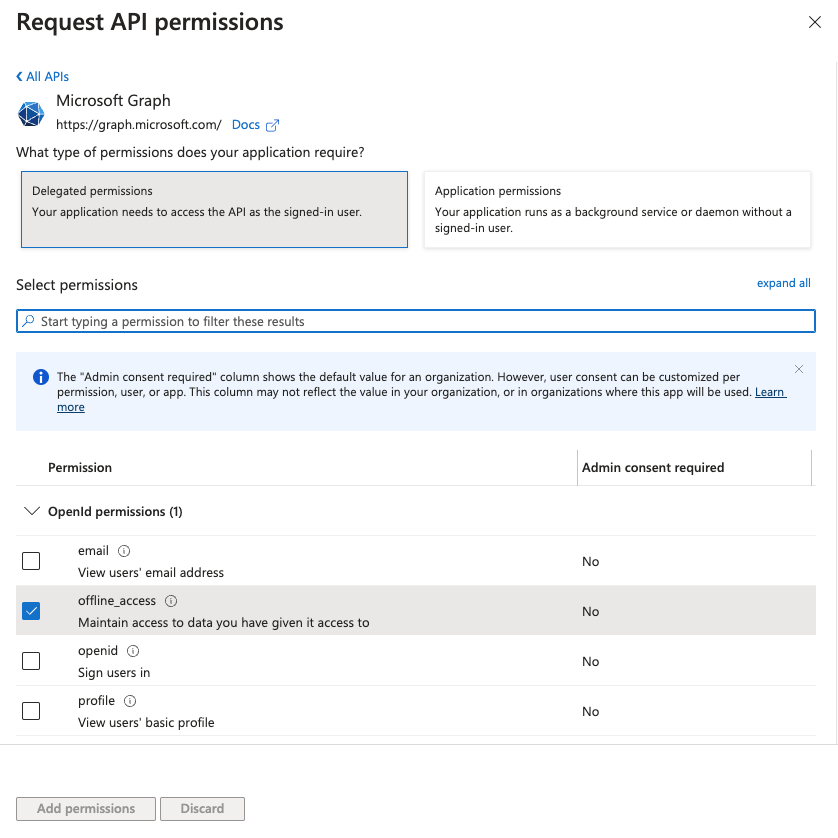 Add permissions
Add the required permissions. Depending on your connection type, you must assign Application or Delegated permissions.
Add permissions
Click Add permissions.
Admin consent is required for specific permissions.
The Microsoft Teams MCP server requires the following scopes. You must assign these permissions to the Workato app as Delegated permissions in the Azure portal.
Channel.ReadBasic.AllChannelMessage.Read.AllChannelMessage.SendChat.ReadChat.ReadWriteChatMessage.SendTeam.ReadBasic.AllUser.Readoffline_access
Obtain the Directory (tenant ID) from the Azure portal
Complete the following steps to obtain the Directory (tenant) ID from the Azure portal:
Go to the Overview > Essentials section.
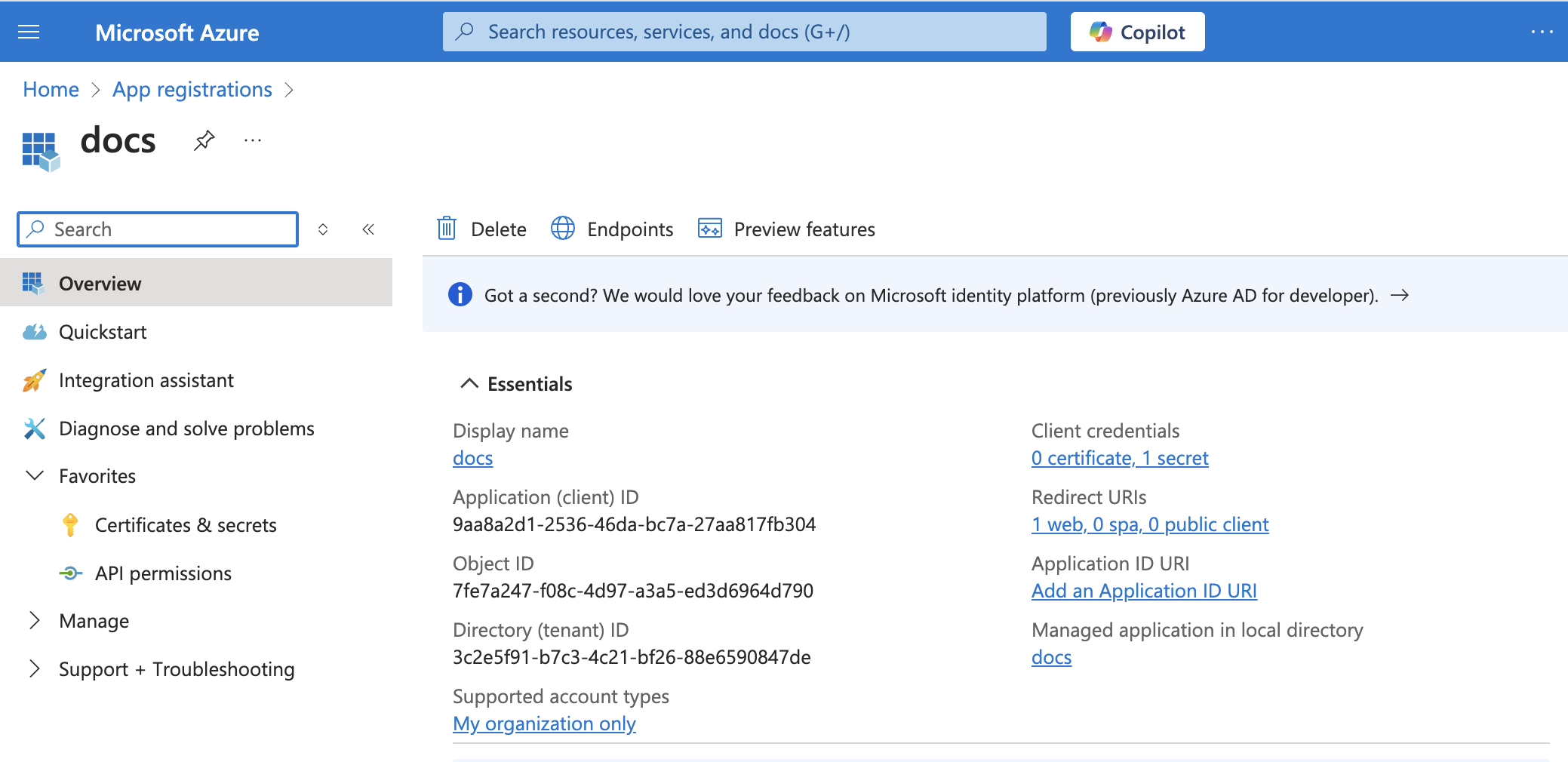 App details
Copy and save the Directory (tenant) ID for use in Workato.
Complete authorization code grant setup in Workato
View complete setup in Workato steps
Complete the following steps to set up an authorization code grant connection in Workato:
Click Create > Connection.
Search for Microsoft Teams and select it as your app.
Provide a name for your connection in the Connection name field.
Use the Location drop-down menu to select the project where you plan to store the connection.
Use the Connection account type drop-down menu to select the type of account you plan to use. The available choices are Common and Tenant-specific.
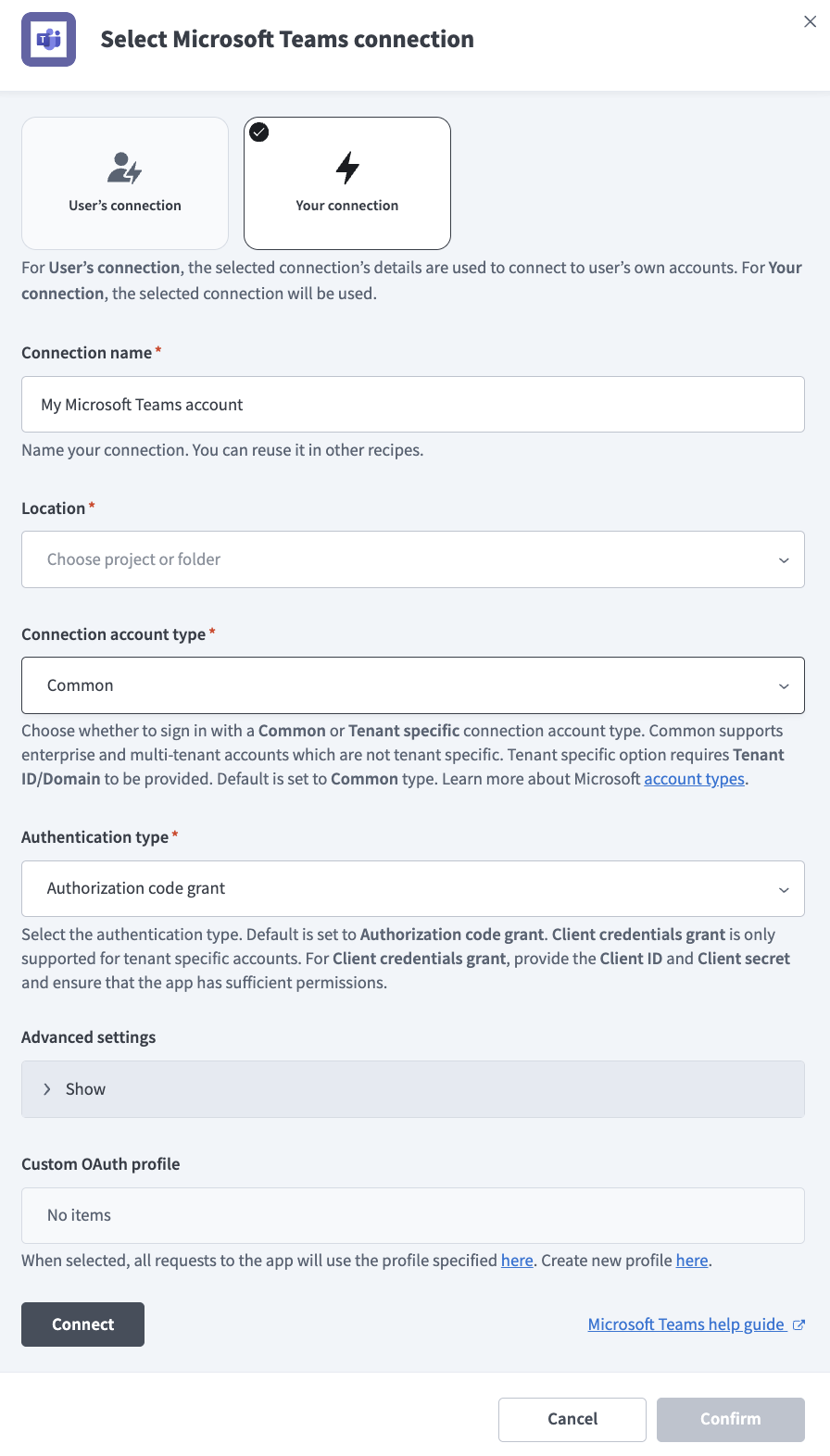 Common connections
Use the Authentication type drop-down menu to select Authorization code grant.
Optional. Go to the Advanced settings section to manually select permissions. The connector requests a set of scopes necessary for all triggers and actions to function properly by default. The minimum permissions required to establish a connection are User.Read and offline_access. Workato always requests these permissions regardless of the permissions you select. Refer to the permissions section for more information.
Optional. Use the Custom OAuth profile drop-down menu to select a custom OAuth profile for your connection.
Click Connect.
Client credentials-based authentication (OAuth 2.0)
Client credentials-based authentication requires the following fields:
- Tenant ID/Domain
- User ID
- Client ID
- Client Secret
COMPATIBLE AUTHENTICATION
Client credentials-based authentication is only compatible with tenant-specific connections.
View client credentials-based authentication steps
Register the Workato App in the Azure Portal
View register the Workato App in Azure portal steps
Complete the following steps to register the Workato app and assign permissions for client credentials-based connections:
Register the Workato App in the Azure portal
Complete the following steps to register the Workato app in the Azure portal:
Sign in to the Azure portal.
Select App registrations > + New registration.
Enter a unique name for the application.
Use the Supported account types drop-down menu to select an account type.
Select Web from the Select a platform drop-down menu.
Use the following URI for the Redirect URI:
https://www.workato.com/oauth/callbackSelect Register.
Assign permissions to your app
Complete the following steps to assign permissions to your app:
In the navigation sidebar, select Manage > API permissions.
Click + Add a permission and select Microsoft Graph APIs.
Add permissions
Add the required permissions. Depending on your connection type, you must assign Application or Delegated permissions.
Add permissions
Click Add permissions.
Admin consent is required for specific permissions.
The Microsoft Teams MCP server requires the following scopes. You must assign these permissions to the Workato app as Delegated permissions in the Azure portal.
Channel.ReadBasic.AllChannelMessage.Read.AllChannelMessage.SendChat.ReadChat.ReadWriteChatMessage.SendTeam.ReadBasic.AllUser.Readoffline_access
Generate a client secret
Complete the following steps to generate a client secret:
Go to Manage > Certificates & Secrets > Client secrets.
Click + New client secret.
Provide a Description for the client secret and specify an Expires date.
Click Add.
Copy and save the client secret Value—not the Secret ID—for use in Workato.
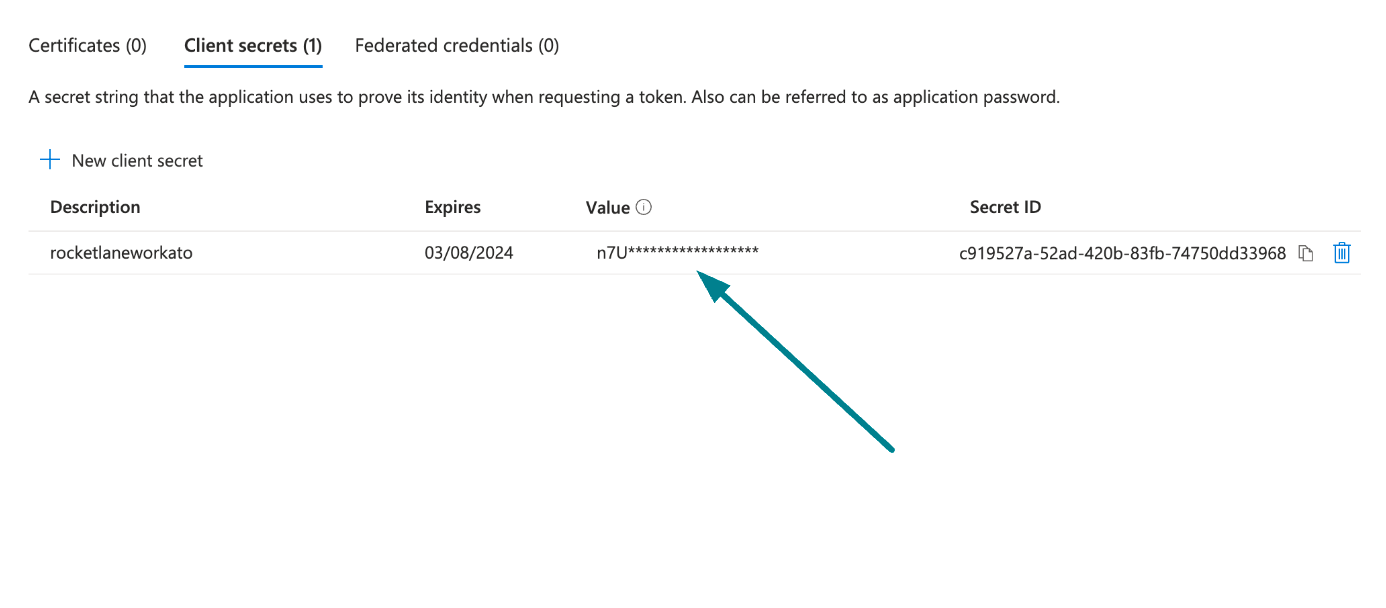 Copy and save the client secret value
Obtain the Application (client) ID, Object ID, and Directory (tenant) ID from the Azure portal
Complete the following steps to obtain the Application ID, Object ID, and Directory (tenant) ID from the Azure portal:
Go to the Overview > Essentials section.
App details
Copy and save the Application (client) ID, Object ID, and Directory (tenant) ID for use in Workato.
Obtain the User ID from the Azure portal
Complete the following steps to obtain the User ID from the Azure portal:
Go to Home > Users to obtain the User ID.
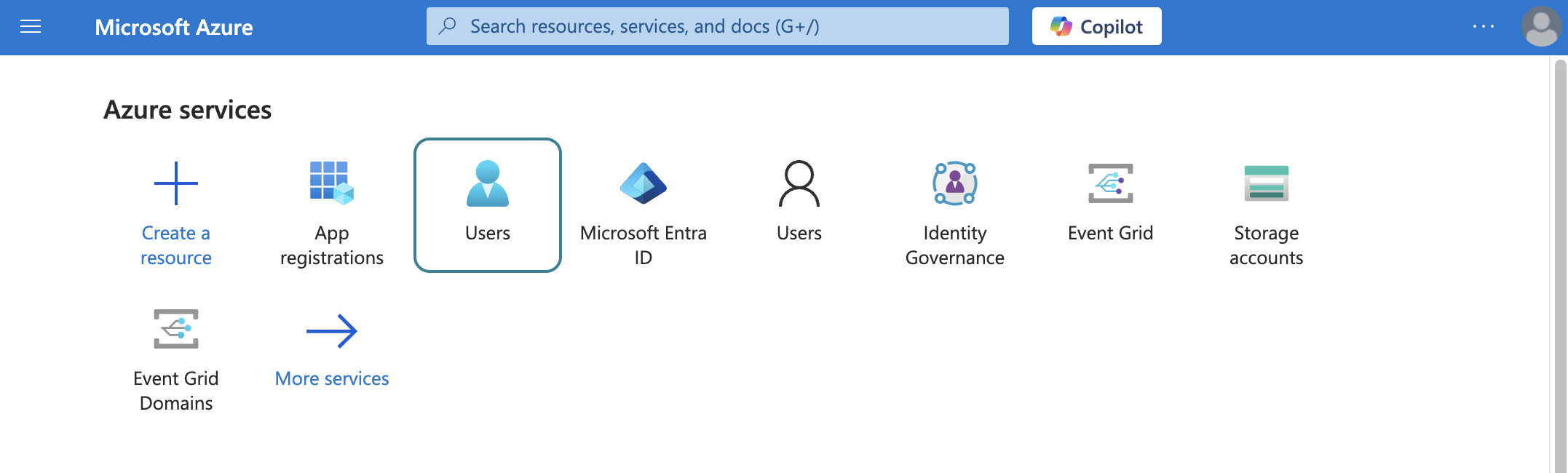 Select users
Search for and select the default user you plan to use to perform operations. This user doesn't establish the connection but is required for performing certain operations that an app can't perform. It's also required in picklists to pull user data. For example, the folder picklist populates folders belonging to the default user.
Copy and save the User principal name. Use this value as the User ID in Workato.
Complete client credentials-based authentication setup in Workato
View complete setup in Workato steps
Complete the following steps to set up your client credentials-based connection in Workato:
Click Create > Connection.
Search for Microsoft Teams and select it as your app.
Provide a name for your connection in the Connection name field.
Use the Location drop-down menu to select the project where you plan to store the connection.
Use the Connection account type drop-down menu to select Tenant specific. This option is specifically designed for users who belong to a particular organization (tenant).
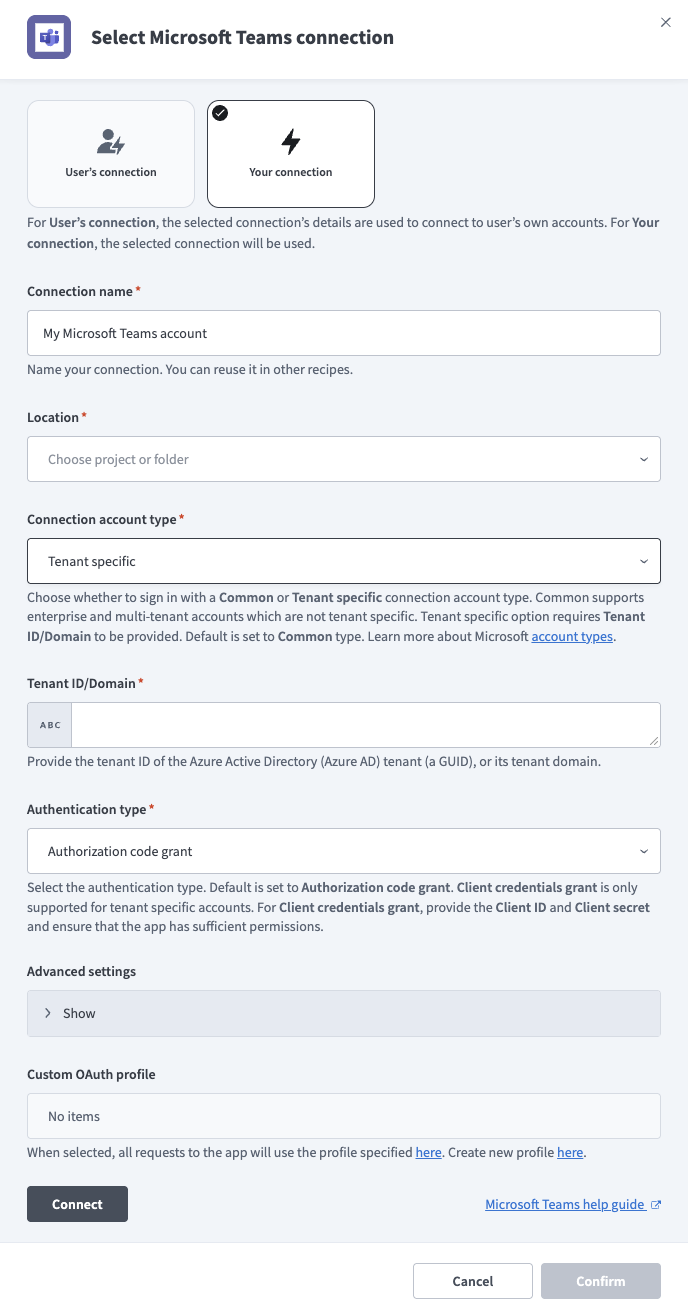 Tenant specific account connection type
Provide your Tenant ID/Domain. This is the Directory (tenant) ID for your app. Refer to the Register an app in Azure section to learn how to obtain this value.
Use the Authentication type drop-down menu to select Client credentials.
Enter the User ID, Client ID, and Client secret for your app. Refer to the Register an app in Azure section to learn how to obtain these values.
Optional. Use the Custom OAuth profile drop-down menu to select a custom OAuth profile for your connection.
Click Connect.
How to use Microsoft Teams Conversations MCP server tools
Refer to the following sections for detailed information on available tools:
list_teams tool
The list_teams tool lists teams the authenticated user is a member of. Your LLM uses this tool to list teams you belong to.
Try asking:
Which Microsoft Teams teams am I a member of?Show me all the teams I have access to.What teams exist in my Microsoft Teams environment?Find the team ID for the Sales team.
list_channels tool
The list_channels tool lists channels within a team that you specify. Your LLM uses this tool to list channels for a team. Requires a team ID from list_teams.
Try asking:
What channels are available in the Sales team?List all channels in the Engineering Microsoft Teams team.Show me the channels I can access in this team.Find the channel ID for #announcements.
list_chats tool
The list_chats tool lists one-on-one, group, and meeting chats the authenticated user participates in. Your LLM uses this tool to provide recent chats and chat activity.
Try asking:
Show me my recent Microsoft Teams chats.List my group chats in Microsoft Teams.Find my chat with the project team.What meeting chats do I have from this week?
get_messages tool
The get_messages tool retrieves messages or thread replies from a Microsoft Teams channel or chat. Your LLM uses this tool to provide recent messages from a channel or chat with conversation context for catch-up or meeting preparation, and thread replies for a specific Microsoft Teams channel message.
Try asking:
Get the last 20 messages from the #general channel.Show me recent messages in the product team chat.Pull the thread replies for this message in the Engineering channel.Catch me up on what was discussed in #sales-updates today.
search_messages tool
The search_messages tool searches for Microsoft Teams messages matching a keyword query across channels and chats the user can access. Your LLM uses this tool to find discussions about a topic, project, customer, or keyword across your Microsoft Teams conversations, to locate a past decision or discussion, or to search broadly rather than reading a specific channel.
Try asking:
Find discussions about the Acme renewal across my Microsoft Teams conversations.Search for any messages about the Q2 launch plan.Did anyone discuss the budget approval in Microsoft Teams?Find past decisions about the API migration in my channels.
send_message tool
The send_message tool posts a new message to a Microsoft Teams channel or chat on behalf of the authenticated user. Your LLM presents the message content and target to you for approval before posting.
Try asking:
Post a message to the #announcements channel.Send a message to the design team chat in Microsoft Teams.Post an update to the #project-status channel.Send this summary to the Sales team channel.
reply_to_message tool
The reply_to_message tool posts a reply to an existing message thread in a Microsoft Teams channel on behalf of the authenticated user. Your LLM presents the reply content and target thread to you for approval before posting.
Try asking:
Reply to this thread in the Engineering channel.Post my response to this message in the #product channel.Reply to the latest thread in #customer-success.Add my update to this Microsoft Teams thread.
Getting started
View and manage your MCP server tools in the Overview page Tools section. Tool management provides the following capabilities:
TOOLS MUST BE STARTED
Your LLM can only access active tools in your MCP server connector.
Last updated: