Miro MCP server
The Miro MCP server enables LLMs to interact with Miro for reading, capturing, updating, and organizing structured board content through natural conversation. It provides tools to find boards, retrieve and create structured items, such as sticky notes, cards, and text items, manage tags, and organize content using frames without requiring direct interaction with the Miro interface.
Uses
Use the Miro MCP server to perform the following actions:
- Find and access Miro boards by name or recency
- Read and review structured board content including sticky notes, cards, and text items
- Capture new ideas and structured work items as sticky notes, cards, or text
- Update existing board items including content, tags, and frame placement
- Organize content by assigning items to frames and applying tags
- Create new boards for upcoming workflows or collaboration sessions
- List and manage board-level tags for content categorization
- Filter board items by type or frame to explore specific sections of a board
Example prompts
Use the following example prompts to invoke Miro MCP server tools:
Find my Q2 planning board.Show me the boards I've accessed recently.What sticky notes are on the retrospective board?Add a sticky note to the brainstorming board with the idea 'automate onboarding emails.'Create a card for the API integration task with a due date of next Friday.Update the sticky note about the budget review to include the revised numbers.Create a new board for the Q3 roadmap planning session.List all tags available on the product feedback board.Tag all items in the Action Items frame as high-priority.Move the onboarding card into the In Progress frame.
Miro MCP server tools
The Miro MCP server provides the following tools:
| Tool | Description |
|---|---|
| search_boards | Searches for boards by title or metadata. |
| get_board | Retrieves metadata for a specific board. |
| create_board | Creates a new board. |
| list_board_items | Lists structured items on a board. |
| get_sticky_note | Retrieves the full details of a sticky note. |
| get_card | Retrieves the full details of a card. |
| get_text_item | Retrieves the full details of a text item. |
| create_sticky_note | Creates a sticky note on a board. |
| create_card | Creates a card on a board. |
| create_text_item | Creates a text item on a board. |
| update_sticky_note | Updates content, tags, and frame placement of a sticky note. |
| update_card | Updates title, description, due date, tags, and frame placement of a card. |
| update_text_item | Updates content, tags, and frame placement of a text item. |
| list_board_tags | Lists all tags defined on a board. |
| create_tag | Creates a tag on a board. |
| attach_tag_to_item | Attaches a tag to a board item. |
| detach_tag_from_item | Removes a tag from a board item. |
Install the Miro MCP server
Complete the following steps to install a prebuilt MCP server to your project:
Sign in to your Workato account.
Go to AI Hub > Enterprise MCP.
Click + Create MCP server.
Go to the Start with pre-built MCP Servers using your connected apps section and select the prebuilt MCP server you plan to use.
Click Use this server.
Provide a name for your MCP server in the Server name field.
Use the Location drop-down menu to select the project for the MCP server.
Go to the Connections section and connect to your app account.
Select the connection type you plan to use for the MCP server template.
- User's connection: MCP server tools perform actions based on the identity and permissions of the user who connects to the application. Users authenticate with their own credentials to execute the skill.
- Your connection: This option uses the connection established by the recipe builder and follows the same principles as normal app connections.
 Select your connection type
VERIFIED USER ACCESS AUTHENTICATION REQUIREMENTS
Only app connections that use OAuth 2.0 authorization code grant are available for user's connection. Refer to Verified user access for more information.
Complete the app-specific connection setup steps in the following section.
Miro connection setup
View Miro connection setup steps
PREREQUISITES
You must create a client ID and client secret before you can connect to Miro in Workato. Refer to the Miro Get started with OAuth 2.0 and Miro guide to generate these values.
Complete the following steps to connect to Miro in Workato:
Click Create > Connection or press C twice.
Search for Miro and select it as your app.
Enter a name for your connection in the Connection name field.
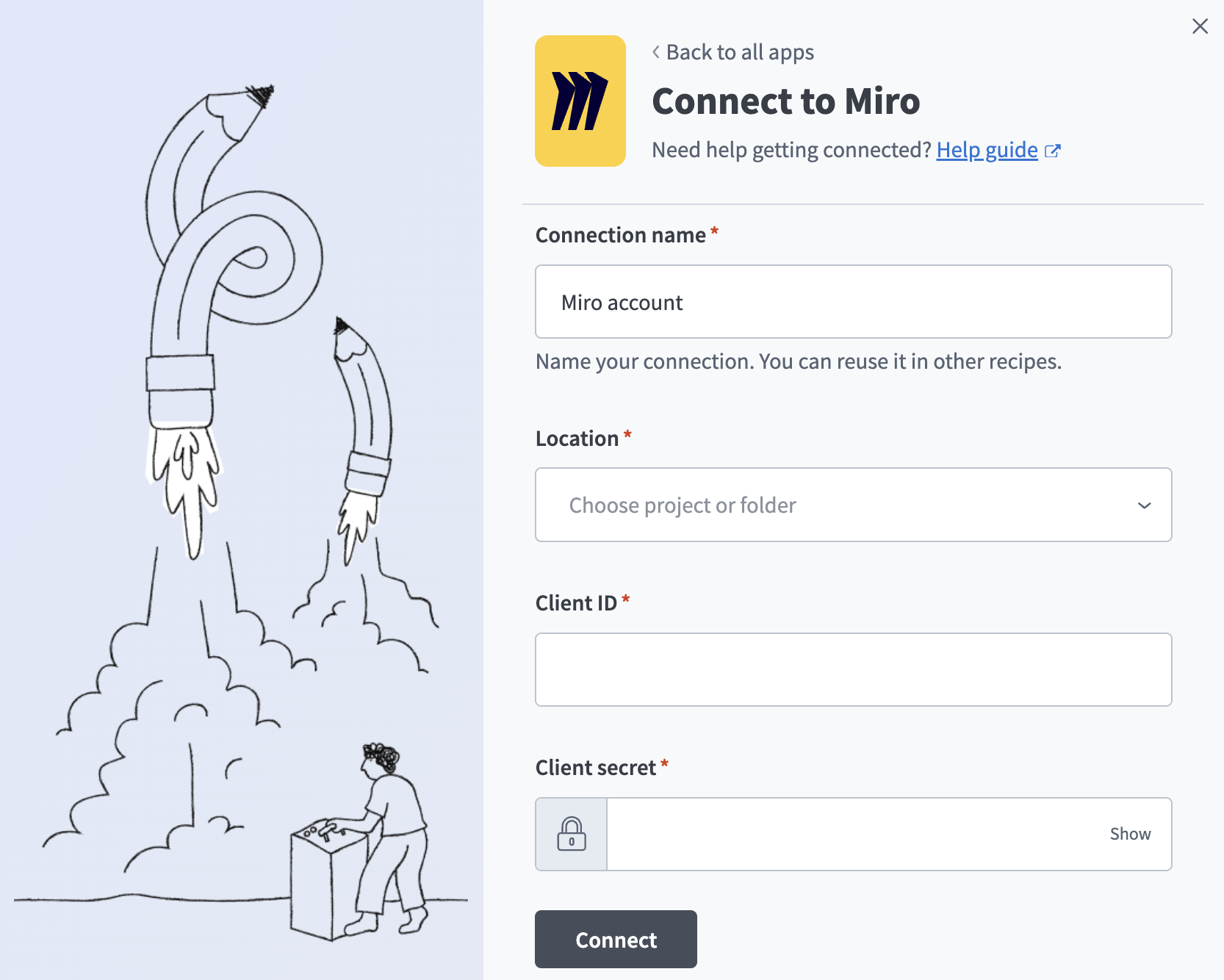 Miro connection setup
Use the Location drop-down menu to select the project where you plan to store the connection.
Enter the Client ID and Client Secret for your Miro app. Refer to the Miro Get started with OAuth 2.0 and Miro guide to generate these values.
Click Connect.
How to use Miro MCP server tools
Refer to the following sections for detailed information on available tools:
search_boards tool
The search_boards tool searches for boards by title or metadata. Your LLM uses this tool to find boards by name or to list recently modified boards when no specific board is referenced.
Try asking:
Find my Q2 planning board.Show me boards I've worked on recently.Find the retrospective board from last week.List all boards in alphabetical order.
get_board tool
The get_board tool retrieves metadata for a specific board. Your LLM uses this tool to confirm board identity, retrieve description and timestamp information, or establish context before performing content operations.
Try asking:
What's the description of the product roadmap board?When was the Q2 planning board last modified?Get the details for board ID 123456.Confirm which board I'm working with before making changes.
create_board tool
The create_board tool creates a new board. Your LLM uses this tool when a user explicitly asks to set up a new workspace for an upcoming workflow or collaboration session.
Try asking:
Create a board for Q3 roadmap planning.Set up a new Miro board called 'Customer Feedback Sprint 12.'Make a new board for the onboarding project.Create a blank board with the description 'Design review session.'
list_board_items tool
The list_board_items tool lists structured items on a board. Your LLM uses this tool to retrieve sticky notes, cards, text items, and frames from a board, optionally filtered by item type or parent frame.
Try asking:
Show me all the sticky notes on the retrospective board.List all cards in the In Progress frame.What items are on the brainstorming board?Show me all the frames on the Q2 planning board.
get_sticky_note tool
The get_sticky_note tool retrieves the full details of a sticky note. Your LLM uses this tool to read complete content and metadata for a specific note, or to retrieve current tag information before making updates.
Try asking:
Show me the full content of sticky note 789.What tags are on this sticky note?Get the details of the sticky note about API authentication.Read sticky note 456 before I update it.
get_card tool
The get_card tool retrieves the full details of a card. Your LLM uses this tool to read a card's title, description, due date, and tag information before reviewing or updating it.
Try asking:
Get the details for card 321.What's the due date on the API integration card?Show me the full description of the onboarding task card.Read the card before I update its tags.
get_text_item tool
The get_text_item tool retrieves the full details of a text item. Your LLM uses this tool to read longer-form annotations or explanatory content on a board before reviewing or updating them.
Try asking:
Show me the full content of text item 654.Read the annotation text in the Design Principles frame.Get the details of the text block about our API rate limit policy.What does text item 987 say?
create_sticky_note tool
The create_sticky_note tool creates a sticky note on a board. Your LLM uses this tool to capture ideas, short notes, or brainstorming entries on a board, optionally placing them in a frame or applying tags.
Try asking:
Add a sticky note to the brainstorming board: 'Automate onboarding emails.'Capture this idea as a sticky note in the Ideas frame.Create a note on the retro board tagged as 'action-item.'Add a sticky note to the Q3 planning board.
create_card tool
The create_card tool creates a card on a board. Your LLM uses this tool when capturing structured work items or task-like entries that benefit from a title, description, and optional due date.
Try asking:
Create a card for the API integration task due next Friday.Add a work item card titled 'Set up CI/CD pipeline' to the engineering board.Create a task card in the Backlog frame with the description 'Review design mockups.'Add a card for the customer follow-up action item.
create_text_item tool
The create_text_item tool creates a text item on a board. Your LLM uses this tool to add longer-form annotations, explanations, or documentation-style content to a board.
Try asking:
Add an explanation of our API rate limit policy to the Technical Notes frame.Create a text block summarizing the decisions from today's planning session.Add the meeting notes as a text item to the retrospective board.Create a text annotation describing the steps in the onboarding workflow.
update_sticky_note tool
The update_sticky_note tool updates content, tags, and frame placement of a sticky note. Your LLM uses this tool to correct, refine, or reorganize an existing sticky note based on user instructions.
Try asking:
Update the sticky note about the budget review to include the revised numbers.Move this sticky note into the Completed frame.Change the text on sticky note 123 to 'Follow up with the design team.'Add the 'high-priority' tag to this sticky note.
update_card tool
The update_card tool updates title, description, due date, tags, and frame placement of a card. Your LLM uses this tool to modify an existing card as work evolves or requirements change.
Try asking:
Update the onboarding card due date to next Monday.Move the API integration card to the In Progress frame.Add the 'blocked' tag to card 456.Update the description of the infrastructure card with the new requirements.
update_text_item tool
The update_text_item tool updates content, tags, and frame placement of a text item. Your LLM uses this tool to revise annotations or longer-form text already on a board.
Try asking:
Update the meeting notes text item with today's action items.Move the API policy text block into the Documentation frame.Revise the onboarding workflow description with the updated steps.Add the 'needs-review' tag to this text item.
list_board_tags tool
The list_board_tags tool lists all tags defined on a board. Your LLM uses this tool to discover available tags before attaching them to items, or when the user wants to see what categories exist on a board.
Try asking:
What tags are available on the product feedback board?List all categories on the Q2 planning board.Show me the tags before I label this sticky note.What labels can I apply to items on this board?
create_tag tool
The create_tag tool creates a tag on a board. Your LLM uses this tool when the user wants to add a new category or label to a board that doesn't already exist.
Try asking:
Create a 'high-priority' tag on the engineering board.Add a new tag called 'blocked' to the project board.Create a 'needs-review' label on the design board.Set up a 'Q3' tag on the roadmap board.
attach_tag_to_item tool
The attach_tag_to_item tool attaches a tag to a board item. Your LLM uses this tool to add a single tag to a sticky note, card, or text item without changing the item's other existing tags.
Try asking:
Tag this sticky note as 'action-item.'Add the 'high-priority' label to this card.Attach the 'blocked' tag to the API integration card.Label this text item as 'needs-review.'
detach_tag_from_item tool
The detach_tag_from_item tool removes a tag from a board item. Your LLM uses this tool to remove a specific label from a sticky note, card, or text item without affecting its other tags.
Try asking:
Remove the 'blocked' tag from this card.Detach the 'high-priority' label from the onboarding sticky note.Remove the 'needs-review' tag from text item 654.Clear the 'Q2' tag from this card now that the quarter is over.
Getting started
View and manage your MCP server tools in the Overview page Tools section. Tool management provides the following capabilities:
TOOLS MUST BE STARTED
Your LLM can only access active tools in your MCP server connector.
Last updated: