Recipe jobs
A recipe creates a job each time it processes a trigger event and runs its actions. Each job holds that trigger event's data and runs the recipe's steps against it.
A job's history shows which steps ran and what data passed through them. You can rerun any job when an error stops it from completing.
View job reports
The Job report page records all processed jobs for a recipe. Open the recipe and click its Jobs tab to view the report.
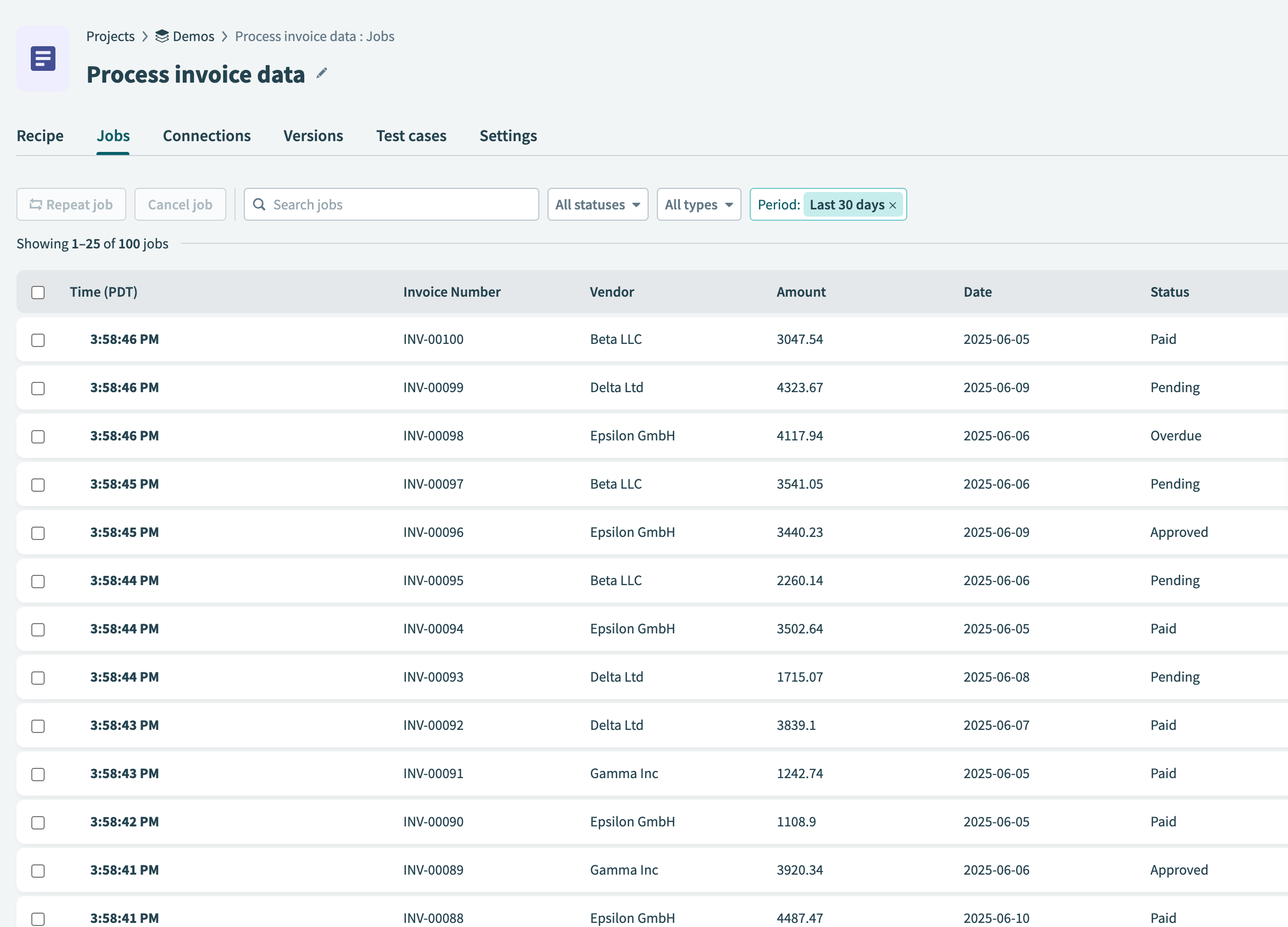 Job report page
REPORT RETENTION
Job reports retain data using your workspace's data retention policy. You can access your data retention settings by going to Workspace admin > Settings > Data retention.
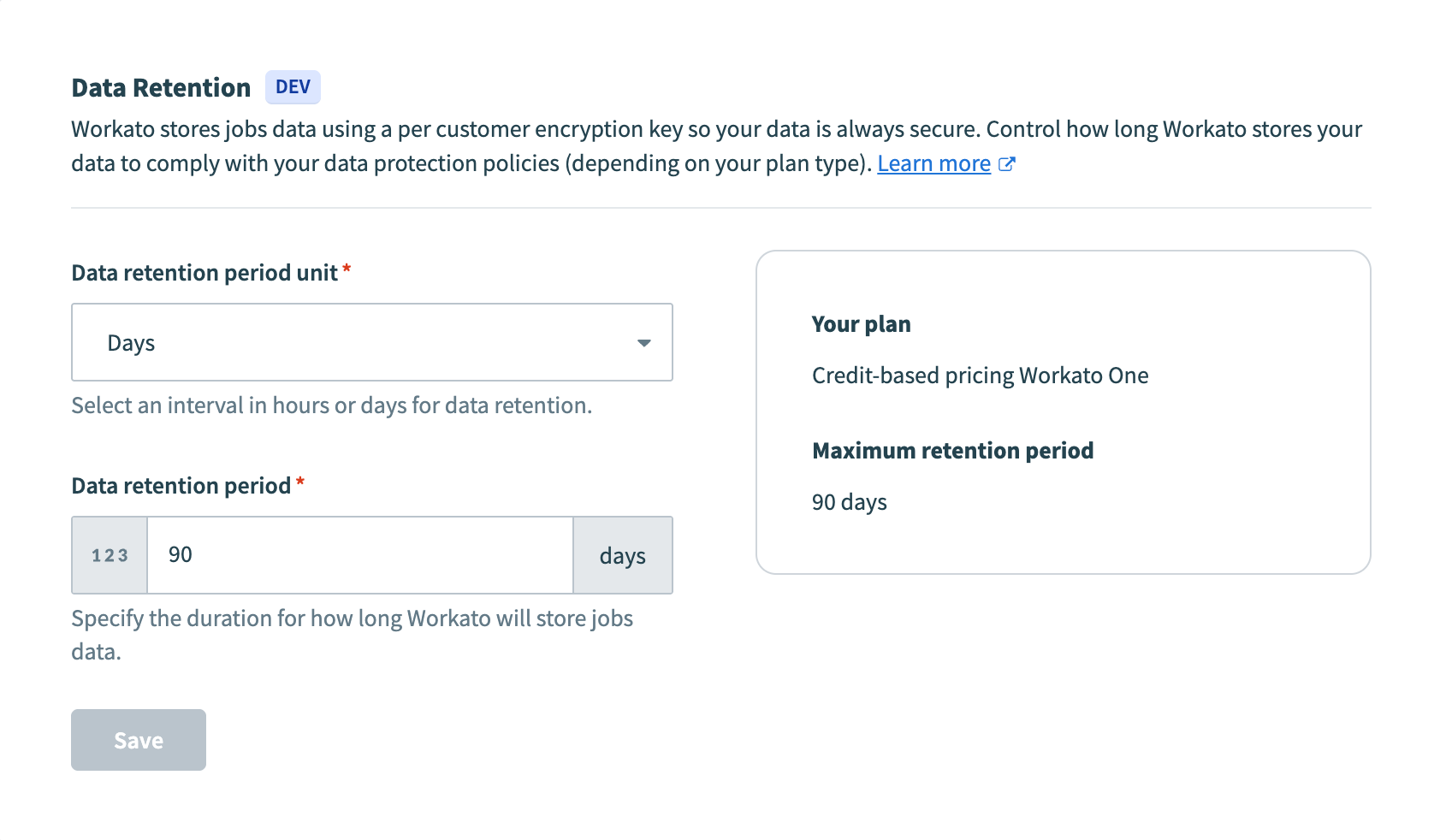 Data retention settings
Quotas
Job reports are subject to the following quotas:
| Description | Quota |
|---|---|
| Maximum number of columns in a job report | 10 |
| Maximum job report column value length | 256 characters |
| Maximum job report size | 5 KB |
Job statuses
Jobs can have the following statuses:
| Name | Description |
|---|---|
| Completed | The job processed successfully. |
| Failed | The job ended because of an error, usually a failure to execute an action, such as an app that isn't reachable. No further steps run. |
| Processing | The job is still being processed. |
| Paused | The job contains long actions and was paused when the recipe stopped. Refer to Paused jobs. |
| Aborted | This status is rarely returned. The recipe has pending jobs, but recipe modifications prevent the jobs from processing. |
CHECK COMPLETED JOBS TOO
A job can complete without producing the expected outcome. You can confirm the recipe behaved correctly by reviewing how the job processed each step.
Long actions can leave a job paused or pending when you stop its recipe.
Paused jobs
Recipes containing long actions can have extended run times. A job in the processing stage is paused when a user stops its recipe, and it resumes when the recipe restarts.
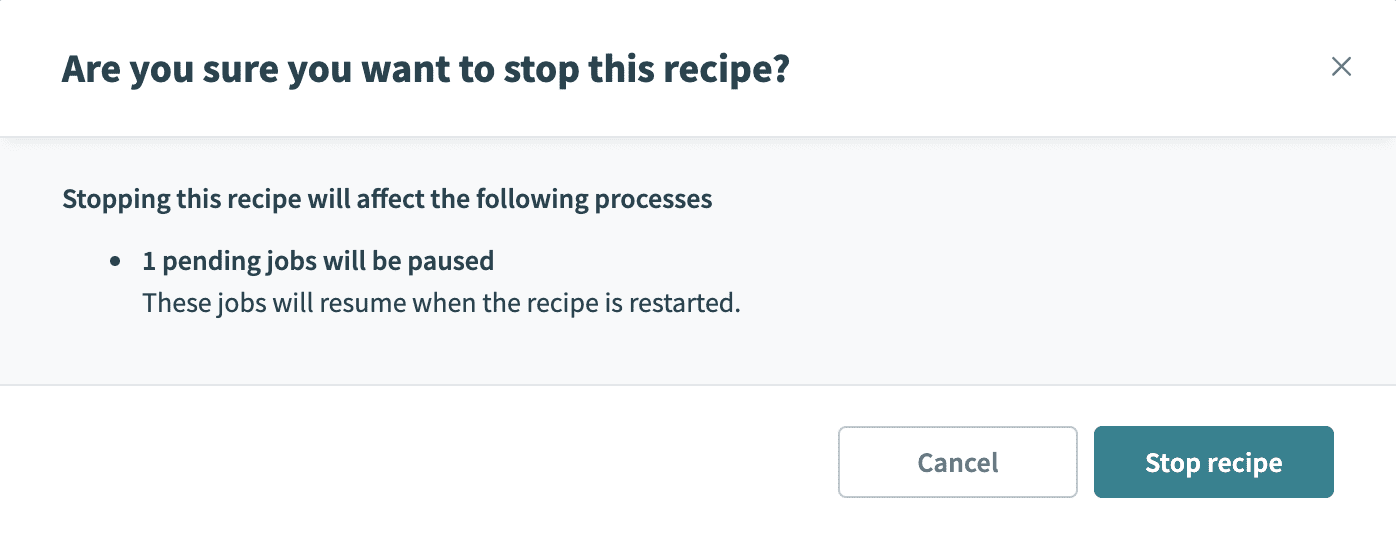 Pause jobs
If you edit and save the recipe, it moves to a new version, but a paused job keeps running on the version it started with. In this example, a job that started on recipe version 1 resumes and completes on version 1, even after the recipe is edited and restarted.
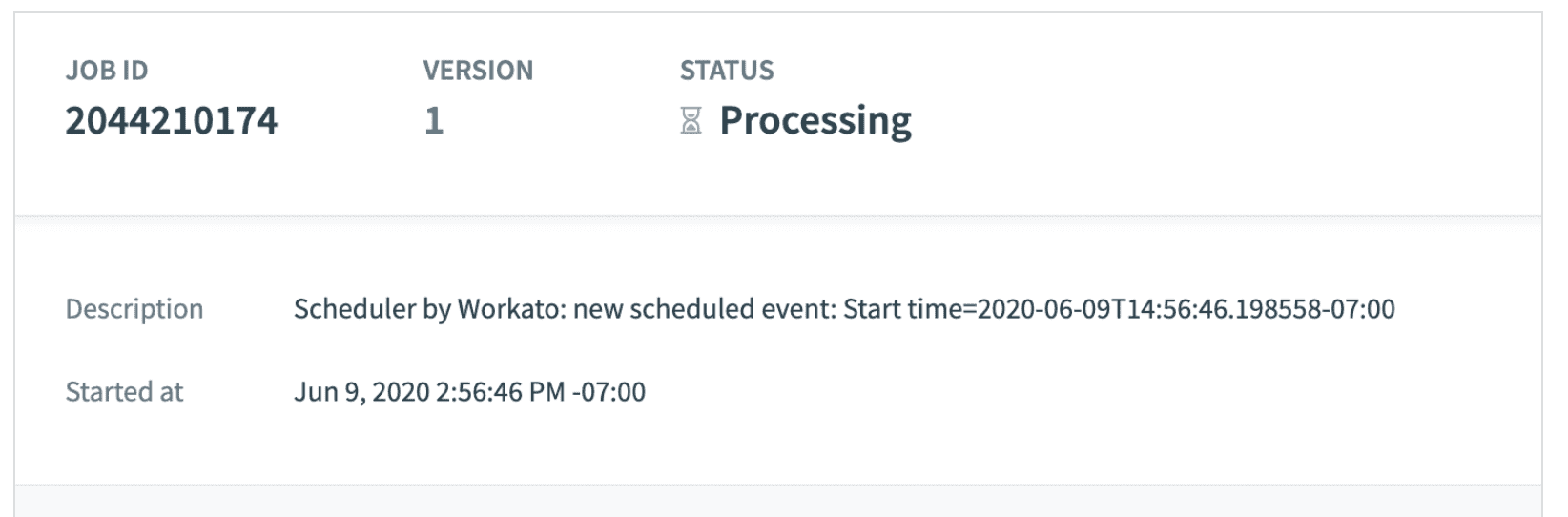 Resume jobs
New jobs execute using the new version of the recipe after the recipe restarts. In this example, the new job starts with recipe version 3.
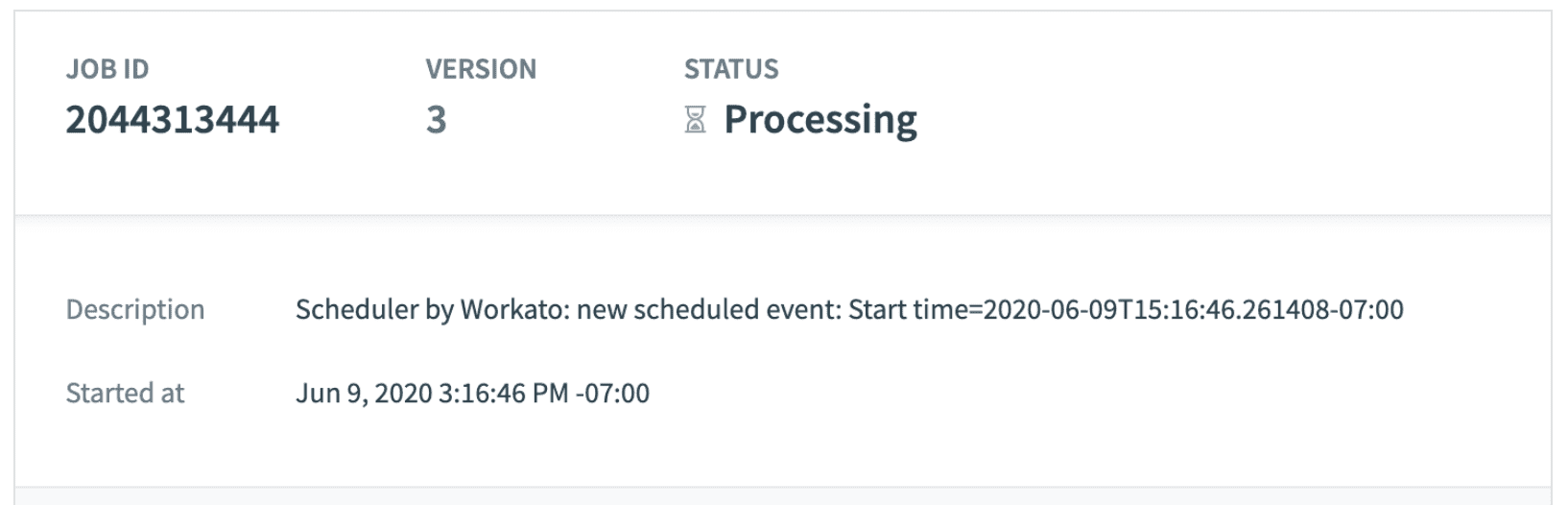 New jobs
Pending jobs
A job stays pending when a long action hasn't completed and the user stops the recipe while it's still waiting.
Workato fails all pending jobs when a recipe has been stopped for thirty days. This includes nested jobs from callable recipes and recipe functions. You can recover a failed job by running it again from the job report, since Workato retains the trigger event.
Customize job reports
You can customize job reports to display up to ten additional columns. The columns you add can contain any data available in the recipe. For example, if the recipe processes invoices, you can customize the report to include columns for Invoice ID, Invoice amount, or other relevant invoice data.
Complete the following steps to create a custom report:
Click Stop recipe if the recipe is active. You can't create or edit custom reports for active recipes.
Click the ••• (ellipsis) in the table header row, then select Customize job report.
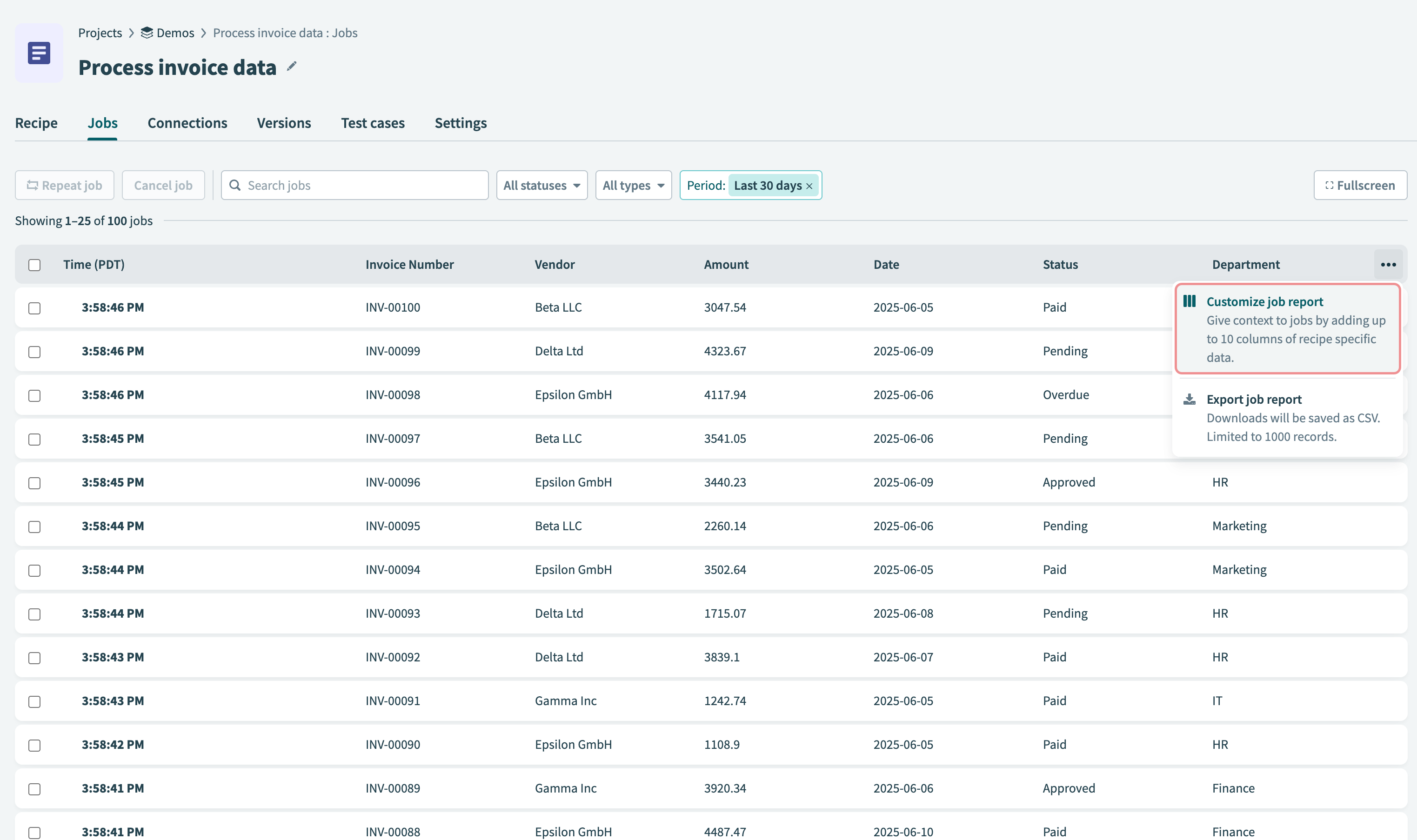 Customize job report button
Use datapills from the recipe's steps to add columns to the report on the Customize job report page.
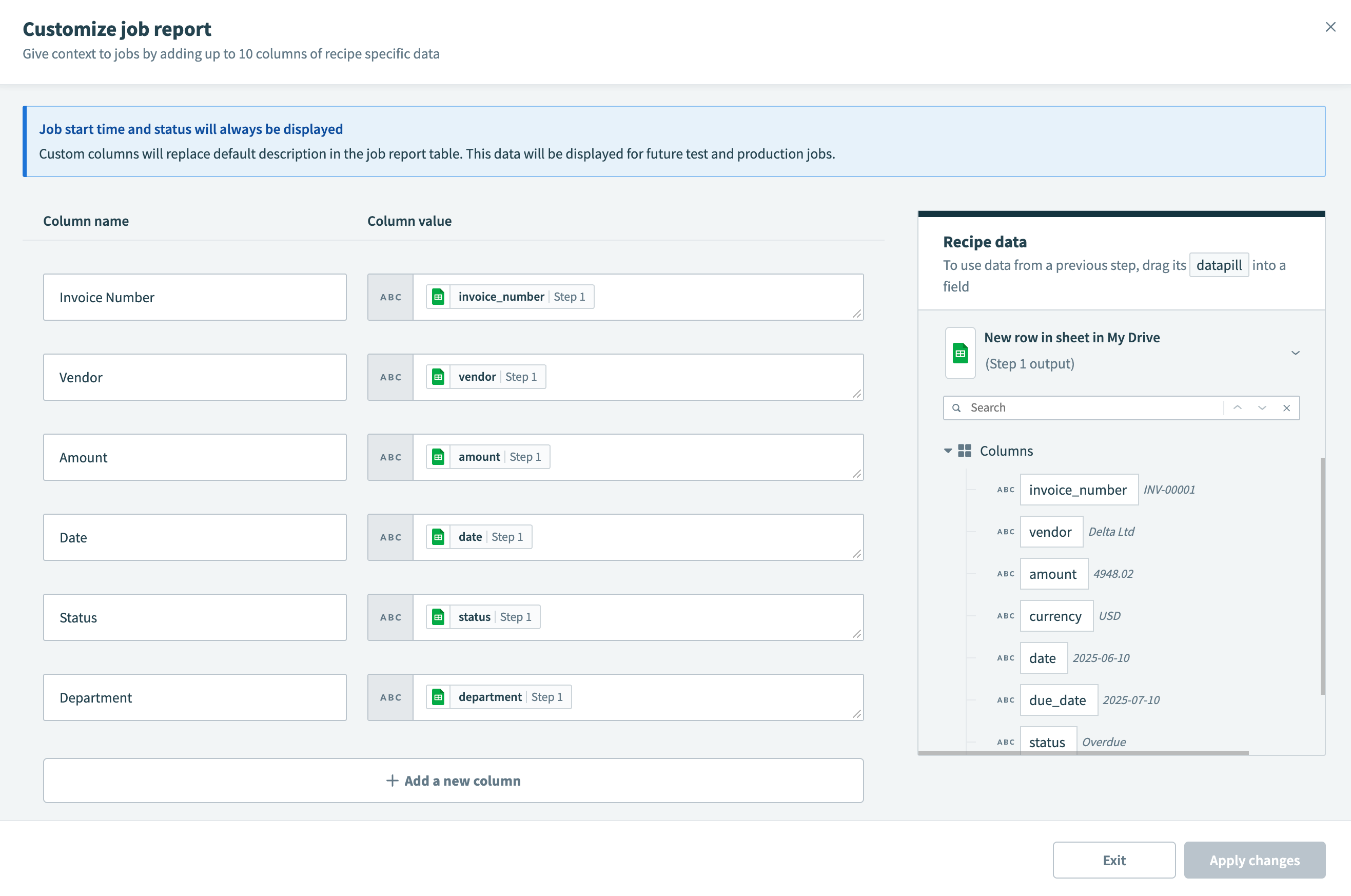 Customize the job report
Click Apply changes when finished.
Click Start recipe to restart the recipe.
CUSTOMIZATIONS APPLY ONLY TO NEW JOBS
Customizations apply only to jobs created after you apply them. Customizing the table modifies the recipe and creates a new version, and each job stores its custom fields based on the recipe version it ran under. Completed jobs don't pick up later customizations.
Custom job report validation
Workato validates custom job reports before you save them. Validation flags formula errors and references to masked or non-existent datapills.
You can't use datapills from steps with data masking enabled in a custom job report. Formulas are also validated directly in the job report editor. If you save a job report with formula errors, you can still start the recipe, but the erroneous data is omitted from the report.
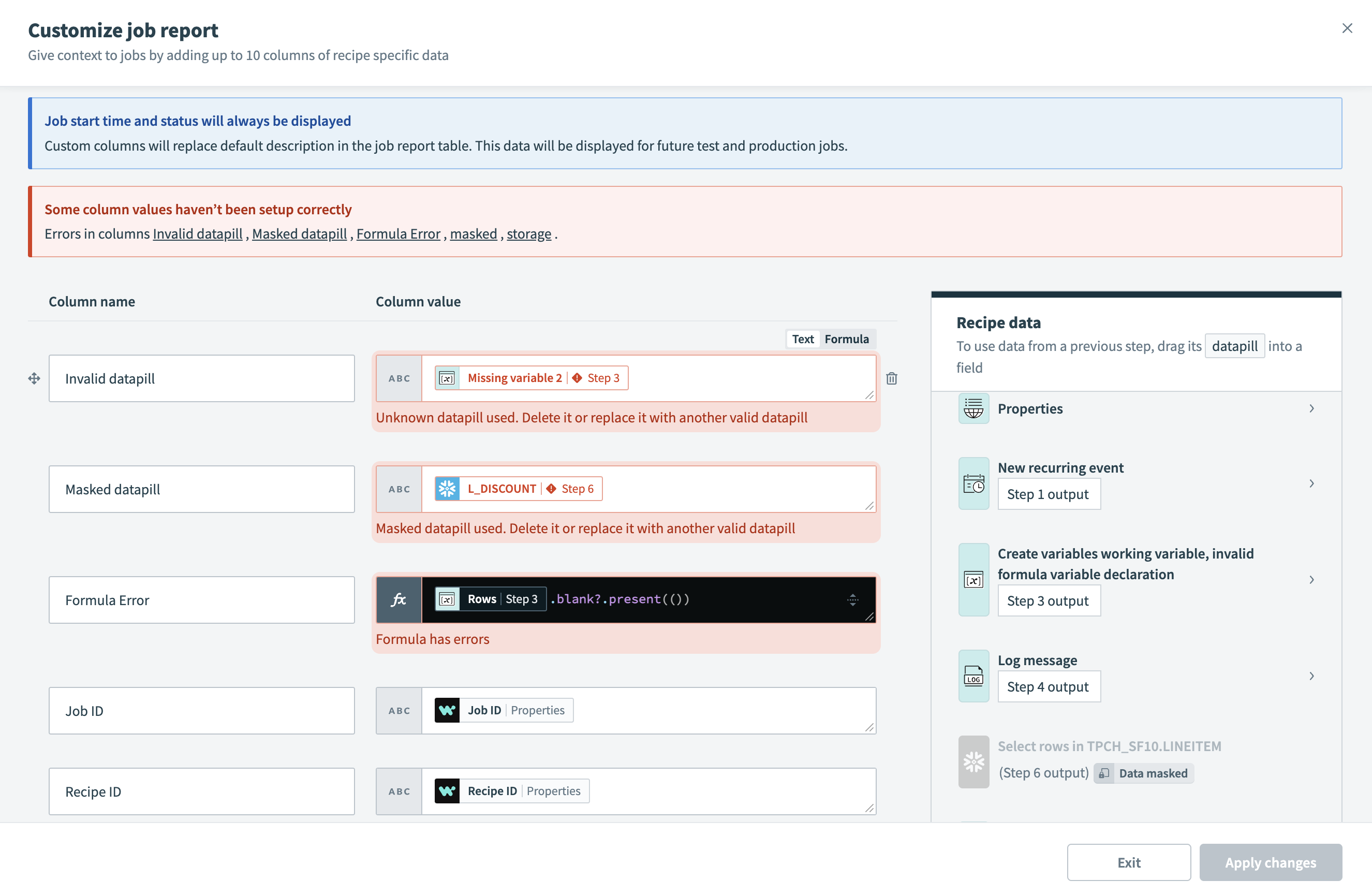 Errors when customizing the job report
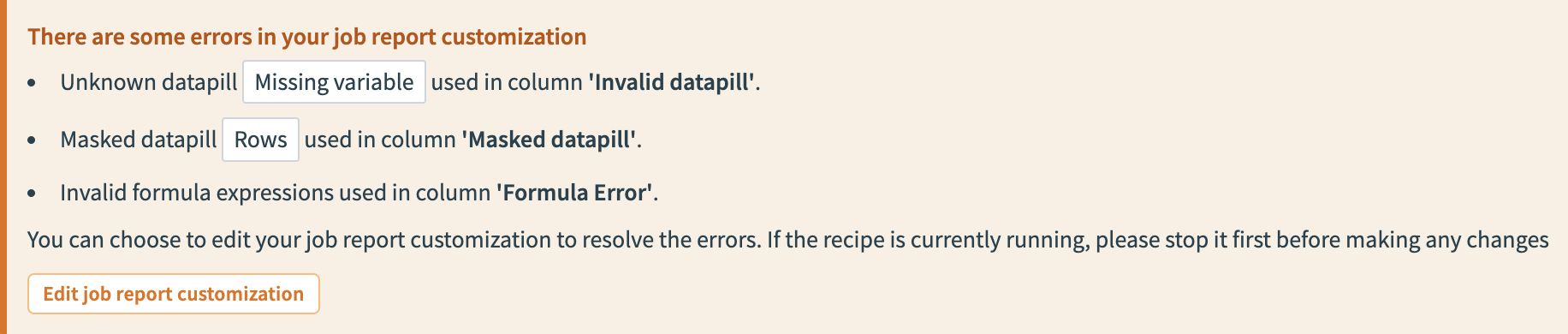 Warning banner highlighting job report customization errors
How can I use non-sensitive datapills from masked steps in my custom job report?
Data masking applies to an entire step, so the custom job report editor blocks all of that step's datapills, even ones that aren't sensitive. You can work around this by copying the value you need into a Create variable step first, then mapping that variable into your custom report instead of the masked step's datapill.
Complete the following steps to include non-sensitive datapills from a masked step in your custom job report:
Open your recipe in the recipe editor.
Add the Variables by Workato Create variable action after the masked step.
Click Add a variable to create a variable for the non-sensitive datapill you plan to include in the custom job report.
Map the relevant datapill from the masked step to its corresponding input field in the Create variable action.
Repeat steps 3 and 4 for each non-sensitive datapill you plan to include.
Click Save, then click Exit.
Go to the Jobs tab.
Click the ••• (ellipsis) in the table header row, then select Customize job report.
Map the datapills from the Create variable step to their corresponding columns.
Click Apply changes.
Export job reports to CSV files
You can export job reports to CSV files, which include the latest 1,000 rows based on the current filter settings.
Complete the following steps to export job reports:
Select a recipe and go to the Jobs tab.
Optional. Set filters on the job report table.
Click the ... (ellipsis) and select Export job report.
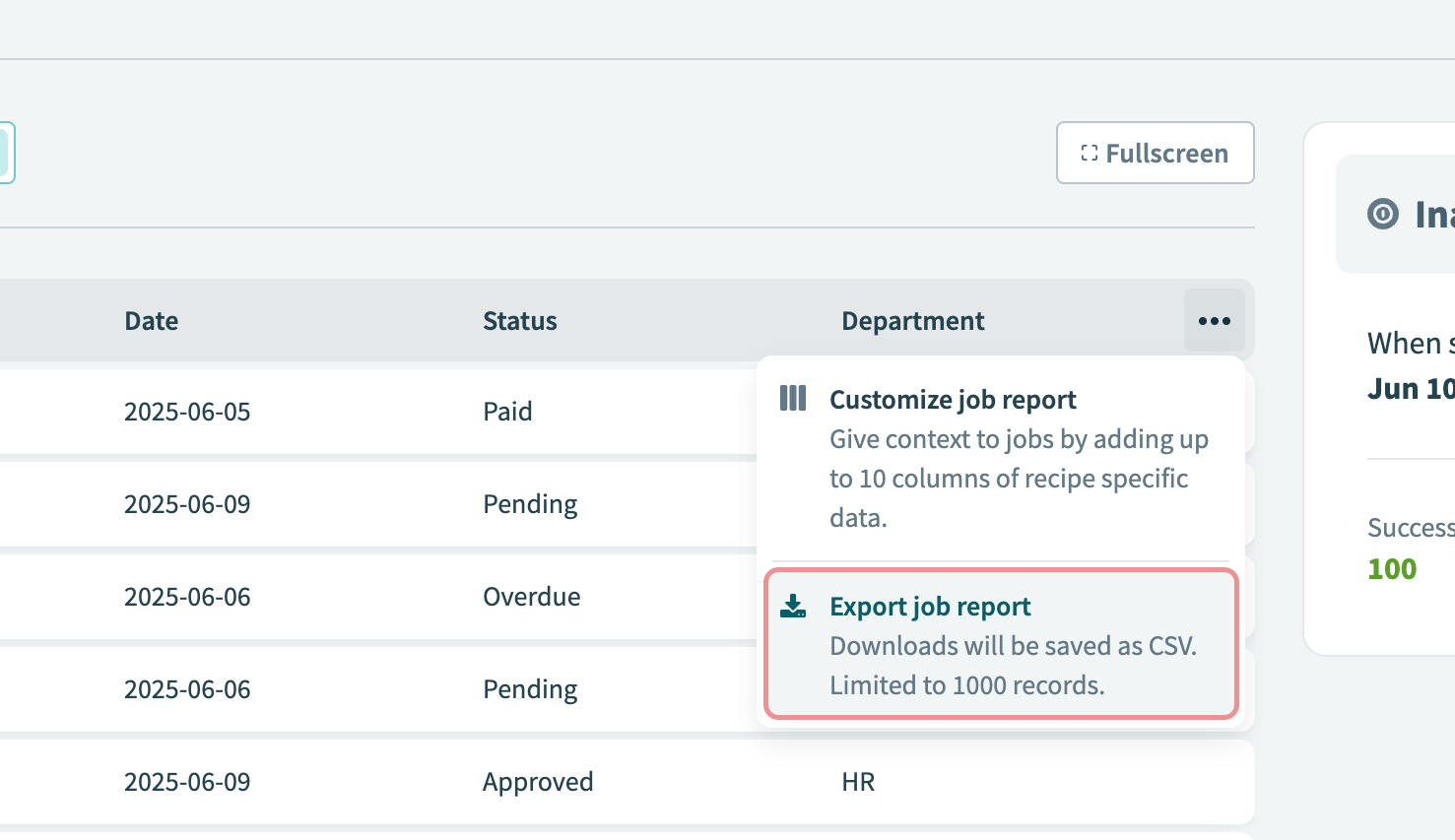 Export job reports to CSV file
Job details
The Job details page displays the input and output data for each step in the recipe, so you can trace what happened and debug it if required.
Complete the following steps to view a job's details:
Click the recipe to open the detailed view.
Click the Jobs tab and then click the job you plan to view to open the Job details page.
Click any step to inspect its input, output, and any error. Conditional steps and loop iterations are each covered in the following sections.
PROPERTY VALUES FREEZE WHEN A JOB STARTS
Jobs don't detect changes to environment property or project property values while they run. Workato freezes these values when job execution begins. Use lookup tables if you need values that update during a job.
Job metadata
The Job details page includes the following job metadata:
| Name | Description |
|---|---|
| Job ID | The ID of the job. |
| Job start time | The time the job started. |
| Recipe version | The version of the recipe the job used. |
| Status | The status of the job. Refer to Job statuses. |
| Description | The description of the recipe. |
| Runtime user connection | If the recipe used runtime user connections, the specific connections used by the job display. |
| Duration | The amount of time the job took to finish. |
| Tasks used | The total number of tasks the job used. |
| Rerun # | The rerun number of the job. |
Conditional steps
A single Output tab displays when you expand conditional actions. This shows whether the condition evaluated to true or false:
- If
true, nested actions execute and you can view their details. - If
false, nested actions aren't executed and the recipe proceeds to the next possible action. Actions that aren't executed display as Condition not met and their details can't be viewed.
Repeat steps
Each Repeat for each or Repeat while loop shown in a job includes an iteration navigator. Select any iteration to see that iteration's input, output, and any error for every step inside the loop.
FEATURE AVAILABILITY
Full loop visibility rolls out gradually by data center. Workspaces without full loop visibility display only the last iteration a repeat step processed. Contact your Customer Success Manager to check availability.
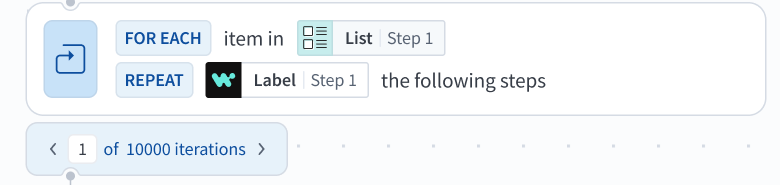 Loop iteration navigator
The navigator shows X of N iterations, for example 5 of 5 iterations. N is the number of iterations the loop ran, which is fewer than the configured count if a condition or an error stopped the loop early.
Use the arrows to move one iteration at a time, or type a specific iteration number. A number outside the range moves the navigator to the nearest iteration.
A completed job opens on the last iteration of the most deeply nested loop, whether the loop completed or stopped on an uncaught error.
Nested loops each have individual iteration selectors. Changing an outer iteration syncs every step at that level and resets any inner loop back to its first iteration.
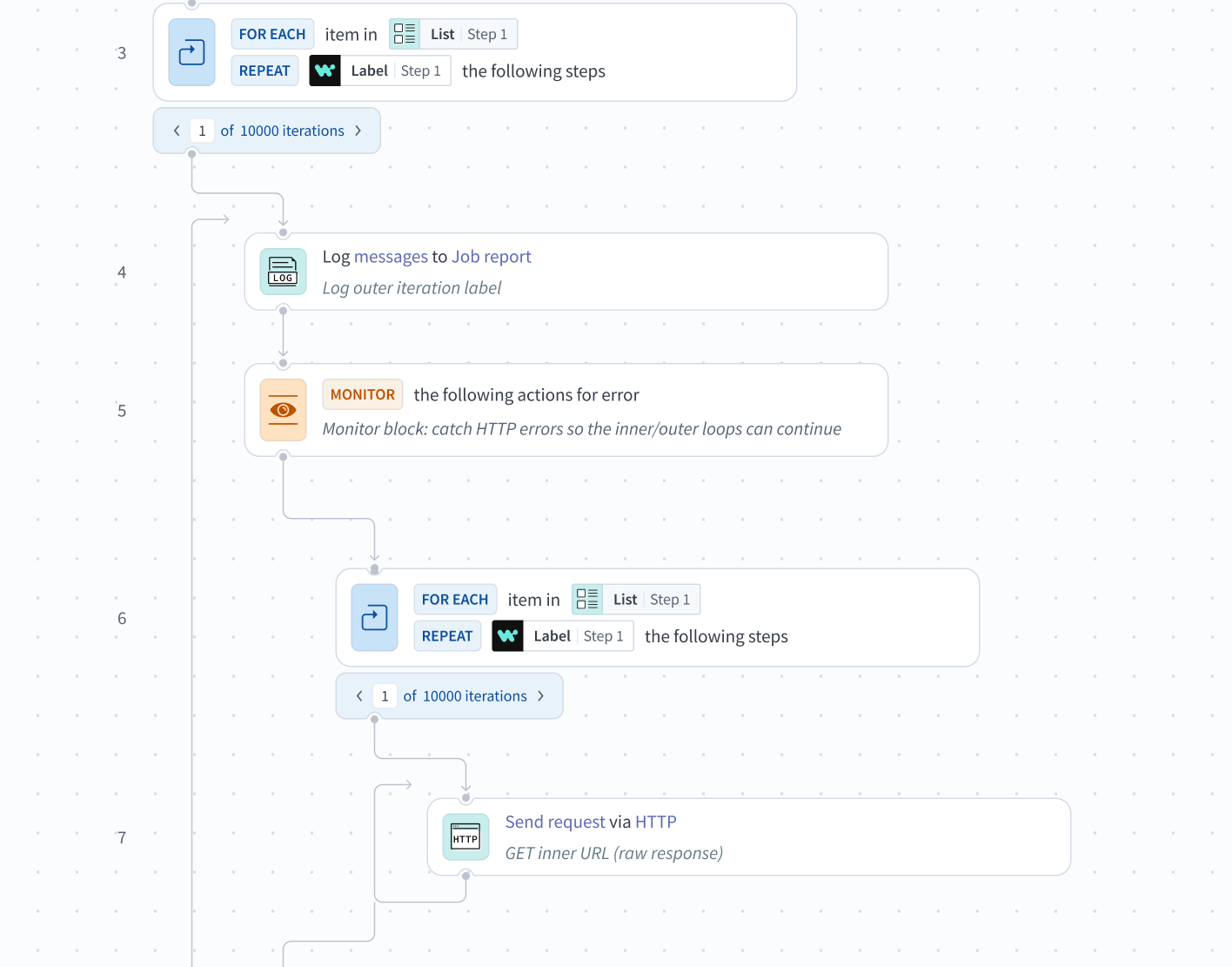 Nested loop iteration navigators
A job shows only the steps an iteration ran:
- A step that isn't part of this iteration doesn't appear at all.
- IF conditions and Handle errors steps appear only if they ran in the selected iteration. Each shows its own outcome, and only the branch that ran displays its nested steps.
- An IF or Handle errors step that ran in other loop iterations but not the selected iteration shows an explicit empty state rather than displaying carried-over data.
A Handle errors step that retries shows a try navigator, for example 3 of 3 tries for a step set to retry twice. The count includes the first run. Use the navigator to select a try and see the input, output, and error.
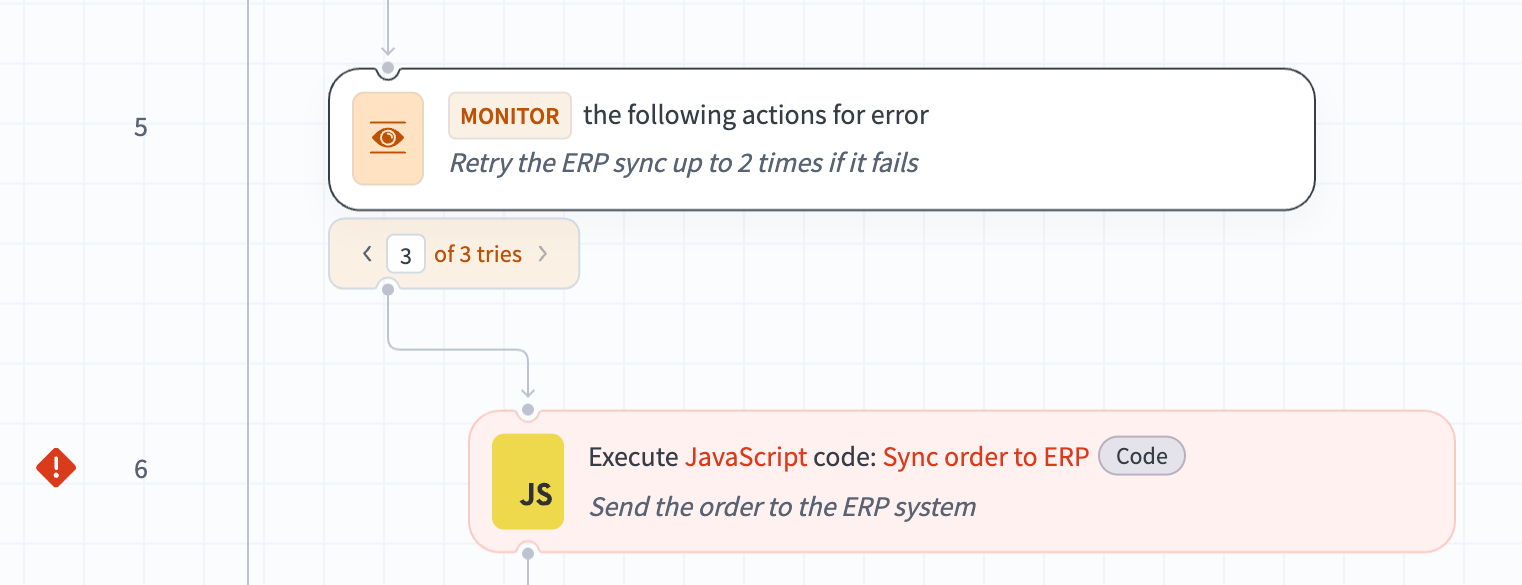 Handle errors tries navigator
Debug errors
The failed step is highlighted when your job encounters an error and stops processing.
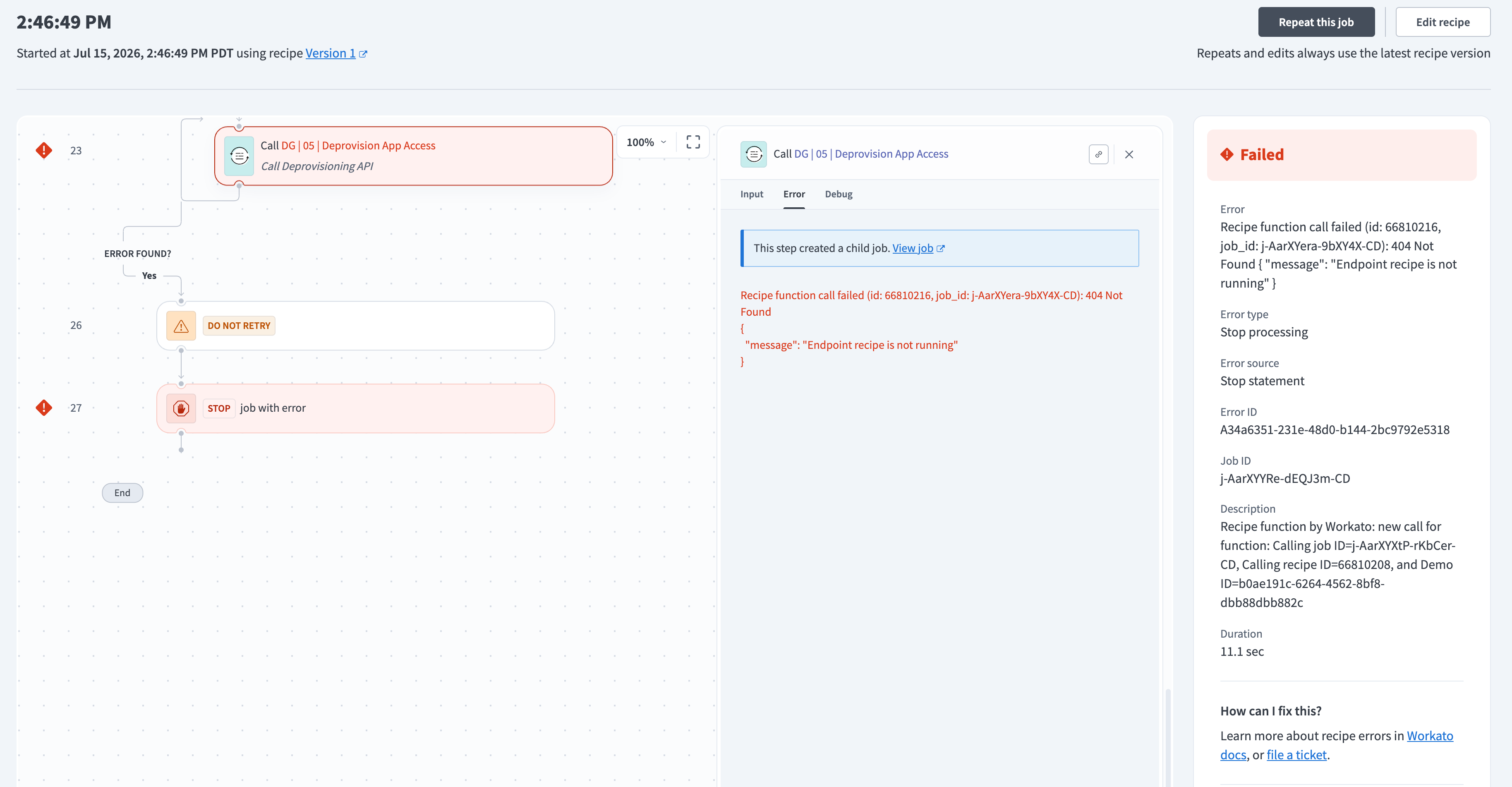 Job error
You can use the step's Debug tab to troubleshoot further.
A top-level error drop-down menu lists every error across all iterations of the job in a single location. Each entry links directly to the step and iteration that produced the error, and shows the following information:
| Field | Description |
|---|---|
| Timestamp | When the error occurred, formatted for your locale. |
| Adapter | The connector involved. |
| Action | The action that failed. |
| Path | The route to the error, with the iteration or try in brackets, for example 3[4] > 5[2] > 6: iteration 4 of loop step 3, try 2 of Handle errors step 5, then step 6, where the error occurred. A recipe without loops shows only the step number. |
| Error | The first line of the underlying error. |
The error drop-down menu is available for every recipe, including recipes with no loops. The error drop-down menu paginates, so a job with multiple failures stays navigable.
A completed job opens with the most recent error selected in the error drop-down menu. Selecting a different error takes you to that step and iteration.
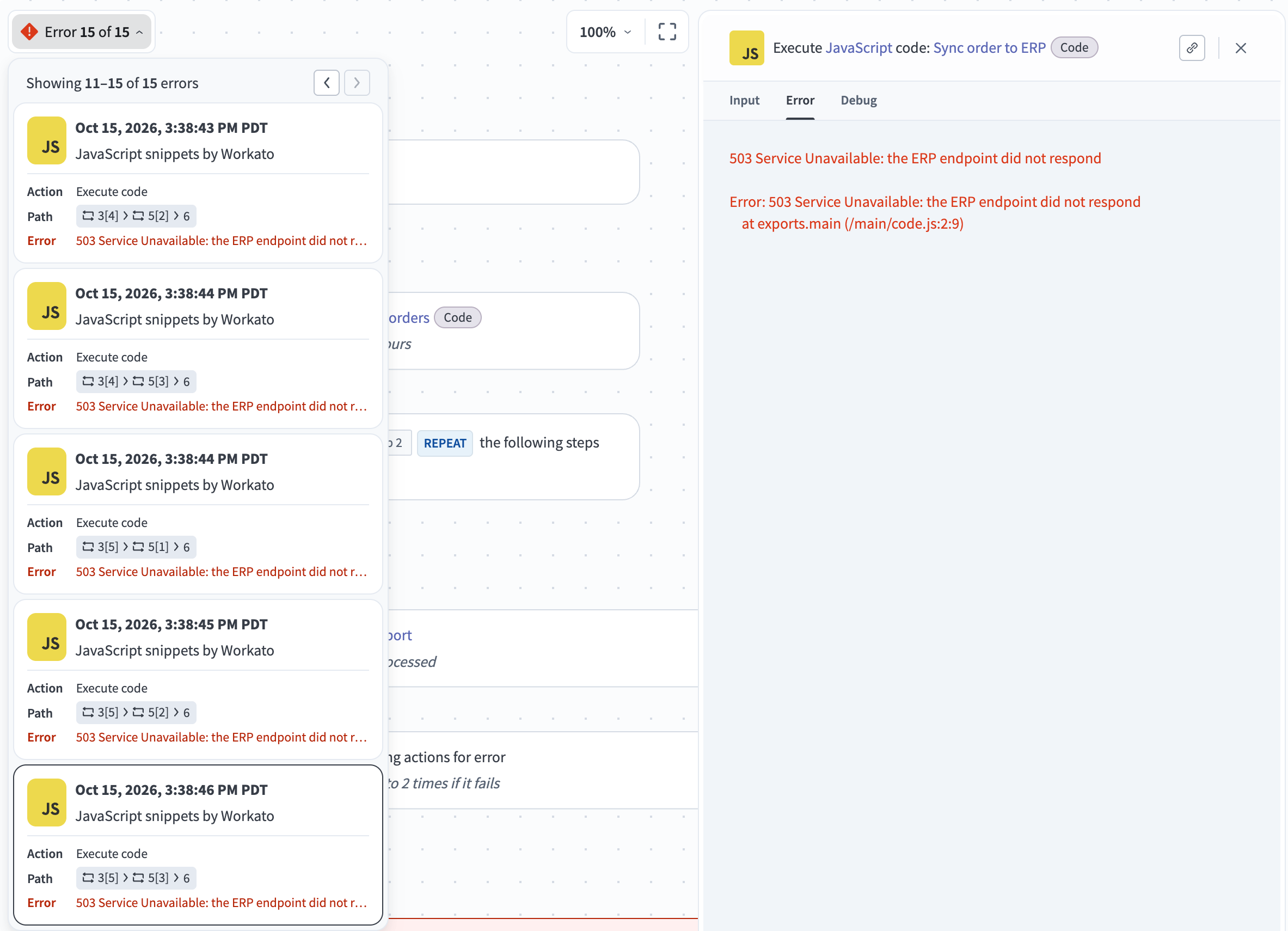 Job error drop-down menu
Timeouts
Jobs time out after 90 minutes of active execution time by default. Workspace admins can configure a custom quota. A single step can also time out. Error messages for jobs that time out include details about the cause.
USE LONG ACTIONS
Consider using long actions if your recipe times out because a single step takes too long to process. Long actions are special actions for processing bulk data.
Rerun jobs
You can rerun any job regardless of whether it previously completed or failed. Workato stores the data of the trigger event and reruns the job using this copy of the trigger event.
A rerun of a job uses the latest version of the recipe. If the recipe has been modified since the job last ran, the rerun uses the most recent version.
Refer to Job reruns for more information.
Last updated: