Resource management
Refer to the following sections to manage resources in Workato:
- Upload resources
- View a resource
- Update a resource
- Download a resource
- Delete a resource
- Move a resource
- Version management
RESOURCES API
Refer to the Resources API guide to manage resources programmatically.
Upload resources
Complete the following steps to upload resources using the Workato UI:
Go to the project where you plan to store the resource. Alternatively, go to Assets > Resources.
Click Create > Resource.
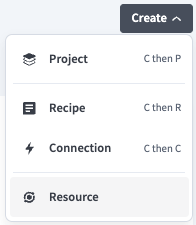 Click Create > Resource
Use the Location drop-down menu to select the project where you plan to store the resource.
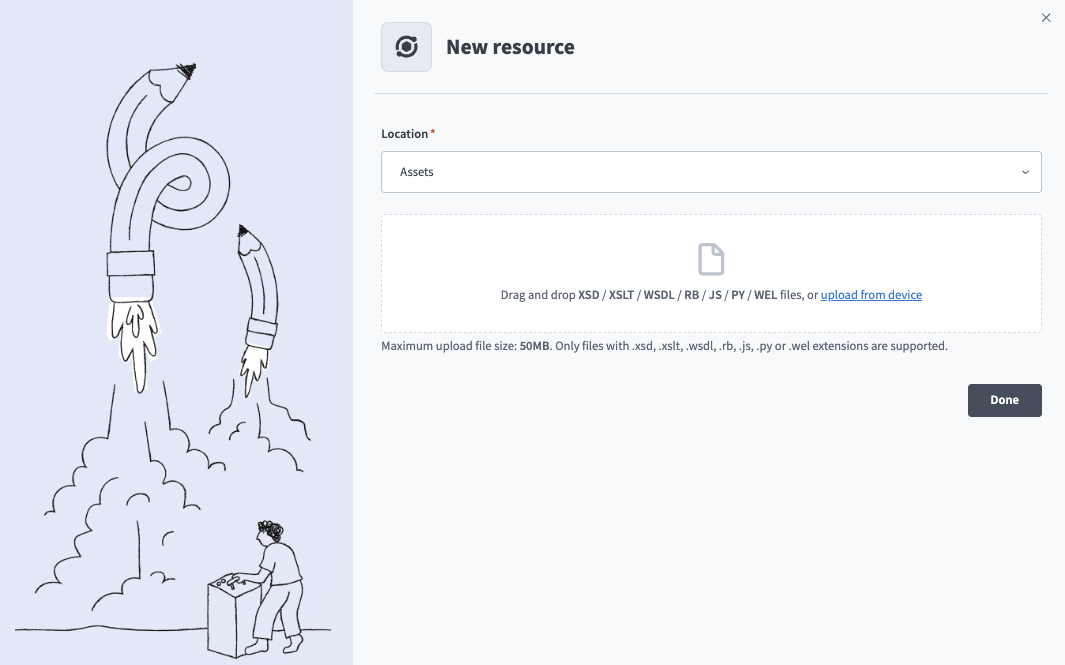 Select a Location for the resource
Drag and drop files, or click Upload from device to select files.
FILE LIMITATIONS
Resources have a maximum size of 50 MB and must be one of the following file types:
.xsd.xslt.wsdl.rb.js.py.wel
Upload errors
Workato stops the upload and displays an error in the following scenarios:
- A resource with the same file name already exists in this folder.
- The file exceeds the maximum allowed size of 50 MB.
- The file has an unsupported extension.
- The file was selected multiple times in this upload batch.
Click Done. Workato stores the files as resources and scans them for threats. You can't view or interact with a resource until the scan is complete.
Workato marks a file as Malicious if it detects a threat. Workato blocks malicious files from view, download, and use in recipes. Delete the file or upload a new version to proceed.
Resources are available in recipes after they pass the security check.
View a resource
You can select a resource to view its Contents tab.
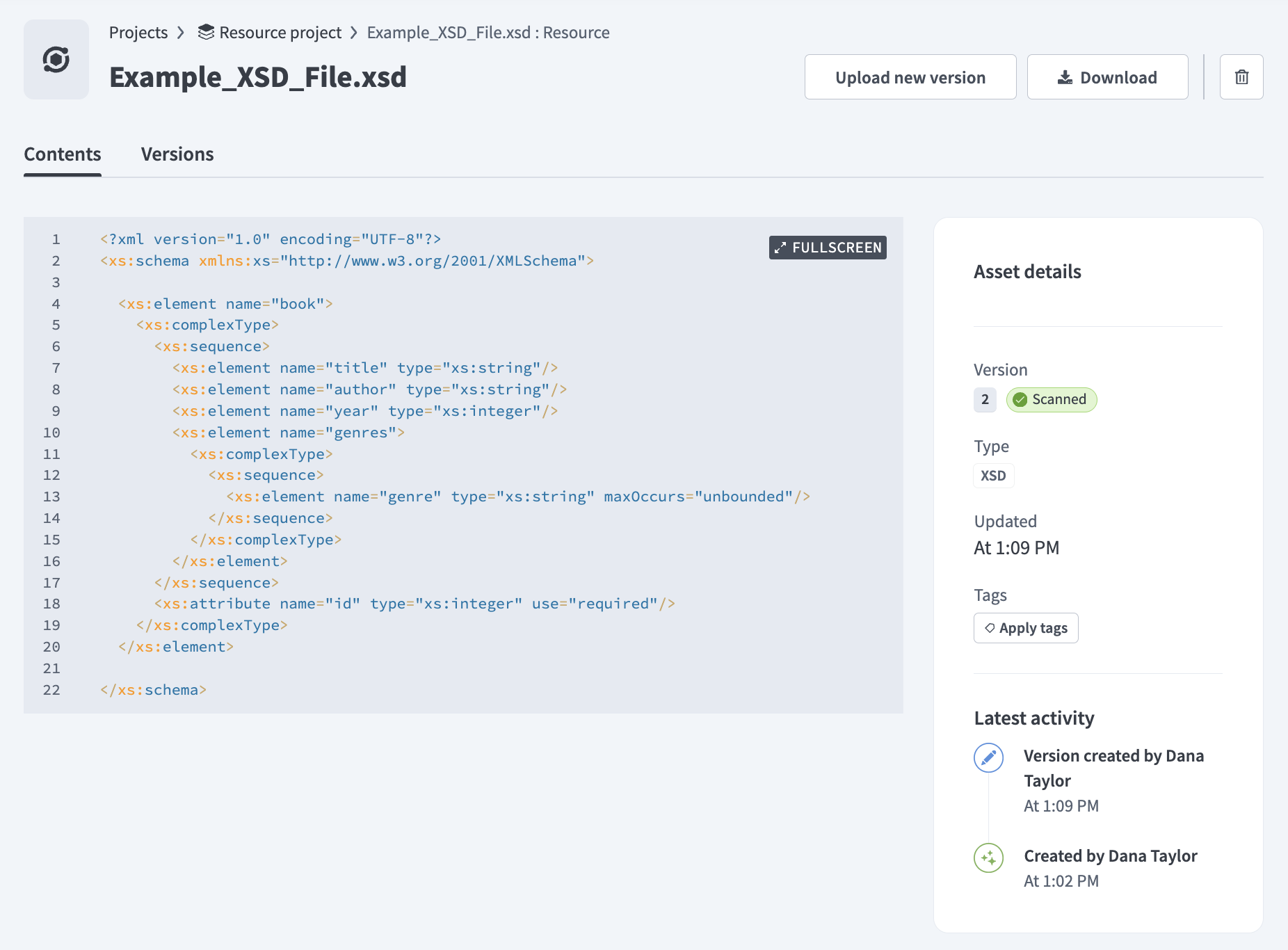 Resource Contents tab
The Contents tab contains the following information:
- A preview of the file's content.
- Version: The numerical identifier for the version and its security scan status.
- Type: The resource's file type.
- Updated: Timestamp when the resource was last updated.
- Tags: Organizational tags applied to the resource. Click Apply tags to add tags.
- Latest activity: Recent changes to the resource.
Refer to the Version management section for information about the Versions tab.
Update a resource
Complete the following steps to upload a new version of an existing resource:
Go to the project that contains the resource or go to Assets > Resources.
Select the resource, then click Upload new version.
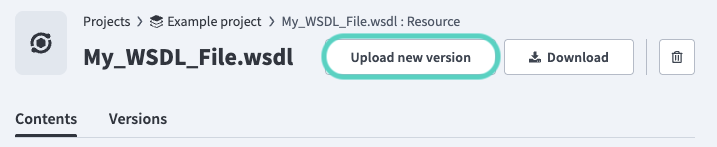 Upload a new version.
Drag and drop files or click Upload from device and select files to upload.
FILE LIMITATIONS
Resources have a maximum size of 50 MB and must be one of the following file types:
.xsd.xslt.wsdl.rb.js.py.wel
Click Done to upload the file.
Workato stores the new file and scans it for threats. You can't view or interact with the new version until the scan is complete, but the last resource version remains available.
Workato marks a file as Malicious if it detects a threat. Malicious files are blocked from view, download, and use in recipes. Resources continue using the latest safe version until a new version passes the security check.
Download a resource
Complete the following steps to download a resource using the Workato UI:
Go to the project that contains the resource or go to Assets > Resources.
Select the resource to download.
Optionally, go to the Versions tab and select a previous version to download.
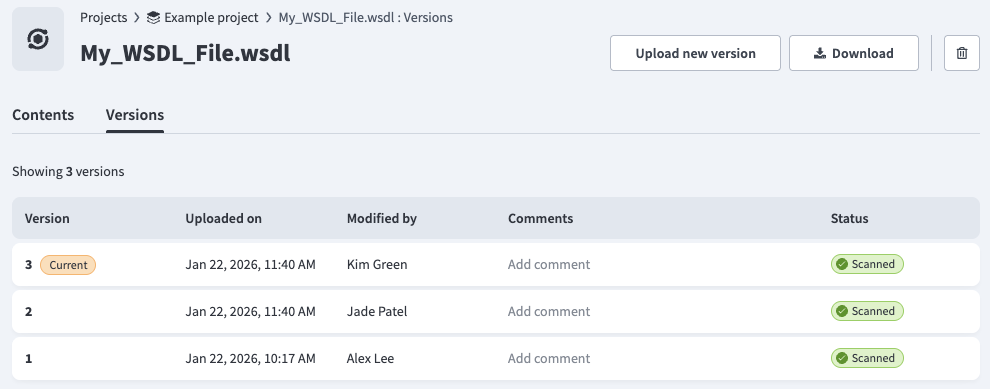 Resource Versions tab
Click Download.
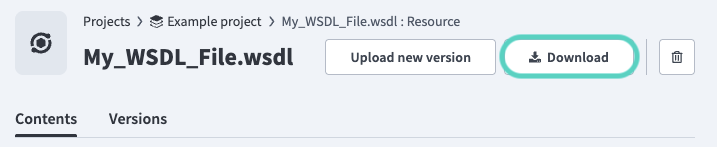 Click Download.
Delete a resource
Complete the following steps to delete a resource using the Workato UI:
REMOVE DEPENDENCIES FIRST
Remove all references to a resource before deleting it to avoid job failures.
Go to the project that contains the resource or go to Assets > Resources.
Select the resource to delete.
Click Delete (trash icon). A confirmation modal displays the recipes that reference this resource. Remove these references before you delete the resource to avoid job failures.
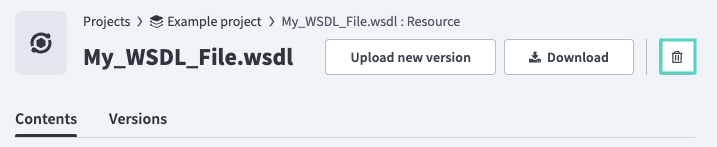 Click Delete
Click Delete resource to confirm the deletion.
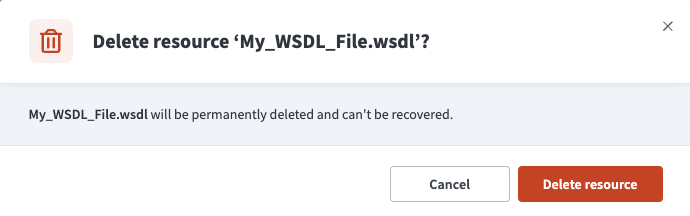 Click Delete resource.
Move a resource
Complete the following steps to move a resource:
Go to the project that contains the resource. Alternatively, go to Assets > Resources.
Select the ... (ellipsis) on the resource you plan to move, then click Move.
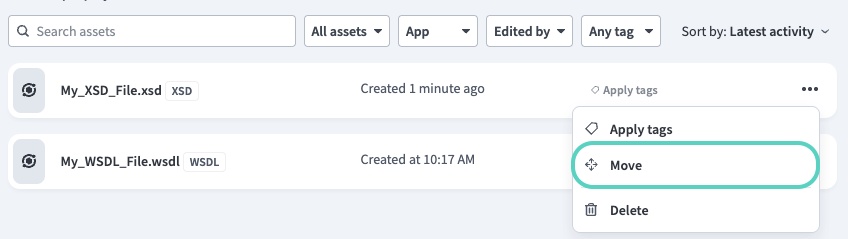 Click ... (ellipsis), then click Move.
Use the Location drop-down menu to select the project where you plan to store the resource. A warning displays the recipes that reference this resource. Remove these references before you move the resource to avoid job failures.
Click Move to move the resource.
Version management
Workato maintains the last 100 versions of a resource. Go to a resource's Versions tab to view its history.
Resource Versions tab
The Versions tab contains the following information for each version:
- Version: The numerical identifier for the version.
- Current: A badge indicating the latest safe version. Recipes use this version at runtime.
- Uploaded on: The date and time the version was uploaded.
- Modified by: The user that last modified the version.
- Comments: The comment attached to the version. Click Add comment to attach a comment.
- Status: The results of the security scan.
Select a specific version to see a preview of its contents.
VERSION UPDATES
Resource references always use the latest safe resource version at runtime. You can't prevent a reference in a recipe from updating. Refer to Restore a resource version to restore a resource to a previous version.
Restore a resource version
Download the version you plan to restore, then upload it as a new version to restore a resource to a previous version.
Last updated: