GitHub MCPサーバー
GitHub MCPサーバーを使用すると、LLMはGitHubリポジトリ、issue、およびpull request内の情報を探索および管理できます。 コードベースの理解、Developmentの進捗の追跡、プロジェクトの健全性の監視、issueやpull requestの作成と更新などのアクションを自然な会話を通じて実行するためのツールを提供します。
用途
次のアクションを実行する予定がある場合は、GitHub MCPサーバーを使用します:
- リポジトリを探索し、プロジェクトの構造とアクティビティを把握
- issueとpull requestのステータスを確認
- 新しいissueとpull requestを作成
- 既存のissueとpull requestを更新
- フィードバックと共同作業のためにissueにコメントを追加
- 一貫したissue分類のために使用可能なラベルを一覧表示
- コードレビューまたはDevelopmentに関するディスカッションの準備
- 最近のコミットとDevelopmentの変更を確認
- issue、pull request、コード、またはプロジェクトをリポジトリ全体で検索
- Developmentアクティビティまたは個人のワークロードの状況把握
- レビュアーを依頼し、pull requestメタデータを管理
プロンプト例
次のプロンプト例を使用して、GitHub MCPサーバーツールを呼び出します:
What's the status of the authentication-service repo?Give me a development summary for our platform repositoryWhat's been happening in the api-gateway repo this week?How active is the mobile-app repository? Any open PRs?Summarize recent activity in acme-corp/backend-servicesCreate a bug report for the login timeout issue in the backend-api repoUpdate issue #234 to high priority and assign it to SarahAdd a comment to issue #456 with the latest test resultsCreate a pull request from feature/new-auth to mainAdd reviewers to PR #789 and mark it ready for reviewWhat labels are available in the mobile-app repository?
GitHub MCPサーバーツール
GitHub MCPサーバーでは、次のツールが提供されます:
| ツール | 説明 |
|---|---|
| get_issue | 完全な説明やコメントなど、特定のGitHub issueに関する詳細情報を取得します。 |
| get_pull_request | 変更、レビュー、ディスカッションなど、特定のpull requestに関する詳細情報を取得します。 |
| get_repository | 名前、説明、可視性、デフォルトブランチ、主要言語、スター数/フォーク数、最近のアクティビティ指標など、リポジトリメタデータを取得します。 |
| get_user_context | リポジトリやアクティビティなど、GitHubユーザーまたは組織に関する情報を取得します。 |
| list_commits | リポジトリまたは特定のブランチの最近のコミット履歴を取得します。 |
| list_file_changes | 指定したpull request内のファイル変更のリストを取得します。 |
| list_review_comments | 指定したpull requestのすべてのレビューコメントを取得します。 |
| list_reviews | 指定したpull requestのすべてのレビューのリストを取得します。 |
| search_code | GitHub全体のコードファイル内で、特定のキーワード、関数、またはスニペットを検索します。 |
| search_issues | issueのリストを取得します。 |
| search_pull_requests | pull requestのリストを取得します。 |
| search_repositories | リポジトリのリストを取得します。 |
| add_issue_comment | 既存のGitHub issueにコメントを追加します。 |
| create_issue | 指定したタイトル、説明、ラベル、担当者を使用して、GitHubリポジトリに新しいissueを作成します。 |
| create_pull_request | 指定したheadブランチとbaseブランチを使用して、GitHubリポジトリに新しいpull requestを作成します。 |
| list_labels | リポジトリで使用可能なすべてのラベルを取得します。 |
| update_issue | 既存のissueの状態、ラベル、担当者、またはマイルストーンを更新します。 |
| update_pull_request | レビュアー、ラベル、またはドラフトステータスなど、既存のpull requestを更新します。 |
GitHub MCPサーバーをインストール
構築済みMCPサーバーをプロジェクトにインストールするには、次の手順を完了します:
Workatoアカウントにサインインします。
AI Hub > Enterprise MCPに移動します。
+ Create MCP serverをクリックします。
接続済みアプリを使用して構築済みMCPサーバーを開始するセクションに移動し、使用する構築済みMCPサーバーを選択します。
Use this serverをクリックします。
サーバー名フィールドにMCPサーバーの名前を入力します。
場所ドロップダウンメニューを使用して、MCPサーバーのプロジェクトを選択します。
Connectionsセクションに移動し、アプリアカウントに接続します。
MCPサーバーテンプレートで使用するコネクションタイプを選択します。
- User's connection: MCPサーバーツールは、アプリケーションに接続するユーザーのIDと権限に基づいてアクションを実行します。ユーザーは自分の認証情報で認証し、スキルを実行します。
- Your connection: このオプションでは、レシピビルダーによって確立されたコネクションを使用し、通常のアプリコネクションと同じ原則に従います。
 コネクションタイプを選択
検証済みユーザーアクセスの認証要件
OAuth 2.0認可コードグラントを使用するアプリコネクションのみが、ユーザーのコネクションで利用できます。詳細については、検証済みユーザーアクセスを参照してください。
次のセクションで、アプリ固有のコネクション設定手順を完了します。
GitHubコネクションのセットアップ
GitHubコネクションのセットアップ手順を表示
次のいずれかの認証方法を使用して、WorkatoでGitHubに接続します:
- OAuth認証。 Workatoレシピがユーザーの代理で動作します。
- GitHub Apps。 Workatoレシピがアプリとして動作します。 GitHub App認証を参照してください。
- personal access token
詳細については、GitHubドキュメントを参照してください。
OAuth認証
OAuth認証手順を表示
OAuth認証を使用してGitHubをWorkatoに接続するには、次の手順を実行します:
Workatoアカウントにサインインし、GitHubコネクションを追加する予定のプロジェクトに移動します。
作成 > コネクションをクリックするか(またはCを2回押す)、GitHubをコネクションとして選択します。
Workatoが接続されているGitHubインスタンスを識別するコネクション名を指定します。
ロケーションドロップダウンメニューを使用して、コネクションを保存するプロジェクトを選択します。
Authentication type(認証タイプ)ドロップダウンメニューを使用し、OAuth Appを選択します。
任意。 Advanced configurationをクリックして、Host nameフィールドを表示します。
任意。 Host nameを入力します。これはGitHub Enterprise Serverを使用する場合に適用されます。 GitHubサブドメインを入力します。たとえば、ホストURLがhttps://github.example-organisation.comの場合、サブドメインはgithub.example-organisation.comです。
接続をクリックします。 WorkatoはユーザーをGitHubにリダイレクトします。 OAuth AppがGitHubアカウントへのアクセス許可をリクエストします。
GitHub App認証
まずGitHubアカウントでアプリを登録し、GitHub Appを使用してGitHubに接続するための資格情報を取得する必要があります。
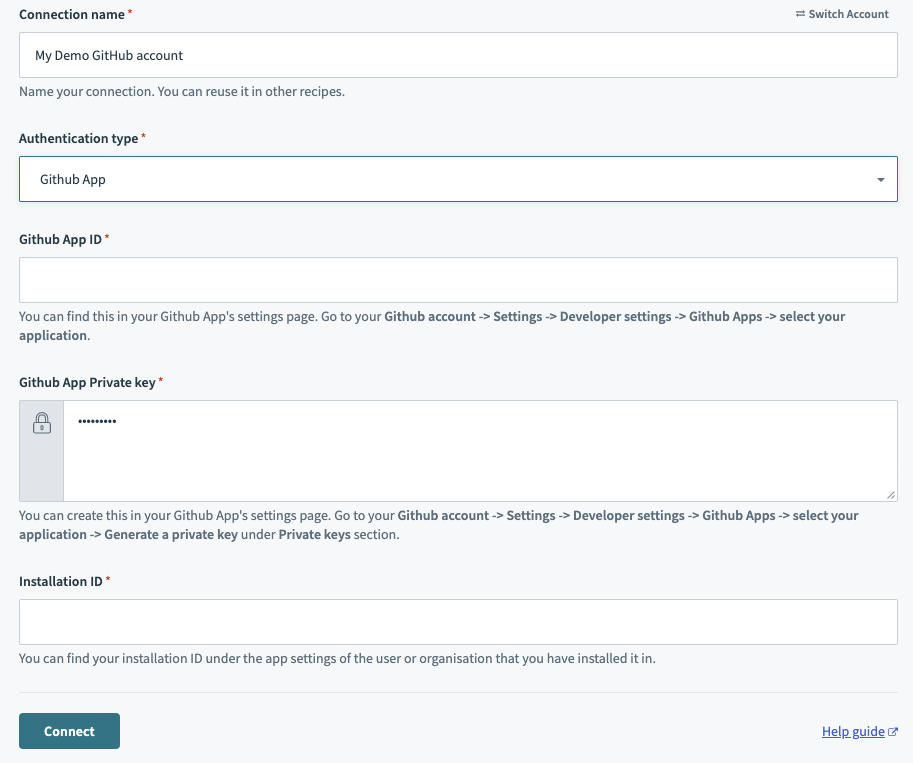 Authentication typeとしてGitHub appを選択し、GitHub Appから詳細を収集します
GitHub Appを登録
GitHub Appを登録する手順を表示
GitHub Appを登録し、Workatoに接続するために必要な認証情報を取得するには、次の手順を実行します:
GitHubドキュメントの手順を完了して、GitHub Appを登録します。
GitHub AppのGeneral設定ページでGitHub App IDを取得します。
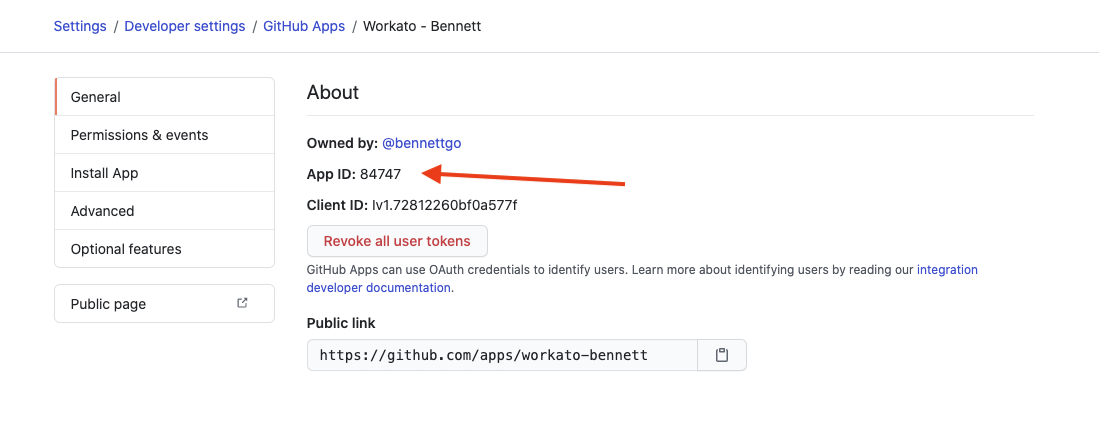 このApp IDを保存し、コネクションに入力します
同じページでPrivate keyを生成します。 GitHubはこの.pemファイルをマシンに自動的にダウンロードします。
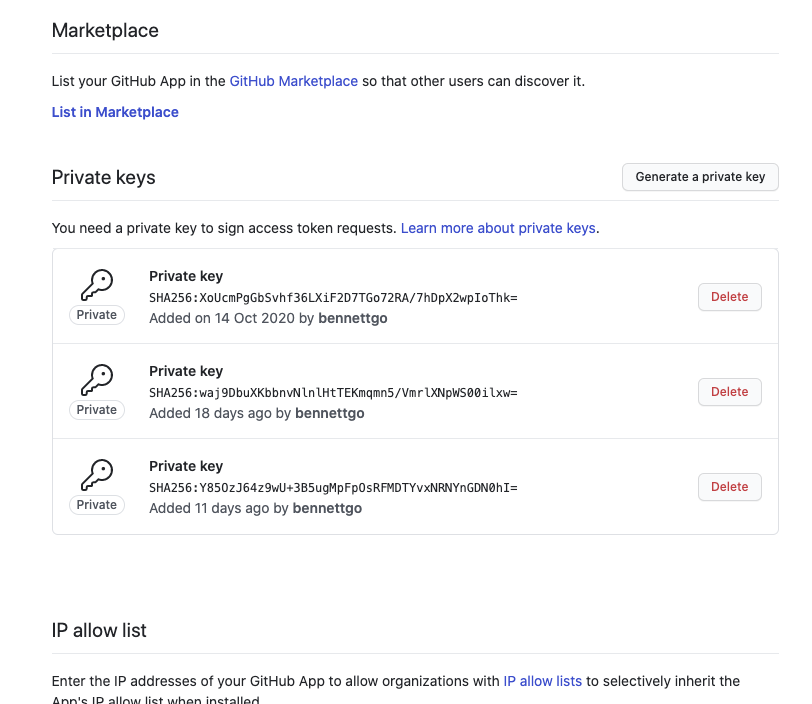 秘密鍵を生成します
.pemファイルをテキストエディターで開きます。ファイルは次のようになります:
-----BEGIN RSA PRIVATE KEY-----
MIIEpAIBAAKCAQEAyL/wuiSaWoH0pyf366G5E7dbzzmON1qMMrWvls8RtZtgOLjb
FBxj6gO2aUfoGbMCMqOYRV6xCn6tK118sGYMd5U/kCFu3IRPr/2GoEtcrf0TecQG
ON+27ijH0Vpn62o8NzGejdy0AWujrtAl6F8xGZeze0PzrGvW6h/GnAdZO1gJnp8t
wmEqEMXqAsPOQ0hkY+r+pE8RKQVsJCe+PIanBKp7RKWDi9usPFZQdQ==
-----END RSA PRIVATE KEY-----秘密鍵全体をコピーします。-----BEGIN RSA PRIVATE KEY-----と-----END RSA PRIVATE KEY-----を含めてください。 Workatoでコネクションを設定するときに、この秘密鍵を使用します。
Installation IDを、GitHub Appをインストールした組織またはユーザーから取得します:
- ユーザーアカウント: Settings > Applications > Your GitHub App > Configureに移動します。
- 組織: 組織のGitHubホームページに移動します。 Settings > Installed GitHub Apps > Configureをクリックします。
インストールIDはURLに表示されます。たとえば、URLがhttps://github.com/settings/installations/13876669の場合、インストールIDは13876669です。
インストールIDを保存します。 WorkatoでGitHub Appコネクションを作成するときに、このIDを入力します。
GitHub App認証を設定
GitHub Appを認証する手順を表示
Workatoが接続されているGitHubインスタンスを識別するコネクション名を指定します。
ロケーションドロップダウンメニューを使用して、コネクションを保存するプロジェクトを選択します。
認証タイプドロップダウンメニューを使用し、GitHub Appを選択します。
GitHub App IDを入力します。
Github App Private keyを入力します。
Installation IDを入力します。
任意。 Advanced configurationをクリックして、Host nameフィールドを表示します。
任意。 GitHub Enterprise Serverを使用している場合は、Host nameを入力します。 GitHubサブドメインを使用します。たとえば、ホストURLがhttps://github.example-organisation.comの場合、サブドメインはgithub.example-organisation.comです。
任意。 Custom OAuth profileを入力します。この選択により、アプリへのすべてのリクエストで指定したプロファイルが使用されます。
接続をクリックします。
Personal access token認証
personal access tokenを使用してGitHubアカウントをWorkatoに接続するには、GitHubからpersonal access tokenを取得します:
GitHub personal access tokenを取得する手順を表示
Github account > Settings > Developer settings > Personal access tokens > Generate new tokenに移動します。
Generate new token(新しいトークンを生成)をクリックします。
トークンをコピーします。コネクションを認証するには、このトークンをWorkatoに入力します。
Workatoでセットアップを完了する
Workatoでセットアップを完了する手順を表示
パーソナルアクセストークンを使用してGitHubコネクションを設定するには、次の手順を実行します:
Workatoアカウントにサインインし、GitHubコネクションを追加する予定のプロジェクトに移動します。
作成 > コネクションをクリックするか(またはCを2回押す)、GitHubをコネクションとして選択します。
Workatoが接続されているGitHubインスタンスを識別するコネクション名を指定します。
ロケーションドロップダウンメニューを使用して、コネクションを保存するプロジェクトを選択します。
Authentication typeドロップダウンメニューを使用して、Personal Access Tokenを選択します。
任意。 Advanced configurationをクリックして、Host nameフィールドを表示します。
任意。 Host nameを入力します。これはGitHub Enterprise Serverを使用する場合に適用されます。 GitHubサブドメインを入力します。たとえば、ホストURLがhttps://github.example-organisation.comの場合、サブドメインはgithub.example-organisation.comです。
Personal Access Tokenを入力します。
任意。 Custom OAuth profileを入力します。これにより、アプリへのすべてのリクエストで指定したプロファイルが使用されます。
接続をクリックします。
GitHub MCPサーバーツールの使用方法
利用可能なツールの詳細については、次のセクションを参照してください:
get_issueツール
get_issueツールは、説明、ラベル、担当者、最新のディスカッション履歴など、GitHub issueの完全な詳細を取得します。 LLMはこのツールを使用して、タスクの要件を理解し、バグのステータスを確認し、issueのコメントで最新のフィードバックを把握します。
質問例:
What is the current status of issue #452 and who is assigned to it?Summarize the last few comments on the 'login page bug' issue.Give me the full description and any linked pull requests for the 'API migration' task.Read the 'database performance' issue and tell me what labels have been applied.
get_pull_requestツール
get_pull_requestツールは、説明、マージステータス、コード変更の概要など、pull requestの完全な詳細を取得します。 LLMはこのツールを使用して、機能の進捗を確認し、変更されたファイルを確認し、コード変更とリンクされたissueとの関係を理解します。
質問例:
What’s the status of PR #82 and is it currently mergeable?Summarize the changes in the 'add-auth-layer' pull request.Which files were modified in the latest PR from @Sarah?Check the 'fix-header-styling' PR and tell me which issues it's intended to close.
get_repositoryツール
get_repositoryツールは、目的、主要言語、現在のアクティビティ統計など、特定のリポジトリの高レベルの詳細とメタデータを取得します。 LLMはこのツールを使用して、プロジェクトの概要を取得し、READMEファイルなどのドキュメントを読み、未解決のissueとpull requestの数を確認してプロジェクトの健全性を評価します。
質問例:
Get the details for the 'workato-mcp-server' repository.Show me the README and general info for the 'frontend-ui' repoWhat is the primary language and star count for the 'analytics-engine' project?Give me an overview of the repository at https://github.com/org/<example>.
get_user_contextツール
get_user_contextツールは、GitHubユーザーと組織のプロファイル情報を取得します。 LLMはこのツールを使用して、コントリビューターの背景を詳しく把握し、組織の公開ポートフォリオを表示し、特定のユーザーまたはチームが所有する最も人気のあるリポジトリを特定します。
質問例:
Who is @octocat and what are their most popular repositories?Get the profile information and public repo count for the 'Workato' organization.Show me the bio and location for the user who opened the latest pull request.Find out which company @janderson is associated with and list their recent projects.
list_commitsツール
list_commitsツールは、リポジトリに加えられた変更の履歴を取得します。 LLMはこのツールを使用して、最近のDevelopmentアクティビティを追跡し、特定の変更を行ったユーザーを確認し、一定期間にわたるプロジェクトの進捗を監査します。
質問例:
What are the last 10 commits made to the 'main-site' repository?Show me the recent commit history for @Sarah in the 'backend-api' repo.What changes were committed to the 'production' branch in the last 48 hours?List the commits from last week to see the progress on the 'auth-feature' branch.
list_file_changesツール
list_file_changesツールは、特定のpull request内で変更、追加、または削除されたすべてのファイルのリストを取得します。 このツールを使用して、コードレビューの範囲を確認し、システムのどの部分が影響を受けているかを特定し、変更セットに正しいファイルが含まれていることを検証します。
質問例:
Which files were changed in pull request #105?List the files modified in the 'fix-navigation-bug' PR.Show me a list of all files impacted by the latest changes in the 'mobile-app' repo.Check PR #202 to see if any configuration files were updated.
list_review_commentsツール
list_review_commentsツールは、特定のpull requestのコードレビュープロセス中に作成されたすべてのコメントを取得します。 LLMはこのツールを使用して、レビュアーからのフィードバックを確認し、コード実装に関する未解決の質問を追跡し、要求された変更に対応済みかどうかを検証します。
質問例:
Show me all the review comments on pull request #82.What feedback did the reviewers provide on the 'api-refactor' PR?List the code review comments for the latest changes in the 'mobile-app' repo.Read the review discussion on PR #150 to see if there are any unresolved issues.
list_reviewsツール
list_reviewsツールは、特定のpull requestに送信されたすべての正式なレビューの概要を取得します。これには、レビュアー名、Approved、Changes Requested、Commentedなどのレビューの状態、送信時刻が含まれます。 LLMはこのツールを使用して、pull requestに必要な承認が付与されたかを確認し、どのチームメンバーがすでに意見を出したかを確認します。
質問例:
Has anyone approved pull request #82 yet?Show me all the reviews for the 'database-patch' PR to see if changes were requested.List the review status for PR #210 to see who still needs to sign off.Check the review history for the latest pull request in the 'security-updates' repo.
search_codeツール
search_codeツールは、GitHub全体のコードファイル内で、特定のキーワード、関数、またはスニペットを検索します。 LLMはこのツールを使用して、特定の関数が定義されている場所を見つけ、ライブラリの使用方法の例を特定し、リポジトリ全体でハードコードされた文字列のすべてのインスタンスを見つけます。
質問例:
Search for any code containing the 'calculate_tax' function across all repos.Find examples of how we use the 'acme-api' library in our codebase.Search for the string 'DEPRECATED' in the 'legacy-app' repository.Look for where the 'EnvironmentConfig' class is defined in our TypeScript files.
search_issuesツール
search_issuesツールは、キーワード、ステータス、またはラベルに基づいてリポジトリからissueのリストを取得します。 LLMはこのツールを使用して、バグレポートを特定し、特定の機能リクエストの進捗を確認し、プロジェクト全体で現在オープンまたはクローズされているタスクを確認します。
質問例:
Find all open issues related to 'performance' in the 'backend' repo.Search for any closed issues about 'login' to see how they were resolved.What are the most recent high-priority issues across our organization?Look for issues labeled 'documentation' that are currently assigned to @Sarah.
search_pull_requestsツール
search_pull_requestsツールは、キーワード、ステータス、またはレビュアーに基づいてpull requestを取得します。 LLMはこのツールを使用して、Developmentパイプラインを把握し、最近マージされた作業を見つけ、まだ承認待ちのコード変更を特定します。
質問例:
Find all open pull requests that are waiting for a review.Search for recently merged PRs related to 'ui-updates'.What pull requests are currently open in the 'mobile-app' repository?Show me all closed pull requests created by @James in the last month.
search_repositoriesツール
search_repositoriesツールは、名前、説明、またはトピックに基づいてGitHubリポジトリのリストを取得します。 LLMはこのツールを使用して、特定のプロジェクトを見つけ、特定のテクノロジーに関連するリポジトリを発見し、issueやコードの確認など、より詳細なアクションを実行する前に正しいリポジトリ名を見つけます。
質問例:
Find all repositories related to 'machine-learning' in our organization.Search for a repository named 'customer-portal'.What public repositories does @workato have for 'mcp-servers'?Look for repositories that use 'React' and have 'dashboard' in the name.
add_issue_commentツール
add_issue_commentツールは、既存のGitHub issueにコメントを追加します。 LLMはこのツールを使用して、会話を離れずにステータス更新の提供、質問への回答、追加コンテキストの共有、または決定事項のドキュメント化をissueスレッドで直接行います。
質問例:
Add a comment to issue #342 saying we've completed the database migration.Comment on the 'login timeout' issue that we're investigating the root cause.Post an update to issue #789 with the latest performance test results.Add a note to the authentication bug explaining the workaround we found.
create_issueツール
create_issueツールは、指定したタイトル、説明、ラベル、担当者を使用して、GitHubリポジトリに新しいissueを作成します。 LLMはこのツールを使用して、会話からバグ、機能リクエスト、またはタスクを取り込み、手動のデータ入力なしで、適切にフォーマットされた実行可能なissueをすぐに作成します。
質問例:
Create a bug report in 'backend-api' for the timeout issue I just described.Open a new feature request for dark mode support in the 'mobile-app' repo.File an issue about the broken payment flow and assign it to @Sarah.Create a high-priority task for updating our SSL certificates, labeled 'security'.
create_pull_requestツール
create_pull_requestツールは、指定したheadブランチとbaseブランチを使用して、GitHubリポジトリに新しいpull requestを作成します。 LLMはこのツールを使用して、コードレビューを開始し、機能ブランチからの変更を提案し、会話コンテキストに基づいて説明が事前入力されたPRをオープンします。
質問例:
Create a pull request from 'feature/new-auth' to 'main' for the authentication updates.Open a PR merging 'bugfix/timeout-issue' into 'develop' with a summary of the changes.Create a pull request for the UI redesign branch targeting 'staging'.Open a PR from my 'docs-update' branch and request a review from @James.
list_labelsツール
list_labelsツールは、リポジトリで使用可能なすべてのラベルを取得します。 LLMはこのツールを使用して、issueの作成または更新前に存在するラベルを確認し、プロジェクト全体で一貫したラベル付けを確保し、issueをフィルタリングするときに正しいラベル名を見つけやすくします。
質問例:
What labels are available in the 'backend-services' repository?Show me all the labels we use in the 'mobile-app' repo.List the priority and status labels for our 'customer-portal' project.What bug tracking labels do we have set up in this repository?
update_issueツール
update_issueツールは、既存のissueの状態、ラベル、担当者、またはマイルストーンを更新します。 LLMはこのツールを使用して、GitHubに移動せずに、作業の進行に伴うissueのステータス変更、タスクの再割り当て、優先度レベルの更新、または会話に基づく任意のissueフィールドの変更を行います。
質問例:
Close issue #456 and add a comment that it's been resolved.Change the priority of issue #234 to 'high' and assign it to @Maria.Update the authentication bug to 'in-progress' status.Add the 'needs-review' label to issue #789 and remove 'blocked'.
update_pull_requestツール
update_pull_requestツールは、レビュアー、ラベル、またはドラフトステータスなど、既存のpull requestを更新します。 LLMはこのツールを使用して、追加のコードレビューを依頼し、PRをレビュー準備完了としてマークし、現在の状態を反映するようにラベルを更新し、Developmentワークフローの進行に伴ってPRメタデータを変更します。
質問例:
Add @Sarah and @James as reviewers to PR #567.Mark pull request #890 as ready for review and remove draft status.Update PR #234 with the 'needs-testing' label.Request a review from the frontend team on the UI redesign pull request.
はじめに
MCP serverのツールは、Overviewページのツールセクションで表示および管理できます。ツール管理では、次の機能を利用できます:
ツールを開始する必要があります
LLMは、MCP server connector内のアクティブなツールにのみアクセスできます。
最終更新日: