Dropbox
Dropbox is a cloud content management and file sharing service built for team collaboration.
The Dropbox connector enables you to automate file management and collaboration workflows across your connected applications.
FEATURE AVAILABILITY
The Dropbox connector isn't available to workspaces in the CN data center. This reflects local regulatory requirements and applies to our multi-tenant and Virtual Private Workato (VPW) offerings.
API version
The Dropbox connector uses the Dropbox REST API v2.
Connection setup
The Dropbox connector uses OAuth 2.0 authentication.
Minimum and default scopes
The Dropbox connector supports two scope types: individual scopes and team scopes.
Individual scopes
The following individual scopes are requested by default:
account_info.readfiles.metadata.writefiles.content.writefiles.content.readsharing.writefile_requests.writecontacts.write
The minimum required scope is account_info.read, which is always requested in addition to any selected permissions. You can select scopes from the drop-down menu to overwrite the default scopes.
Team scopes
The following team scopes are requested by default:
account_info.readfiles.metadata.writefiles.content.writefiles.content.readsharing.writefile_requests.writecontacts.write
The minimum required scopes are team_info.read and team_data.member, which are always requested in addition to any selected permissions. Note that team_data.member is required for folder access in team accounts. You can select scopes from the drop-down menu to overwrite the default scopes.
INDIVIDUAL SCOPES AND TEAM SCOPES
account_info.read is also requested when team scopes are selected but individual scopes are left blank.
Connect to Dropbox with OAuth 2.0
Complete the following steps to connect to Dropbox in Workato:
Click Create > Connection or press C twice.
Search for Dropbox and select it as your app.
Enter a name for your connection in the Connection name field.
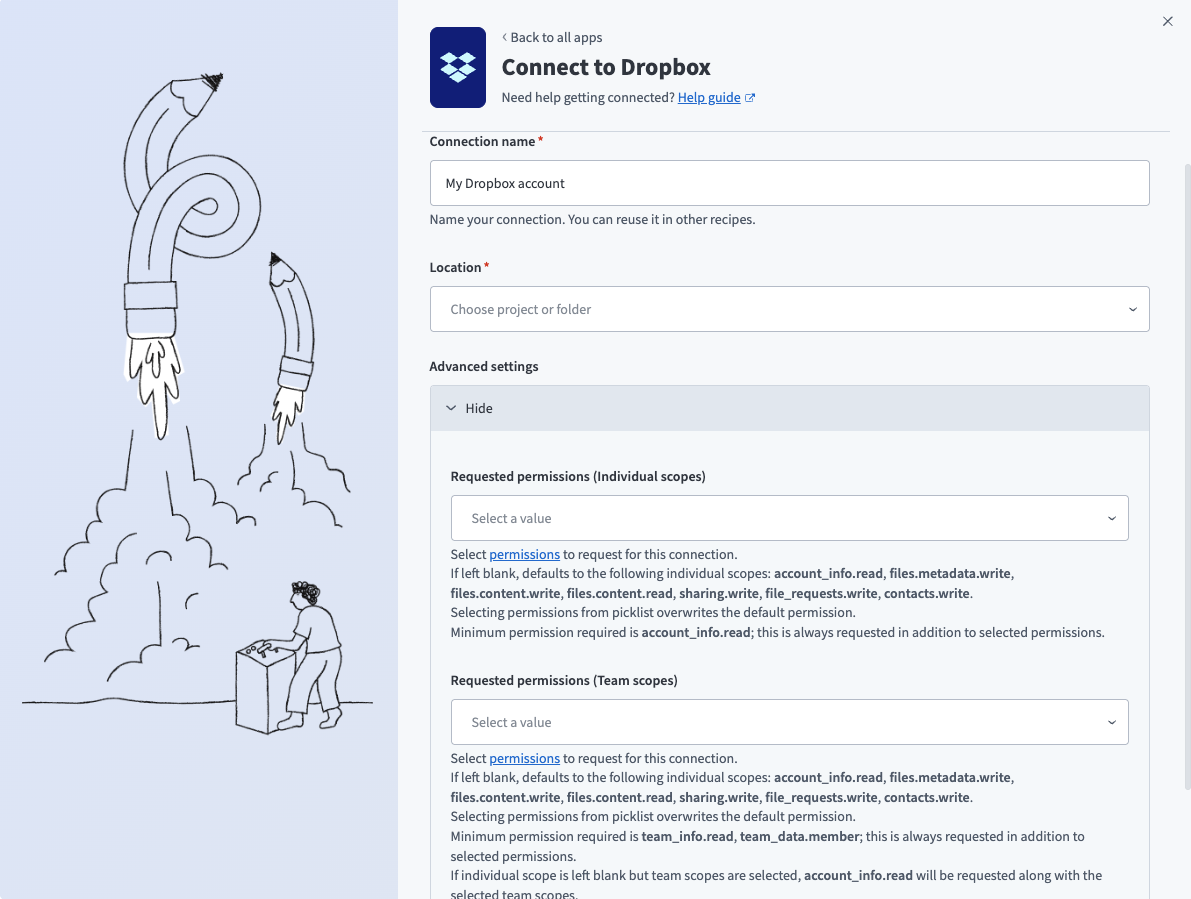 Dropbox connection setup
Use the Location drop-down menu to select the project where you plan to store the connection.
Optional. Expand Advanced settings to select any additional individual or team scopes required by the actions and triggers you plan to use. Refer to Minimum and default scopes for more information.
Click Connect.
Sign in to your Dropbox account and click Allow to grant Workato access when prompted.
Last updated: