# Troubleshoot Salesforce runtime errors
Use this guide to troubleshoot errors that occur at runtime when you use the Salesforce connector in Workato.
# Salesforce trigger failure: 414 URI Too Long
The 414 URI Too Long error occurs when the Salesforce trigger includes an excessive number of selected fields. The recipe stops processing jobs as a result.
You can reduce the number of associated fields to resolve the issue. Use the Related objects and Fields drop-down menus in the trigger configuration to select only the required fields.
Salesforce supports approximately 500-800 fields. The exact number varies based on the field configuration.
# Monitor trigger restart fails with DUPLICATE_DEVELOPER_NAME
The DUPLICATE_DEVELOPER_NAME error occurs when a Monitor changes trigger runs once, then fails when you restart the recipe.
For example:
[{"message":"A PlatformEventChannel record with full name CustomChannel21555712__chn already exists. Try using another full name for the channel.","errorCode":"DUPLICATE_DEVELOPER_NAME","fields":[]}]
Salesforce object updates and cached metadata typically trigger this error.
Complete the following steps to resolve the error:
Refresh the page and clone the recipe.
Create a new recipe with the same trigger. Don't clone the recipe or copy any triggers or actions. Use this new recipe to test the trigger.
Create a separate Salesforce connection for the failing recipe.
Complete the following steps in your Salesforce Developer Console if the preceding steps didn't resolve the error:
Click the Query Editor tab and select Tooling API.
Run the following query to retrieve all Platform Event Channels:
```bash
SELECT Id, DeveloperName, ChannelType, MasterLabel FROM PlatformEventChannel
```
Identify the CustomChannel{id} that matches the error message.
Select the CustomChannel{id} and click Delete row to remove it.
This deletes the existing event channel that conflicts with the trigger and allows the recipe to restart without errors.
# Get Report action returns no rows
If the Get Report action returns no rows, open the report in Salesforce and check for groupings with no data. Remove those groupings to resolve the issue.
# Schema errors
Actions and triggers request all object fields (standard and custom fields) from Salesforce by default, even if these fields are not used in the recipe.
If a Salesforce admin changes the Salesforce object schema, for example, by deleting fields in the object, the recipe throws an error when making API requests to Salesforce for that object. This is because the recipe still requests the deleted fields from Salesforce, which is an invalid request. If fields are added to the Salesforce object, the recipe does not throw an error and Workato does not request these additional fields.
You can resolve schema differences between Salesforce and Workato with a schema refresh. Use the Fields to retrieve input field to control which fields the recipe requests from Salesforce if you expect frequent schema changes. This ensures that schema changes unrelated to the recipe don't cause the recipe to break or experience errors.
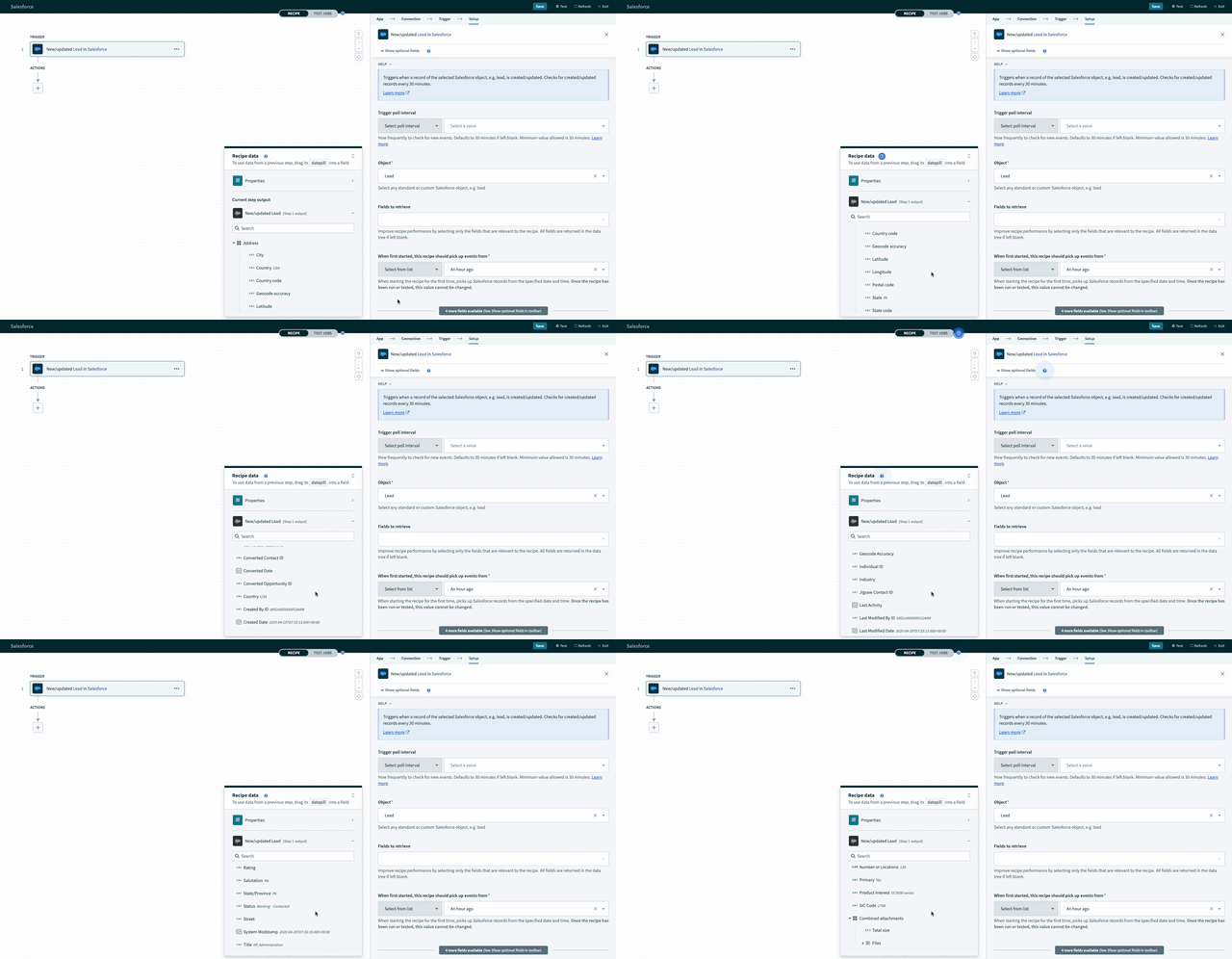 Unconfigured fields to retrieve selector. Workato returns all Account fields by default.
All Salesforce fields of your selected object are available in the Fields to retrieve list.
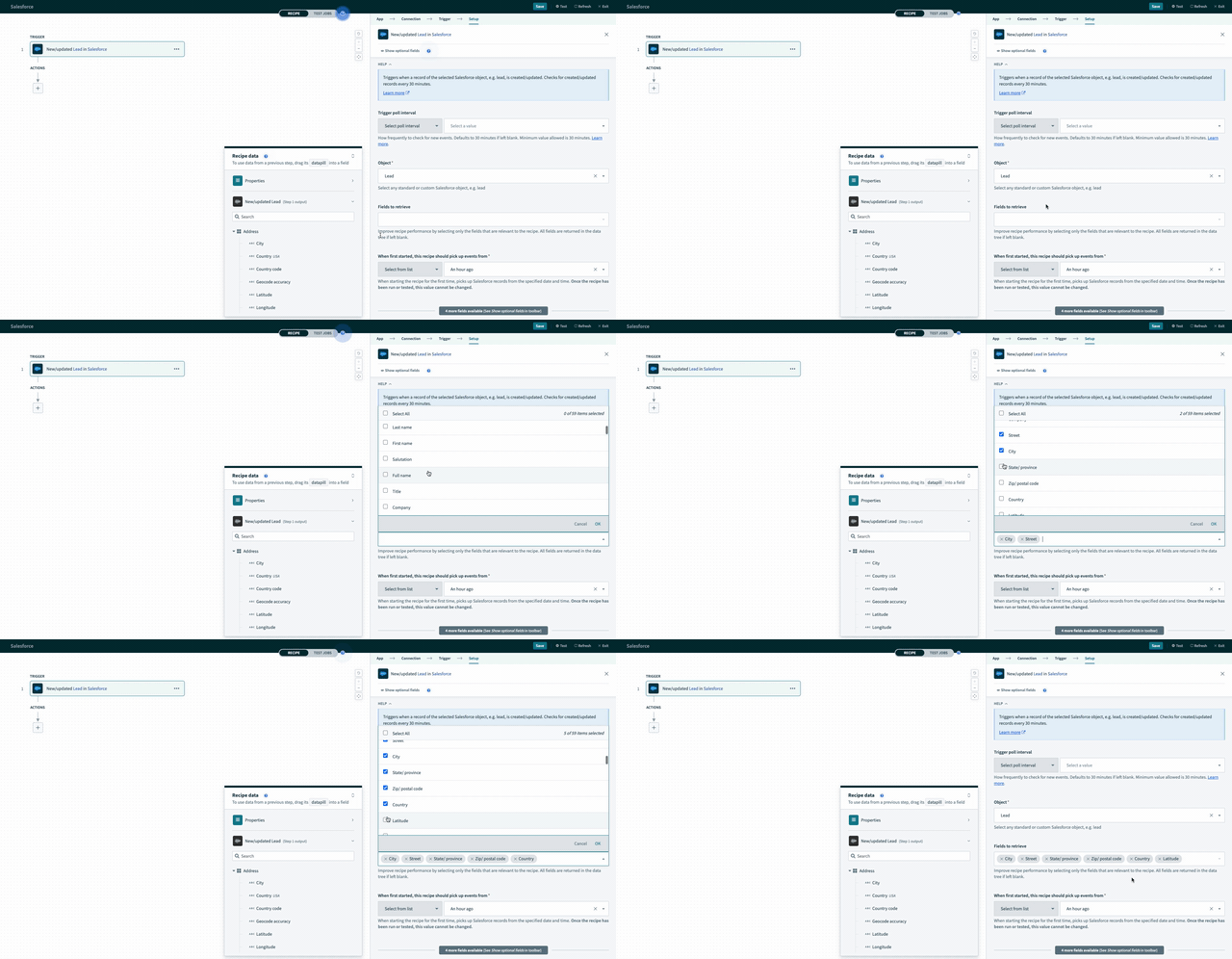 Fields selector displays all available data fields for your selected object by default
Workato omits all other fields from the output data tree when you select fields to retrieve.
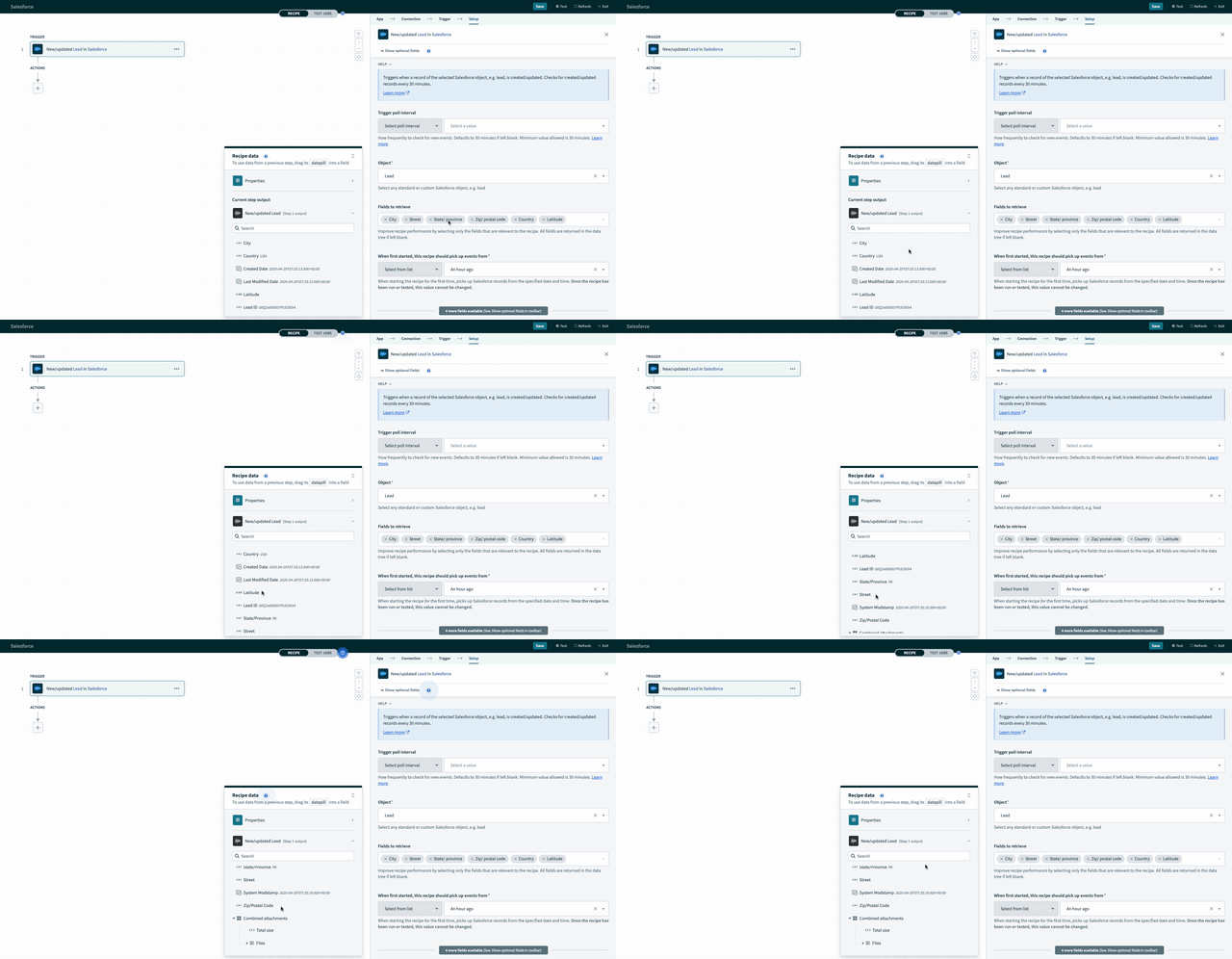 Configuring the fields selector - the data tree is regenerated when any fields are selected
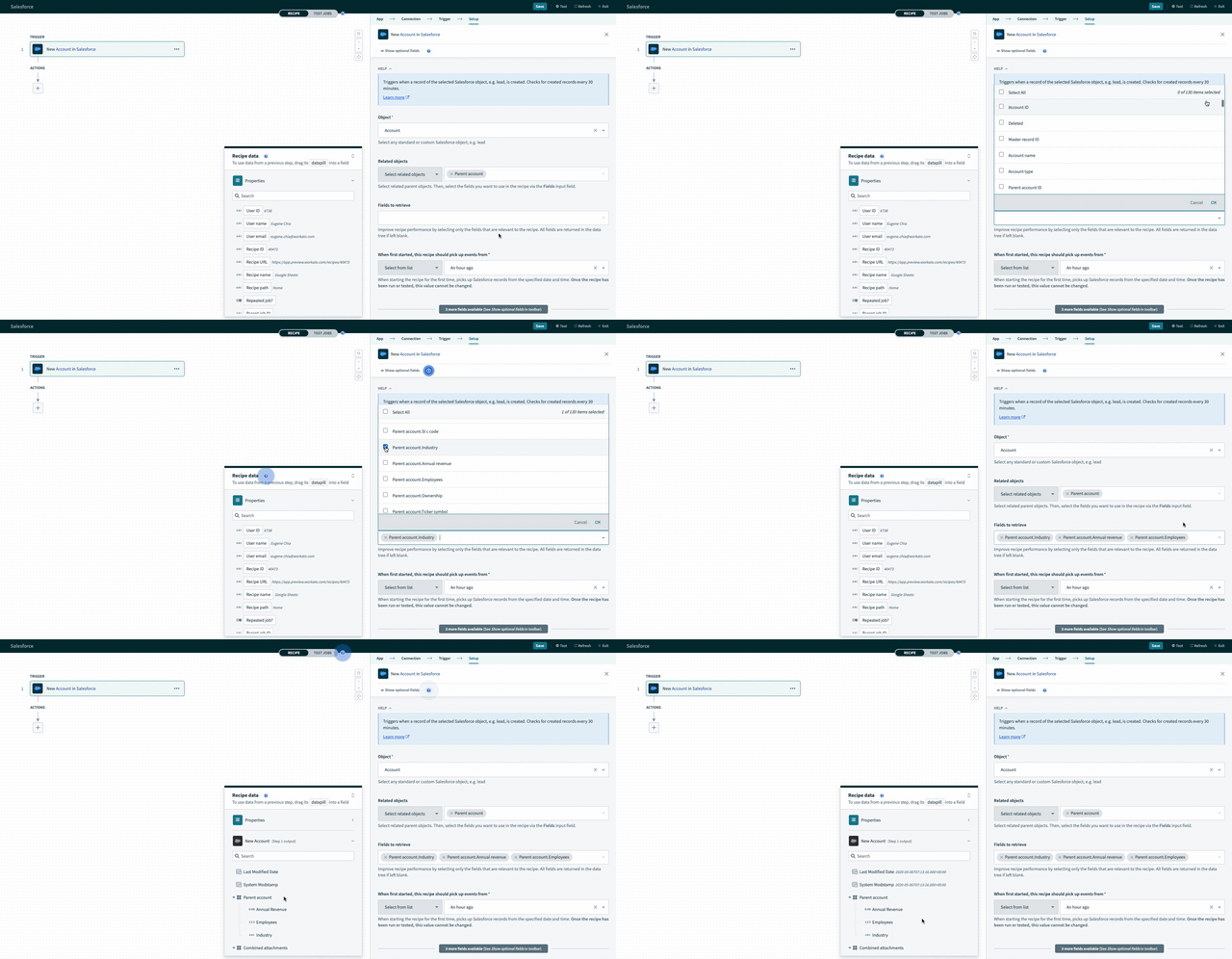 Configuring the fields selector containing base and related join object data fields - the datatree is regenerated when any fields are selected
Limiting the output to the parameters you intend to use mitigates the effects of Salesforce schema changes on the recipe. You can also configure output parameters using the Related objects field.
Last updated: 10/21/2025, 10:13:03 PM