Using IT Support Genie
You can interact with IT Support Genie in natural language through your organization's chat interface.
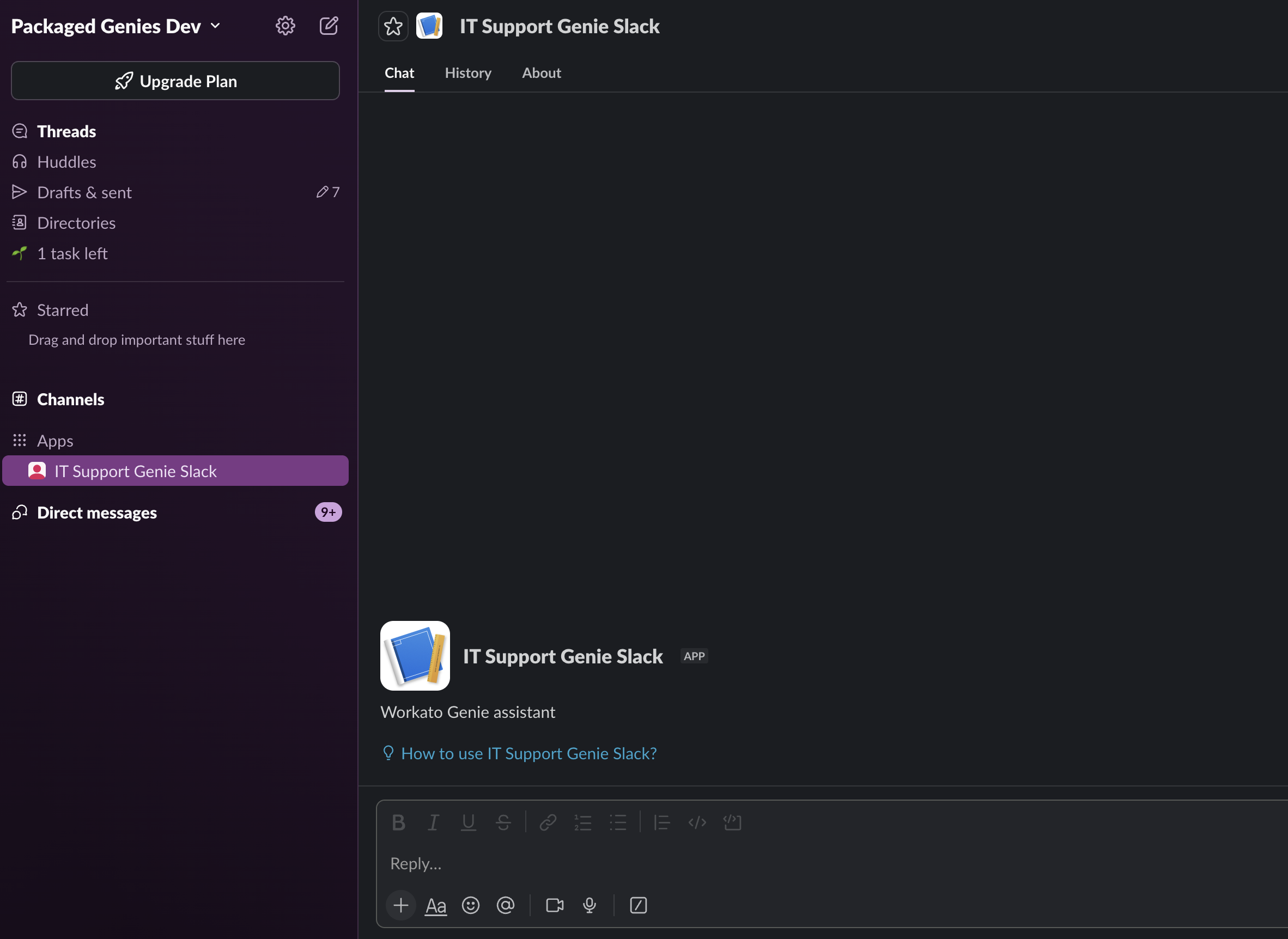 IT Support Genie in Slack
FOR ADMINS
Open the genie's End user access tab to give users access. Confirm that the end-user groups you plan to grant access to are configured there, and that all users in those groups can reach the connected chat interface.
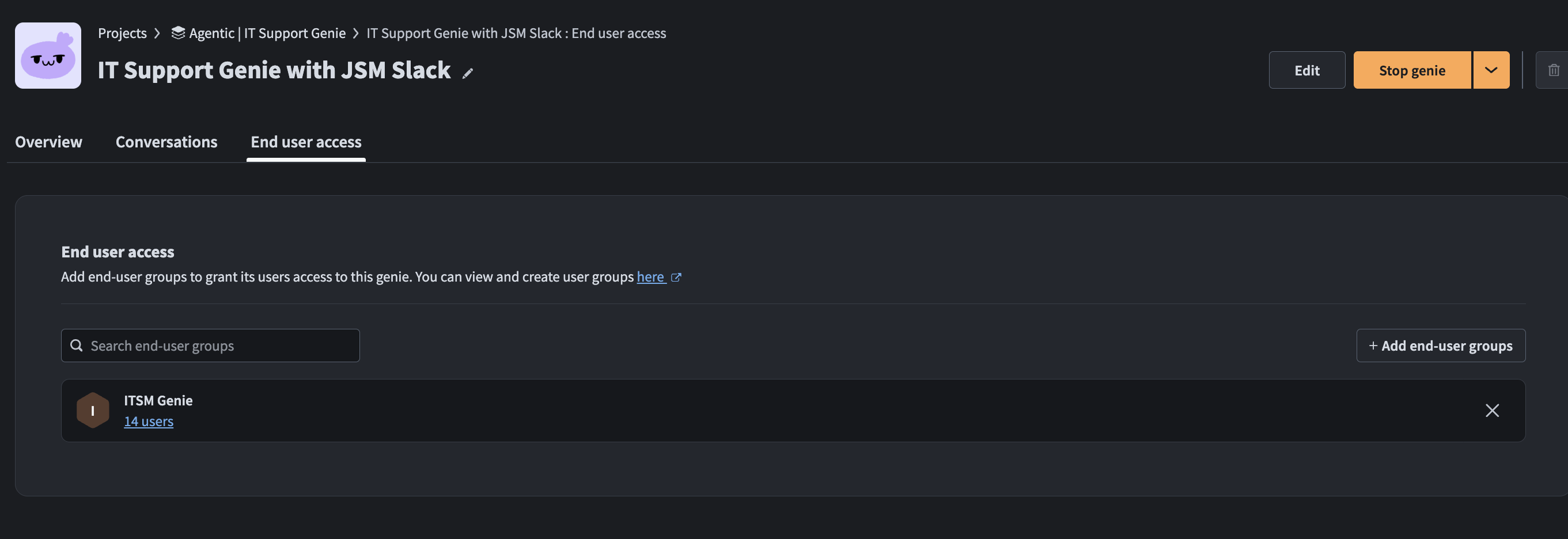 Grant end-user groups access on the End user access tab
What you can do
Available actions depend on your role. You can ask questions, request access for yourself, and manage your own account. If you're an IT administrator or helpdesk member, you can also act on behalf of other users.
Knowledge questions
Ask IT Support Genie common IT questions. It answers them using the knowledge base and creates a ticket in your connected ticketing application when it can't find an answer.
- "How do I connect to the VPN?"
- "What's the policy for requesting a new laptop?"
Access requests
Request access to an application, and IT Support Genie starts the configured approval workflow and provisions access once the approvals complete.
- "I need access to Salesforce."
- "Request the standard license for Zoom."
Password and account management
Resolve identity issues through your SSO provider. You can act on your own account, and administrators can act on behalf of any user.
- "Reset my password."
- "Unlock my account."
- "Reset the MFA factors for [user]." (acting on another user requires admin)
Group management
Search for and list groups, or manage group membership through Google Workspace. Creating groups and changing membership is restricted to administrators.
- "List the groups I belong to."
- "Add [user] to the [group] group." (administrators only)
Approving requests
When a request requires approval, IT Support Genie notifies the configured approver. Approval advances the request to the next enabled level or provisions access after the final approval. Rejection stops the workflow and notifies the requester. Refer to How approvals work for details.
Last updated: