Set up IT Support Genie
Use this guide to install and configure IT Support Genie in your workspace.
Prerequisites
Complete the following before beginning setup:
- Confirm that the Genie Installer is already installed in your workspace. Contact your Workato account team to complete this one-time setup if it isn’t already installed.
- Connect either Okta or Microsoft Entra ID as your identity provider. Don't use both at once. Entra ID requires a P1 or P2 license. Provision your app licenses through this same SSO provider.
- If you plan to enable manager approval, ensure each user's manager can be looked up in Okta, Microsoft Entra ID, or Workday. Configure manager lookups in only one of these systems.
- Identify the group ID (Okta) or application role ID (Entra ID) for each license in each application before running provisioning workflows.
- Collect admin email addresses for each application and license name. Separate multiple addresses with commas.
- Choose a notification channel for user-facing messages: Slack, Microsoft Teams, or Workato GO.
Install IT Support Genie
Complete the following steps to install the required packages for IT Support Genie:
Go to Agentic | Installer > Templates > FUNC | [SAMPLE] 3. Install Genie Module.
Click Edit recipe, then do the following:
Refresh the recipe to load the latest available packages.
In Step 2, select the latest version of Agentic | IT Support Genie from the Genie Module drop-down menu. Set Get Dependencies to false.
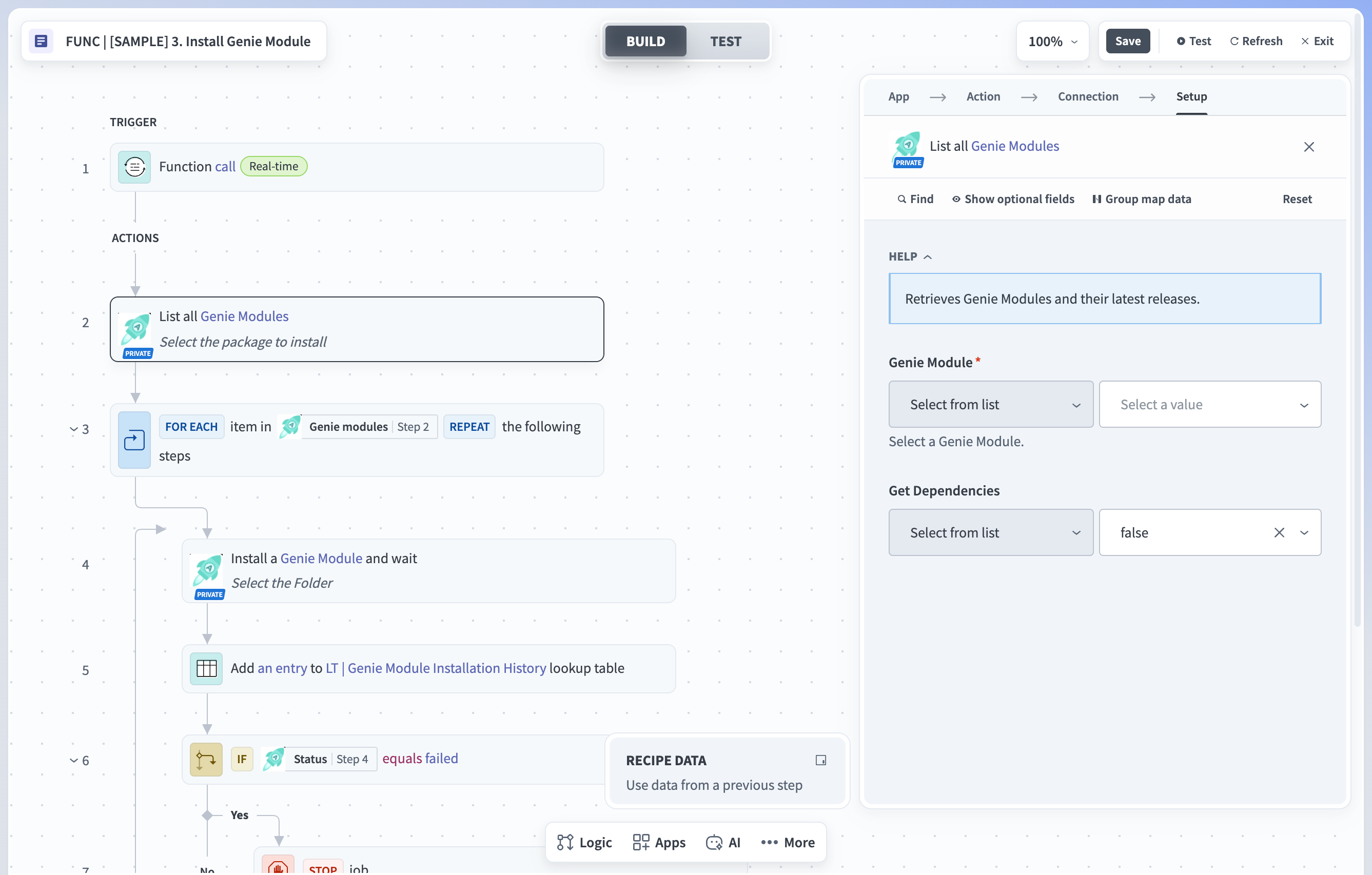 Select the latest version of the genie module
MODULE NOT VISIBLE
If Agentic | IT Support Genie doesn't appear in the drop-down menu, your workspace may not have been granted access. Contact your Workato account team and repeat this step once access is confirmed.
In Step 4, set the Folder field based on your install type:
- Fresh install: Leave the field empty. If you see an x icon next to the Folder field, click it to clear the cached value before running the job.
- Upgrade: Select the existing Agentic | IT Support Genie project. This preserves your existing configuration.
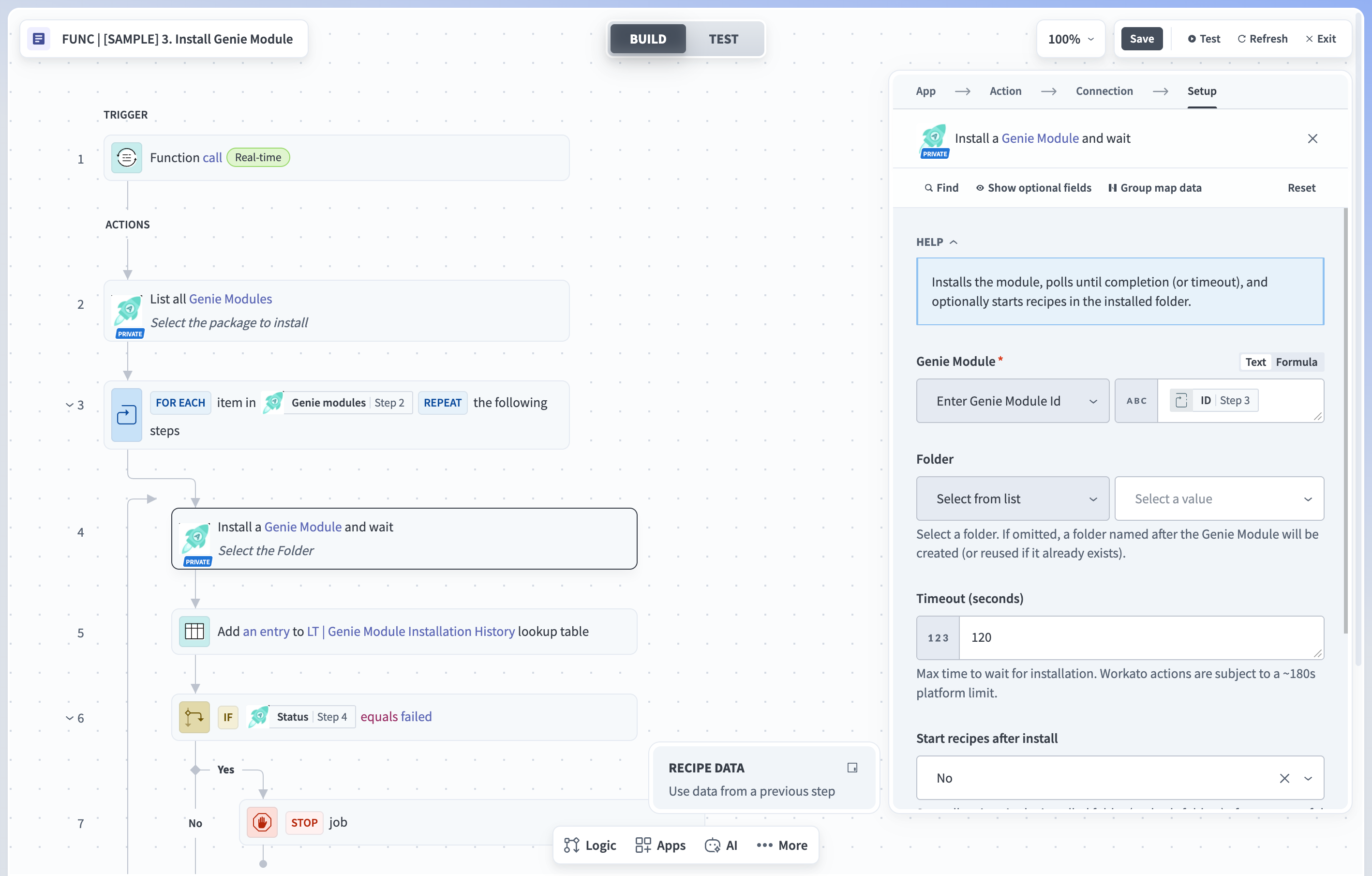 Select the folder to install IT Support Genie
Click Test recipe and wait for it to complete. Confirm that the output of Step 4 in the recipe shows a success status.
Confirm that Agentic | IT Support Genie now appears in your workspace's projects list.
Configure connections
Complete the following steps to configure connections:
Review the requirements for each app you plan to use and complete any required configuration before you create the connection.
Okta
Grant the following OAuth scopes to the Okta connection:
okta.groups.readokta.groups.manageokta.users.readokta.apps.readokta.apps.manageokta.logs.read
Create the API token or OAuth client with a Super Administrator or Organization Administrator account, which has the directory, group, application, and log permissions these scopes require. Refer to the Okta connector documentation for connection details.
Microsoft Entra ID
- Requires a P1 or P2 license.
- Enable Reports and Audit logs permissions in the Azure Portal. Refer to the Microsoft data retention reference for details on audit log retention.
- Grant the following application permissions to the API client used for the connection:
AuditLog.Read.AllDirectory.Read.AllIdentityRiskyUser.Read.AllIdentityRiskyUser.ReadWrite.AllRoleManagement.Read.AllUser.ReadWrite.AllUserAuthenticationMethod.ReadWrite.All
Refer to the Microsoft Entra ID connector documentation for connection details.
Jira Service Desk
Refer to the Jira Service Desk connector documentation for connection details.
Google Workspace
Refer to the Google Workspace connector documentation for connection details.
Confluence
Refer to the Confluence connector documentation for connection details.
Google Drive
Refer to the Google Drive connector documentation for connection details.
ServiceNow
Refer to the ServiceNow connector documentation for connection details.
Go to Agentic | IT Support Genie > Config > Connections and configure a connection for each app you plan to use.
Configure metadata
Complete the following steps to configure the data tables IT Support Genie uses to route approvals and schedule knowledge ingestion:
Go to Agentic | IT Support Genie > Config > Metadata > Application Approvers. This table defines each application and its provisioning and approval configuration.
 The Application Approvers table
| Column | Description |
|---|---|
| Data Source | Enter the SSO provider that provisions the application, such as Okta or Entra ID. Leave this field blank if the application isn't provisioned through an identity provider. |
| Application | Enter the name of the application. |
| License Name | Enter the role or access level to assign within the application.
|
| group_id / application_role_id | Enter the unique identifier for the role or group in your identity provider.
|
| Processing Type | Enter A for automatic provisioning or M for manual. |
| Manager Approval Enabled | Set to TRUE if manager approval is required for this application license. |
| 2nd Approval Enabled | Set to TRUE if a second-tier approval is required. |
| 2nd Approver User/Channel | Enter the second approver's email address or notification channel. Separate multiple emails with commas. |
| Admin Approval Enabled | Set to TRUE if admin approval is required. |
| Admin User / Channel | Enter the admin's email address or notification channel. Separate multiple emails with commas. |
Go to Agentic | IT Support Genie > Config > Metadata > Data Ingestion | Scheduler. This table defines the schedule and data source for knowledge base ingestion.
| Column | Description |
|---|---|
| Data Source | Enter the name of the application that is the data source, such as Confluence. |
| Type | Enter delta to ingest only changes since the last run, or full to load all specified data. |
| Frequency | Enter how often ingestion runs, such as daily, weekly, monthly, or initial. |
| Day/Date/Time | Enter when the scheduler runs ingestion for the data source. For example, Mon/09:00, 15/09:00, 09:00, or NA. |
| Filter/Path | Enter the scope when a data source has pages, categories, folders, domains, or spaces. For Confluence, enter the space name. |
| Is Active? | Set to TRUE to activate ingestion for this data source. |
| Exclusions | Enter a JSON object defining file types to exclude. For example, { "file_extensions": ["mp4","mov"] }. |
| deleteFilesOlderThan_inDays | Enter the number of days after which files are deleted. Not implemented for all data sources. |
Configure project and environment properties
Complete the following steps to configure project and environment properties:
Go to Agentic | IT Support Genie > Settings > Project properties and edit the following:
| Property | Description |
|---|---|
| Approval.ReminderFrequency.Days | Set the number of days between reminder notifications sent to approvers. |
| Approval.TimedOutDefaultAction | Set the action taken when all configured approvals time out, or when an application has no row in Application Approvers. Accepts APPROVED or REJECTED. The recommended value is REJECTED, because APPROVED grants access to unconfigured applications without any approval. |
| Approval.TimeOut.Days | Set the number of days before an approval request times out. |
| Enable Logging | Set to true to run the audit log recipe after every skill execution, capturing the action, the user, and the outcome. |
| Genie.Admin | Enter the email addresses of the genie admins for reporting. Separate multiple addresses with commas. |
| ProblemMgmt.Threshold | Set the number of similar incidents that triggers escalation to a problem. |
| ProblemMgmt.WindowMinutes | Set how many minutes back the scheduler looks to detect problems. |
| Ticket.Resolution.Status | Set the ticket resolution status for incidents or problems. Accepts comma-separated values. For example, Resolved, Closed, or Done. |
| TicketsAge.Months | Set the number of months to look back for tickets that were closed. |
Go to Agentic | IT Support Genie > Settings > Project access and add the collaborators who need access to this project. This should include only the admins and developers responsible for custom extension work. End users don't need project access.
Go to Tools > Environment properties and configure the following properties for your ticketing app:
| Property | Description |
|---|---|
| JiraServiceDesk.Base.URL | Set the base URL of your Jira instance. IT Support Genie uses this as the root endpoint for API calls. For example, https://acme.atlassian.net. |
| JiraServiceDesk.projects | Set the Jira project key that scopes the integration to a specific project. For example, ISG. |
| ServiceNow.base.url | Set the base URL of your ServiceNow instance. IT Support Genie uses this as the root endpoint for API calls. For example, https://example.service-now.com. |
| ServiceNow.tickets.real-time.data-ingestion.enabled | Set the boolean value to toggle real-time data ingestion on and off. |
Configure IT Support Genie
Complete the following steps to configure IT Support Genie:
Go to Agentic | IT Support Genie, select either IT Support Genie with JSM (Jira Service Management) or IT Support Genie with ServiceNow, and click Edit. Select your AI model. Go to Triggers > + Add to select your chat interface. Don't change the genie description.
Under the Enterprise skills section, start the recipe for each application skill you want IT Support Genie to use.
Configure the genie action in each of the following recipes to use either IT Support Genie with JSM or IT Support Genie with ServiceNow, then start the recipes:
| Recipe | Location |
|---|---|
| FUNC | User notification & Genie Trigger | Extensions > App Events |
| Provision Application Access | Core > Access Provisioning |
Confirm that the following required skills are started. For any that aren't, click the skill name, then click Start recipe:
| Skill | Location |
|---|---|
| Get Users' Basic Details | Core |
| Save Details in Audit Log | Core |
| App Access Request | Core > Access Provisioning |
| Get Available Licenses | Core > Access Provisioning |
| REC | Provision Application Access | Core > Access Provisioning |
| REC | Instantiate Access Provisioning Approval | Core > Approval Workflow |
| REC | Send Reminders, Check Timed Out Approvals | Core > Approval Workflow |
| FUNC | Notify Approval Timeouts | Core > Approval Workflow > Functions |
| FUNC | Send Approval Reminders | Core > Approval Workflow > Functions |
| Request Approval | Core > Approval Workflow |
| REC | Process Approval Decision | Core > Approval Workflow |
| Log User Conversation | Core |
| Update Request Category | Core |
| Check Application Availability | Core > Access Provisioning |
Go to Agentic | IT Support Genie > Core, click the All assets filter, select Recipes, and start all the relevant recipes based on the ticketing application you're using in the folder. For example, if you're using Jira Service Desk, start only the recipes that are in the folder Agentic | IT Support Genie > Core > Ticketing > Jira Service Desk.
Click Start genie.
SETUP COMPLETE
IT Support Genie is now configured. Use Activate and test to confirm it's working, or Extend IT Support Genie to add knowledge base content and custom skills.
Extend IT Support Genie
You can extend IT Support Genie to ingest knowledge, configure manager lookups, and build custom skills. All steps in this section are optional, except where noted.
The Core folder holds the genie's foundational logic and is read-only. You extend the genie through the Extensions and Custom Extensions folders without changing its default behavior.
Knowledge ingestion
Complete the following steps to make IT policies, runbooks, documentation, or tickets and request history available to IT Support Genie:
Go to Agentic | IT Support Genie > Extensions > Knowledge Ingestion, select the folder for your source app, and start the required recipes in that folder. IT Support Genie supports Confluence, Google Drive, Jira Service Desk, and ServiceNow as ingestion sources.
Add the corresponding knowledge base to the genie.
Add an entry to the Config > Metadata > Data Ingestion | Scheduler. Refer to Configure metadata.
Go to Agentic | IT Support Genie > Extensions > Functions and ensure the recipe FUNC | Data Ingestion Jobs (Data Table) is started.
After the recipes are started, a background scheduler syncs content from the source system into the genie's knowledge base at regular intervals, using full and delta loads. This doesn't create or modify records in the source system.
Manager lookup
If manager approval is enabled, configure the Get Manager Details function so IT Support Genie can route approvals to managers. This step is required when manager approval is enabled.
Go to Agentic | IT Support Genie > Extensions > Functions and select FUNC | Get Manager Details.
Connect the function to your organization's provisioning app.
Unskip the steps for your provisioning app. All other steps are skipped by default.
| Provisioning app | Action |
|---|---|
| Okta | Unskip steps 3–9 |
| Microsoft Entra ID | Unskip steps 10–13 |
| Workday | Unskip steps 14–19 |
CUSTOM PROVISIONING APPS
If your provisioning app isn't listed above, this function may need additional configuration. Clone this function into Custom Extensions to build your own version. Contact your Workato admin or refer to the connector documentation for your app.
Custom extensions
The Custom Extensions folder is where you build new skills or modify existing Extension skills. Clone assets from the Extensions folder into Custom Extensions before making changes.
Complete the following steps to build a custom skill:
Go to Agentic | IT Support Genie > Custom Extensions > [App Name]. Templates for new apps are already configured.
Rename the folder and skill to match the app name.
Add the skill to IT Support Genie.
Activate and test
Complete the following steps to confirm your setup.
Add the genie to your Microsoft Teams or Slack workspace, then open the chat interface.
Start a new conversation with the genie.
Log in using Workato Identity.
Enter Who are you? in the chat. IT Support Genie greets you by name, confirms its name, and describes its role.
Last updated: